

W wersji 2.1.0 nawigacja w aplikacji została przebudowana. Wcześniej była to lista dla pracownika: własny harmonogram, własne zapytania. Teraz aplikacja powtarza wersję przeglądarkową niemal w całości — harmonogramy, raporty, pracownicy, ustawienia firmy — i składa się z dwóch części: dolnego paska do codziennych spraw oraz menu Przestrzeń robocza (Workspace) na całą resztę.
Aplikacja jest tu opisana oczami właściciela firmy — z pełnym zestawem sekcji. U pozostałych zestaw jest inny:
| Kto | Co widzi |
|---|---|
| Właściciel | Wszystkie sekcje, w tym finansowe: saldo, dane do faktury i metody płatności |
| Administrator | Te same sekcje z wyjątkiem finansowych — są one dostępne tylko dla właściciela |
| Kierownik | Te same sekcje, ale dane wyłącznie ze swojego projektu: jego harmonogramy, jego pracownicy, jego zapytania |
| Pracownik | Krótkie menu: własna dostępność, wynagrodzenie, pliki i działalność. Harmonogramów, raportów, mapy, projektów, pracowników i struktury firmy nie ma |
Co widzi pracownik — w artykule „Aplikacja mobilna dla pracownika”.
Instrukcja krok po kroku
Dolny pasek
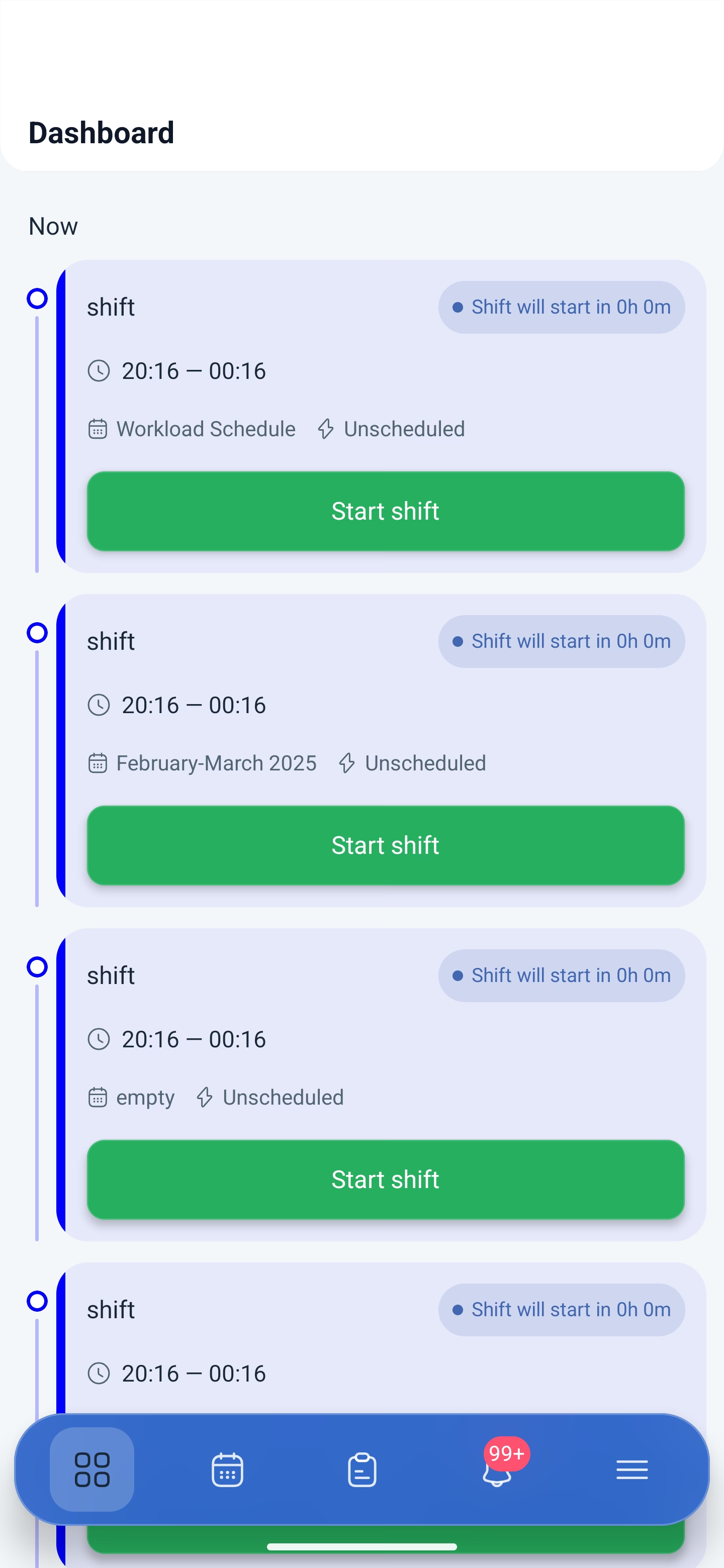
Pasek jest widoczny na wszystkich głównych ekranach i nie znika przy przewijaniu. Pięć ikon od lewej do prawej:
| Ikona | Ekran | Co tam jest |
|---|---|---|
| Kafelek | Panel sterowania (Dashboard) | Bieżąca zmiana z przyciskiem uruchomienia, najbliższe zmiany według dni |
| Kalendarz | Harmonogram (Schedule) | Zmiany w danym miesiącu, dni wolne i nieobecności, filtry |
| Tablet | Zapytania (Requests) | Wnioski pracowników: nowe i archiwum |
| Dzwonek | Powiadomienia (Notifications) | Lista zdarzeń. Czerwony licznik pokazuje, ile jest nieprzeczytanych |
| Trzy kreski | Przestrzeń robocza (Workspace) | Menu ze wszystkimi pozostałymi sekcjami |
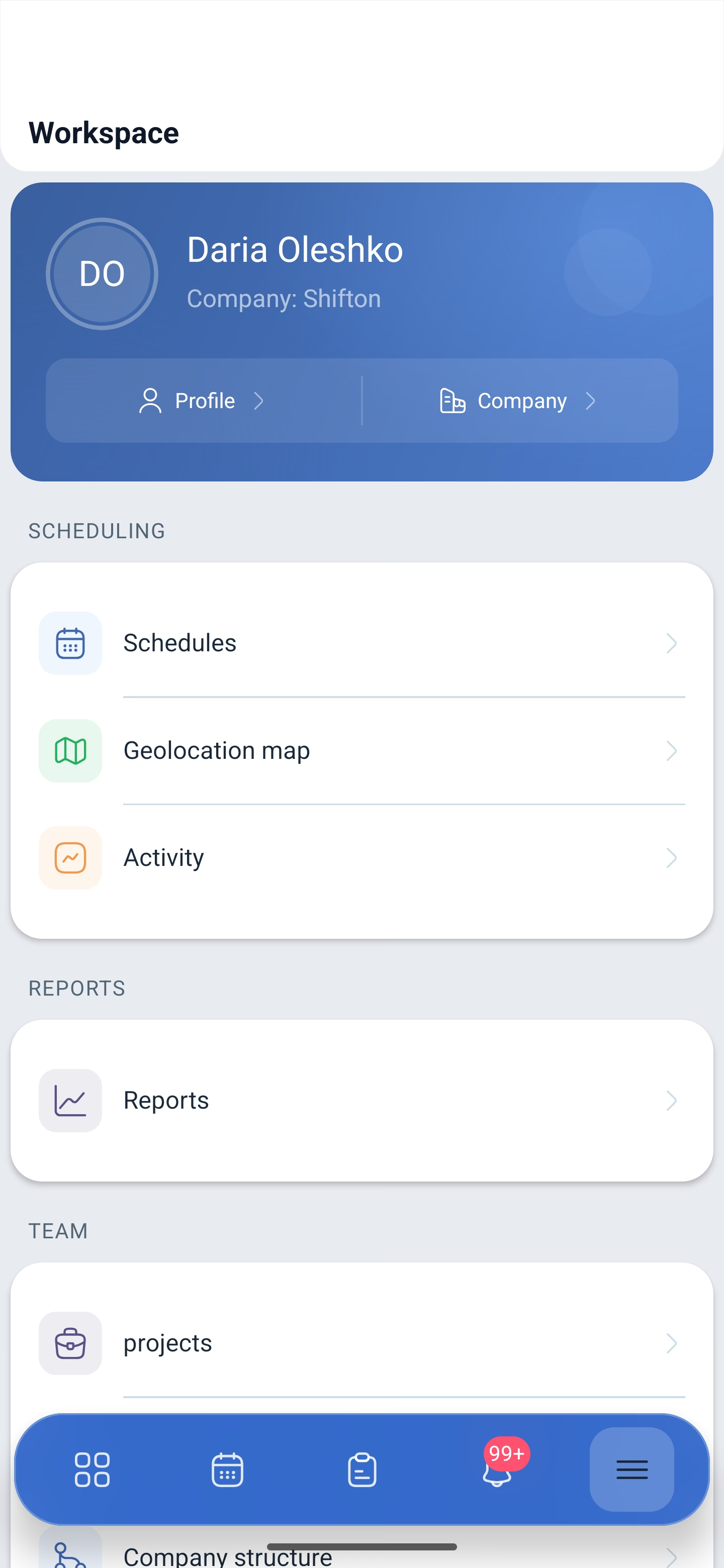
Menu „Przestrzeń robocza”
U góry znajduje się karta z Twoim imieniem i nazwą firmy, a w niej dwa przyciski: Profil (Profile) i Firma (Company). Niżej — sekcje pogrupowane tematycznie.
| Grupa | Pozycja | Co otwiera |
|---|---|---|
| Planowanie (SCHEDULING) | Harmonogramy (Schedules) | Lista harmonogramów, tworzenie nowego, szablony zmian |
| Karta geolokalizacji (Geolocation map) | Gdzie znajdują się pracownicy będący na zmianie | |
| Działalność (Activity) | Kalendarz działań i ich szablony | |
| Raporty (REPORTS) | Raporty (Reports) | Jedenaście raportów firmy |
| Zespół (TEAM) | Projektowanie (projects) | Lista projektów, wyszukiwanie i tworzenie |
| Pracownicy firmy (Company employees) | Lista pracowników i ich uprawnienia | |
| Struktura firmy (Company structure) | Umiejętności, stanowiska i lokalizacje | |
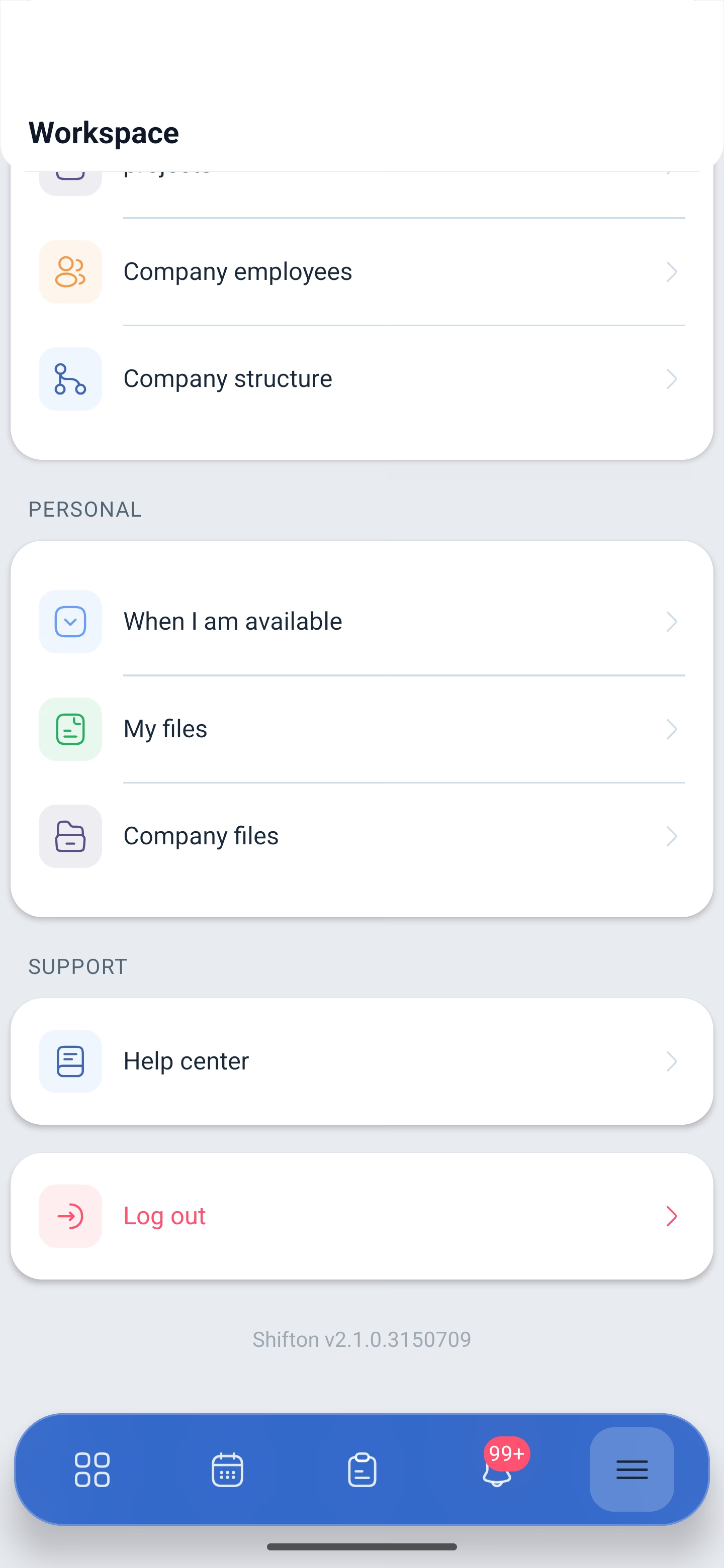
| Osobiste (PERSONAL) | Kiedy będę dostępny (When I am available) | Własna dostępność, a u kierownika także cudza |
| Moje pliki (My files) | Twoje dokumenty | |
| Akta firmowe (Company files) | Wspólne dokumenty firmy | |
| Wsparcie (SUPPORT) | Centrum pomocy (Help center) | Artykuły, filmy i kontakt ze wsparciem |
Na dole menu znajduje się przycisk Wyloguj się (Log out) oraz wersja aplikacji. Wersja przyda się, gdy trzeba będzie podać ją wsparciu.
Co jest w środku „Firmy”
Przycisk Firma otwiera ustawienia, które wcześniej były dostępne tylko w przeglądarce:
| Grupa | Pozycja |
|---|---|
| Ogólne | Profil firmy (Company profile), Moduły (Modules), System rekomendacji (Referral system), Dla deweloperów (For developers) |
| System | Dziennik aktywności (Activity log), Saldo (Balance), Adres rozliczeniowy (Billing address), Metody płatności (Payment methods), Zmień firmy (Change company) |
Sekcje finansowe — saldo, adres rozliczeniowy i metody płatności — są dostępne tylko dla właściciela firmy.
Możliwe problemy i rozwiązania
| Problem | Przyczyna | Rozwiązanie |
|---|---|---|
| W menu nie ma harmonogramów, raportów i pracowników | Zalogowałeś się jako pracownik | Te sekcje widzą kierownik, administrator i właściciel |
| Nie mogę znaleźć ustawień firmy | Nie ma ich na liście sekcji, są w karcie u góry | Menu → przycisk Firma w karcie z nazwą firmy |
| Dolny pasek zasłania ostatnią pozycję listy | Pasek jest umieszczony nad treścią | Przewiń listę nieco wyżej — pozycja wysunie się spod paska |
| Nie widać, ile powiadomień jest nieprzeczytanych | Licznik pokazuje 99+, jeśli jest ich więcej niż dziewięćdziesiąt dziewięć | Otwórz listę i przejrzyj ją |
| Aplikacja wygląda inaczej niż w artykule | Zainstalowana jest wersja starsza niż 2.1.0 | Zaktualizuj aplikację — nawigację przebudowano właśnie w niej |
Najczęściej zadawane pytania (FAQ)
Pytanie: Gdzie podziało się poprzednie menu? Odpowiedź: Zastąpiła je Przestrzeń robocza. Wcześniejsze sekcje nigdzie nie zniknęły, zostały rozłożone na grupy, a obok pojawiły się te, których wcześniej w aplikacji nie było.
Pytanie: Gdzie sprawdzić wersję aplikacji? Odpowiedź: Na samym dole menu, pod przyciskiem Wyloguj się.
Pytanie: Dlaczego mam w menu mniej pozycji? Odpowiedź: Skład zależy od uprawnień. Pracownik widzi swój harmonogram, wnioski, dostępność i pliki, ale nie widzi zarządzania zespołem ani ustawień firmy.
Pytanie: Czy można przełączyć się na inną firmę z telefonu? Odpowiedź: Tak: Firma → Zmień firmy.
Pytanie: Czym różni się „Harmonogram” na dolnym pasku od „Harmonogramów” w menu? Odpowiedź: Na pasku jest kalendarz zmian, żeby zobaczyć, kto i kiedy pracuje. W menu jest lista harmonogramów firmy, w której się je tworzy i konfiguruje.
Pytanie: Co pokazuje czerwone kółko na dzwonku? Odpowiedź: Liczbę nieprzeczytanych powiadomień. Więcej niż dziewięćdziesiąt dziewięć oznacza się jako 99+.
Pytanie: Czy w aplikacji jest centrum pomocy? Odpowiedź: Tak, w grupie Wsparcie — stamtąd otwierają się artykuły, filmy i kontakt ze wsparciem.