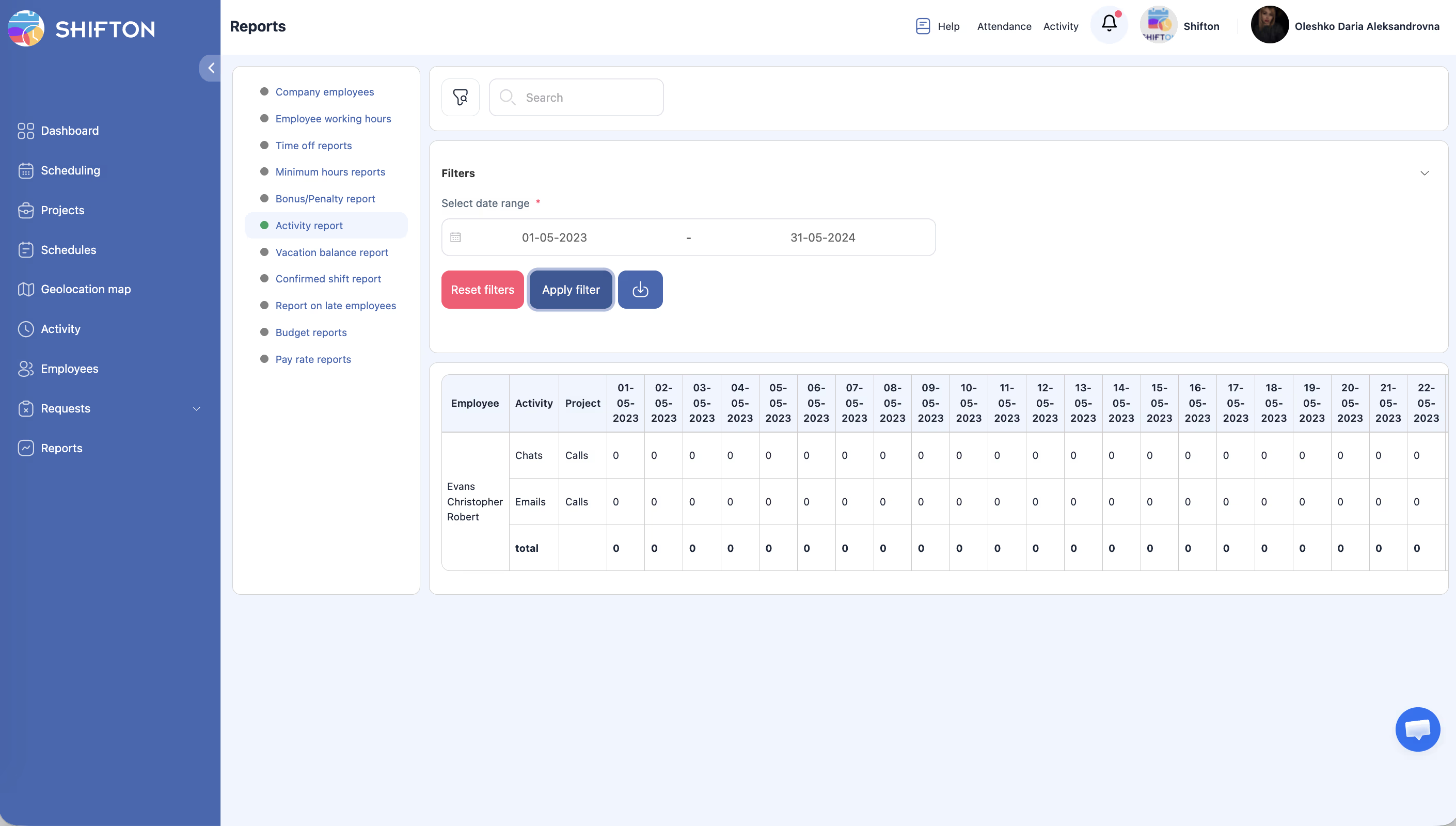
View a day-by-day breakdown of employee activity hours across projects and activity types.
What Is This?
The Activity Report provides a detailed grid showing how much time each employee spent on specific activities, broken down by day. Each row represents an employee-activity-project combination, with columns for individual dates and a total. This report helps managers understand how labor hours are distributed across different tasks and projects.
Prerequisites
#
Prerequisite
Details
1
Activity feature active
Activities must be configured and assigned to employees.
2
Completed activities
Activity data appears after employees have worked on assigned activities.
3
Manager, Admin, or Owner role
Full access requires elevated permissions.
Step-by-Step Instructions
Accessing the Report
Step
Action
Expected Result
1
Navigate to Reports from the left sidebar.
The Reports page opens.
2
Select Activity Report from the report list.
The report loads with filters and data table.
Applying Filters
Filter
Type
Description
Date range
Date picker
Select the period to analyze activity data.
Step
Action
Expected Result
1
Set the desired date range.
The date range is selected.
2
Click Apply Filter.
The table updates to show activity data for the selected period.
Reading the Report Table
Column
Description
Employee
The employee’s name.
Activity
The name or type of the activity.
Project
The project the activity belongs to.
Date columns
One column per day in the selected date range, showing hours worked on the activity.
Total
Sum of all hours for this employee-activity-project row across the date range.
Access Permissions
Role
View Report
Export Report
See All Employees
Employee
Own data only
No
No
Manager
All
Yes
Yes
Admin
All
Yes
Yes
Owner
All
Yes
Yes
FAQ
Q1: Can I filter by a specific activity type? The Activity Report currently supports date range filtering only. To focus on a specific activity, export the data and filter in a spreadsheet application.
Q2: What if an employee has multiple activities in one day? Each activity appears as a separate row. The employee will have multiple rows, one for each activity-project combination.
Q3: Do the hours include break time? Activity hours represent the time spent on the activity itself. Break time is tracked separately in the Employee Working Hours report.
Possible Issues and Solutions
Issue
Possible Cause
Solution
Report shows no data
No activities were completed in the selected date range.
Broaden the date range or verify that activities have been assigned and worked on.
Daily columns show 0 hours
Activities were assigned but not started or tracked.
Ensure employees are logging their activity hours through the Activity feature.
Too many columns make the table hard to read
A long date range creates many daily columns.
Use a shorter date range (e.g., one week) or export and analyze in a spreadsheet.
An activity is missing from the report
The activity may not have been assigned to any employee, or no hours were logged.
Check the Activity Calendar to verify the activity was assigned and worked on.
Total does not match expectations
Partial hours or rounding may affect the displayed total.
Export the data and verify the daily values for accuracy.