Manage reusable activity configurations to speed up activity creation and ensure consistency across your organization.
What Is This?
Activity Templates are pre-configured activity definitions that you can reuse whenever you create new activities. Instead of filling in the same details every time — such as activity name, default duration, project, and notes — you save them as a template and apply it with a few clicks.
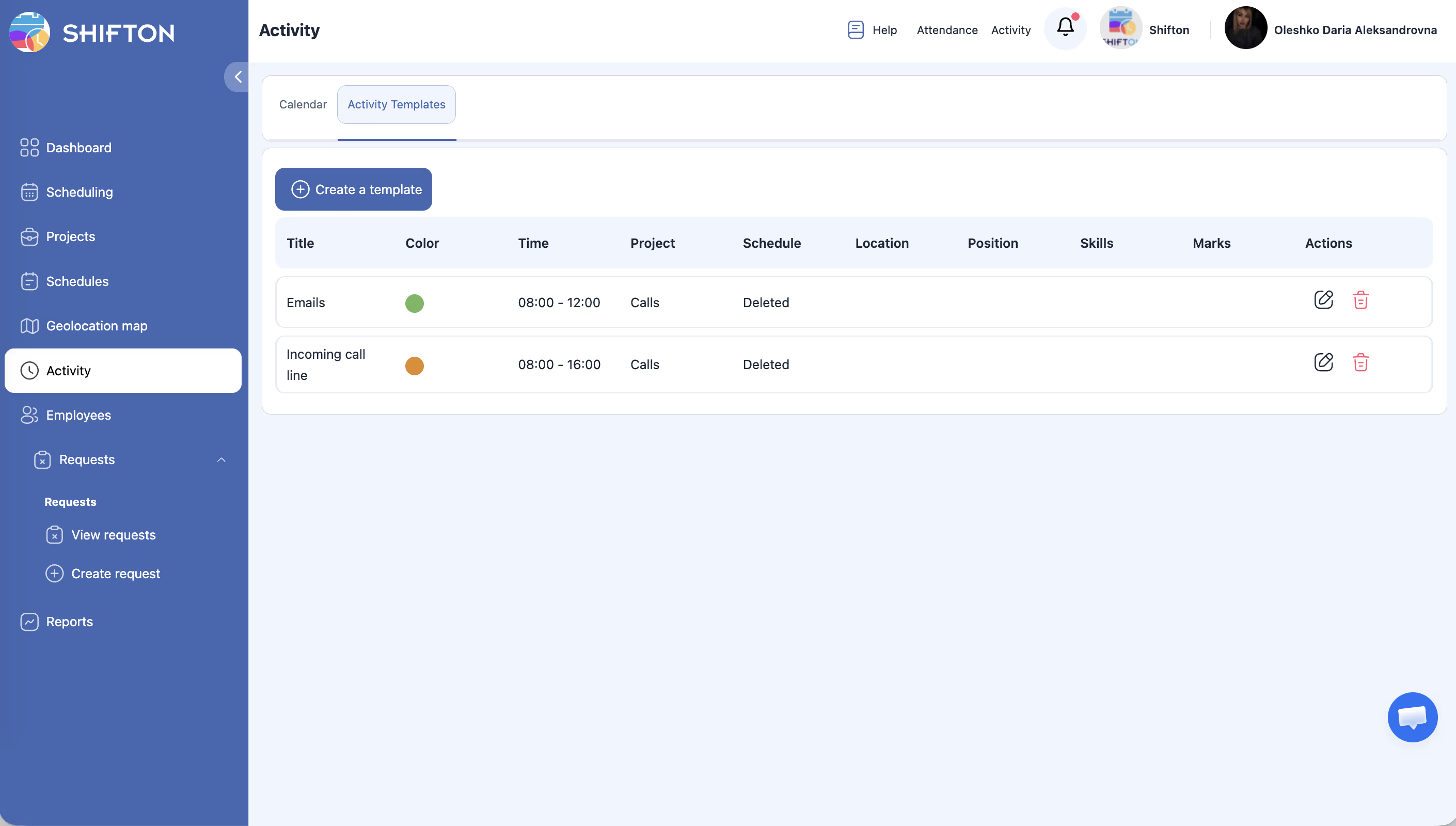
Templates are managed from the Activity Templates tab on the Activity page (alongside the Calendar tab). Once created, templates are available whenever you create a new activity, either individually or in bulk.
The Activity page loads with the Calendar tab active.
2
Click the Activity Templates tab (next to the Calendar tab).
The Activity Templates view opens, showing a list of existing templates (if any).
Creating a New Template
Step
Action
Expected Result
1
On the Activity Templates tab, click Create template (or the + button).
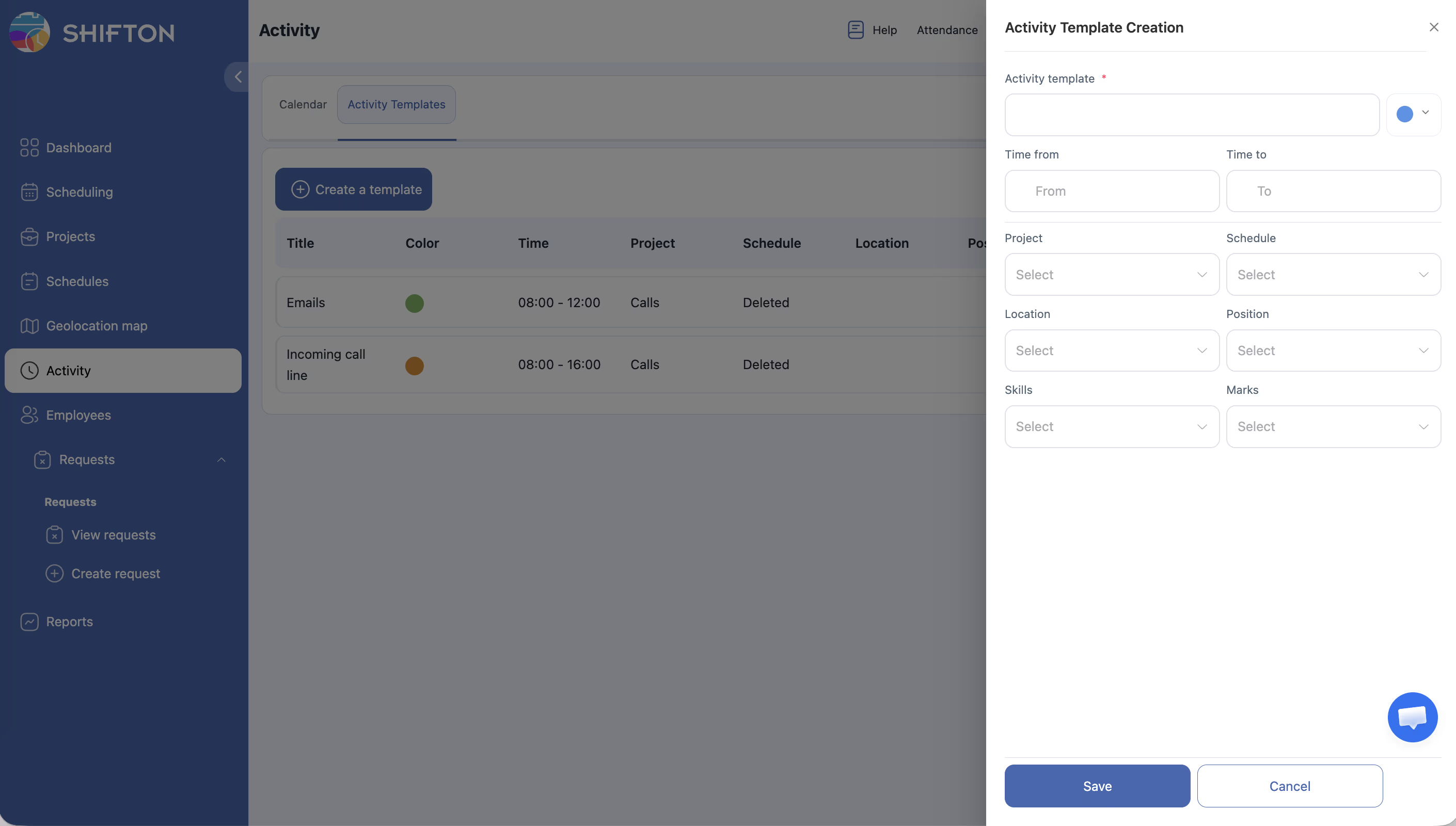
A template creation form opens.
2
Enter the template name — a descriptive label for this activity type.
The name field is filled in.
3
Set the default duration for activities created from this template.
Duration is configured.
4
Select the project this template is associated with (if applicable).
The project is linked.
5
Add any default notes or instructions that should appear on activities created from this template.
Notes are saved as part of the template.
6
Configure additional fields as needed (location, position requirements, etc.).
All relevant defaults are set.
7
Click Save.
The template is created and appears in the templates list.
Editing an Existing Template
Step
Action
Expected Result
1
On the Activity Templates tab, find the template you want to edit.
The template row is visible.
2
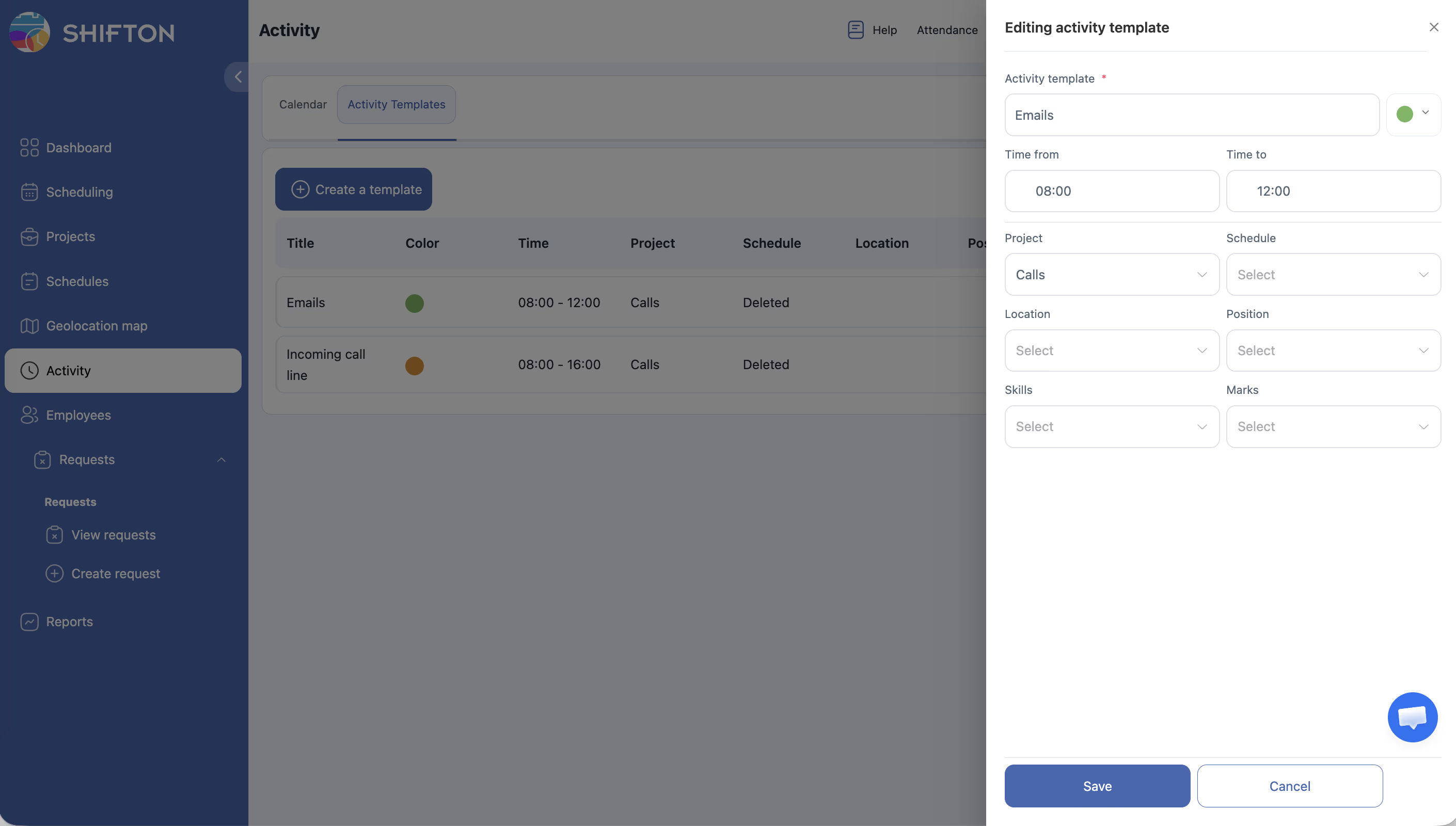
Click the Edit button (pencil icon) next to the template.
The template form opens in edit mode with current values pre-filled.
3
Make your changes to any fields.
Fields are updated.
4
Click Save.
The template is updated. Existing activities created from this template are not affected.
Deleting a Template
Step
Action
Expected Result
1
On the Activity Templates tab, find the template to delete.
The template row is visible.
2
Click the Delete button (trash icon) next to the template.
A confirmation dialog appears.
3
Confirm the deletion.
The template is removed from the list. Activities previously created from this template remain unchanged.
Using a Template When Creating an Activity
Step
Action
Expected Result
1
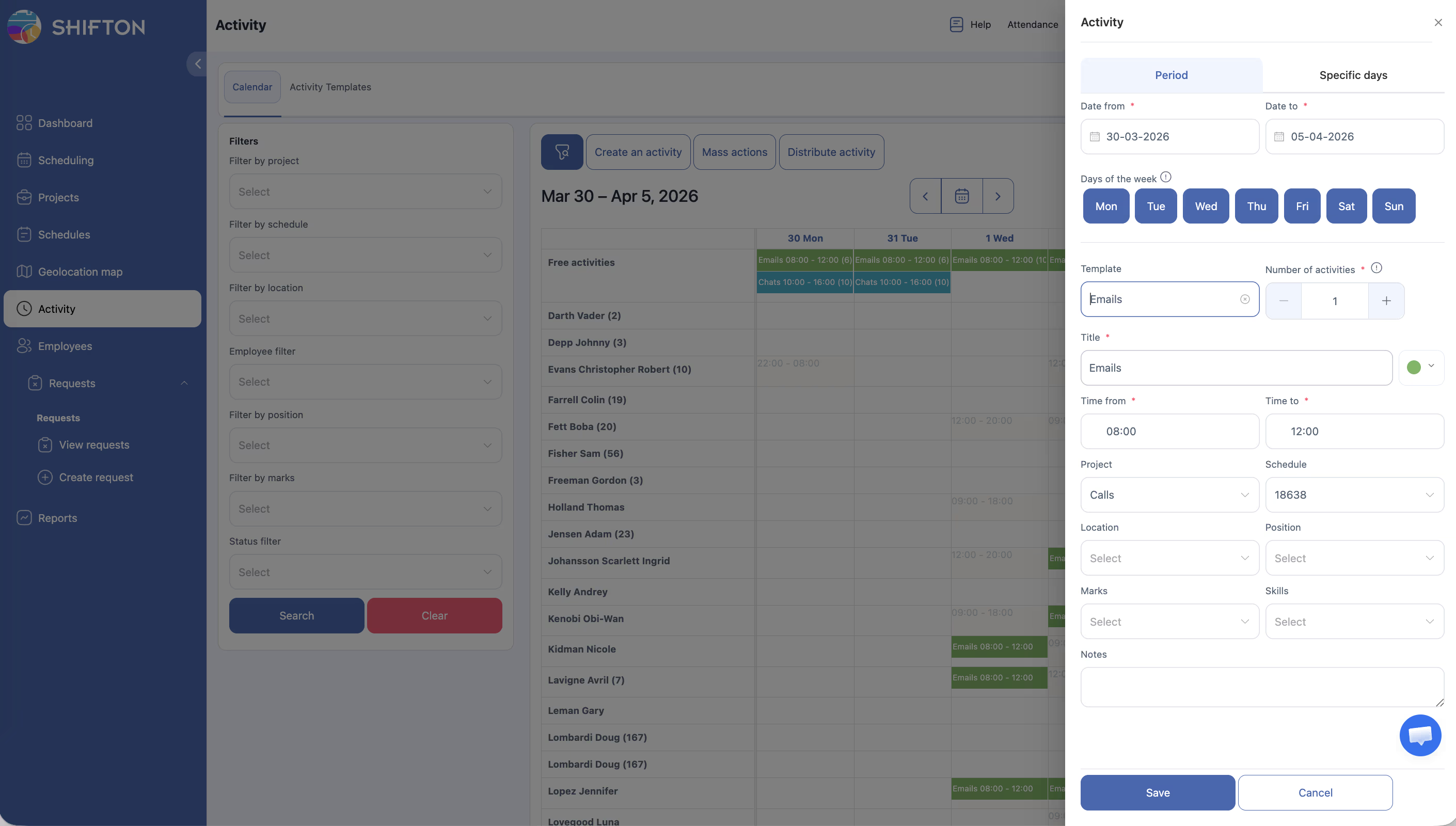
On the Activity Calendar, click Create an activity.
The activity creation form opens.
2
Select a template from the template dropdown or selection field.
The form auto-fills with the template’s default values (name, duration, project, notes).
3
Adjust any fields as needed (e.g., change the date, assign a specific employee).
Fields are customized for this instance.
4
Click Save.
A new activity is created based on the template.
Template Field Reference
Field
Required
Description
Template name
Yes
A descriptive label for the template.
Default duration
Yes
The pre-set duration for activities created from this template.
Project
No
The default project to associate with the activity.
Notes/Instructions
No
Default text that appears in the activity’s notes field.
Location
No
Default work location for the activity.
Position
No
The position required for the activity (used in distribution).
Access Permissions
Role
View Templates
Create Templates
Edit Templates
Delete Templates
Employee
No
No
No
No
Manager
Yes
Yes
Yes
Yes
Admin
Yes
Yes
Yes
Yes
Owner
Yes
Yes
Yes
Yes
FAQ
Q1: If I update a template, do existing activities change? No. Existing activities that were created from the template remain unchanged. Template updates only affect new activities created from that template going forward.
Q2: Can I have multiple templates for the same project? Yes. You can create as many templates as you need, even within the same project. For example, you might have separate templates for “Morning inspection,” “Afternoon delivery,” and “End-of-day report” all under one project.
Q3: Can I duplicate a template? If a duplicate option is available, you can copy an existing template and modify it. Otherwise, create a new template and manually enter similar values.
Q4: Are templates shared across all projects? Templates are available company-wide. If a template is associated with a specific project, it will default to that project when used, but you can change the project during activity creation.
Possible Issues and Solutions
Issue
Possible Cause
Solution
“Create template” button not visible
Insufficient permissions.
Only Manager, Admin, or Owner roles can create templates. Contact your Admin.
Template fields do not match what I need
The form may have additional fields hidden behind an “Advanced” toggle.
Look for an expand or advanced options area in the template form.
Deleted template still appears in template list
Browser cache issue.
Refresh the page. The template should no longer appear.
Template dropdown empty when creating an activity
No templates have been created yet.
Go to the Activity Templates tab and create at least one template first.