

Shifton’s Attendance module lets you track when employees actually clock in and out, compare those times against their planned schedules, and identify discrepancies such as late arrivals or early departures.
What Is This?
The Attendance module is a time-tracking layer that sits on top of your existing schedules. Once activated, employees can start and end shifts directly from the Shifton interface — either in a desktop browser or the mobile app. The system automatically records timestamps and compares them to the planned schedule, giving managers a clear picture of workforce punctuality and actual hours worked.
Key capabilities include:
Prerequisites
Before you can use the Attendance module, make sure the following conditions are met:
| # | Prerequisite | Details |
|---|---|---|
| 1 | Shifton account | You need an active Shifton company account. |
| 2 | Attendance module enabled | Activate the Attendance module in Settings > Modules. The module costs $0 base + $1 per employee per month. |
| 3 | Employees added | At least one employee must be created and assigned to a project. |
| 4 | Schedules published | Employees should have published schedules so the system can compare planned vs. actual times. |
| 5 | Permissions configured | Ensure the appropriate roles have permission to view or manage attendance data. |
Step-by-Step Instructions
Enabling the Attendance Module
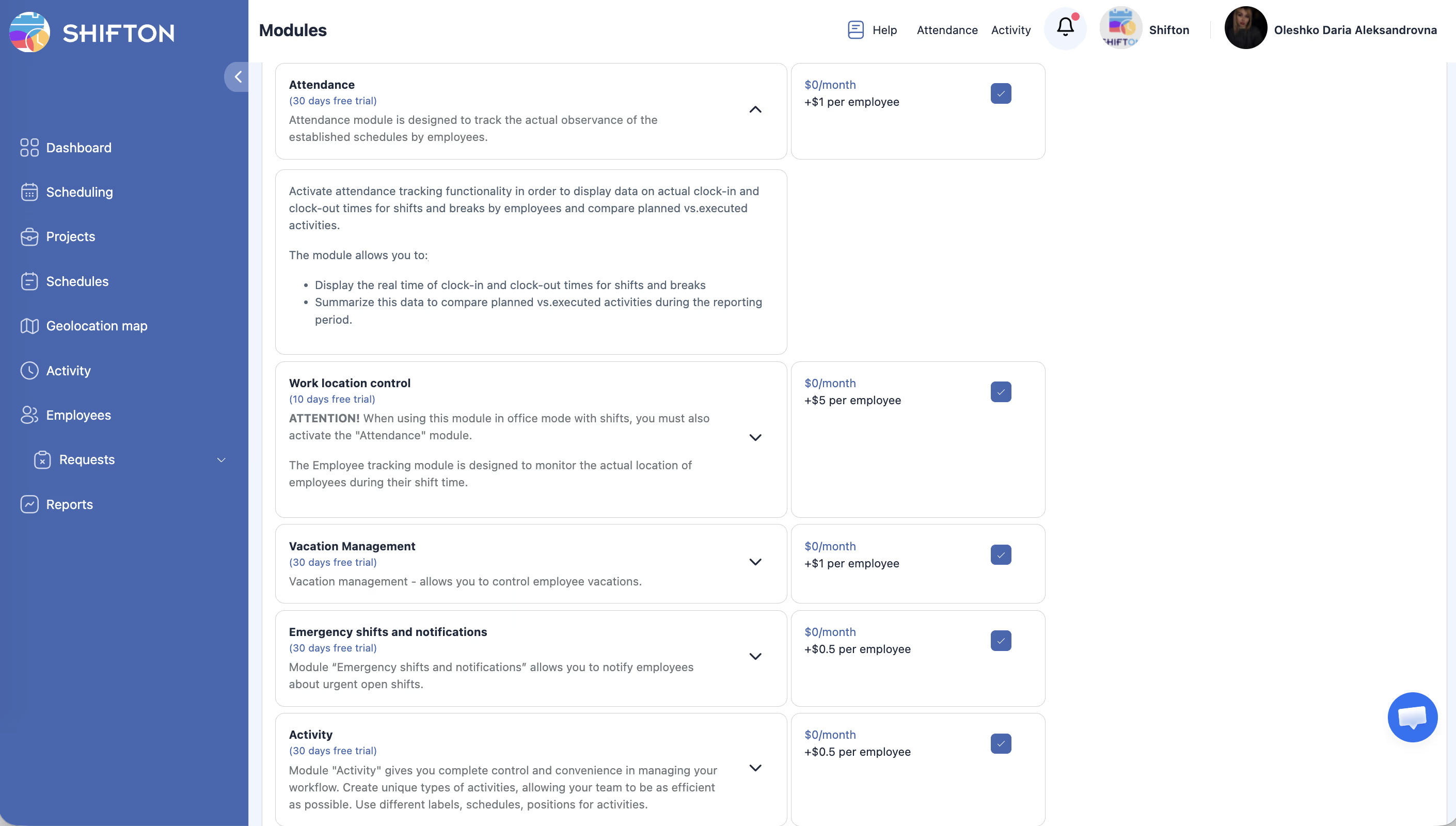
| Step | Action | Expected Result |
|---|---|---|
| 1 | Click your company name → Modules in the menu. | The Modules page opens showing all available add-ons. |
| 2 | Locate the Attendance module in the list. | You see the module card with pricing info ($1/employee/month). |
| 3 | Click the toggle or Enable button next to the module. | The module status changes to active. |
| 4 | Confirm the activation in the dialog that appears. | The Attendance module is now enabled for your company. |
Configuring Attendance Settings
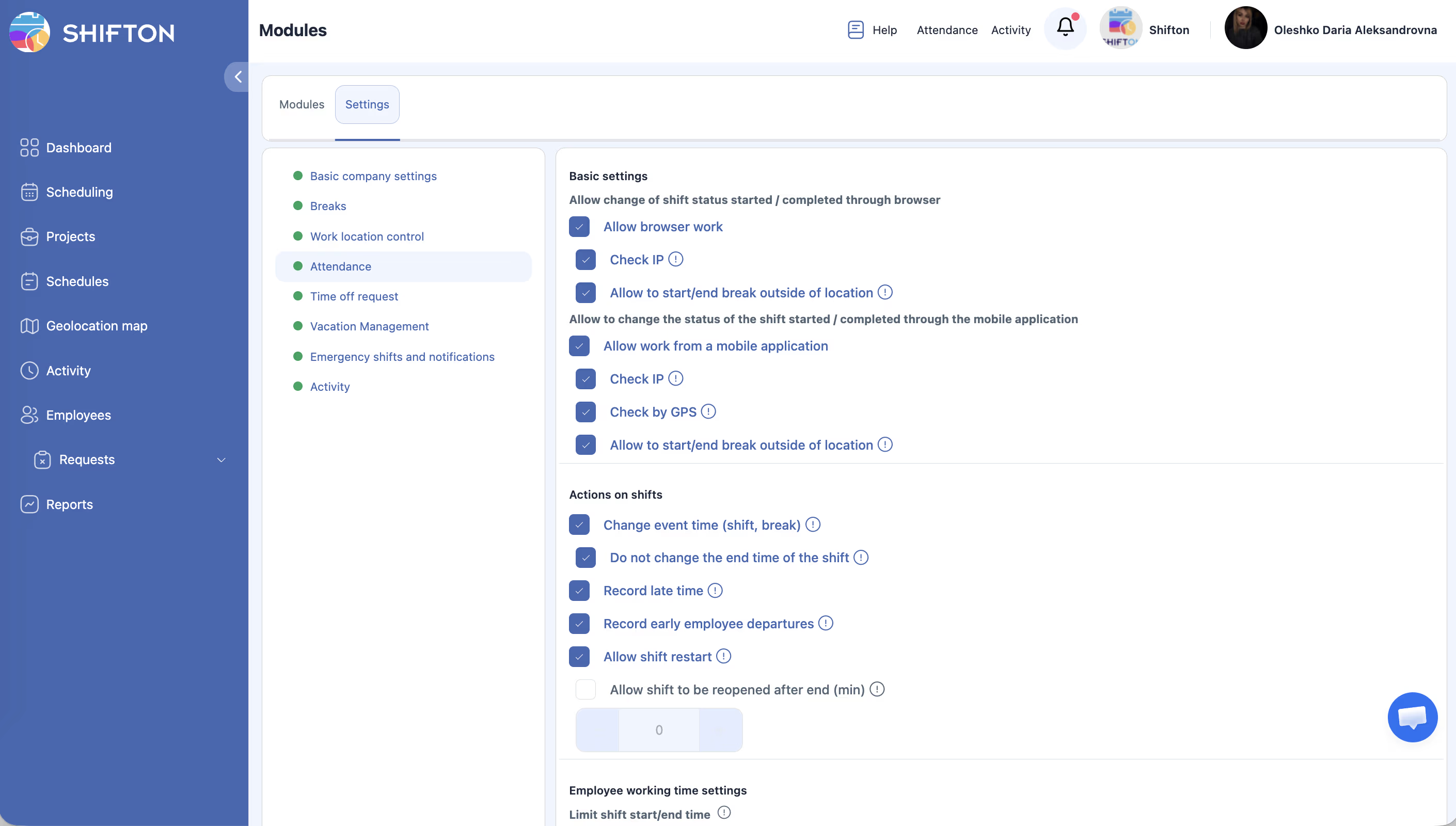
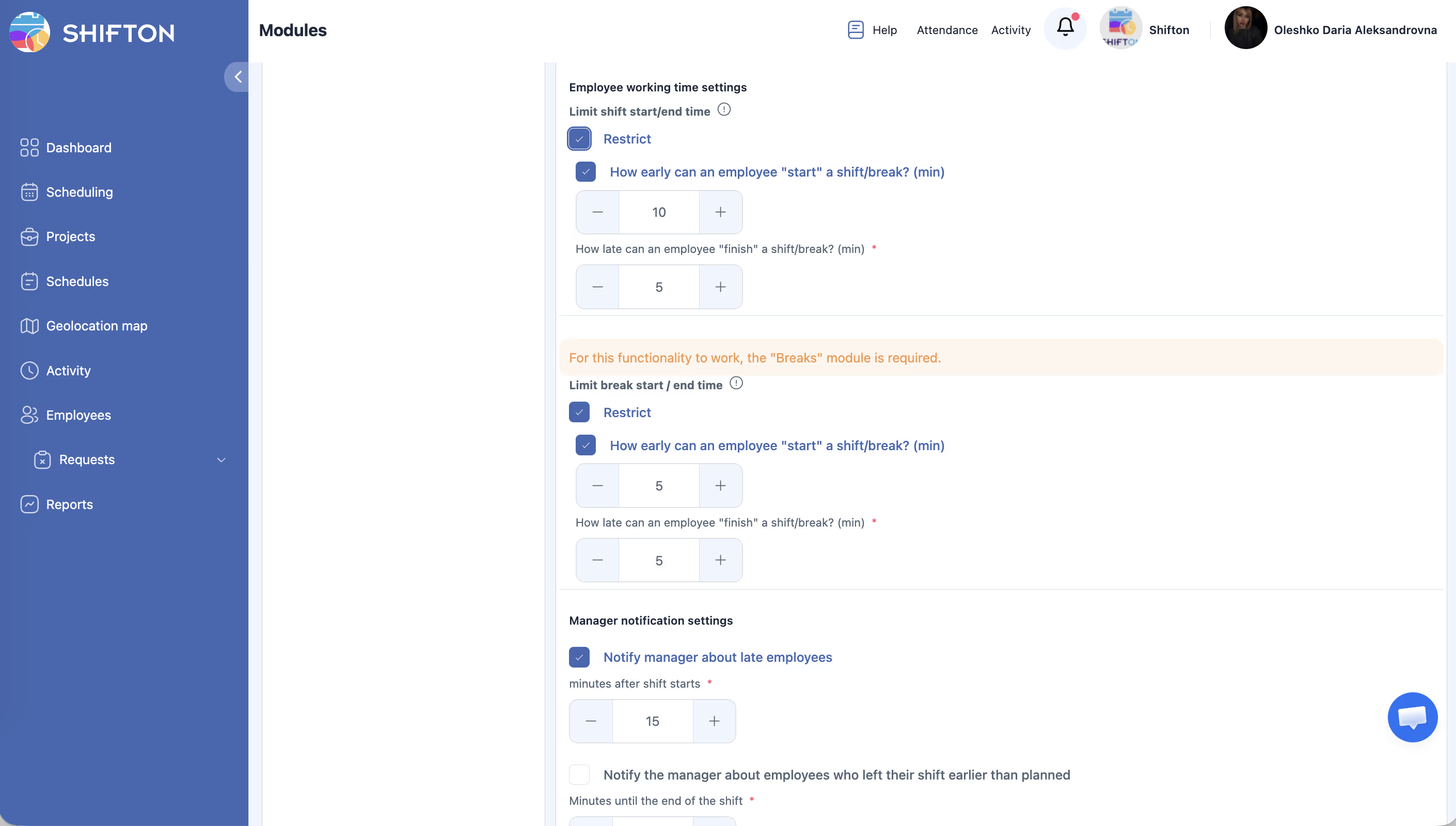
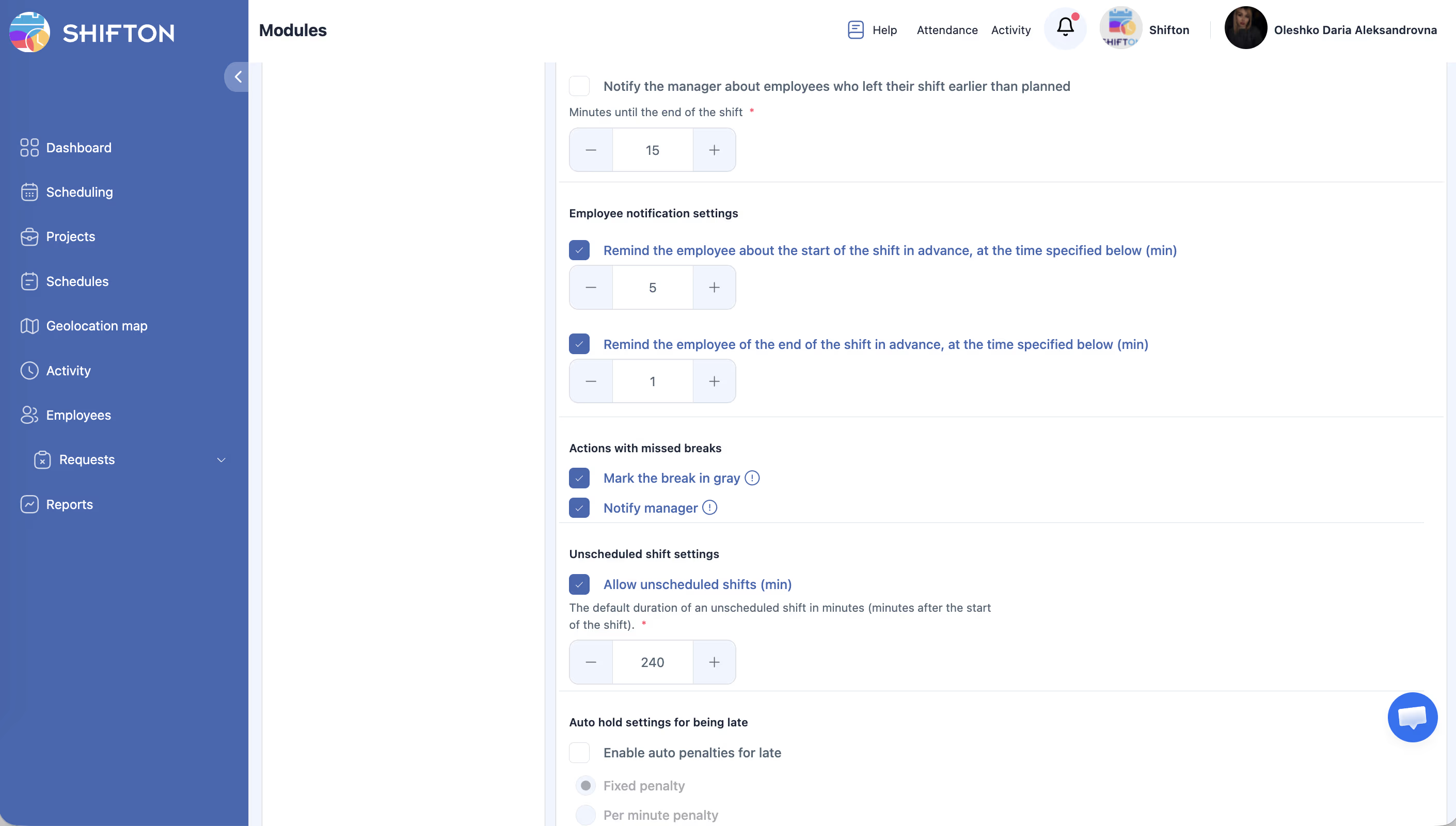
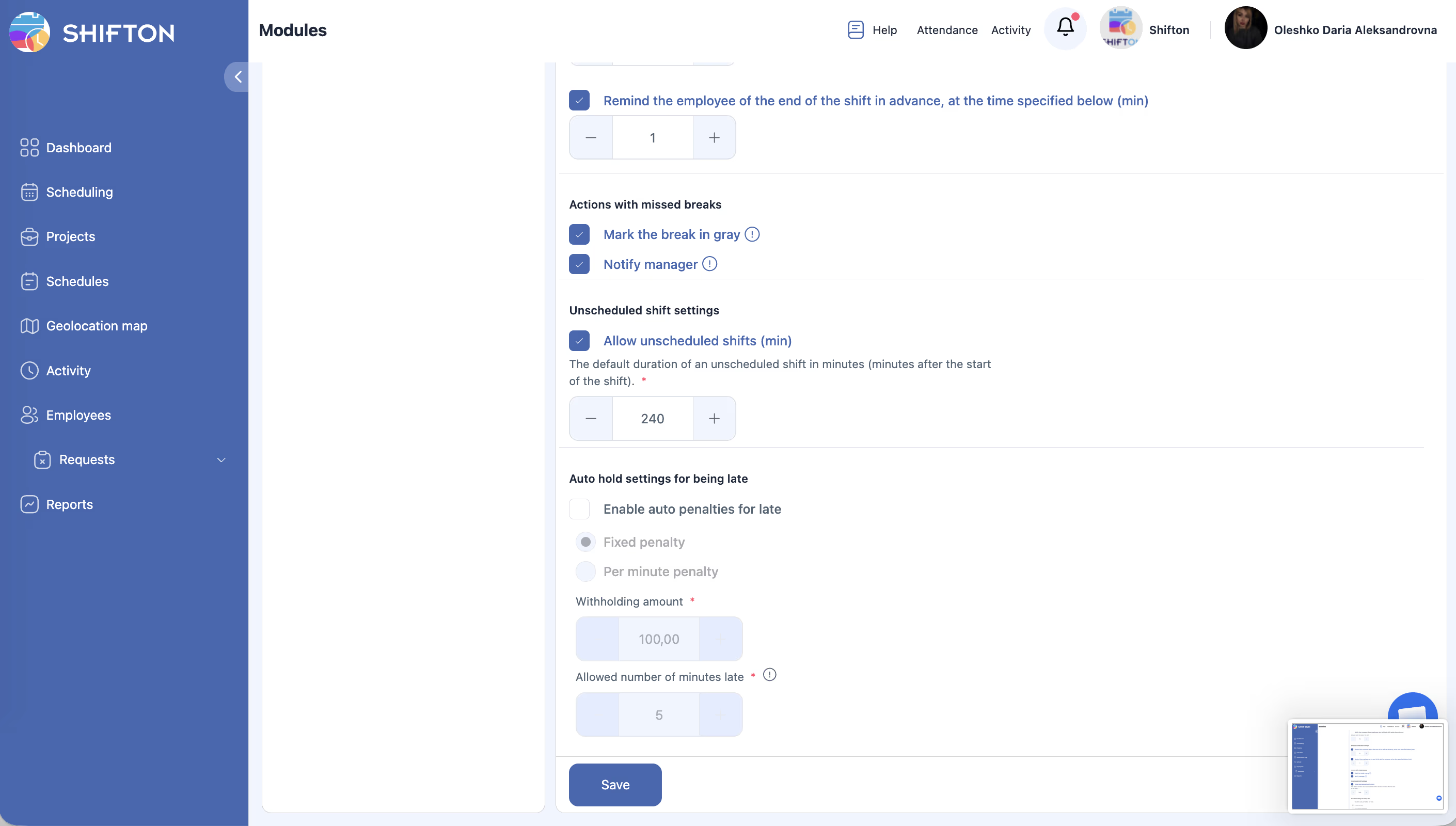
After enabling the module, go to Modules → Settings → Attendance to configure:
| Setting | Description |
|---|---|
| Allow shift start from mobile | Enable or disable the Start Shift / End Shift buttons in the mobile app |
| Grace period | Number of minutes late allowed before a shift is flagged as late (e.g., 5 minutes: arriving 4 minutes late is not counted as late) |
| Require geolocation | Whether employees must confirm their location when starting a shift |
If “Allow shift start from mobile” is disabled, the Start/End Shift buttons will not appear in the mobile app even when the Attendance module is active.
Accessing the Attendance Panel
| Step | Action | Expected Result |
|---|---|---|
| 1 | Log in to Shifton as any employee or manager. | You land on the dashboard or schedule page. |
| 2 | Look at the top navigation bar for the Attendance button. | The Attendance button is visible in the top bar. |
| 3 | Click Attendance to open the dropdown panel. | A dropdown appears listing scheduled shifts available to start, along with any unscheduled shifts (if enabled). |
Shift Status Flow
Once the Attendance module is active, shifts progress through the following statuses:
| Status | When It Occurs |
|---|---|
| Planned | Default status for a published shift |
| Active | Employee tapped Start Shift |
| Completed | Employee tapped End Shift |
| Missed | Shift end time passed without the employee starting it |
The Company Schedule page reflects these statuses with color coding (e.g., Active shifts appear green, Missed shifts appear red).
Reviewing Attendance Data as a Manager
| Step | Action | Expected Result |
|---|---|---|
| 1 | Navigate to Reports from the left sidebar. | The Reports page opens. |
| 2 | Select Employee Working Hours report. | The report loads with filters for date range, projects, and positions. |
| 3 | Set the desired date range and click Apply Filter. | The table shows each employee’s planned vs. actual start/end times, break durations, and late/early leave hours. |
| 4 | Click Export to download the data if needed. | A file is downloaded in your chosen format. |
Access Permissions
| Role | View Own Attendance | Start/End Own Shift | View Team Attendance | Manage Attendance Settings |
|---|---|---|---|---|
| Employee | Yes | Yes | No | No |
| Manager | Yes | Yes | Yes (all) | No |
| Admin | Yes | Yes | Yes (all) | Yes |
| Owner | Yes | Yes | Yes (all) | Yes |
FAQ
Q1: Does the Attendance module work on mobile devices?
Yes. Employees can start and end shifts from the Shifton mobile app. The Start Shift / End Shift buttons appear on the Dashboard once the module is active and “Allow shift start from mobile” is enabled in the module settings.
Q2: The Attendance module is active, but the Start Shift button is not showing in the app — why?
Check three things: (1) “Allow shift start from mobile” is enabled in Modules → Settings → Attendance; (2) the employee has logged out and back in to refresh the app after the setting was changed; (3) the employee has a shift scheduled for today.
Q3: What counts as “late”?
If a Grace period is set (e.g., 5 minutes), an employee is only flagged as late if they start their shift more than that many minutes after the scheduled start time. Arriving 4 minutes late with a 5-minute grace period is not counted as late.
Q4: What happens if an employee forgets to end their shift?
The shift remains open until the employee manually ends it or a manager closes it. You can configure notifications to remind employees about open shifts.
Q5: Can employees start shifts that are not on the schedule?
Yes, if the Unscheduled Shifts option is enabled in the Attendance module settings. Unscheduled shifts will appear in the Attendance dropdown for the employee to start. See the Unscheduled Shifts article for details.
Q6: How much does the Attendance module cost?
$1 per employee per month, with a free trial of up to 60 days. You can activate or deactivate it at any time from the Modules page.
Q7: Is the Attendance module required for other features?
Yes. The Work location control module requires Attendance to be active. Work Location Control cannot be enabled without Attendance running in Office mode.
Possible Issues and Solutions
| Issue | Possible Cause | Solution |
|---|---|---|
| “Attendance” button not visible in the top bar | Attendance module is not enabled. | Go to Settings > Modules and enable the Attendance module. |
| Employee cannot start a shift | No published schedule exists for the employee, and unscheduled shifts are disabled. | Publish a schedule for the employee or enable unscheduled shifts in Attendance settings. |
| Planned vs. actual times not showing in reports | The schedule was not published before the shift was worked. | Ensure schedules are published before shifts begin so the system can compare times. |
| Attendance data missing for some employees | Those employees may not be assigned to a project. | Assign the employees to the relevant project in Employees settings. |
| Module activation fails | Billing issue or insufficient permissions. | Check your subscription status and ensure you have Owner or Admin access to enable modules. |