

Configure the fundamental behavior of your Shifton workspace, from how employee names are displayed to shift overlap rules and notification preferences.
What Is This?
Basic Company Settings is a section within the Module Settings tab that controls core platform behavior for your entire company. These settings affect how shifts are handled, what employees can see and edit, and how notifications are delivered. Every Shifton account has access to these settings — no additional module purchase is required.
Prerequisites
How to Access Basic Company Settings
Module Settings
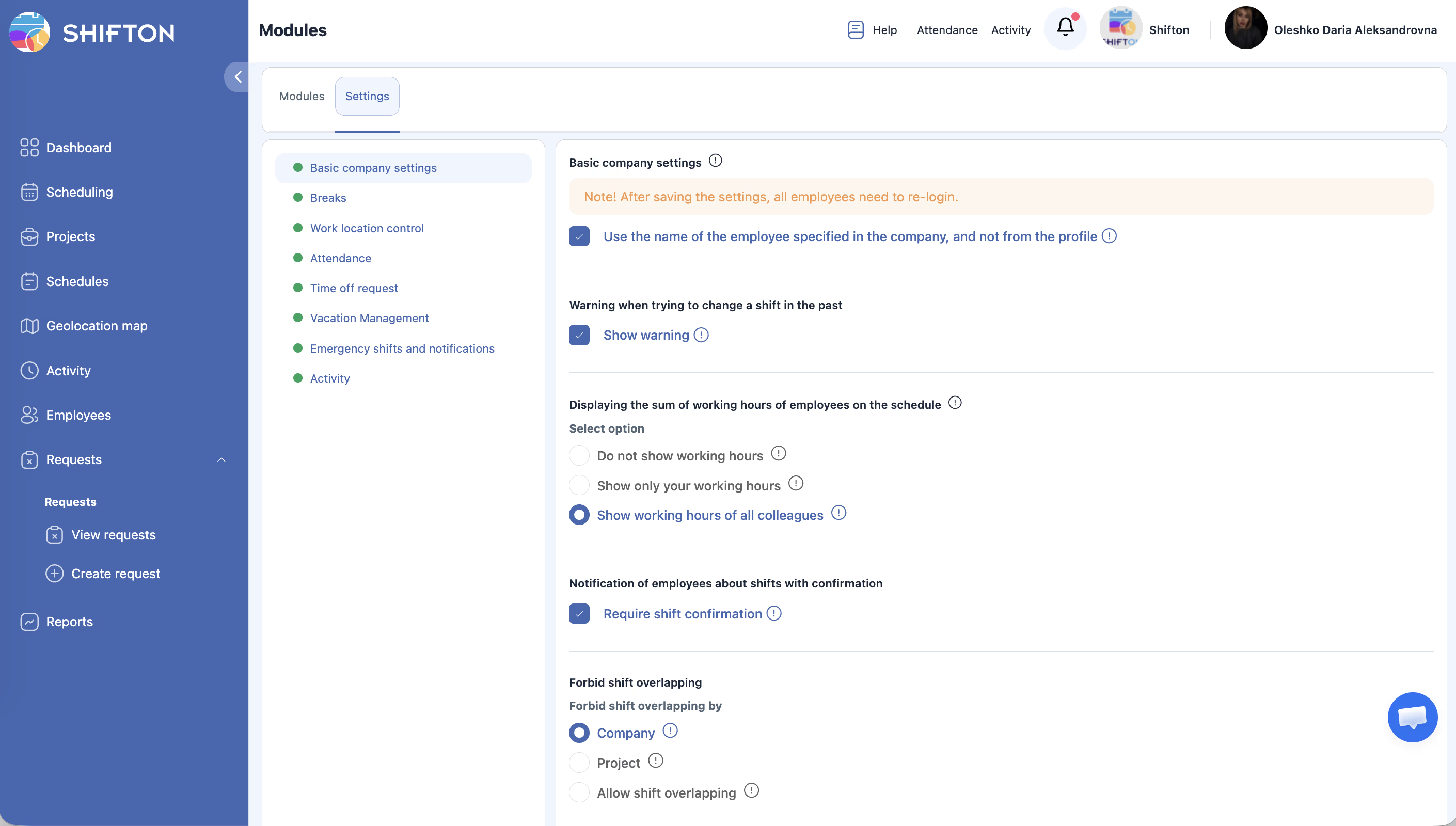
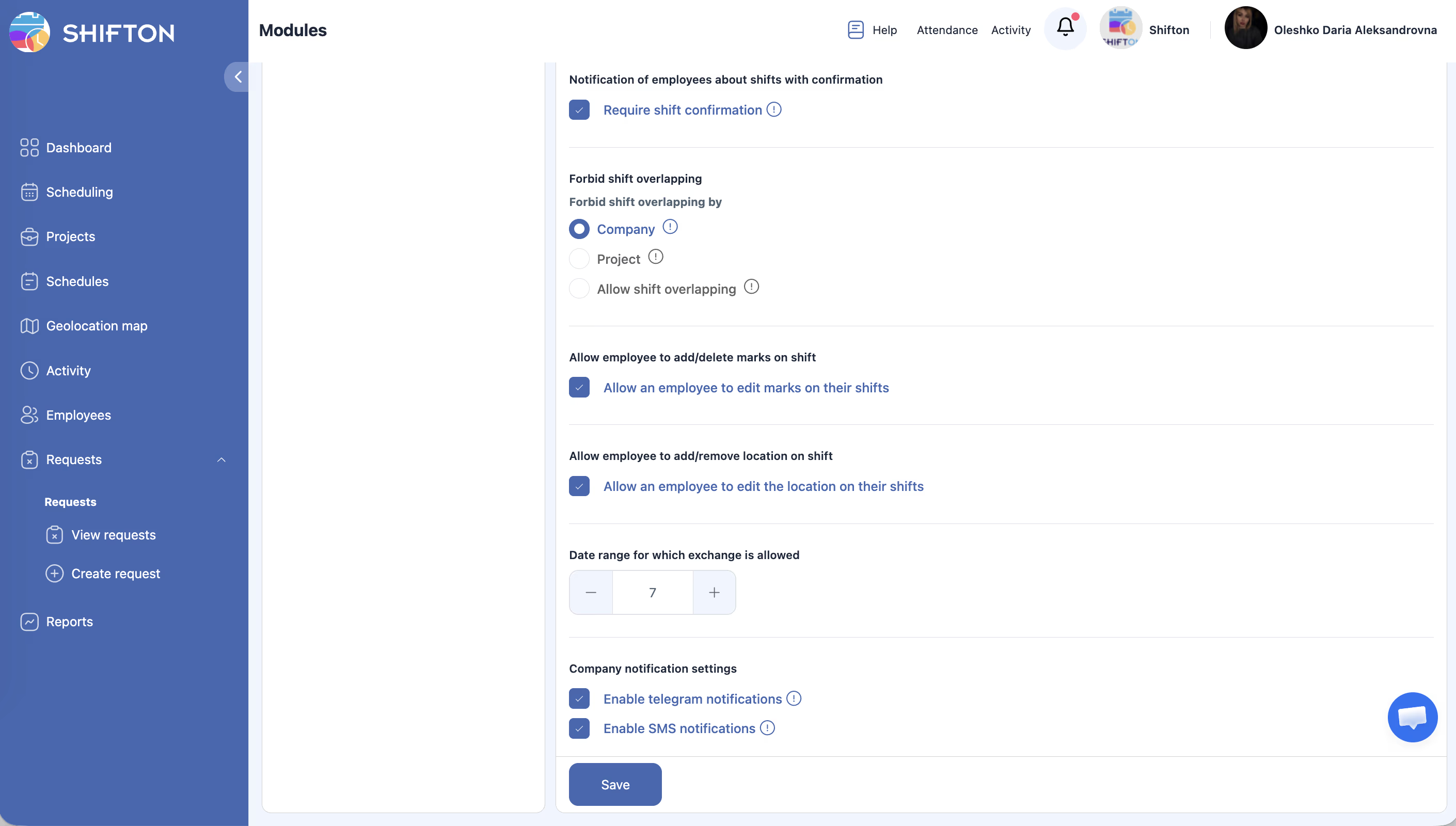
Below is a detailed table of every setting available in Basic Company Settings.
| Setting | Description | Options / Default |
|---|---|---|
| Employee name usage | Controls how employee names are displayed throughout the system (schedules, reports, lists). | First name only / First + Last name / Last + First name |
| Warning when changing past shifts | When enabled, the system shows a confirmation warning if a manager tries to edit a shift that has already occurred. | Enabled / Disabled |
| Displaying working hours | Controls whether employees can see working hours on the schedule and whose hours they can view. | Don’t show — working hours are hidden from employees. Show only own — employees see only their own hours. Show all colleagues — employees can see everyone’s working hours. |
| Shift confirmation requirement | When enabled, employees must confirm (accept) their assigned shifts before the shift starts. | Enabled / Disabled |
| Forbid shift overlapping | Determines whether the system allows an employee to be assigned to overlapping shifts. | Company level — no overlapping shifts allowed across the entire company. Project level — no overlapping shifts within the same project (overlaps across different projects are allowed). Allow — overlapping shifts are permitted. |
| Allow marks/location editing | Controls whether employees can edit their own attendance marks and location data. | Enabled / Disabled |
| Date range for which exchange is allowed | The number of days into the future during which employees are allowed to request shift exchanges with colleagues. | Default: 7 days |
| Telegram notifications | Enables sending shift notifications and updates to employees via Telegram. | Enabled / Disabled |
| SMS notifications | Enables sending shift notifications and updates to employees via SMS. Requires the SMS Notifications module. | Enabled / Disabled |
Step-by-Step Usage Guide
Configuring Employee Name Display
Setting Up Shift Overlap Rules
Enabling Notifications
Note: After saving any changes to Basic Company Settings, all users should log out and log back in for the changes to take full effect.
Pricing Info
Basic Company Settings is included with your Shifton account at no additional cost. There is no separate module fee for these settings.
Access Permissions
| Role | View Settings | Modify Settings |
|---|---|---|
| Owner | Yes | Yes |
| Admin | Yes | Yes |
| Manager | No | No |
| Employee | No | No |
FAQ
Q: Do I need to enable a module to access Basic Company Settings?
A: No. Basic Company Settings are available to all Shifton accounts by default under the Module Settings tab.
Q: Why do employees still see the old settings after I make changes?
A: After saving changes to Basic Company Settings, users need to log out and log back in for the updates to appear. This is a known requirement.
Q: What does “Date range for which exchange is allowed” mean exactly?
A: This setting controls how far into the future employees can look when requesting to swap shifts with a colleague. For example, with a value of 7 days, employees can only exchange shifts that are scheduled within the next 7 days.
Q: If I set “Forbid shift overlapping” to Project level, can an employee work two shifts at the same time on different projects?
A: Yes. The Project level setting only prevents overlapping shifts within the same project. An employee could be assigned to simultaneous shifts on separate projects.
Q: Does enabling SMS notifications automatically send SMS to all employees?
A: Enabling the setting makes SMS available as a notification channel. You also need the SMS Notifications module active, and employees need valid phone numbers in their profiles.
Possible Issues and Solutions
| Issue | Cause | Solution |
|---|---|---|
| Changes not visible to employees after saving | Users need to re-login after settings change | Ask employees to log out and log back in. |
| SMS notifications not being delivered | SMS Notifications module is not enabled | Enable the SMS Notifications module on the Modules tab first. |
| Employees can still create overlapping shifts | Overlap setting is set to “Allow” or “Project level” | Change the setting to “Company level” to prevent all overlaps. |
| Shift exchange option not appearing for employees | Date range for which exchange is allowed is set to 0 or the shift is outside the allowed range | Increase the date range value or confirm the shift falls within the allowed window. |
| Telegram notifications not working | Employee has not linked their Telegram account | Ask the employee to connect their Telegram account in their profile settings. |