

View all financial adjustments for employees, including bonuses, retentions (penalties), advances, and total amounts.
What Is This?
The Bonus/Penalty report consolidates all financial adjustments applied to employees during a given period. This includes positive adjustments (bonuses), negative adjustments (retentions or penalties), and advances. The report provides a total column for quick reference, making it a key tool for payroll preparation and financial auditing.
Auto-penalties from late tracking (if configured) also appear in this report under the Retention column.
Prerequisites
| # | Prerequisite | Details |
|---|---|---|
| 1 | Financial adjustments recorded | Bonuses, penalties, or advances must have been entered for employees. |
| 2 | Manager, Admin, or Owner role | Full access requires elevated permissions. |
Step-by-Step Instructions
Accessing the Report
| Step | Action | Expected Result |
|---|---|---|
| 1 | Navigate to Reports from the left sidebar. | The Reports page opens. |
| 2 | Select Bonus/Penalty from the report list. | The report loads with filters and data table. |
Applying Filters
| Filter | Type | Description |
|---|---|---|
| Date range | Date picker | Select the period to view financial adjustments. |
| Marks | Multi-select | Filter by custom marks/tags. |
| Position | Dropdown | Filter by employee position. |
| Step | Action | Expected Result |
|---|---|---|
| 1 | Set the date range and any additional filters. | Filters are configured. |
| 2 | Click Apply Filter. | The table updates with matching records. |
Reading the Report Table
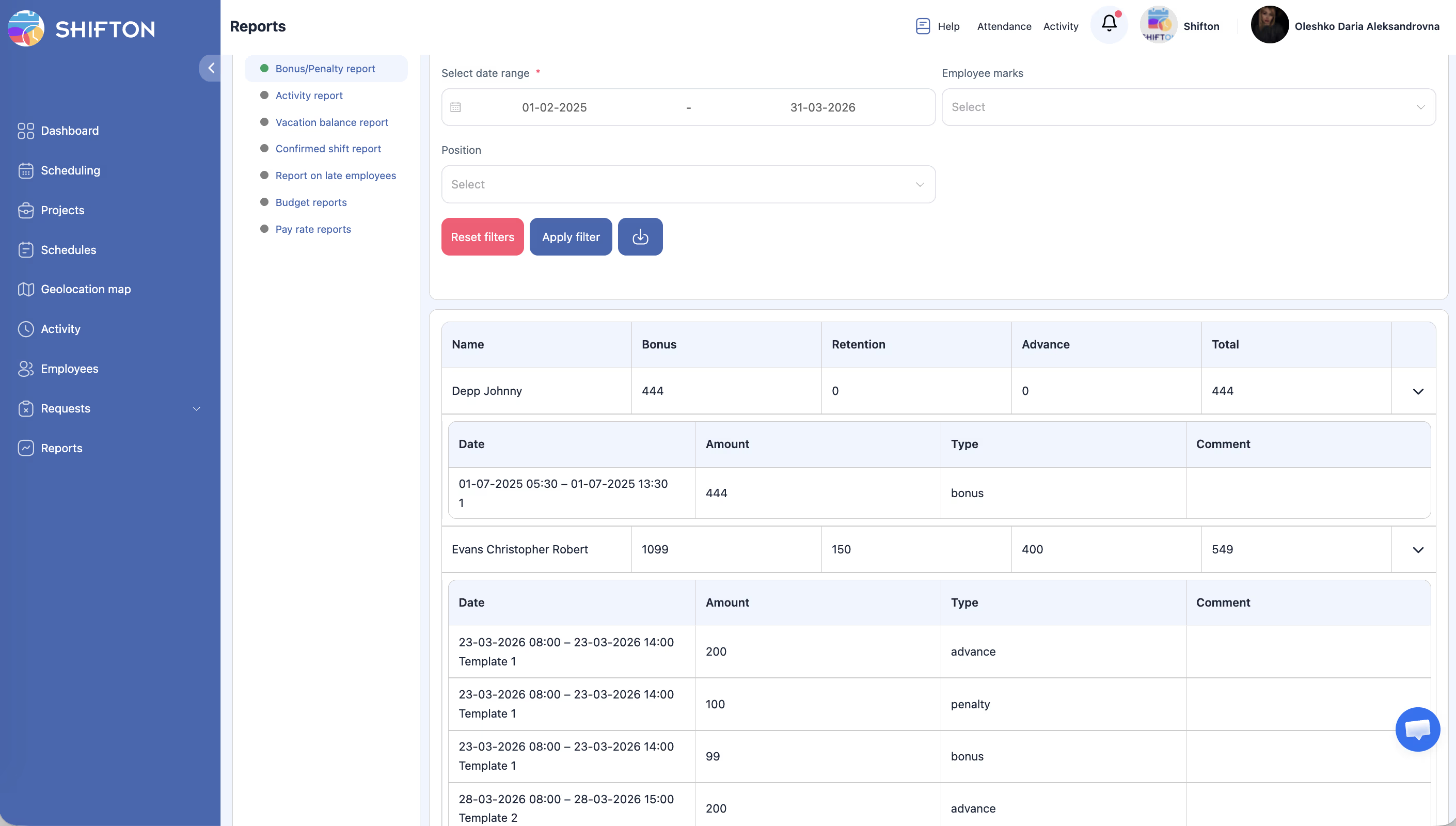
| Column | Description |
|---|---|
| Name | Employee’s full name. |
| Bonus | Total bonus amount awarded during the period. |
| Retention | Total deductions (penalties, fines, auto-penalties) during the period. |
| Advance | Total advance payments made to the employee. |
| Total | Net total of all adjustments (Bonus – Retention + Advance). |
Access Permissions
| Role | View Report | Export Report | See All Employees |
|---|---|---|---|
| Employee | Own data only | No | No |
| Manager | All | Yes | Yes |
| Admin | All | Yes | Yes |
| Owner | All | Yes | Yes |
FAQ
Q1: Do auto-penalties from late tracking appear here?
Yes. Automatic penalties generated by the late tracking feature are included in the Retention column.
Q2: What is the difference between “Retention” and “Penalty”?
They refer to the same concept — deductions from the employee’s compensation. “Retention” is the column name used in this report and encompasses all types of deductions, including manually entered penalties and auto-penalties.
Q3: Can I add bonuses or penalties directly from this report?
No. This report is read-only. To add financial adjustments, use the employee profile or the relevant management interface.
Q4: How is the “Total” calculated?
The Total column represents: Bonus – Retention + Advance. It gives you the net financial adjustment for each employee.
Possible Issues and Solutions
| Issue | Possible Cause | Solution |
|---|---|---|
| Report shows no data | No bonuses, penalties, or advances were recorded in the selected period. | Verify the date range or check if financial adjustments have been entered. |
| Auto-penalties are not appearing | Auto-penalty feature is not enabled. | Enable auto-penalties in Settings > Attendance (see the Late Tracking article). |
| Total does not match manual calculations | Rounding differences or missing entries. | Export the data and verify each row’s individual values against your records. |
| An employee is missing from the report | No financial adjustments exist for that employee in the period. | The report only shows employees who have at least one adjustment. Broaden the date range or add the missing entry. |
| Retention amount is unexpectedly high | Multiple auto-penalties may have accumulated. | Review the Late Employees report to see the breakdown of late incidents. |