

Employees can request breaks during their shifts, allowing them to schedule rest periods that fit their workday.
What Is This?
The break creation request feature lets employees propose a break within their assigned shift. This is useful when shifts do not have pre-assigned breaks or when an employee needs an additional break. The request goes to a manager for approval, and once confirmed, the break is added to the shift.
Prerequisites
| Requirement | Details |
|---|---|
| Module | Breaks module must be active ($0.50 per employee per month) |
| Setting | “Allow employees to create breaks” must be enabled in schedule settings |
| Shift | Employee must have an assigned, active shift to add a break to |
The Breaks module is a paid add-on. Without it, the break creation option will not appear even if the schedule setting is enabled. To activate it, go to your company menu → Modules → enable Breaks.
Step-by-Step Instructions
Enabling Break Creation Requests (Manager/Admin)
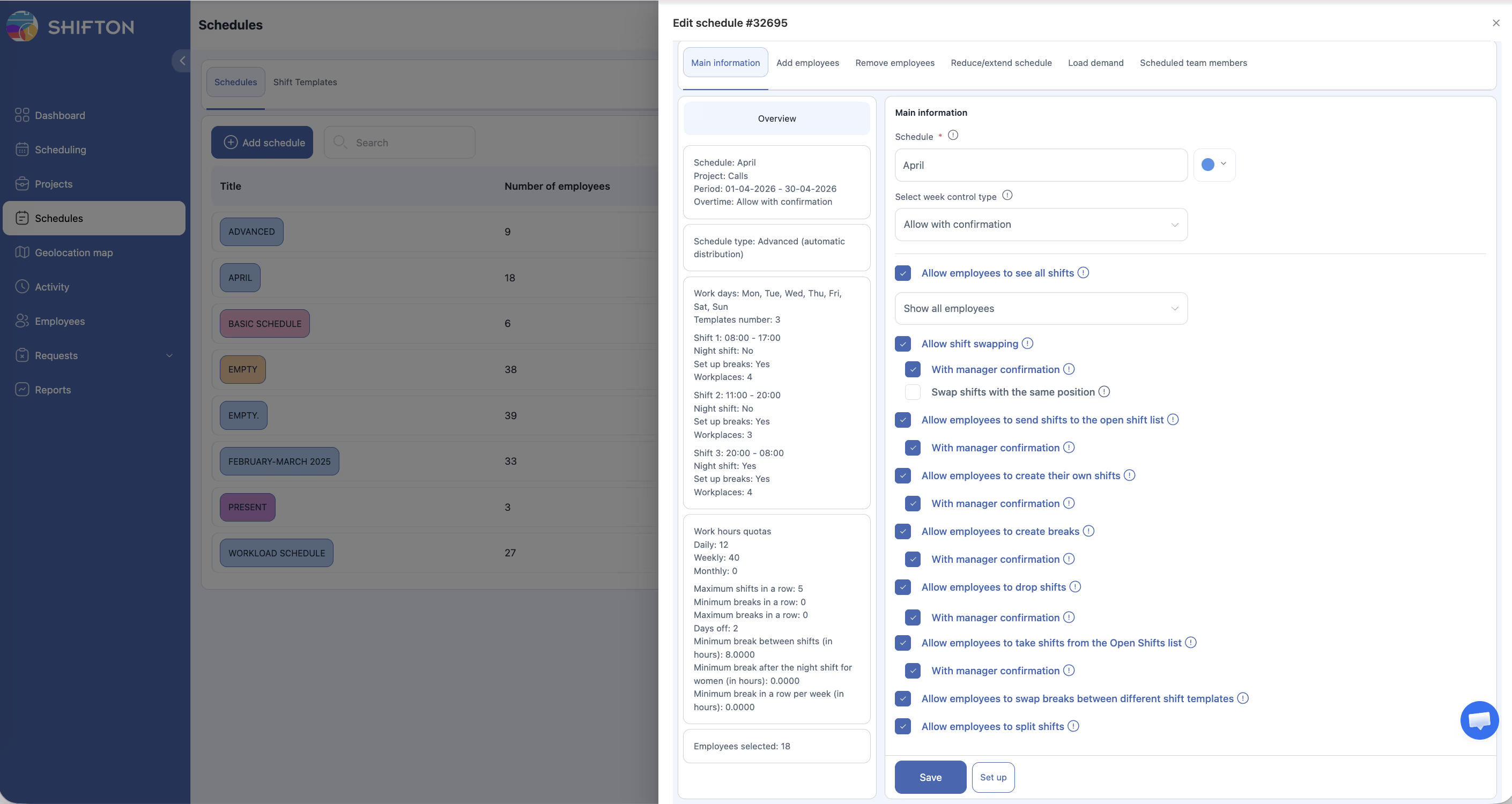
First, ensure the Breaks module is active (company menu → Modules → Breaks).
Then:
1. Navigate to Schedules from the left sidebar.
2. Open the relevant schedule and click Settings (gear icon).
3. Locate the “Allow employees to create breaks” option.
4. Enable the toggle.
5. Optionally enable “With manager confirmation” if breaks should require approval before taking effect.
6. Save the settings.
Submitting a Break Creation Request (Employee)
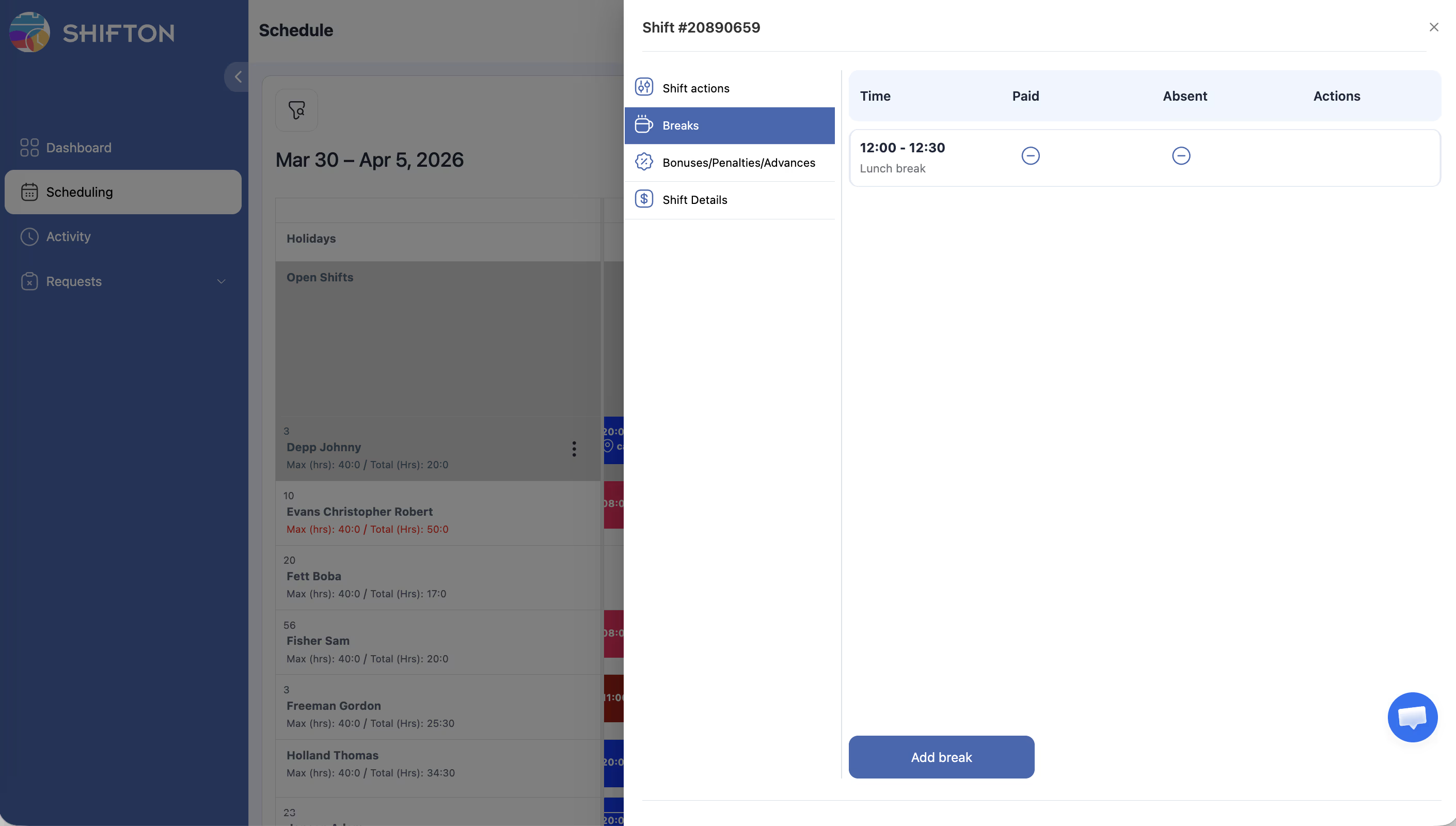
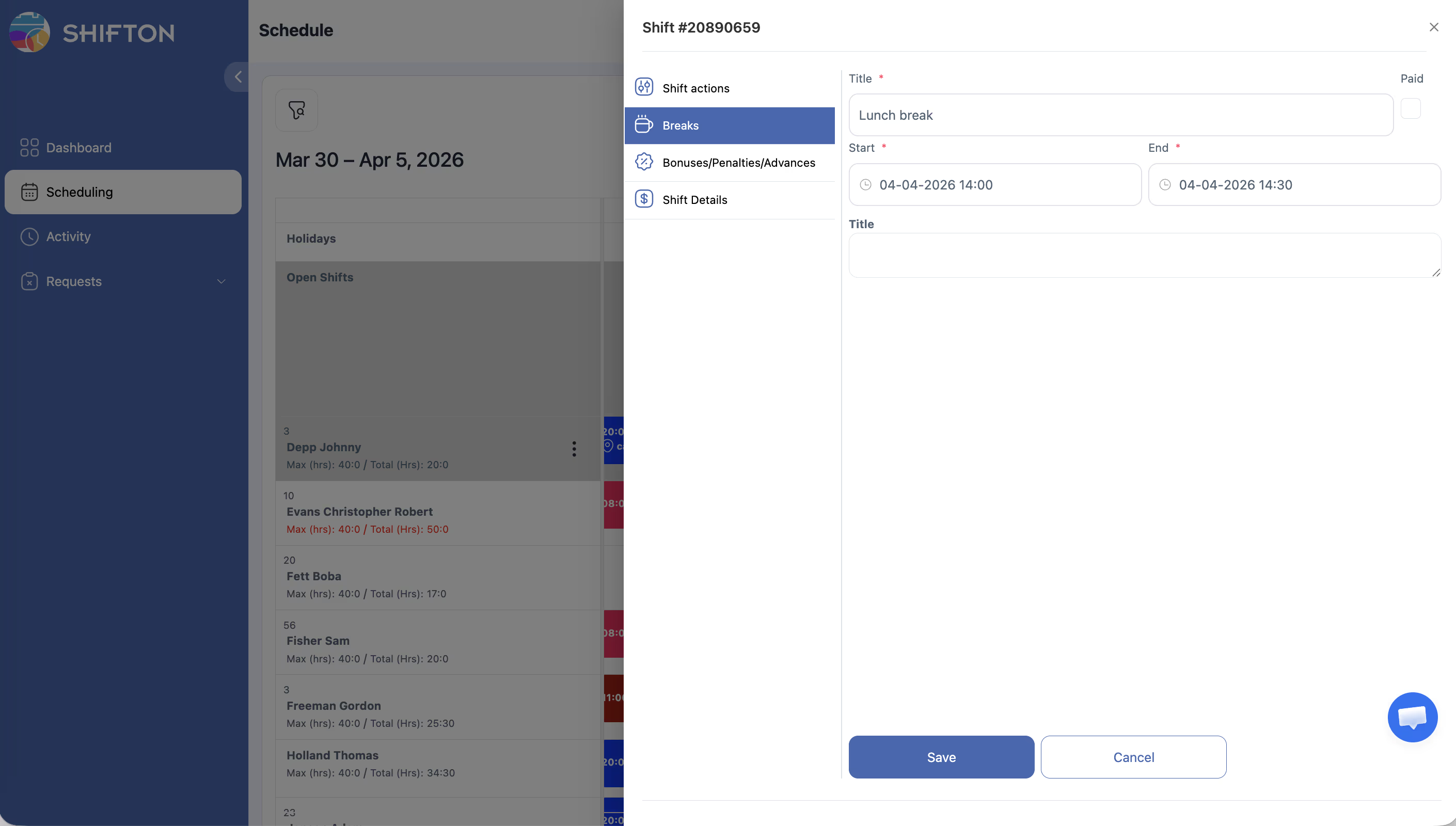
Breaks can be requested from the mobile app during an active shift:
Alternatively, through the web interface:
1. Open your schedule and click on the shift where you need a break.
2. Select “Request break” from the available actions.
3. Fill in the break details:
| Field | Description |
|---|---|
| Break type | Type of break (as configured in your schedule) |
| Start Time | When the break should begin |
| Duration | How long the break should last |
| Comment | Optional note explaining the need for the break |
Approving a Break Request (Manager)
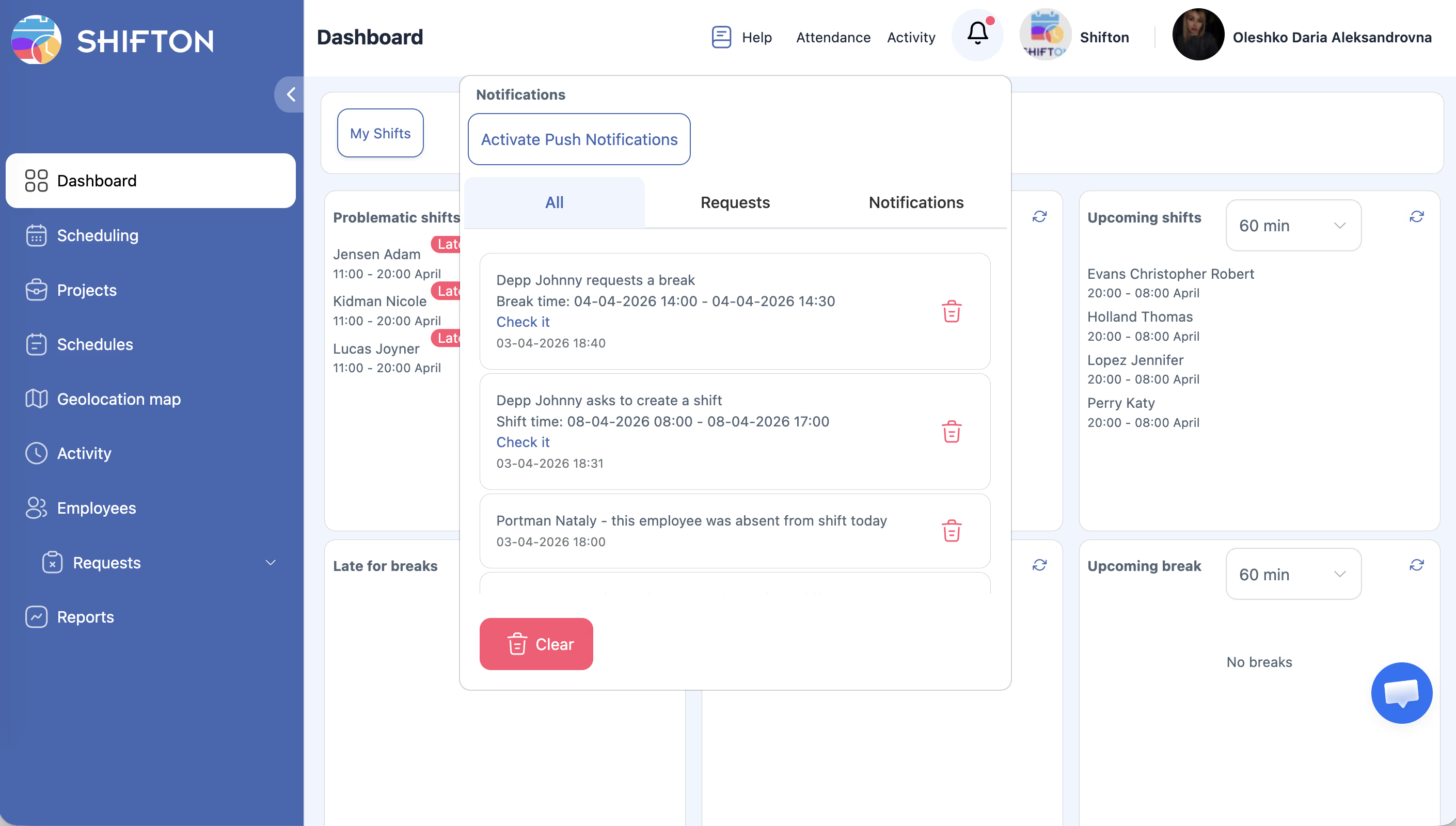
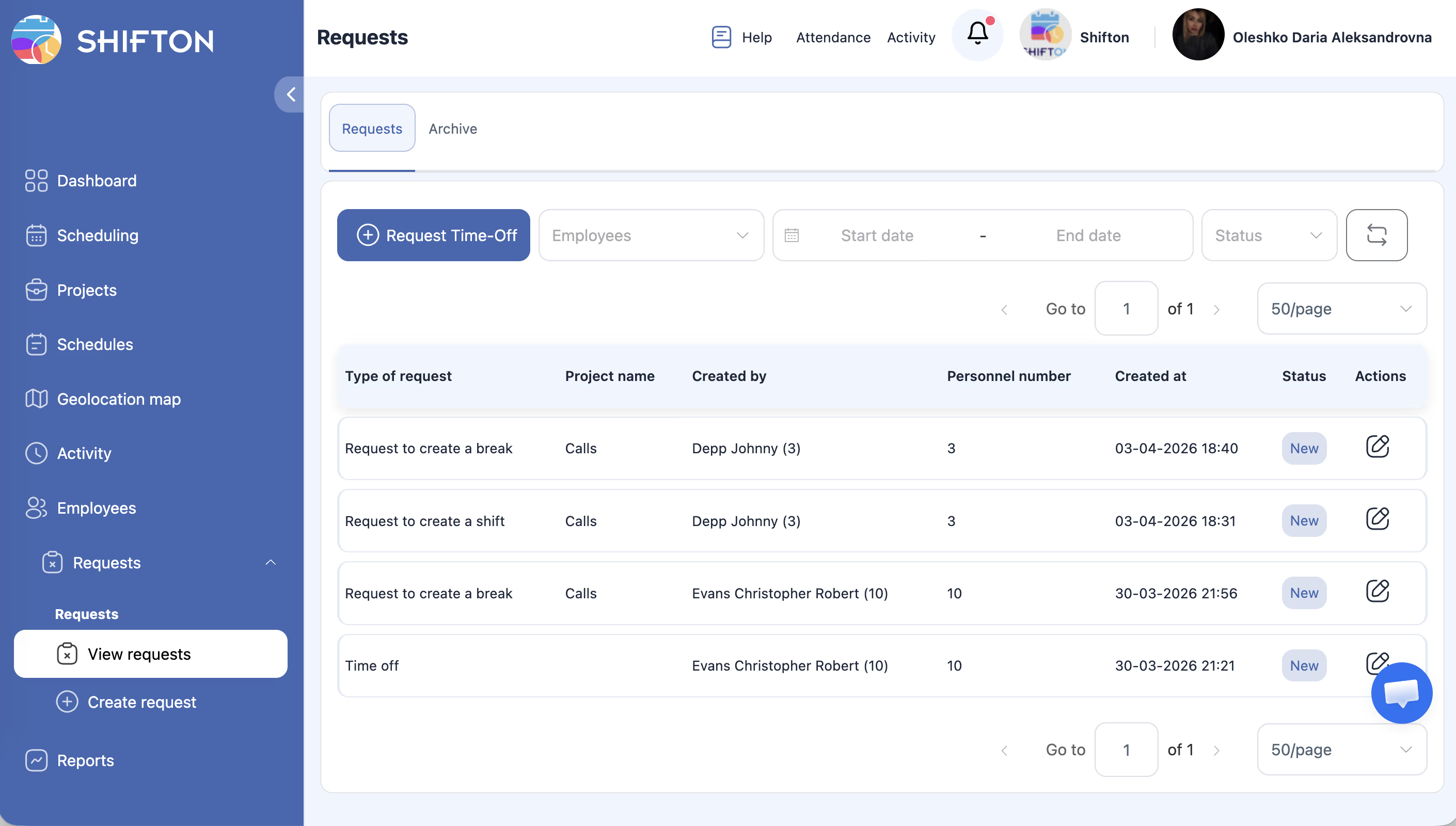
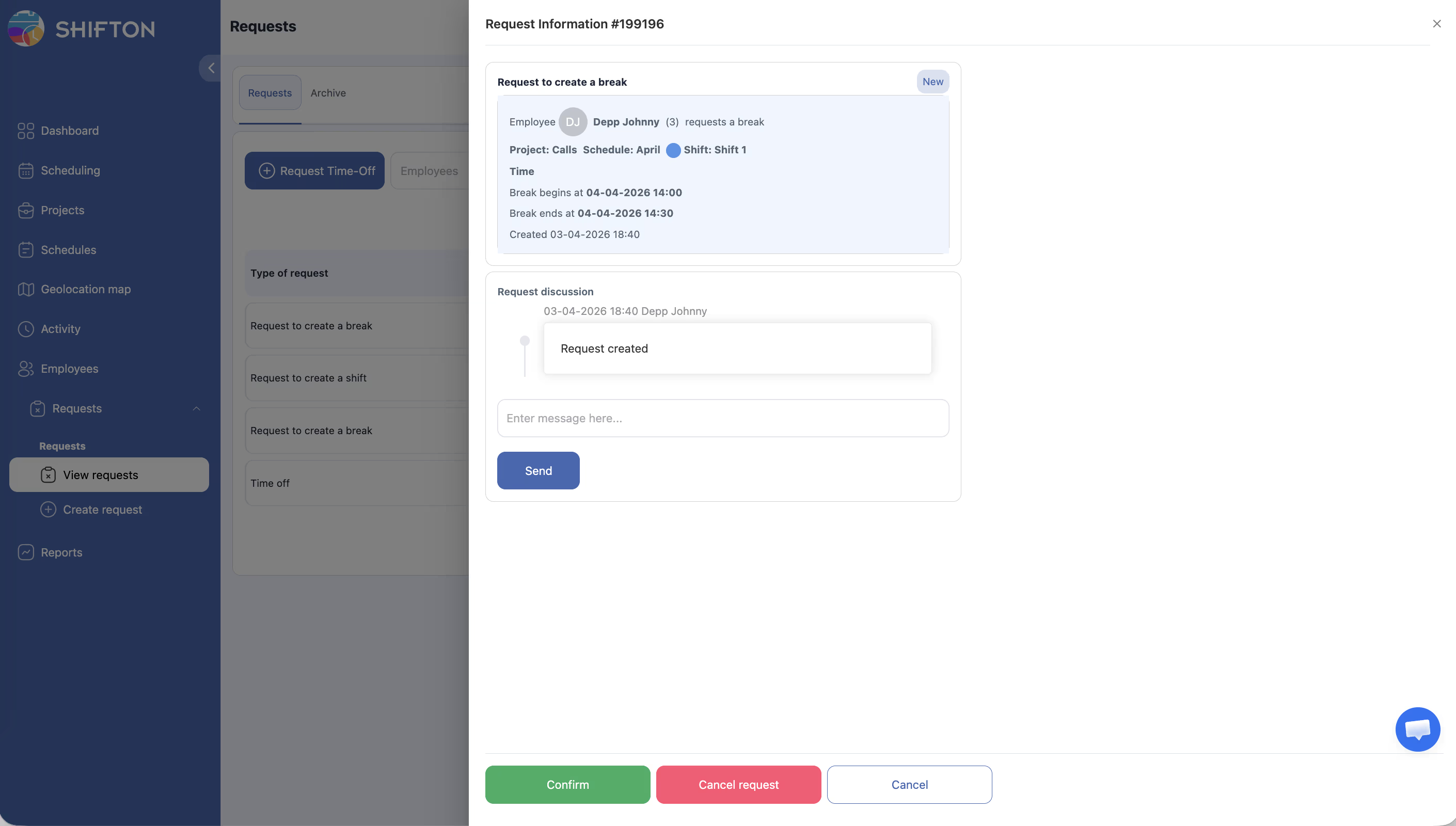
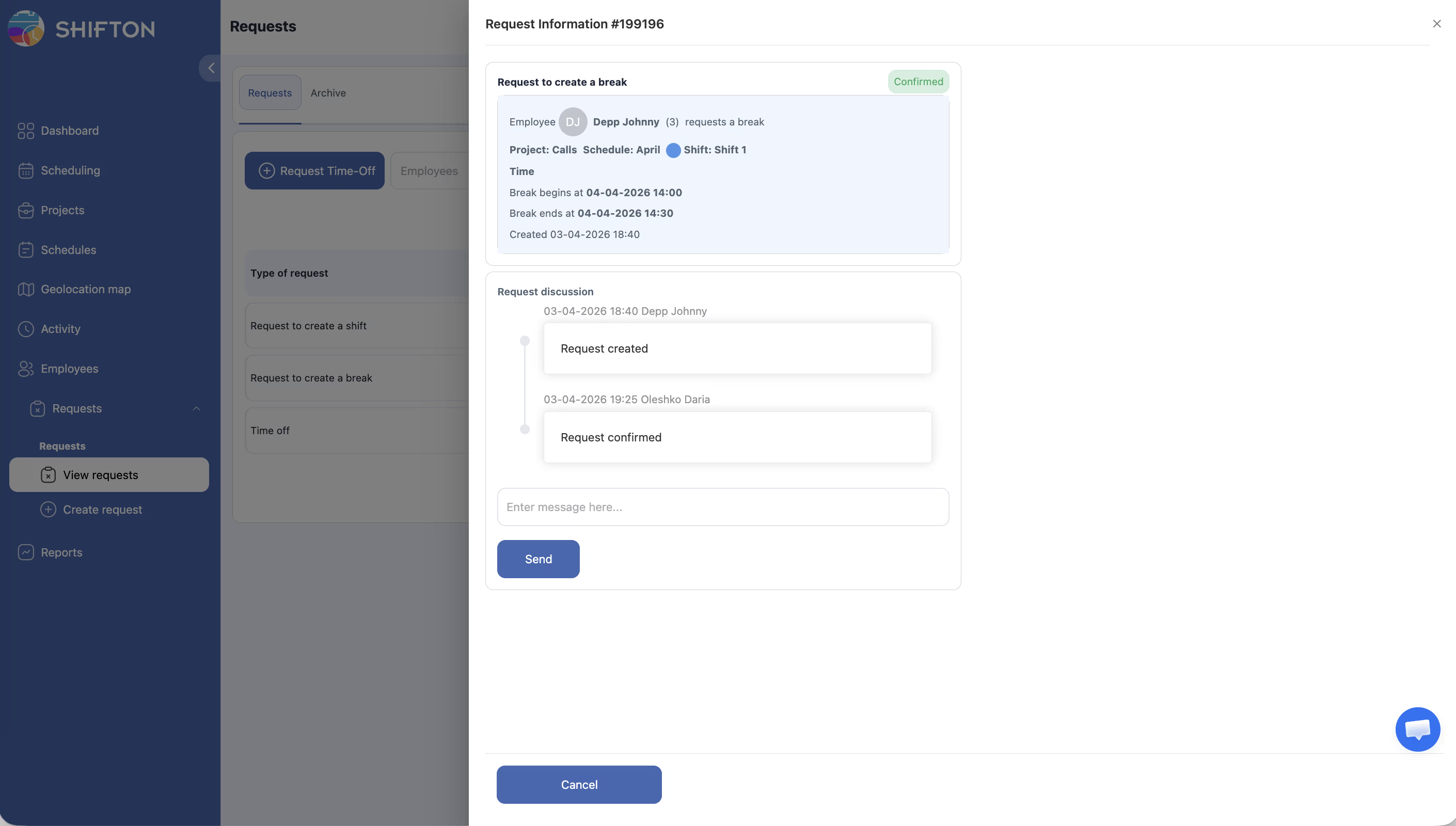
Access Permissions
| Role | Enable Setting | Request Break | Approve/Reject |
|---|---|---|---|
| Owner | Yes | Yes | Yes |
| Administrator | Yes | Yes | Yes |
| Manager | Yes (assigned schedules) | Yes | Yes (assigned schedules) |
| Employee | No | Yes (when enabled) | No |
FAQ
Q: Can an employee request multiple breaks within one shift?
A: Yes, employees can submit multiple break requests for the same shift, as long as the breaks do not overlap and fit within the shift’s time window.
Q: Does the break reduce the employee’s paid hours?
A: This depends on your company’s break payment settings. Paid breaks do not reduce hours; unpaid breaks do. For details, see Break Types.
Q: Can I change the time of a break request after submitting?
A: You would need to cancel the existing request and submit a new one with the updated times.
Q: What if my break request falls outside my shift hours?
A: The system will not allow you to request a break outside the start and end time of your assigned shift.
Possible Issues and Solutions
| Issue | Possible Cause | Solution |
|---|---|---|
| “Add break” option not visible in mobile app | Breaks module is not active, or the schedule setting is disabled | 1. Verify the Breaks module is active (company name → Modules). 2. Enable “Allow employees to create breaks” in schedule settings |
| “Request break” option not visible on web | Feature is disabled in schedule settings | Enable “Allow employees to create breaks” in the schedule settings |
| Break request rejected | Break may conflict with operational needs | Discuss alternative times with your manager |
| Break does not show on the shift | Page not refreshed after approval | Refresh the schedule page to see the updated shift with the break |
| Cannot select a time | Time is outside the shift boundaries | Choose a start and end time within your shift hours |
| Multiple break requests conflicting | Overlapping break times submitted | Cancel one request and adjust the timing to avoid overlaps |