

Employees can swap their break times with a colleague, allowing two team members to exchange when they take their breaks.
What Is This?
A break swap allows two employees to exchange their scheduled break times with each other. For example, if Employee 1 is scheduled for a break at 13:00 and Employee 2 has a break at 14:00, they can swap so each takes the other’s break slot.
This feature requires the Breaks module to be active, and the relevant schedule setting must be enabled. Depending on configuration, the swap may happen automatically after both employees agree, or it may require manager approval.
Prerequisites
| Requirement | Details |
|---|---|
| Module | Breaks module must be active ($0.50 per employee per month) |
| Setting | “Allow employees to swap breaks between different shift templates” must be enabled in schedule settings |
| Shifts | Both employees must have shifts with assigned breaks in the same schedule |
Step-by-Step Instructions
Enabling Break Swaps (Manager/Admin)
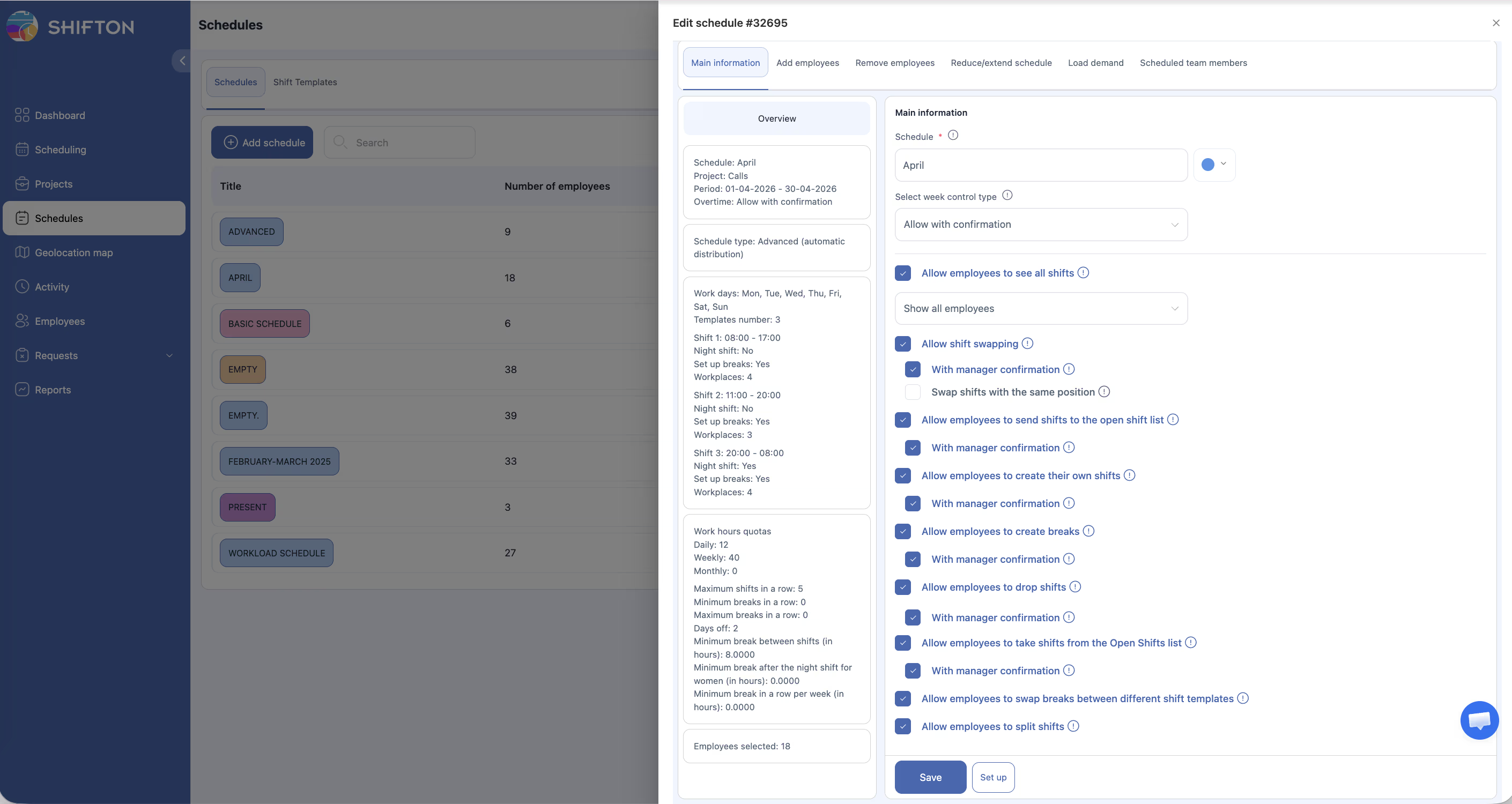
First, ensure the Breaks module is active (company menu → Modules → Breaks).
Then:
1. Navigate to Schedules from the left sidebar.
2. Open the schedule and click Settings (gear icon).
3. Find the “Allow employees to swap breaks between different shift templates” option.
4. Enable the toggle.
5. Save the settings.
Requesting a Break Swap (Employee)
Via the mobile app or web Requests page:
1. Select your break (or navigate to Requests and choose Break Swap).
2. Find your colleague’s break that you want to swap with.
3. Send the swap request to that colleague.
Responding to a Break Swap Request (Employee)
When a colleague requests a break swap with you:
1. You will receive a notification.
2. Open the notification or navigate to Requests.
3. Review the proposed swap: your break time and the colleague’s break time.
4. Click Accept to agree, or Decline to reject.
If both employees agree and no manager confirmation is required, the break times are exchanged automatically.
Manager Approval (If Required)
Access Permissions
| Role | Enable Setting | Request Break Swap | Accept/Decline | Approve/Reject |
|---|---|---|---|---|
| Administrator | Yes | Yes | Yes | Yes |
| Manager | Yes (assigned schedules) | Yes | Yes | Yes (assigned schedules) |
| Employee | No | Yes (when enabled) | Yes | No |
FAQ
Q: Does the Break Swap feature require the Breaks module?
A: Yes. The Breaks module must be active for break swap to work. Without it, the option will not appear even if the schedule setting is enabled.
Q: What does “between different shift templates” mean in the setting name?
A: The setting name refers to the scenario where two employees are on different shift templates (with different break times). The swap allows them to exchange those break times. In practice, this applies whenever two employees want to trade their break slots.
Q: Does a break swap affect total shift hours?
A: No, break swaps exchange the time slot of the break, not the duration. Both employees keep the same total break duration but at swapped times.
Q: What if a colleague declines the swap request?
A: The request is closed. You can submit a new request to a different colleague or ask your manager to manually adjust break times.
Possible Issues and Solutions
| Issue | Possible Cause | Solution |
|---|---|---|
| “Swap break” option not visible | Breaks module not active, or schedule setting is disabled | 1. Activate the Breaks module (company name → Modules). 2. Enable “Allow employees to swap breaks between different shift templates” in schedule settings |
| No colleagues available to swap with | Other employees in the schedule have no assigned breaks | Verify that other employees’ shift templates include break definitions |
| Break swap request declined by colleague | The colleague cannot take the break at that time | Try a different colleague or ask your manager to adjust break times directly |
| Break time unchanged after approval | Page not refreshed | Refresh the schedule page to see the updated break times |