

A practical guide on how to start and end a break during an active shift.
For break types, settings, and salary impact, see Break Types.
Taking a Break (Employee)
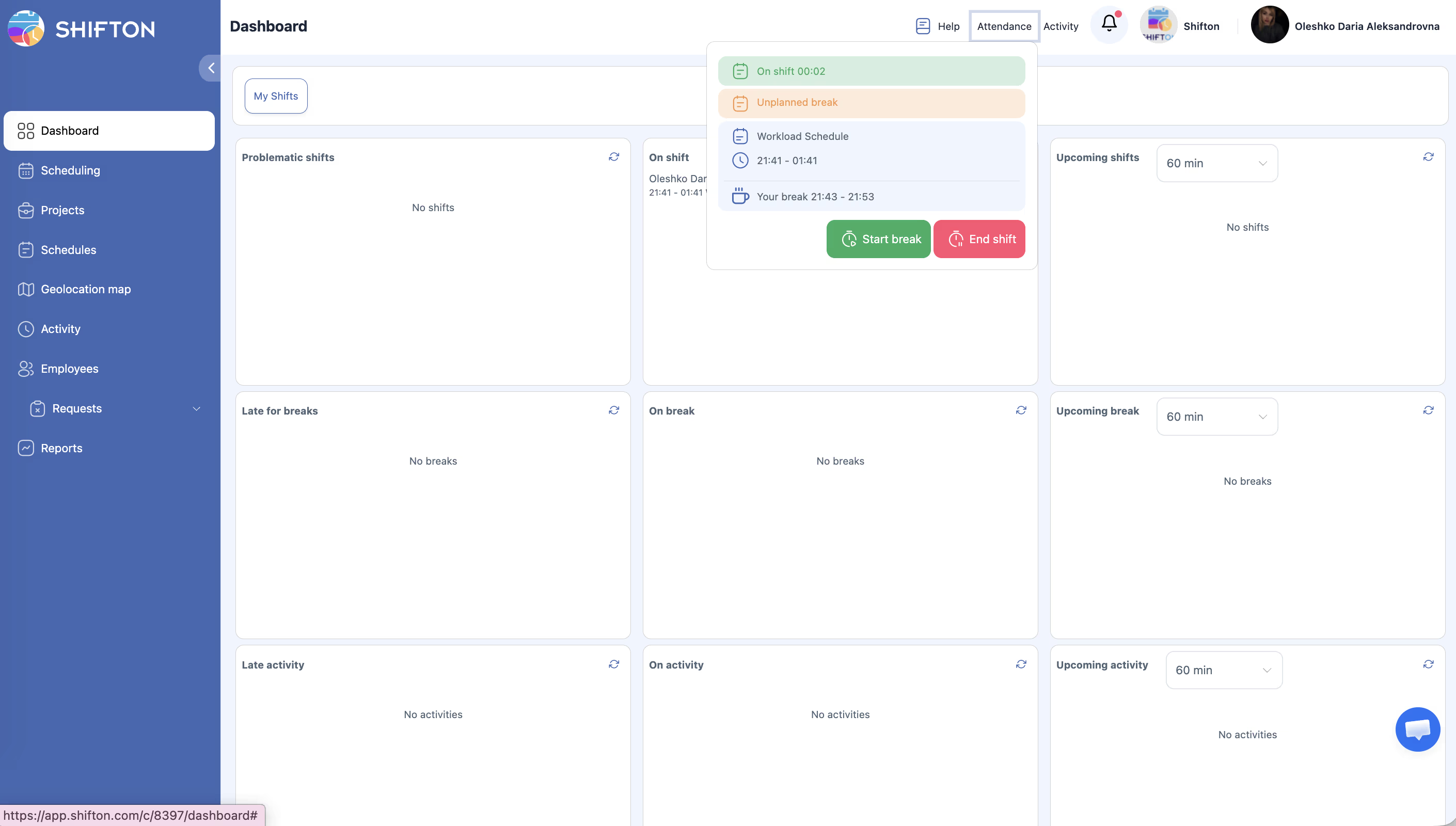
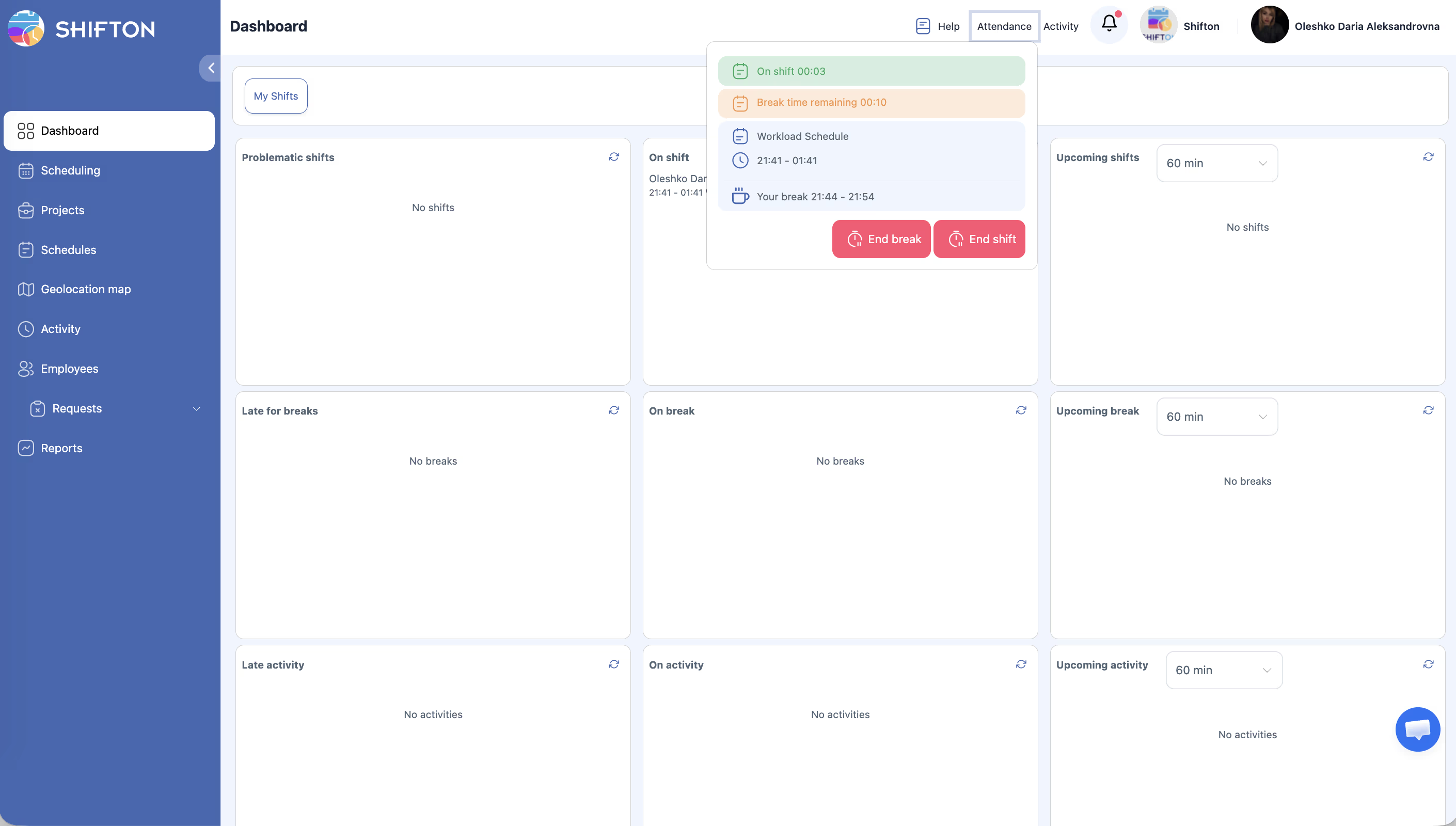
| Step | Action | Expected Result |
|---|---|---|
| 1 | During an active shift, open Attendance in the top bar | Your active shift is displayed with a Start break button |
| 2 | Click Start break | The break timer begins |
| 3 | Open the Attendance list when your break is over | You see an End break button and elapsed time |
| 4 | Click End break | The break is recorded, shift timer resumes |
Activating the Breaks Module
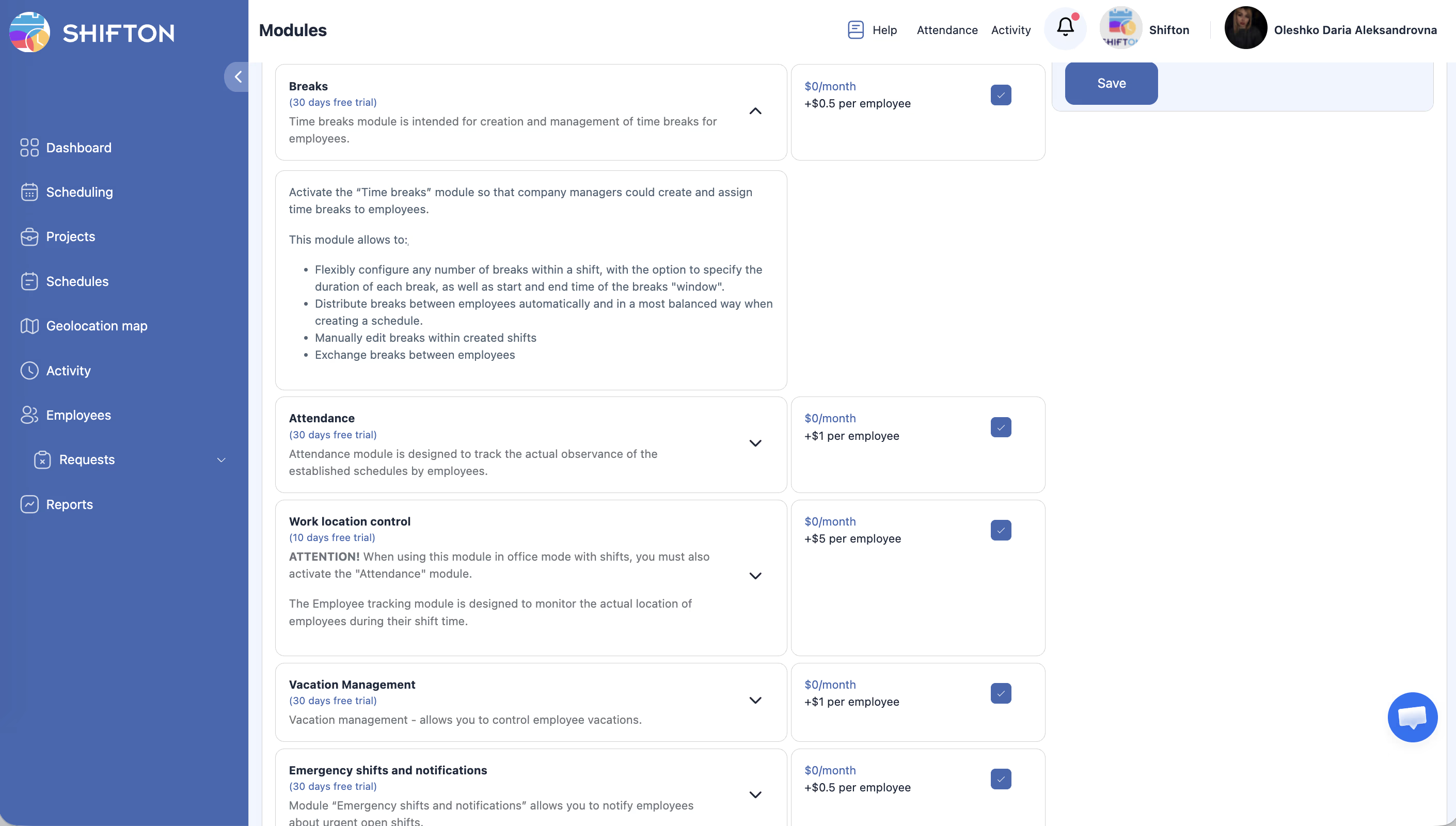
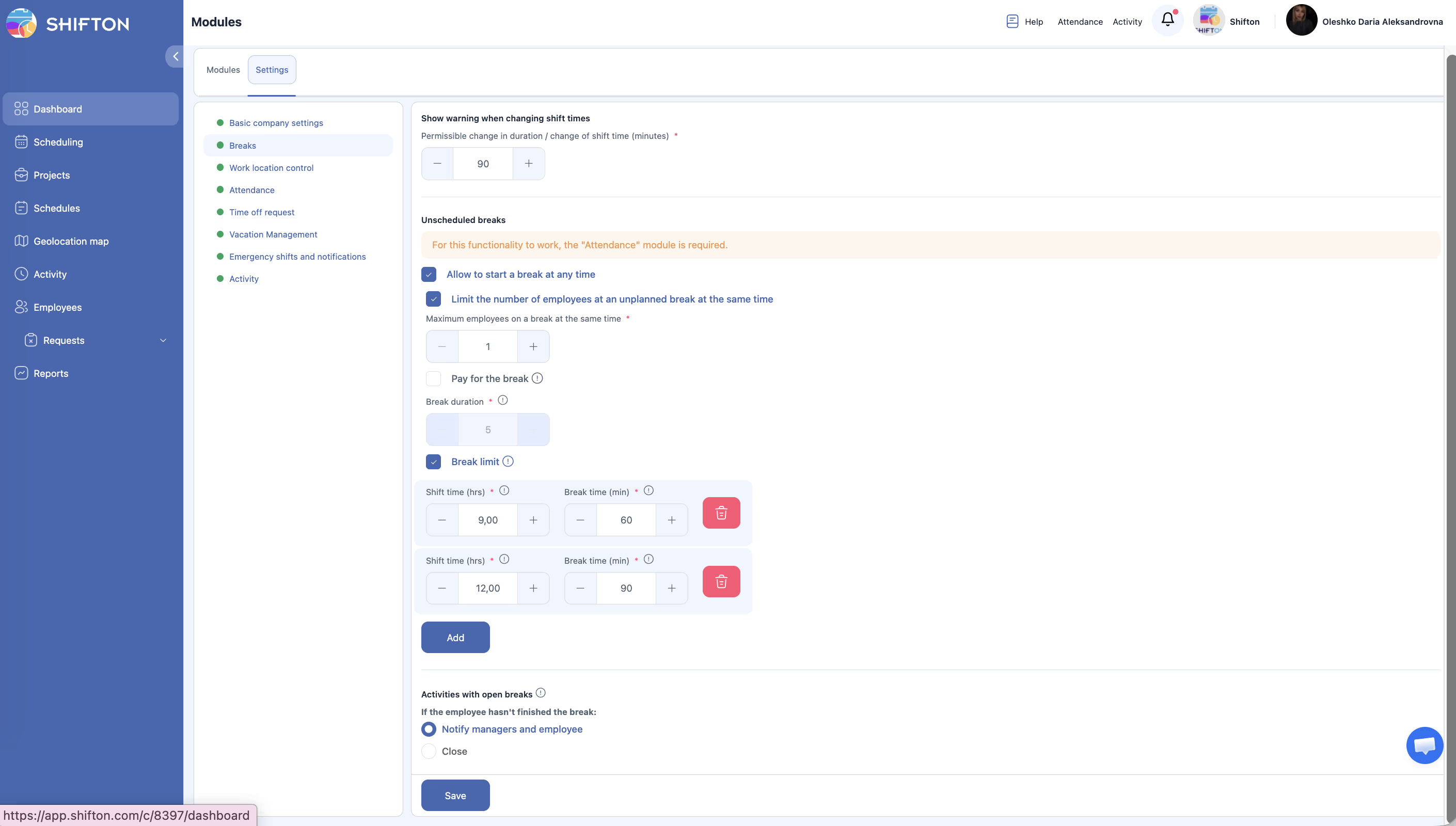
| Step | Action | Expected Result |
|---|---|---|
| 1 | Go to Settings > Modules | The Modules page opens |
| 2 | Find Breaks and click Enable | Breaks functionality becomes available |
Related Articles
FAQ
Q: The “Start break” button is not visible — why?
The Breaks module is not enabled, or the employee does not have an active shift. For unscheduled breaks, the Attendance module is also required. For details, see Break Types.
Q: An employee cannot start a break — why?
The concurrent employee limit has been reached, or the maximum break time for the shift has been exhausted.
Q: Is break time deducted from working hours?
It depends on the break pay setting. For details, see Break Types — Impact on Salary.
Q: Can the employee see the current break time?
Yes. The Attendance list shows a timer with elapsed break time.
Q: What happens if an employee does not end a break before the shift ends?
It depends on the Activities with open breaks setting: either the manager receives a notification, or the break is closed automatically.