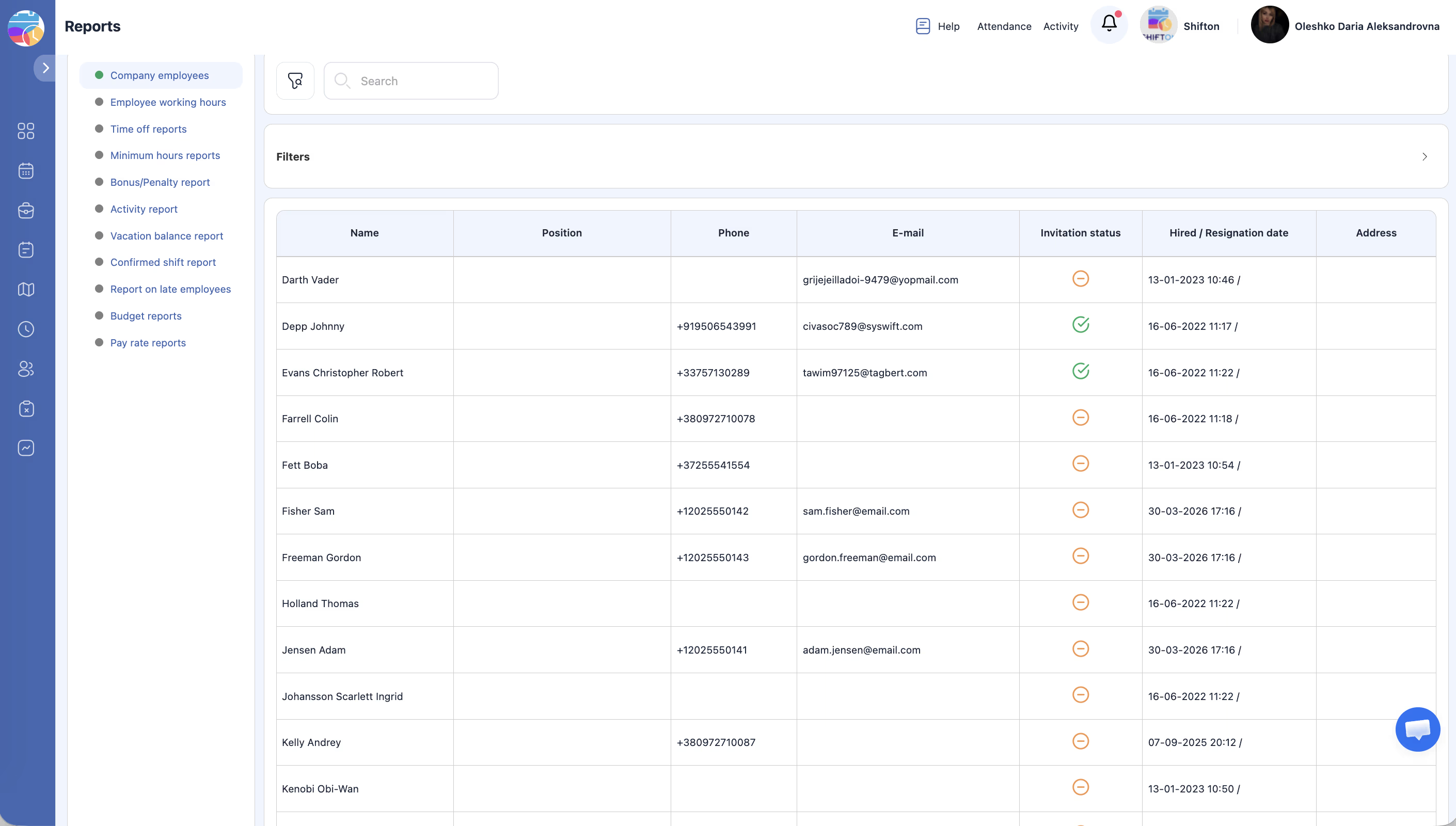
View a complete directory of your company’s employees with contact information, positions, and invitation statuses.
What Is This?
The Company Employees report is an employee directory that lists all personnel in your organization. It provides key contact details, position assignments, and shows whether each employee has been invited to and joined the Shifton platform. This report is useful for HR audits, onboarding tracking, and general workforce oversight.
Prerequisites
#
Prerequisite
Details
1
Manager, Admin, or Owner role
Access to the full employee list requires elevated permissions.
2
Employees added to the system
At least one employee must exist in your company.
Step-by-Step Instructions
Accessing the Report
Step
Action
Expected Result
1
Navigate to Reports from the left sidebar.
The Reports page opens.
2
Select Company Employees from the report list in the left panel.
The Company Employees report loads with filters and the employee table.
Applying Filters
Filter
Type
Description
Projects
Multi-select tags
Filter employees by one or more projects. Select project names as tags.
Date filter
Dropdown
Choose from: Ignore (no date filter), Hired (filter by hire date), or Resignation (filter by resignation date).
Date range
Date picker
Select the start and end dates to narrow results based on the chosen date filter.
Show users
Dropdown
Options: All, Current (active employees), Resignation (departed employees), Not invited (employees not yet invited to Shifton).
Position
Dropdown
Filter by employee position.
Step
Action
Expected Result
1
Set your desired filter values using the options described above.
Filters are configured.
2
Click Apply Filter.
The table updates to show only matching employees.
3
To clear filters, click Reset.
All filters return to defaults.
Reading the Report Table
Column
Description
Name
The employee’s full name.
Position
The position assigned to the employee.
Phone
The employee’s phone number (if provided).
E-mail
The employee’s email address.
Invitation status
Whether the employee has been invited to Shifton and their current status (e.g., Invited, Accepted, Not invited).
Exporting the Report
Step
Action
Expected Result
1
Apply any desired filters.
The table shows filtered results.
2
Click the Export or Download button.
The employee list is downloaded as a file.
Access Permissions
Role
View Report
Export Report
See All Employees
Employee
No
No
No
Manager
Yes
Yes
Yes
Admin
Yes
Yes
Yes
Owner
Yes
Yes
Yes
FAQ
Q1: How do I see only employees who have not been invited yet? Set the Show users filter to Not invited and click Apply Filter. The table will show only employees who have not received an invitation to Shifton.
Q2: Can I filter by multiple projects at the same time? Yes. The Projects filter uses multi-select tags, so you can select several projects and the report will include employees from all selected projects.
Q3: What does the “Ignore” option do in the date filter? Selecting Ignore disables date-based filtering entirely, showing all employees regardless of hire or resignation date.
Possible Issues and Solutions
Issue
Possible Cause
Solution
Report shows no employees
Filters are too restrictive.
Click Reset to clear all filters and verify that employees exist in the system.
Employee’s position is blank
No position has been assigned to the employee.
Assign a position in Employees > Edit Employee.
Invitation status shows “Not invited”
The employee has not been sent an invitation email.
Send an invitation from the employee’s profile or the Employees page.
Cannot see employees from another project
The Projects filter is limiting the view.
Add the additional project to the Projects filter or reset filters.
Phone or email column is empty
The employee’s contact info was not entered during setup.
Update the employee’s profile with their contact details.