

Shifton offers two products — choose the appropriate one during registration:
| Product | Best For | Registration URL |
|---|---|---|
| Shifton Scheduling | Shift management, scheduling, time tracking, and payroll | app.shifton.com/registration |
| Shifton Field Service | Dispatching field specialists, task management, GPS tracking, invoicing | app.shifton.com/registration?work_mode=field_service |
If you need both products: switch between modes in the Shifton menu (single account) — or register two separate accounts with different emails.
Step-by-Step Instructions
Step 1: Open the Registration Page
Go to shifton.com and click Sign Up or Try Free.
Step 2: Fill in the Registration Form
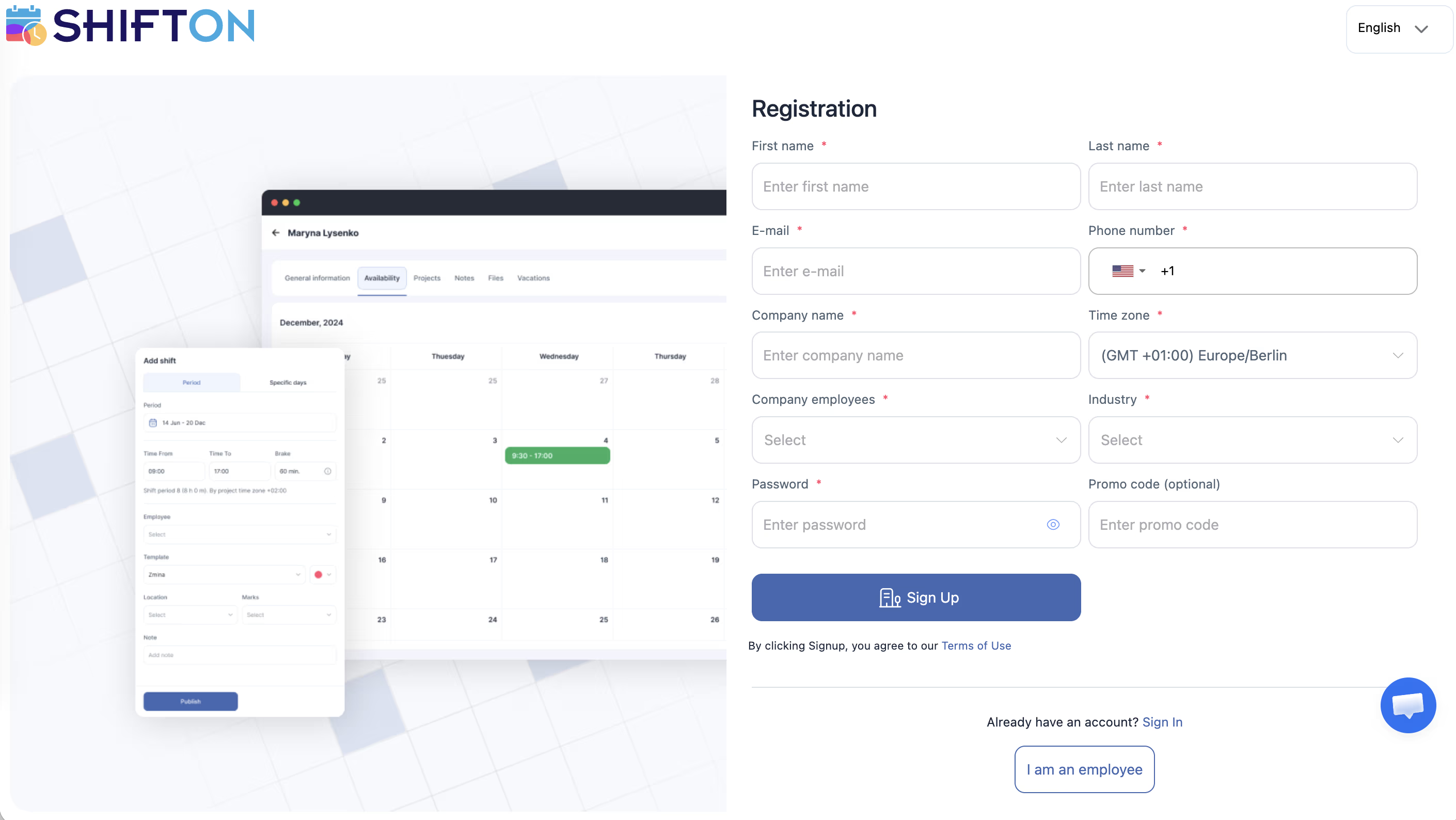
The person filling in the form becomes the company Owner:
| Field | Description | Required |
|---|---|---|
| Company name | Your organization’s name | Yes |
| Country/Region | Country where the company is located | Yes |
| Industry | Industry (e.g., Healthcare, Delivery, Hospitality) | Yes |
| Number of employees | Approximate number of employees | Yes |
| First name | Your first name | Yes |
| Last name | Your last name | Yes |
| Email address (used for login) | Yes | |
| Password | At least 8 characters | Yes |
| Phone number | Mobile only, with country code | Yes |
| Promo code | Promo code (if received via referral program) | No |
Step 3: Done — You’re In
After submitting the form, you are taken to your account immediately. No additional email confirmation is required.
What Happens Next?
After registration:
– Basic functionality is enabled automatically and cannot be disabled (schedule, employee list, dashboard)
– 1 free project (the Departments & Projects module is enabled by default — additional projects are paid)
– free trial of up to 60 days for most modules (Work Location Control — only 10 days)
– Company Owner rights for the account creator
Related Articles
- Step-by-Step Setup Guide
- First Login and Interface Overview
- Phone Verification
- Work Modes: Scheduling and Field Service
- Company General Information
- Payment Methods
- Module System Overview
FAQ
Q: Is registration free?
A: Yes. The first 10 employees are included free with Basic functions – no card required. A card and subscription are only needed to invite employees beyond 10 or to enable paid modules. Additional modules come with a trial period, after which they are billed separately.
Q: Can I change the company name later?
A: Yes. Open Company Settings > General Information and update the name.
Q: Can I manage multiple companies?
A: Yes. Register a second company using the same email. After that, the Shifton menu (upper right corner) will show a Change company option to switch between accounts.
Q: What happens after the trial period ends?
A: Shifton operates on a post-payment basis — modules are not automatically disabled; an invoice is issued. You can only disable a module manually. The amount depends on enabled modules and active employees (those who had at least one shift in the month).
Q: How much does the basic plan cost?
A: The first 10 employees are free with Basic functions. Beyond that, employees are billed at $1 per employee per month. There is no per-company fee – you only pay for the paid modules you enable.
Q: Who becomes the company Owner?
A: The person who filled in the registration form. They receive full access to all settings, including billing.
Q: Can I register without a phone number?
A: No. A phone number is required during registration. It will be needed for verification and sending employee invitations.
Q: Do I need to confirm my email after registration?
A: No. After submitting the form, you are taken to your account immediately — no additional email confirmation is required.
Q: Can I register for Field Service through the main form?
A: No. For Field Service, use the separate URL: app.shifton.com/registration?work_mode=field_service.
Q: Can I change the industry or country after registration?
A: The country and industry can be updated in Company Settings > General Information after logging in.
Q: How long is the free trial period?
A: 10 days after registration, and completing setup tasks extends it to up to 60 days for most modules. The exception is the Work location control module: only 10 days.
Q: What is included in the basic functionality without paid modules?
A: Schedule, employee list, dashboard, and one free project. These features cannot be disabled.
Q: Can I use a promo code during registration?
A: Yes. Enter the promo code in the Promo code field on the registration form. Promo codes are distributed through the Shifton referral program.
Q: How do I invite employees after registration?
A: Add a card, subscribe, and verify your phone number — after that, the invitation sending button will become active.
Q: Is there a mobile app?
A: Yes. Employees and managers can use the Shifton mobile app on iOS and Android.