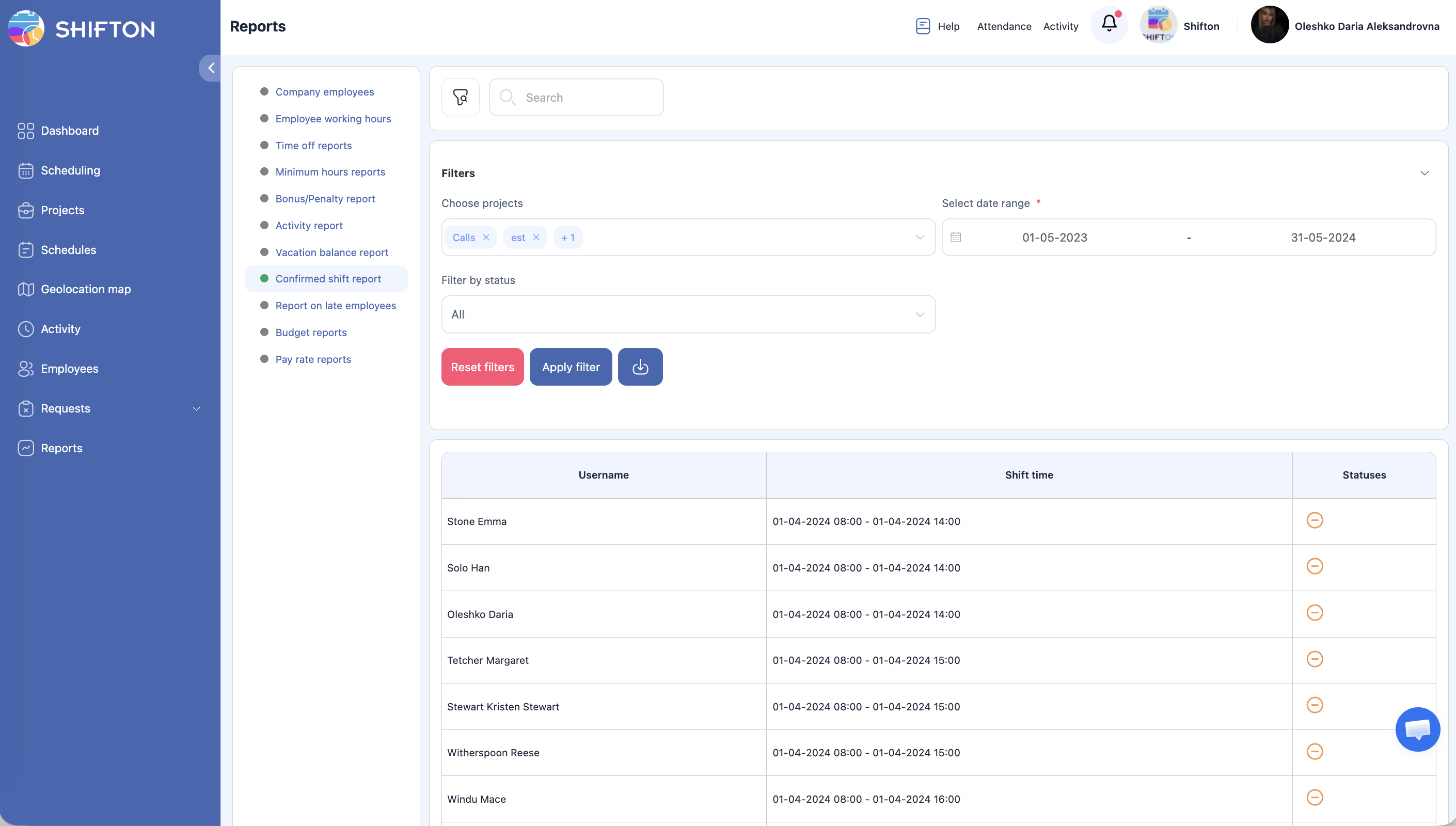
Track which employees have confirmed or not confirmed their upcoming shifts.
What Is This?
The Confirmed Shift report shows the confirmation status of scheduled shifts. When Shifton requires employees to confirm their shifts before working them, this report gives managers a clear view of who has confirmed and who has not. This helps with last-minute staffing decisions and ensures adequate coverage.
Prerequisites
#
Prerequisite
Details
1
Shift confirmation enabled
The shift confirmation feature must be active in your company settings.
2
Published schedules
Shifts must be published for employees to confirm them.
3
Manager, Admin, or Owner role
Full access requires elevated permissions.
Step-by-Step Instructions
Accessing the Report
Step
Action
Expected Result
1
Navigate to Reports from the left sidebar.
The Reports page opens.
2
Select Confirmed Shift from the report list.
The report loads with filters and data table.
Applying Filters
Filter
Type
Description
Projects
Multi-select
Filter by one or more projects.
Date range
Date picker
Select the period to check confirmation statuses.
Filter by status
Dropdown
Options: All, Confirmed, Unconfirmed.
Step
Action
Expected Result
1
Set the date range, project, and status filter.
Filters are configured.
2
Click Apply Filter.
The table updates to show matching shifts.
Reading the Report Table
Column
Description
Username
The employee’s name.
Shift time
The scheduled date and time of the shift.
Statuses
An icon indicating whether the shift is confirmed or unconfirmed.
Access Permissions
Role
View Report
Export Report
See All Shifts
Employee
Own data only
No
No
Manager
All
Yes
Yes
Admin
All
Yes
Yes
Owner
All
Yes
Yes
FAQ
Q1: How do I see only unconfirmed shifts? Set the Filter by status dropdown to Unconfirmed and click Apply Filter. The table will show only shifts that have not been confirmed.
Q2: What does the status icon mean? A checkmark or green icon typically indicates a confirmed shift, while a different icon (e.g., clock, X, or gray) indicates an unconfirmed shift. The exact icons may vary.
Q3: Can employees confirm shifts from this report? No. Employees confirm shifts from their schedule view or the Shifton mobile app. This report is read-only.
Q4: What happens if an employee does not confirm a shift? The shift remains on the schedule but is flagged as unconfirmed. Managers can take appropriate action, such as contacting the employee or finding a replacement.
Possible Issues and Solutions
Issue
Possible Cause
Solution
Report shows no shifts
No shifts exist in the selected date range, or shift confirmation is not enabled.
Broaden the date range or enable shift confirmation in company settings.
All shifts show as unconfirmed
Employees may not have been notified about the confirmation requirement.
Verify that shift confirmation notifications are enabled and that employees know how to confirm.
Status icons are not displaying
Browser rendering issue.
Try refreshing the page or using a different browser.
Cannot filter by specific project
Projects filter is not populated.
Verify that projects exist and you have access to them.
Confirmed shifts are not updating
There may be a delay between confirmation and report refresh.
Refresh the page or re-apply filters to get the latest data.