

Learn how to create new activities, perform bulk operations, and automatically distribute activities to employees.
What Is This?
Activities in Shifton represent tasks or assignments that employees need to complete, beyond their regular shifts. This article covers three key workflows:
These tools are available as buttons at the top of the Activity Calendar page.
Prerequisites
| # | Prerequisite | Details |
|---|---|---|
| 1 | Activity Calendar accessible | You must have access to the Activity page. |
| 2 | Employees assigned to projects | Employees must be part of a project to receive activities. |
| 3 | Activity templates (optional) | Having templates makes creating repeated activities faster. |
| 4 | Manager or Admin role | Creating and distributing activities requires elevated permissions. |
Step-by-Step Instructions
Creating a Single Activity
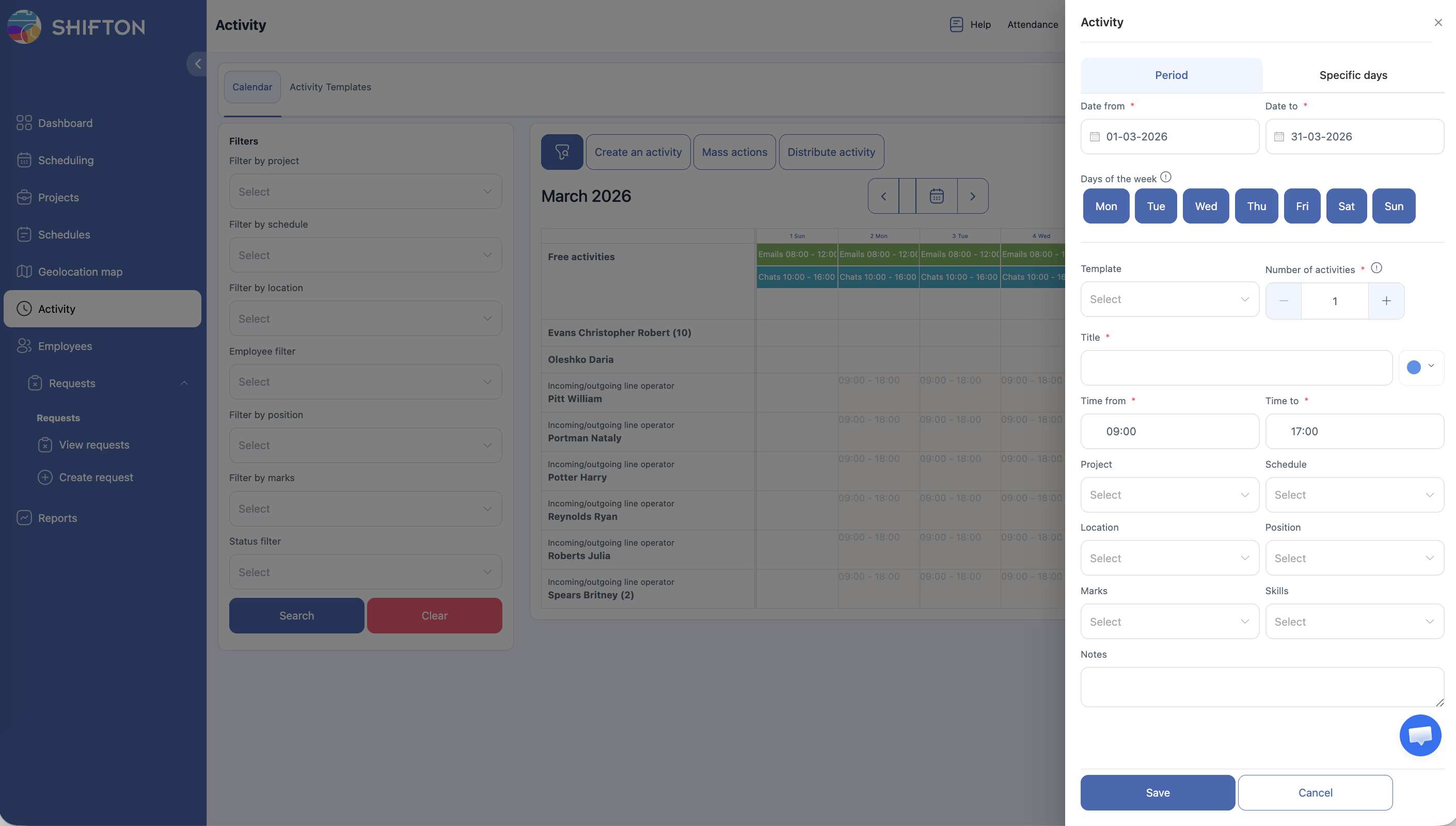
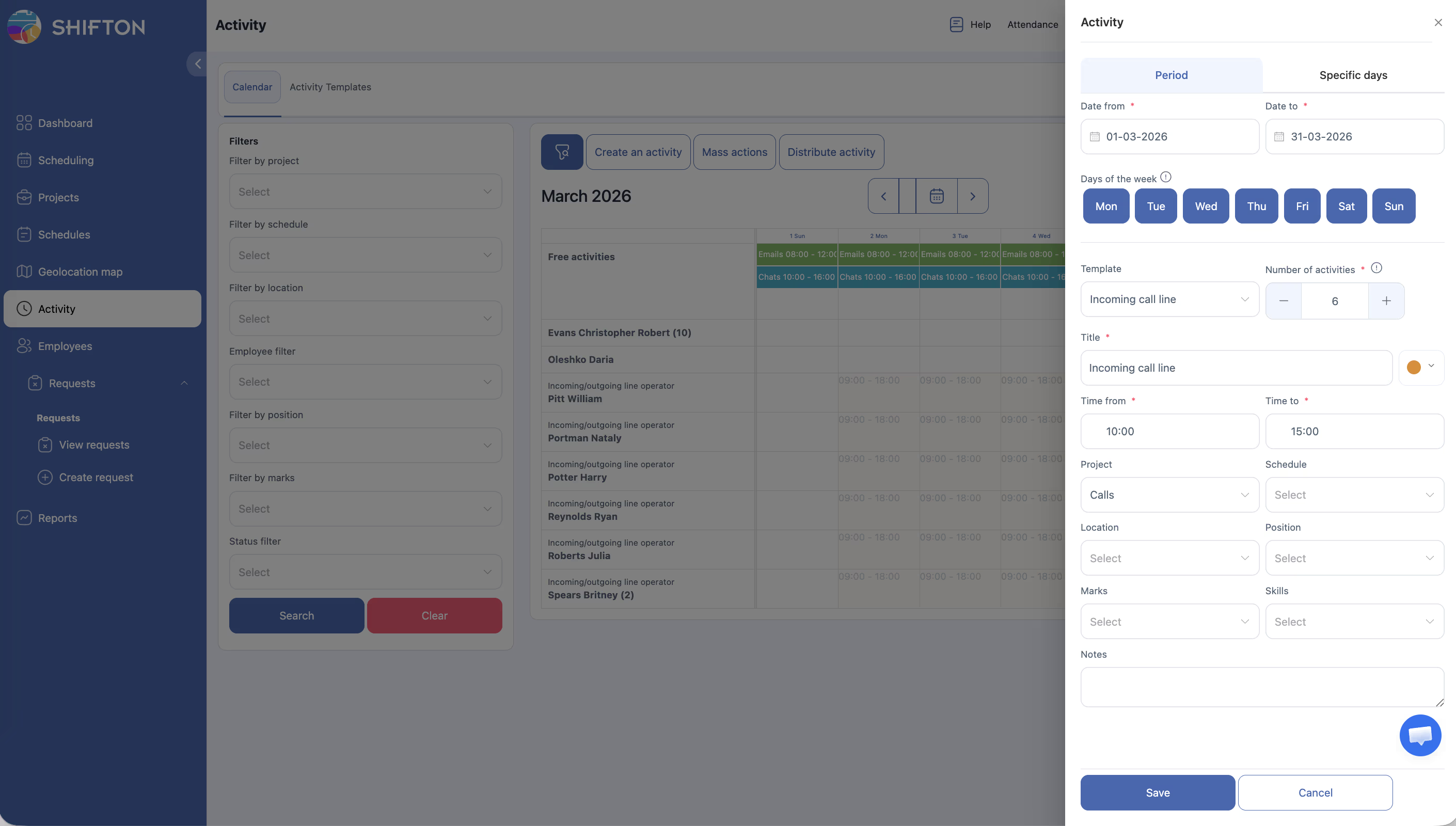
| Step | Action | Expected Result |
|---|---|---|
| 1 | Navigate to the Activity Calendar page. | The calendar view loads. |
| 2 | Click the Create an activity button at the top of the page. | A creation form or dialog opens. |
| 3 | Fill in the activity details: | |
| – Activity name or type | Identifies the activity. | |
| – Date and time | When the activity should take place. | |
| – Duration | How long the activity lasts. | |
| – Employee (optional) | Assign to a specific employee, or leave blank to add to Free activities. | |
| – Project | Associate the activity with a project. | |
| – Notes (optional) | Add any relevant details or instructions. | |
| 4 | Click Save or Create. | The activity appears on the calendar. If no employee was assigned, it appears in the Free activities row. |
Using Mass Actions
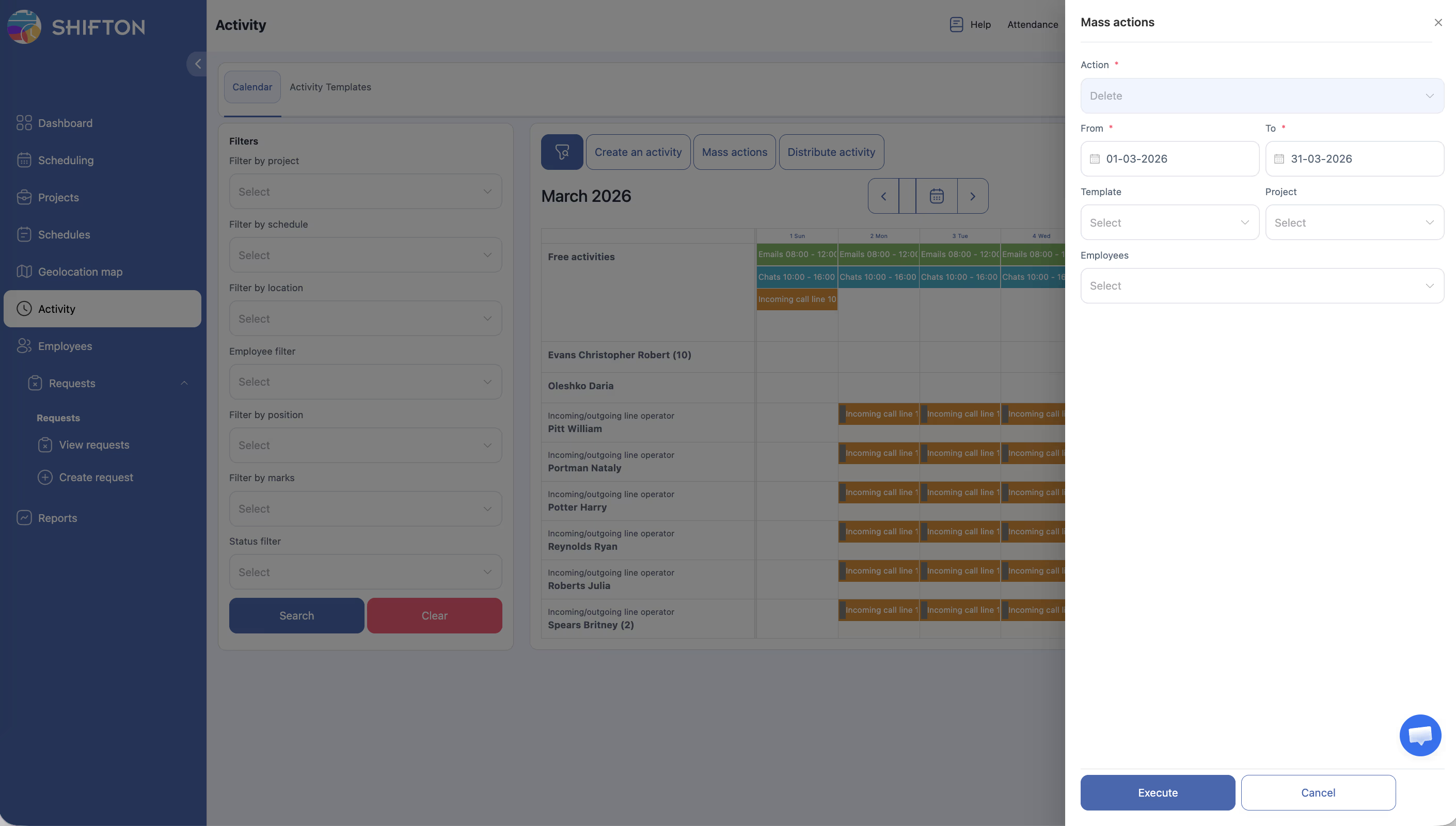
| Step | Action | Expected Result |
|---|---|---|
| 1 | On the Activity Calendar, click the Mass actions button. | The calendar enters selection mode. |
| 2 | Select multiple activities by clicking on them. | Selected activities are highlighted. |
| 3 | Click Delete to remove all selected activities. | A confirmation prompt appears. |
| 4 | Confirm the deletion. | The selected activities are removed from the calendar. |
| 5 | Click Done or exit selection mode. | The calendar returns to normal view. |
Note: Mass actions only support Delete. To reassign an activity or change its status, edit the activity individually.
Distributing Activities Automatically
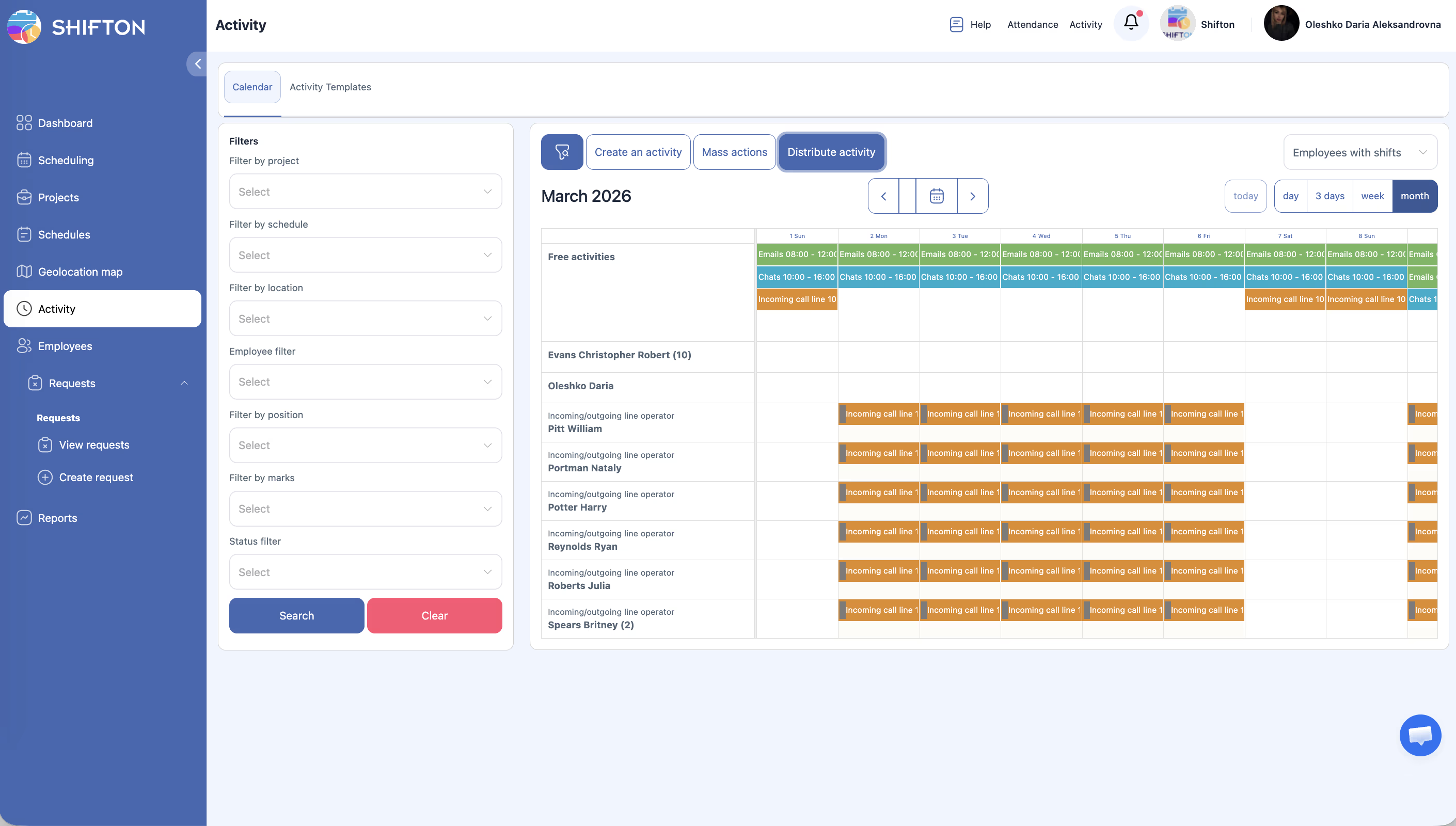
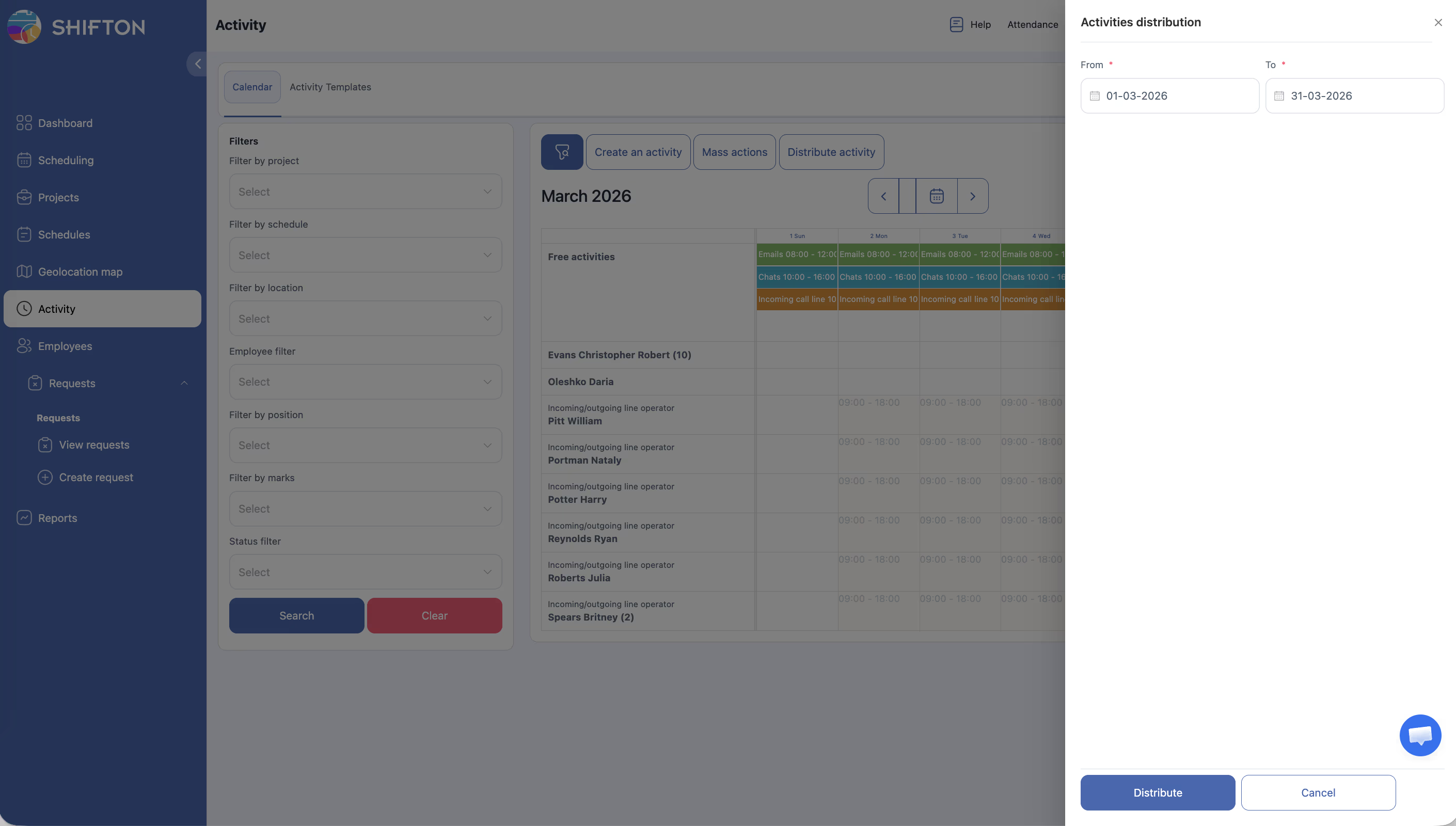
| Step | Action | Expected Result |
|---|---|---|
| 1 | Ensure there are unassigned activities in the Free activities row on the calendar. | At least one activity is unassigned. |
| 2 | Click the Distribute activity button at the top of the page. | A distribution dialog or configuration panel opens. |
| 3 | Review or adjust distribution settings (e.g., which employees to include, date range, position filters). | Settings are configured for your needs. |
| 4 | Click Distribute or Apply. | The system automatically assigns free activities to available employees based on their schedules, positions, and availability. |
| 5 | Review the calendar to confirm assignments. | Previously unassigned activities now appear in employee rows. |
Activity Creation Quick Reference
| Field | Required | Description |
|---|---|---|
| Activity name/type | Yes | The name or type of the activity (can be from a template). |
| Date and time | Yes | The scheduled start date and time. |
| Duration | Yes | How long the activity should last. |
| Employee | No | Leave blank for the Free activities pool, or assign directly. |
| Project | Yes | The project this activity belongs to. |
| Location | No | The work location for the activity. |
| Notes | No | Additional instructions or context for the employee. |
Access Permissions
| Role | Create Activities | Use Mass Actions | Distribute Activities | View Activities |
|---|---|---|---|---|
| Employee | No | No | No | Own only |
| Manager | Yes | Yes | Yes | All |
| Admin | Yes | Yes | Yes | All |
| Owner | Yes | Yes | Yes | All |
FAQ
Q1: What happens if I create an activity without assigning an employee?
The activity is added to the Free activities row on the calendar. It remains there until it is manually assigned to an employee or distributed using the Distribute activity feature.
Q2: Can I undo a mass action?
No. Mass deletion is irreversible. Always double-check your selection before confirming.
Q3: How does automatic distribution decide which employee gets an activity?
The distribution algorithm considers employee availability (based on published schedules), position match, and workload balance. The exact logic may vary based on your company’s configuration.
Q4: Can I distribute activities to specific employees only?
Yes. When using the Distribute activity feature, you can filter by employee, position, or other criteria to limit which employees receive assignments.
Q5: Is there a limit to how many activities I can create at once?
There is no hard limit for individual creation. For bulk creation, consider using Activity Templates or import features if available in your plan.
Possible Issues and Solutions
| Issue | Possible Cause | Solution |
|---|---|---|
| “Create an activity” button is not visible | Insufficient permissions. | Contact your Admin to ensure your role has activity creation rights. |
| Distribution assigns activities to the wrong employees | Filter settings were not configured correctly before distributing. | Adjust the distribution filters (position, employee, schedule) and redistribute. |
| Mass action does not apply to all selected activities | Some activities may have a status or ownership that prevents the action. | Review which activities were not affected and handle them individually. |
| Activity does not appear on the calendar after creation | The calendar view or filters may be hiding the new activity. | Check your date range, view mode, and left panel filters. Reset filters if needed. |
| No activities available for distribution | All activities are already assigned, or none have been created. | Create new activities or check if existing ones are already assigned to employees. |