

Organize your workforce into structured teams by creating departments and projects within your Shifton workspace.
What Is This?
The Departments/projects module lets you divide your company into logical units — departments, teams, branches, or projects. Each project can have its own schedule, set of employees, and managers. This is essential for companies that operate multiple locations, run parallel teams, or need to track work across distinct business units.
The Projects page is always available in your left sidebar — this is core platform functionality that cannot be disabled.
Prerequisites
Can It Be Disabled?
No. The Departments/projects module is a core part of the platform and cannot be disabled. The Projects page is always present in the left sidebar. You can manage the number of additional projects in Modules → Departments and Projects.
Module Settings
This module does not have a dedicated settings section in the Module Settings tab. All configuration is done directly on the Projects page.
Step-by-Step Usage Guide
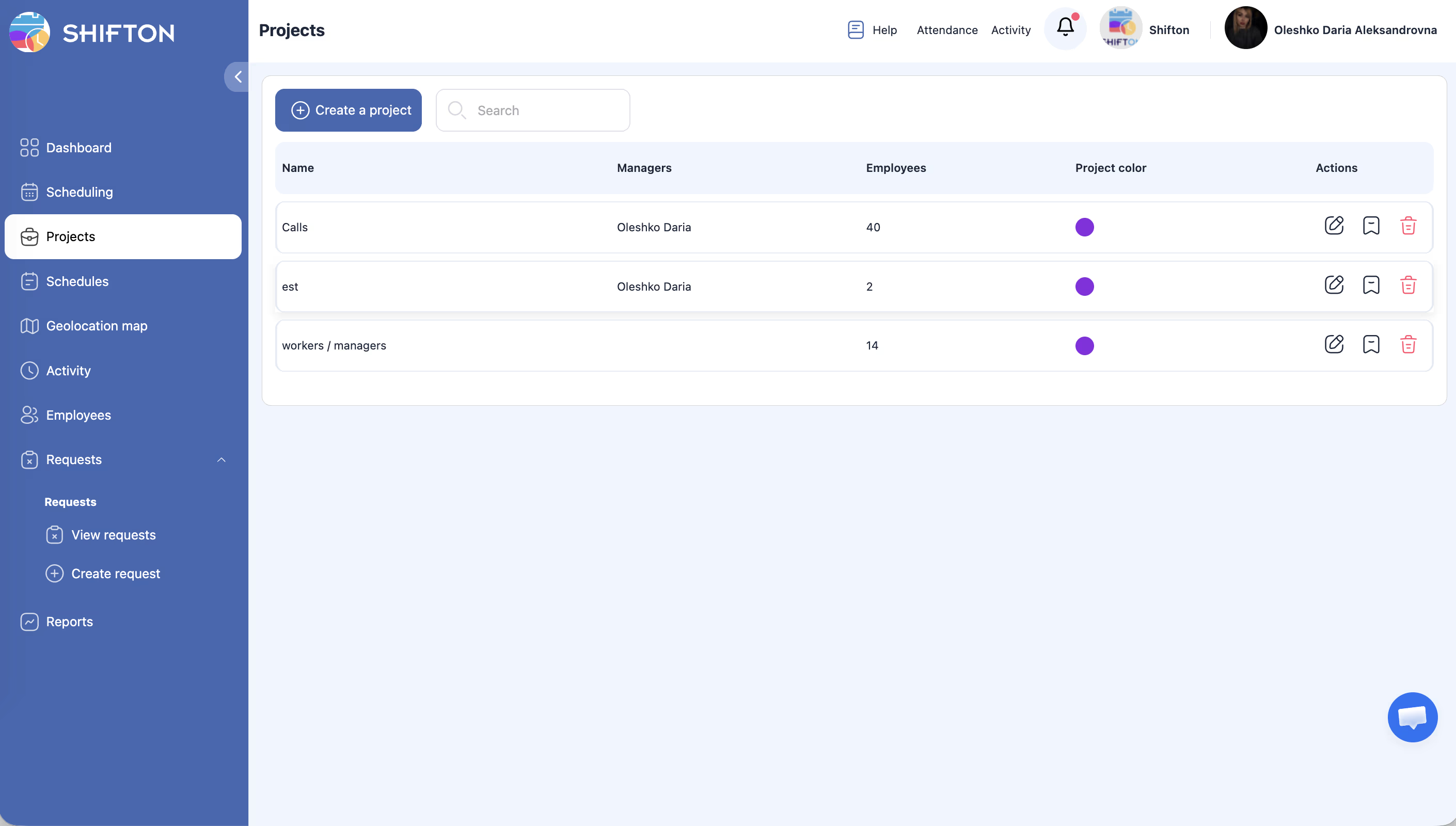
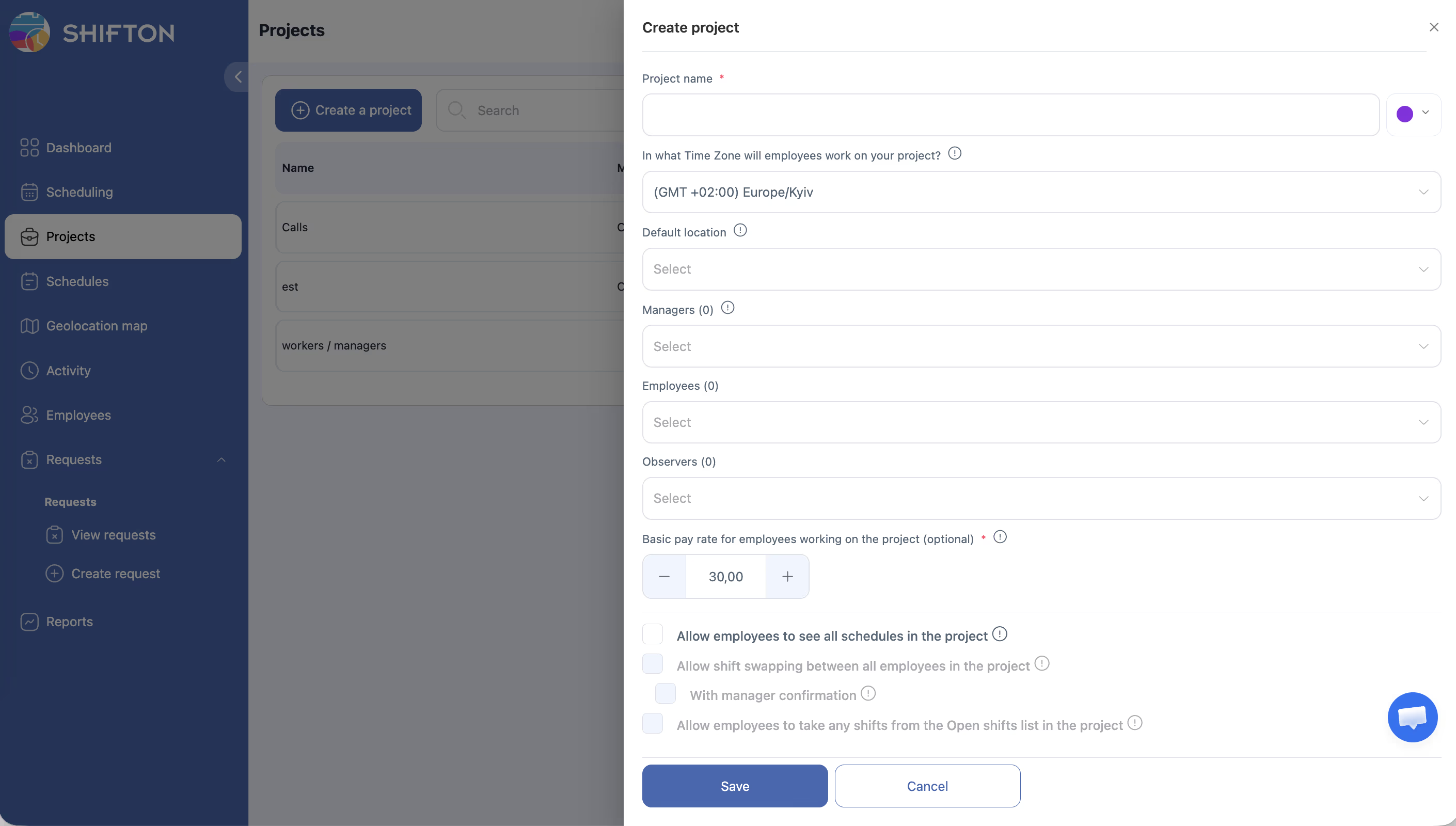
Creating a New Project
Assigning Employees to a Project
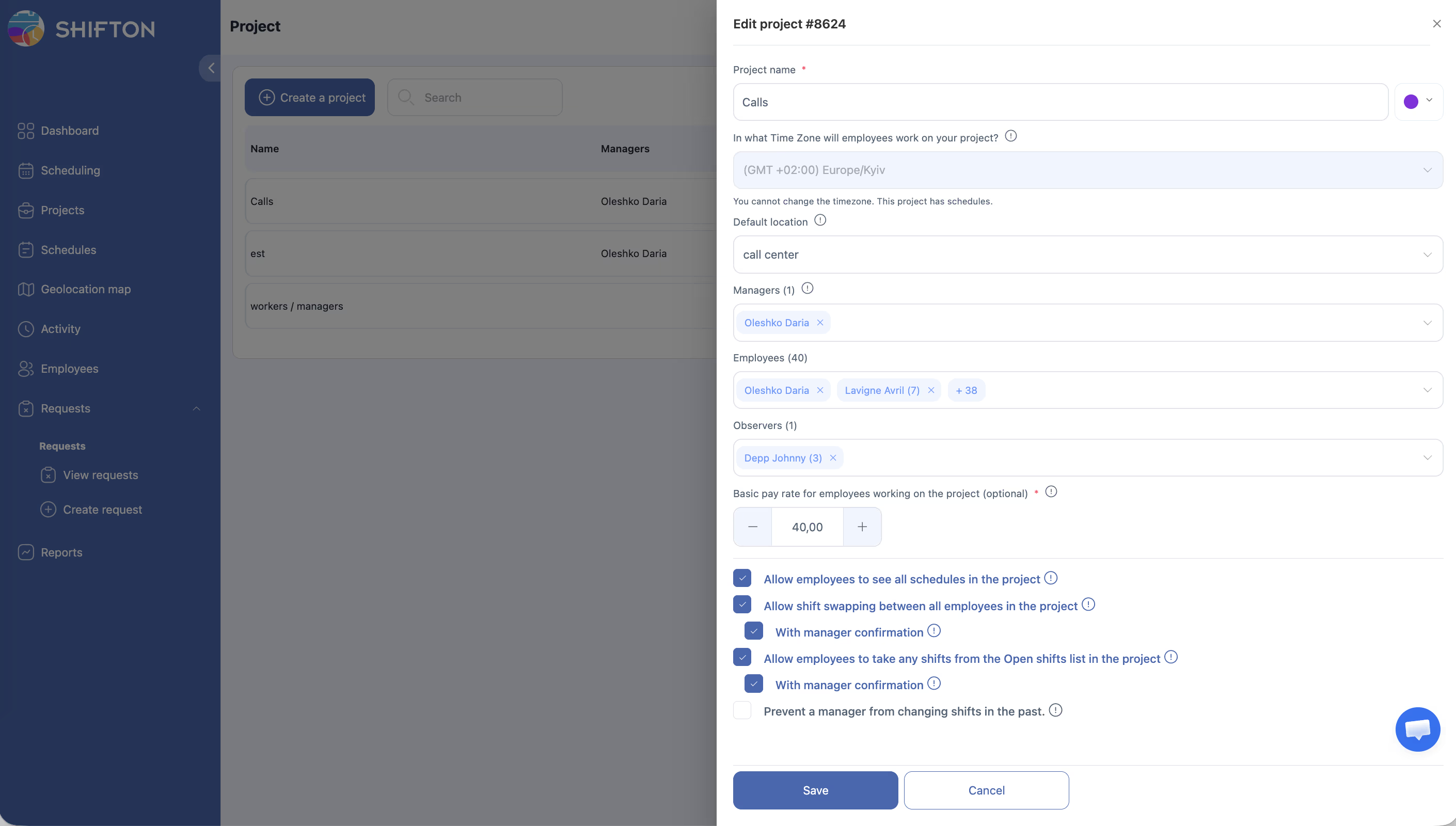
Managing Multiple Projects
- Each employee can belong to multiple projects simultaneously.
- Managers assigned to a project can only manage schedules and shifts within their assigned projects.
- Use projects to separate scheduling by location, department, or function.
Deleting a Project
Note: Deleting a project does not delete the employees assigned to it. They will remain in the system and can be assigned to other projects.
Pricing Info
| Component | Cost |
|---|---|
| First project | Free (included with the module) |
| Each additional project | $1/month per project |
For example, a company with 5 projects would pay $0 (first free) + $4 (4 additional projects) = $4/month total.
Access Permissions
| Role | View Projects | Create/Edit Projects | Delete Projects | Manage Employees in Project |
|---|---|---|---|---|
| Owner | Yes | Yes | Yes | Yes |
| Admin | Yes | Yes | Yes | Yes |
| Manager | Assigned only | No | No | Assigned only |
| Employee | Assigned only | No | No | No |
FAQ
Q: Is there a limit to how many projects I can create?
A: There is no hard limit. You can create as many projects as your organization needs. Each additional project beyond the first costs $1/month.
Q: Can one employee belong to multiple projects?
A: Yes. Employees can be assigned to as many projects as needed, and their schedules will reflect all their assignments.
Q: What is the difference between a “department” and a “project” in Shifton?
A: In Shifton, both are represented as projects. Whether you call them departments, teams, branches, or projects is up to you. The functionality is the same.
Q: Can a manager see only their assigned project?
A: Yes. Managers can only view and manage schedules for the projects they are assigned to. They cannot access other projects unless explicitly added.
Possible Issues and Solutions
| Issue | Cause | Solution |
|---|---|---|
| Projects page not visible in sidebar | Browser cache or display issue | Refresh the page or clear browser cache. If the issue persists, contact support. |
| Cannot add employees to a project | You do not have Admin/Owner role | Ask your Admin or Owner to add employees. |
| Employee appears in the wrong project schedule | Employee is assigned to multiple projects | Verify project assignments on the employee’s profile page. |
| Deleted project still appears in reports | Historical data is preserved for completed shifts | This is expected behavior. Past shift data remains in reports. |
| Billing shows charges for projects I deleted | Projects were active during part of the billing cycle | Charges are prorated. The cost reflects the days the project was active. |