

Quickly fill urgent staffing gaps by creating high-priority shifts with bonus incentives and targeted notifications.
What Is This?
The Emergency shifts module is designed for situations where you need to fill a shift on short notice. When a regular shift becomes vacant (due to illness, no-show, or unexpected demand), you can mark it as an “emergency” shift. Emergency shifts can include a bonus incentive to encourage employees to pick them up quickly.
The module gives you control over who sees the emergency shift — either only employees who were specifically notified or all available employees in the project.
Prerequisites
How to Enable/Disable
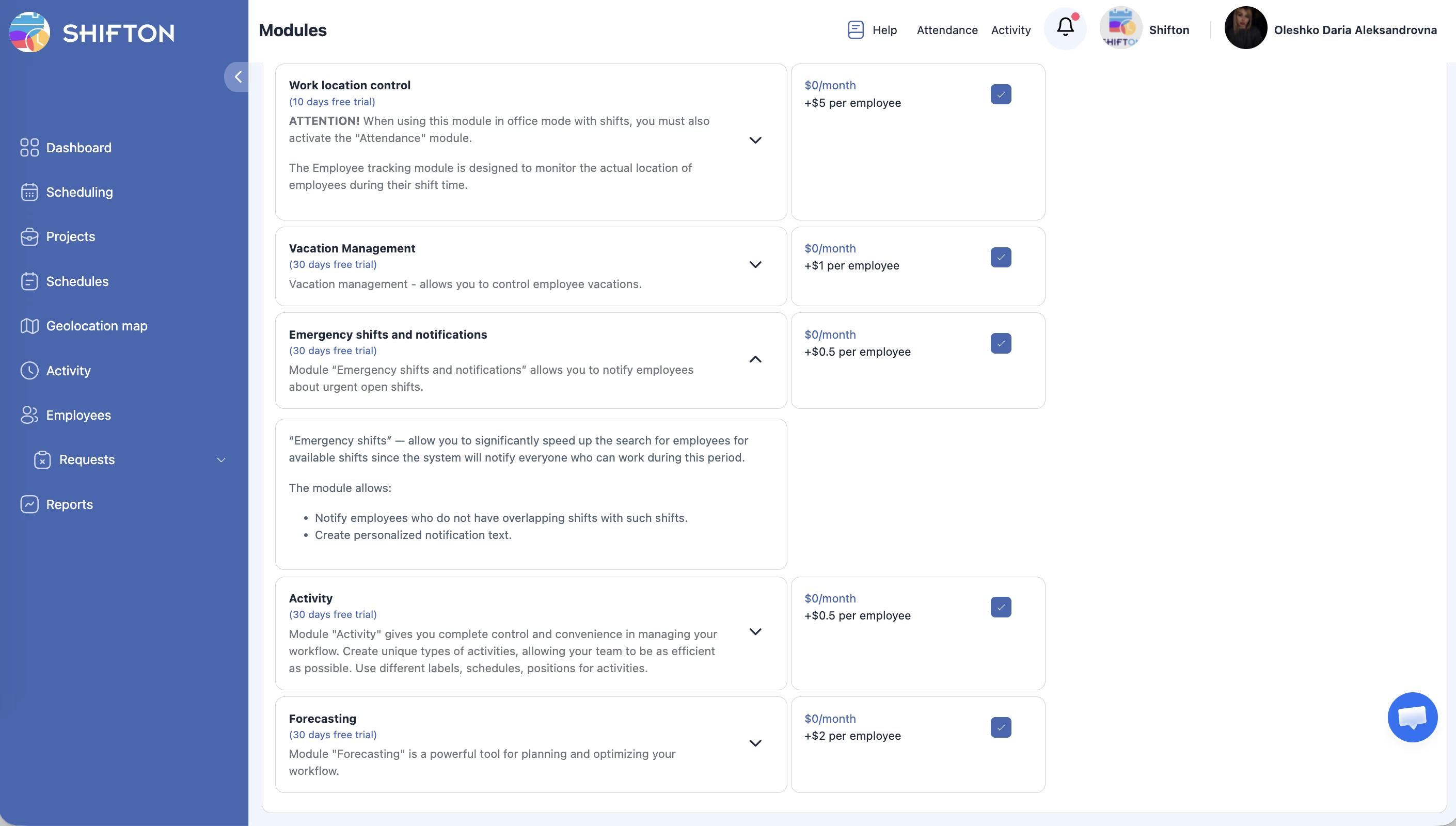
Module Settings
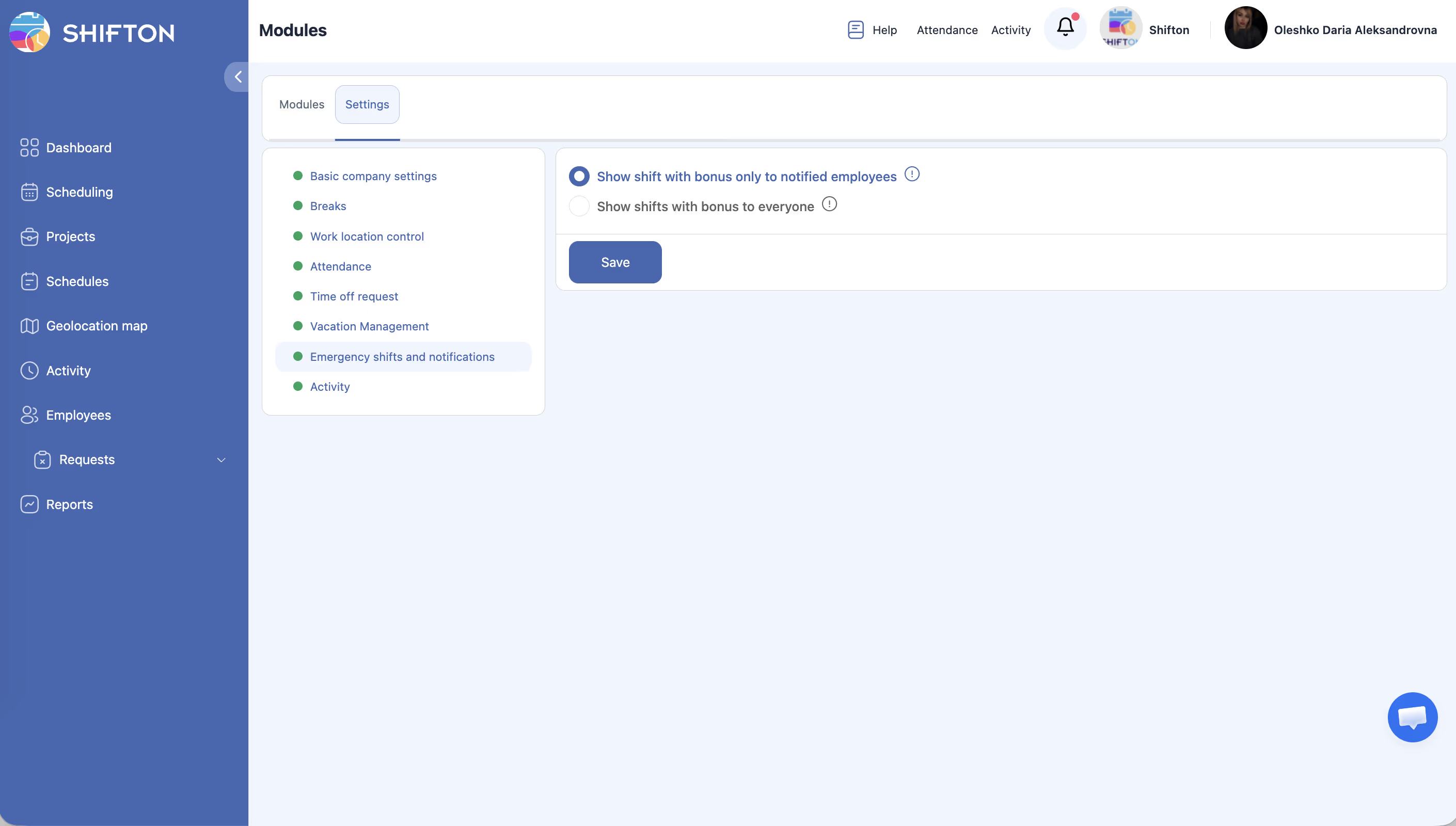
Navigate to Modules > Settings > Emergency Shifts to configure the following:
| Setting | Description | Options |
|---|---|---|
| Shift visibility | Controls who can see an emergency shift with a bonus. | Show shift with bonus only to notified employees — only employees who received a direct notification can see and accept the shift. Show to everyone — all employees in the project can see the emergency shift and its bonus. |
Step-by-Step Usage Guide
Creating an Emergency Shift
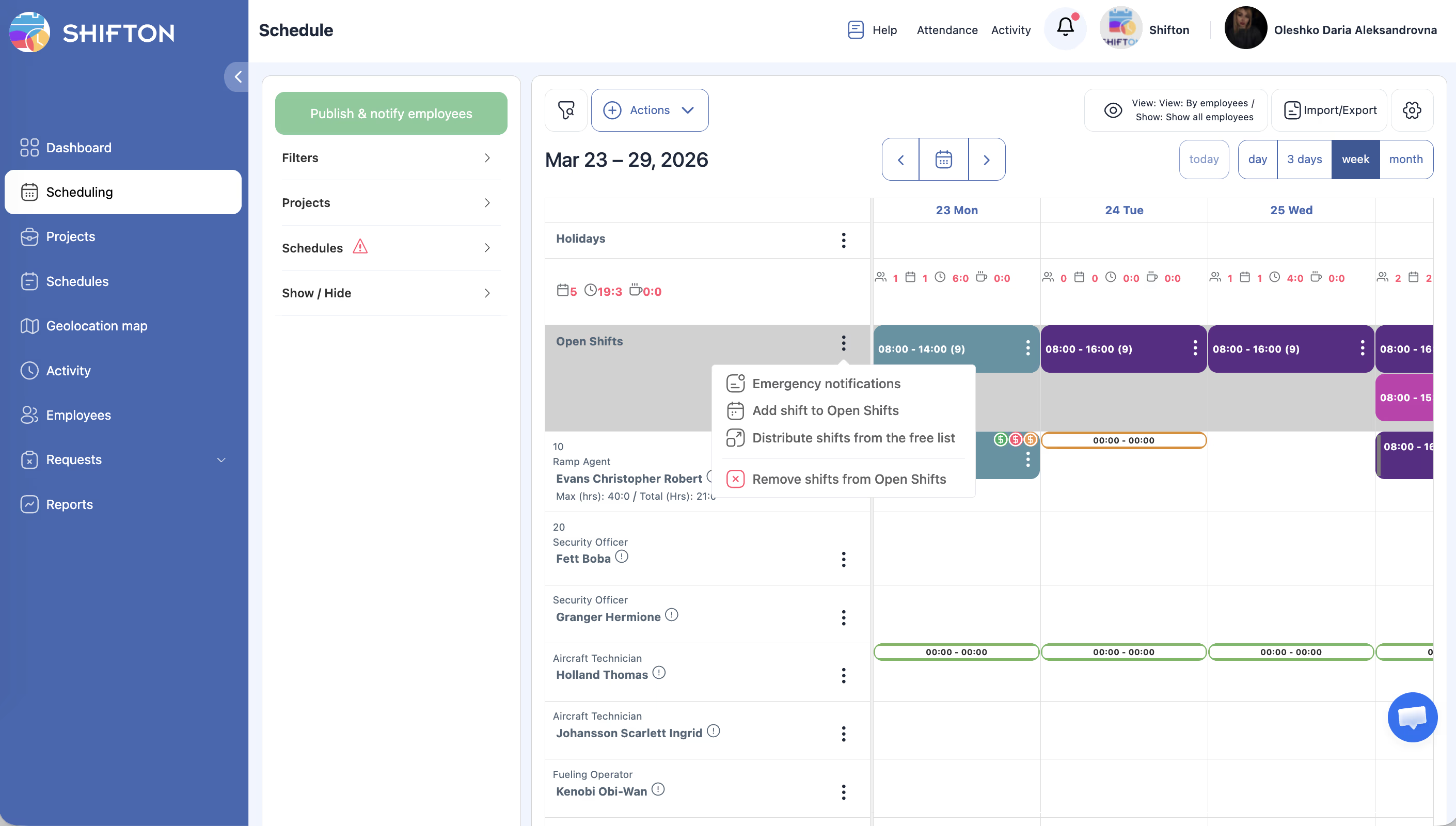
Notifying Employees
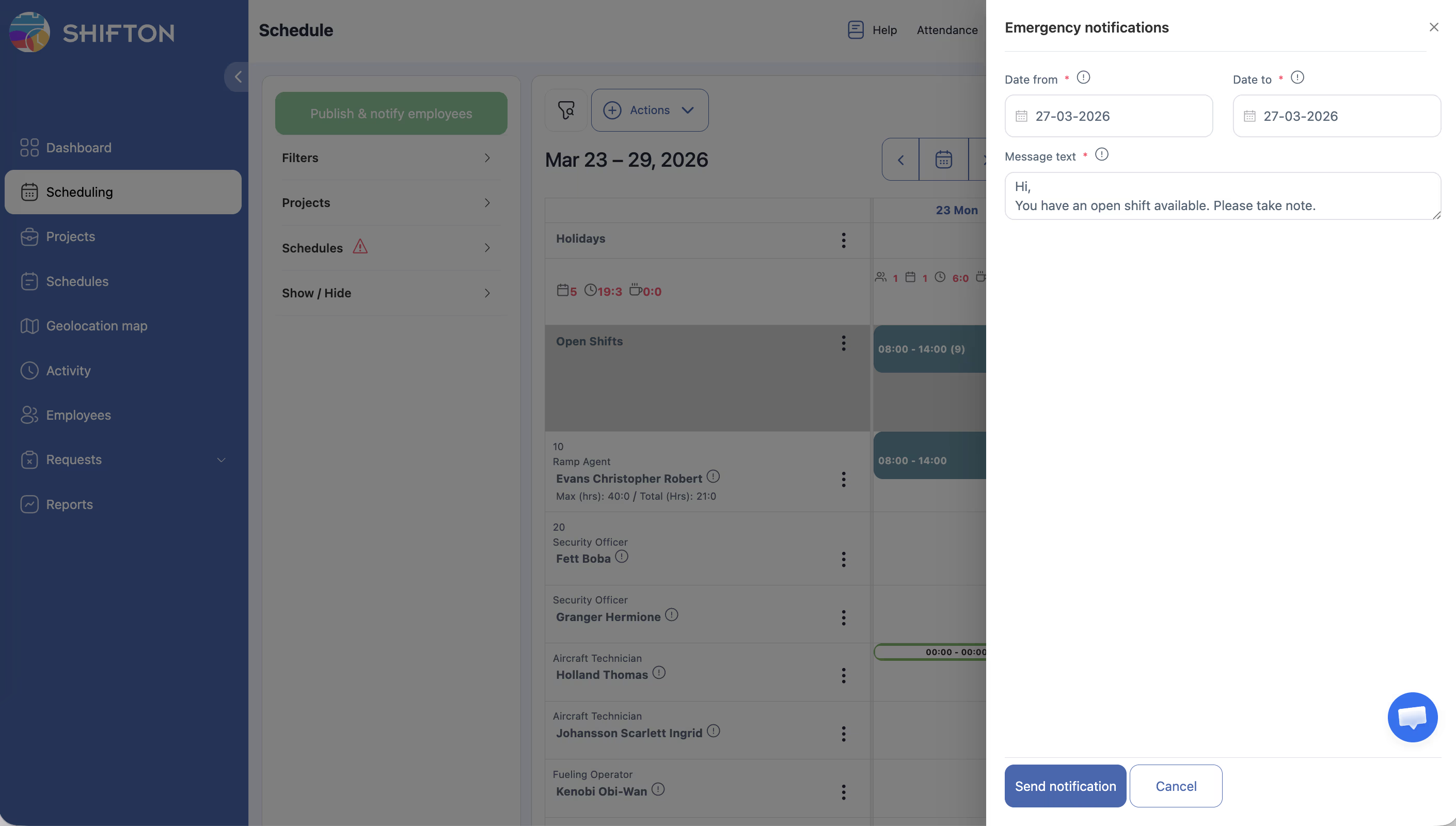
Employee Accepting an Emergency Shift
Managing Emergency Shifts
Pricing Info
| Component | Cost |
|---|---|
| Monthly module fee | $0/month |
| Per-employee fee | $0.50/employee/month |
For example, a company with 20 employees would pay: $0 + (20 x $0.50) = $10/month.
Access Permissions
| Role | Create Emergency Shifts | View Emergency Shifts | Accept Emergency Shifts | Configure Settings |
|---|---|---|---|---|
| Owner | Yes | Yes | Yes | Yes |
| Admin | Yes | Yes | Yes | Yes |
| Manager | Assigned projects | Assigned projects | Yes | No |
| Employee | No | If notified or if visible to all | Yes | No |
FAQ
Q: What is the difference between the two visibility options?
A: “Show shift with bonus only to notified employees” limits visibility to a hand-picked group, which is useful when you want to offer the shift to specific qualified employees first. “Show to everyone” makes the shift visible to all employees in the project, maximizing the chance of quick coverage.
Q: Can I change the visibility after creating the emergency shift?
A: The visibility setting is a module-level configuration that applies to all emergency shifts. You can change it at any time in the module settings, and it will affect newly created emergency shifts.
Q: Is the bonus amount automatically added to payroll?
A: Yes, if the Bonuses/Deductions and Payroll modules are enabled. The emergency shift bonus appears as a line item in the Pay Rate report.
Q: Can multiple employees accept the same emergency shift?
A: No. Once an employee accepts the shift, it is assigned to them and no longer available to others.
Q: What happens if no one accepts the emergency shift?
A: The shift remains open on the schedule. You can increase the bonus, notify more employees, or assign it manually.
Possible Issues and Solutions
| Issue | Cause | Solution |
|---|---|---|
| Employees cannot see the emergency shift | Visibility is set to “notified only” and they were not notified | Either notify the specific employees or change the visibility to “Show to everyone.” |
| Bonus not appearing in payroll | Bonuses/Deductions or Payroll module not enabled | Enable both modules to see bonus amounts in salary reports. |
| No one is accepting the emergency shift | Bonus is too low or timing is inconvenient | Increase the bonus amount or expand the notification to more employees. |
| Emergency flag option not available when creating a shift | Module is not enabled | Enable the Emergency shifts module from the Modules page. |
| Employee accepted but shift still shows as open | Browser not refreshed or sync delay | Refresh the schedule page. If the issue persists, contact support. |