

Learn how to configure which notifications an employee receives and through which channels.
What Is This?
The Notifications tab in an employee’s profile shows the notification settings for that employee. Only the employee themselves can change their notification preferences — Administrators and Managers can view these settings but cannot modify them for other employees.
Each employee can choose from four notification channels and enable or disable notifications for different event types.
Prerequisites
Before configuring notifications, make sure:
- You are logged in as the employee (to configure your own notifications)
- For email notifications: a valid email address is on file
- For Telegram notifications: Telegram is connected to your account
- For SMS notifications: a valid phone number is on file
Step-by-Step Instructions (Employee)
Step 1: Open Your Profile
Log in to Shifton, click on your profile icon (usually in the bottom left), and navigate to the Notifications tab or settings.
Step 2: Understand the Notification Channels
Notifications can be delivered through four channels, displayed as columns in the settings table:
| Channel | Description |
|---|---|
| Notifications sent to the employee’s email address | |
| Push | Push notifications sent to the employee’s browser or mobile device |
| Text/SMS | Text messages sent to the employee’s phone number |
| Telegram | Messages sent via the Telegram messaging app |
Note: Text/SMS notifications may incur additional charges depending on your Shifton plan and the employee’s region. Review your plan details before enabling SMS notifications.
Step 3: Configure Notification Types
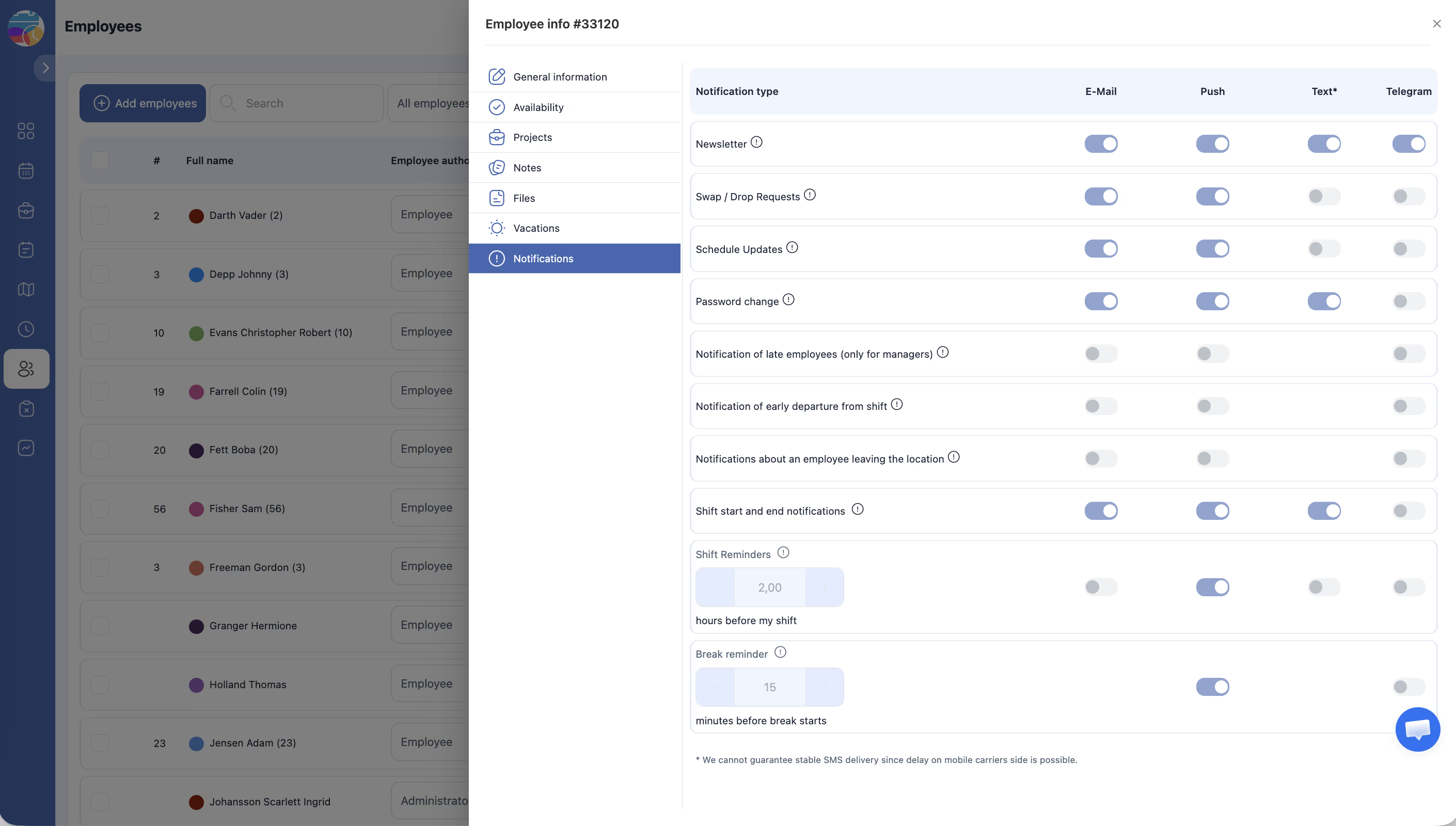
Each row in the table represents a different type of notification. Enable or disable each channel per notification type by toggling the corresponding checkbox.
| Notification Type | Description | Available To |
|---|---|---|
| Newsletter | Company news and updates from Shifton | All employees |
| Swap/Drop Requests | Notifications when someone requests a shift swap or drop | All employees |
| Schedule Updates | Alerts when the schedule is changed or published | All employees |
| Password change | Confirmation when the employee’s password is changed | All employees |
| Late employees notification | Alert when an employee has not checked in on time | Managers only |
| Early departure notification | Alert when an employee checks out before their shift ends | Managers only |
| Employee leaving location | Alert when an employee leaves the work location during a shift | Managers only |
| Shift start/end | Reminders when a shift is about to start or has ended | All employees |
| Shift Reminders | Advance reminders before a shift begins. Configurable: set how many hours before the shift the reminder should be sent | All employees |
| Break reminder | Reminder to take a break during a shift. Configurable: set how many minutes before the break the reminder should be sent | All employees |
Step 4: Configure Timed Reminders
For Shift Reminders and Break reminder, you can set the advance notice period:
| Reminder Type | Configuration | Example |
|---|---|---|
| Shift Reminders | Number of hours before the shift starts | Set to 2 to get a reminder 2 hours before the shift |
| Break reminder | Number of minutes before the scheduled break | Set to 15 to get a reminder 15 minutes before break time |
Step 5: Save Changes
After configuring the notification preferences, save the settings. Changes take effect immediately.
Access Permissions
| Role | Can View Notifications Tab? | Can Edit Notification Settings? |
|---|---|---|
| Administrator | Yes (for viewing other employees’ settings) | No (can only view) |
| Manager | Limited (employees in their projects) | No (can only view) |
| Employee | Own notifications only | Yes (own only) |
FAQ
Q: Can Administrators or Managers change notification preferences for employees?
A: No. Only the individual employee can change their own notification preferences. Administrators and Managers can view the settings but cannot modify them. If you need to change an employee’s notifications, you must contact them directly.
Q: What are the manager-only notifications?
A: Three notification types are available only to employees with a Manager role: “Late employees notification,” “Early departure notification,” and “Employee leaving location.” These help managers monitor attendance and location compliance in real time. Other employees do not see these options.
Q: Will SMS notifications cost extra?
A: SMS notifications may incur additional costs depending on your subscription plan and the recipient’s country. Check your Shifton plan details for SMS pricing information.
Q: How do I connect Telegram for notifications?
A: As an employee, you can connect your Telegram account through your Shifton profile settings. Once connected, Telegram becomes available as a notification channel in your preferences.
Q: How do I disable all notifications?
A: Log in to your profile and go to the Notifications tab. Uncheck all channels for all notification types. However, it is recommended to keep at least Schedule Updates enabled so you stay informed about your shifts.
Possible Issues and Solutions
| Issue | Cause | Solution |
|---|---|---|
| I am not receiving email notifications | Email address is missing or incorrect in the profile | Log in to your profile and verify your email address in the General Information tab |
| Push notifications are not working | Browser or device notifications are not enabled | Allow push notifications in your browser or device settings |
| SMS notifications are not being delivered | Phone number is missing, or SMS is not included in the plan | Verify your phone number and check the subscription for SMS support |
| Telegram notifications are not working | Telegram account is not connected | Connect your Telegram account through your profile settings |
| Manager-only notifications are not visible in my preferences | You do not have a Manager role assigned in any project | Ask an Administrator to assign you a Manager role in the Projects tab |
| I cannot change an employee’s notification settings | Only the employee can change their own settings | Contact the employee directly and ask them to update their preferences |
| Shift reminders arrive too early or too late | The reminder time is not configured correctly | Adjust the hours/minutes setting for Shift Reminders or Break reminder in your preferences |