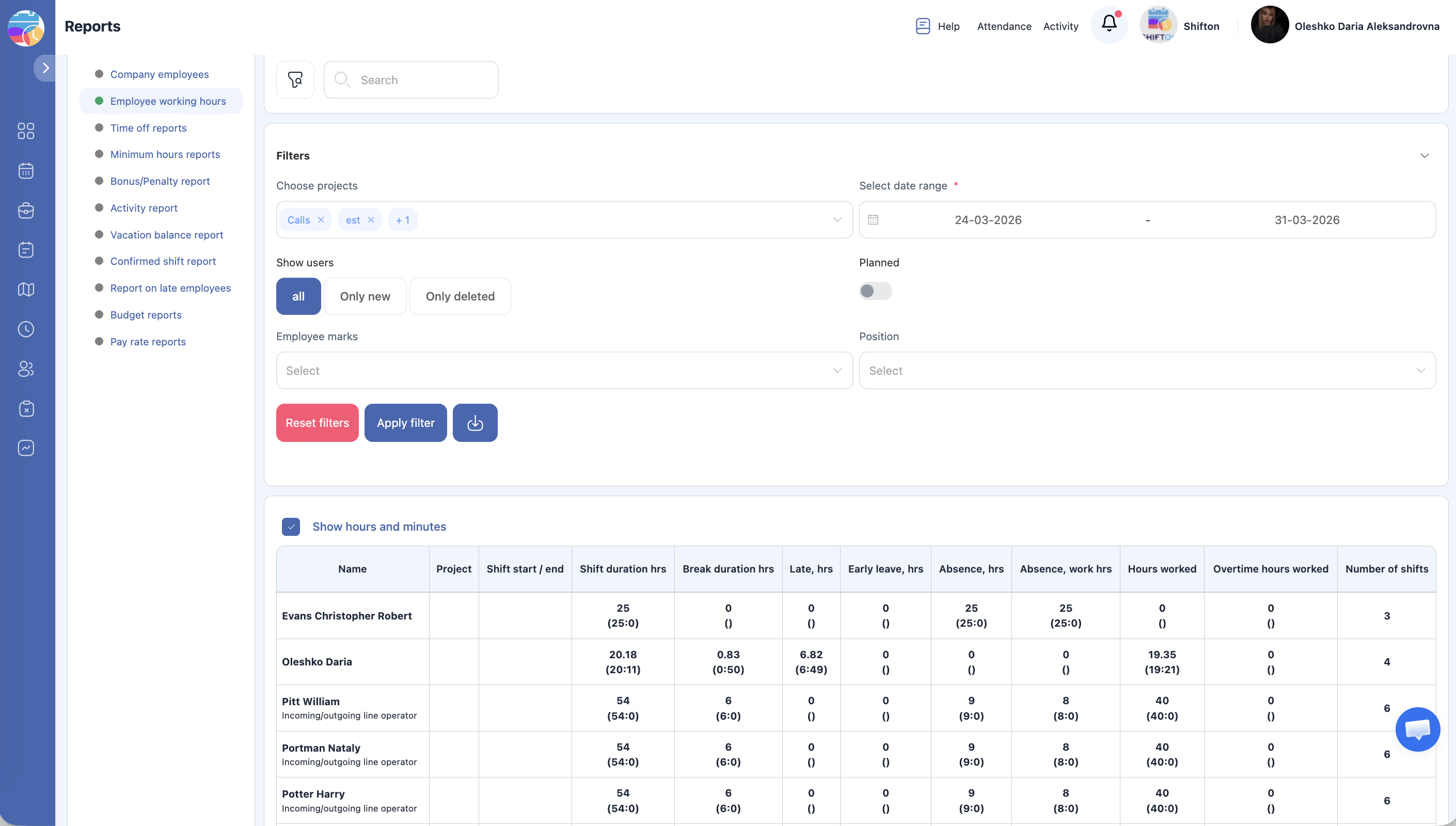
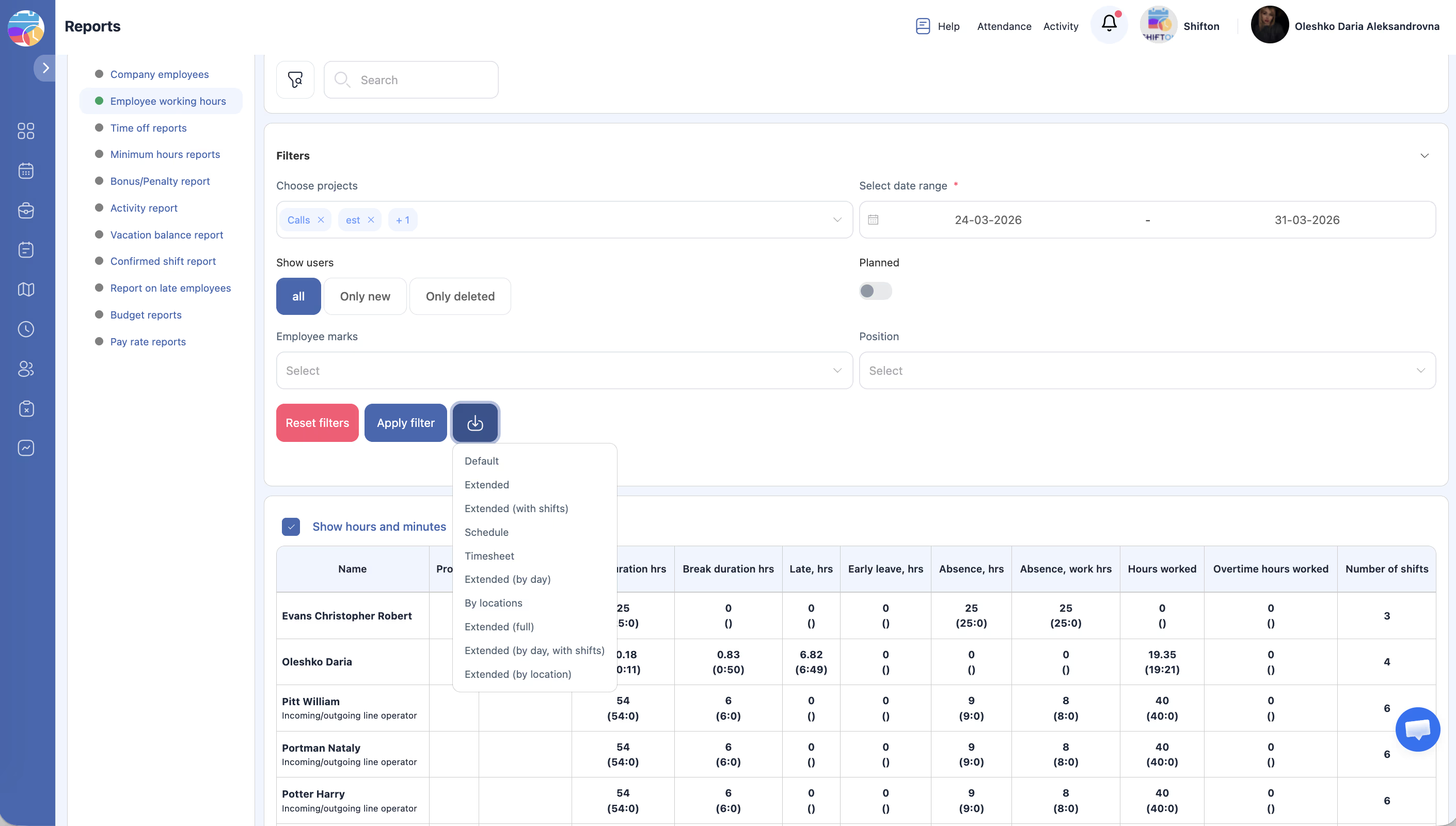
Track actual vs. planned shift times, break durations, late arrivals, early departures, and absences for all employees.
What Is This?
The Employee Working Hours report is one of the most comprehensive reports in Shifton. It compares planned shift schedules against actual attendance data, giving managers a complete view of how employees’ real working hours align with the schedule. The report also captures break time, lateness, early departures, and absence hours, making it essential for payroll preparation and attendance auditing.
Prerequisites
#
Prerequisite
Details
1
Attendance module enabled
Actual shift times come from the Attendance module.
2
Published schedules
Planned times require published schedules.
3
Manager, Admin, or Owner role
Full access requires elevated permissions.
Step-by-Step Instructions
Accessing the Report
Step
Action
Expected Result
1
Navigate to Reports from the left sidebar.
The Reports page opens.
2
Select Employee Working Hours from the report list.
The report loads with filters and data table.
Applying Filters
Filter
Type
Description
Projects
Multi-select
Filter by one or more projects.
Date range
Date picker
Select start and end dates for the reporting period.
Show users
Dropdown
Options: All, New (recently added), Deleted (removed employees).
Planned
Toggle
Show or hide planned shift data alongside actual data.
Marks
Multi-select
Filter by custom marks/tags assigned to employees.
Position
Dropdown
Filter by employee position.
Step
Action
Expected Result
1
Configure your desired filters.
Filters are set.
2
Click Apply Filter.
The table updates with filtered data.
Reading the Report Table
Column
Description
Name
Employee’s full name.
Project
The project the shift belongs to.
Shift start
Actual time the employee started the shift.
Shift end
Actual time the employee ended the shift.
Shift duration
Total actual time worked (excluding breaks).
Break duration
Total break time taken during the shift.
Late hrs
Hours the employee arrived late compared to the planned start time.
Early leave hrs
Hours the employee left early compared to the planned end time.
Absence hrs
Hours the employee was absent (scheduled but did not show up).
Absence work hrs
Hours of planned work missed due to absence.
Access Permissions
Role
View Report
Export Report
See All Employees
Employee
Own data only
No
No
Manager
All
Yes
Yes
Admin
All
Yes
Yes
Owner
All
Yes
Yes
FAQ
Q1: What does the “Planned” toggle do? When enabled, the report includes columns showing the planned (scheduled) shift start and end times alongside the actual times, making it easy to see discrepancies.
Q2: How is “Shift duration” calculated? Shift duration is the total time between the actual shift start and end, minus any recorded break time.
Q3: What is the difference between “Absence hrs” and “Absence work hrs”? Absence hrs is the total time the employee was absent. Absence work hrs refers specifically to planned working hours that were missed due to the absence.
Q4: Can I see data for deleted employees? Yes. Set the Show users filter to Deleted to include employees who have been removed from the system.
Possible Issues and Solutions
Issue
Possible Cause
Solution
Actual shift times are missing
Employees did not use the Attendance module to clock in/out.
Ensure employees start and end shifts through the Attendance feature.
Late hours show 0 for everyone
Schedules were not published, so there is no planned time to compare against.
Publish schedules before shifts begin.
Break duration is blank
The Breaks module is not enabled or employees did not record breaks.
Enable the Breaks module and instruct employees to use the break feature.
Report loads slowly with many rows
Large date range or many employees.
Narrow the date range or filter by project/position to reduce the data set.