

After your first login to Shifton, the Company Dashboard opens — the start page with real-time monitoring widgets.
Step-by-Step Instructions
Step 1: Log In
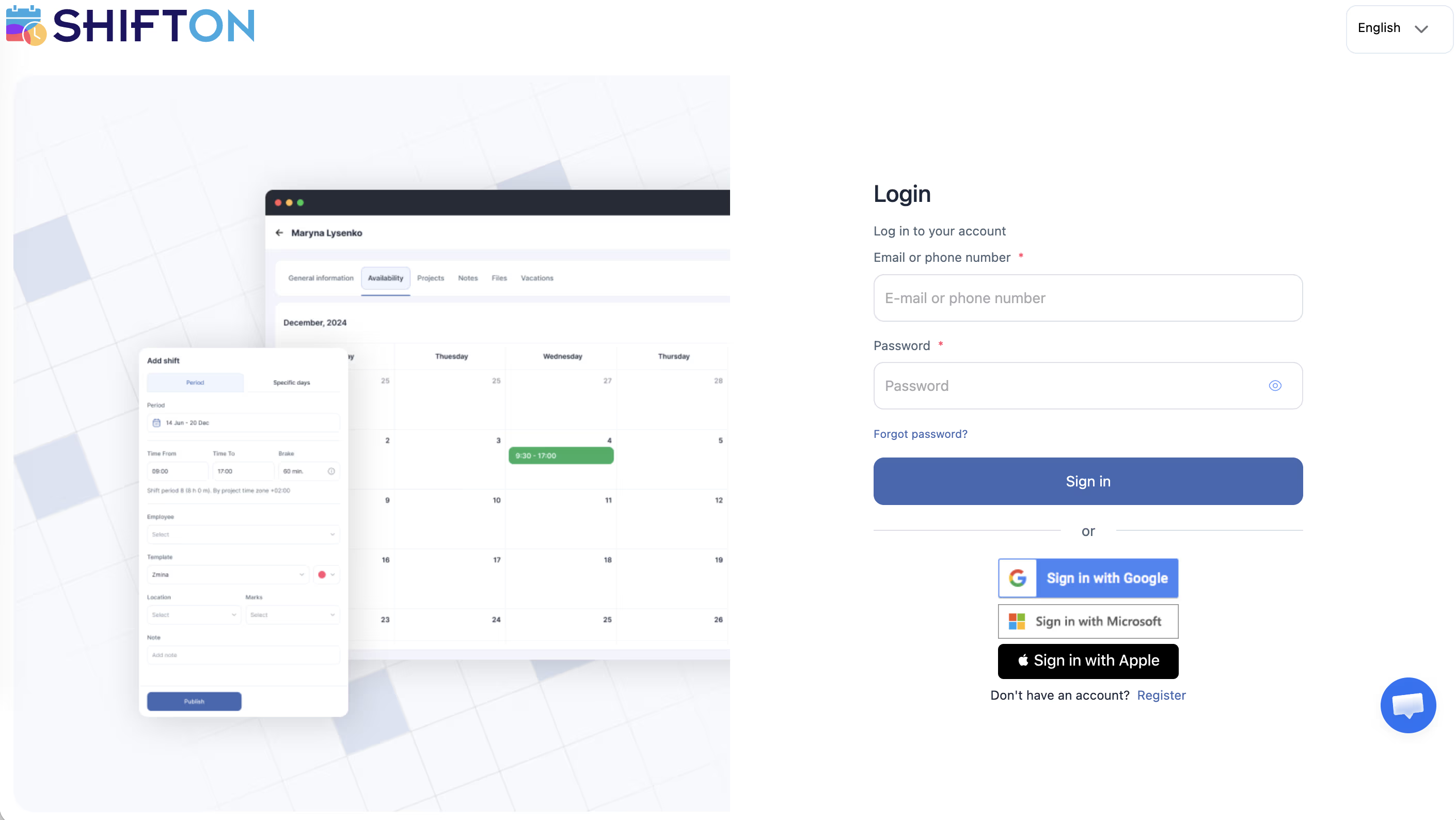
Open app.shifton.com, enter your email and password, and click Log In.
Step 2: Explore the Dashboard
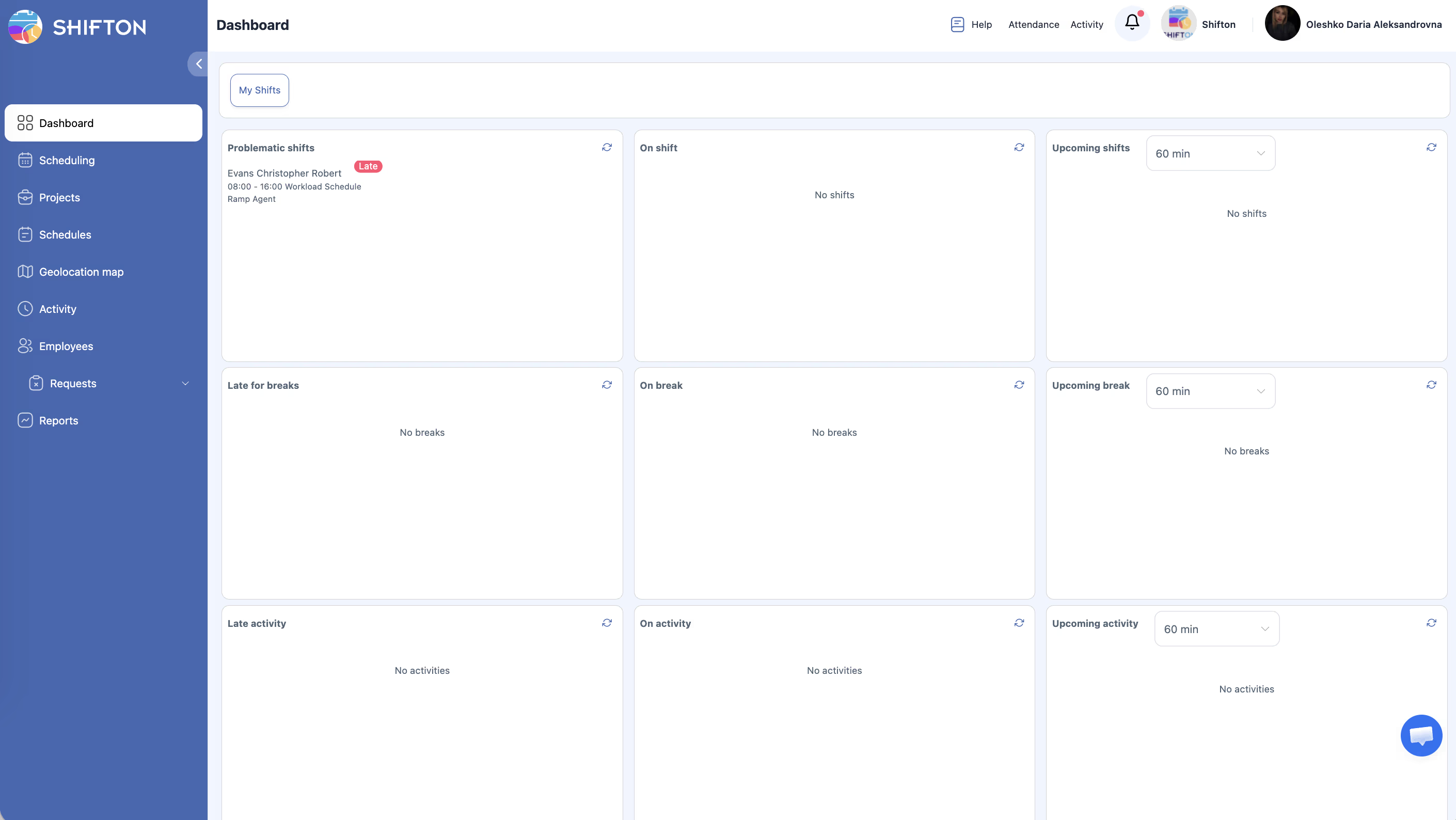
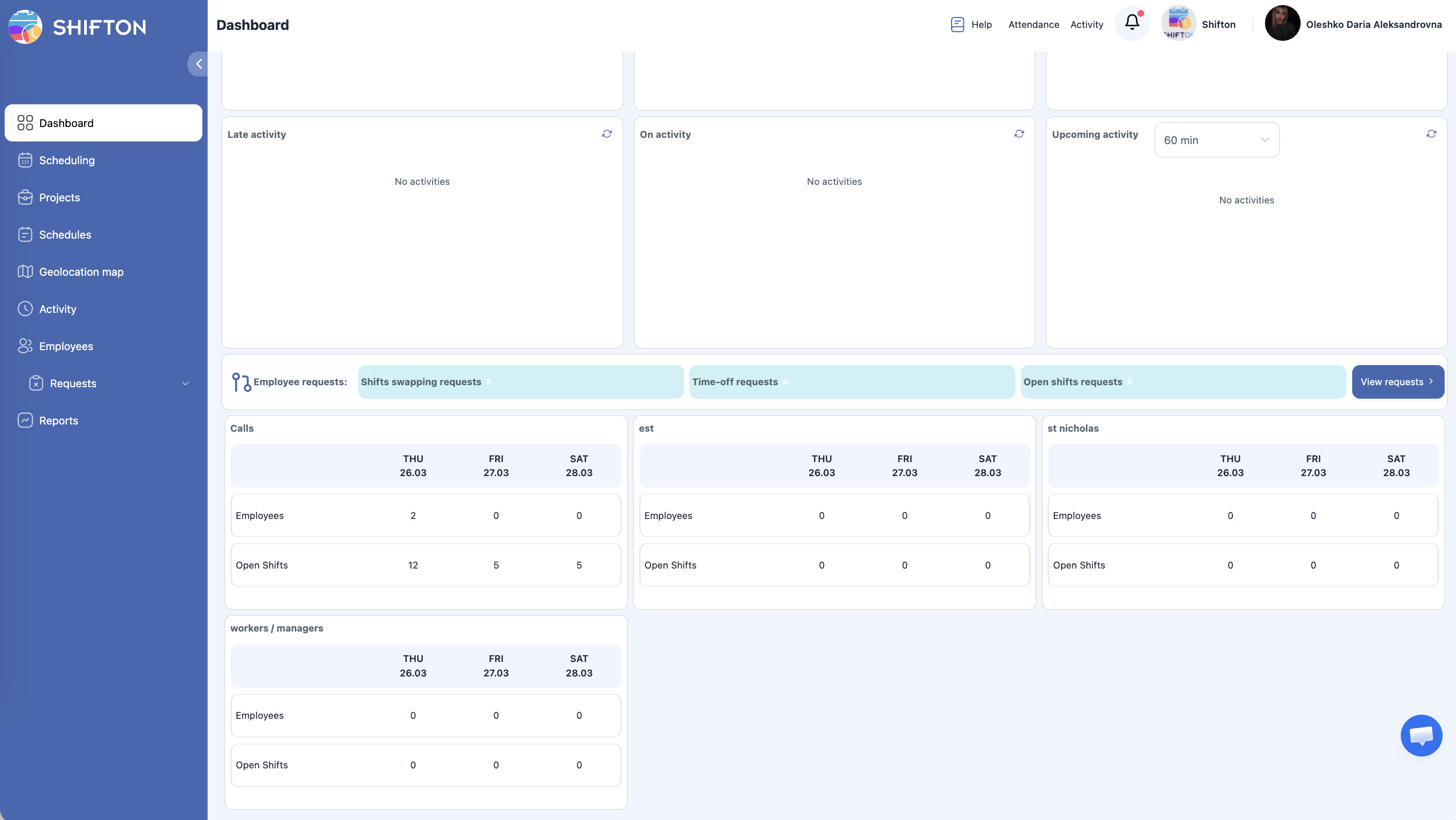
Company Dashboard — a 3×3 widget grid:
| Row | Left | Center | Right |
|---|---|---|---|
| Shifts | Problem shifts | On shift | Upcoming shifts (60 min) |
| Breaks | Late for break | On break | Upcoming break (60 min) |
| Activities | Late for activity | On activity | Upcoming activity (60 min) |
Below the widgets:
– Employee requests — tabs with requests for shift swaps, time-off, and open shifts
– Project cards — data about employees and open shifts for the next 3 days
Step 3: Explore the Sidebar Navigation
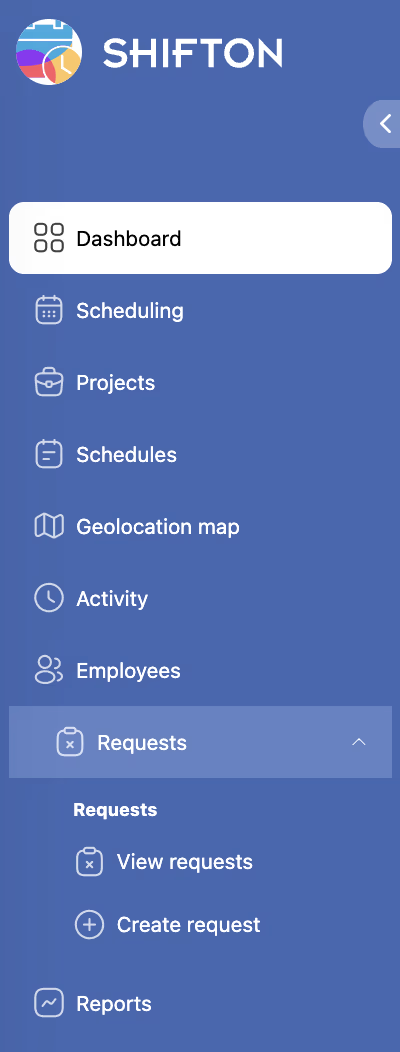
| Icon | Section |
|---|---|
| Grid | Dashboard |
| Calendar | Scheduling |
| Folder | Projects |
| List | Schedules |
| Map | Geolocation Map |
| Clock | Activity |
| People | Employees |
| Request | Requests (sub-items: view requests and create new request) |
| Chart | Reports |
Step 4: Explore the Top Bar

| Element | Description |
|---|---|
| Help | Articles, video tutorials, support |
| Attendance | Start/end shift directly in the browser |
| Activity | Start/end activity directly in the browser |
| Bell | Notifications (tardiness, missed shifts, etc.) |
| Company name/logo | Company menu: settings, modules, positions, skills, locations, files, referral program, activity log, integrations, balance |
| User name | My Shifts, My profile, Change password, Log Out |
Step 5: Explore the Company Menu
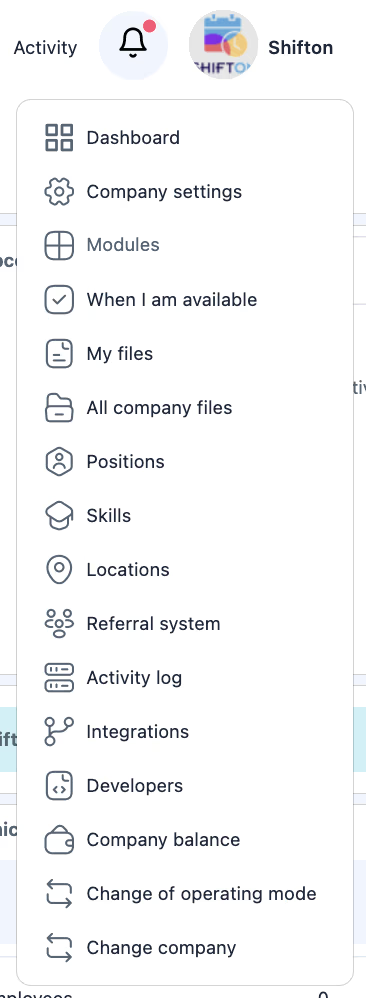
Click on the company name/logo (upper right corner):
- Company settings, Modules
- When I am available
- My files / All company files
- Positions, Skills, Locations
- Referral system, Activity log, Integrations
- Company balance
- Change of operating mode, Change company
Related Articles
- Step-by-Step Setup Guide
- Company Registration
- Adding Your First Employees
- Company General Information
- Module System Overview
- Managing Projects
FAQ
Q: Where can I find company settings?
A: Click the company name/logo (upper right corner) → Company settings.
Q: How do I switch between companies?
A: Click the company name/logo → Change company.
Q: Do employees see the same dashboard?
A: No. Employees see a simplified dashboard with only their own shifts.
Q: The dashboard shows “No shifts” everywhere — is this normal?
A: Yes, for a new account. First create projects, schedules, and assign shifts.
Q: I can’t find the Modules page.
A: Click the company name/logo (upper right corner) → Modules. Modules is in the company menu, not in the sidebar.
Q: What is the “Problem shifts” widget on the dashboard?
A: It shows shifts with violations: tardiness, unclosed shifts, conflicts. Click on the widget for a detailed view.
Q: Can I change the order of widgets on the dashboard?
A: No. The widget layout is fixed by the system.
Q: How do I get to salary settings?
A: Click the company name (upper right corner) → Company Settings → Salary Settings tab.
Q: Where can I find the log of all actions in the system?
A: Company name (upper right corner) → Activity log.
Q: How do I open the modules page (enabling/disabling)?
A: Company name (upper right corner) → Modules.
Q: How do I return to the main dashboard from any section?
A: Click the grid icon (first icon) in the left sidebar.
Q: Where does a manager see employee requests?
A: On the dashboard, in the Employee requests block below the widgets, or in the Requests section in the sidebar.
Q: Which browser is recommended for working with Shifton?
A: Google Chrome or Mozilla Firefox (latest versions). Disable ad blockers if you experience issues with form loading.
Q: Where can I find the company balance and invoices?
A: Company name (upper right corner) → Company balance.
Q: How do I switch the work mode (Scheduling / Field Service)?
A: Company name (upper right corner) → Change of operating mode.