

Learn how Shifton verifies employee locations during attendance using IP address checks, GPS coordinates, and configurable sensitivity settings.
What Is This?
GPS and IP validation are location verification methods that Shifton uses to confirm employees are at their designated work location when they start, end, or are during a shift. This helps ensure that clock-ins happen from the correct workplace and not from an unauthorized location.
The validation behavior differs between browser and mobile platforms, and each check can be independently enabled or disabled. When an employee is detected outside their work location, the system can send notifications to managers.
Prerequisites
| # | Prerequisite | Details |
|---|---|---|
| 1 | Attendance module enabled | Location validation is triggered during shift start/end events. |
| 2 | Work location control module enabled | This module provides the location validation features ($5/employee per month). |
| 3 | Work locations configured | At least one work location must be set up with an address and/or IP range. |
| 4 | Employee devices ready | Employees need GPS enabled (mobile) or must be on a recognized network (browser). |
Step-by-Step Instructions
Configuring Location Validation Settings
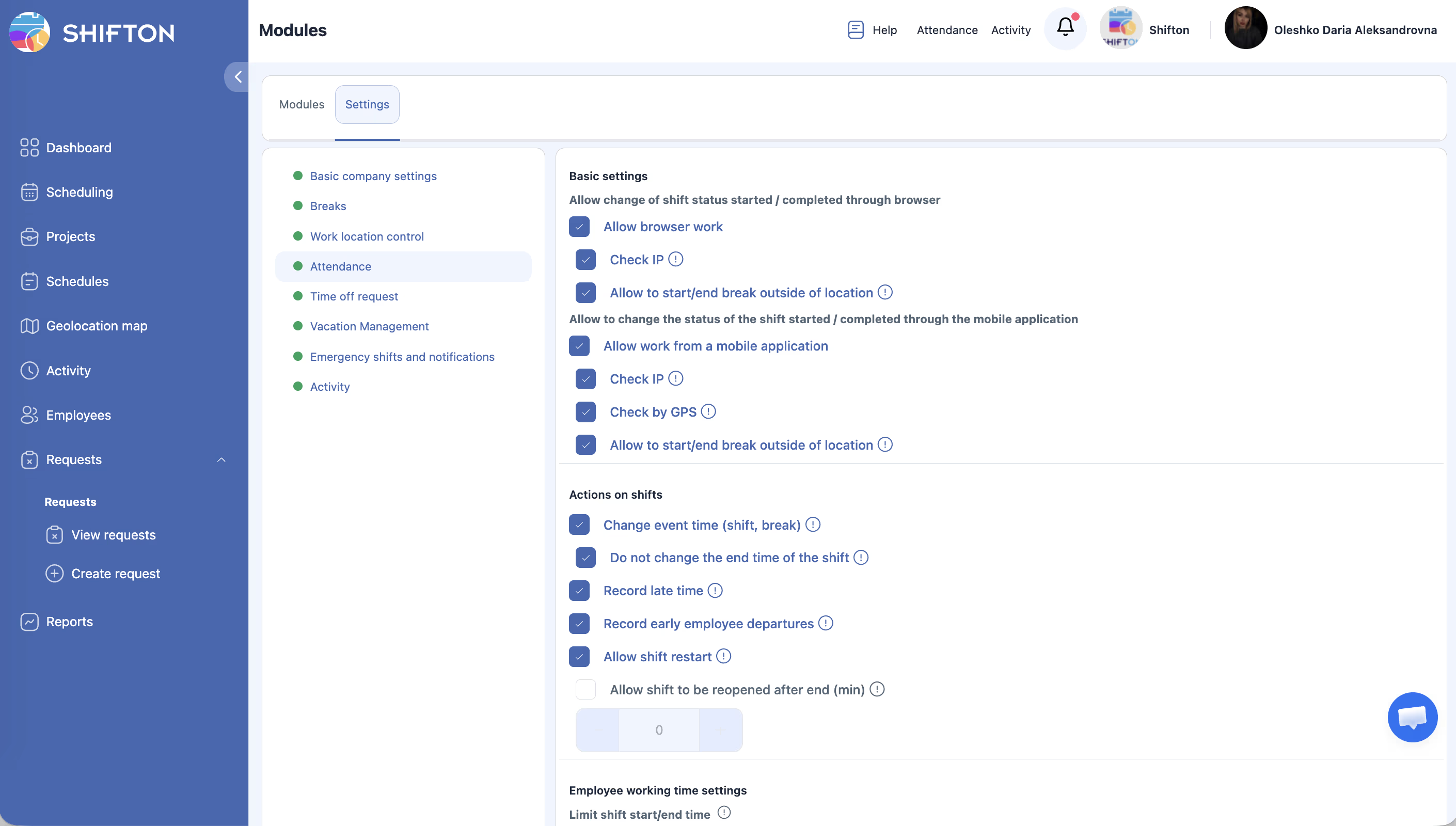
| Step | Action | Expected Result |
|---|---|---|
| 1 | Navigate to Company name → Modules → Settings tab → Attendance. | The Attendance settings open with location validation options. |
| 2 | Review and configure the Browser validation options: | |
| – Check IP — enable or disable IP address validation for browser-based shifts. | When enabled, the system checks the employee’s IP against allowed IPs for the work location. | |
| – Allow break outside location — enable or disable allowing employees to take breaks from a different IP. | When enabled, break start/end is not subject to IP validation. | |
| 3 | Review and configure the Mobile validation options: | |
| – Check IP — enable or disable IP validation for mobile app shifts. | Same as browser IP check, but for the mobile app. | |
| – Check GPS — enable or disable GPS coordinate validation. | When enabled, the app checks GPS coordinates against the configured work location. | |
| – Allow break outside location — enable or disable allowing breaks from outside the GPS/IP zone. | When enabled, employees can take breaks without location restrictions. | |
| 4 | Click Save. | Validation rules are applied. |
Setting Geolocation Sensitivity
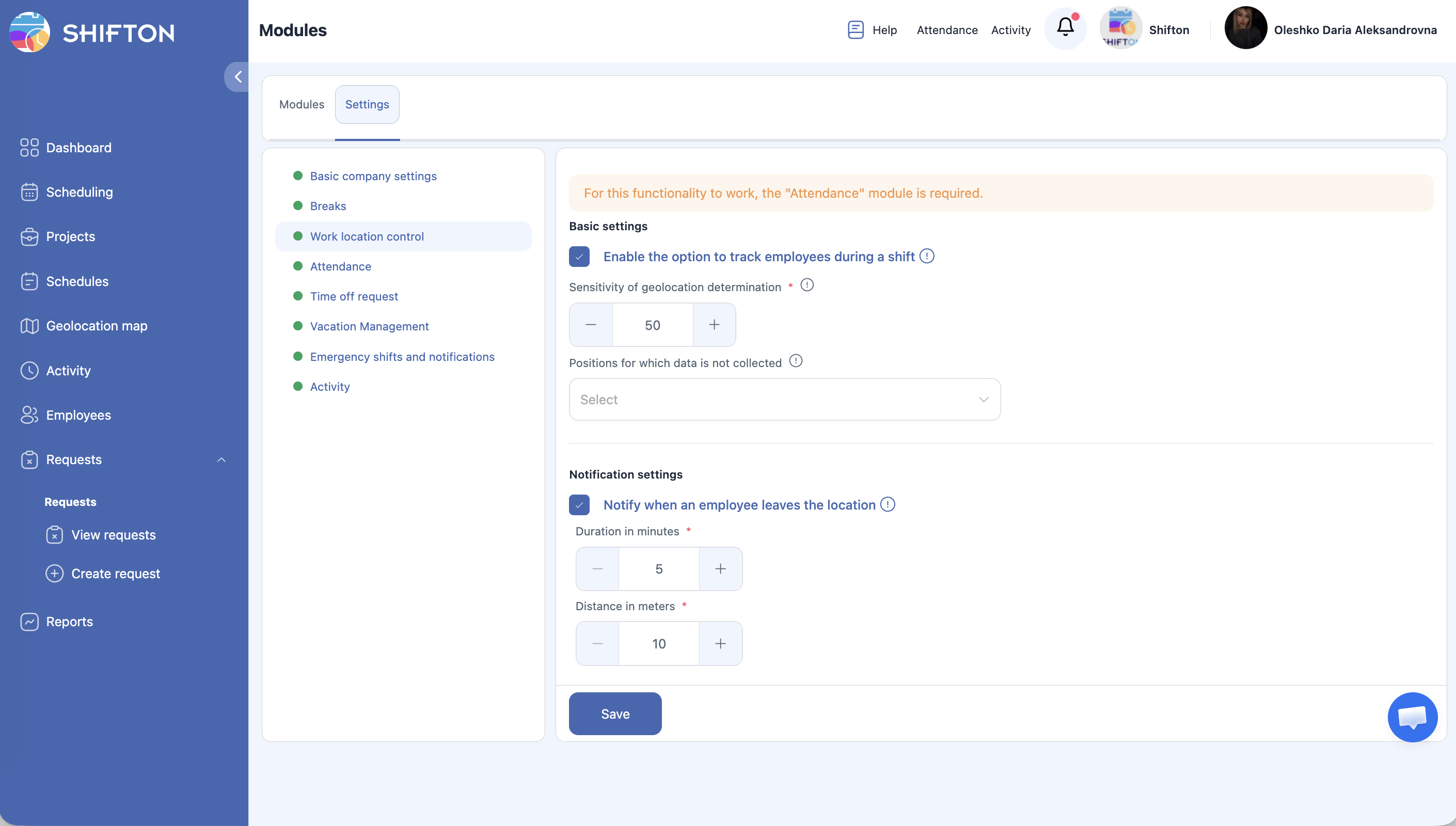
| Step | Action | Expected Result |
|---|---|---|
| 1 | Navigate to Company name → Modules → Settings tab → Work location control. Find the Geolocation sensitivity field. | The field shows a numeric value (default: 50 meters). |
| 2 | Adjust the sensitivity value as needed. | A lower value means stricter location matching (employee must be closer to the configured point). A higher value allows more flexibility. |
| 3 | Click Save. | The new sensitivity radius is applied to all GPS checks. |
Configuring Location Departure Notifications
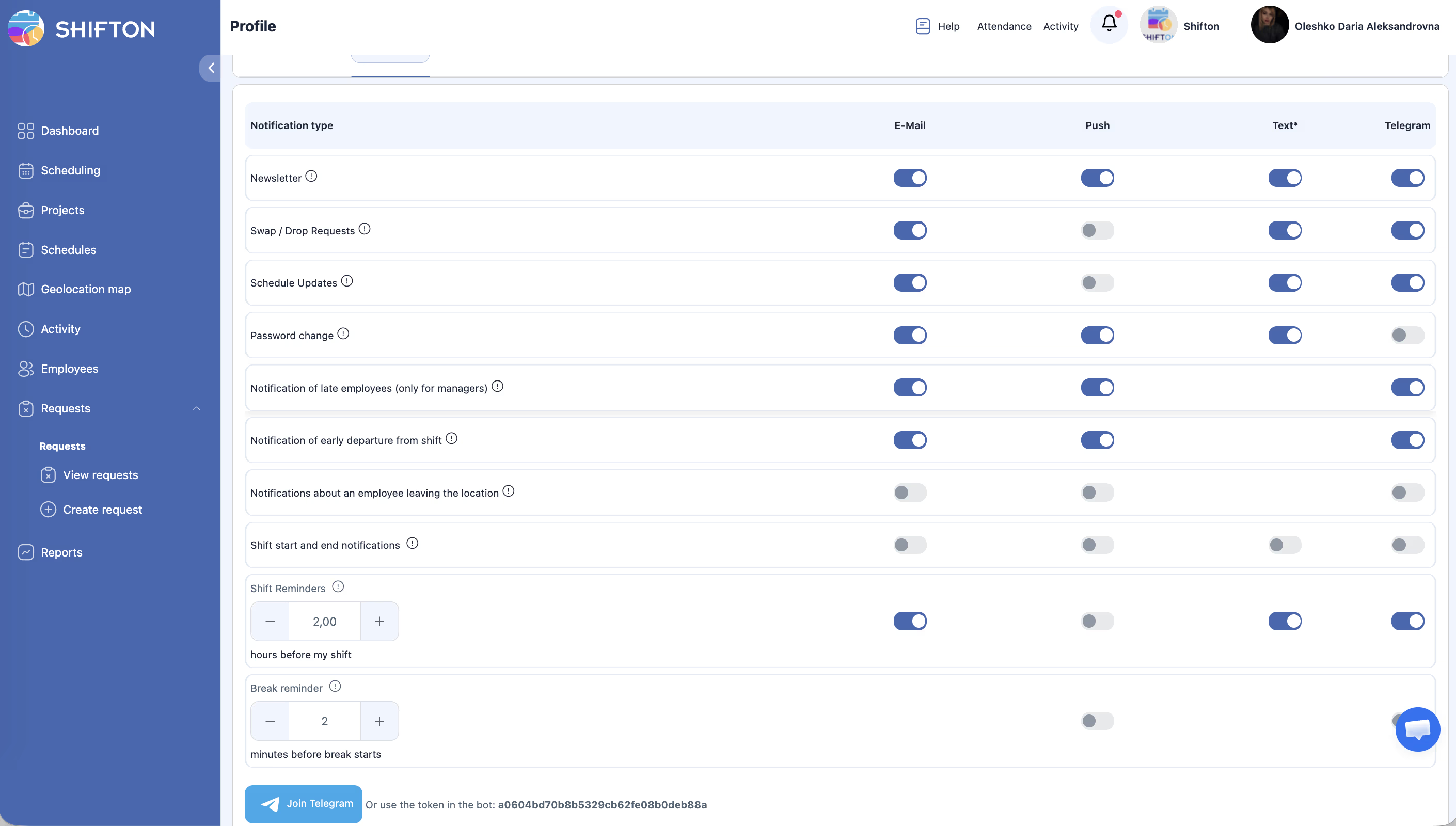
| Step | Action | Expected Result |
|---|---|---|
| 1 | In the location validation settings or Settings > Notifications, find the Employee leaves location notification. | Notification options for location departure are visible. |
| 2 | Enable the notification. | Managers will be alerted when an employee moves away from their work location during a shift. |
| 3 | Set the duration threshold (default: 5 minutes). | The notification is only sent if the employee is outside the location for longer than this duration. This avoids false alerts from brief GPS fluctuations. |
| 4 | Set the distance threshold (default: 10 meters). | The employee must be at least this far from the configured location to trigger the notification. |
| 5 | Click Save. | Location departure notifications are configured. |
Validation Behavior by Platform
| Setting | Browser | Mobile |
|---|---|---|
| Check IP | Compares the employee’s current IP address against the allowed IP addresses for the work location. | Same behavior as browser. |
| Check GPS | Not available (browsers do not reliably provide GPS). | Checks the device’s GPS coordinates against the work location within the sensitivity radius. |
| Allow break outside location | If enabled, IP is not checked when starting or ending a break. | If enabled, neither IP nor GPS is checked during breaks. |
Setting Up Work Location IPs and Coordinates
| Step | Action | Expected Result |
|---|---|---|
| 1 | Navigate to the Work Locations configuration (in Settings or Locations). | The list of work locations opens. |
| 2 | Select or create a work location. | The location form opens. |
| 3 | Enter the address or place a pin on the map to set the GPS coordinates. | The latitude and longitude are saved. |
| 4 | Add allowed IP addresses or IP ranges for the location. | IP validation will check against these addresses. |
| 5 | Click Save. | The work location is configured for both GPS and IP validation. |
Access Permissions
| Role | View Validation Status | Configure Validation Settings | Receive Location Departure Notifications |
|---|---|---|---|
| Employee | Own only (pass/fail) | No | No |
| Manager | No | No | No |
| Admin | All | Yes | Yes (all) |
| Owner | All | Yes | Yes (all) |
FAQ
Q1: What is the default geolocation sensitivity?
The default is 50 meters. This means the employee’s GPS position must be within 50 meters of the configured work location coordinates to pass the GPS check.
Q2: What happens if an employee fails a location check?
Depending on your configuration, the employee may still be able to start their shift, but the location mismatch is flagged and visible to managers. Some companies configure stricter rules that prevent shift start entirely.
Q3: Can I use IP validation without GPS?
Yes. IP and GPS checks are independent settings. You can enable IP validation alone for both browser and mobile, or enable GPS for mobile only. Configure each check separately in the settings.
Q4: Why would I allow breaks outside the work location?
Some employees need to leave the premises for lunch or personal errands during their break. Enabling this option prevents unnecessary location alerts during break periods.
Q5: How does the location departure notification avoid false alarms?
The system uses two thresholds: duration (default 5 minutes) and distance (default 10 meters). The notification only fires when the employee is beyond the distance threshold for longer than the duration threshold, which filters out brief GPS fluctuations.
Possible Issues and Solutions
| Issue | Possible Cause | Solution |
|---|---|---|
| GPS check fails even when the employee is at the work location | Geolocation sensitivity is set too low, or GPS signal is weak (e.g., indoors). | Increase the geolocation sensitivity value (e.g., from 50 to 100 meters) or ask the employee to start the shift in an area with better GPS signal. |
| IP check fails on the correct network | The office IP has changed, or the employee is on Wi-Fi vs. Ethernet with different IPs. | Update the allowed IP addresses in the work location settings to include the current IP. |
| False location departure notifications | GPS drift or the employee is near the boundary of the sensitivity radius. | Increase the duration threshold (e.g., from 5 to 10 minutes) or increase the distance threshold. |
| Location validation not working at all | The Work location control module is not enabled, or no work locations are configured. | Enable the module and configure at least one work location with coordinates and/or IP addresses. |
| Employee’s GPS position is inaccurate | The device has poor GPS reception or location services are not fully enabled. | Ensure the device’s location services are on, the Shifton app has location permissions, and the device is not in power-saving mode that limits GPS. |