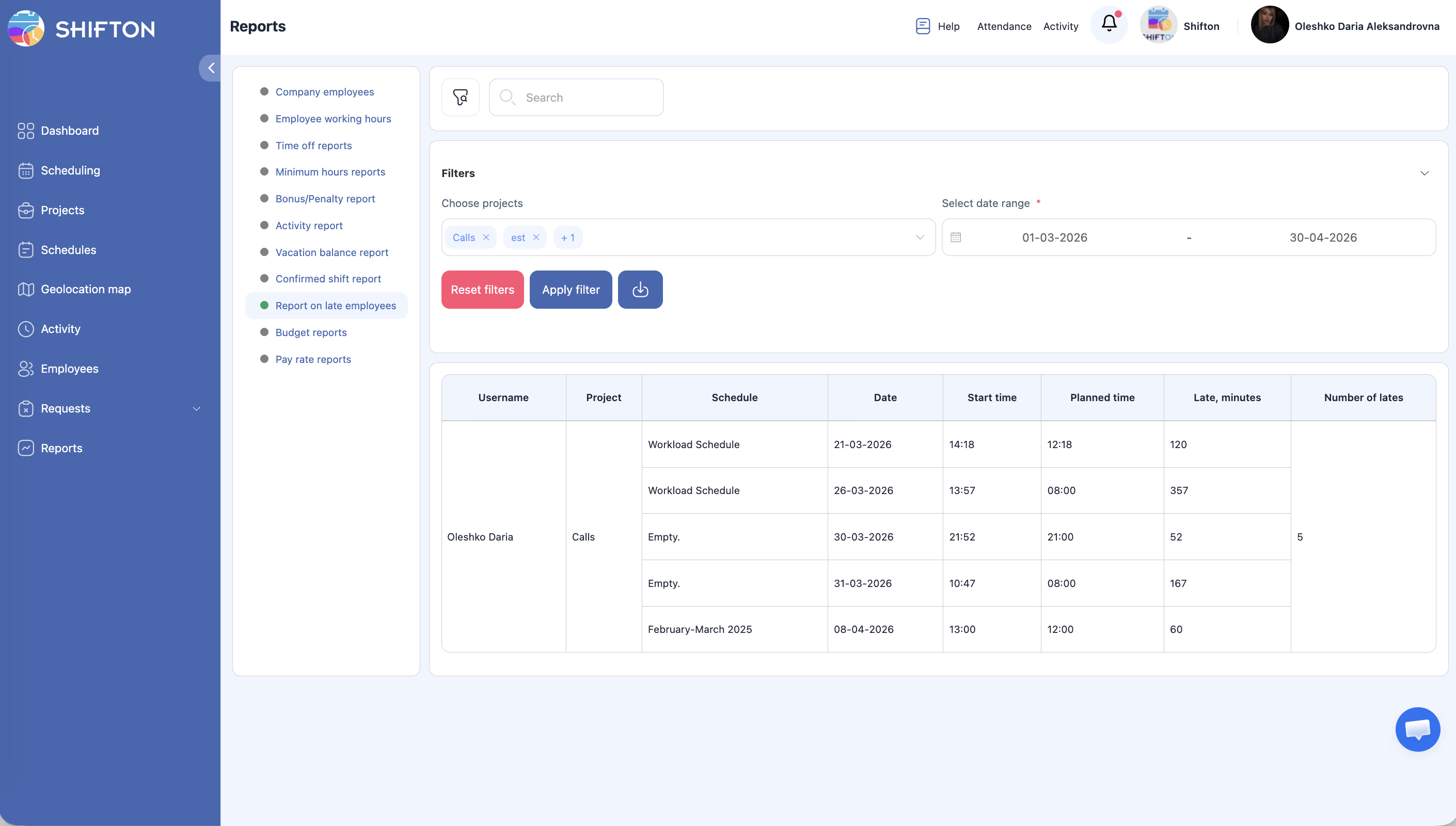
Identify employees who arrived late to their shifts, with detailed information on late minutes and frequency.
What Is This?
The Late Employees report provides a focused view of tardiness across your organization. For each late incident, the report shows the employee’s name, project, schedule, the actual start time versus the planned time, and how many minutes late the employee was. It also aggregates the total number of late arrivals per employee, helping managers identify patterns and take corrective action.
Prerequisites
#
Prerequisite
Details
1
Attendance module enabled
Late tracking requires actual clock-in times from the Attendance module.
2
Published schedules
Planned start times are needed to determine lateness.
3
Manager, Admin, or Owner role
Full access requires elevated permissions.
Step-by-Step Instructions
Accessing the Report
Step
Action
Expected Result
1
Navigate to Reports from the left sidebar.
The Reports page opens.
2
Select Late Employees from the report list.
The report loads with filters and data table.
Applying Filters
Filter
Type
Description
Projects
Multi-select
Filter by one or more projects.
Date range
Date picker
Select the period to analyze late arrivals.
Step
Action
Expected Result
1
Set the project and date range filters.
Filters are configured.
2
Click Apply Filter.
The table updates with matching late records.
Reading the Report Table
Column
Description
Username
The employee’s name.
Project
The project the shift belongs to.
Schedule
The schedule name for the shift.
Date
The date of the late arrival.
Start time
The actual time the employee started the shift.
Planned time
The scheduled start time for the shift.
Late minutes
The number of minutes between the planned and actual start time.
Number of lates
The total count of late arrivals for this employee within the filtered period.
Access Permissions
Role
View Report
Export Report
See All Employees
Employee
Own data only
No
No
Manager
All
Yes
Yes
Admin
All
Yes
Yes
Owner
All
Yes
Yes
FAQ
Q1: Does this report account for the grace period (allowed late minutes)? The report shows all late arrivals based on the raw time difference between planned and actual start times. If auto-penalties have a grace period configured, that affects penalty calculations but not this report’s data.
Q2: How is “Number of lates” calculated? This is the total count of distinct late incidents for the employee within the selected date range and project filter.
Q3: Can I see which employees are late most frequently? Yes. Sort by the Number of lates column (if sorting is available) or export the data and sort in a spreadsheet.
Q4: Does this include early departures? No. This report focuses on late arrivals only. Early departure data is available in the Employee Working Hours report.
Possible Issues and Solutions
Issue
Possible Cause
Solution
Report shows no late records
No employees were late during the selected period, or Attendance data is missing.
Verify that the Attendance module is active and employees are clocking in. Broaden the date range.
Late minutes seem too high
The employee may have started their shift much later than planned (e.g., started an afternoon shift instead of a morning one).
Review the specific shift in the attendance records for context.
Employee appears with 0 late minutes
Edge case where the employee clocked in exactly on time.
This should not normally appear. If it does, it may be a rounding or display issue.
Planned time column is blank
The schedule was not published for that shift.
Ensure schedules are published before shifts begin.
Data does not match auto-penalty records
The penalty grace period may exclude some late arrivals from penalties while this report includes all.
Cross-reference with the Bonus/Penalty report, keeping the grace period in mind.