

Learn how Shifton tracks late arrivals and early departures, how manager notifications work, and how to configure automatic penalty deductions.
What Is This?
Late tracking is an Attendance feature that automatically detects when employees arrive after their scheduled shift start time or leave before the scheduled end time. The system records the exact number of late minutes and can notify managers based on configurable thresholds.
The auto-penalty feature takes this a step further by applying financial deductions automatically when employees are late. Penalties can be a fixed amount per incident or calculated per minute of tardiness. You can also define a grace period of allowed late minutes before penalties kick in.
Together, these features help enforce punctuality policies consistently and reduce the manual effort of tracking and penalizing lateness.
Prerequisites
| # | Prerequisite | Details |
|---|---|---|
| 1 | Attendance module enabled | Late tracking is part of the Attendance module. |
| 2 | Published schedules | Employees must have published shifts so the system can compare actual vs. planned start times. |
| 3 | Notification settings configured (optional) | To receive late-arrival alerts, configure manager notifications in Settings. |
| 4 | Auto-penalty enabled (optional) | To automatically deduct penalties, enable and configure the auto-penalty feature. |
Step-by-Step Instructions
Configuring Late Arrival Notifications
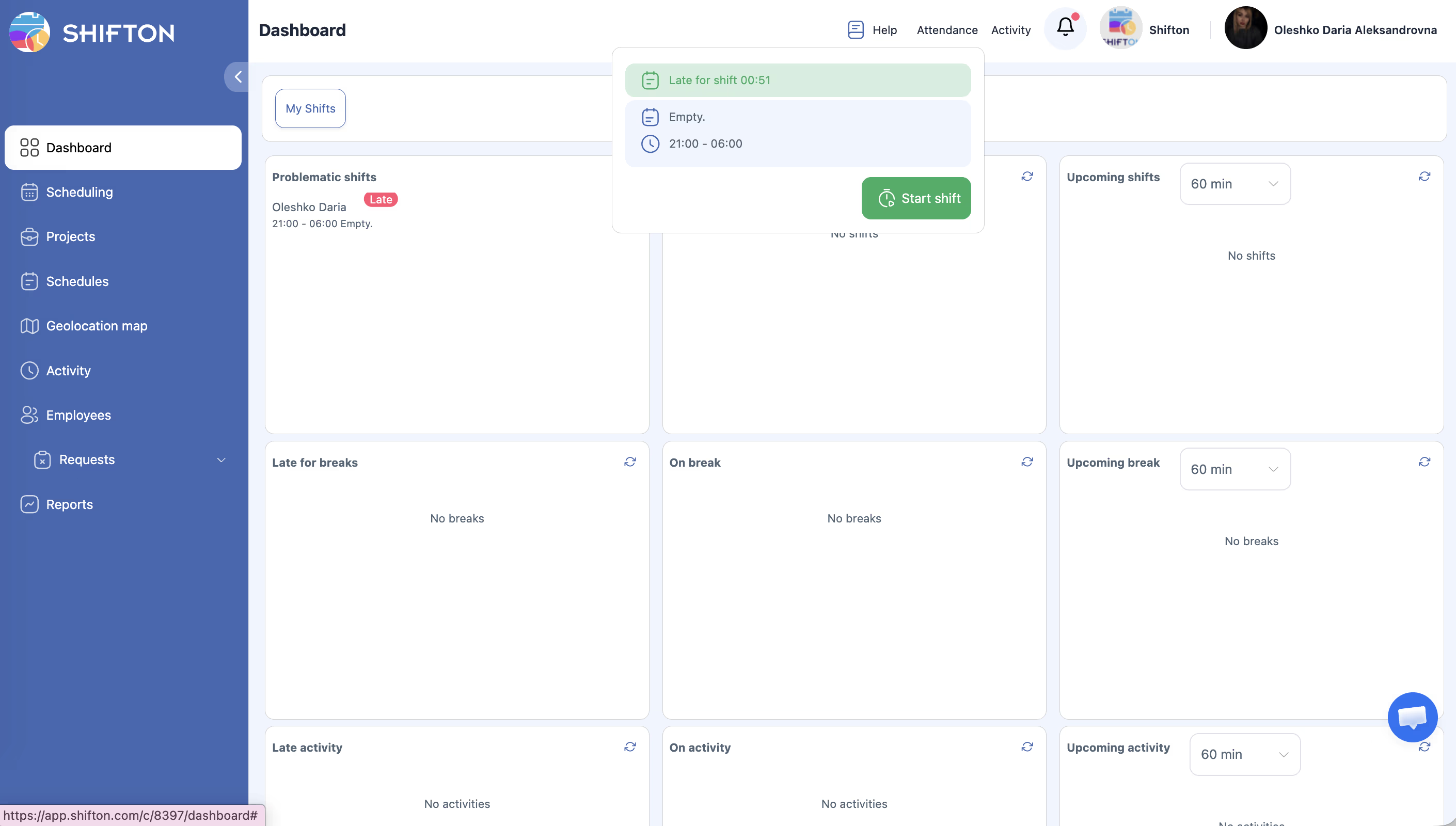
| Step | Action | Expected Result |
|---|---|---|
| 1 | Navigate to Settings > Notifications. | The notification settings page opens. |
| 2 | Locate the Late arrival notification option. | You see configuration fields for this alert type. |
| 3 | Enable the notification. | The toggle switches to active. |
| 4 | Set the threshold in minutes (e.g., notify after 5 minutes past shift start). | Managers will only be notified if the employee is late by more than this threshold. |
| 5 | Choose notification recipients (direct manager, admin, etc.). | The appropriate people are selected. |
| 6 | Click Save. | Late arrival notifications are now active. |
Configuring Auto-Penalties
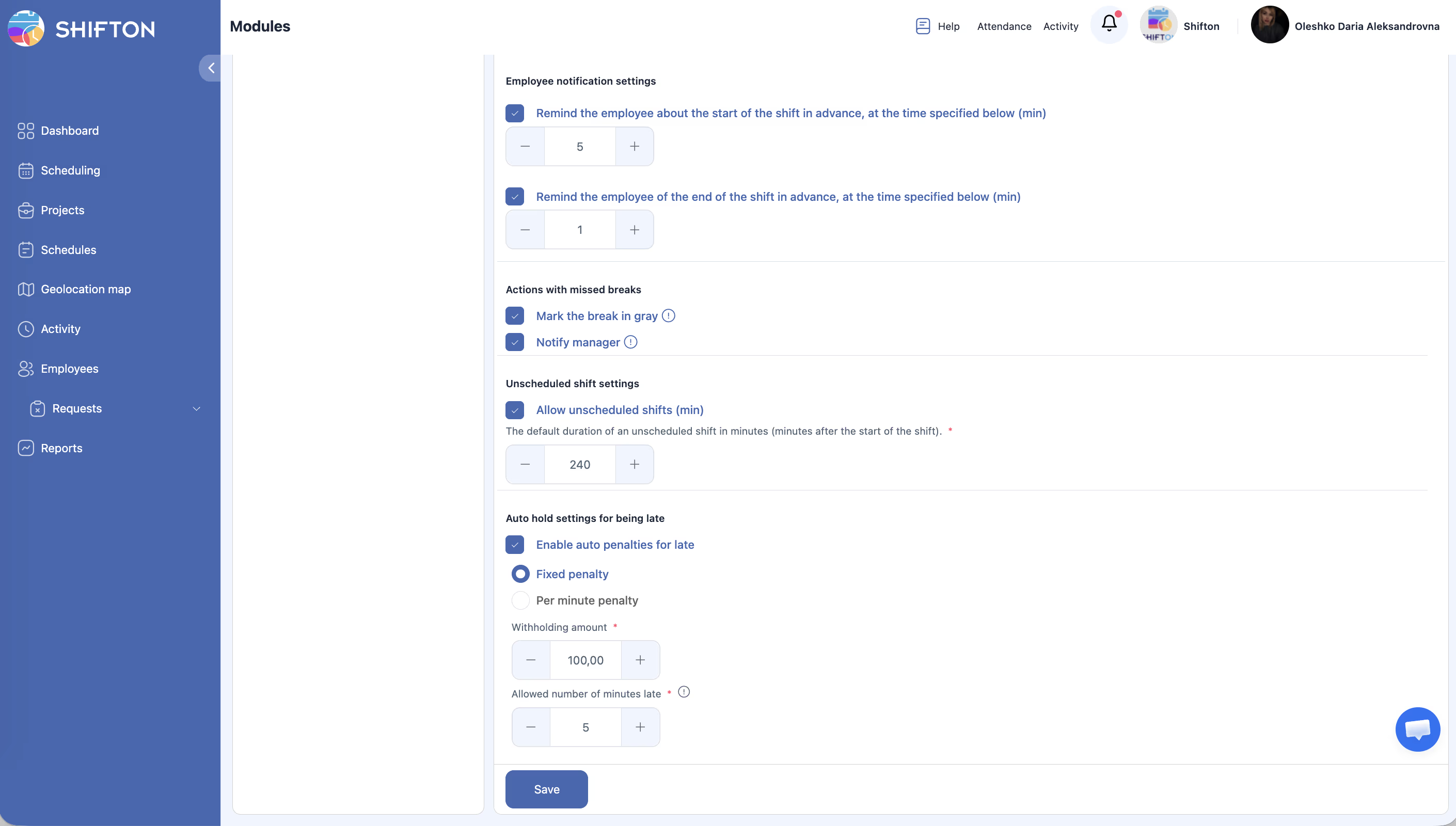
| Step | Action | Expected Result |
|---|---|---|
| 1 | Navigate to Settings > Attendance (or the Penalties section of Attendance settings). | The attendance settings page opens. |
| 2 | Locate the Auto-penalty section. | You see options for enabling and configuring automatic penalties. |
| 3 | Enable the Auto-penalty toggle. | Automatic penalty calculation is turned on. |
| 4 | Choose the penalty type: Fixed or Per-minute. | The system will calculate penalties based on your selection. |
| 5 | Set the penalty amount (e.g., $5.00 fixed or $0.50 per minute). | The deduction value is configured. |
| 6 | Set the Allowed late minutes (grace period, e.g., 5 minutes). | Employees arriving within this grace period will not be penalized. |
| 7 | Click Save. | Auto-penalty settings are active. |
Understanding the Auto-Penalty Calculation
| Penalty Type | How It Works | Example |
|---|---|---|
| Fixed | A flat amount is deducted per late incident, regardless of how late the employee is. | Grace period: 5 min. Penalty: $5.00. Employee is 12 minutes late. Deduction: $5.00. |
| Per-minute | A per-minute amount is multiplied by the number of late minutes beyond the grace period. | Grace period: 5 min. Rate: $0.50/min. Employee is 12 minutes late. Penalized minutes: 12 – 5 = 7. Deduction: $3.50. |
Configuring Early Departure Tracking
| Step | Action | Expected Result |
|---|---|---|
| 1 | Navigate to Settings > Attendance (or Notifications). | The settings page opens. |
| 2 | Locate the Early departure tracking option. | You see a toggle and configuration fields. |
| 3 | Enable early departure tracking. | The system will now record when employees end their shift before the scheduled end time. |
| 4 | Optionally configure notifications for early departures (threshold in minutes). | Managers are alerted when employees leave early beyond the configured threshold. |
| 5 | Click Save. | Early departure tracking is active. |
Reviewing Late Arrivals in Reports
| Step | Action | Expected Result |
|---|---|---|
| 1 | Navigate to Reports from the left sidebar. | The Reports page opens. |
| 2 | Select the Late Employees report. | The report loads with filters for projects and date range. |
| 3 | Set the desired filters and click Apply Filter. | A table shows each late employee with their project, schedule, date, start time, planned time, late minutes, and total number of late incidents. |
| 4 | Optionally Export the report. | Data is downloaded for further analysis. |
Access Permissions
| Role | View Own Late Data | View Team Late Data | Configure Late Notifications | Configure Auto-Penalties |
|---|---|---|---|---|
| Employee | Yes | No | No | No |
| Manager | Yes | Yes (all) | No | No |
| Admin | Yes | Yes (all) | Yes | Yes |
| Owner | Yes | Yes (all) | Yes | Yes |
FAQ
Q1: What is the grace period for late penalties?
The grace period (Allowed late minutes) is a configurable number of minutes after the scheduled start time during which no penalty is applied. For example, if set to 5 minutes, an employee arriving 3 minutes late will not be penalized.
Q2: Can I disable auto-penalties but still track lateness?
Yes. Late tracking is part of the Attendance module and works independently. You can track and report on late arrivals without enabling the auto-penalty feature.
Q3: Where do penalty amounts appear?
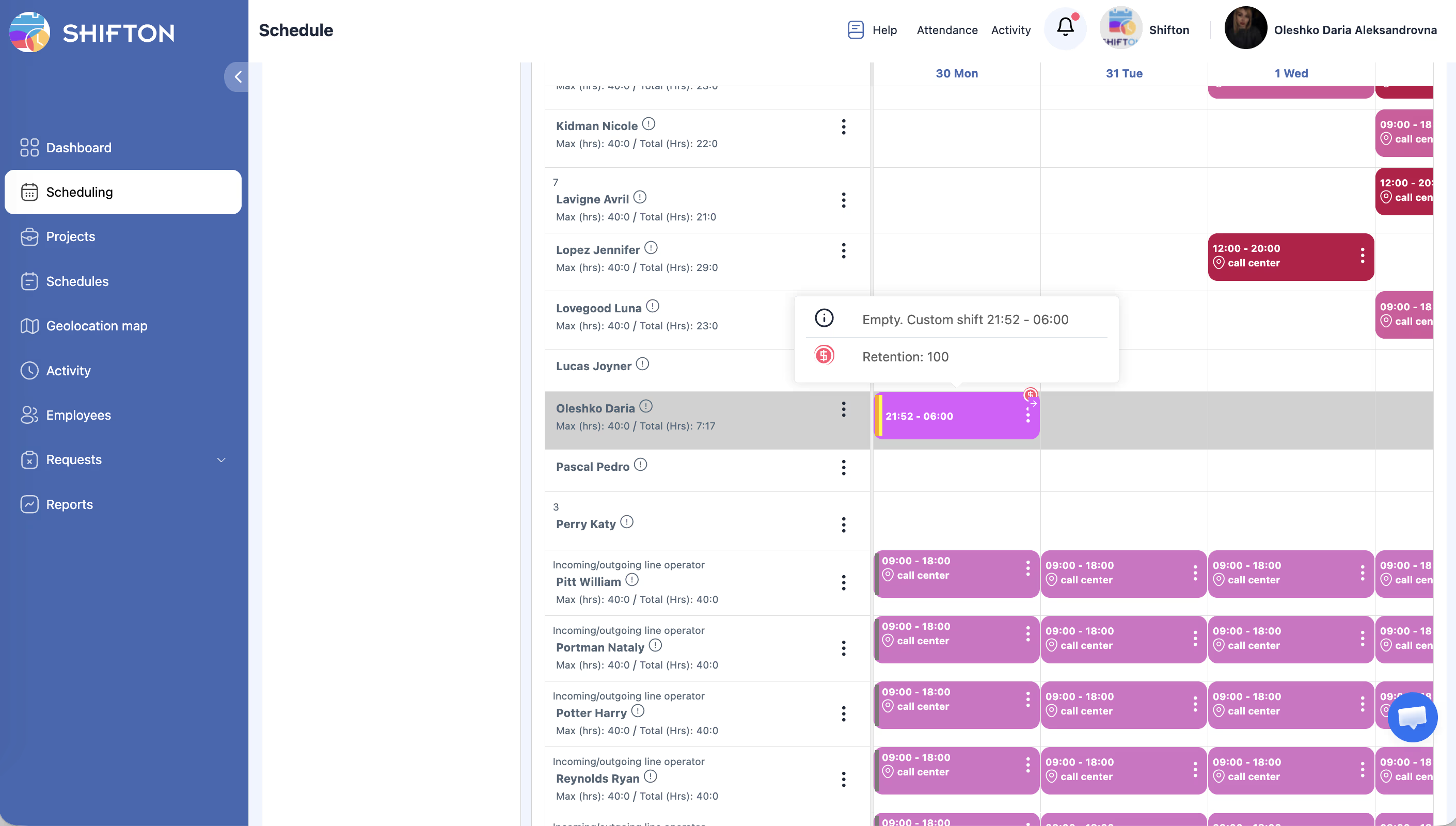
Penalties are recorded in the Bonus/Penalty report under the Retention column. They are also factored into the Pay Rate report’s final salary calculation.
Q4: Does the system track early departures the same way as late arrivals?
Early departures are tracked and recorded in the Employee Working Hours report under the Early leave hrs column. Auto-penalties can be configured separately for late arrivals; early departure handling depends on your company’s settings.
Q5: Can different penalty amounts be set for different employees or positions?
The auto-penalty settings apply company-wide. For position-specific or individual adjustments, managers can manually add or modify penalties through the Bonus/Penalty section.
Possible Issues and Solutions
| Issue | Possible Cause | Solution |
|---|---|---|
| Late arrival not recorded | The employee did not have a published schedule, so there is no planned time to compare against. | Ensure schedules are published before shift start times. |
| Manager not receiving late notifications | Notifications are not enabled or the threshold is set too high. | Check Settings > Notifications and lower the late-arrival threshold if needed. |
| Auto-penalty not applied | Auto-penalty is disabled, or the employee arrived within the grace period. | Verify that auto-penalty is enabled and review the allowed late minutes setting. |
| Penalty amount seems incorrect | The penalty type (fixed vs. per-minute) may not match expectations. | Review the penalty type and amount in Settings > Attendance. Recalculate using the formula described above. |
| Early departure not flagged | Early departure tracking is not enabled. | Enable early departure tracking in Settings > Attendance or notification settings. |