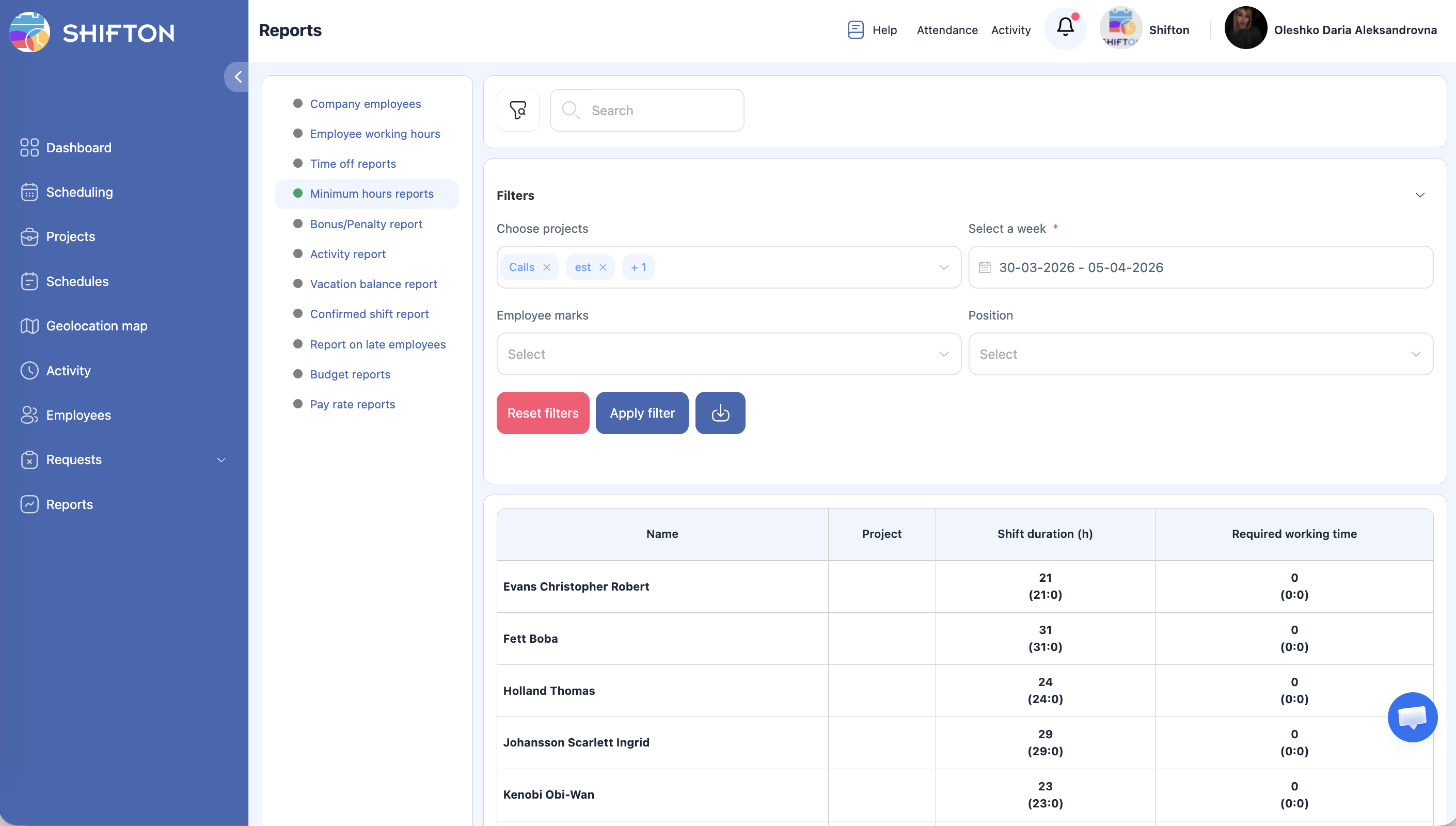
Compare employees’ actual shift durations against their required weekly working time to ensure labor compliance.
What Is This?
The Minimum Hours report helps managers verify that employees are meeting their required working hours per week. It shows each employee’s total shift duration for a selected week alongside their required working time, making it easy to identify shortfalls or overages. This is particularly useful for compliance with labor contracts, part-time agreements, and workforce planning.
Prerequisites
#
Prerequisite
Details
1
Schedules published
Shift durations come from published schedules.
2
Required hours configured
Employees or positions should have minimum working hour requirements set.
3
Manager, Admin, or Owner role
Full access requires elevated permissions.
Step-by-Step Instructions
Accessing the Report
Step
Action
Expected Result
1
Navigate to Reports from the left sidebar.
The Reports page opens.
2
Select Minimum Hours from the report list.
The report loads with filters and the data table.
Applying Filters
Filter
Type
Description
Projects
Multi-select
Filter by one or more projects.
Select week
Week picker
Choose the specific week to analyze.
Marks
Multi-select
Filter by custom marks/tags.
Position
Dropdown
Filter by employee position.
Step
Action
Expected Result
1
Select the desired week and any additional filters.
Filters are configured.
2
Click Apply Filter.
The table updates for the selected week.
Reading the Report Table
Column
Description
Name
Employee’s full name.
Project
The project associated with the employee’s shifts.
Shift duration (h)
Total actual or scheduled shift hours for the selected week.
Required working time
The minimum number of hours the employee is expected to work per week.
Access Permissions
Role
View Report
Export Report
See All Employees
Employee
Own data only
No
No
Manager
All
Yes
Yes
Admin
All
Yes
Yes
Owner
All
Yes
Yes
FAQ
Q1: Where is the “required working time” configured? Required working time is typically set at the position or employee level in the system settings. Check Settings > Positions or the individual employee’s profile.
Q2: Does this report use planned or actual hours? The report shows shift durations based on published schedules. For actual attended hours, use the Employee Working Hours report.
Q3: Can I see monthly minimum hours instead of weekly? This report is designed for weekly analysis. For longer periods, export multiple weeks and combine the data, or use the Employee Working Hours report with a broader date range.
Possible Issues and Solutions
Issue
Possible Cause
Solution
Required working time column shows 0 or is blank
Minimum hours have not been configured for the employee or position.
Set required working time in the employee’s profile or position settings.
Shift duration is 0 for an employee
No shifts are scheduled for the selected week.
Check the schedule for the employee and verify the correct week is selected.
Report shows data for the wrong week
The week picker selection may be off by one.
Double-check the week picker dates to ensure you selected the intended week.
Cannot find a specific employee
Filters are hiding the employee.
Reset filters and search by name using the search bar.
Data does not match the schedule page
The report may aggregate differently than the visual schedule.
Verify by cross-referencing with the Employee Working Hours report for the same period.