

An employee does not see the same thing in the app as a manager does. They do not need company settings or team management — they need to check their own shifts, start work, ask for time off and swap a shift with a colleague. This article is about what is available specifically to them.
Step-by-step instructions
Menu
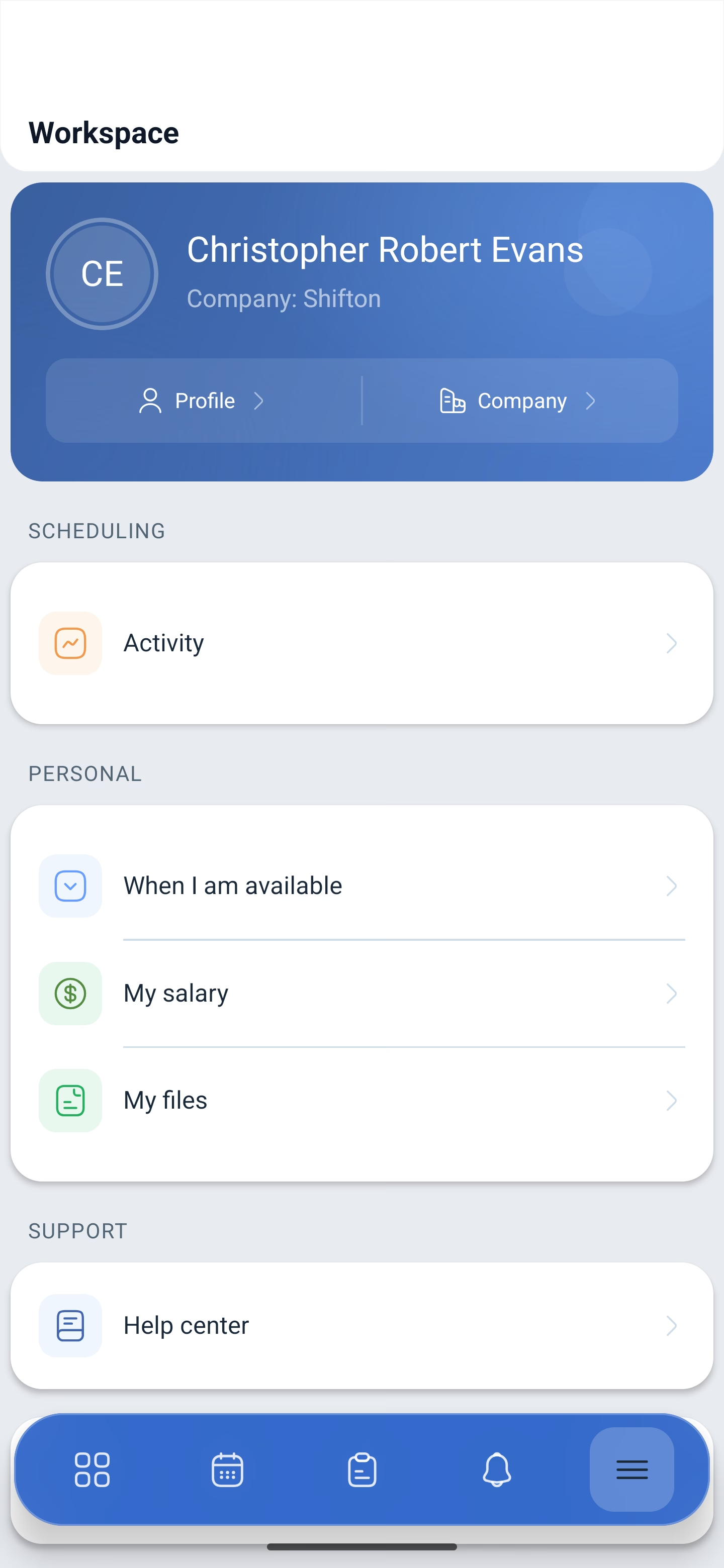
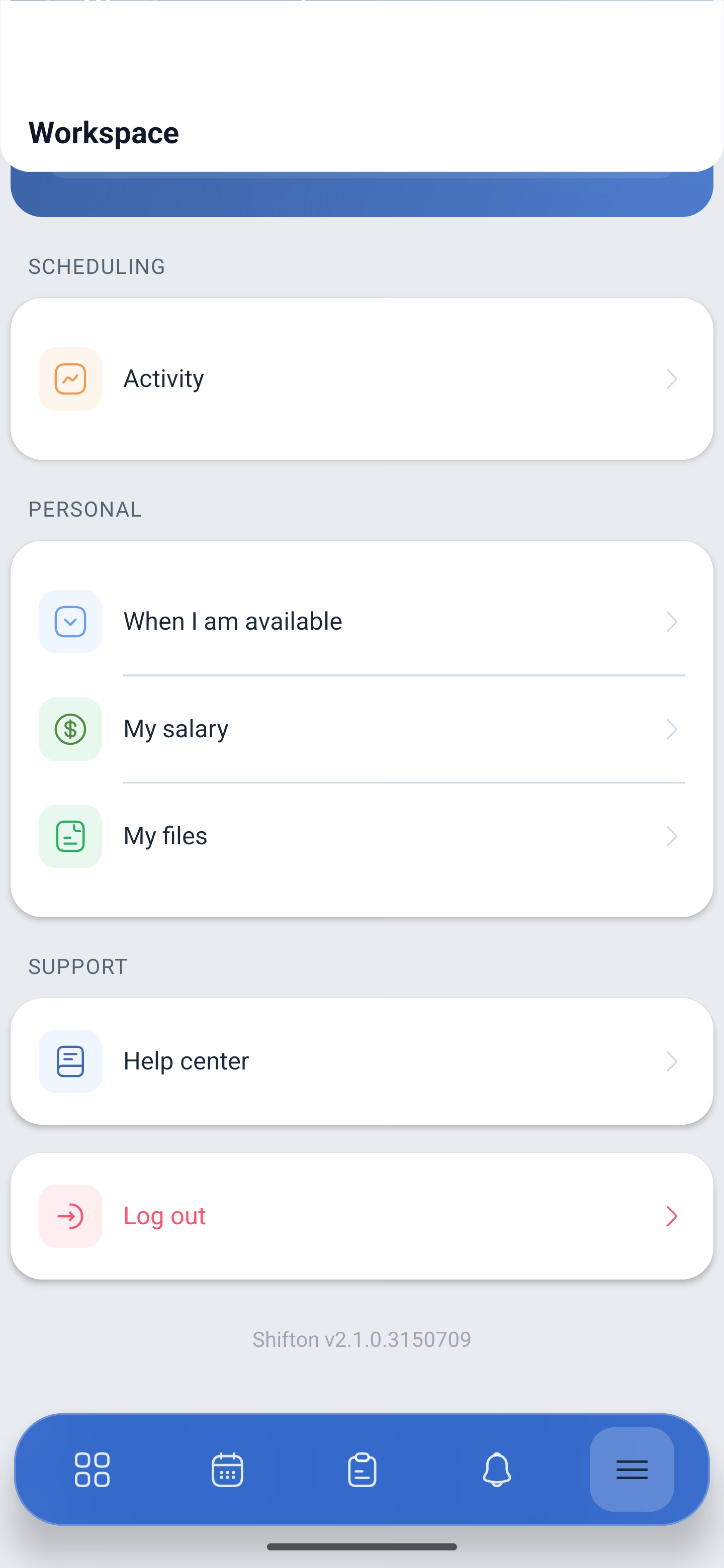
☰ in the bottom bar opens the Workspace. For an employee it is short:
| Group | Item |
|---|---|
| Card at the top | Profile and Company |
| Scheduling (SCHEDULING) | Activity |
| Personal (PERSONAL) | When I am available, My salary, My files |
| Support (SUPPORT) | Help center |
The employee has no Schedules, Geolocation map, Reports, Projects, Company employees or Company structure sections — those are management sections. Instead they have My salary, which the owner does not have: this is where an employee looks at their own payments.
My salary
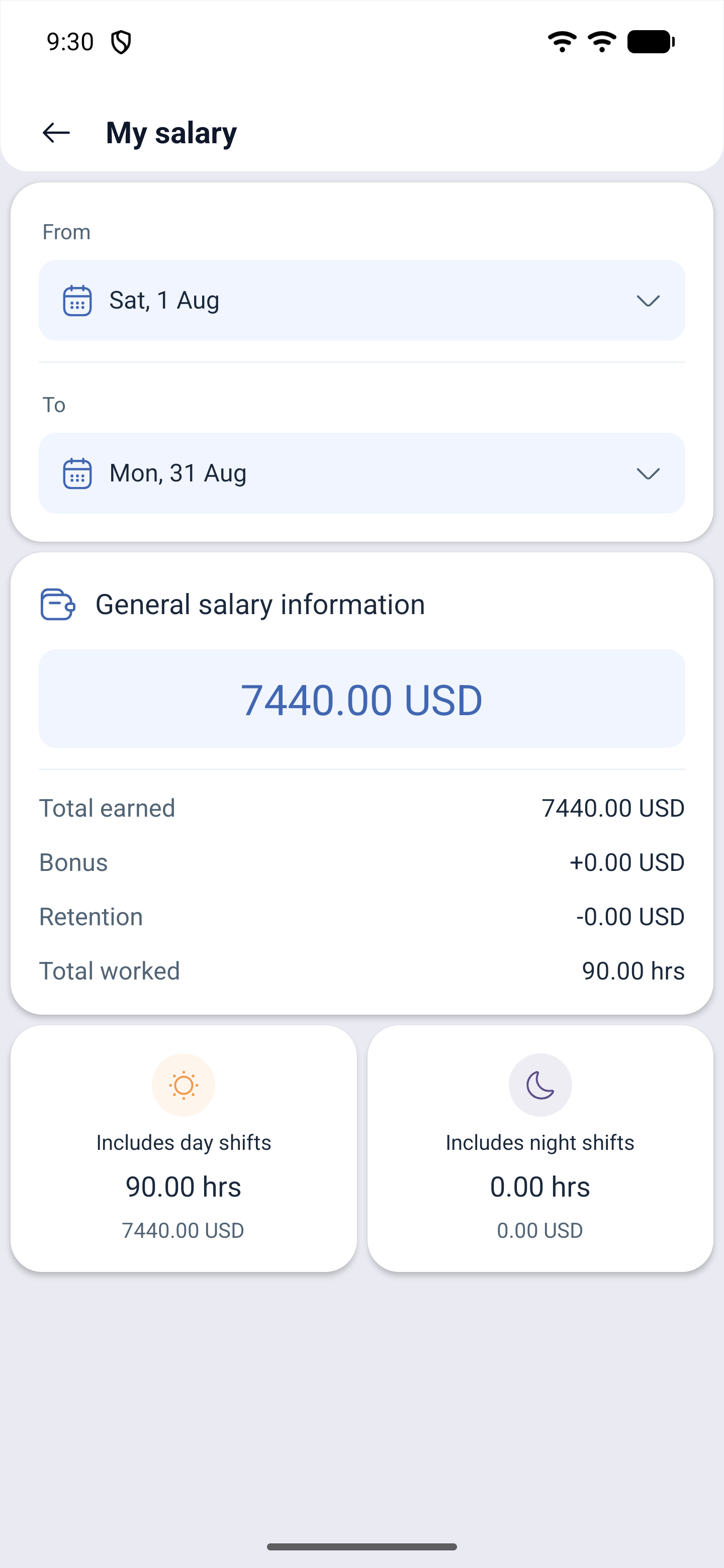
My salary is a section the owner does not have: these are the employee’s personal payments. The period is at the top, the summary below it:
| What is shown | Explanation |
|---|---|
| Total earned | Total earned for the period |
| Bonus | Bonuses that were added |
| Retention | Deductions |
| Total worked | Hours worked |
| Includes day shifts / Includes night shifts | A breakdown into day and night hours with the amounts |
Dashboard
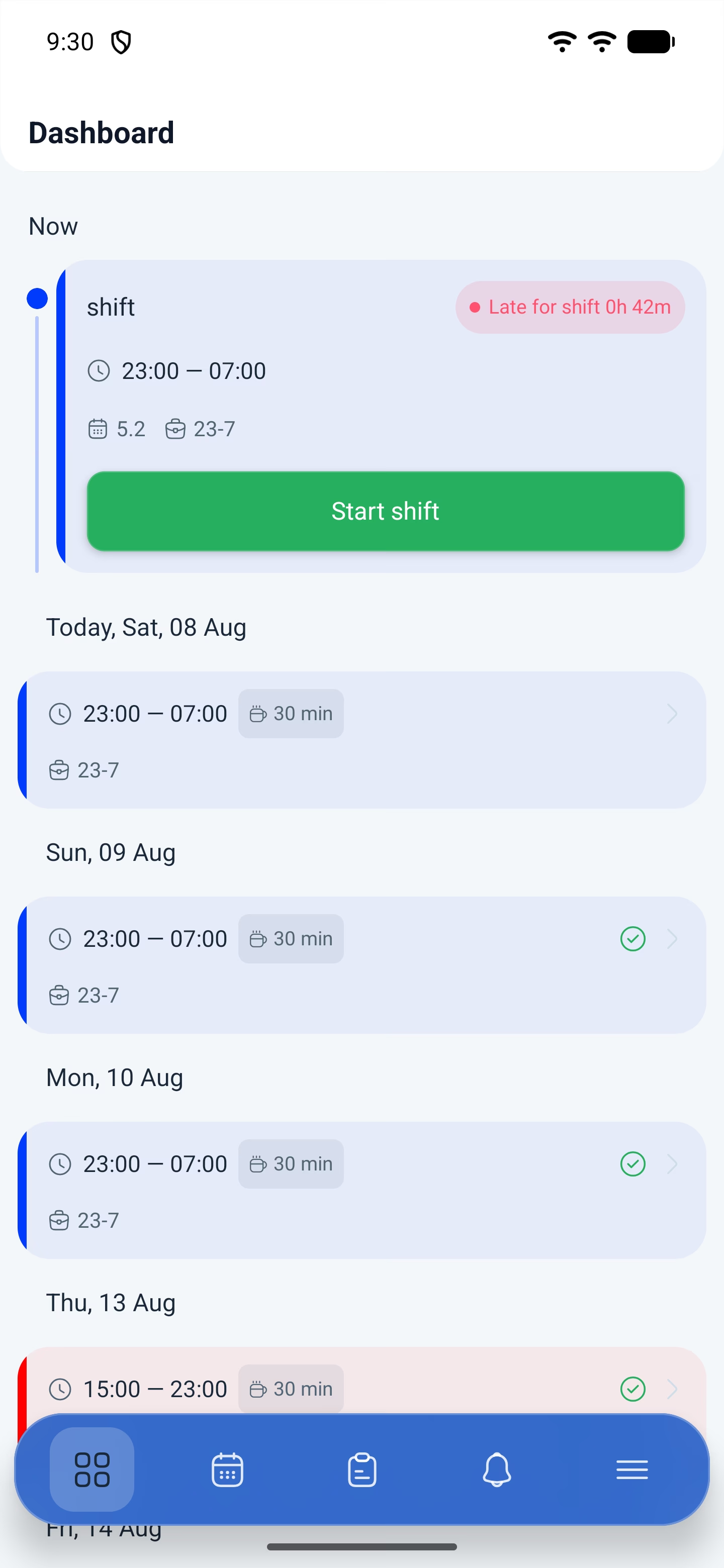
The first screen after signing in: the current or the nearest shift, the button to start it and a list of upcoming shifts by day. It is built the same way as the manager’s one, but shows only your shifts.
How to start and finish a shift is described in the article “Starting and finishing a shift in the mobile app”.
Schedule
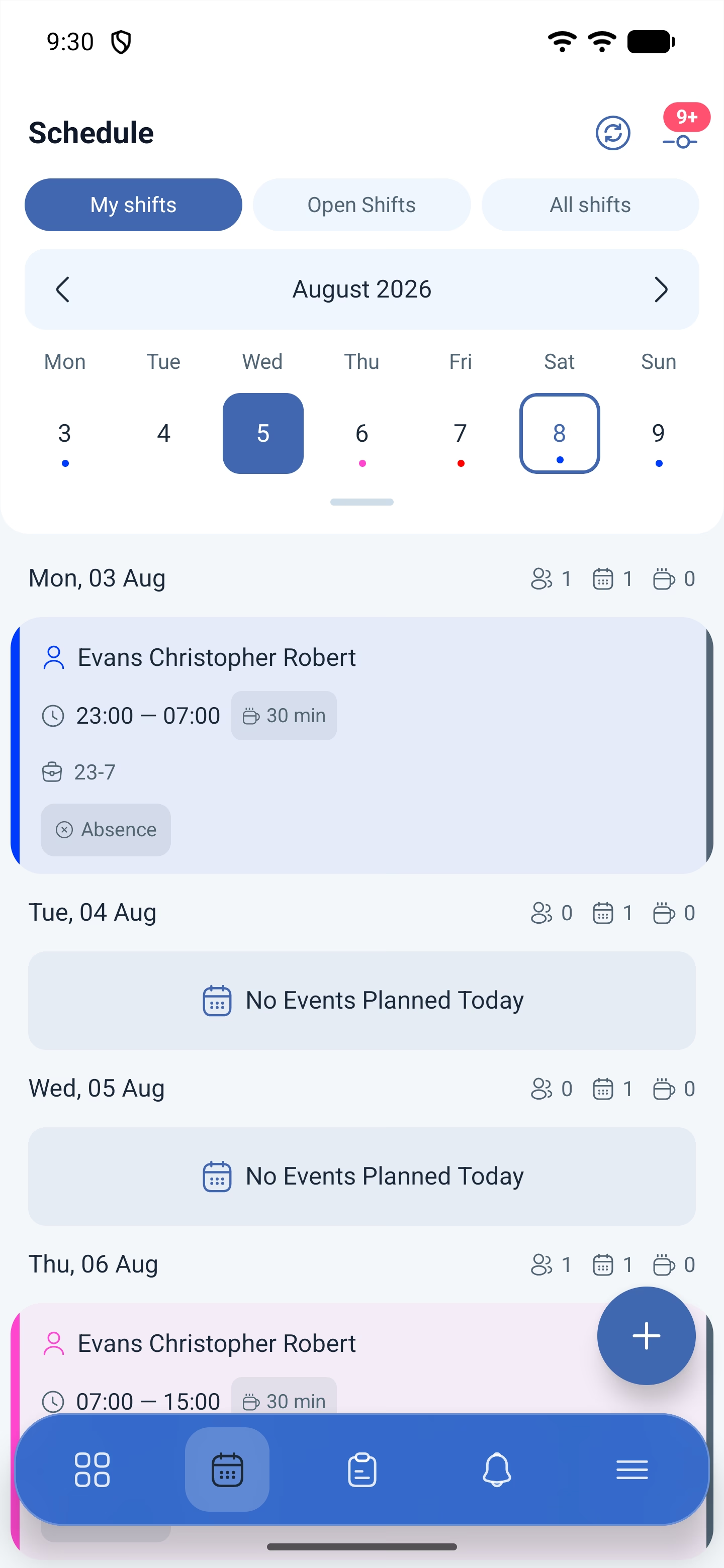
The second icon in the bottom bar. Three display modes:
| Mode | What it shows |
|---|---|
| My Shifts (My shifts) | Only yours |
| Open Shifts | The ones released into the shared list — they can be taken |
| All shifts | The shifts of the whole team |
The Export and more (More) buttons, which the manager has, are not here.
What you can do with your own shift
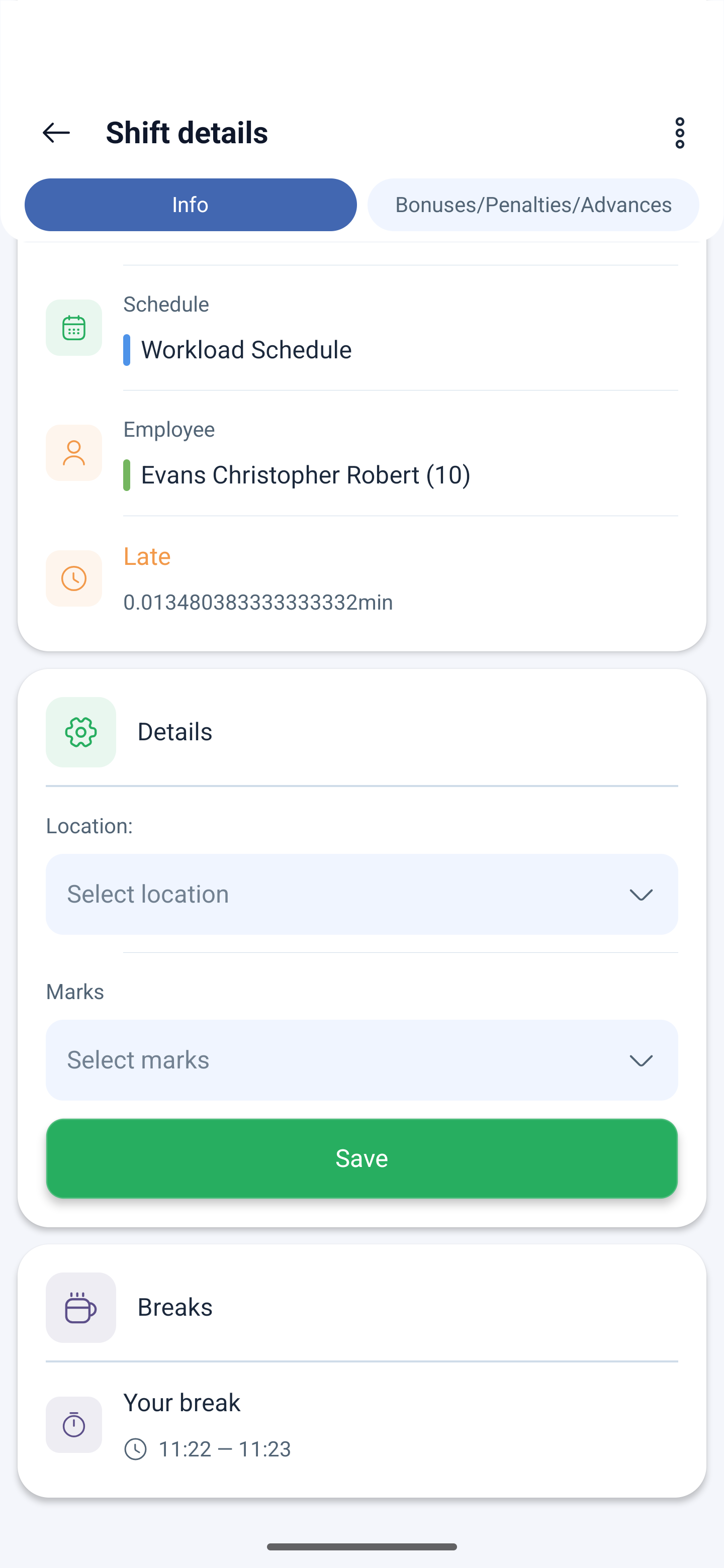
Tap a shift and Shift details will open. On your own future shift you can choose a location and tags and tap Save. On a past shift this is not available.
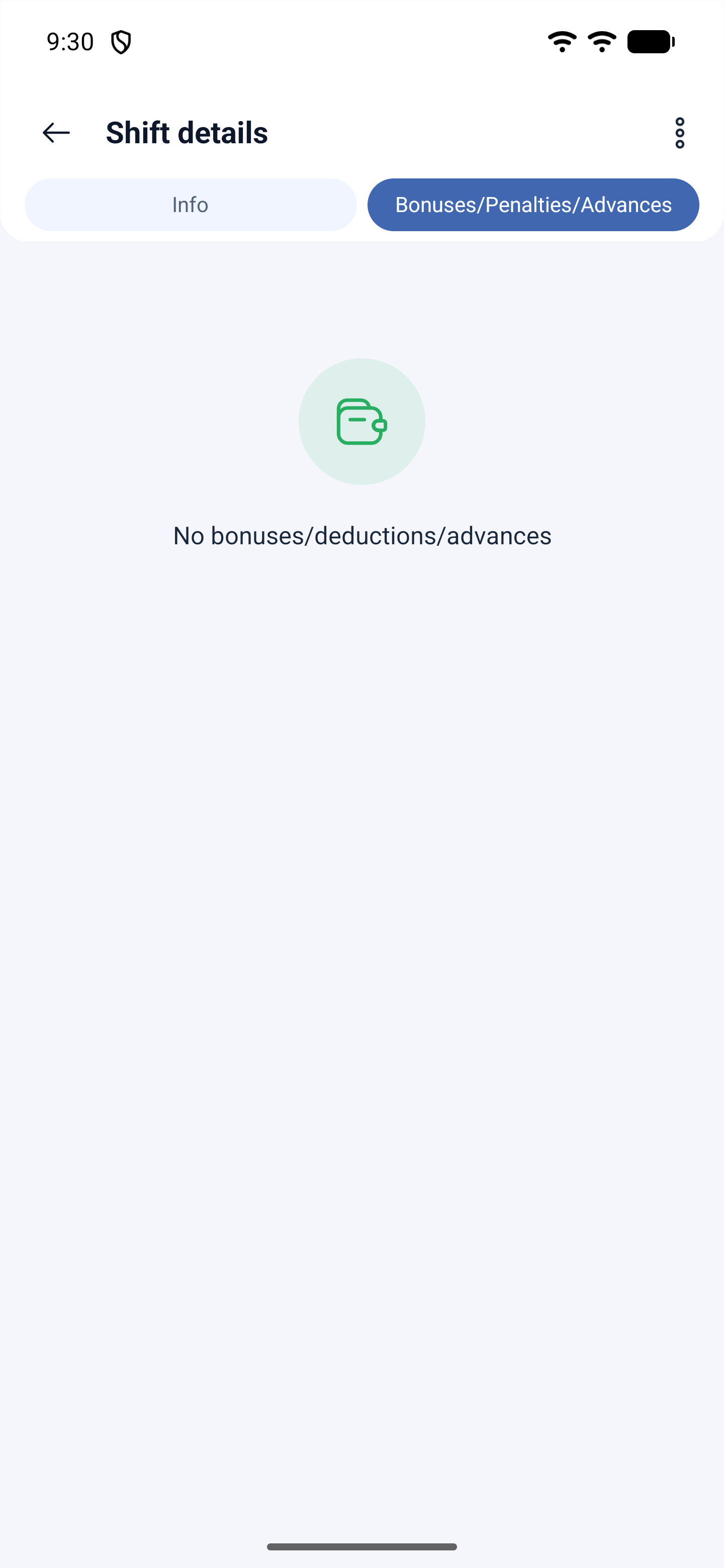
The second tab of the card is Bonuses/Penalties/Advances: what has been added and deducted for this particular shift. If there is nothing, it says so.
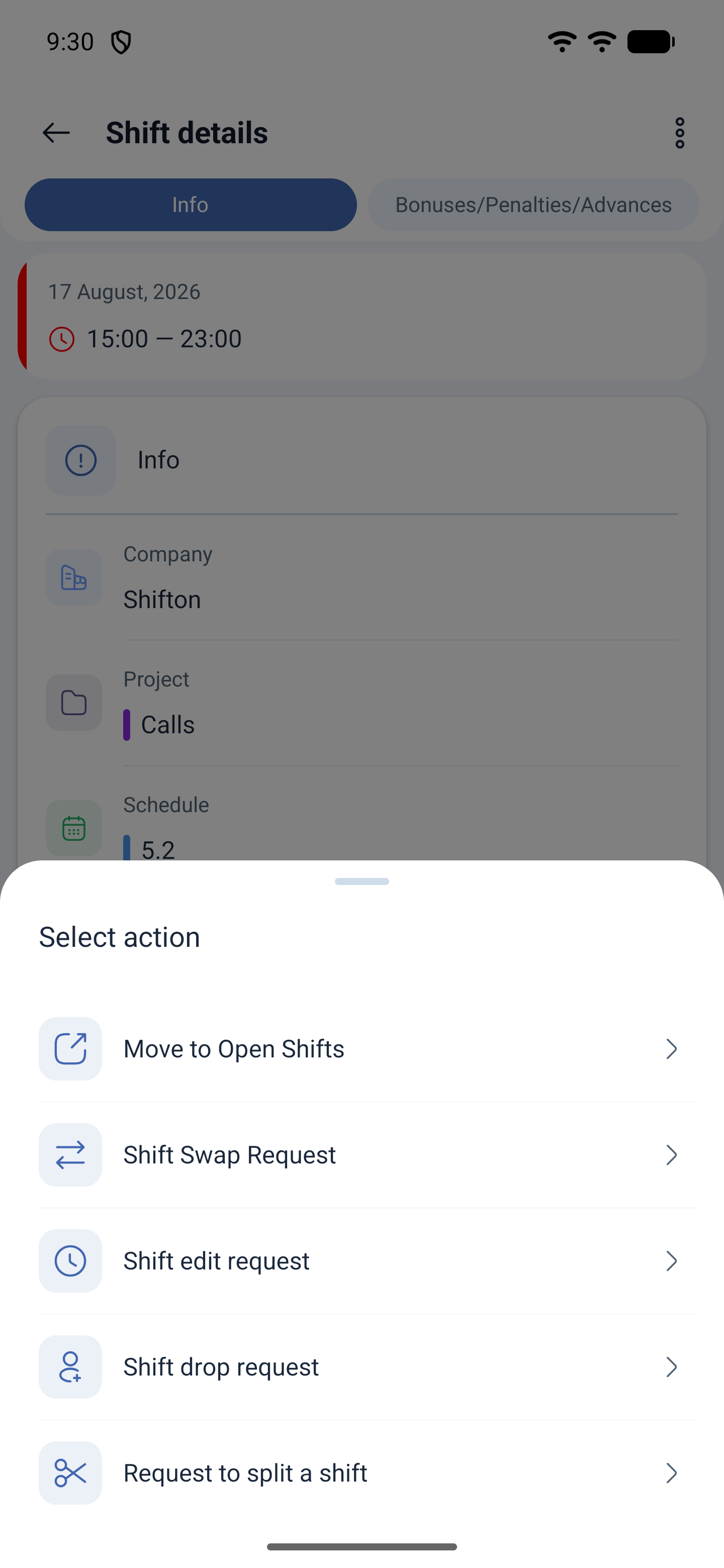
The main things hide behind the three dots in the top right corner — they open Select action:
| Action | What it does |
|---|---|
| Move to Open Shifts | Release the shift into the shared list so that someone else takes it |
| Shift Swap Request | Swap a shift with a colleague |
| Shift edit request | Ask to move the time of your own shift |
| Shift drop request | Hand the shift over to a specific person |
| Request to split a shift | Work part of the shift and give away the rest |
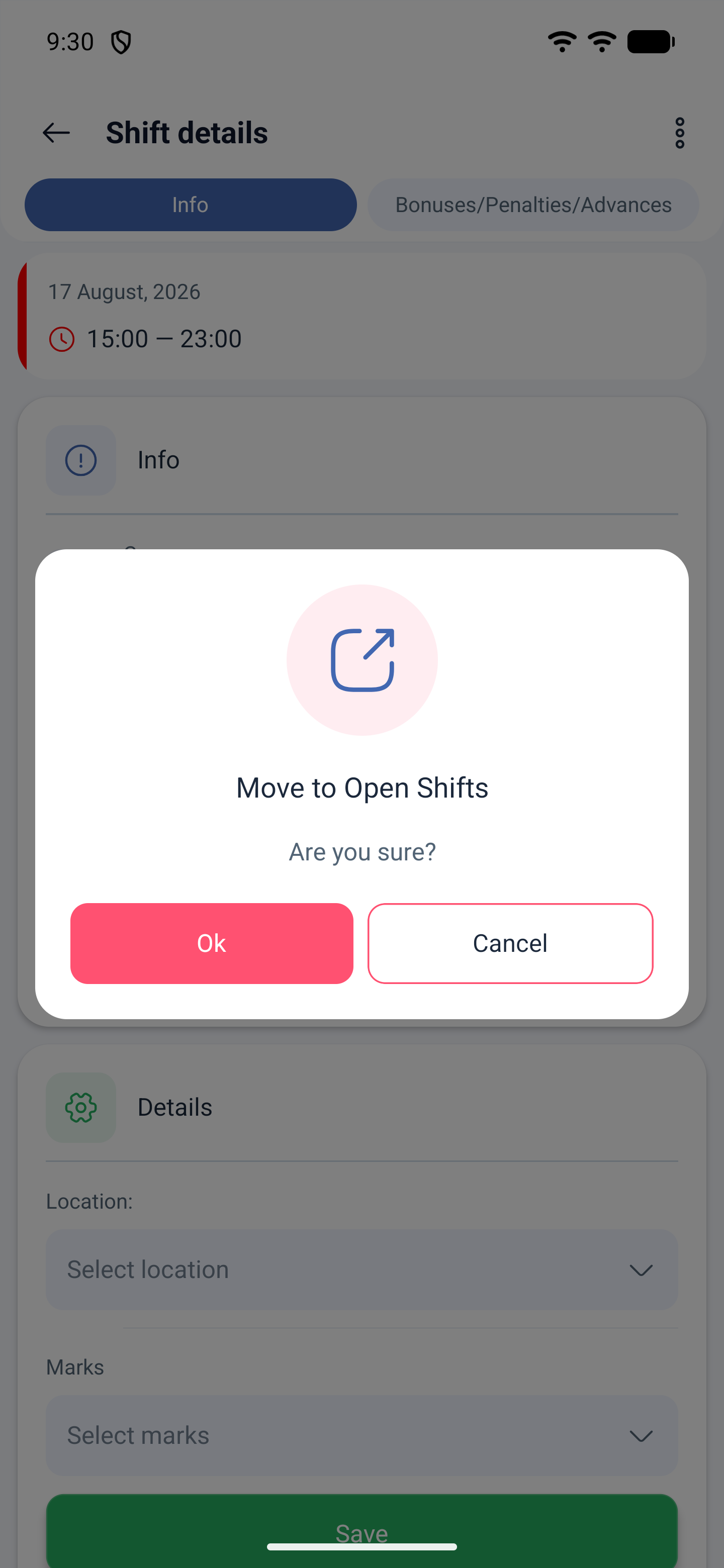
Move to Open Shifts asks for confirmation — Are you sure?, and the shift goes into the shared list.
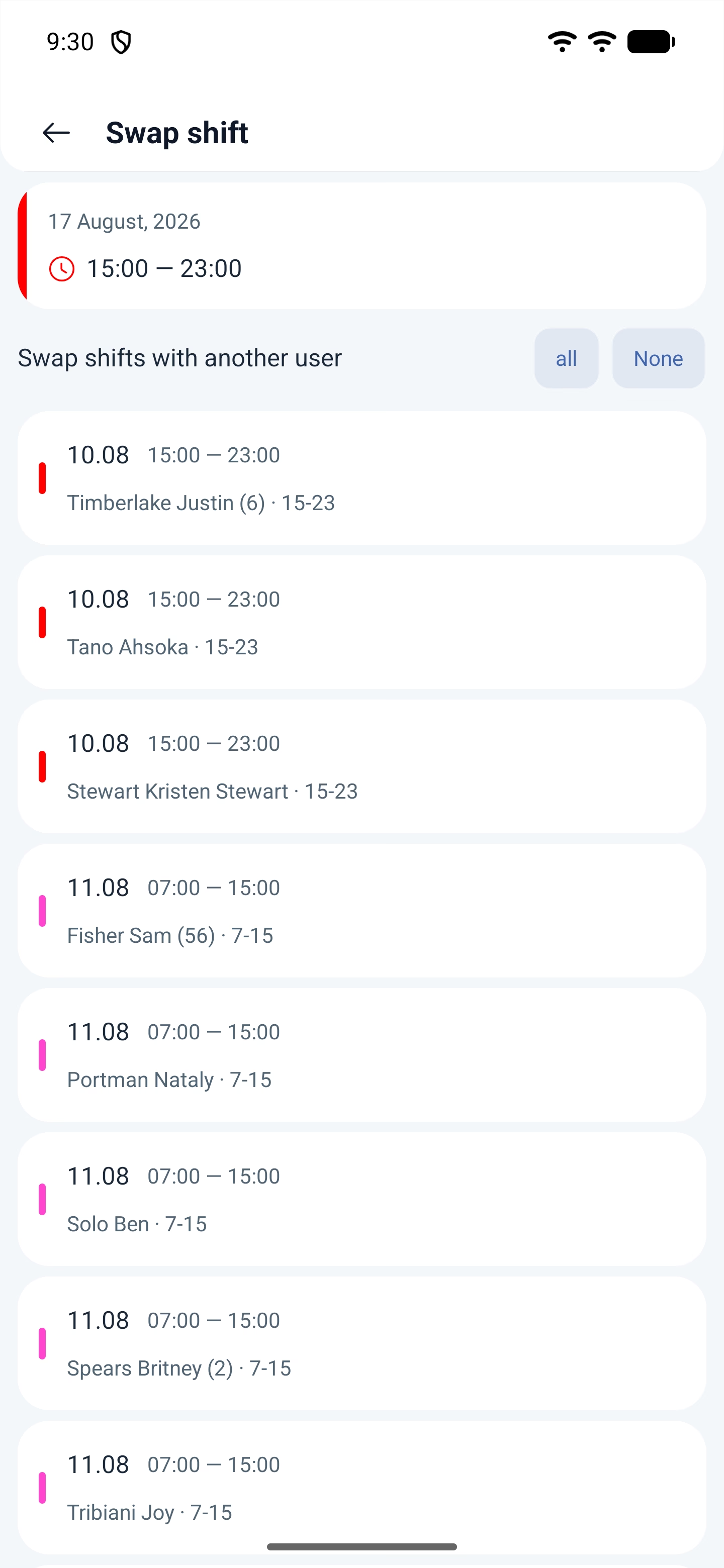
Shift Swap Request opens the Swap shift screen with a list of other people’s shifts: date, time, the colleague’s name and the template name. You choose who you swap with.
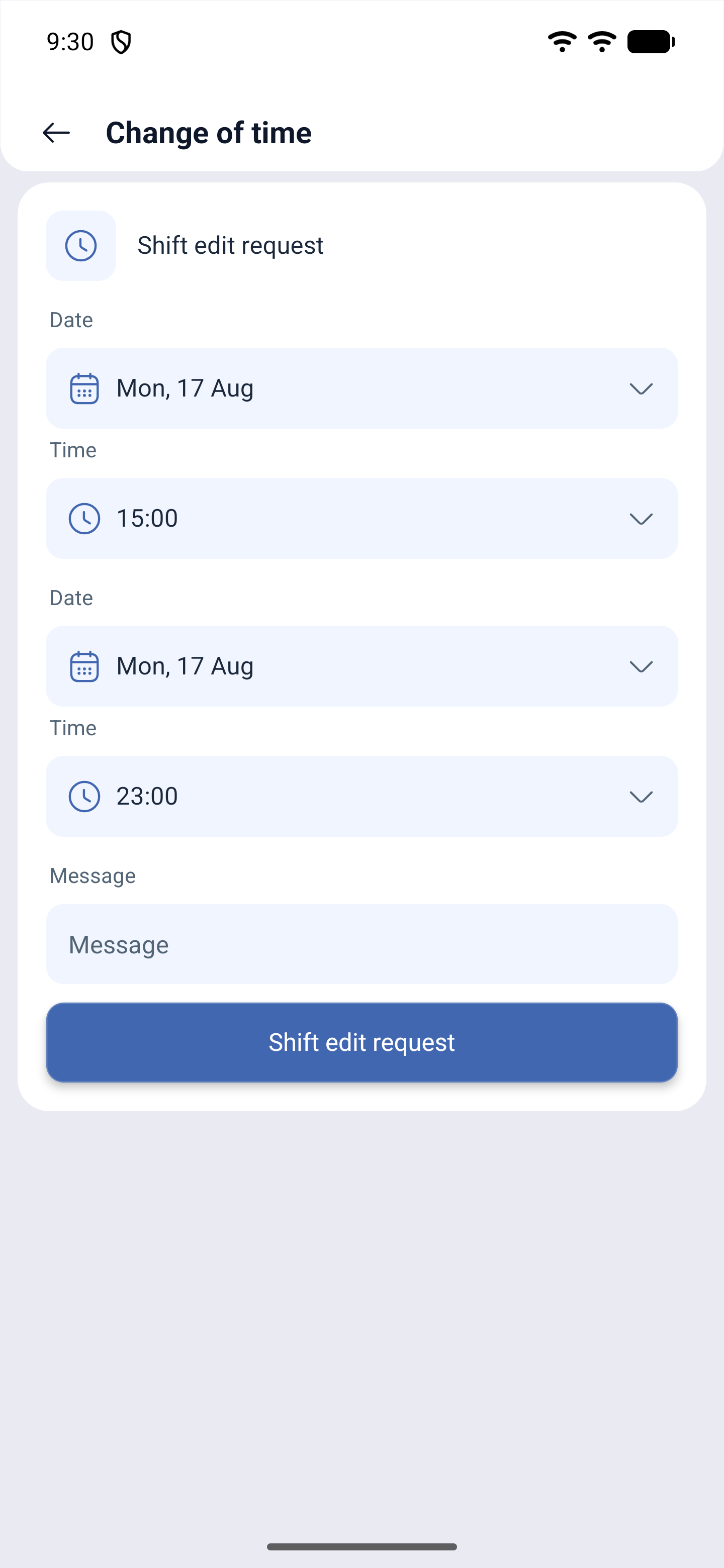
Shift edit request opens Change of time: date, start and end time, and the Message field — that is where you explain the reason.
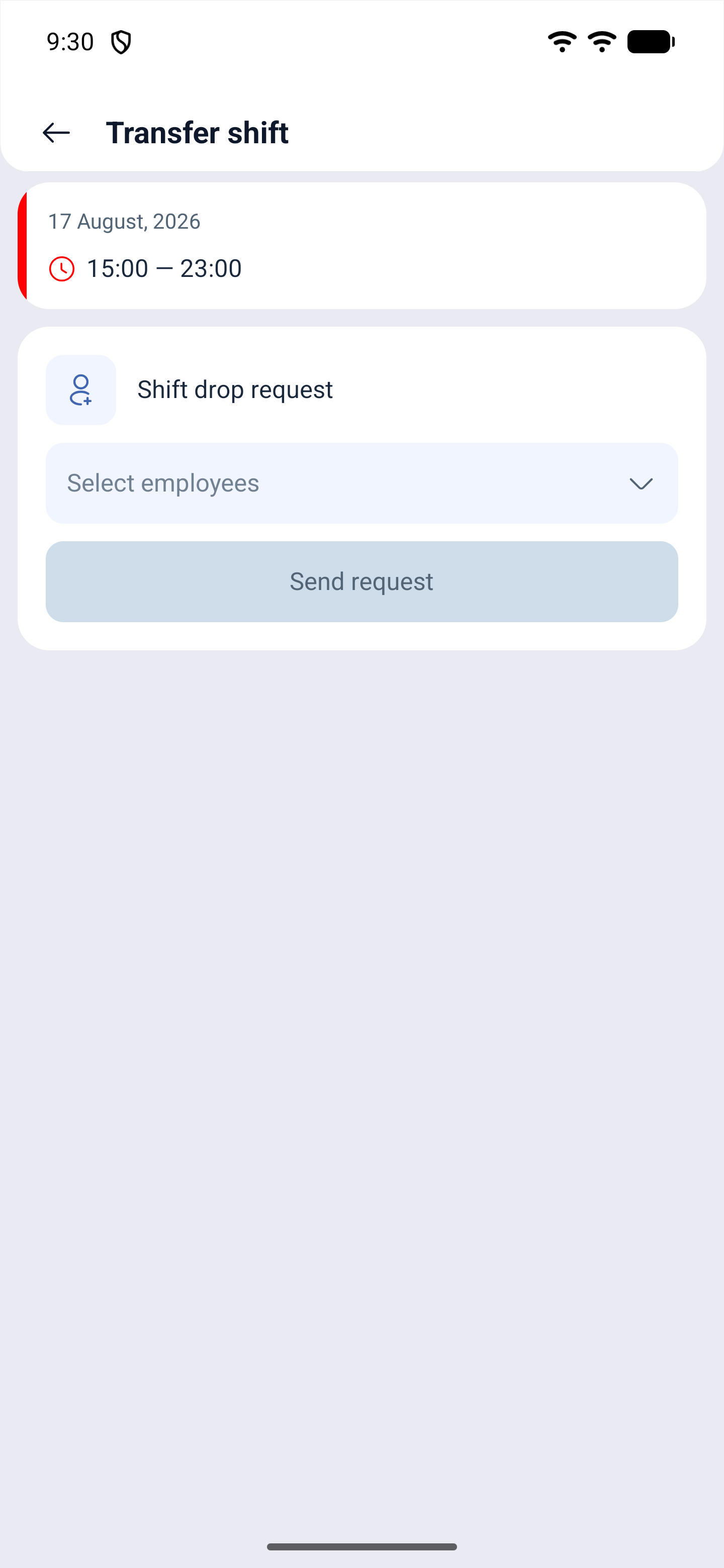
Shift drop request opens Transfer shift: Select employees and Send request. The difference from open shifts is that here you name specific people instead of releasing the shift to everyone.
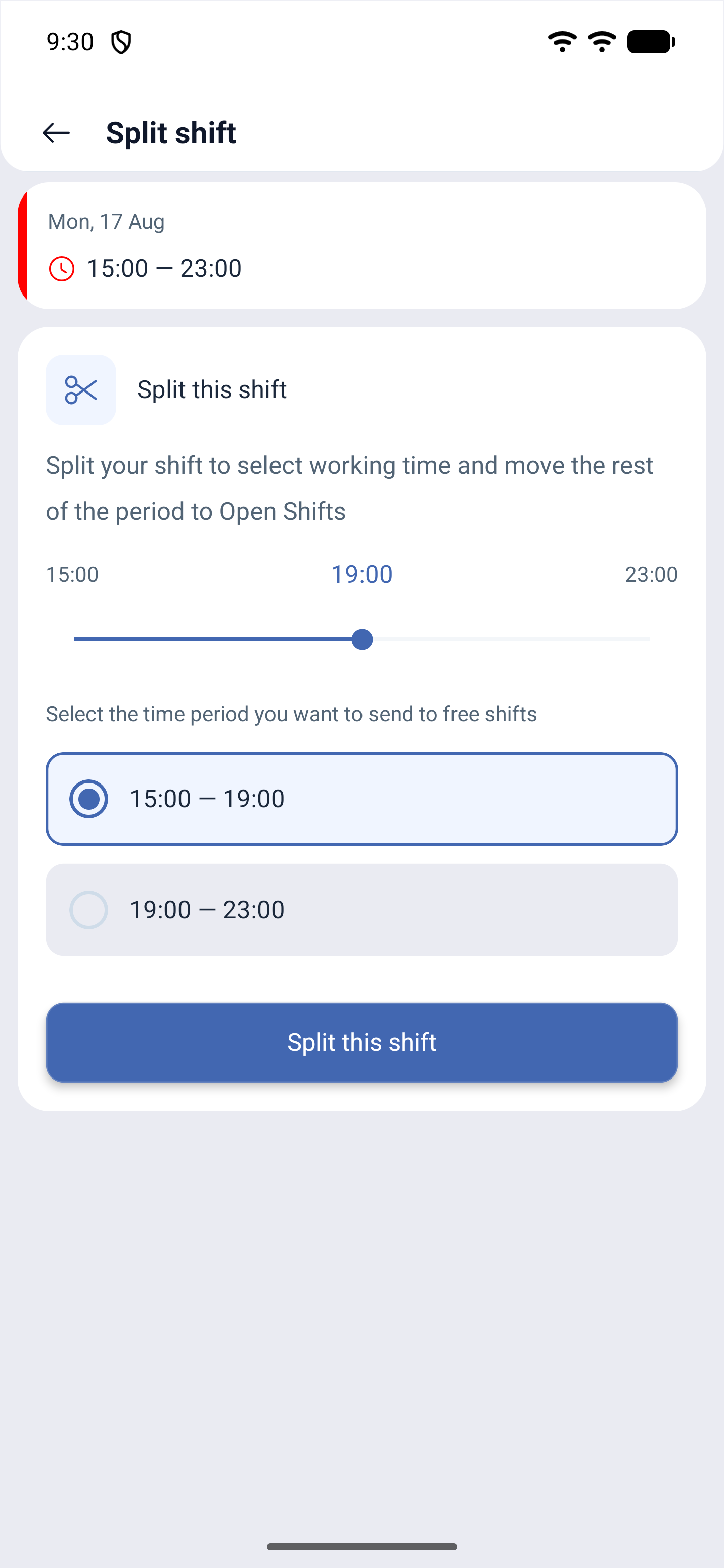
Request to split a shift opens Split shift. There is a hint on the screen: split the shift to choose your working time and send the remainder to open shifts. With the slider you set the split point and choose which of the two parts to give away.
Requests
The third icon in the bottom bar. Two tabs: New and Archive. The create button is at the bottom right.
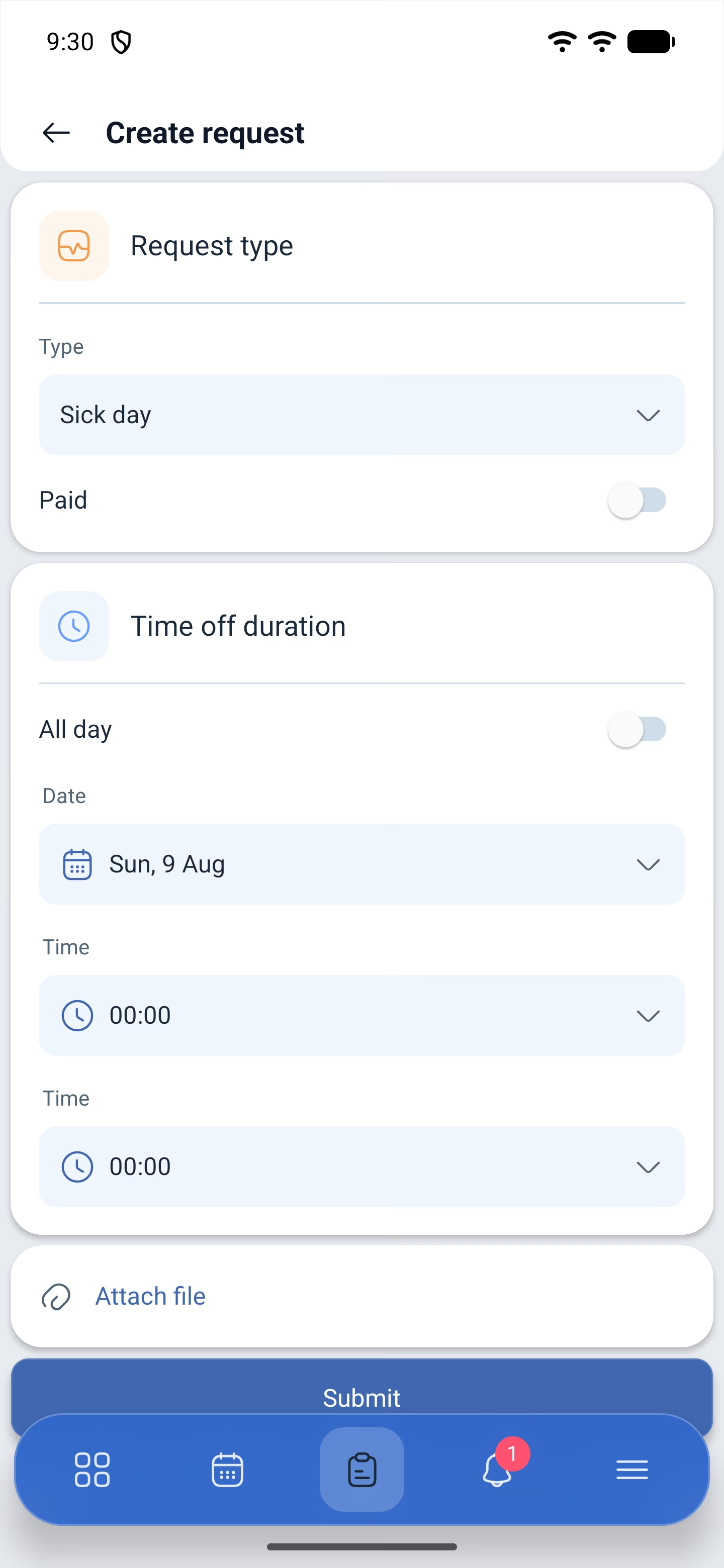
The Create request form is shorter for an employee than for a manager:
| Block | Field |
|---|---|
| Request type | The absence type and whether it is paid |
| Time off duration — the whole day or part of it | |
| Date and time | |
| Attach file — a certificate or a document |
It ends with the Submit button.
The Options block, where a manager chooses who the request is created for and whether the shifts move to open shifts, is not available to an employee: they can only create a request for themselves.
Notifications
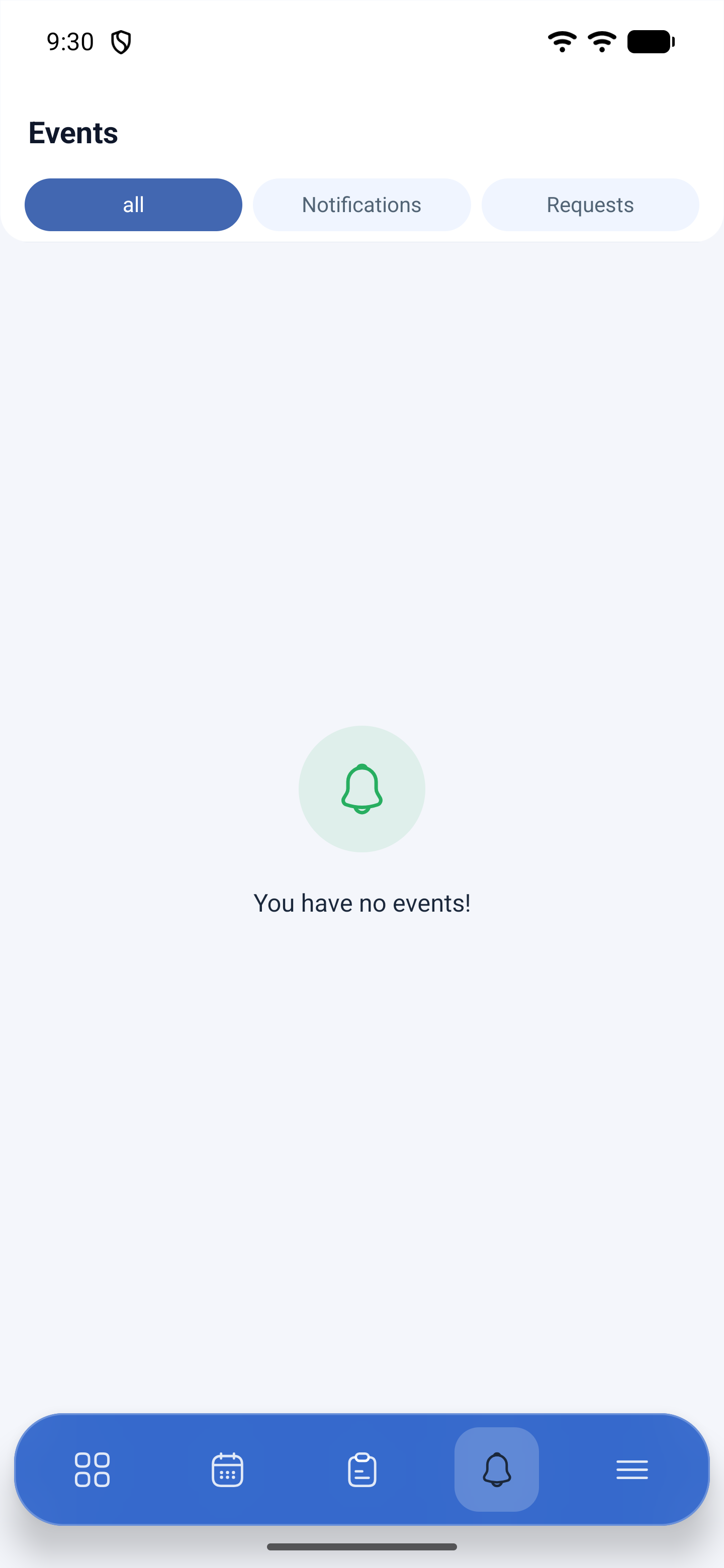
The fourth icon. For an employee the screen is called Events and is split into tabs: all, notifications and requests. The red circle shows the number of unread items.
Breaks
A planned break is started from the dashboard: during a shift, a block with the break time and the Start break button appears under the finish button. After that everything works as with a shift — a screen with a map, a confirmation, and at the end the End break button and two confirmations.
An unplanned break is added on the shift card, in the Breaks section, with the plus button. It is limited by the module settings: how many unplanned breaks can be taken per shift and in which window before the break starts the button works at all. If the limit is used up or the break is still far away, the button will be missing or will not respond.
The breaks you have taken are visible right there, in the list under the Breaks heading.
Help center
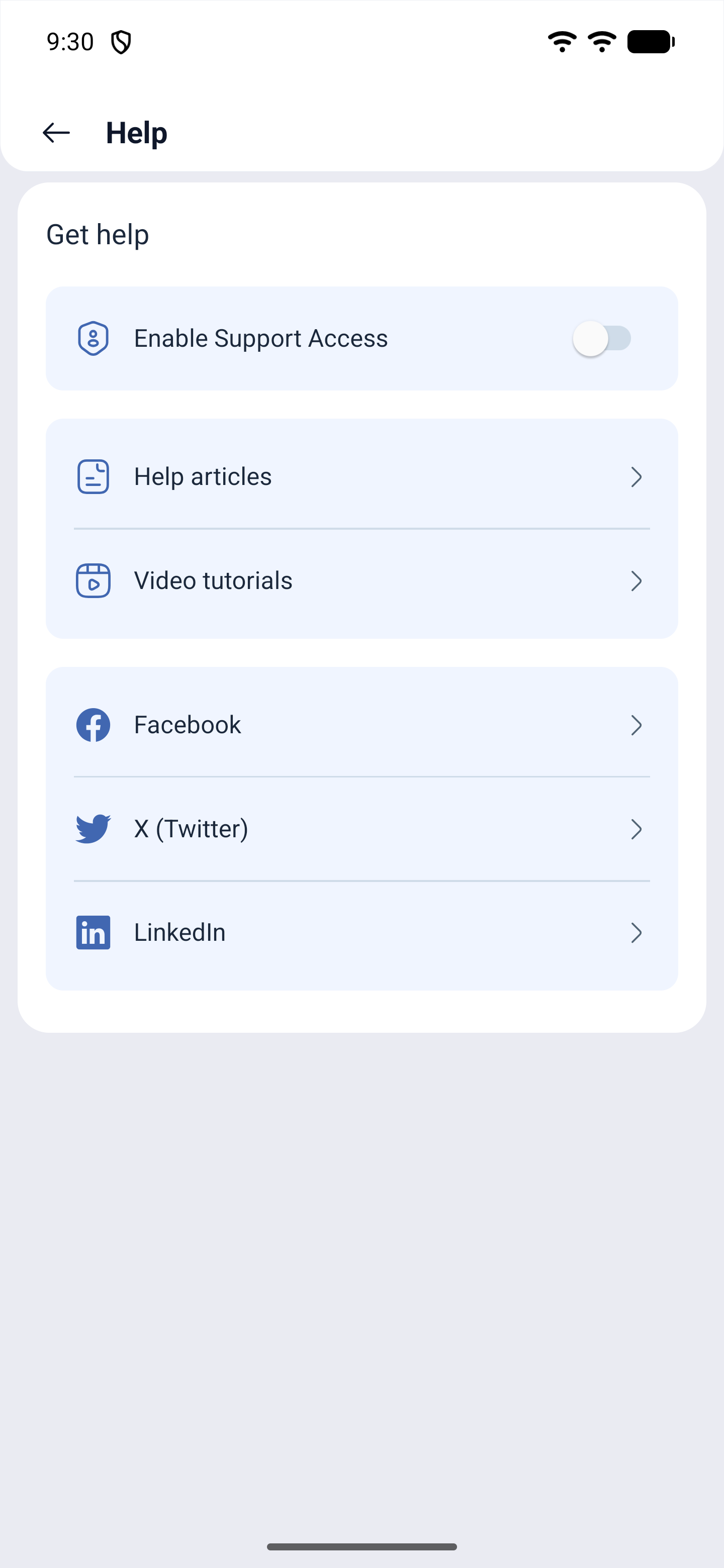
☰ → Support (SUPPORT) → Help center. Inside: contacting support, the Enable Support Access toggle, articles, video lessons and links to Shifton social media.
Why an employee may not have these buttons
This is the most frequent complaint, and the reason is almost always one of two.
The first one: the actions are turned off in the settings. Everything an employee does with a shift is enabled by the manager in the schedule — the Basic information section, ten self-service toggles. If they are off, one item instead of five remains behind the three dots.
| What the employee lost | Which toggle to turn on |
|---|---|
| Shift swapping | Allow shift swapping |
| Dropping a shift | Allow employees to drop shifts |
| Moving to open shifts | Allow employees to send shifts to the Open Shifts list |
| Taking an open shift | Allow employees to take shifts from the Open Shifts list |
| Splitting a shift | Allow employees to split shifts |
| Requesting a break | Allow employees to create breaks |
| Creating their own shift | Allow employees to create their own shifts |
| Other people’s shifts in the schedule | Allow employees to see all shifts |
Some of the settings are duplicated at the project level — Shift settings on the project card. They apply to all schedules of the project at once.
The second one: the schedule has ended. For shifts outside the schedule validity period there are no actions at all — the three dots simply do not open. Check the schedule period: if it is in the past, extend it through Reduce/extend schedule.
Possible problems and solutions
| Problem | Cause | Solution |
|---|---|---|
| The three dots on a shift do not open | The schedule has ended | The manager extends the schedule through Reduce/extend schedule |
| There is only one item in the action list | The self-service toggles are off | The manager turns on the ones needed in the Basic information of the schedule |
| There is nobody to swap a shift with | There are no suitable colleague shifts in the list | Swapping is possible only with shifts of other employees of this schedule. If “swap within the position only” is on — also with the same position |
| There are no open shifts | Nobody released anything, or taking them is not allowed | Check the toggle for taking open shifts with your manager |
| The actions are there, but the request does not go through | Manager approval is enabled | The request went to the manager and is waiting for approval — check the Archive tab and the notifications |
| There is no Schedules section in the menu | This is by design | It is a management section. An employee looks at their own shifts on the second tab of the bottom bar |
| There is no My salary | The payroll module is not connected | The module is enabled in the company settings |
Frequently asked questions (FAQ)
Question: How is “Move to Open Shifts” different from a “Shift drop request”? Answer: In the first case the shift goes into the shared list and anyone who is allowed to can take it. In the second one you name specific people.
Question: Can I work half a shift and give away the rest? Answer: Yes, that is what Request to split a shift is for: with the slider you choose the split point and specify which part to send to open shifts.
Question: Why do I not have a swap button while my colleague does? Answer: Self-service settings are defined separately for each schedule. If you are in different schedules, the sets of actions may differ.
Question: Where does the answer to my request arrive? Answer: In Events and in the Archive on the requests screen. Inside the request itself there is a discussion tab where you can exchange messages with the manager.
Question: Can I attach a certificate to a sick leave? Answer: Yes, with the Attach file button when creating the request.
Question: Where can I check my salary? Answer: Menu → My salary. A manager does not have such an item, it is the employee’s personal section.
Question: Can I create time off for a colleague? Answer: No. A request is created only for yourself — there is no employee choice in the form.
Question: Where can I see how much has been paid to me? Answer: Menu → My salary: earned for the period, bonuses, deductions and hours worked with a breakdown into day and night ones.
Question: Why is an unplanned break not added? Answer: Two reasons. Either the limit of unplanned breaks per shift is used up, or the break is still too far away — the button works only within the window set by the module settings.
Question: Why does the break not start? Answer: A break, just like a shift, is registered through the map — attendance checks the place. If geolocation on the phone is off, the button stays silent.
Question: Why can nothing be changed on a past shift? Answer: Actions are available only on future shifts of a valid schedule.