

Company structure is three reference lists that everything else is assembled from: who can do what, what they work as and where. Schedules, pay rates and work location control all rely on them.
☰ → the Team (TEAM) group → Company structure. Inside there are three separate screens.
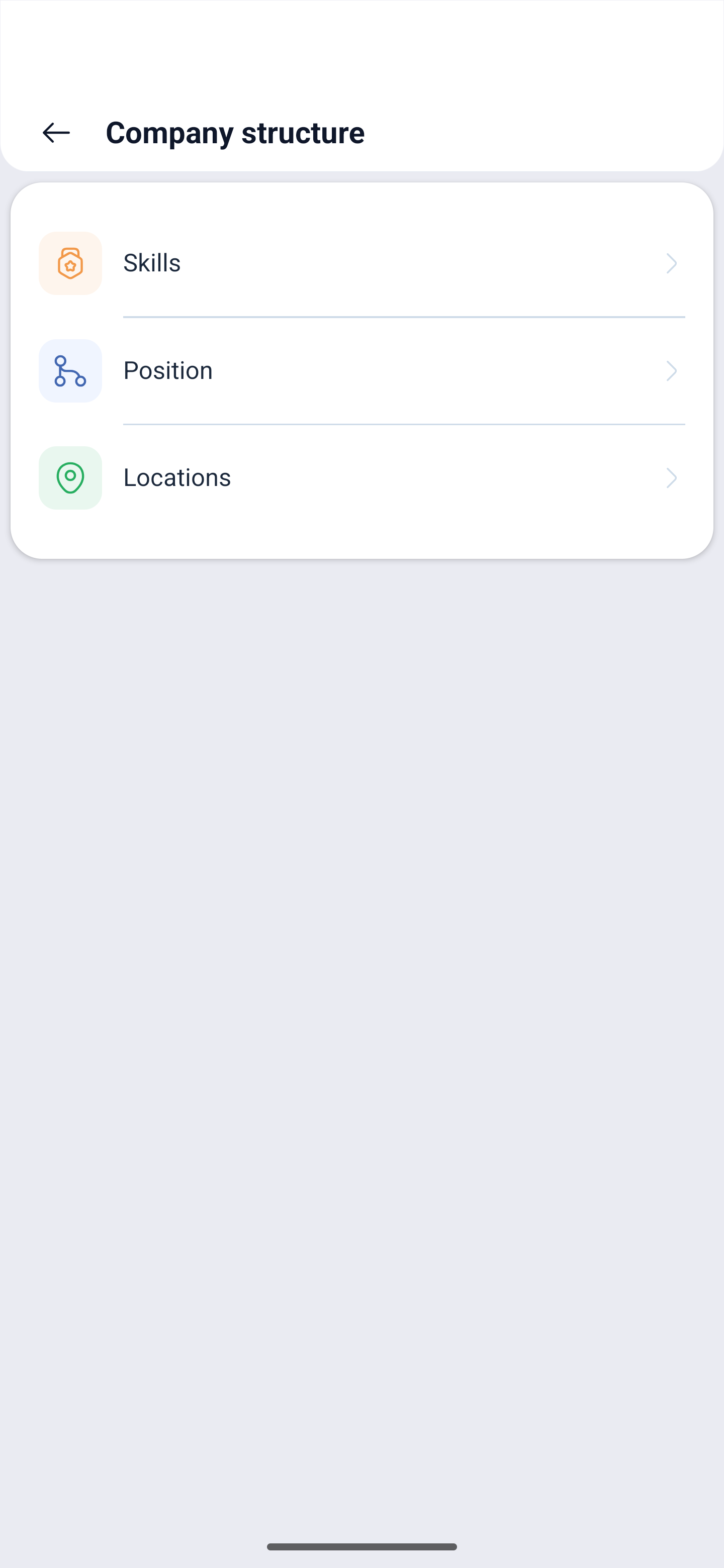
Step-by-step instructions
Skills
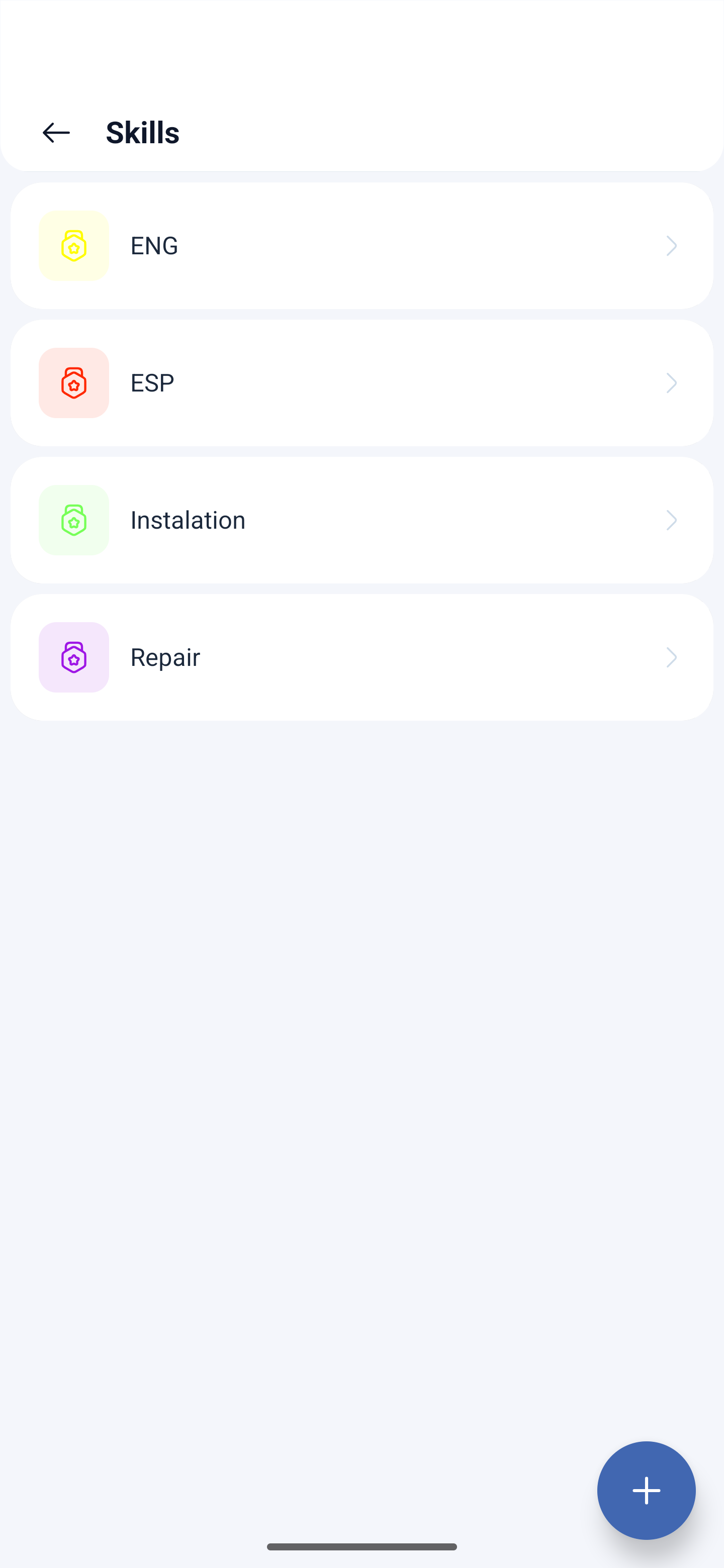
Skills are what an employee can do: a language, a certificate, a clearance. The system uses them to pick people for activities, not for shifts: a required skill can be set in an activity template, and without it a person will not be assigned to that activity.
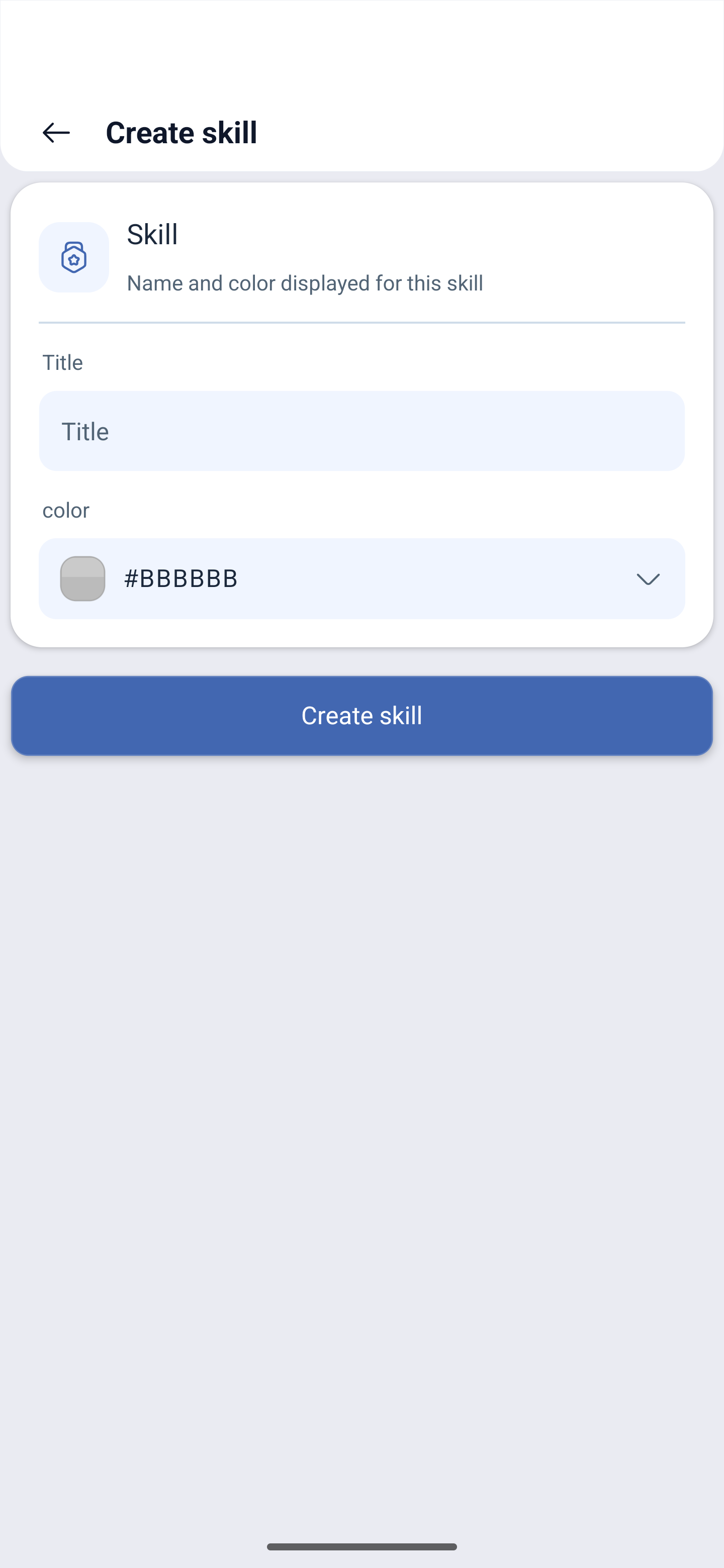
The list shows skills with color marks. The Add button at the bottom opens Create skill:
| Field | Description |
|---|---|
| Title | The name of the skill |
| Color | The mark that makes the skill visible in the lists |
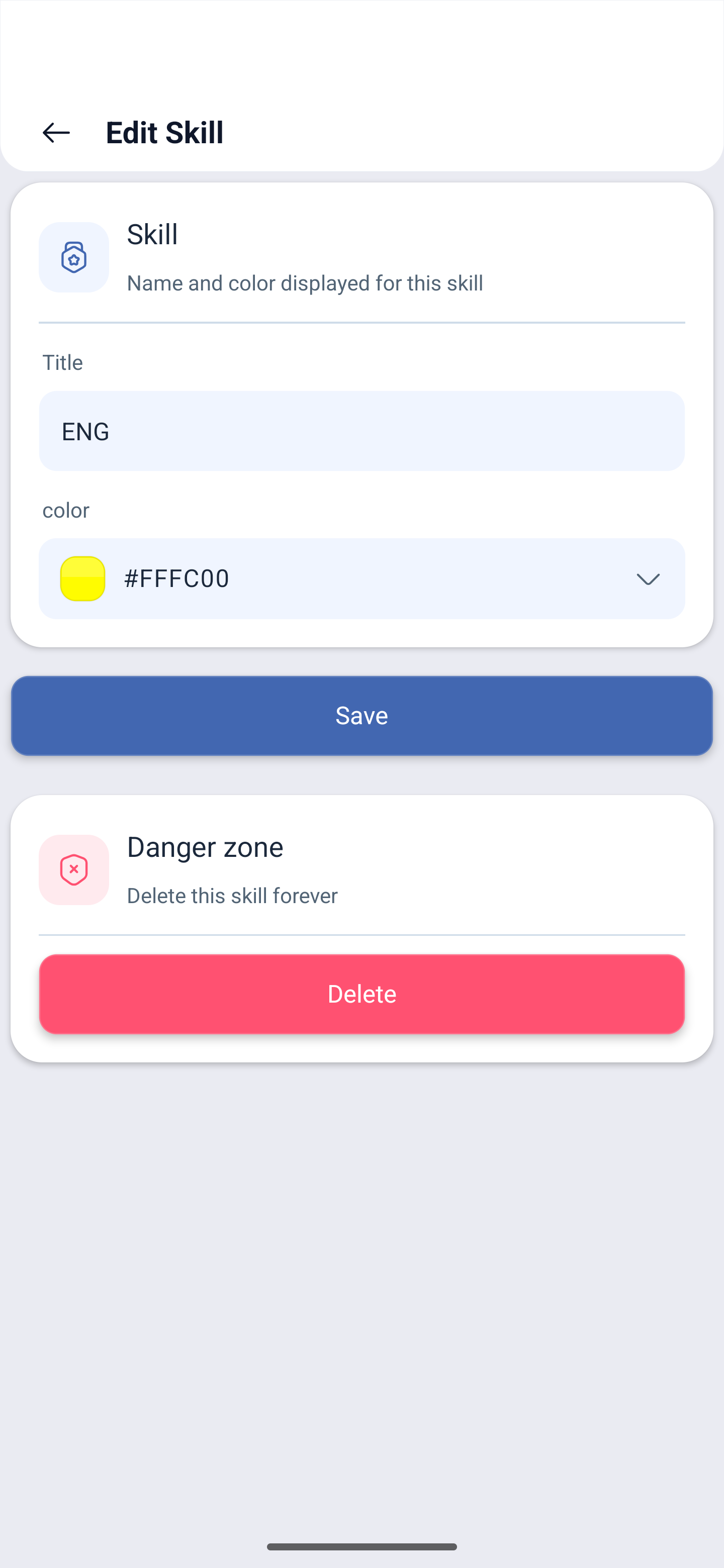
Tapping a skill opens Edit Skill — the same two fields and the save button. At the very bottom there is the Danger zone block with the Delete this skill forever button.
Positions
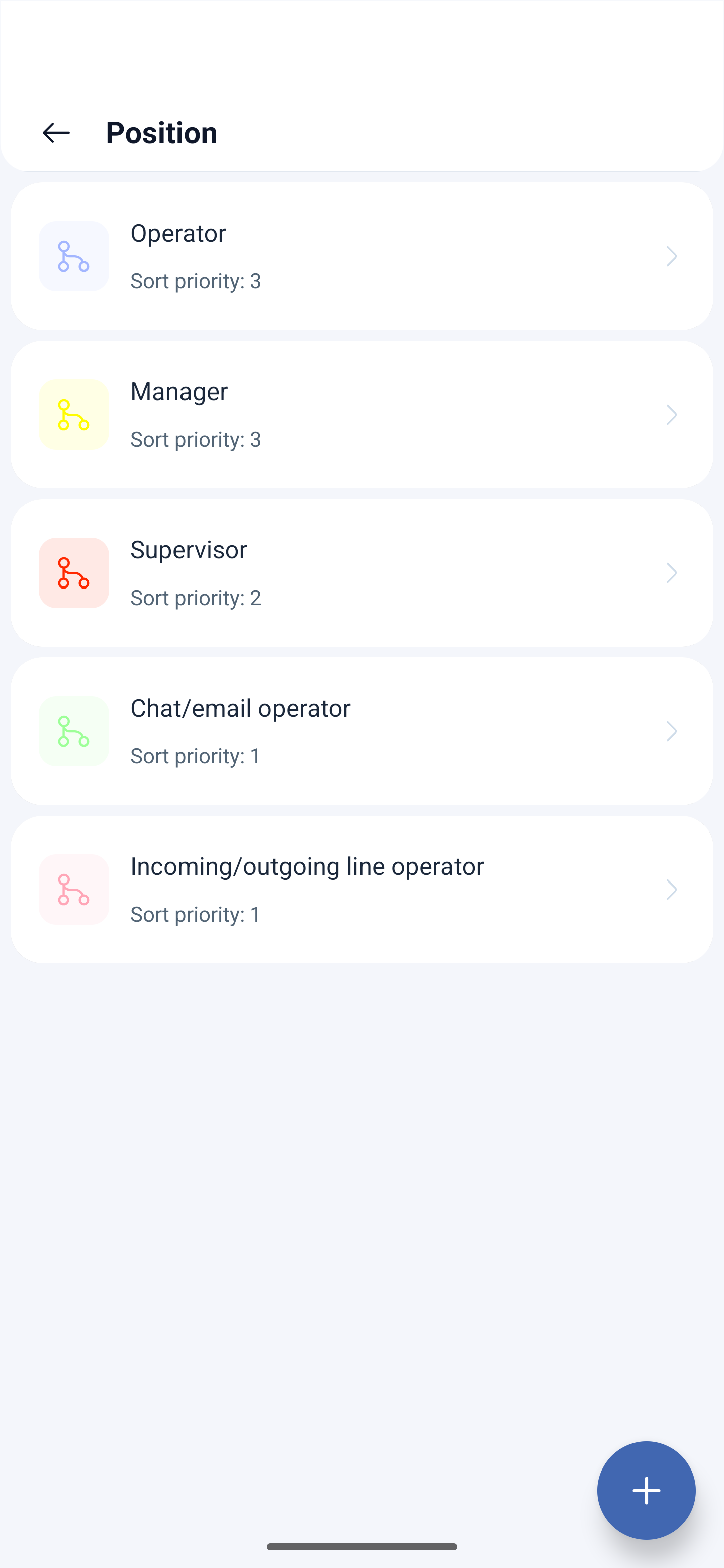
Position is what a person works as. In the list, Sort priority is shown next to the name.
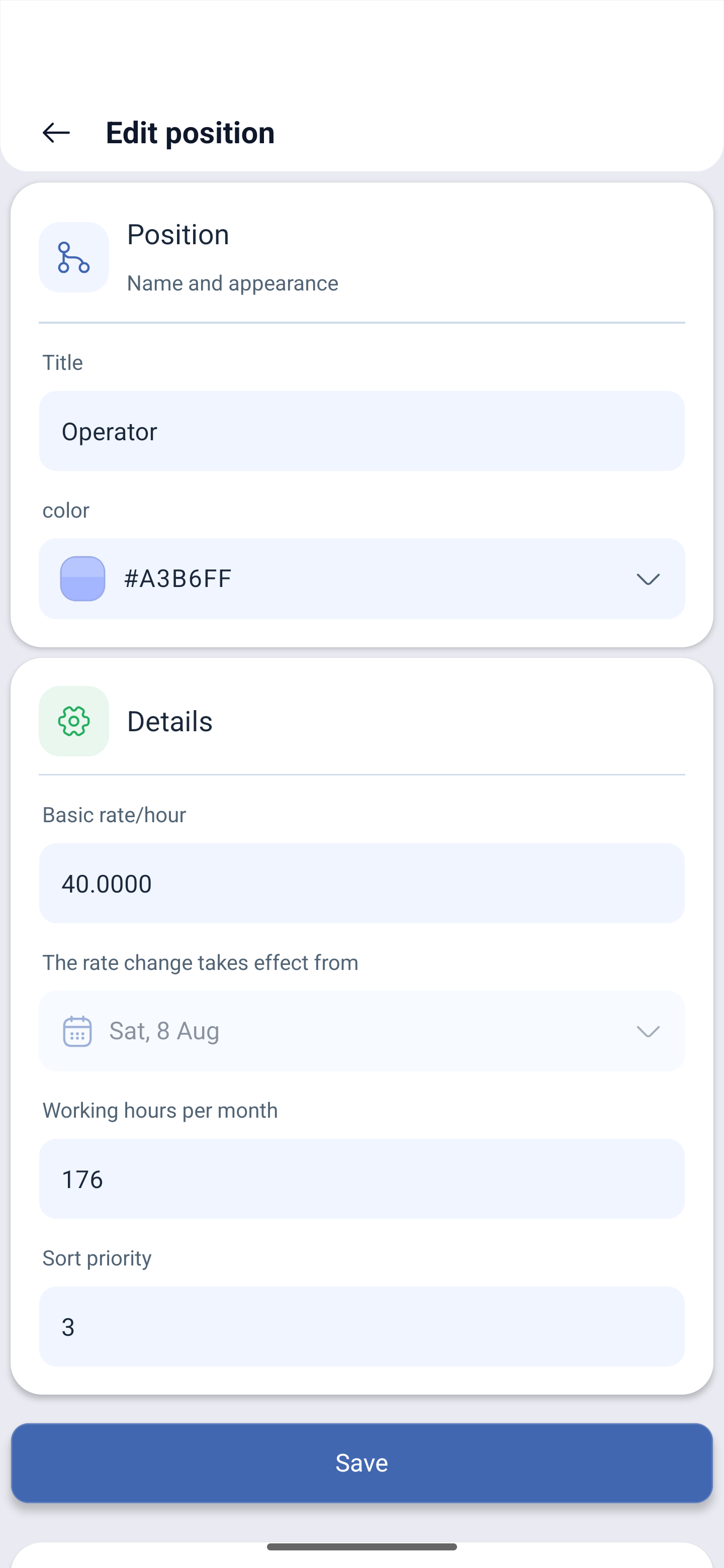
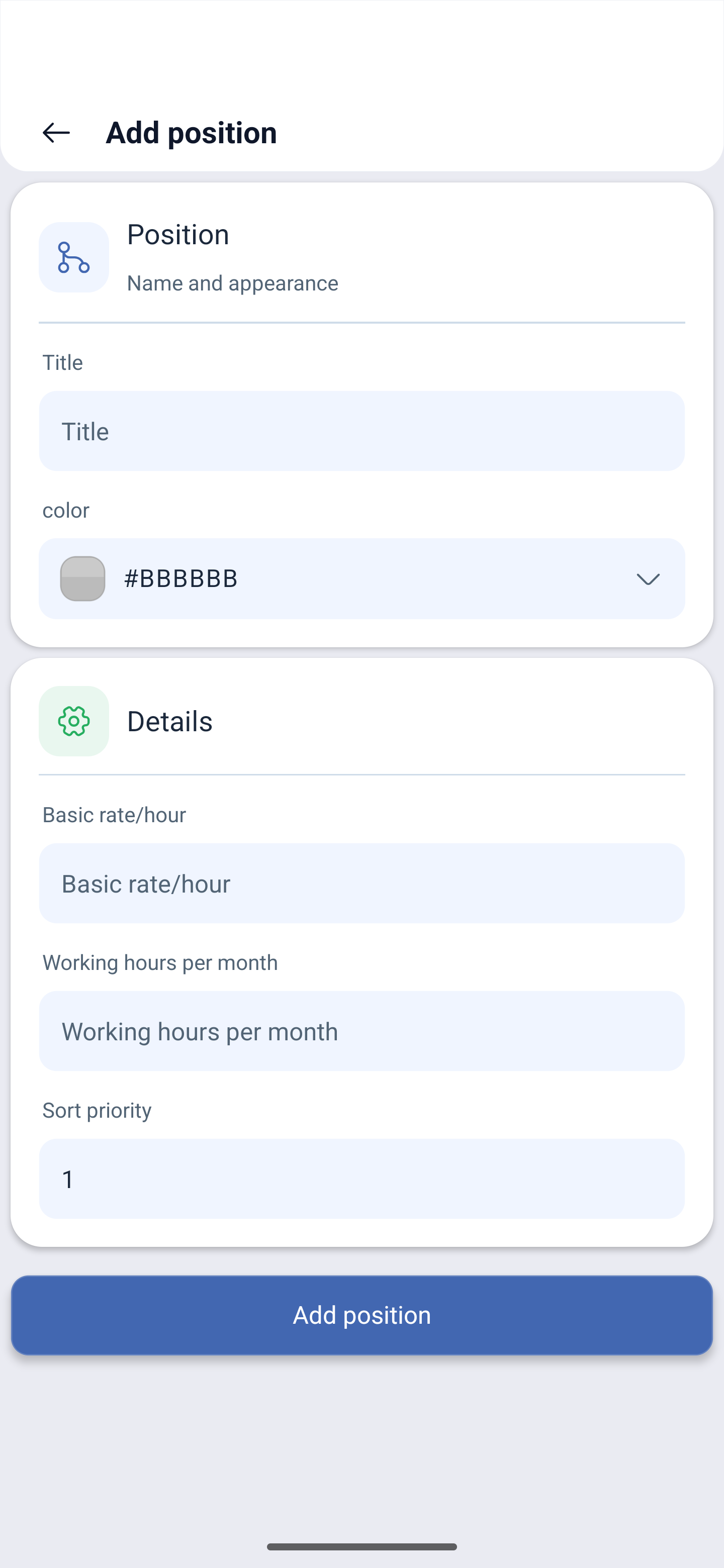
Tapping opens Edit position, the add button opens Add position. The fields are the same:
| Field | Description |
|---|---|
| Title | The name of the position |
| Color | The color mark |
| Basic rate/hour | The rate for this position |
| The rate change takes effect from | The date from which the new rate starts to apply |
| Working hours per month | The monthly quota for the position, for example 176 |
| Sort priority | The order in the lists |
The field with the date is what people most often come here for: a rate can be raised not backdated and not from today, but from the date you need. Past calculations are not changed by this.
Locations
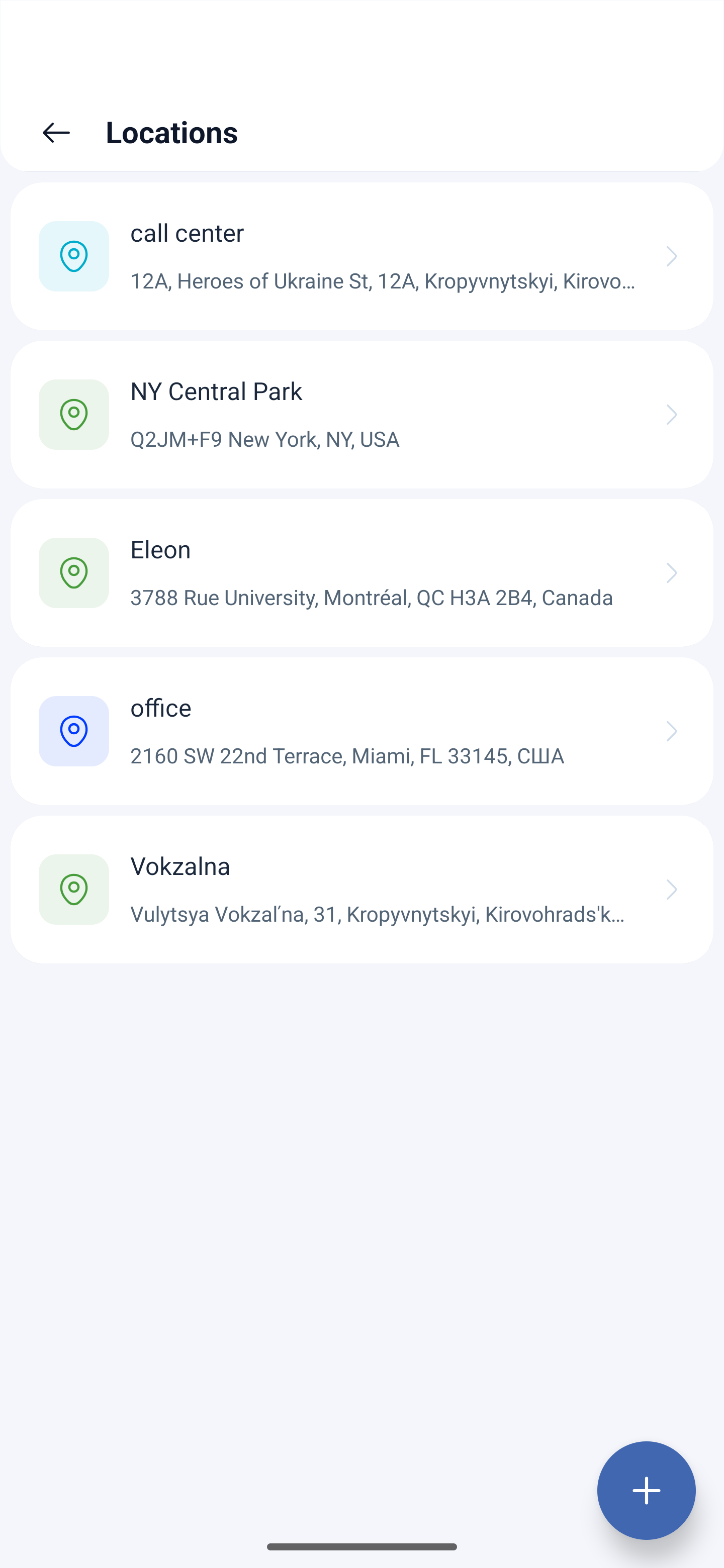
Locations are workplaces and addresses. They are used in shifts and in work location control.
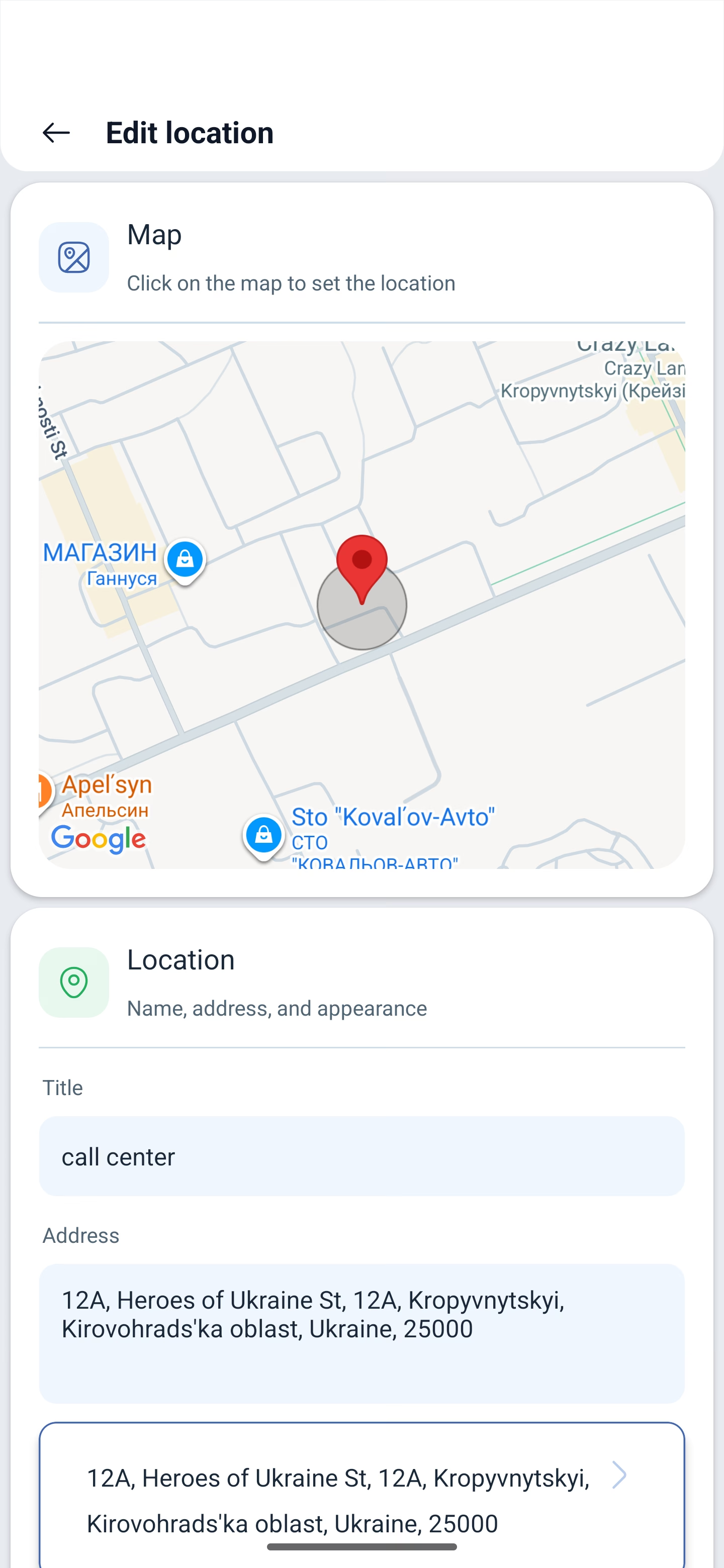
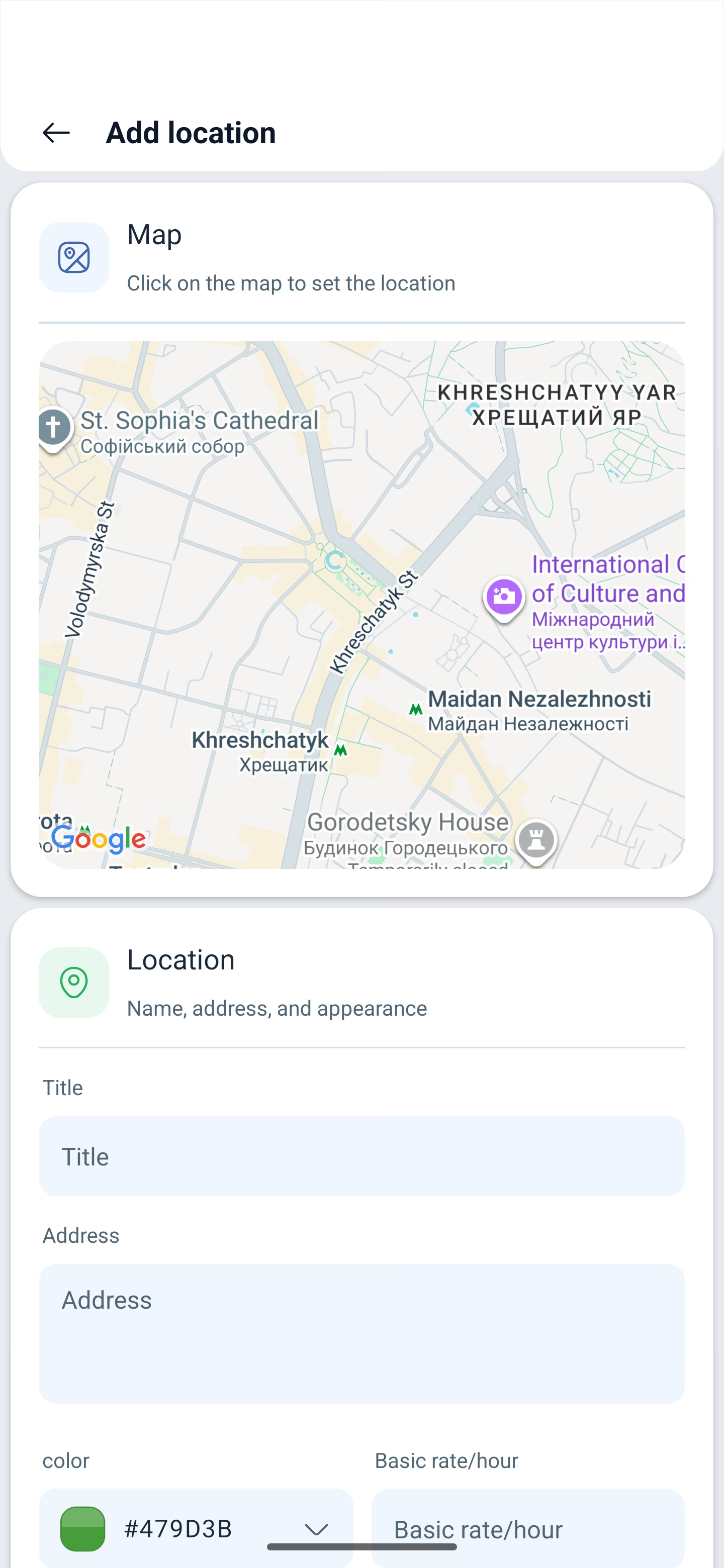
The list shows the name and the full address. Tapping opens Edit location, the add button opens Add location:
| Field | Description |
|---|---|
| Map | Click on the map to set the location — the point is placed with a finger |
| Title | What the place is called |
| Address | Filled in from the point on the map |
| Color | The color mark |
| Basic rate/hour | A separate rate for work at this location |
The first time you create a location, the app will ask for access to the device location — it is needed to show the map around you.
Possible problems and solutions
| Problem | Cause | Solution |
|---|---|---|
| A skill cannot be selected in an activity template | It has not been created | Create it on the Skills tab |
| An employee’s rate is calculated wrong | The rate is looked up along a chain | The order is: company, schedule, position, location. Check which level overrides the one you need |
| The rate was raised and the past month was recalculated | The effective date is not set | Fill in The rate change takes effect from — then past calculations will stay as they were |
| A location cannot be selected in a shift | It has not been created | Add it on the Locations tab |
| The map is empty when a location is created | Access to the device location has not been granted | Allow the app to access the device location |
| A skill was deleted but stayed in the templates | Deletion is irreversible | Check the activity templates and the assignments — they will have to be fixed manually |
Frequently asked questions (FAQ)
Question: How does a skill differ from a position? Answer: A position is what a person works as and at what rate. A skill is what they can additionally do; skills are used to pick people for activities. A skill has no effect on shifts.
Question: Can a position or a skill be deleted? Answer: Yes, at the very bottom of the edit screen there is the Danger zone with the delete button. The action is irreversible.
Question: Does the sort priority affect pay? Answer: No, only the order in the lists.
Question: Why does a location need its own rate? Answer: So that work at different places can be paid differently. If rates are set per location, a shift takes the rate of its address.
Question: How do I set the exact address of a location? Answer: Place a point on the map — the address will be filled in by itself.
Question: What does “Working hours per month” mean for a position? Answer: The monthly quota for this position. Together with the percentage of the quota in the employee card it gives the individual hours quota.