

An activity is an occupation within a shift: calls, going through email, training. A shift answers the question “when a person works”, while an activity answers “what exactly they are doing during those hours”.
This is a separate module, and it works together with attendance tracking. If the module is not connected, the section will not appear in the menu at all.
Step-by-step instructions
How to open it
☰ → the Scheduling (SCHEDULING) group → Activity.
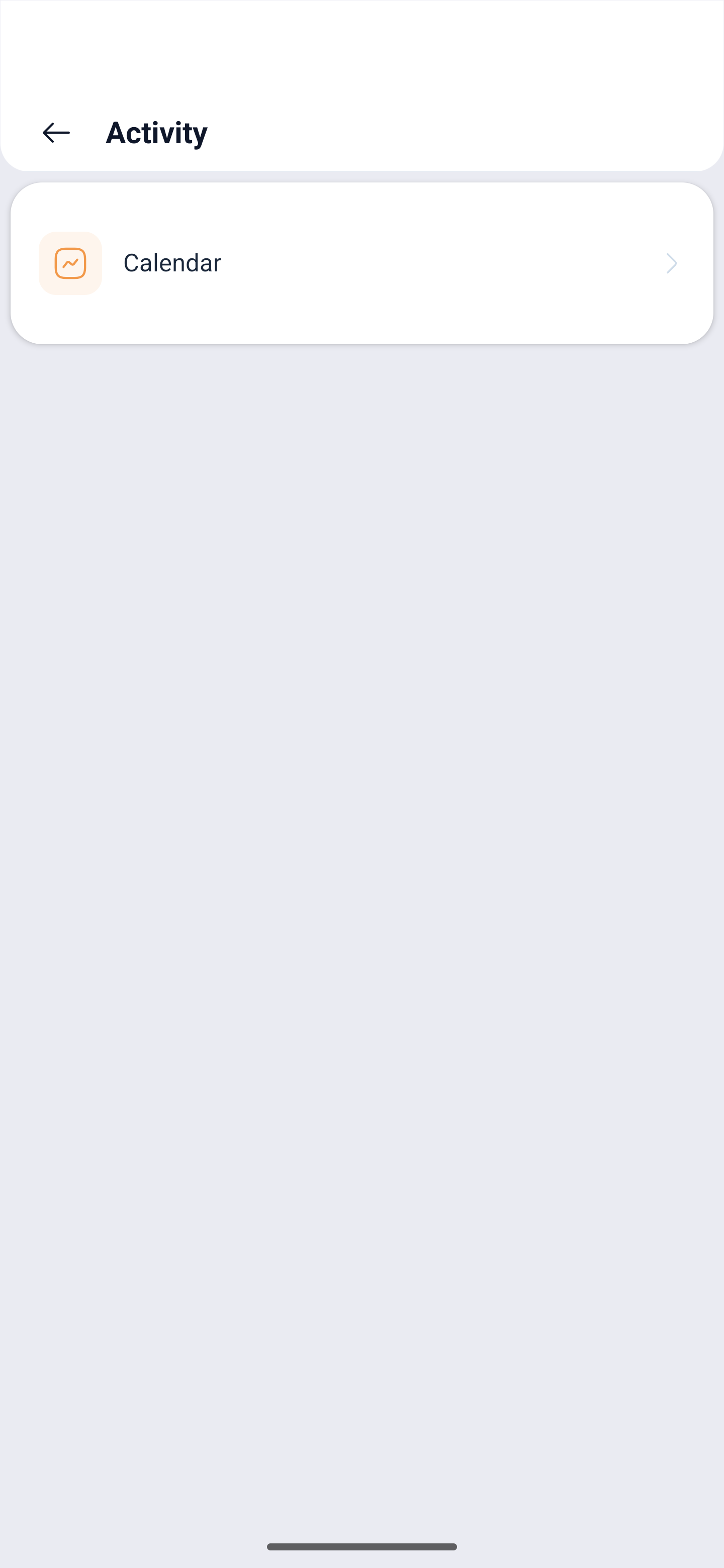
What you see on the screen
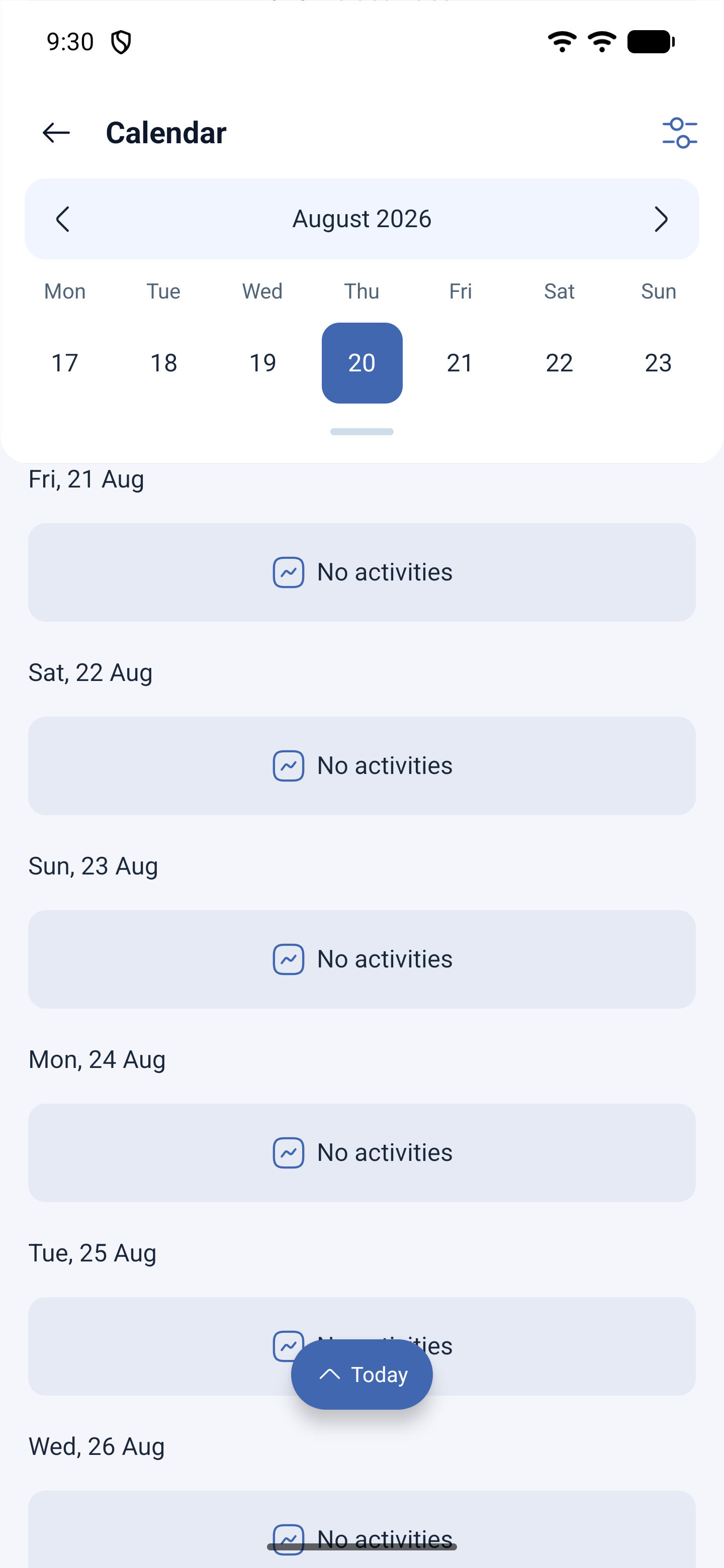
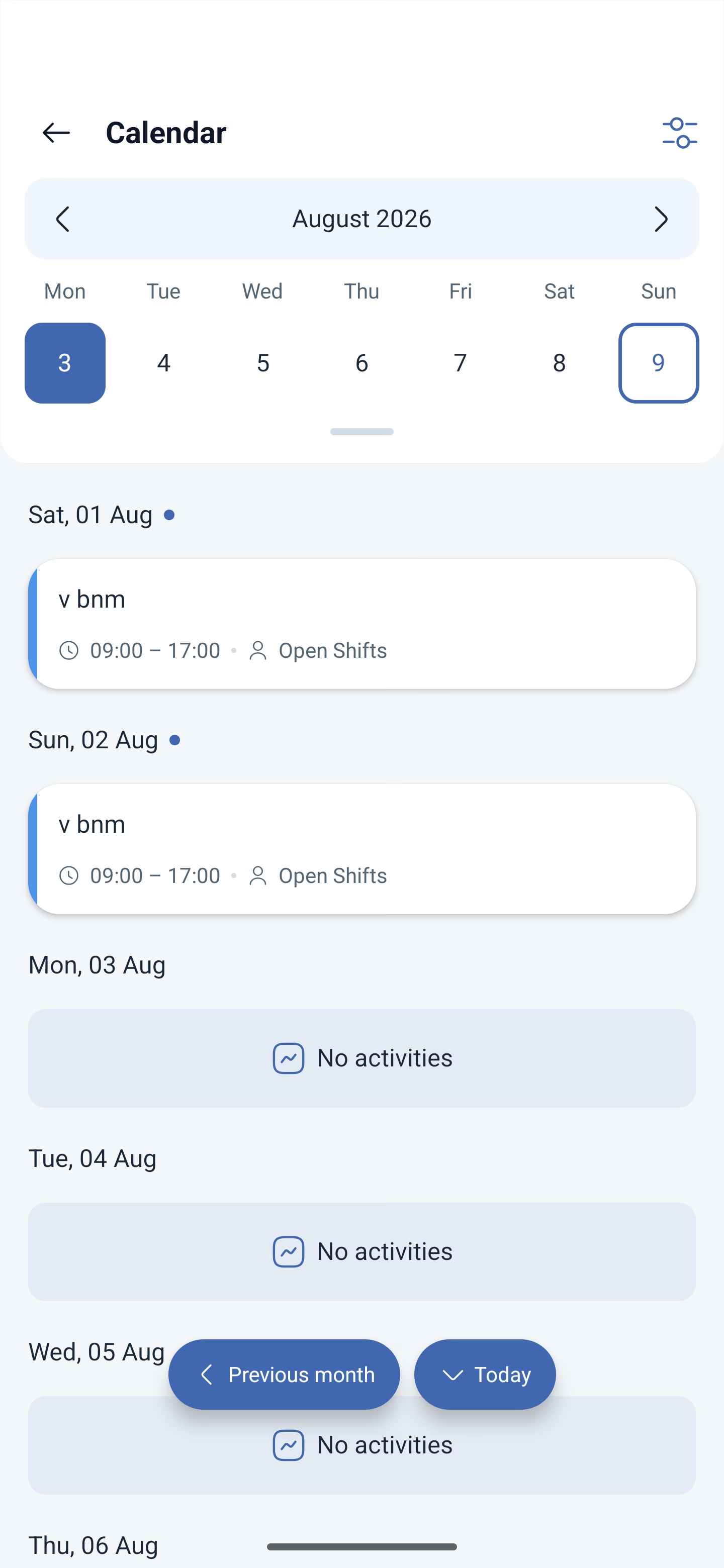
A calendar: you can see which activities are assigned to you and for what time. Each activity has its own name and its own color — the one set in its template, so that different occupations are easy to tell apart at a glance.
Today’s activity is visible right away — that is the one you start.
How to start and finish an activity
1. Open Activity and find today’s activity.
2. Tap the start button.
3. When you are done, tap the finish button.
All an employee does with an activity in the app is start it and finish it. There are no checklists, no photos and no comments inside an activity: this is not a task from the field service mode, but a record of what the shift time is spent on.
Planned and unplanned activities
It works the same way as with shifts: an activity can be assigned in advance or taken on the go.
| Activity | Where it comes from | When it is available |
|---|---|---|
| Planned | The manager assigned it in advance | It appears in the calendar on its own day and you simply start it |
| Unplanned | The employee takes it themselves during the shift | Only if this is allowed in the Activity module settings |
Permission for unplanned activities is a setting of the module itself, not of the schedule. This is how they differ from unscheduled breaks, which are turned on with a toggle in the schedule.
And the setting is simple: allowed or not. There is no numeric limit here, unlike unscheduled breaks — if unplanned activities are allowed, you can take as many as the work requires. If they are turned off, you will not be able to take an occupation beyond the ones assigned to you.
Why an activity may not appear
Activities are assigned by the manager, and not to just anyone: required skills can be specified in the activity template. The system assigns the activity to people with the necessary skill, not to whoever happens to be free. No skill — no activity assigned to you.
The second condition is the shift. An activity exists inside a shift, so it is started on a shift that has already begun and only on its own day.
How an activity differs from a break
Both records live inside a shift, but they mean different things:
| Activity | Break | |
|---|---|---|
| What it means | Work: what exactly is being done | A pause in the work |
| Who creates it | The manager assigns it, while an unplanned one is taken by the employee | It is built into the shift template or the employee requests it |
| Where it is started | The Activity section | The dashboard or the shift card |
| Does it count as working time | Yes | Depends on the “paid” setting |
For breaks, see the article “Break during a shift”.
Possible problems and solutions
| Problem | Cause | Solution |
|---|---|---|
| There is no Activity section in the menu | The Activity module is not connected | The module is connected by the company owner, and it requires attendance tracking to be enabled |
| Activities are not assigned to you | You lack the skill specified in the activity template | The manager adds the skill to your profile or removes the requirement from the template |
| The activity does not start | It is not for today, or the shift has not been started | An activity is started on its own day, within a shift that has begun |
| The calendar is empty | Nothing has been assigned to you | Activities are assigned by the manager; ask whether your work is covered by the Activity module |
| You cannot take an activity beyond the ones assigned | Unplanned activities are turned off in the module settings | They are turned on by the company owner in the Activity module settings |
| You started an activity, but the time is not counted | The shift has not been started | Start the shift first, then the activity |
| You forgot to finish an activity | The record was left open | Tell your manager: they will correct the activity on their side |
Frequently asked questions (FAQ)
Question: How does an activity differ from a shift? Answer: A shift is the working time as a whole. An activity is an occupation within that time.
Question: Can I take an activity that was not assigned to me? Answer: Yes, if unplanned activities are allowed in the Activity module settings. If they are not allowed, only the ones assigned by the manager.
Question: Why am I not assigned an activity that my colleagues do? Answer: Required skills are specified in the activity template. Without the necessary skill, the system will not assign you to that activity.
Question: Is a separate module required? Answer: Yes, the Activity module, and it works together with attendance tracking.
Question: Can I start an activity without starting the shift? Answer: No. An activity exists inside a shift.
Question: What does the color of an activity in the calendar mean? Answer: The color is set in its template and is there so that different occupations can be told apart at a glance.
Question: Are an activity and a break the same thing? Answer: No. An activity means work, while a break means a pause in it. And they are started in different places.
Question: Can I record in an activity what exactly I did? Answer: No, in the app an activity only has a start and an end. Checklists and photos belong to the tasks of the field service mode, not to activities.
Question: How many unplanned activities can I take during a shift? Answer: There is no limit. Unlike unscheduled breaks, activities have a simple setting: allowed or not allowed.