

Availability is when an employee is ready to come to work. Schedules of the “by availability” type are built exactly from this data: the system places shifts only in the hours the person has marked.
In version 2.1.0 the screen changed: previously it showed only your own availability, now a manager can also look at someone else’s.
Step-by-step instructions
How to open it
☰ → the Personal (PERSONAL) group → When I am available.
How the screen is arranged
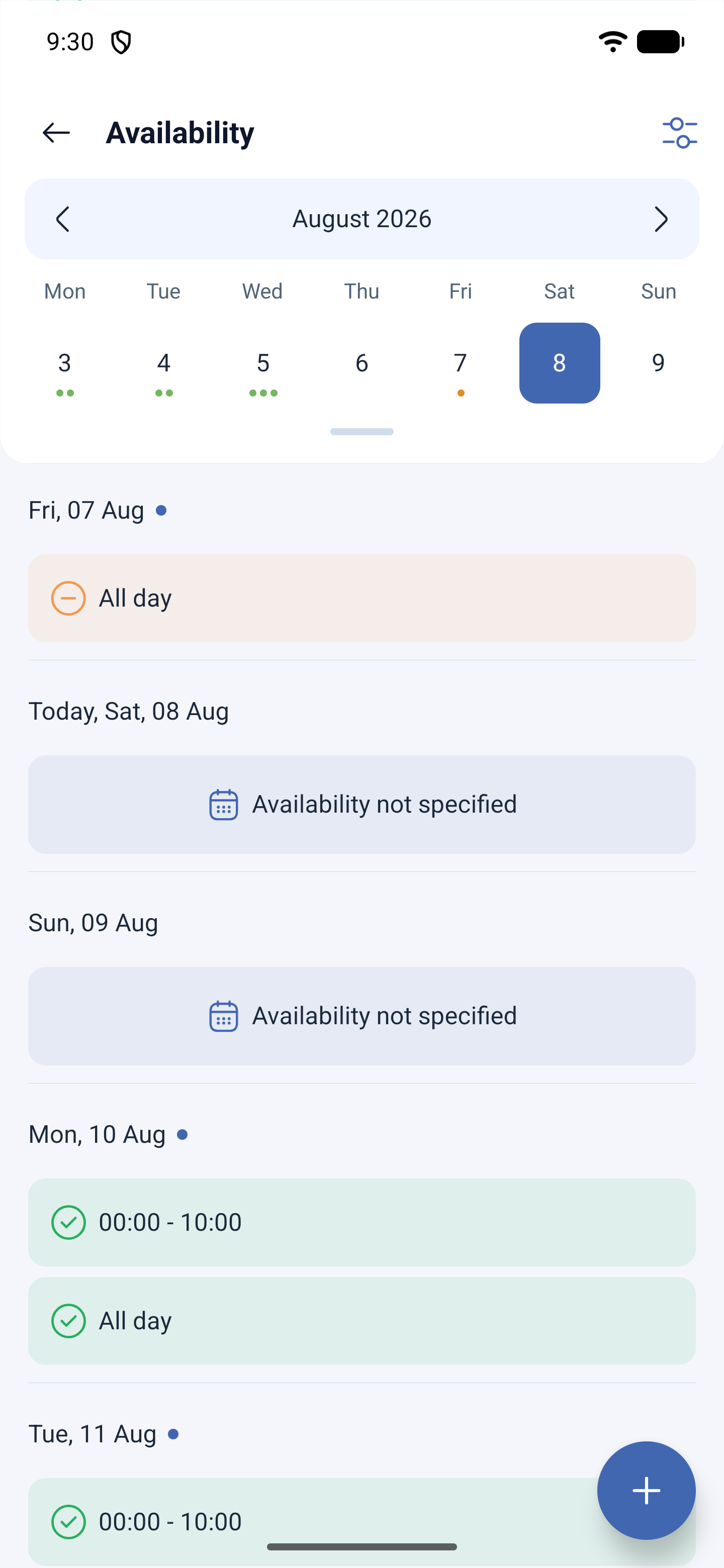
At the top there is the month and the week bar with dates. You can flip through weeks with the Previous week and Next week buttons.
Below are the days one after another, each with its own state:
| What is written in the day | Meaning |
|---|---|
Time ranges, for example 08:00 - 17:00 | The hours in which the employee is ready to work |
| All day | Ready to work at any time of that day |
| Availability not specified | The day is not filled in. For schedules by availability this means the system will not place a shift here |
There can be several ranges in one day — for example, morning and evening, with a break in between.
Someone else’s availability
The Select employee button at the top of the screen switches the view to another person. A manager needs this before building a schedule: it shows who can come out and when, and whose availability has not been filled in at all.
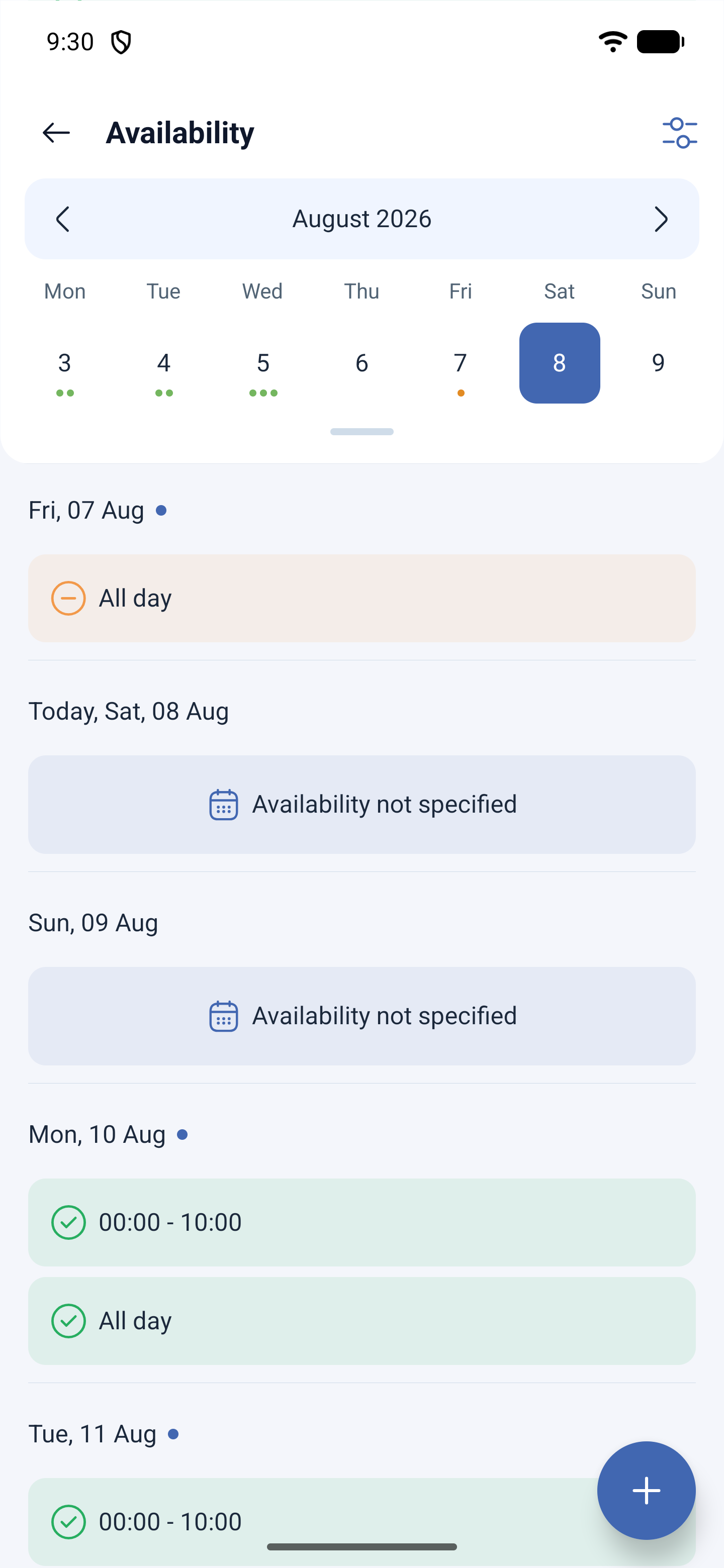
An employee sees only themselves and has no selection button.
Possible problems and solutions
| Problem | Cause | Solution |
|---|---|---|
| No shifts are assigned to an employee in a schedule by availability | The days are marked as Availability not specified | Ask them to fill in their availability — without it the system does not know when the person can work |
| There is no Select employee button | You are logged in as an employee | Someone else’s availability is visible to the manager, the administrator and the owner |
| Availability is filled in, but there are still no shifts | The employee has not been added to the project or to the schedule | Check both steps: employee → project → schedule |
| Availability changes did not affect an already created schedule | A schedule is built once, at creation | Rebuild the schedule through Rebuild schedule |
Frequently asked questions (FAQ)
Question: How is availability different from a time-off request? Answer: Availability is the frame set in advance, when the person is ready to work in principle. Time off is a one-time request not to assign a shift on a specific day.
Question: Is it mandatory to fill in availability? Answer: Only if the schedule is built by availability. Other schedule types do not need it.
Question: Can several ranges be set for one day? Answer: Yes, a day can contain more than one range.
Question: Who can view colleagues’ availability? Answer: The manager, the administrator and the owner — with the Select employee button.
Question: What does “All day” mean? Answer: The employee is ready to work at any time of that day, with no specific hours limited.
Question: Does availability affect shifts that already exist? Answer: No. It is taken into account when the schedule is built. For the new data to take effect, the schedule has to be rebuilt.