

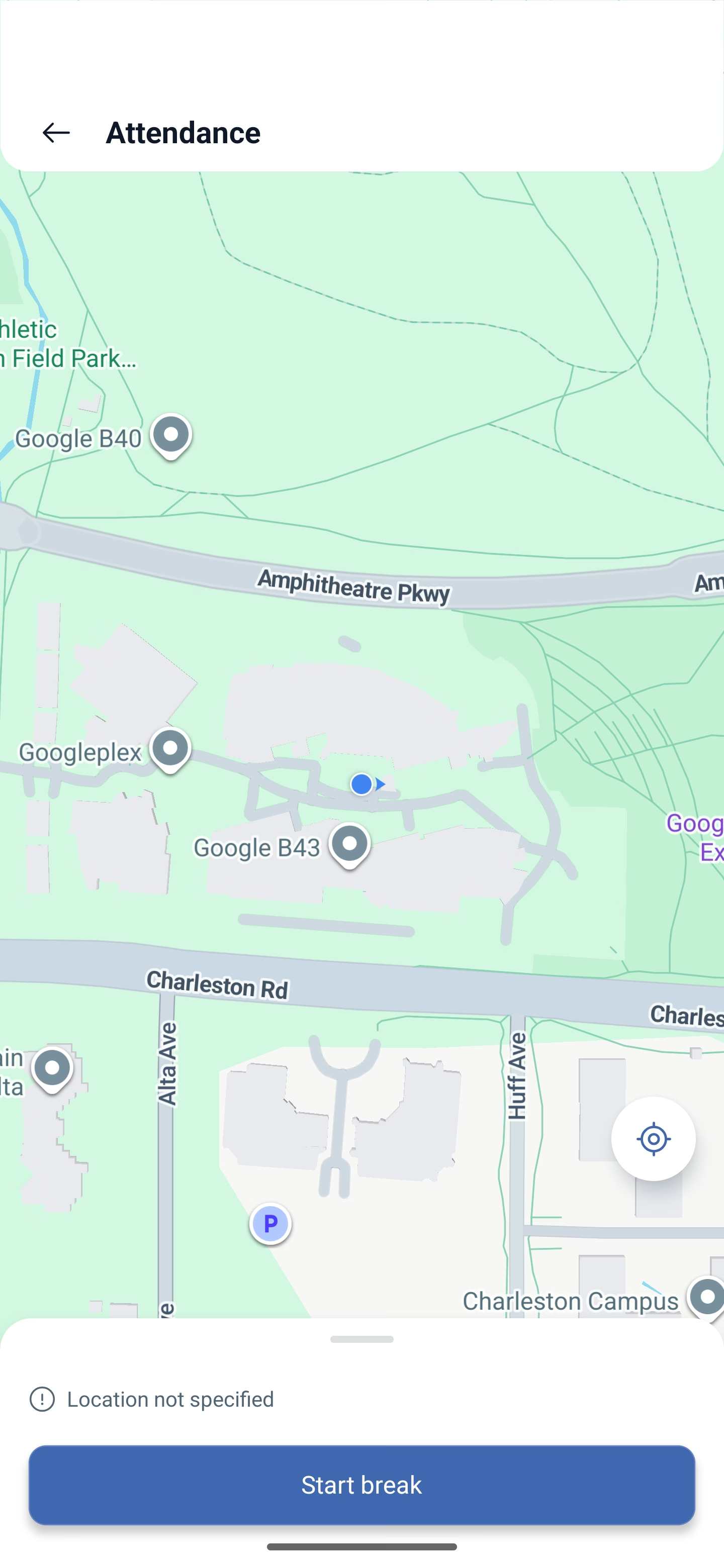
Employees mark a break themselves, and it is marked the same way as the start of a shift: through attendance, with a map and a confirmation. The system records not only the time, but also the location.
Step-by-step instructions
How to start a break
A scheduled break is started from the dashboard, during a shift that has already begun.
1. Open the Dashboard — the first icon on the bottom bar.
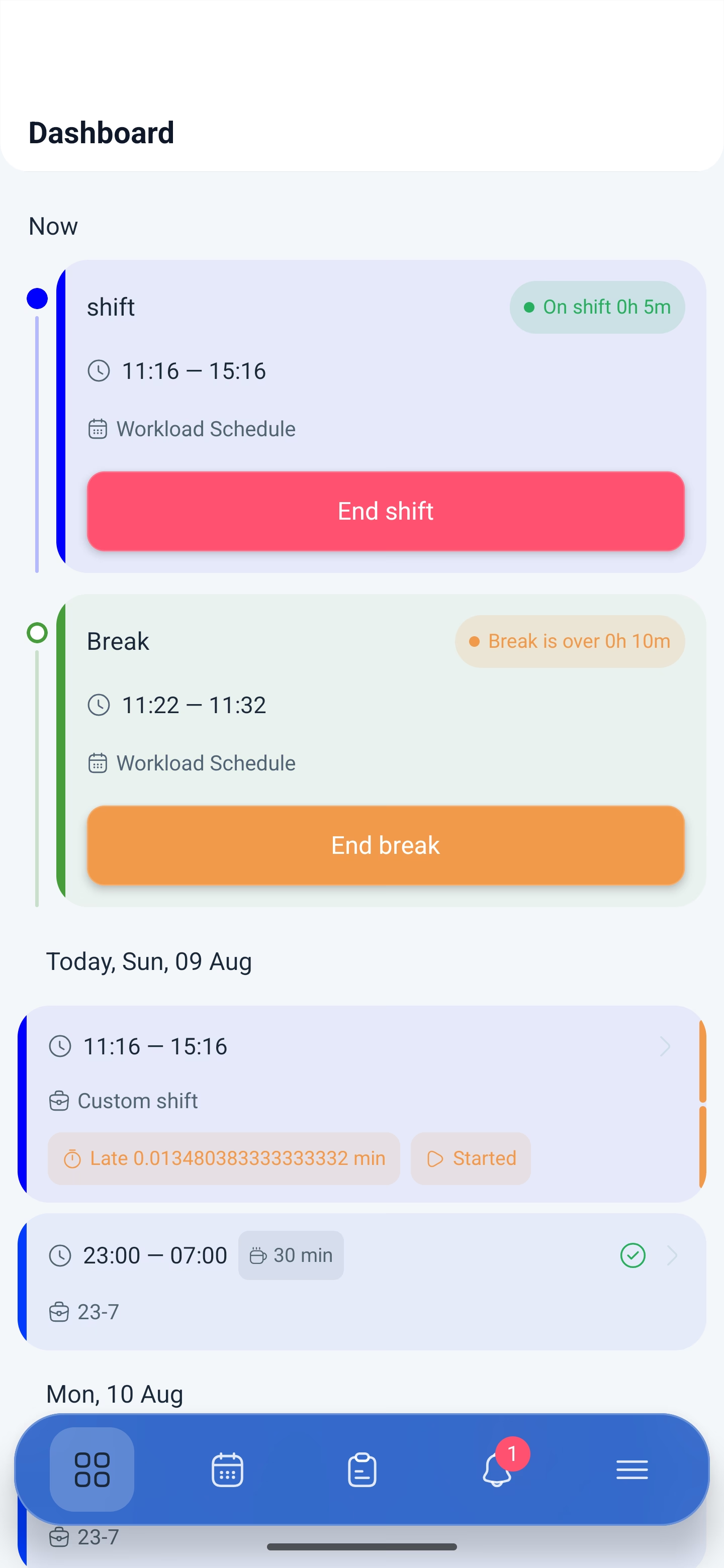
2. On the card of the current shift, below the finish button, a break block appears: the time and the button that starts it.
3. Tap the button that starts the break.
4. The Attendance screen opens with a map and your mark on it.
5. Confirm — the break has started.
While the break is running, the card shows that it has started, and the start button is replaced by the finish button.
How to finish a break
1. On the shift card, tap the button that finishes the break.
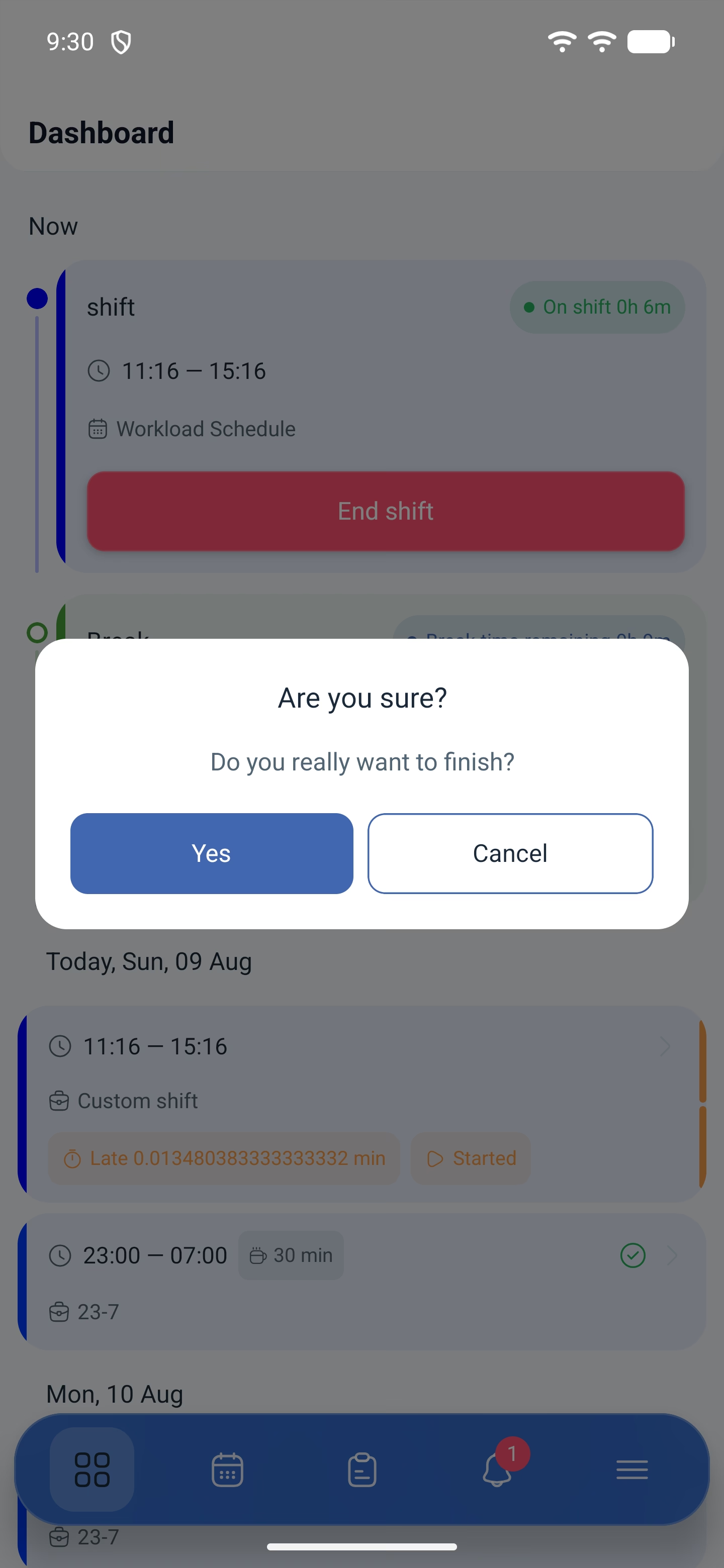
2. The app asks for a confirmation.
3. Attendance opens again with a map — confirm the location.
There are two confirmations, and this is not a mistake: the first one is that you really are finishing the break, the second one is the location mark through attendance.
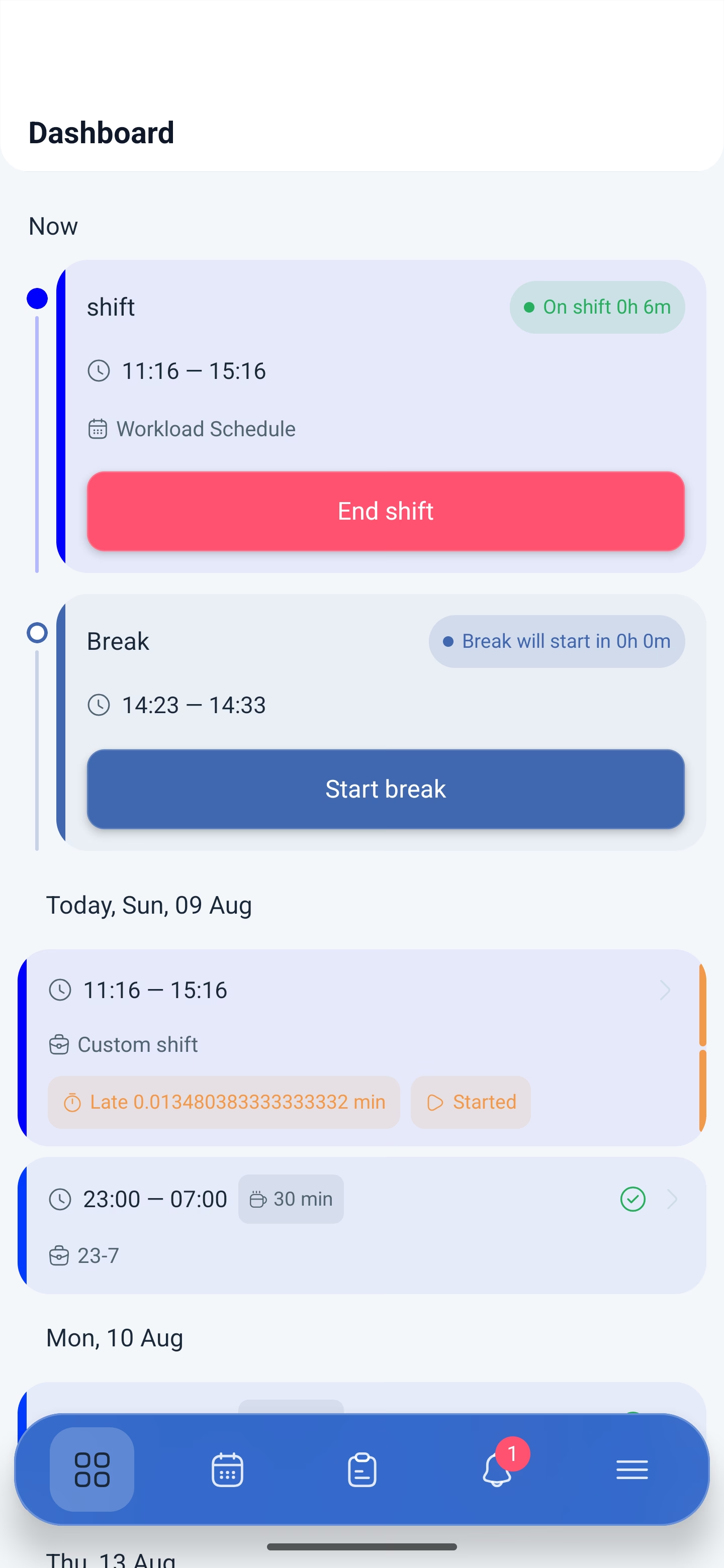
Once it is finished, the shift continues, and the break stays in the history — you can see it in the Breaks block on the shift card, with its start and end time.
Scheduled and unscheduled breaks
The difference is in who created the break.
| Break | Where it comes from | How to start it |
|---|---|---|
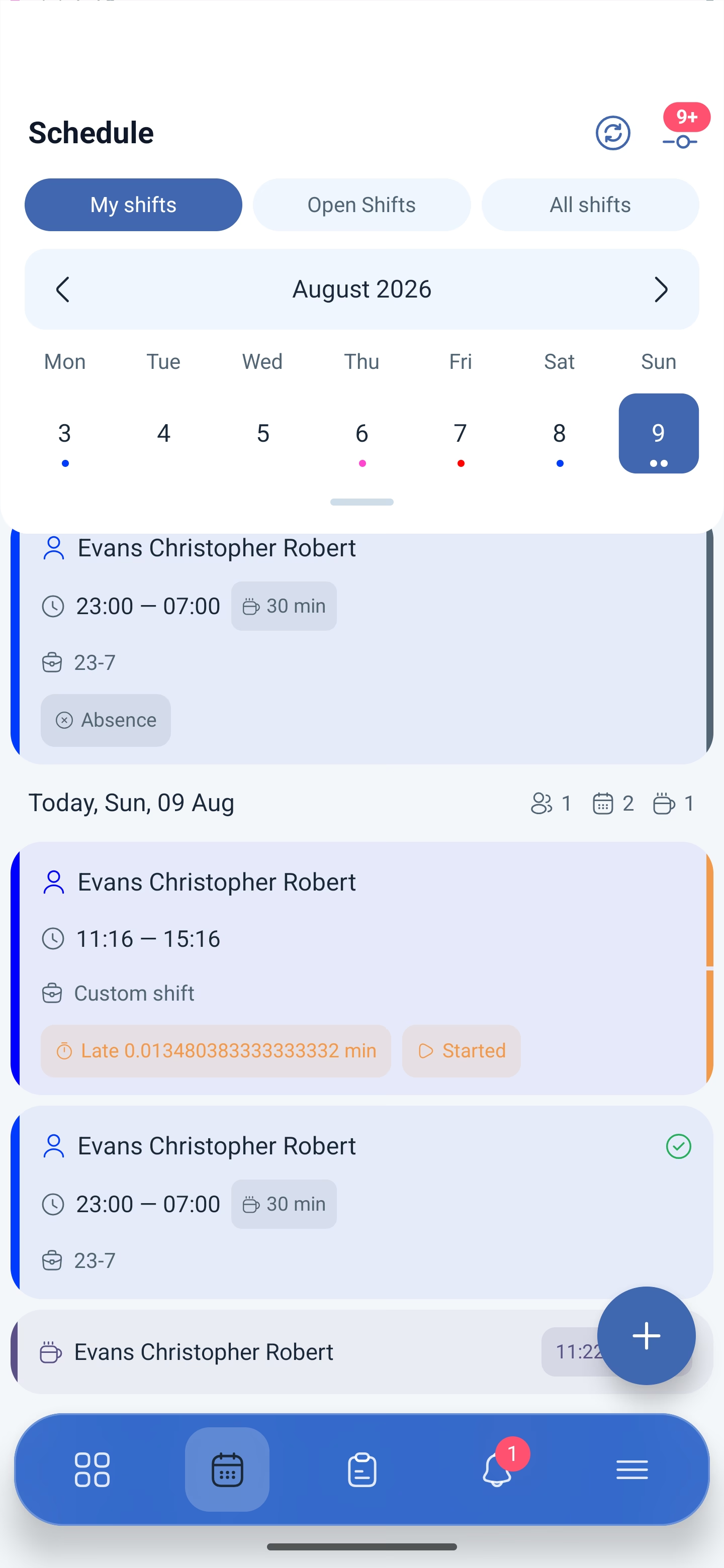
| Scheduled | Built into the shift template — that very 30 min label on the card | With the button on the dashboard during the shift |
| Unscheduled | The employee adds it themselves | On the shift card, in the Breaks block, with the add button |
How to request an unscheduled break
An unscheduled break is not started with a button: first it is added to the shift.
1. Open your shift on the schedule screen.
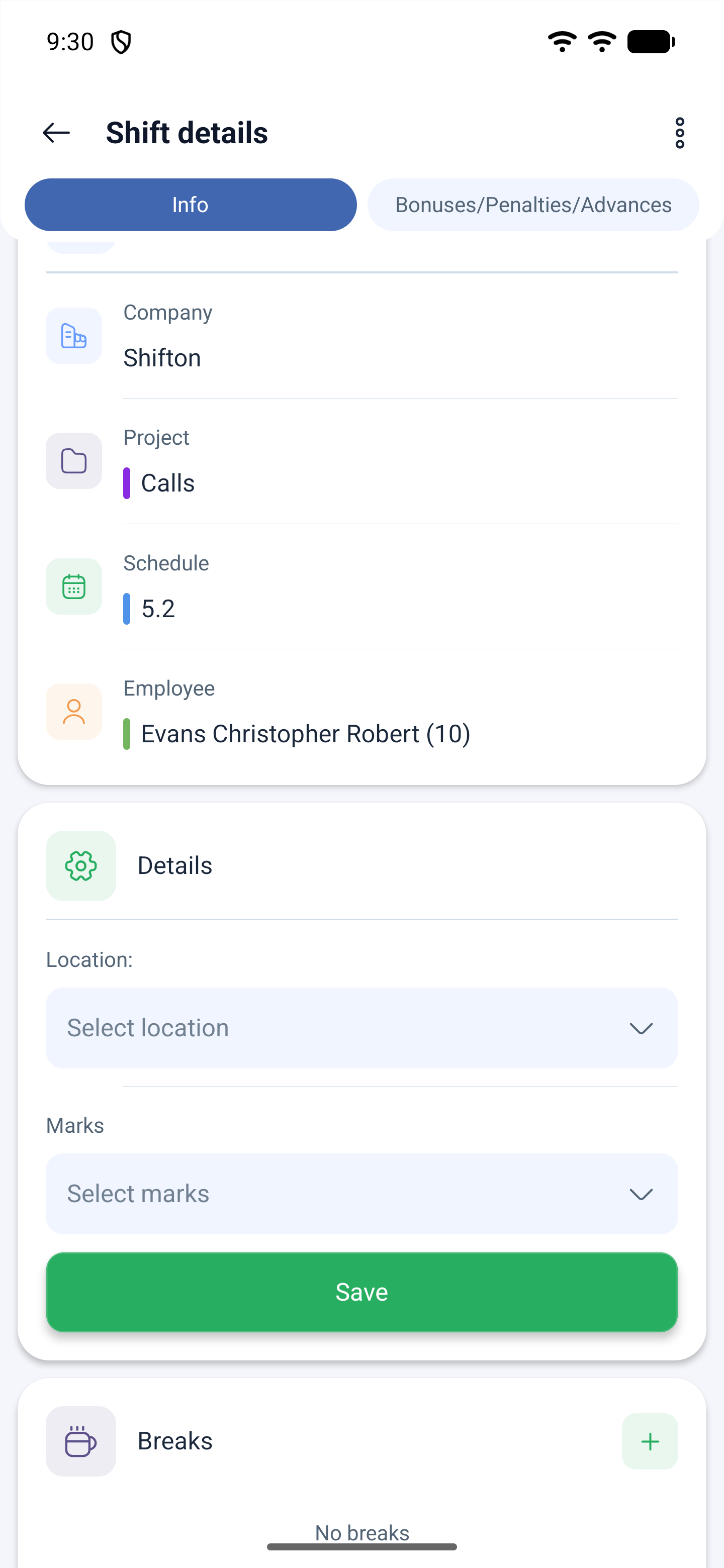
2. Scroll the card down to the Breaks block.
3. Tap the button that adds a break.
4. Enter the name, the start and end time and, if needed, a comment.
5. Confirm.
If manager confirmation is enabled in the schedule, a Request to create a break is sent and appears in the list of requests. If confirmation is not required, the break is added right away and you can start it.
Three limitations because of which the button may be missing or may not work:
| Limitation | What it means |
|---|---|
| Limit of unscheduled breaks | How many breaks can be taken during one shift. When the limit is used up, the button is not shown |
| Window before the break | The button works only for a certain time before the break starts. If the break is still far away, tapping it does nothing |
| Permission in the schedule | The Allow employees to create breaks toggle is required |
Why the break button stays silent
Three reasons, all of them happen in real life:
1. Location is turned off on the phone. A break is marked through attendance, and attendance checks the location. Without access to the location the button does not work and shows no error.
2. The break is still far away. The button works only within the window set in the settings of the break module.
3. The limit is used up. Only a limited number of unscheduled breaks can be taken per shift.
Location permission has to be granted at once and in full — Allow all the time. With the “only while using the app” access the system loses you as soon as the app is minimised.
Possible problems and solutions
| Problem | Reason | Solution |
|---|---|---|
| The break start button did not appear | The shift has not been started | A break is available only inside a shift that has started |
| I tap the break and nothing happens | Location is turned off or access is granted only partially | Turn the location on and grant the Allow all the time permission |
| The break does not finish on the first tap | There are two confirmations: the consent and the location mark | Go through both screens, the second one is Attendance with a map |
| There is no button for adding a break | The limit is used up or the permission is turned off | The Allow employees to create breaks toggle in the schedule is required |
| The break was taken, but it is not in the Breaks block | The data was loaded earlier | Refresh the schedule screen with the Update button |
Frequently asked questions (FAQ)
Question: Why is a break also marked through a map? Answer: A break is recorded by attendance — just like the start and the end of a shift. The system records the time and the location.
Question: What does 30 min on the shift card mean? Answer: It is the break duration built into the shift template. It is not the same as a break you have taken: until you start it, the break counter for the day shows zero.
Question: How many unscheduled breaks can be taken? Answer: As many as are set in the settings of the break module. When the limit is used up, the add button disappears.
Question: Can a break be started without starting the shift? Answer: No. A break exists only inside a shift that has started.
Question: I forgot to finish a break — what happens? Answer: The break stays open, and the time is counted incorrectly. Tell your manager: they will correct the break on the shift card.
Question: Is a break requested on the requests screen or in the shift? Answer: In the shift. A break is part of working time, so it lives on the shift card, in the Breaks block. Time off and absences are requested on the requests screen.
Question: Why is there no button for adding a break at all? Answer: Either the limit of unscheduled breaks per shift is used up, or the Allow employees to create breaks toggle is turned off in the schedule.
Question: My break was sent for approval — can I start it? Answer: No, the manager has to approve the request first. The answer arrives in Events and in the Archive on the requests screen.
Activities inside a shift are covered in a separate article, “Activities in the mobile app”: it is a separate module, and it works together with attendance tracking.