

The second icon on the bottom bar is the shift calendar. Here an employee sees their own shifts, the open shifts they can take and — if the manager allowed it — the shifts of the whole team. The employee has no management buttons on this screen.
Step-by-step instructions
Three display modes
There are three buttons at the top, and they change not only the list but also the counters next to the days:
| Mode | What it shows |
|---|---|
| My Shifts | Only your shifts |
| Open Shifts | Shifts given away to the shared list: they can be taken |
| All shifts | Shifts of the whole team |
The All shifts mode may be missing or may be empty: showing other people’s shifts is enabled by the manager in the schedule and in the project.
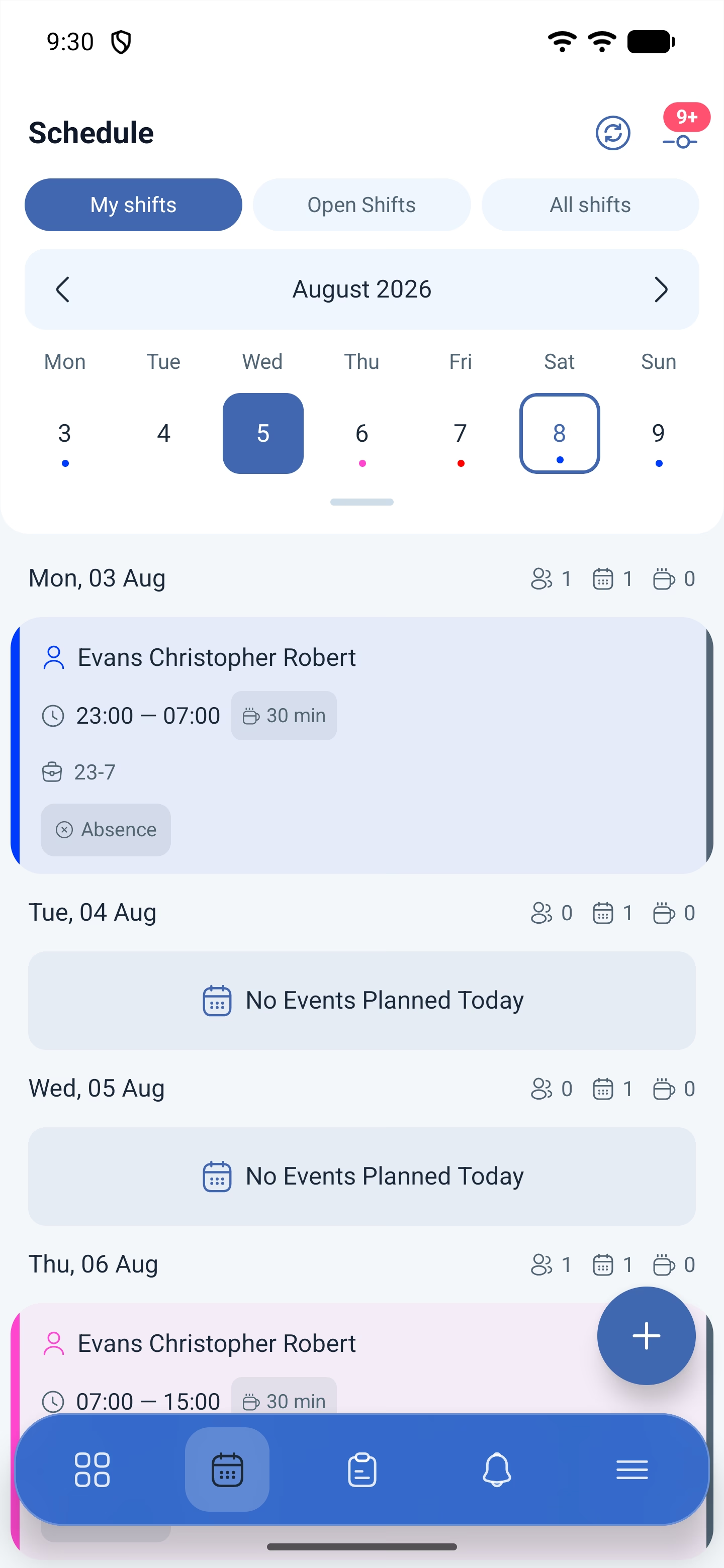
What is in the header
| Button | What it does |
|---|---|
| Update | Pull in fresh data without waiting for the automatic load |
| Filters | Selecting shifts. The number on the icon shows how many values are selected |
The Export and more buttons that the manager has are not available to the employee: exporting the schedule and bulk actions are management capabilities.
How a day is arranged
The days follow below the week strip. Each of them has three icons with numbers on the right: two people — how many employees are working, a calendar — how many shifts, a cup — how many breaks. They count according to the selected mode: in My Shifts they are only about you.
If there is nothing on that day, No Events Planned Today appears instead of the cards.
The shift card contains the time, the break duration, the template title and the status marks: Started, Finished, Absence. On the left there is a coloured strip, which is the schedule’s colour.
The week strip unfolds into a month calendar with the Expand calendar button below it.
How to take an open shift
1. Switch to the Open Shifts mode.
2. Find a shift for the day you need.
3. Open it and confirm that you are taking it.
If manager approval is enabled in the schedule, a request will be sent and the shift will become yours after approval. If not — immediately.
The button may be missing altogether: taking open shifts is enabled by the Allow employees to take shifts from the Open Shifts list toggle.
How to add a shift for yourself
If the manager allowed it, an employee can schedule a shift for themselves — with the plus button in the bottom right corner.
1. Tap the plus — Add Shift will open.
2. Select a Schedule. The list only contains schedules that are valid on the selected date.
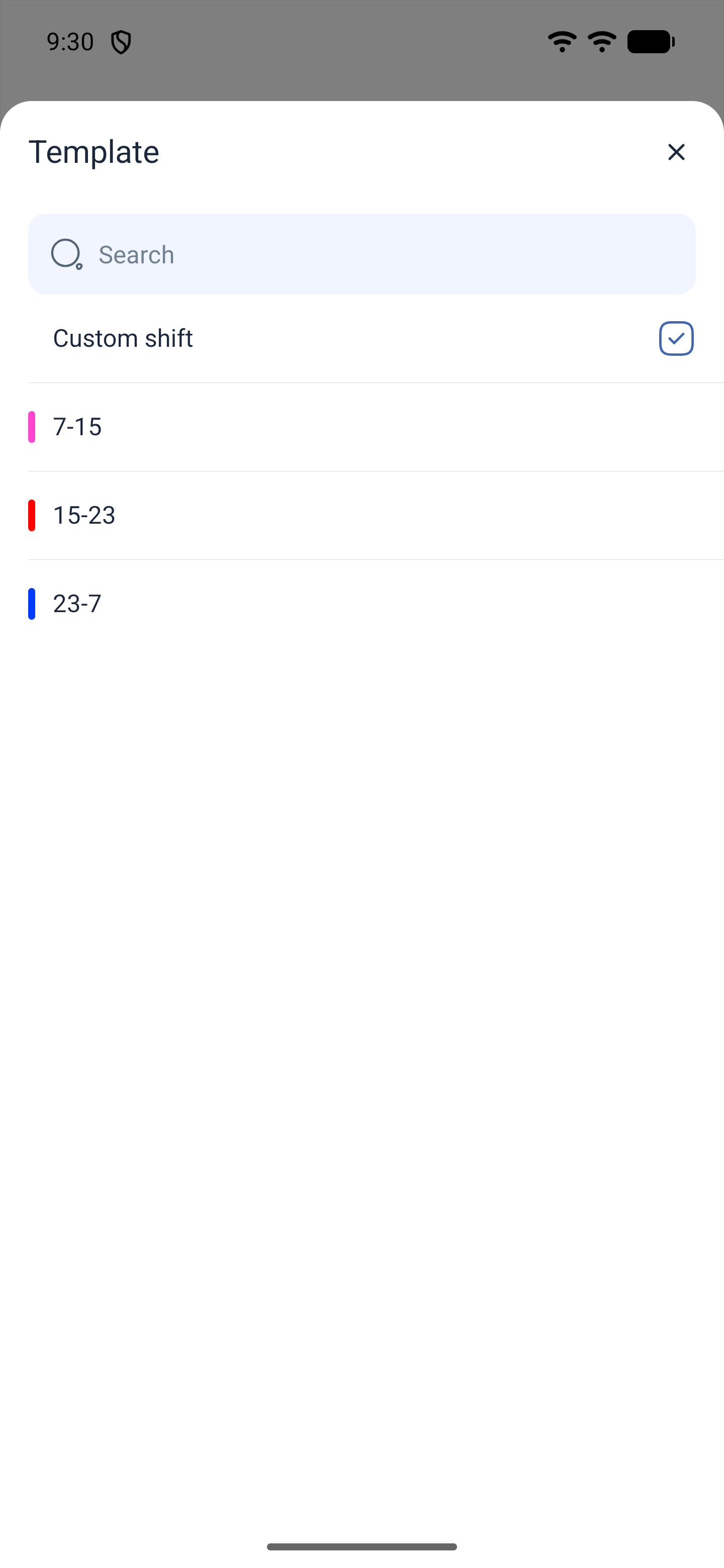
3. Select a Template — a ready-made shift template or Custom shift.
4. Set the date, the start and end time, and the break duration.
5. Tap Save.
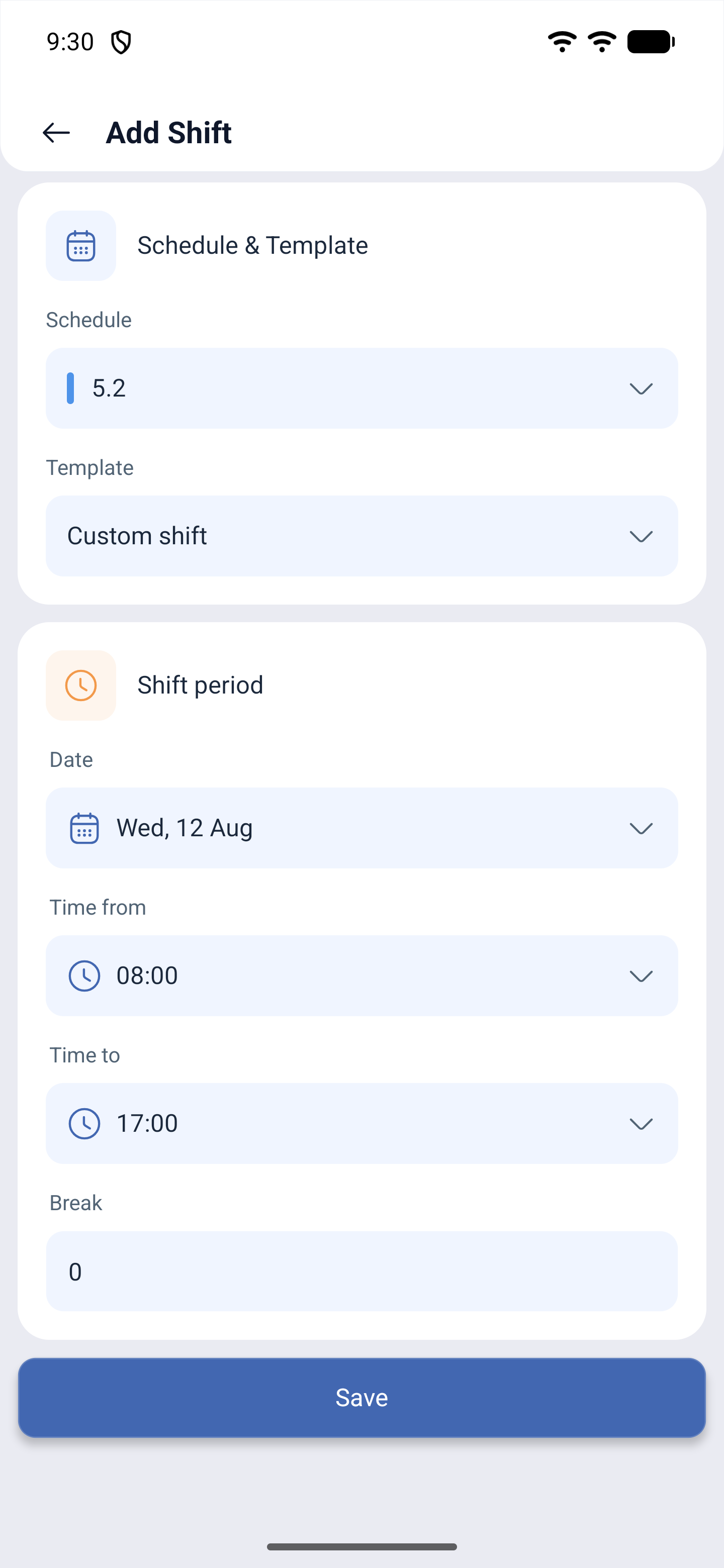
There is no employee selection field in the form: the shift is created for you. What happens next depends on the schedule settings — either the shift is added right away, or it is sent as a request, and the app answers: Your request to create a shift has been accepted and will be processed by the manager shortly.
The app does not allow overlaps. If you already have a shift at that time, saving is cancelled with the message The action was canceled due to an overlap with another shift.
What you can do with a shift that is already scheduled
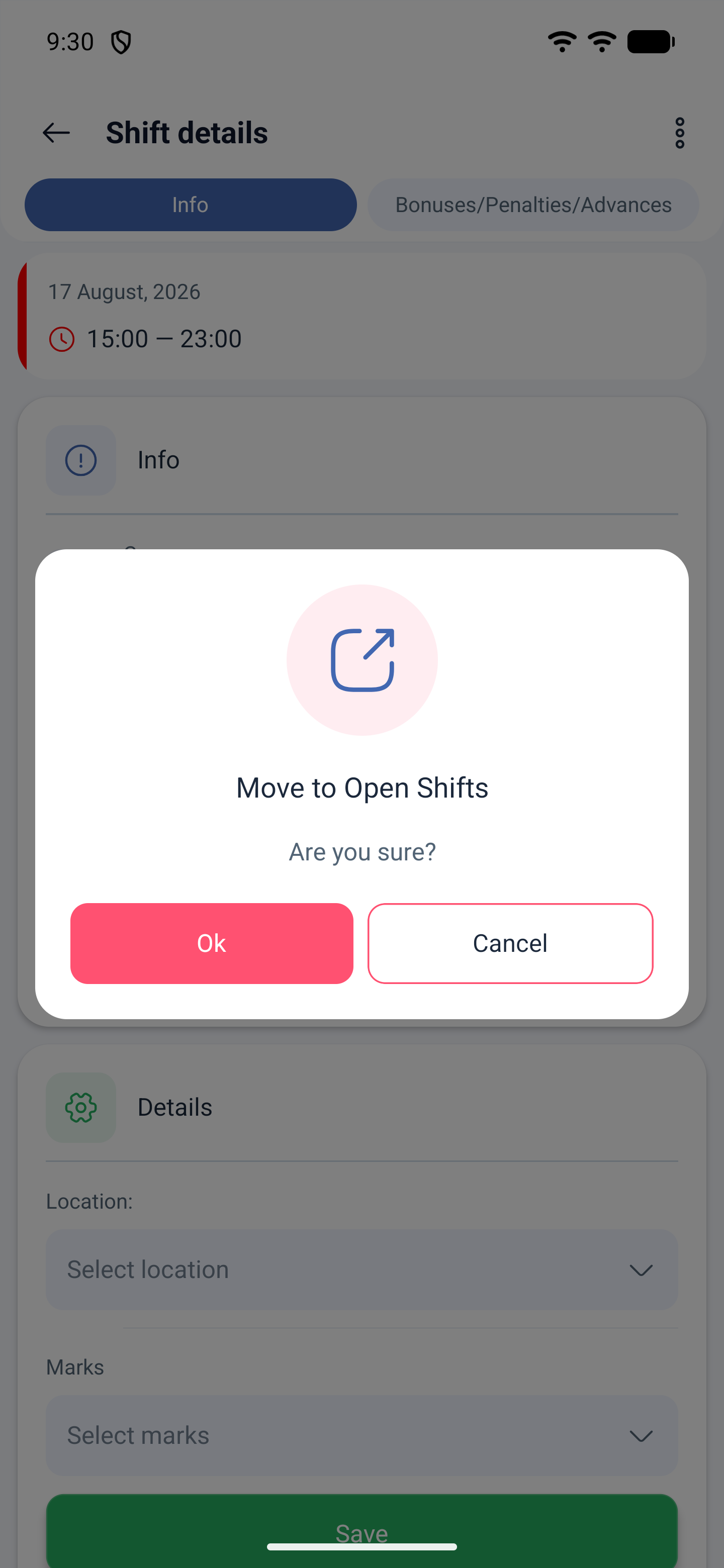
Tapping the card opens Shift details: company, project, schedule. On your own upcoming shift you can change Location and Marks and tap Save. The three dots in the top right corner open the actions — swapping, dropping, moving to open shifts, changing the time and splitting.
For details about them, see the article “Shift actions: swapping, dropping, open shifts and splitting”.
Possible problems and solutions
| Problem | Cause | Solution |
|---|---|---|
| I only see my own shifts | The My Shifts mode is selected | Switch to All shifts. If the switch does not work, showing other people’s shifts is disabled in the schedule |
| All shifts is empty | A restriction at the schedule or project level | The manager enables Allow employees to see all shifts |
| There are no open shifts | No one gave anything away, or taking shifts is not allowed | The Allow employees to take shifts from the Open Shifts list toggle is needed |
| There is no plus button | Creating your own shifts is switched off | The Allow employees to create their own shifts toggle is needed |
| The grid is empty although there are shifts | A filter is on | Look at the number on the filters icon and reset the selection |
| The schedule picker is empty | No schedule is valid on the selected date | Choose another date or ask the manager to extend the schedule |
| The shift is not saved | It overlaps in time with another shift | Change the time or the date |
| The shift did not appear after saving | It was sent as a request for approval | Wait for the decision: it will arrive in Events and in the requests Archive |
| The changes made by the manager are not visible | The data was loaded earlier | Tap Update |
| There are no Export and more buttons | This is by design | These are management buttons, and the employee does not have them |
Frequently asked questions (FAQ)
Question: How does this screen differ from the manager’s schedule? Answer: In the set of buttons. The employee has no export and no bulk actions, and the data is only their own and, if allowed, the team’s.
Question: What are open shifts? Answer: Shifts given away to the shared list. Anyone whose settings allow it can take them.
Question: Can I schedule a shift for myself? Answer: Yes, if the manager enabled this option. The shift is created for you and may be sent for approval.
Question: Why do I not see my colleagues’ shifts? Answer: Showing other people’s shifts is enabled separately — in the schedule and project settings.
Question: What do the three numbers next to the date mean? Answer: How many employees are working that day, how many shifts there are and how many breaks. They are counted according to the selected mode.
Question: Can I view the whole month? Answer: Yes, with the Expand calendar button below the week strip.
Question: Why can I not schedule a shift on the date I need? Answer: No schedule is valid on that date. The manager extends the schedule.
Question: I took an open shift — is it mine right away? Answer: If manager approval is enabled in the schedule, a request will be sent first. Otherwise the shift becomes yours immediately.