

A shift in the app is not a life sentence. If you cannot come in, you can send it to the shared list, swap it with a colleague, hand it over to a specific person, ask for a different time, or work only part of it. All of this is done from your phone, behind a single three-dot button.
The rights for these actions are granted by your manager in the schedule settings, which is why the set of options differs from employee to employee. If you have fewer of them, see the “Why there are no actions” section at the end of the article.
Step-by-step instructions
Where to find the actions
Open Schedule (the second icon on the bottom bar) and tap your shift — Shift details will open. In the top right corner there are three dots: they open the Select action sheet.
| Action | When it comes in handy |
|---|---|
| Move to Open Shifts | You cannot come in, and it does not matter who covers for you |
| Shift Swap Request | You want to swap your shift with a colleague |
| Shift edit request | You will come in, but at a different time |
| Shift drop request | You know exactly who will cover for you |
| Request to split a shift | You will work part of the shift and give away the rest |
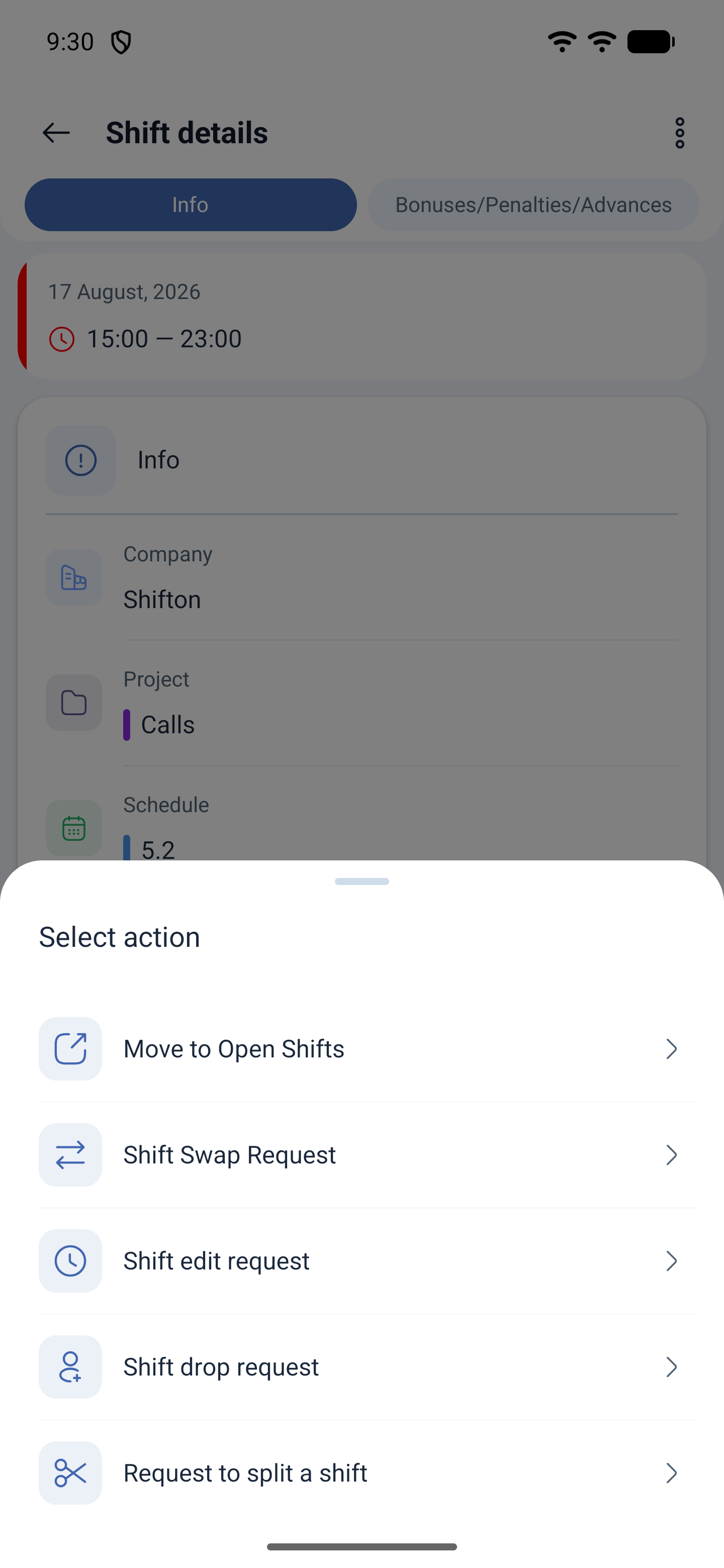
The first four options are Requests, and their paths differ.
Swapping and dropping go through a colleague: first the consent of the person you offer the shift to, and only then, if manager approval is enabled in the schedule, the manager’s decision. Until the colleague agrees, the request goes no further and nothing changes.
Time changes and splitting are addressed to the manager only. Moving to open shifts takes effect immediately when approval is switched off.
Move to Open Shifts
The shift goes to the shared list, and anyone whose settings allow it can pick it up.
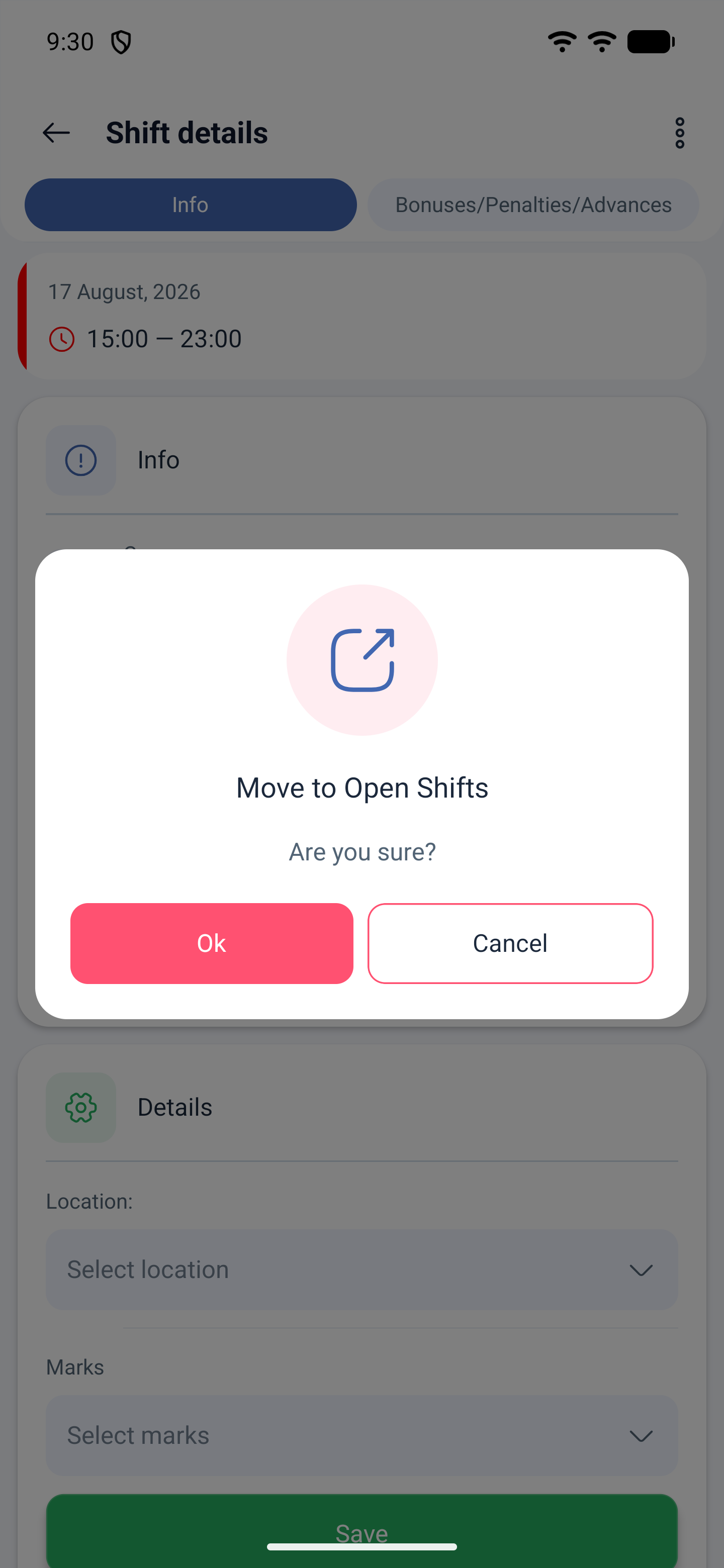
1. Three dots → Move to Open Shifts.
2. The app asks Are you sure? — confirm.
3. The shift disappears from yours and appears in the Open Shifts mode on the schedule screen.
Until someone takes the shift, it belongs to no one: it counts as a shift in the day’s counter, but no employee stands behind it.
Shift swapping
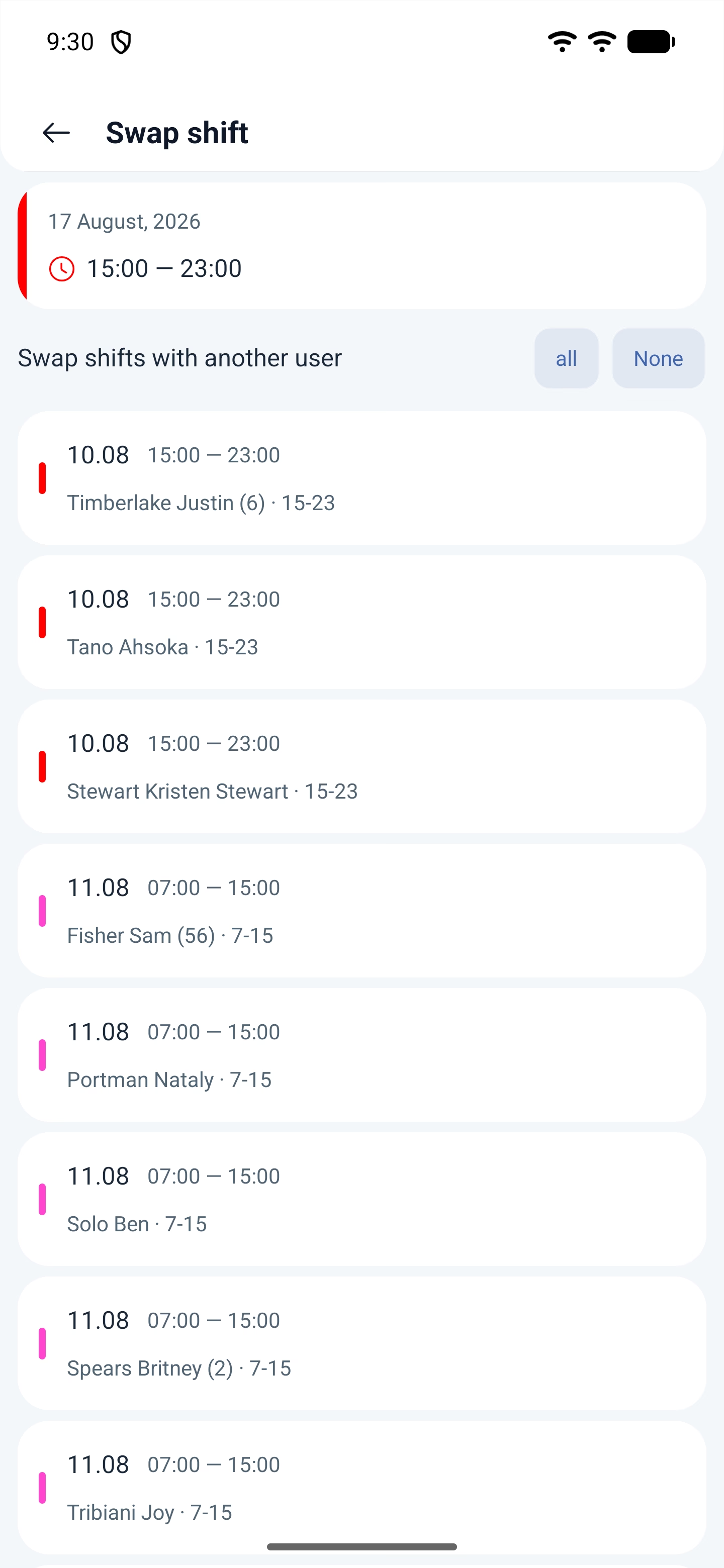
1. Three dots → Shift Swap Request.
2. The Swap shift screen opens with a list of your colleagues’ shifts: date, time, name and template title.
3. Select the shift you want to swap for and send the request.
4. Wait for your colleague’s answer: the request goes to them, and without their consent the swap will not happen.
5. If manager approval is enabled in the schedule, the request goes to the manager after your colleague agrees.
The list will only contain shifts that can actually be swapped: shifts of other employees on the same schedule. If the manager enabled swapping within the position only, the colleagues left will be the ones holding your position.
Changing the shift time
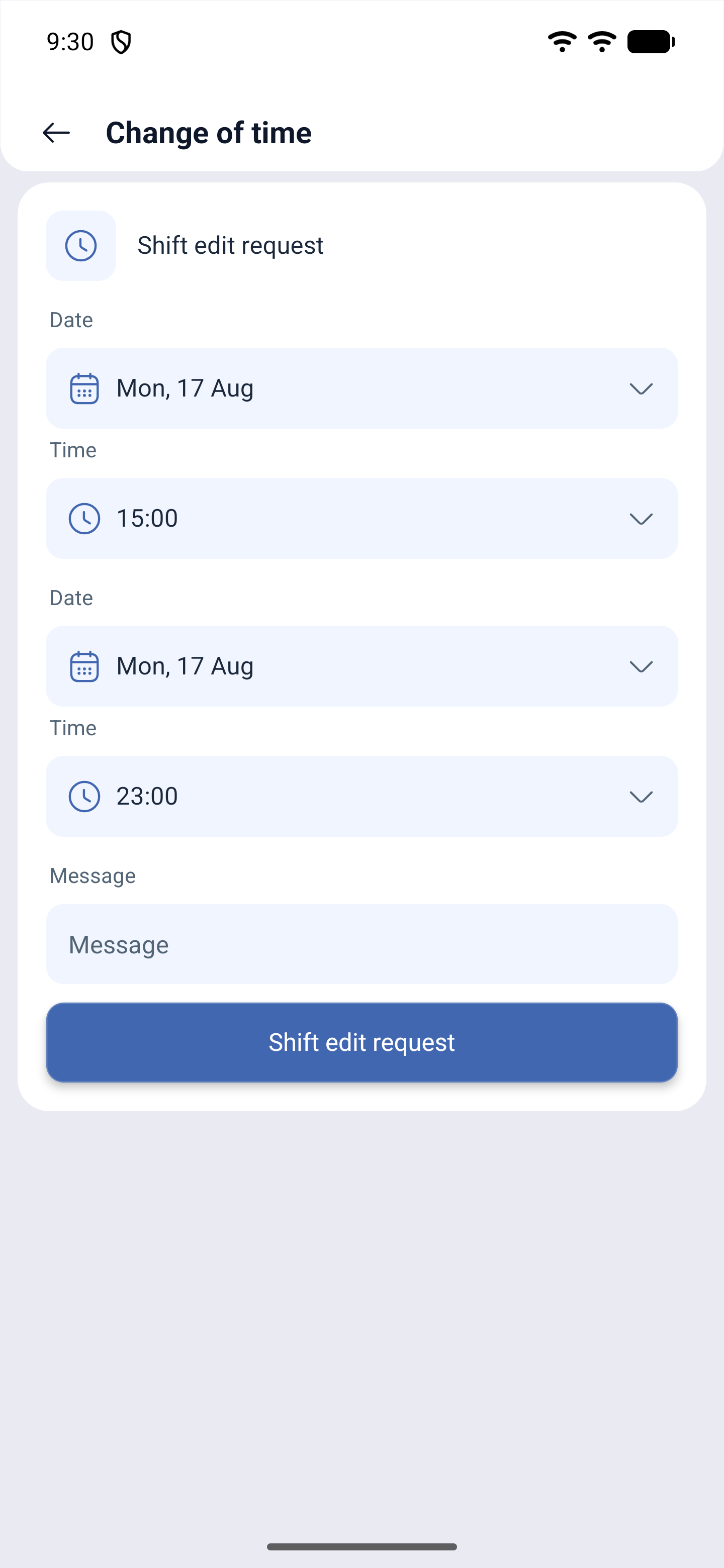
1. Three dots → Shift edit request.
2. Change of time opens: date, start time, end time.
3. In the Message field, explain the reason — the manager will see it together with the request.
4. Send it.
The shift stays yours: only the hours change, and only after approval.
Dropping a shift
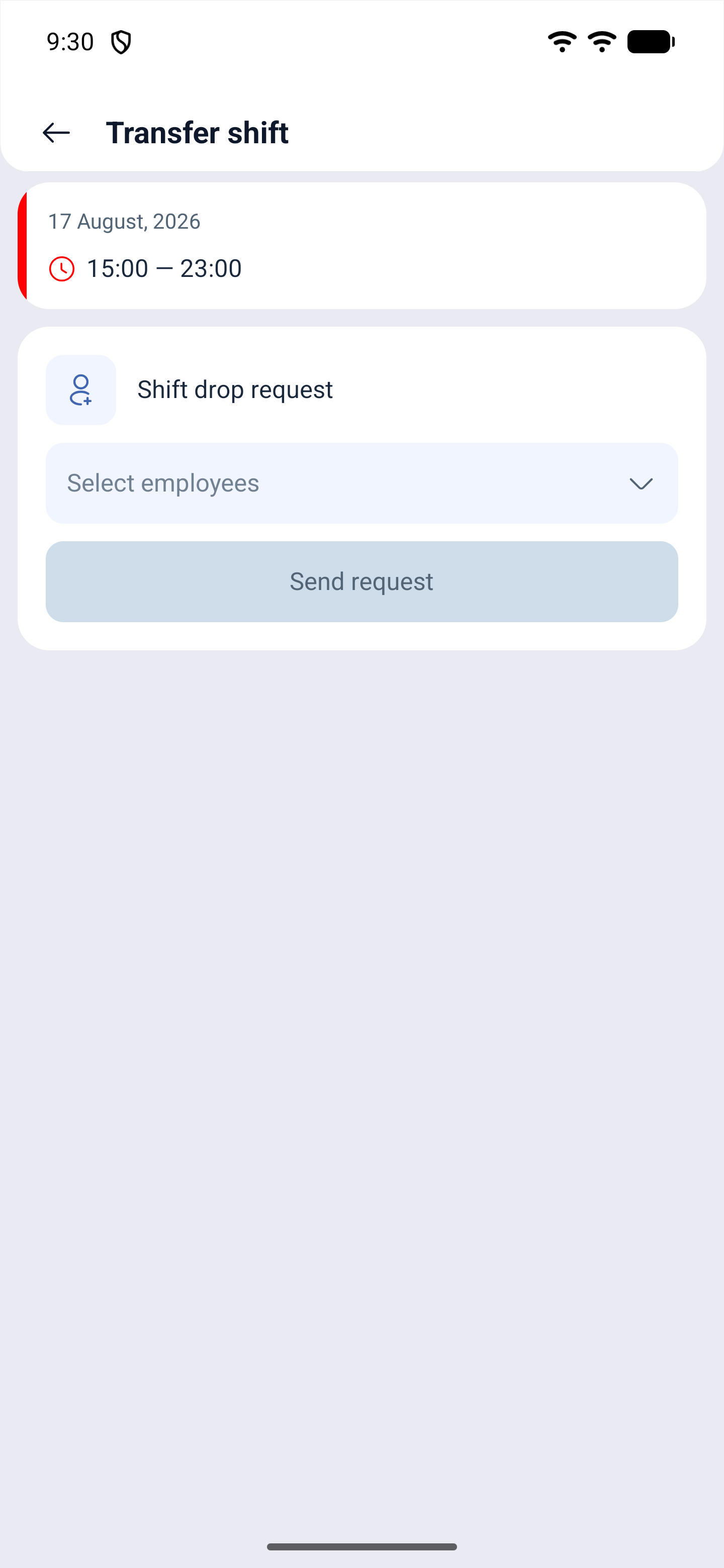
1. Three dots → Shift drop request.
2. Transfer shift opens.
3. In Select employees, mark the people you are offering the shift to — you can pick several.
4. Send request.
5. Wait until one of them agrees: without consent the shift stays yours.
The difference from open shifts: here you name specific people instead of giving the shift away to everyone. The request goes precisely to them, and only after someone agrees does it move on — to the manager, if approval is required.
Splitting a shift
You need this when you can work only part of the shift.
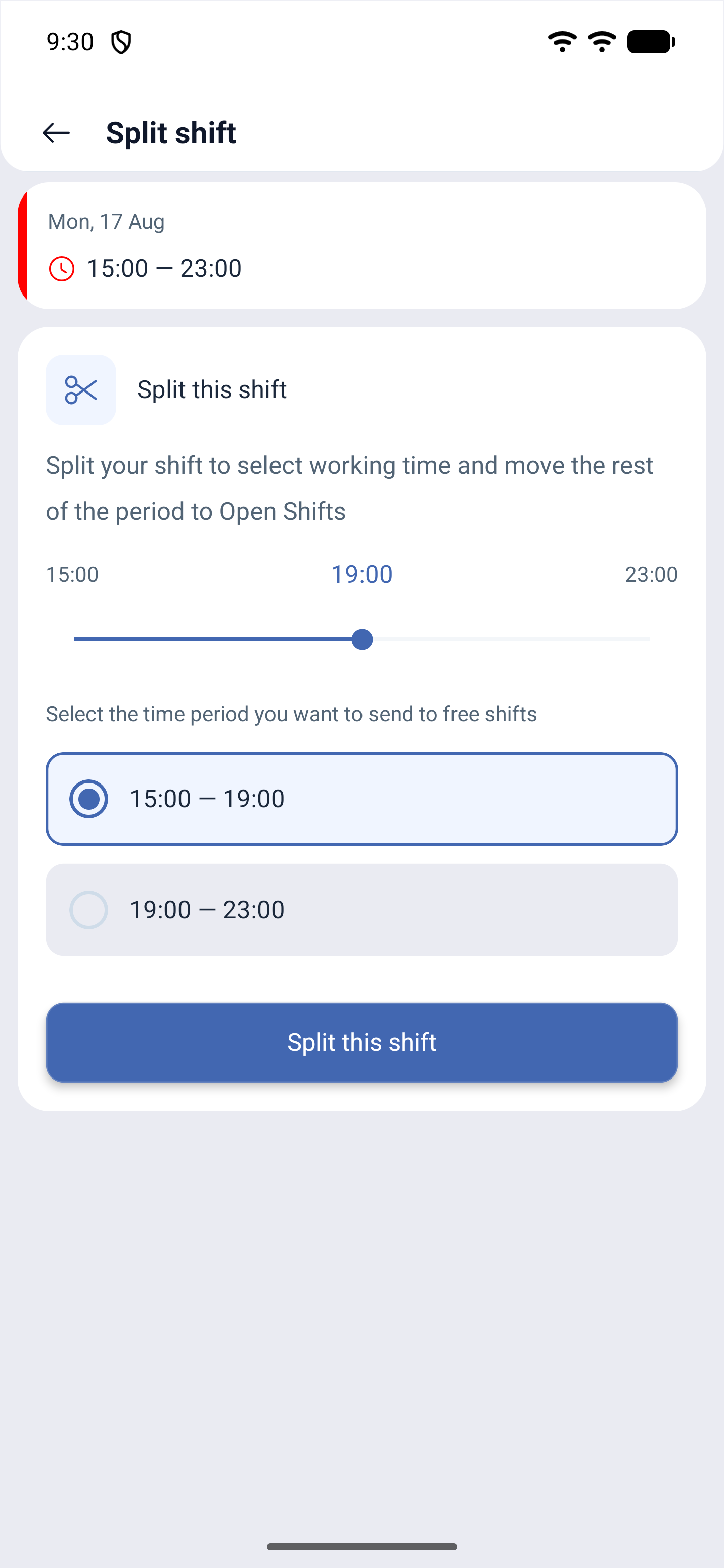
1. Three dots → Request to split a shift.
2. Split shift opens with a hint: split the shift to choose your working time and send the remainder to open shifts.
3. Use the slider to set the split point.
4. Choose which of the two pieces stays with you and which goes to open shifts.
5. Send the request.
What you can change in the card itself
Besides the three dots, two fields are available on your upcoming shift: Location and Marks in the Details block, with Save below them. A past shift does not have these fields.
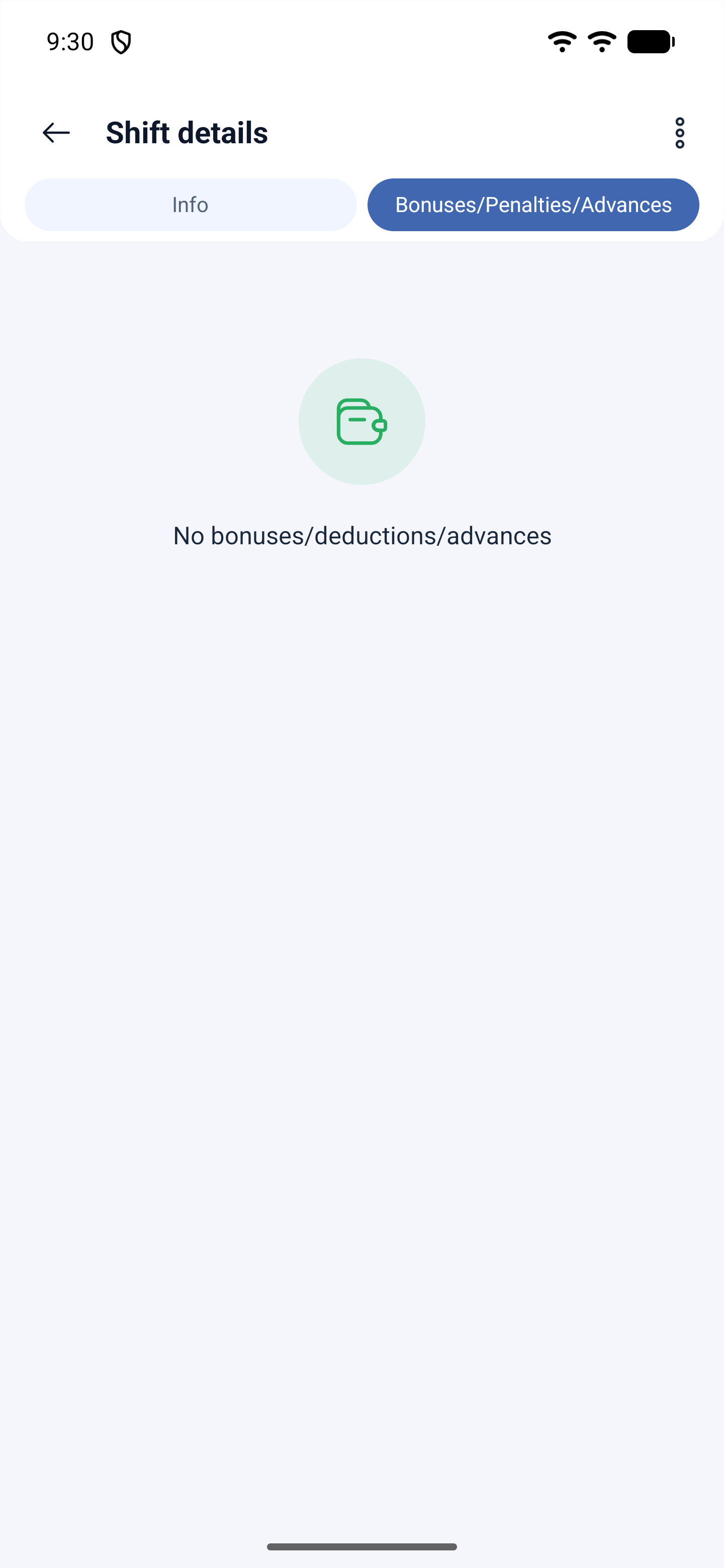
The second tab of the card is Bonuses/Penalties/Advances: what has been credited and deducted for this particular shift.
Where the answer arrives
Answers arrive in Events — the fourth icon on the bottom bar — and in the Archive on the requests screen. Swaps and drops get two answers: first from the colleague, then from the manager, if approval is required. Inside the request itself there is a discussion tab: there you can exchange messages with the manager without leaving the request.
Why there are no actions
This is the most common complaint, and the reason is almost always one of two.
The first one: the actions are switched off in the schedule settings. Each action is enabled by a separate toggle — the manager does this in the Basic information section of the schedule. If they are off, one option instead of five is left behind the three dots.
| What is missing | Which toggle is needed |
|---|---|
| Shift swapping | Allow shift swapping |
| Dropping a shift | Allow employees to drop shifts |
| Moving to open shifts | Allow employees to take shifts from the Open Shifts list |
| Taking an open shift | Allow employees to take shifts from the Open Shifts list |
| Splitting a shift | Allow employees to split shifts |
| Your own shift | Allow employees to create their own shifts |
| Other people’s shifts in the schedule | Allow employees to see all shifts |
Some of the same settings exist in the project card, in the shift settings block: they apply to all schedules of the project at once.
The second one: the schedule has ended. There are no actions at all for shifts outside the schedule’s validity period — the three dots do not open. The manager needs to extend the schedule.
There is a third, rarer one: the shift has already started or is about to start very soon. The app does not let you give a shift away half an hour before you are due in.
Possible problems and solutions
| Problem | Cause | Solution |
|---|---|---|
| The three dots do not open | The schedule has ended or the shift has already started | Ask the manager to extend the schedule; the actions work on upcoming shifts |
| One option instead of five in the list | The self-service toggles are switched off | The manager enables the ones you need in the schedule’s Basic information |
| No one to swap with | There are no suitable shifts in the list | Swapping is only possible with shifts of colleagues on this schedule, and with the “within the position” setting — with the same position |
| The swap or drop was sent, but nothing happens | We are waiting for the colleague’s answer — without their consent the request goes no further | Remind your colleague: the request is sitting in their requests |
| The request was sent, but the shift has not changed | Manager approval is enabled | Wait for the decision: it will arrive in Events and in the Archive |
| The shift came back | The manager declined the request | The reason for the decline arrives together with the answer — look at the discussion inside the request |
| Open shifts are empty | No one gave anything away, or taking shifts is not allowed | Check the toggle for taking open shifts with your manager |
| Splitting is unavailable | It is switched off in the schedule | The Allow employees to split shifts toggle is needed |
Frequently asked questions (FAQ)
Question: How does moving to open shifts differ from dropping a shift? Answer: In the first case the shift goes to the shared list and anyone who wants it takes it. In the second you name specific people, and the request goes precisely to them.
Question: Can I work half of the shift and give away the rest? Answer: Yes, that is the Request to split a shift: use the slider to choose the split point and specify which piece to send to open shifts.
Question: Do I always have to wait for approval? Answer: For swaps and drops — always: first you need the consent of the colleague you are offering the shift to. After that, if manager approval is enabled in the schedule, the manager decides as well. Moving to open shifts takes effect immediately when approval is switched off.
Question: My colleague does not respond to my swap — what should I do? Answer: Until they agree, the request goes nowhere and the shift stays yours. Remind them: the request is sitting in their requests section. Or cancel the request and offer the shift to someone else.
Question: Why do I not have a swap button while my colleague does? Answer: The settings are defined for each schedule separately. If you are on different schedules, the sets of actions differ.
Question: Can I cancel my own request? Answer: Yes, open the request on the requests screen — there is Cancel request there.
Question: Who will see my message in a time change request? Answer: The manager who will decide on the request. The message arrives together with the request.
Question: What happens to the shift if no one takes it from open shifts? Answer: It will stay in the open shifts list. The manager can assign it to someone manually or distribute it automatically.
Question: Can I change the location of my shift? Answer: Yes, on an upcoming shift the Details block has the location and marks fields; after making changes tap Save.