

Clocking in and out is what employees open the app for most often. Starting from version 2.1.0, both operations go through the Attendance screen with a map, and along the way the phone asks for several permissions.
Two different modules keep track of location. Attendance checks whether you are in place at the start and at the end of the shift — that is exactly why both operations go through the map. Work location control tracks where you were during the shift.
Grant all the phone permissions at once, including location access in the “all the time” mode. There is no need to work out which module uses what: the company owner enables and disables modules whenever they like, and if the permissions are granted only halfway, the app will start behaving incorrectly — and silently, without any warning. Allowing everything once is cheaper than looking later for the reason a shift was not recorded.
Step-by-step instructions
Starting a shift: step by step
Starting a shift is a chain of several screens. You cannot skip it: each step switches something on.
1. Tap the green “Start shift” button on the dashboard.
2. The phone will ask for location access. Grant it.
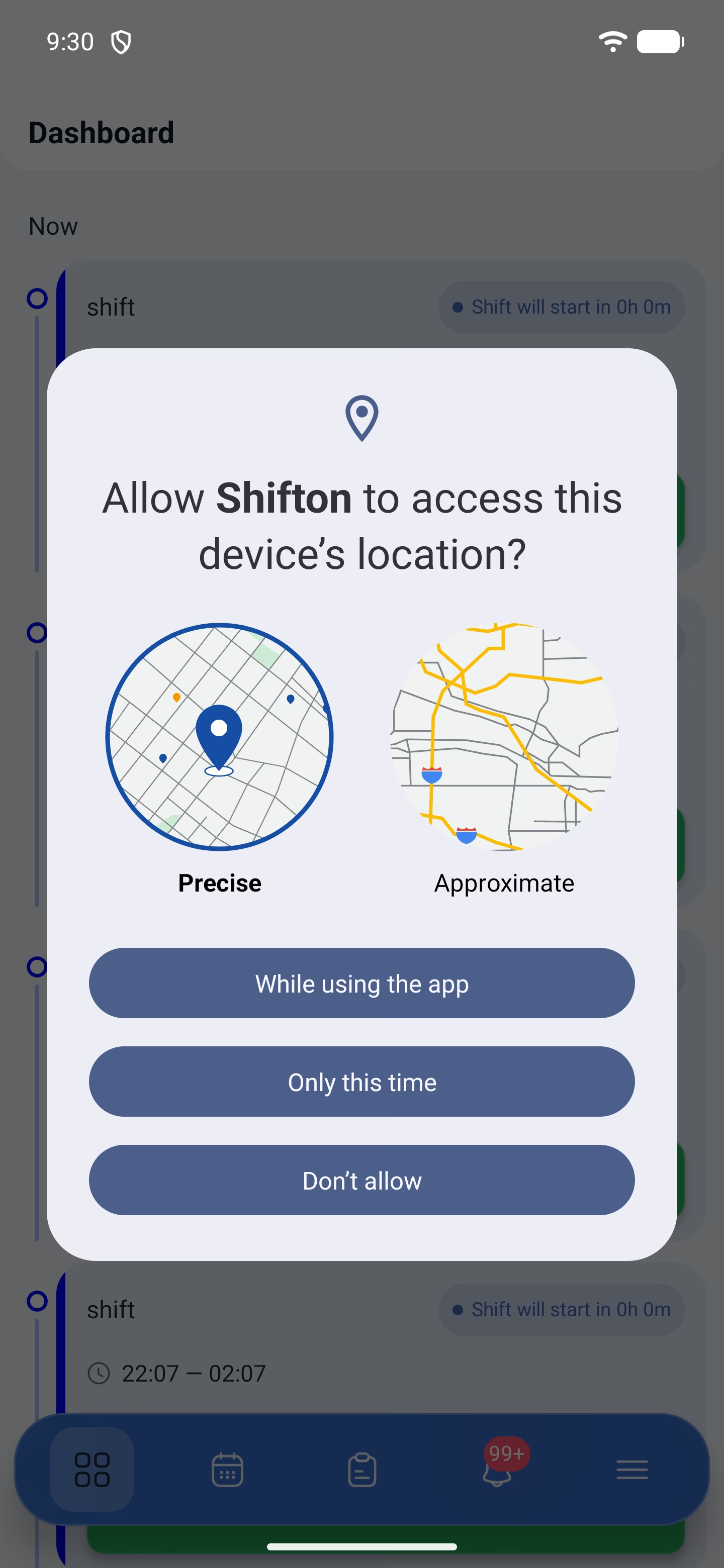
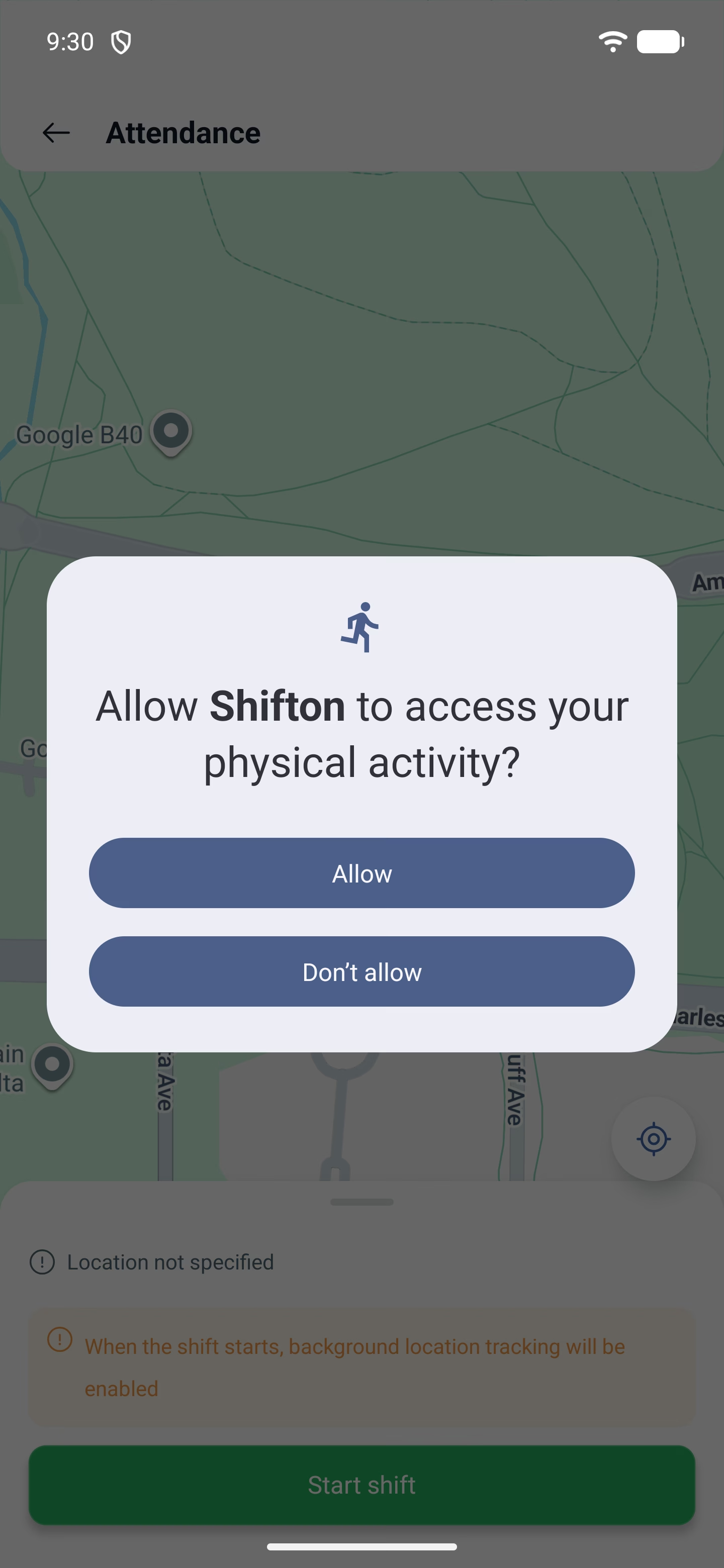
3. Then — access to physical activity. It is needed to tell movement from standing still.
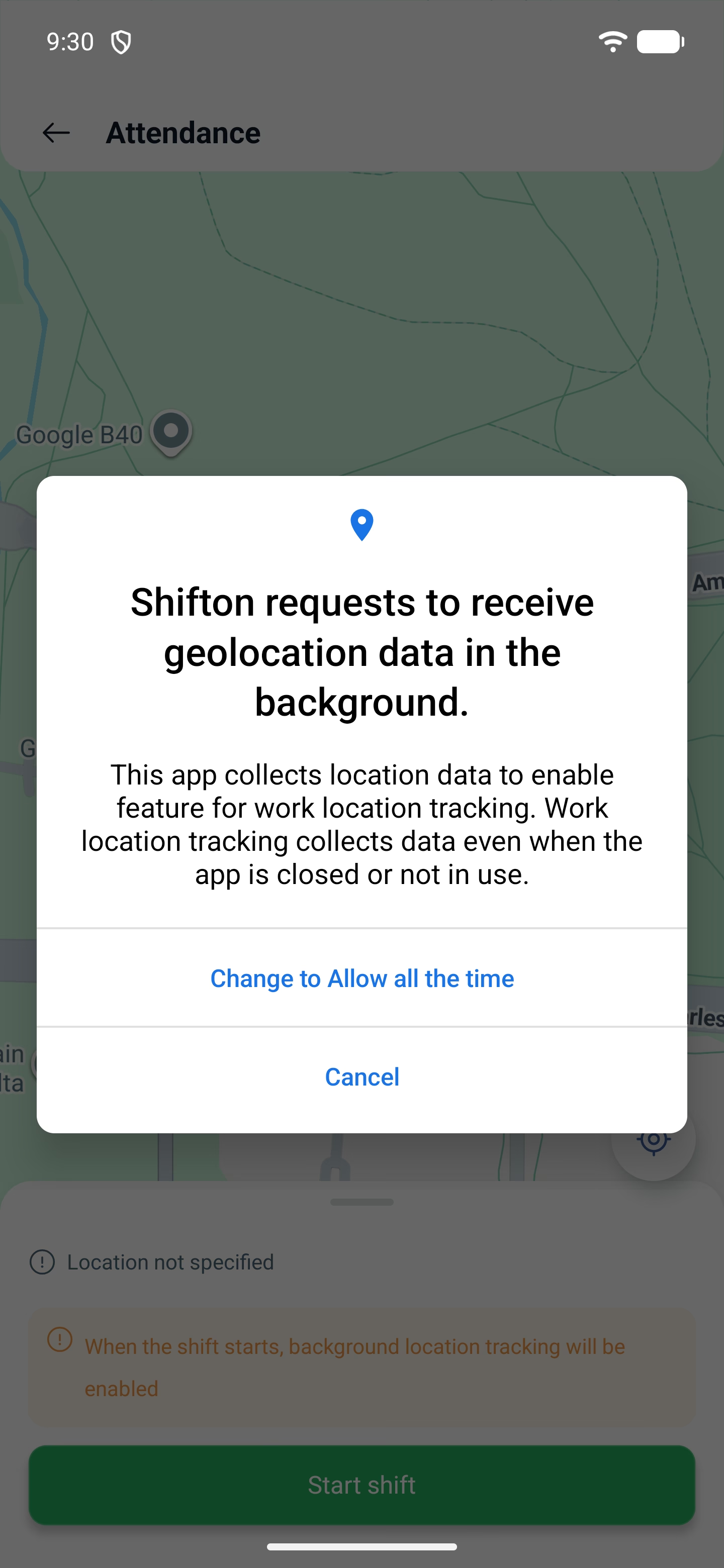
4. After that the app explains things itself: the “Allow all the time” mode is required, and it offers to switch it on in the phone settings. Agree and switch it.
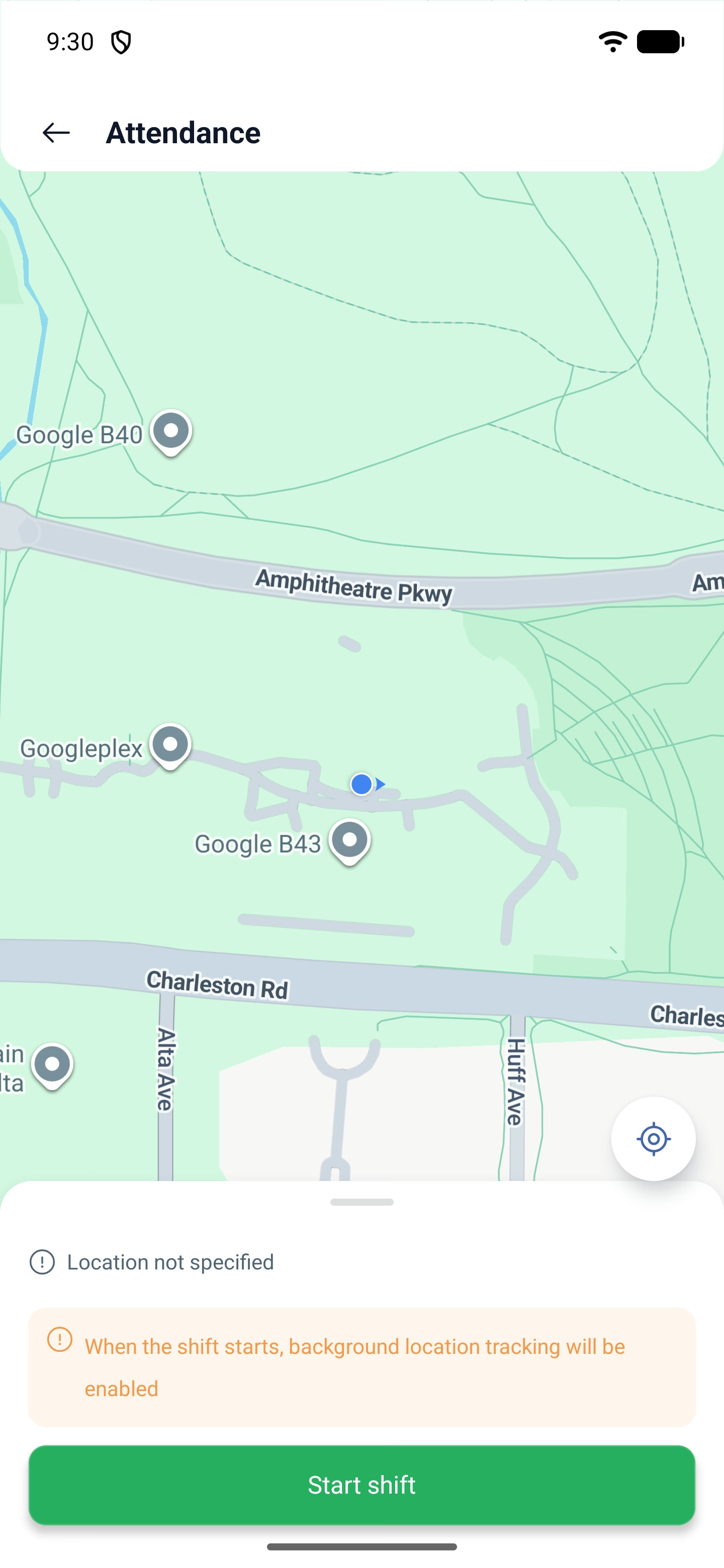
5. The Attendance screen with a map will open. Here you can see where you are, and there is a warning: Background location tracking will be enabled when the shift starts. The shift starts with the second Start shift button, already on this screen.
If you are not at your workplace
When a location is set for the shift, attendance compares your position with it. If you turn out to be far away, the screen says so directly.
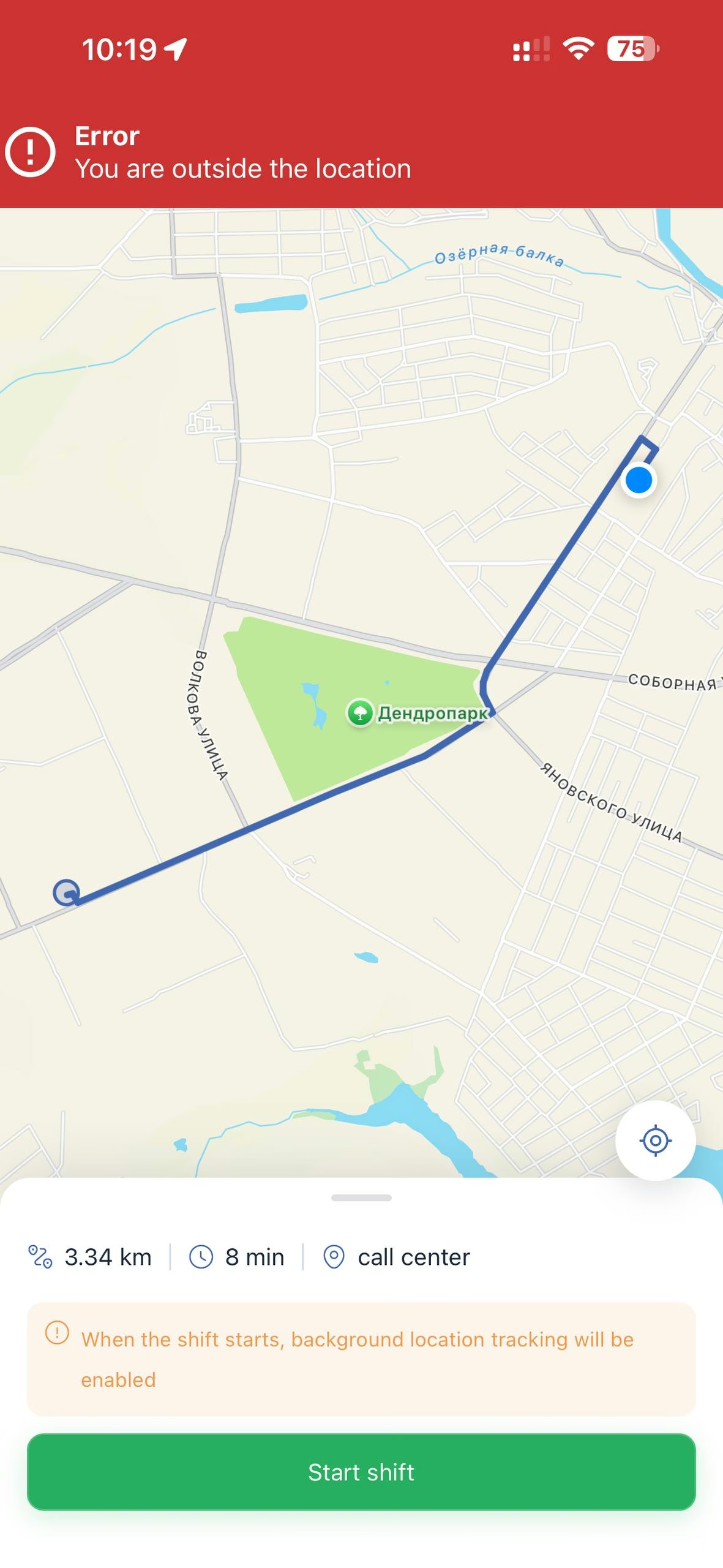
A red banner appears at the top: Error — You are outside the location. A route from your point to the workplace is drawn on the map, and the sheet at the bottom shows three values: the distance, the travel time and the location name. For example: 3.34 km · 8 min · call center.
That way the employee immediately sees not only that they are not where they should be, but also how far away they are and where to go.
The Start shift button stays active and can be tapped — but the shift will not start: the error will drop down from the top again. Clocking in will only go through once you are within the radius set by the manager in the location settings.
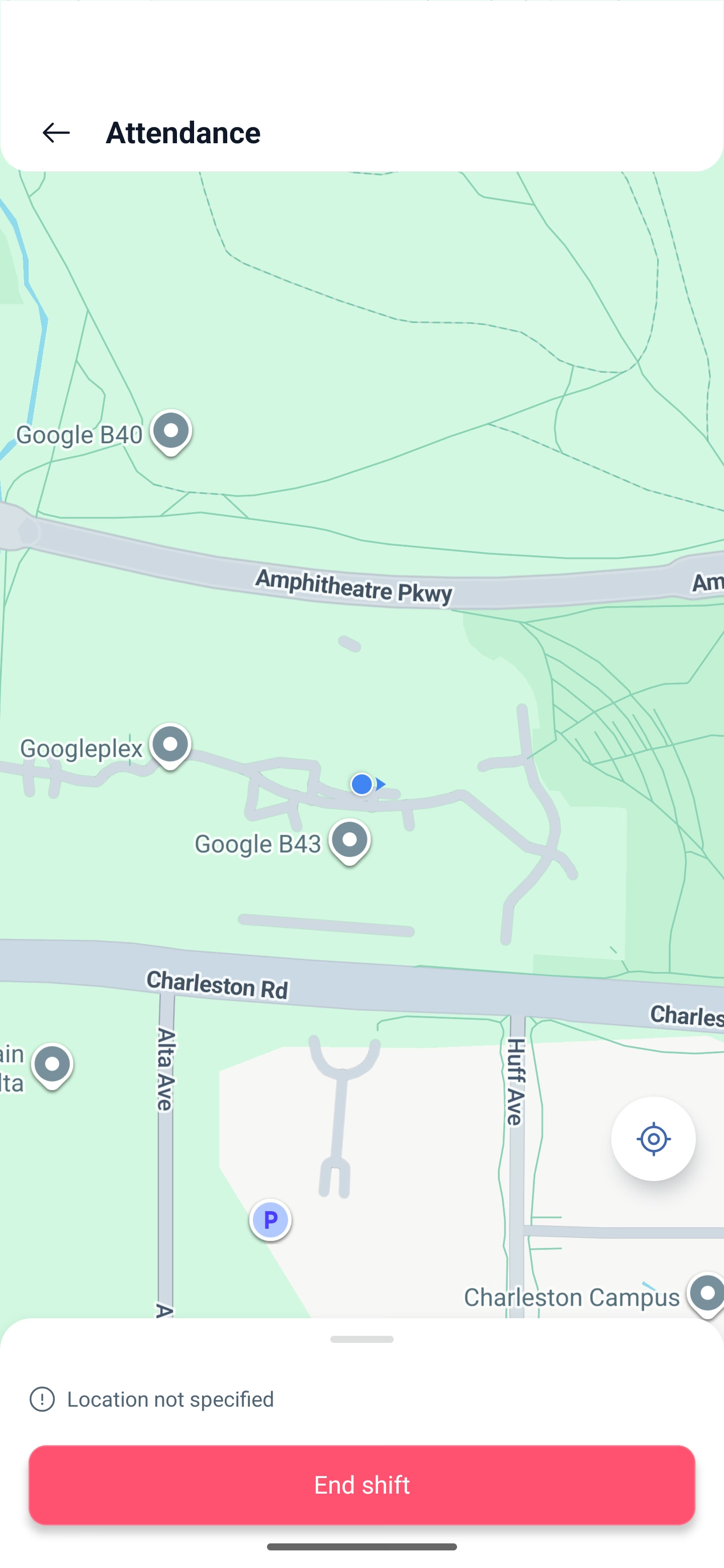
If no location is set for the shift, there is no check — the screen will say that the location is not specified, and the shift will start from anywhere. The same goes for unscheduled shifts: they have no location, so the check is not performed.
While the shift is running
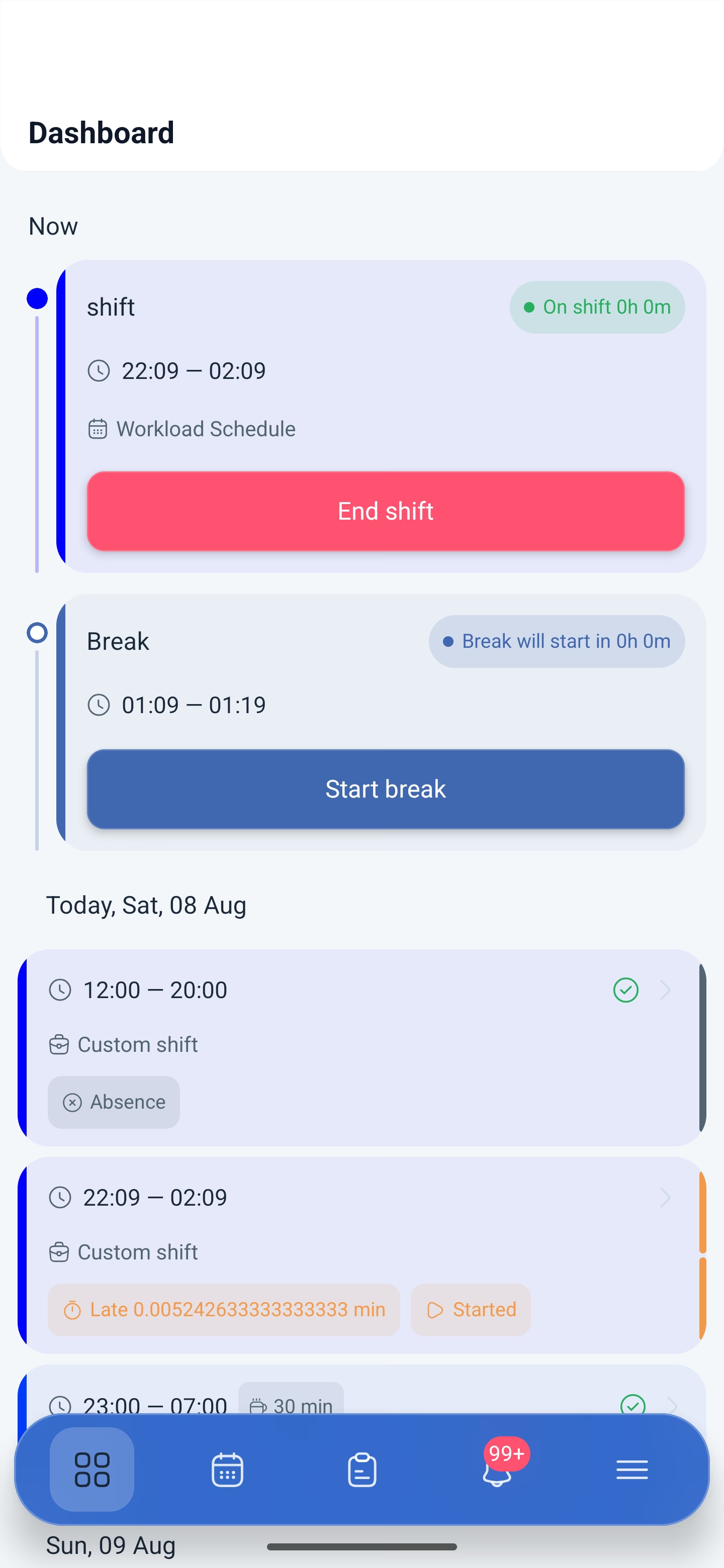
The banner changes to On shift with a counter of the time worked, and the button changes to End shift. A break block appears below: when the break starts, its time and the Start break button.
Ending a shift: step by step
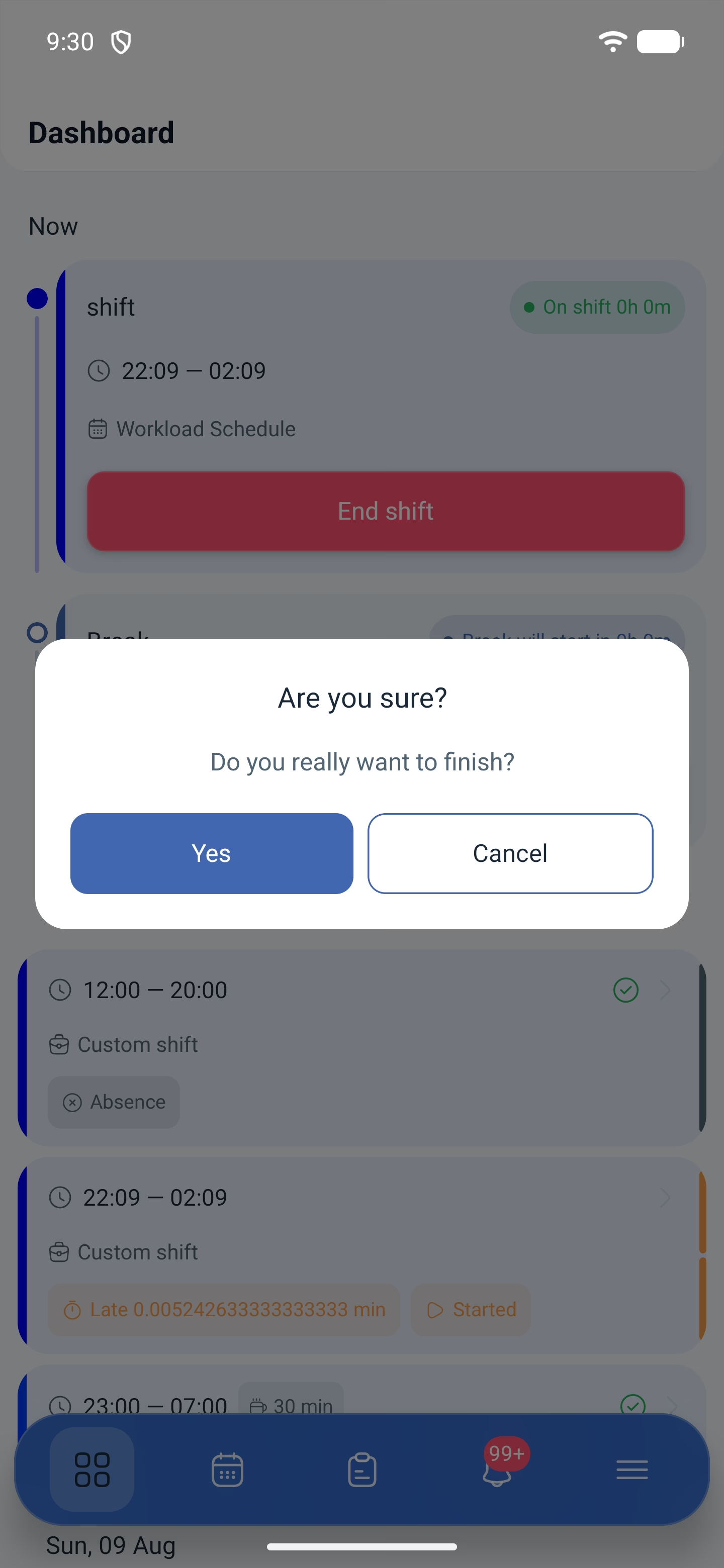
1. Tap “End shift”. The app will ask for confirmation: Do you really want to finish?
2. The same “Attendance” screen with a map will open together with a finish button — the location is recorded on the way out too.
3. The final confirmation — Are you sure you want to complete the shift?
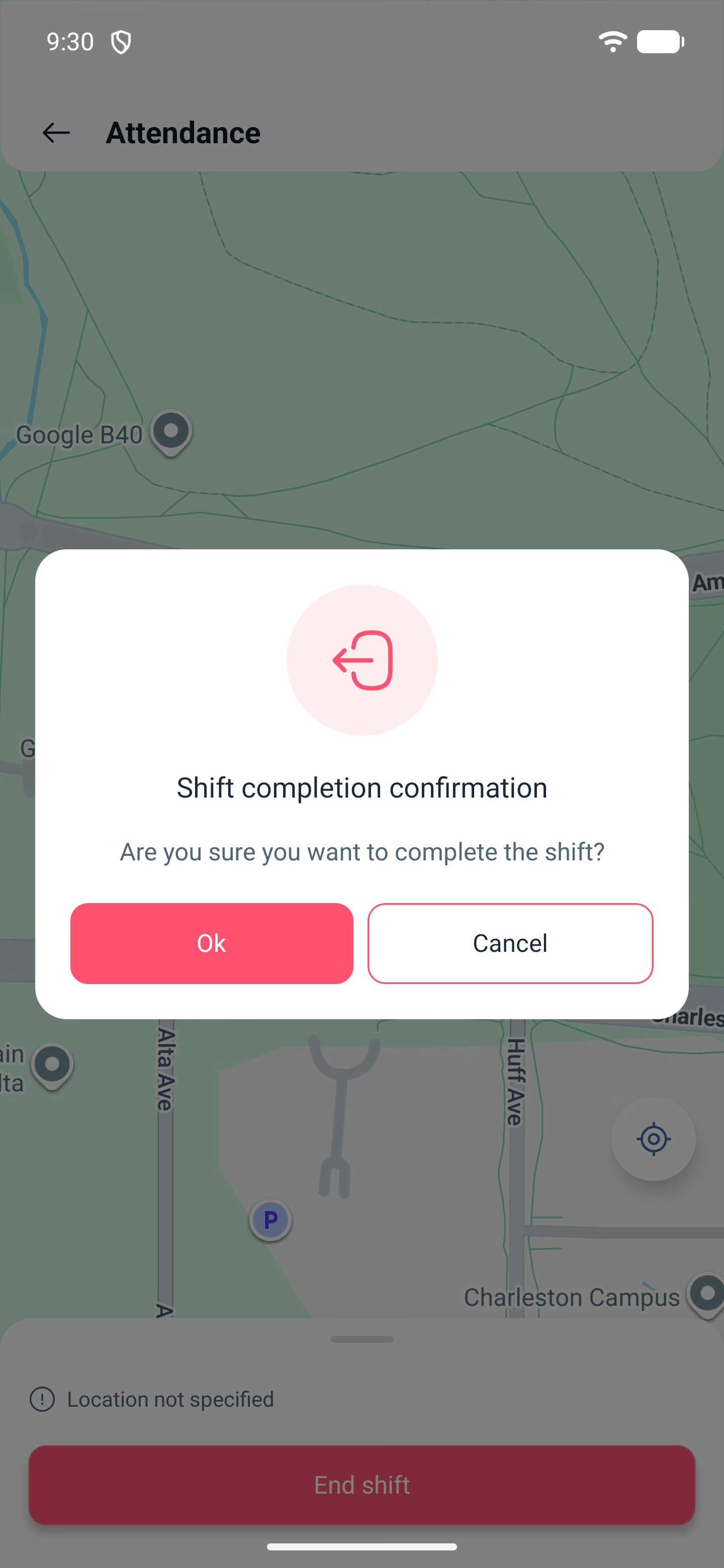
The two confirmations in a row are intentional: a shift must not be closed by an accidental tap. Once it is finished, the shift card in the day’s list is marked as Completed, and the deviations appear next to it — lateness and early leave.
Possible problems and solutions
| Problem | Cause | Solution |
|---|---|---|
| There is no Start shift button | The shift has not come yet or is already finished | The button appears within the window set by the attendance module settings |
| The shift will not start, there is an error at the top: You are outside the location | Attendance checks the place, and you are outside the work location | Come closer to the workplace: the screen shows the distance, the travel time and the location name. The button can be tapped, but clocking in will not go through until you are within the radius |
| The location stops being transmitted | The permission was granted as “while using the app” | Switch it to “Allow all the time” in the phone settings |
| The app does not work the way it used to, although nothing was changed | A new module was enabled in the company, and the phone permissions are not sufficient | Check the app permissions and grant them all, including the “Allow all the time” mode |
| The shift started, but clocking in was not counted | The background location request was cancelled | Grant the permission and start the shift again |
| The shift is marked as Unscheduled | It was started outside the schedule | This is by design: an unscheduled shift has no template, and the location check is not performed for it |
| The shift closed by itself although I did not tap anything | The window in which the shift could still be closed manually has passed | The window is set by the “How much later an employee can finish a shift” setting in the attendance module |
| The deviation is shown as a strange number | A known display defect | The value is correct, but it is displayed without rounding. Rely on the banner at the top — the format there is “0h 2m” |
Frequently asked questions (FAQ)
Question: Why does the phone ask for so many permissions when a shift starts? Answer: There are three of them: location, physical activity and background access to location. Different modules use different ones: attendance uses the place record at the start and at the end of the shift, work location control uses the movements during the shift. There is no need to figure out what is needed by whom: grant all three.
Question: Do I have to grant “all the time” access? Answer: Yes. The “while using the app” mode stops working as soon as the app is minimised, and part of the data will not be recorded.
Question: Can I take a break from the app? Answer: Yes, during the shift a break block with the Start break button appears below the finish button.
Question: Why is finishing confirmed twice? Answer: The first question is a general one, the second appears on the screen with the map, after the location has been recorded. That way a shift will not be closed by an accidental tap.
Question: Can I start a shift that is not in the schedule? Answer: Yes, if unscheduled shifts are allowed. Such a shift is marked as Unscheduled.
Question: What happens if I forget to finish a shift? Answer: The shift will close by itself, but differently depending on its type. For unscheduled ones, the settings define a maximum duration after which the shift is closed automatically. Scheduled ones have a window: the How much later can an employee “finish” a shift/break? (min) setting defines how many minutes after the end of the shift it can still be closed manually. If you do not make it in time, the system will close it itself.
Question: Does the manager see that I have started a shift? Answer: Yes, the shift status is immediately visible in the schedule and in the reports, and when notifications are enabled, a message arrives.