

Adding a person to the company, assigning rights, sending an invite, changing the position and the hours quota — all of this is done from the phone. Team management used to be available only in the browser.
The section is open to the manager, the administrator and the owner.
Step-by-step instructions
How to open
☰ → the Team group → Company employees.
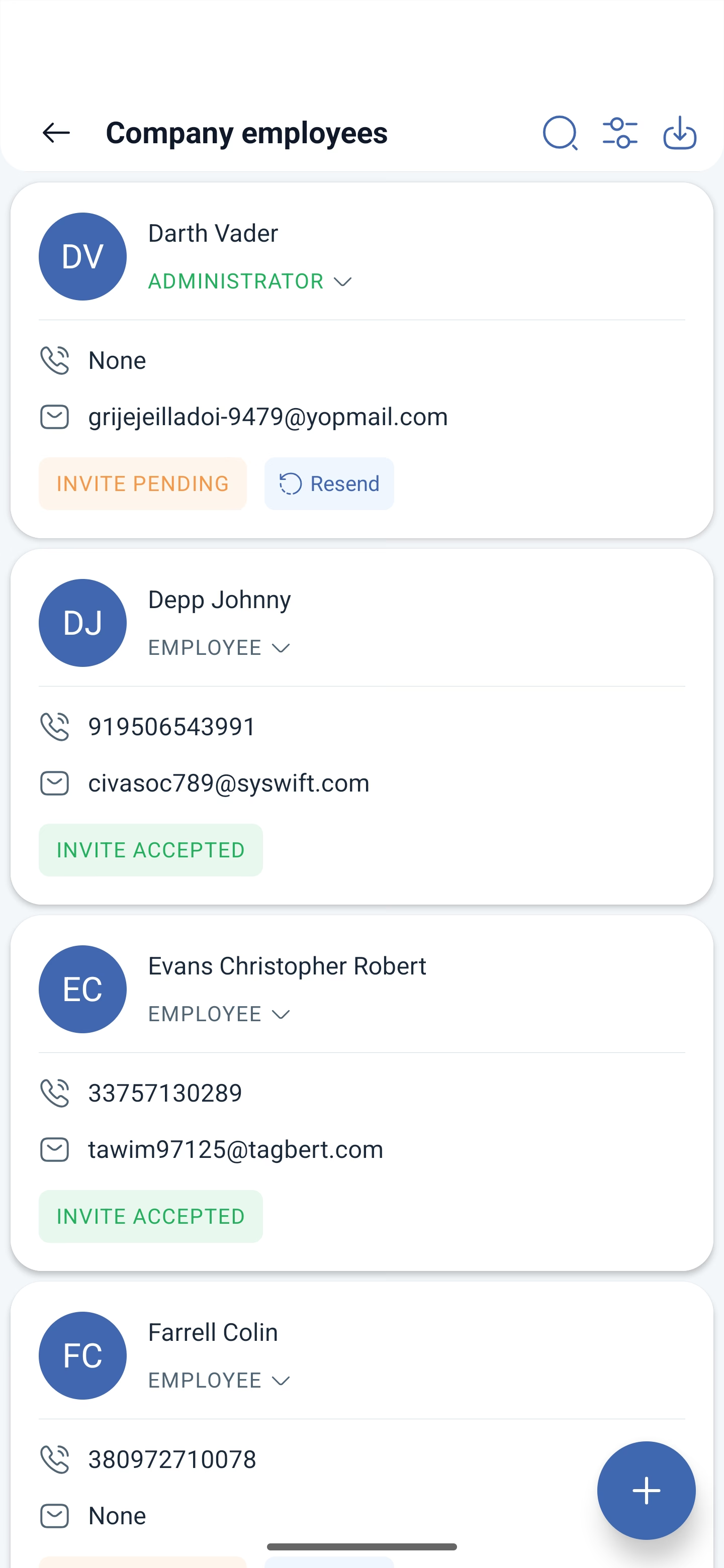
On the card of each employee there are the photo or the initials, the name, the rights level, the phone, the e-mail and the state of the invite — Invite pending in orange or Invite accepted in green. The unconfirmed ones have the Resend invite button next to them.
There are three buttons at the top: search by name, Filter by project and Import Employees. At the bottom right there is a blue button with a plus sign — that is how you add people.
Adding an employee
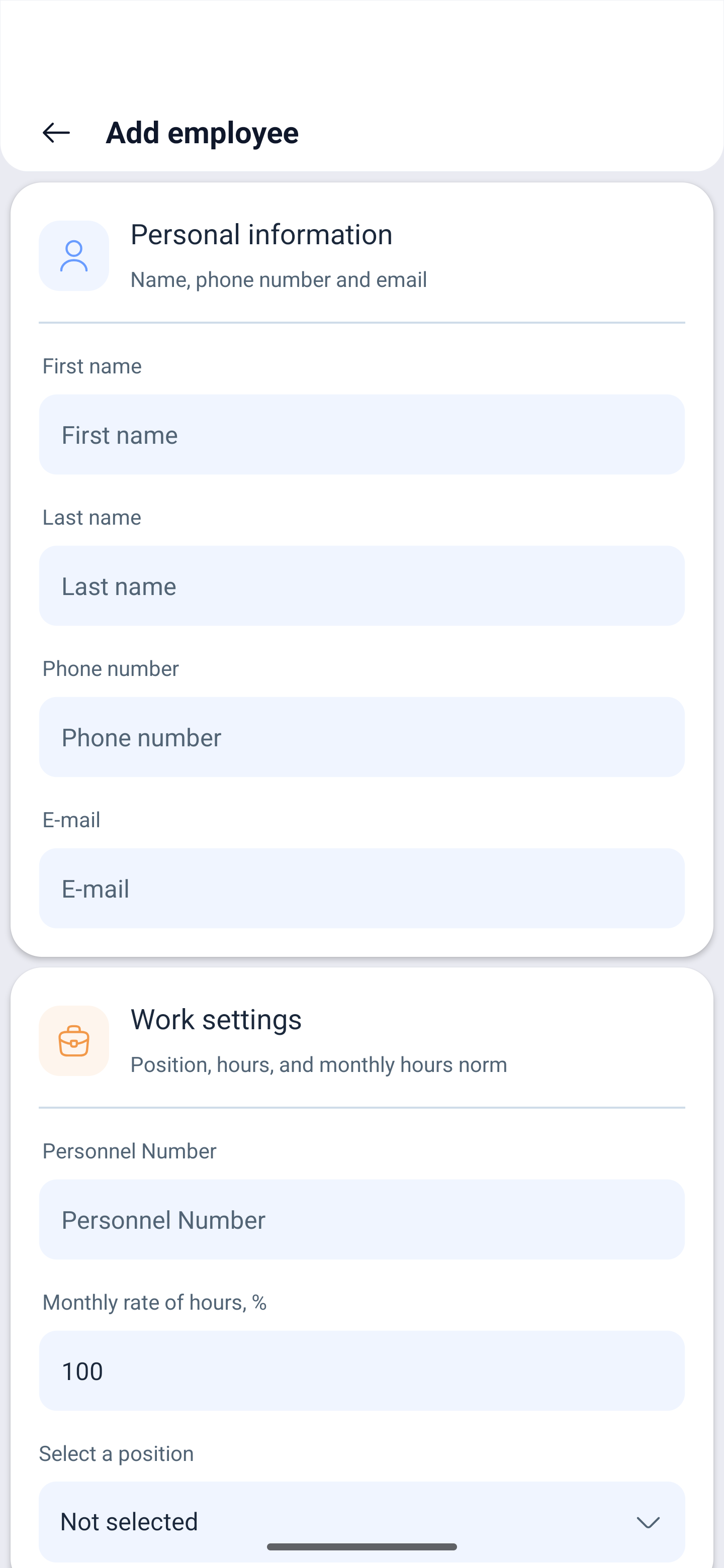
Tap +. The Add employee form will open, made up of three blocks.
Personal information
| Field | Description |
|---|---|
| First name | The first name of the employee |
| Last name | The last name |
| Phone Number | The phone with the country code |
| The e-mail address |
Below the form there is the hint Phone or email required — one of the two is enough, but without an invite by e-mail the employee will not be able to create a password.
Work settings
| Field | Description |
|---|---|
| Personnel Number | The internal number of the employee; it is handy for sorting and for exporting to other systems |
| Monthly rate of hours, % | The share of the full quota. 100 by default |
| Select a position | The position from the company structure. The pay rate is taken from it if the rates are set by position |
Scheduling
| Field | Description |
|---|---|
| Project | Which project to add them to |
| Schedule | Which schedule to put them into |
| Add employee starting from | The date from which the person counts as working |
The Send invite toggle decides whether the letter goes out straight away. It all ends with the Save button.
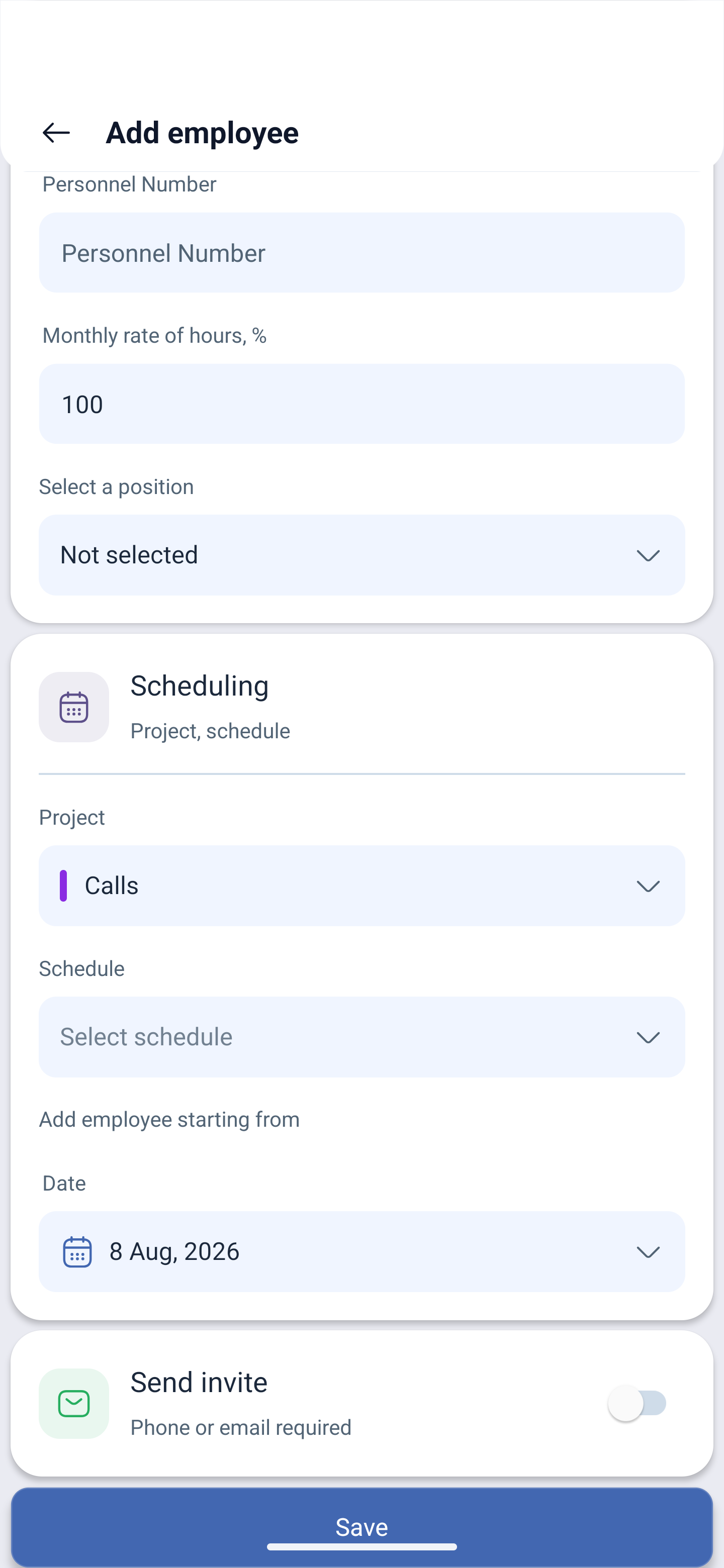
And here is the important part: the form covers all three mandatory steps at once — create the person, add them to a project and put them into a schedule. If you skip the project or the schedule, the employee will be created but will not appear in the grid.
Changing the rights
The rights level is changed right in the employee list: there is a down arrow next to it, tap it and choose another level. You do not need to open the employee card for this.
| Level | What it gives |
|---|---|
| Employee | Their own schedule, their own requests, their own availability |
| Administrator | Management of the employees, the modules and the schedules of the whole company |
These are the rights in the company, and they are set here, in the employee list. Separately from them a person has a role in the project: Employees, Managers or Viewers — it is assigned in the settings of the project itself, not here. A manager is a role in a project, not a rights level; an administrator is not appointed in a project.
Full access, including the company settings and the finances, is only with the owner.
The employee card: six tabs
Tapping the card opens Edit employee, and this is not one form but six tabs. The strip of tabs scrolls sideways, so the last ones are not visible straight away.
| Tab | What is inside |
|---|---|
| General info | Personal data, work settings, skills, color, own working days and rights |
| Availability | When the employee is ready to work, by day |
| Projects | Which projects they belong to and with what role |
| Notes | Records about the employee with a period and a visibility |
| Files | The documents attached to the person |
| Vacations | The vacation limits by period and the movement of the balance |
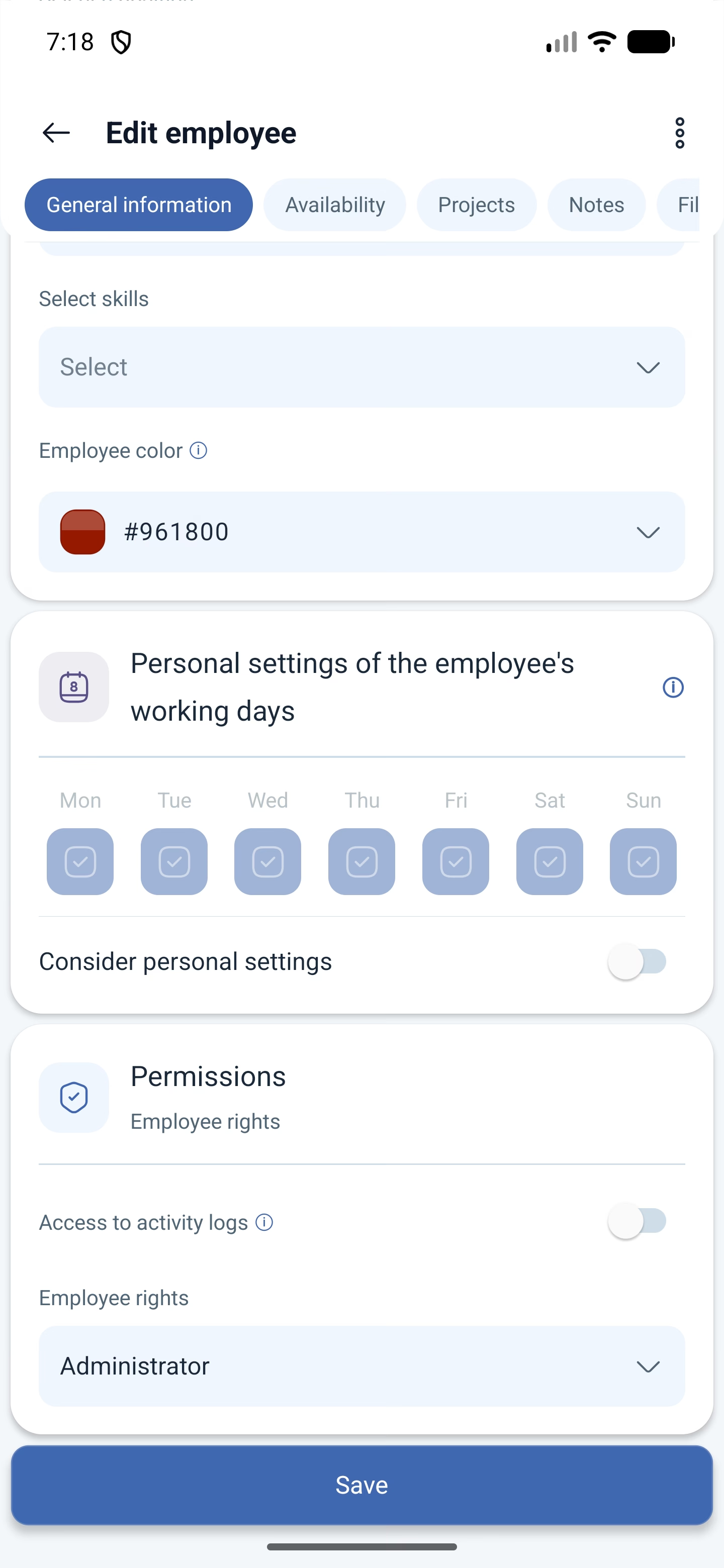
General info is the longest tab, it has to be scrolled. In order: Personal information with the first name, the last name, the phone and the e-mail; Work settings with the personnel number, the position and the monthly rate of hours; Skills; Employee color — the person is marked with it on the geolocation map and in the schedule; Personal settings of the working days of the employee with the Mon–Sun checkboxes and the Take the personal settings into account toggle; and at the bottom Permissions — Employee rights and Access to activity logs.
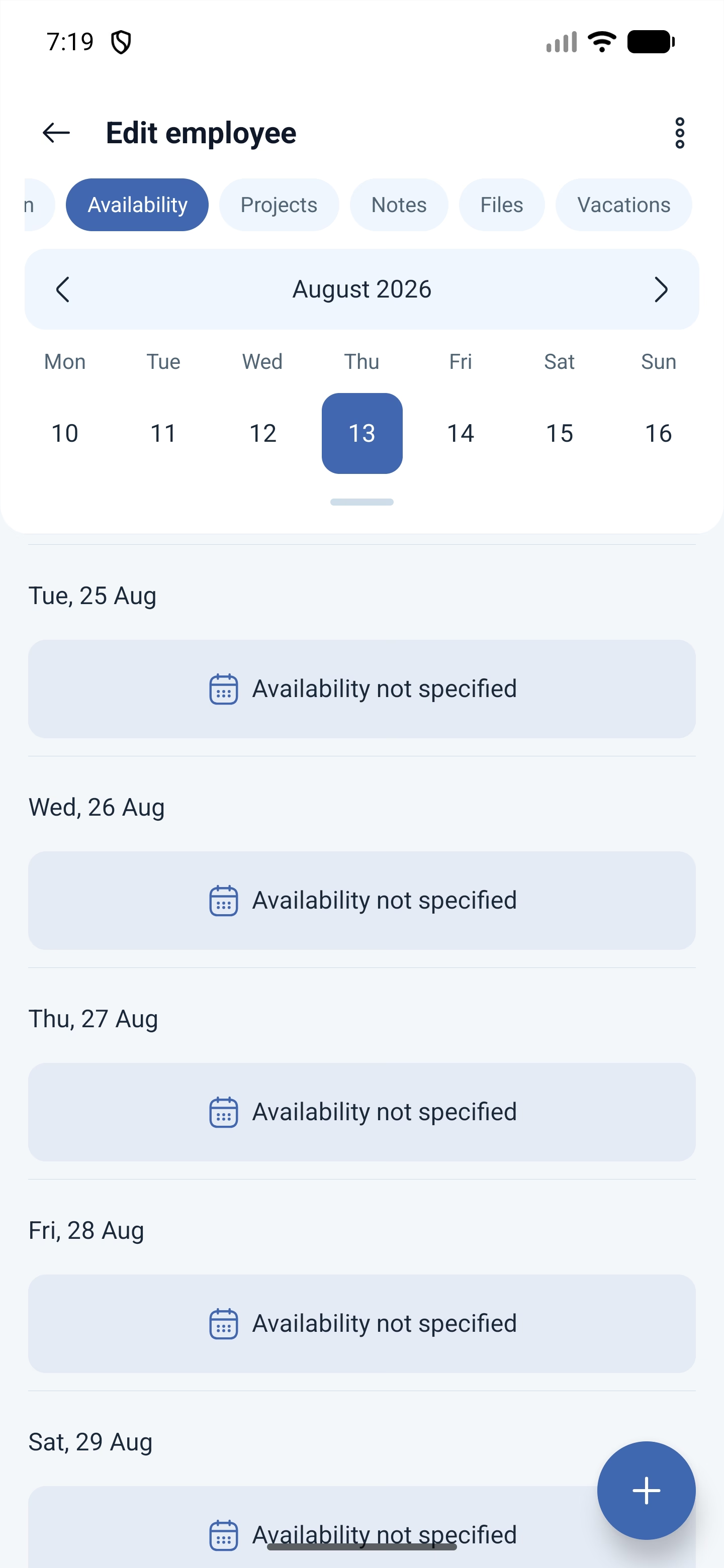
Availability shows the same picture the employee sees in the “When I am available” section: the week by days, the switching of weeks and Expand the calendar. Where the person has specified nothing, it says Availability not specified.
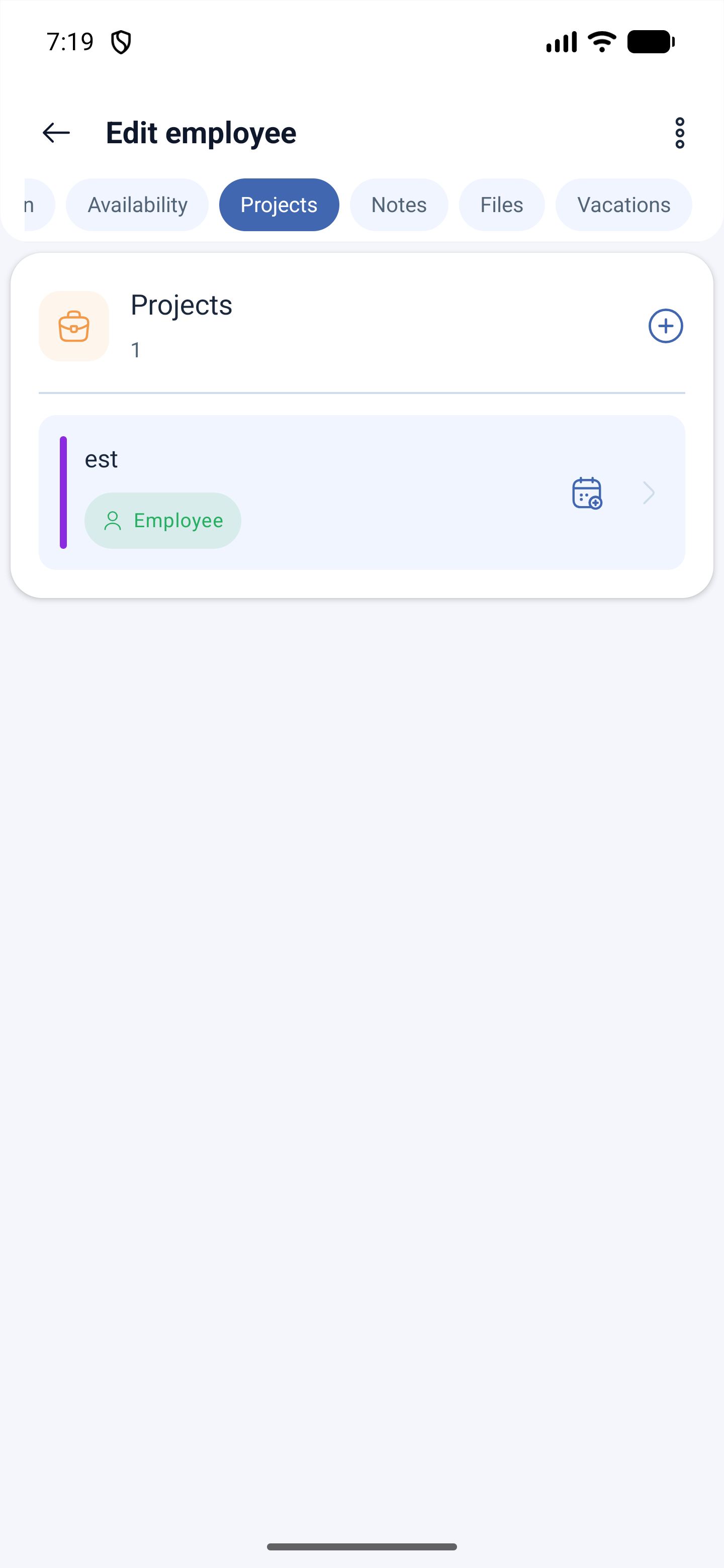
Projects is the list of the projects of the employee with their role in each one, the Add to project button and Add to schedule. This is where a person is connected to the work without leaving the card.
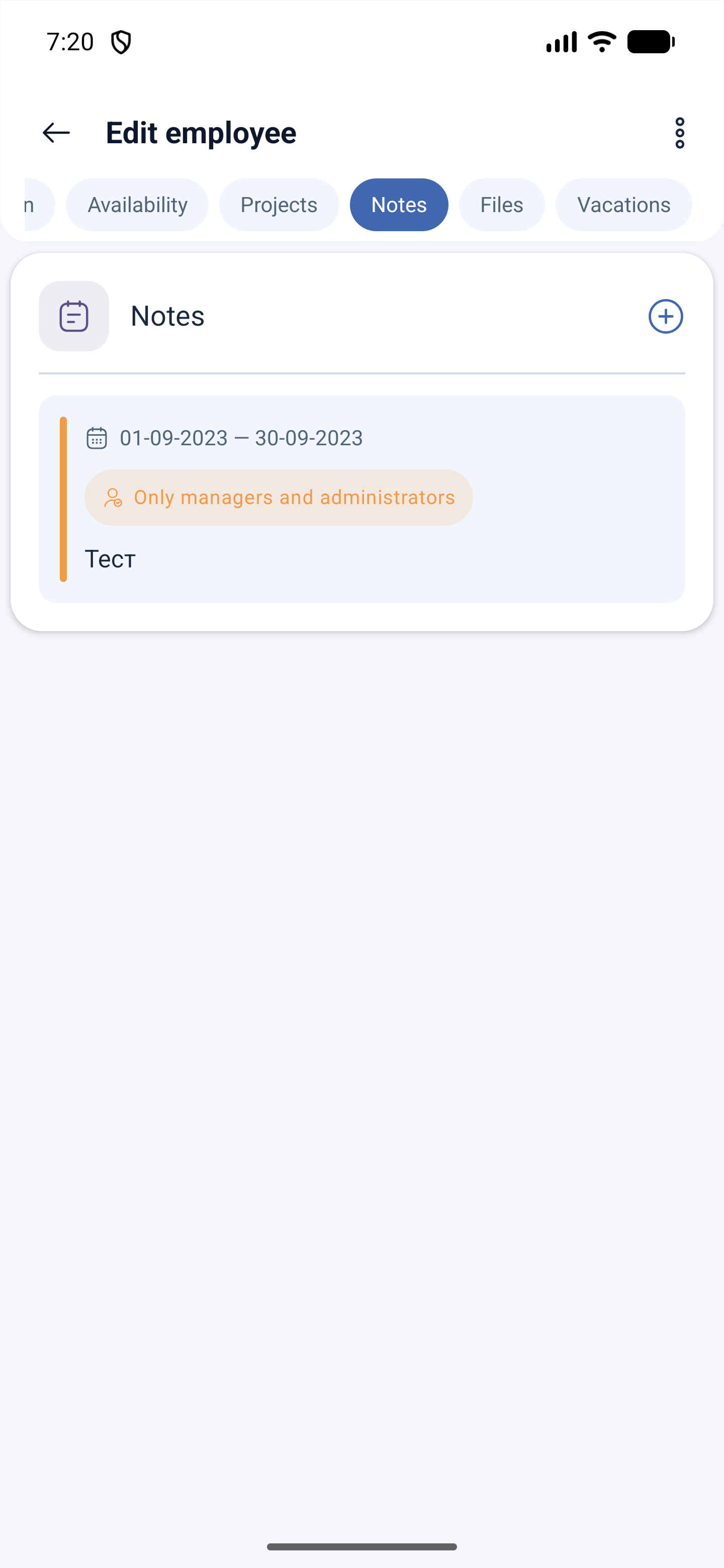
Notes is the Create a note button and the list of the records. A note has a validity period and a visibility: Only managers and administrators. This is the place for internal remarks that the employee should not see.
Files are the documents of this person, with the Upload files button. While there are none, it says No data.
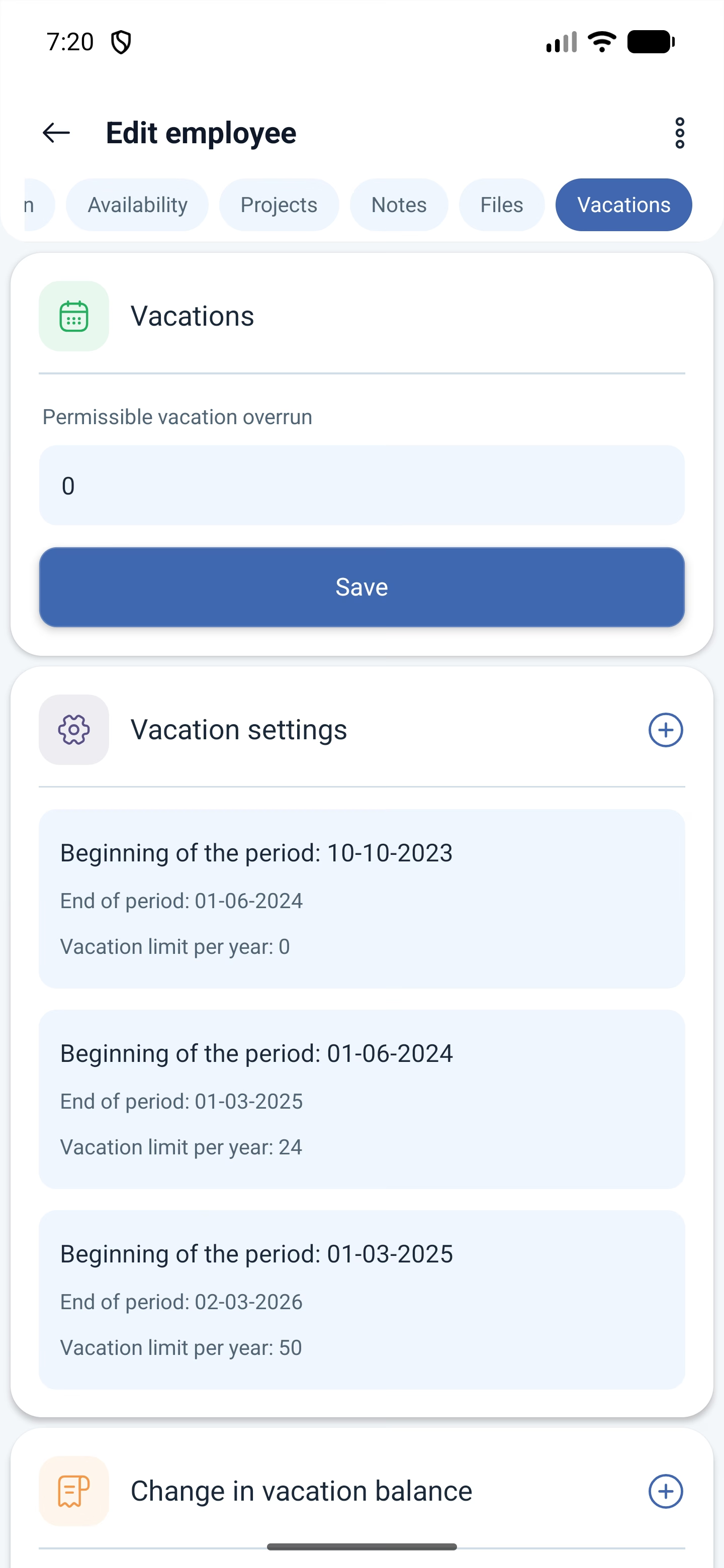
Vacations is the tab the card is most often opened for. It is made up of three parts:
| Part | What it sets |
|---|---|
| Permissible vacation overrun | For how many days the employee may go into the minus. It is saved with the Save button |
| Vacation settings | The periods with a limit: the start, the end and the Vacation limit per year. They are added with the Add vacation setting button |
| Change in vacation balance | Manual accruals and write-offs: the date, the value with a sign and a comment. The Add vacation operation button |
There can be several periods in a row — for example with a limit of 0, then 24, then 50 days a year: that way you can see how the terms of the person changed. In the movement of the balance a minus sign means a write-off.
Import as a list
The Import Employees button at the top loads many people at once from a file. An import without e-mail addresses is possible, but invites will not go out to such employees — the addresses will have to be added later.
Possible problems and solutions
| Problem | Cause | Solution |
|---|---|---|
| The employee is created, but is not in the schedule | The project or the schedule was skipped in the add form | Open the card and fill in the Scheduling block |
| The invite does not arrive | The letter is in spam or the phone number of the company is not confirmed | Check the spam, tap Resend invite, confirm the number in the profile |
| A white screen for the employee on activation | This e-mail address is already taken by another account | Delete the old account with this address |
| Created without an e-mail and a phone | The form requires at least one of the two | Fill in the phone or the e-mail — otherwise the save button will not work |
| A dismissed employee stayed in the schedule | That is by design | The past shifts and the pay records are kept, and there is a deletion mark next to the name |
| An administrator cannot be appointed in a project | There is no such role in a project | An administrator is a rights level in the company; in a project an employee, a manager and a viewer are appointed |
Frequently asked questions (FAQ)
Question: Can an employee be created and put into a schedule straight away? Answer: Yes, the add form does it in one go: the Scheduling block sets the project, the schedule and the start date.
Question: What is a personnel number? Answer: The internal number of the employee. It is handy for sorting the list and for exporting the data to other systems.
Question: What is the monthly rate of hours in percent for? Answer: That is how part-time work is set: 50 % means half of the monthly quota.
Question: Can an employee be added without an e-mail address? Answer: They can be created if a phone is specified. But an invite will only go to an e-mail.
Question: How do I quickly change the rights of an employee? Answer: With the arrow next to the rights level right in the list, there is no need to go into the card.
Question: How is a manager different from an administrator? Answer: A manager is a role inside a project: the schedules and the requests of that project. An administrator is a rights level for the whole company.
Question: What happens to the data of a dismissed employee? Answer: The shifts and the pay records stay in the reports, and the employee themselves is marked as deleted.