

The map shows where employees on shift are and how they moved around. It used to be available only in the browser — now it opens on the phone, which is exactly what a manager who is on the road himself needs.
The map works together with the Work location control module — the one that records movements during a shift. Do not confuse it with attendance: attendance only checks whether the employee is in place at the start and at the end of the shift and does not track a route.
☰ → the Scheduling group → Geolocation map.
Step-by-step instructions
What is on the screen
| Element | What it does |
|---|---|
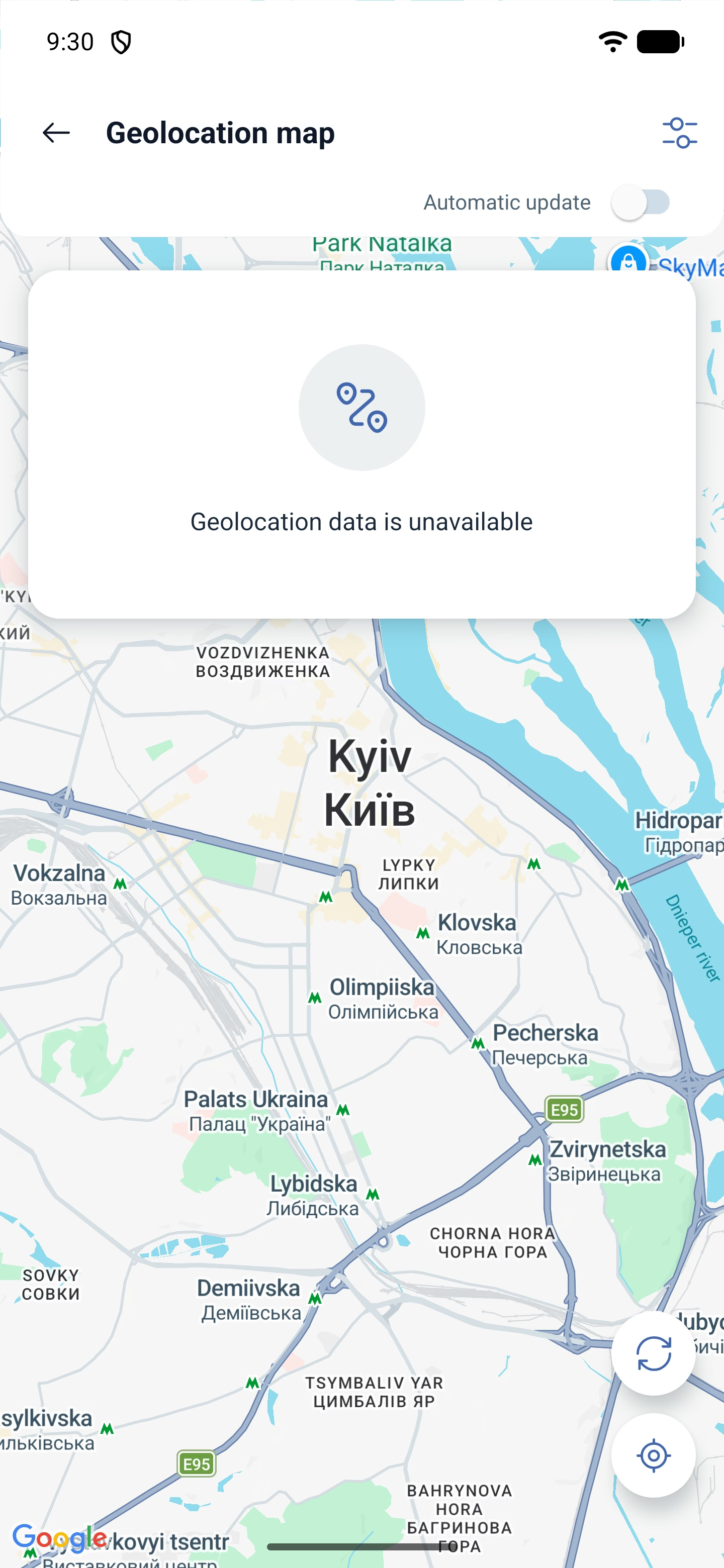
| Map | Employee markers and their routes |
| Filters | Who to show and for which period |
| Automatic update | The map pulls in fresh coordinates by itself |
| Update | Refresh the position manually |
| Recenter map | Return the map to the centre if you dragged it aside with your finger |
If there are no markers, the message Geolocation data is unavailable appears.
Filters
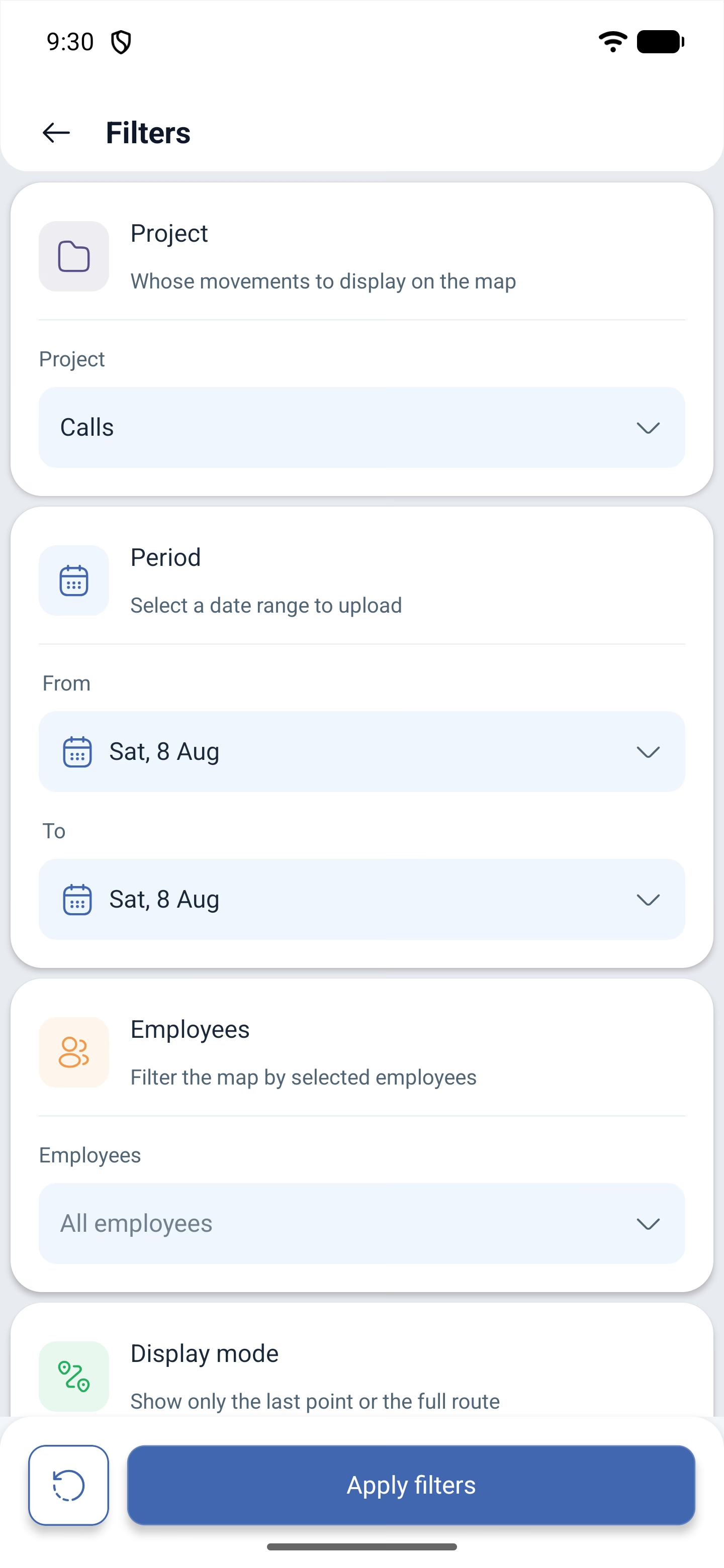
The filters decide the main thing — whether you are looking at the current position or at the movement history.
| Filter | What it sets |
|---|---|
| Project | Whose movements to show — the employees of which project |
| Period | The period of the extract: From and To. Set a past date and you will see where the employee was back then |
| Employees | A selection of specific people or All employees |
| Display mode | Show the last point — only the latest marker, Route — the whole route for the selected period |
At the bottom, Reset clears the selection and Apply filters applies it.
The Route mode is exactly the movement history: the system joins the markers of the period into a route.
Possible problems and solutions
| Problem | Cause | Solution |
|---|---|---|
| Geolocation data is unavailable | Nobody is on shift, or the selected period is empty | Check whether there are started shifts and look at the period in the filters |
| The employee is on shift but is not on the map | The permission on the phone was granted as “while using the app” | The “always” mode is required — otherwise the system loses the position when the app is minimised |
| Only one icon is visible instead of a route | The Show the last point mode is selected | Switch Display mode to Route |
| The route breaks off | During those intervals the app was closed without background access | Check the permission on the employee’s phone |
| The position is out of date | Automatic update is switched off | Turn on Automatic update or tap Update |
| The section is missing from the menu | You signed in as an employee, or the module is not enabled | The map is visible to the manager, the administrator and the owner, provided the work location control module is enabled |
Frequently asked questions (FAQ)
Question: Can I see where an employee was yesterday? Answer: Yes. In the filters set the period and switch Display mode → Route.
Question: Are employees who are not on shift visible? Answer: No. The position is transmitted only during a started shift.
Question: Is a separate module required? Answer: Yes, work location control. Without it the map stays empty.
Question: How does Show the last point differ from Route? Answer: The first shows the last known point, the second the whole path for the selected period.
Question: Why does one employee have a position and another does not? Answer: Most often it is the permission on the phone: “always” is required, not “while using the app”.
Question: Does the employee see that his position is being tracked? Answer: Yes. The phone asks for permission, and when the shift starts the app warns explicitly that background tracking will be turned on.