

Before version 2.1.0 reports existed only in the web version: from a phone an employee could see their own schedule but could not check how much the team had worked. Now all eleven reports open right in the app — with the same set of data as on a computer.
Reports are seen by the manager, the administrator and the company owner. The section is not shown to an employee.
Step-by-step instructions
Step 1. Open the section
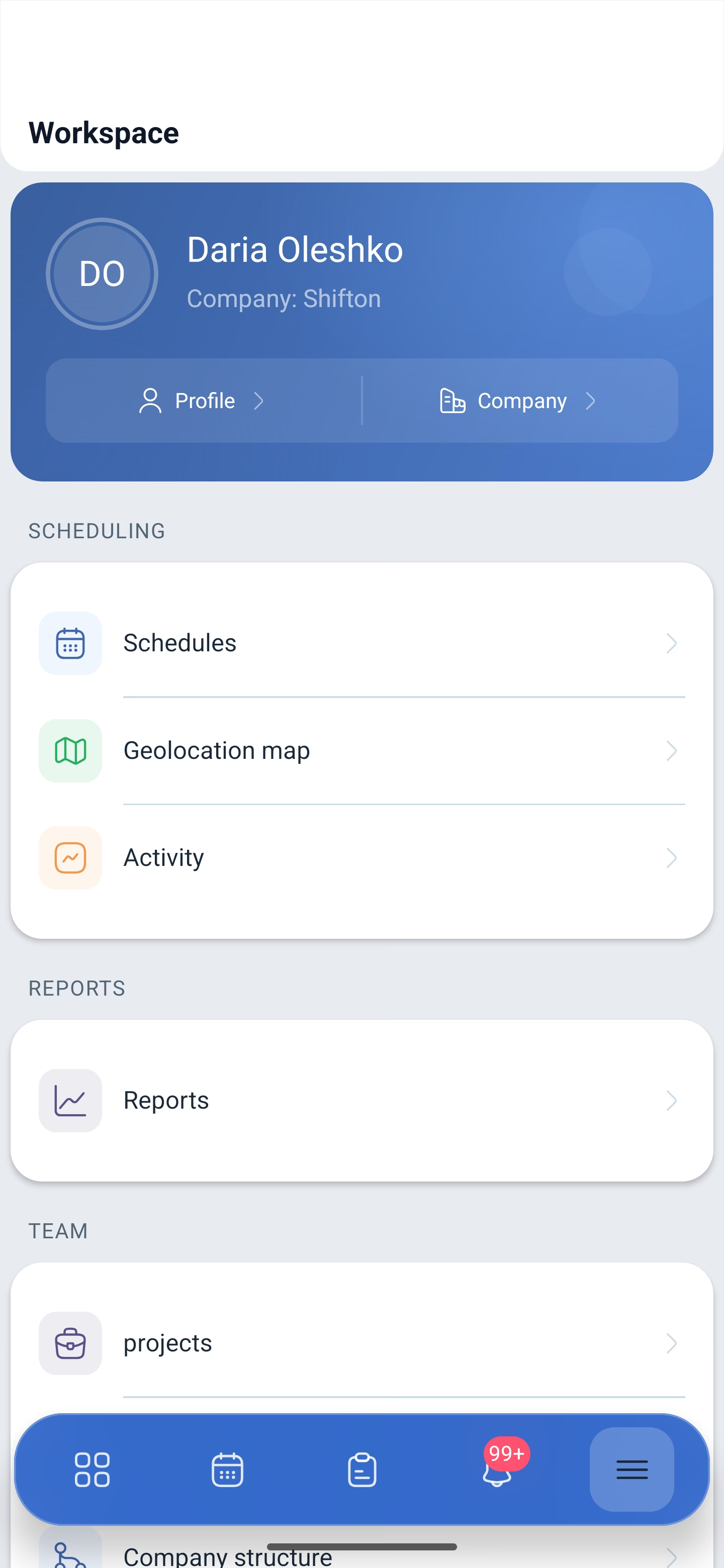
Tap ☰ in the right corner of the bottom bar, then in the Reports block select Reports.
Step 2. Choose a report
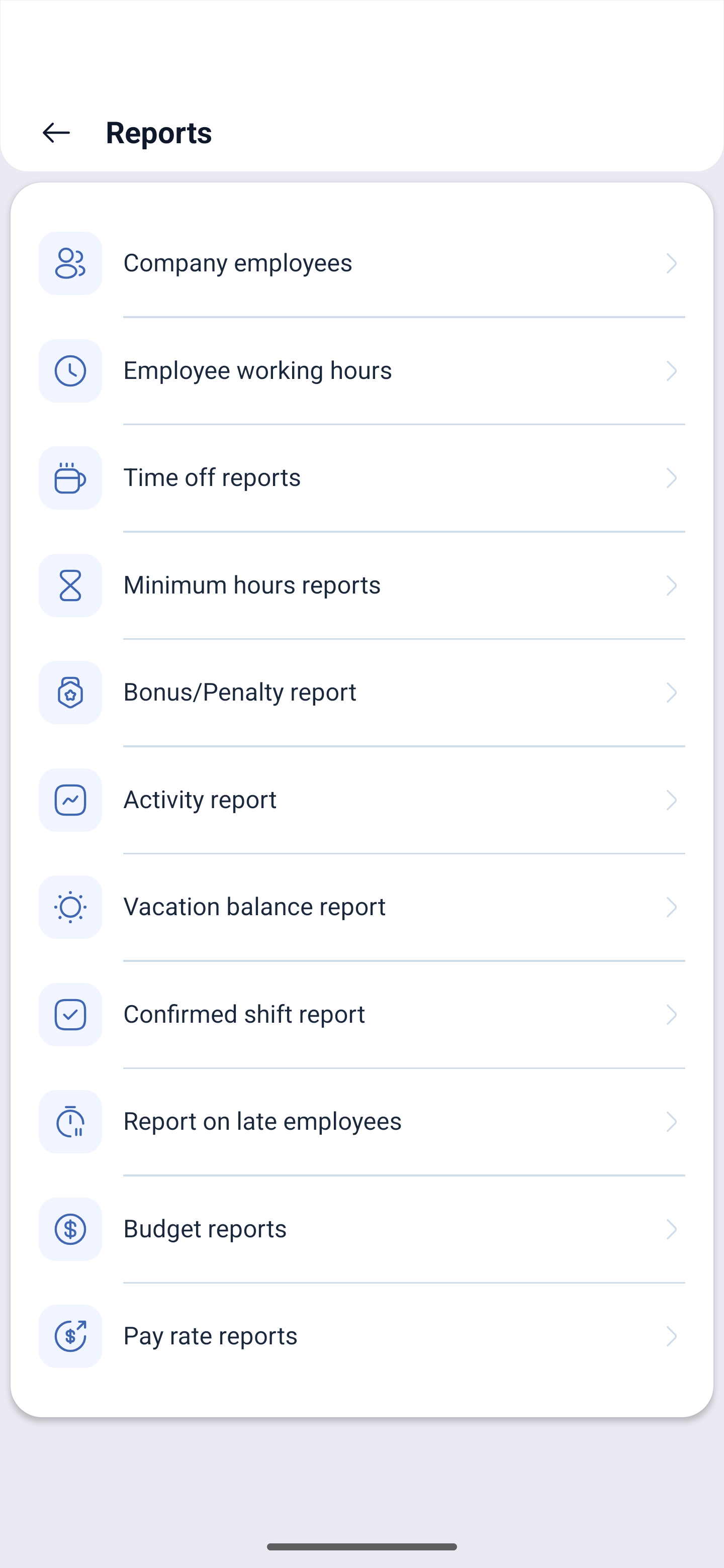
A list of eleven reports opens.
| Report | What it shows |
|---|---|
| Company employees | The list of the company employees with their data |
| Employee working hours | Hours worked, shifts, breaks and absences |
| Time off reports | Days off, sick leaves and vacations for the period |
| Minimum hours reports | Who did not reach the required minimum of hours |
| Bonus/Penalty report | The bonuses and penalties that were charged |
| Activity report | Activities inside shifts |
| Vacation balance report | The balance of vacation days per employee |
| Confirmed shift report | Which shifts the employees confirmed |
| Report on late employees | Being late for the start of a shift |
| Budget reports | Labor costs |
| Pay rate reports | The calculation by pay rates |
Step 3. Read the report
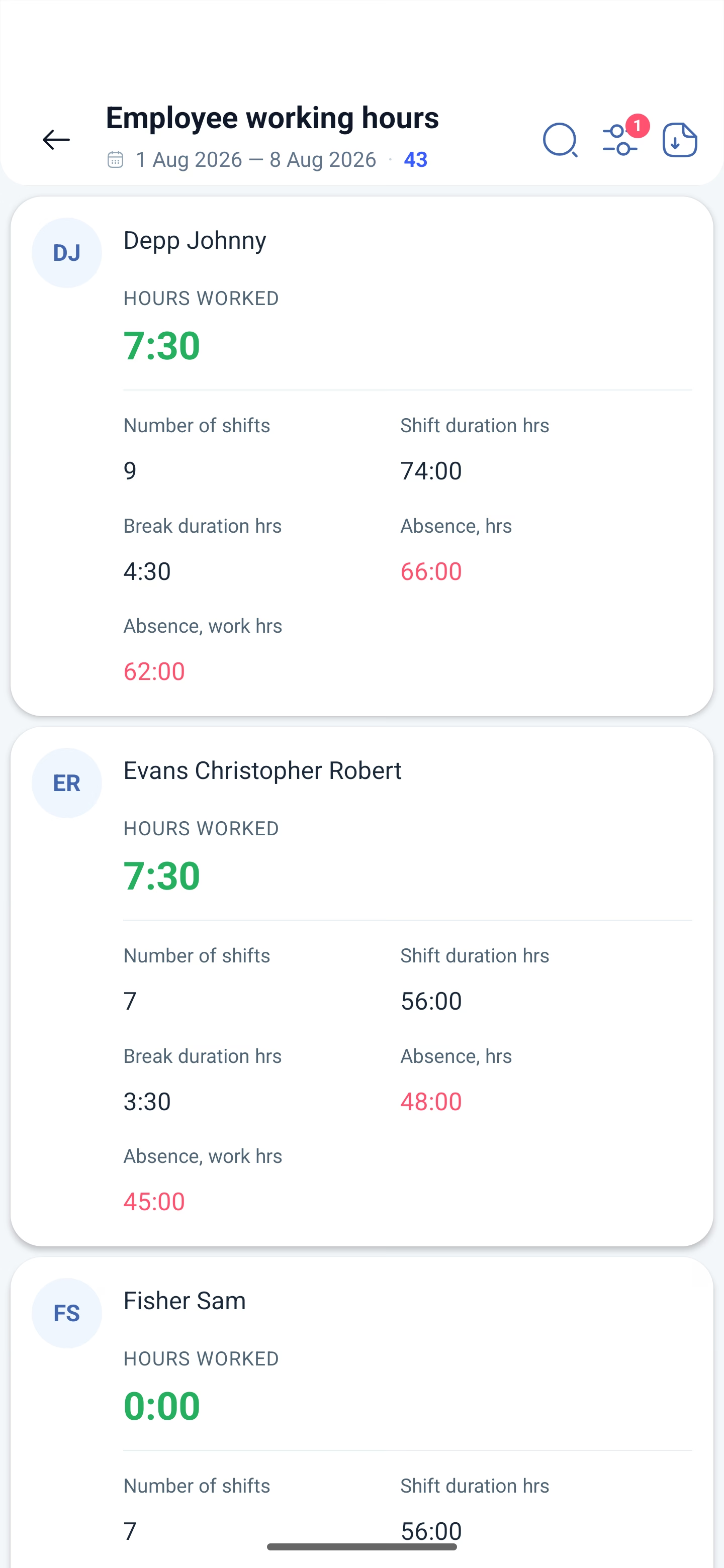
Under the title of the report there are the period and the number of employees that got into the selection. There are three buttons on the right:
| Button | What it does |
|---|---|
| Magnifier | Search for an employee inside the report |
| Sliders | Filters. The number on the icon is how many filters are on right now |
| Document with an arrow | Export of the report to a file |
The number next to the period is how many employees got into the selection.
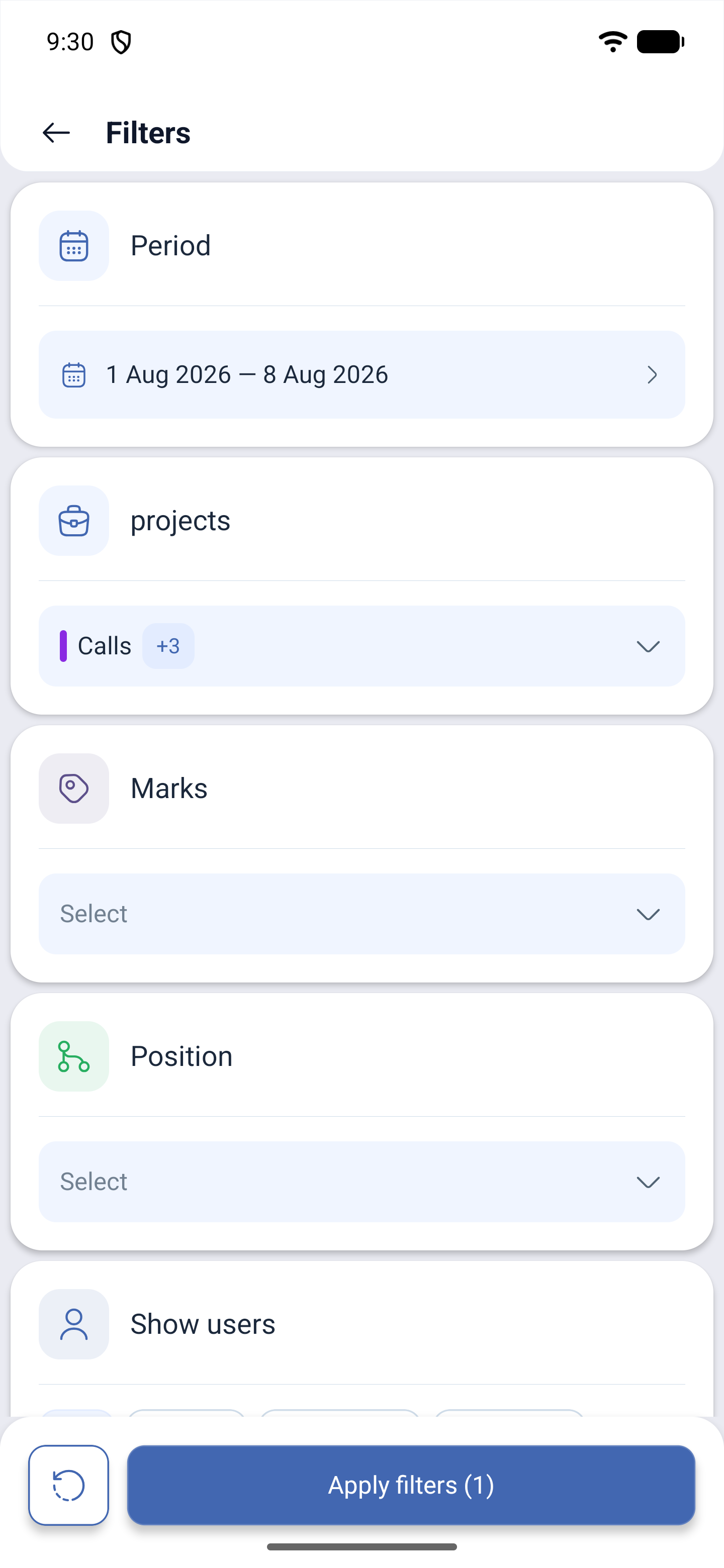
Report filters
| Filter | What it selects |
|---|---|
| Period | The period of the report |
| projects | One project or several |
| Marks | The marks of the employees |
| Position | Selection by position |
| Show users | Who to show: All — everyone, Current — those who are working, Resignation — those who have left, Not invited — those who have not received an invitation, Planned — those whose work is still ahead |
There are two buttons at the bottom: Reset clears the selection, Apply filters applies it — until it is tapped nothing changes, and the parentheses on the button show how many filters are on.
Then come the employee cards. In the Employee working hours report each card has:
| Field | Meaning |
|---|---|
| Hours worked | What was actually worked — large, in green |
| Number of shifts | How many shifts there were in the period |
| Shift duration hrs | The total length of the shifts according to the schedule |
| Break duration hrs | How much time went on breaks |
| Absence, hrs | The hours of absence — in red |
| Absence, work hrs | Of those, the working hours — in red |
The difference between Shift duration and Hours worked is exactly the shortfall: in the example below the schedule had 74 hours, while 7:30 was worked.
Possible problems and solutions
| Problem | Cause | Solution |
|---|---|---|
| There is no Reports section in the menu | You have signed in as an employee | Reports are available to the manager, the administrator and the company owner |
| The report is empty | There is no data in the chosen period or a filter is on | Check the period under the title and the number on the filters icon |
| Not all employees are in the report | The report counts only those who are in the project and in the schedule | Add the employee to the project and to the schedule — without both steps they will not get into the report |
| The hours do not match the web version | Different periods | The period is set separately in the app and separately in the browser |
Frequently asked questions (FAQ)
Question: Are all the reports from the web version available in the app? Answer: Yes, all eleven.
Question: Can an employee look at their own hours report? Answer: No. The reports section is open to the manager, the administrator and the owner. An employee sees their own worked hours on the dashboard and in the schedule.
Question: Can a report be exported from the app? Answer: Yes, with the button with a document and an arrow in the top right corner of the report.
Question: Why does an employee have “Hours worked” at zero although there are shifts? Answer: The shifts were in the schedule, but the employee did not start them. The report counts the actual mark of the start of work, not the plan.
Question: What does the number next to the period mean? Answer: How many employees got into the selection with the current filters.
Question: How do I look at a report on those who have left? Answer: In the filters, the Show users item → Resignation.
Question: How does “Absence, hrs” differ from “Absence, work hrs”? Answer: The first is all the hours of absence for the period, the second is only those of them that fell within working time.
Question: Is a separate module needed to see reports on a phone? Answer: No. If a report is available to you in the web version, it opens in the app too.