

A schedule that has already been created is changed right in the app: the name, the self-service permissions, the make-up of the team, the period, the pay rates, the load forecast. There is also something the web version does not have — rebuilding the schedule from scratch by the updated rules.
Schedules can be edited by the manager, the administrator and the owner of the company.
Step-by-step instructions
How to open
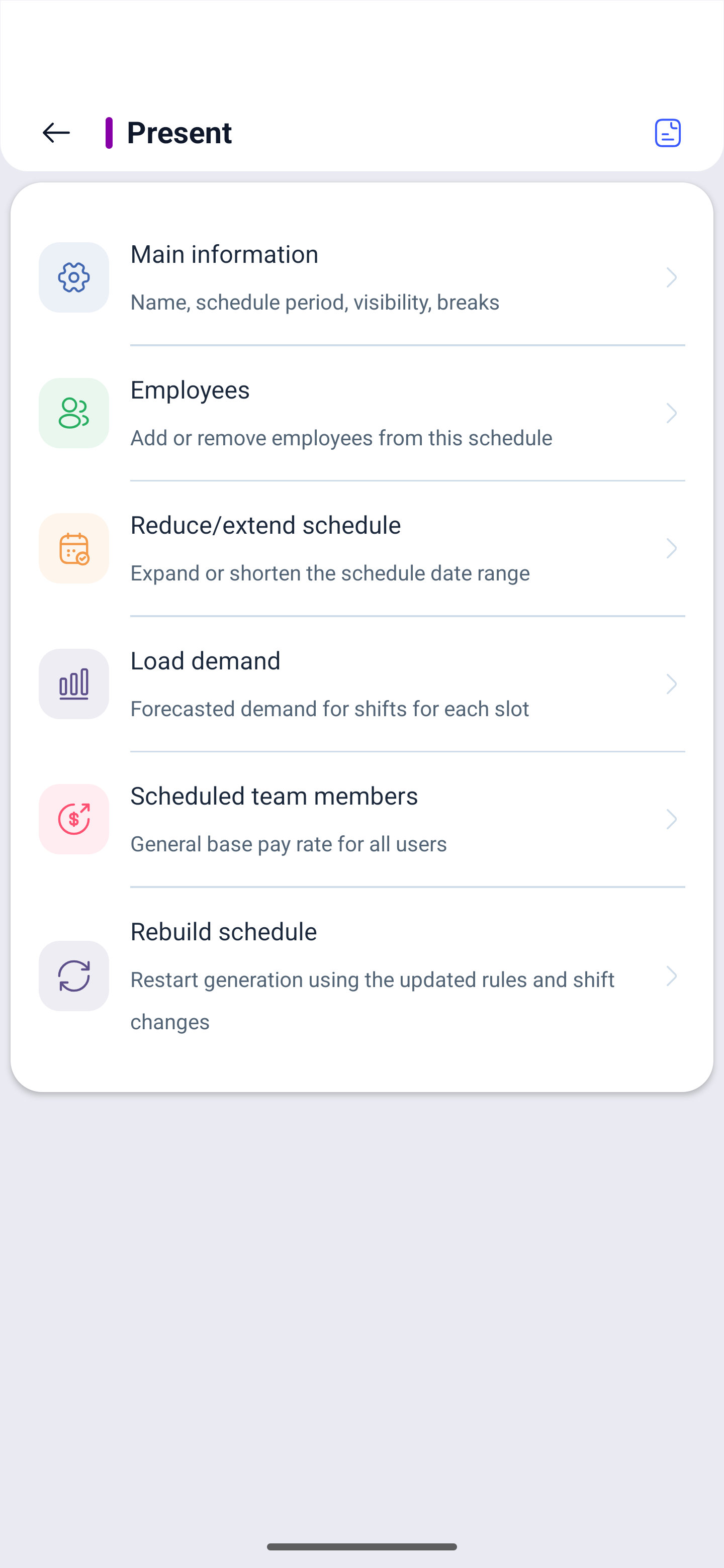
☰ → Schedules → Schedules → tap the schedule you need in the list. A screen with six sections will open.
| Section | What it changes |
|---|---|
| Main information | The name, the color, the week control and the self-service permissions |
| Employees | The make-up: who to add to the schedule and who to take out |
| Reduce/extend schedule | The period: extend it or shorten it |
| Load demand | The load forecast — how many shifts are needed in each slot |
| Scheduled team members | The basic pay rate for everyone who is in this schedule |
| Rebuild schedule | Regenerating the schedule by the updated rules |
Main information: what an employee can do themselves
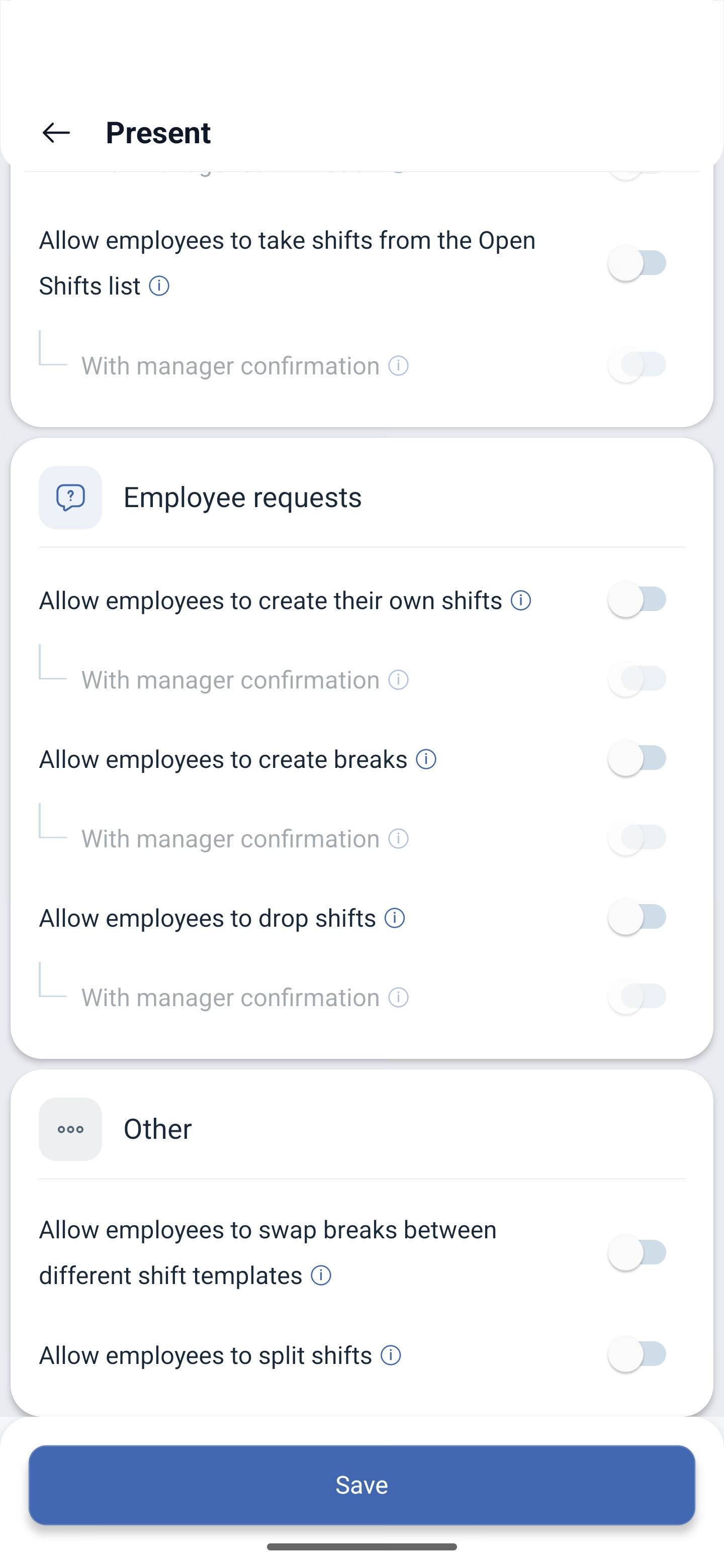
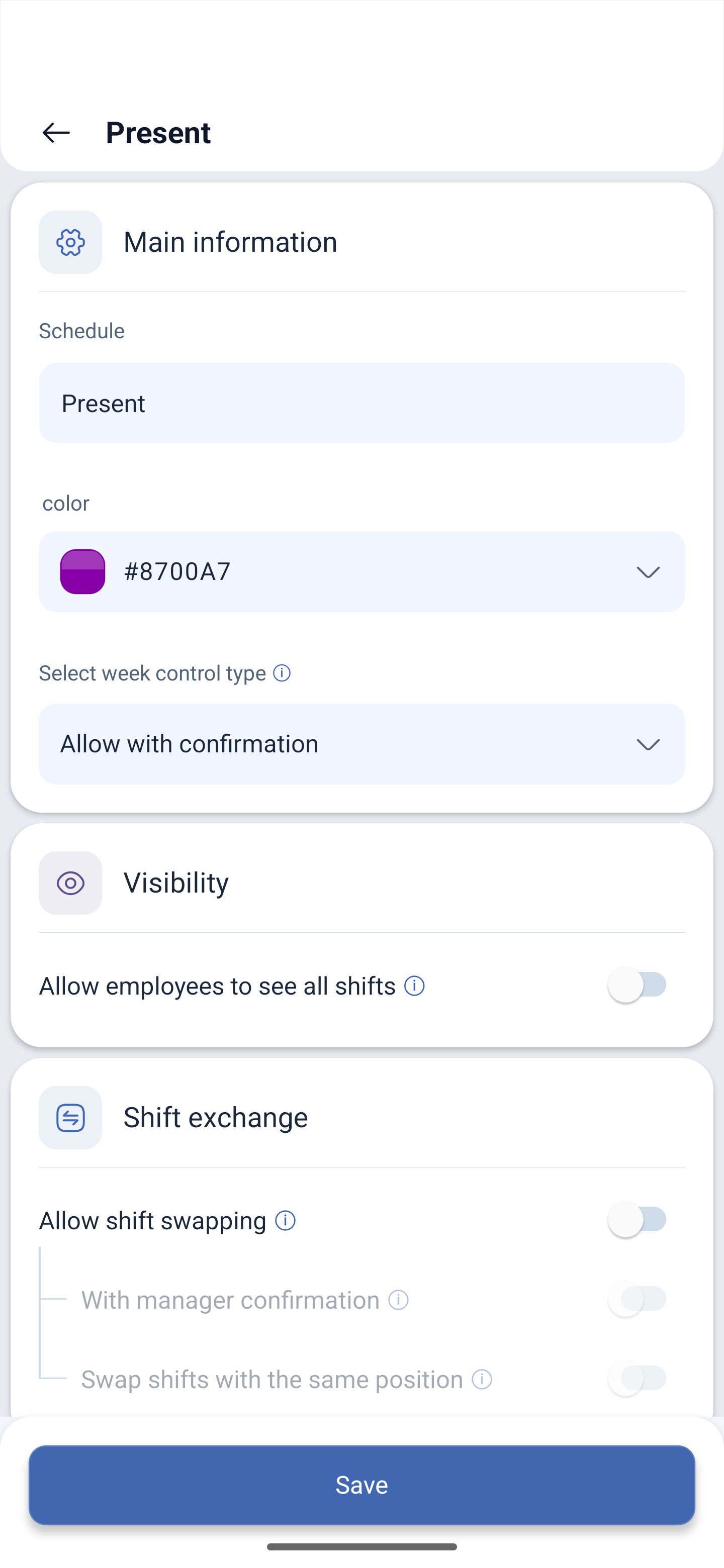
Besides the name, the color and the type of week control, all the self-service toggles are gathered here — what an employee can do with their own shifts by themselves. There are ten of them, in five groups.
This is not the rights level in the company: a person is made an employee, an administrator or an owner in their card, and that applies everywhere. The toggles below apply only inside this schedule, so in one schedule the swapping of shifts may be allowed and in the neighbouring one not.
| Group | Toggle | What it allows |
|---|---|---|
| Visibility | Allow employees to see all shifts | To see the shifts of the whole team and not only their own |
| Shift exchange | Allow shift swapping | To swap shifts with colleagues |
| With manager confirmation | The swap goes through only after the approval of the manager | |
| Swap shifts with the same position | To swap only with the same position | |
| Free shifts | Allow employees to send shifts to the open shift list | To give their own shift away to the list of free ones |
| Allow employees to take shifts from the Open Shifts list | To take shifts from the list of free ones | |
| Employee requests | Allow employees to create their own shifts | To create shifts for themselves |
| Allow employees to create breaks | To create breaks | |
| Allow employees to drop shifts | To give up a shift | |
| Other | Allow employees to swap breaks between different shift templates | To swap breaks between different shift templates |
| Allow employees to split shifts | To split a shift into parts |
The changes take effect after the Save button.
Employees: who to add and who to take out
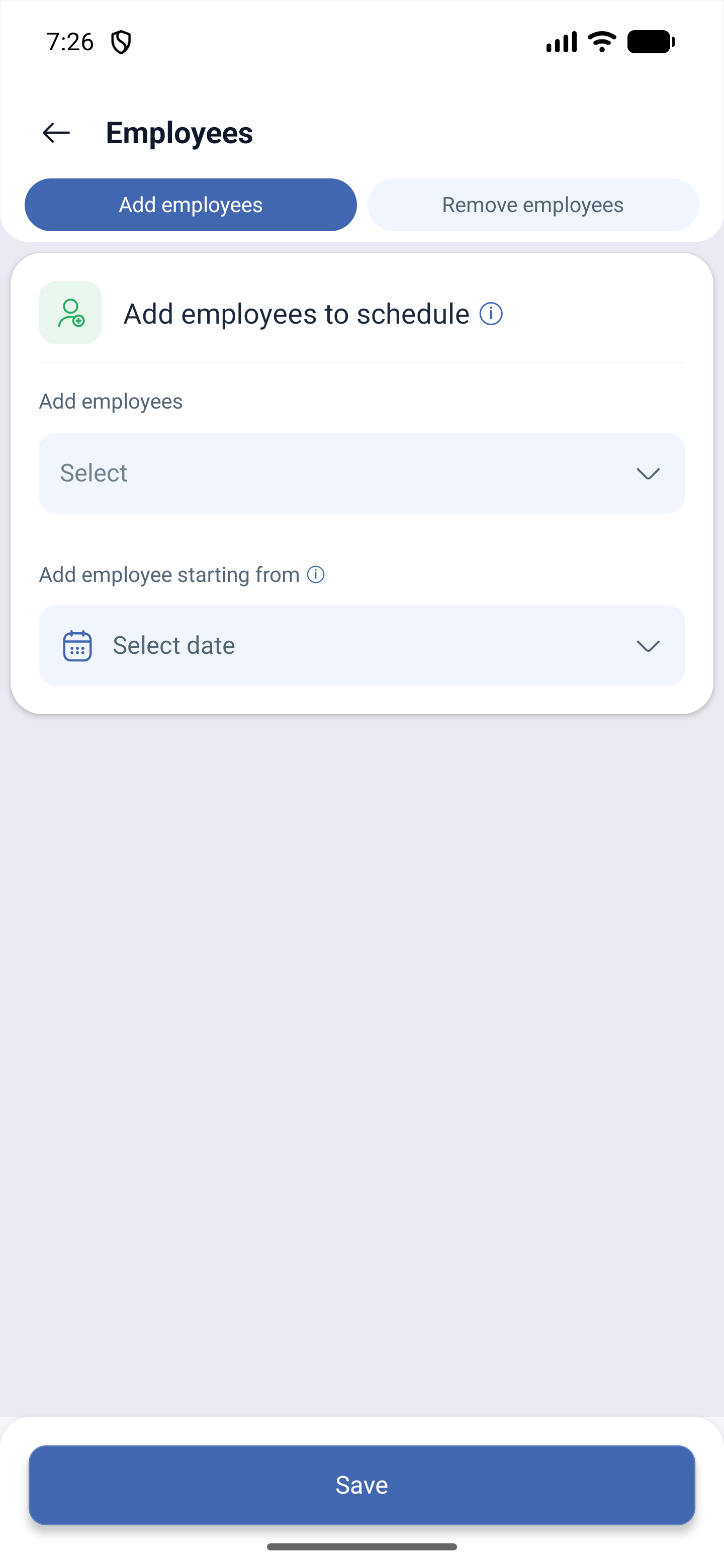
The section has three fields.
| Field | What it does |
|---|---|
| Add employees to schedule | The choice of the people who have to be put into this schedule |
| Add employee starting from | The date from which the person gets into the schedule. Not from the beginning of the period, but from the chosen day |
| Remove employees | To take a person out of the schedule without deleting them from the company |
The field with the date is what people most often come here for: a new person started work in the middle of the month, and they need shifts not from the first day of it.
Shortening or extending the period
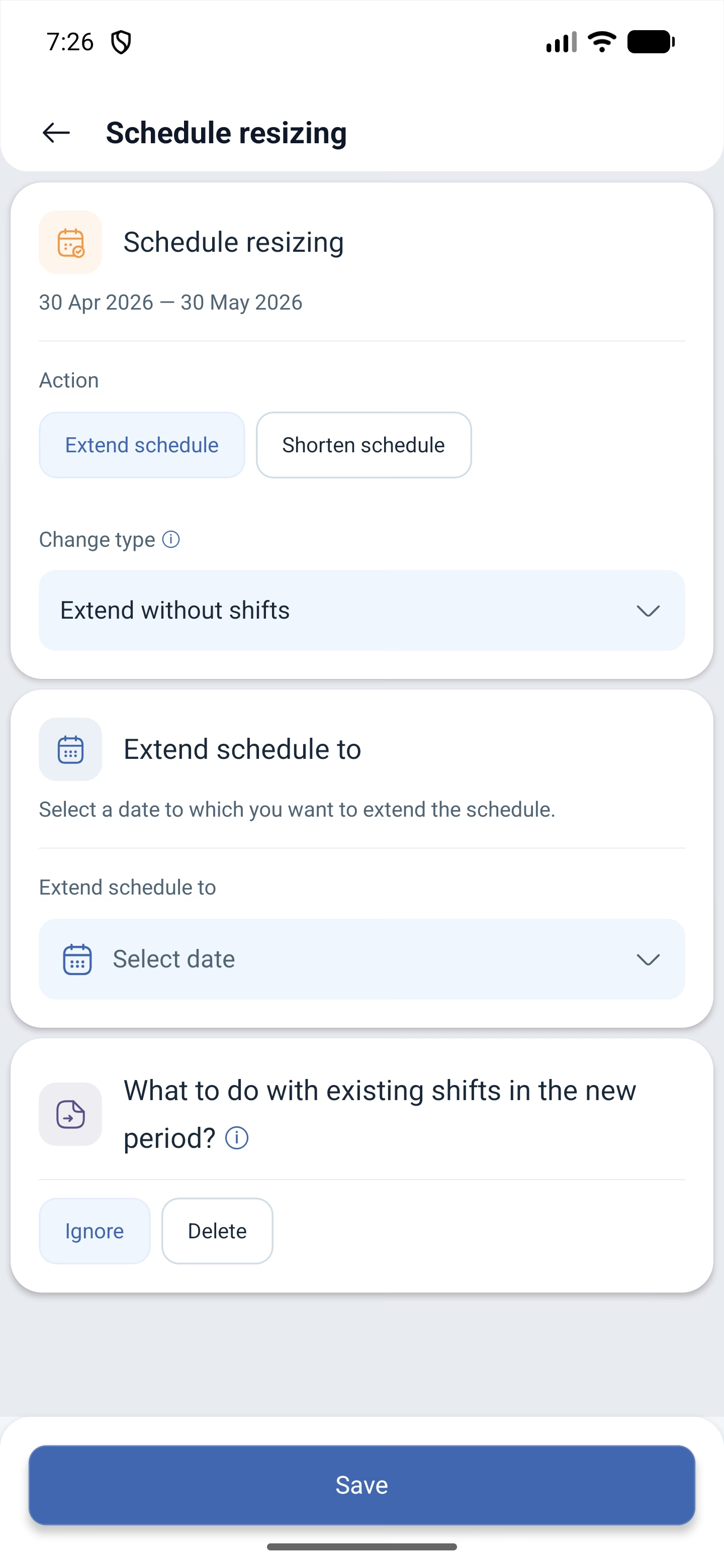
The screen is called Schedule resizing, and the current period is shown at the top.
| Field | Options |
|---|---|
| Action | Extend schedule or Shorten schedule |
| Change type | For example Extend without shifts — the period will become longer, but shifts will not appear in it |
| Extend schedule to | The date the period is stretched to |
| What to do with existing shifts in the new period? | Ignore or Delete |
The last question is more important than it seems: if there are already shifts in the new period — from another schedule, for example — the app will ask whether to keep them or to wipe them.
Extending without shifts suits the case when the period has to be stretched and you will place the shifts later by hand or rebuild the schedule.
Load demand
The forecast: how many shifts are needed in each slot. The system places the shifts by this data during the automatic distribution.
While the forecast has not been set, the screen says No data — that is how it is for a new schedule.
Scheduled team members: the pay rate
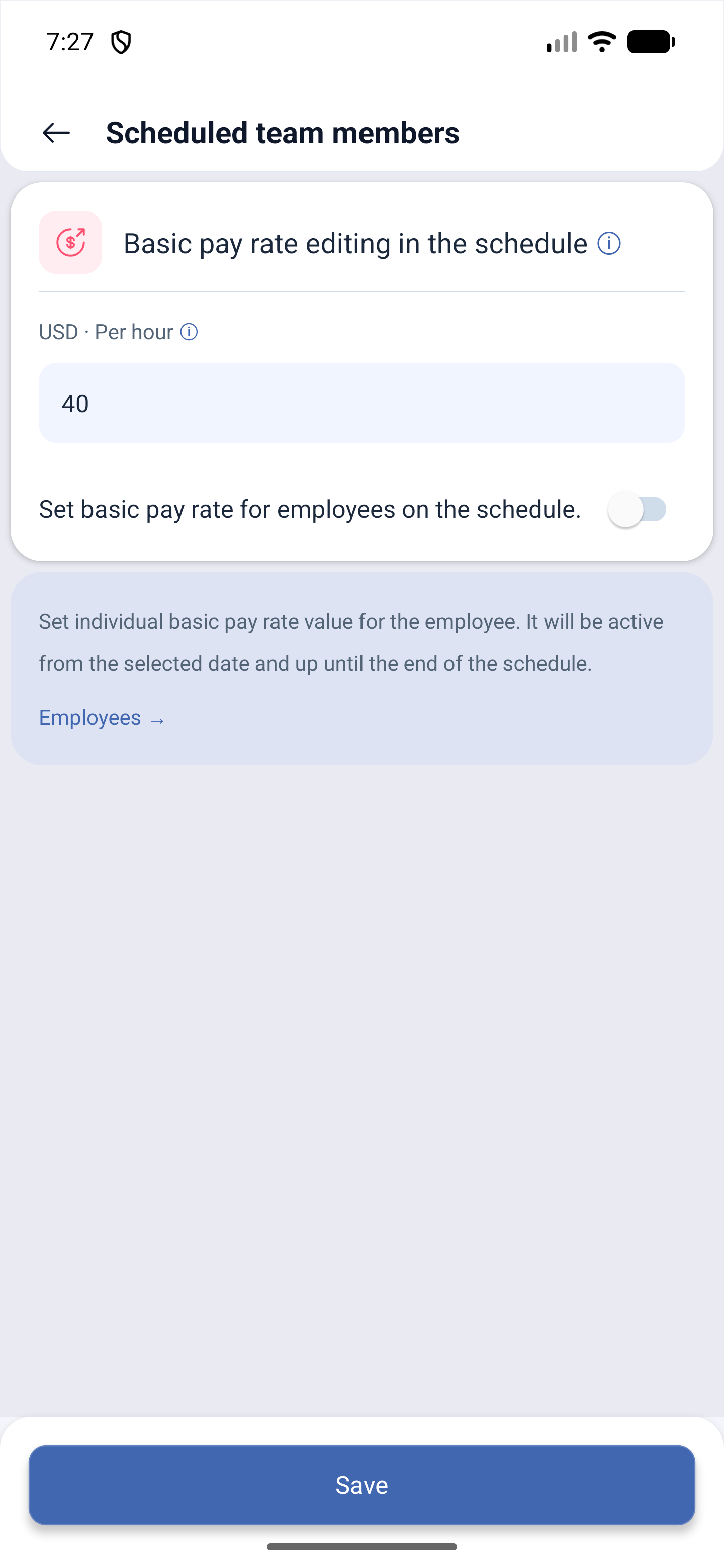
The Basic pay rate editing in the schedule screen. At the top there are the currency and the unit — USD · Per hour, for example — and the value of the rate itself.
Two hints on the screen explain the difference between the common rate and the personal one:
- Set the basic pay rate for the employees in the schedule — that is, the common rate for all the participants;
- Set an individual basic pay rate for the employee. It will apply from the chosen date and until the end of the schedule — that is, a separate person can be given their own one, and only inside this schedule.
Below there is the Employees button — the way to the list where the rate is set by name.
Rebuild schedule: build it anew
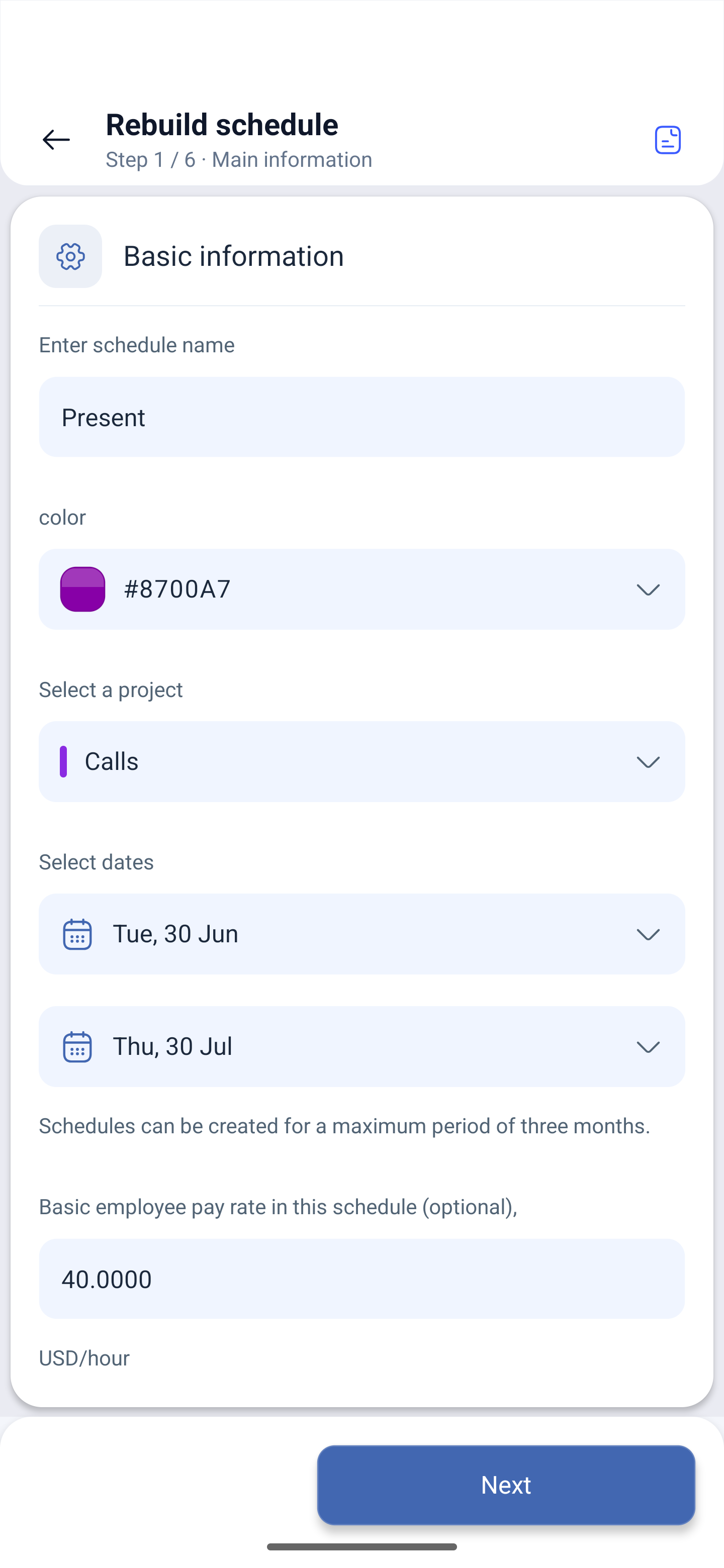
The section opens the same wizard as the creation does, but already filled in with the data of this schedule — the name, the color, the project, the period, the rate. You correct what has to be changed and start the generation again.
This is needed when there are more rules or when they have changed: a shift template has been added, the days of the week have been changed, the load has been corrected. Instead of deleting the schedule and assembling it from scratch, you rebuild the existing one.
Possible problems and solutions
| Problem | Cause | Solution |
|---|---|---|
| The employee does not see the shifts of others | Allow employees to see all shifts is off | Turn the toggle on in Main information and save |
| The employees swap shifts without asking | With manager confirmation is off | Turn it on — the swap will go through your approval |
| The changes have not been saved | The Save button was not pressed | Go back into the section and save |
| A schedule longer than the one created is needed | The period was set at the creation | Reduce/extend schedule extends it without recreating it |
| After the rules were corrected the shifts stayed the old ones | The rules change, the shifts already created do not | Start the Rebuild schedule |
Frequently asked questions (FAQ)
Question: How is “Rebuild schedule” different from creating a new schedule? Answer: The wizard is the same, but the fields are already filled in with the data of the existing schedule, and the result replaces it instead of adding a second one.
Question: Can a schedule be extended without recreating it? Answer: Yes, the Reduce/extend schedule section — it also shortens the period.
Question: Where do I change the pay rate for everyone in the schedule at once? Answer: In the Scheduled team members section — that is the basic pay rate for all the participants of this schedule.
Question: Which rights are set here and which ones in the employee card? Answer: Here there are only these ten self-service toggles: what a person can do with their own shifts (swap them, give them away to the free ones, take them from there, create shifts and breaks, split a shift). They apply inside one schedule, and in different schedules they may differ. The rights level in the company — employee, administrator, owner — is set in the employee card and applies to the whole company, and the schedule does not affect it.
Question: An employee can give a shift away but cannot take one — why? Answer: These are two different toggles in the Free shifts group: giving away to the list of free ones and taking from there are allowed separately.
Question: What is “Load demand”? Answer: The load forecast: how many shifts are required in each slot. The system places the shifts by this data during the automatic distribution.
Question: Can an employee be taken out of a schedule without being deleted from the company? Answer: Yes, in the Employees section of this schedule.
Question: A new employee started in the middle of the month — how do I put them in not from the beginning? Answer: In the Employees section there is the Add employee starting from field: specify the date they started.
Question: What happens to the shifts that are already in the new period when it is extended? Answer: The app will ask: Ignore — leave them as they are, Delete — wipe them and build anew.
Question: Where is the pay rate of an employee set at all? Answer: There is no pay rate in the employee profile. The rate is set on four levels: in the company settings, in the project, at the position and here, in the schedule. The system looks it up along the chain company → schedule → position → location. The rate from the schedule applies only inside it and only from the chosen date until the end of the period, so one person can be paid differently in different schedules.