

My Shifts is your personal dashboard where you can view your upcoming shifts, current schedule, and daily activity at a glance.
What Is This?
The My Shifts view is the employee-facing side of the Dashboard. When you open the Dashboard as an employee (or click the “My Shifts” tab as a manager), you see a personalized overview of your own schedule. It shows your upcoming shifts, current shift status, and any activities assigned to you, so you always know when and where you need to be.
Prerequisites
| Requirement | Details |
|---|---|
| Account | Active Shifton employee account |
| Schedule | You must be added to at least one schedule with assigned shifts |
| Project | You must be assigned to at least one project |
Step-by-Step Instructions
Accessing My Shifts
Viewing Your Upcoming Shifts
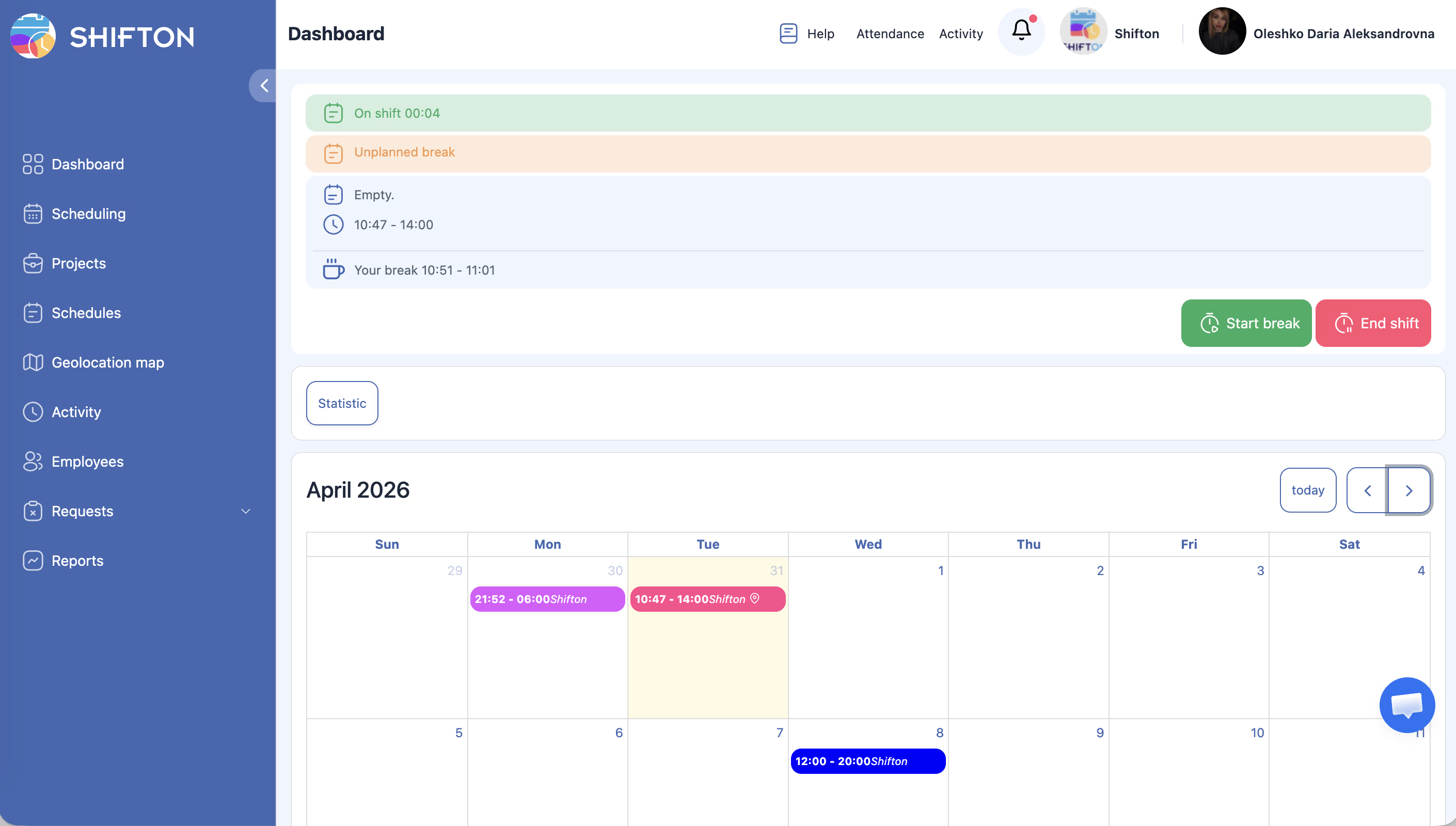
| Field | Description |
|---|---|
| Date | The date of the shift |
| Time | Start and end time of the shift |
| Project | The project the shift belongs to |
| Position | Your assigned position for that shift |
| Location | Where the shift takes place (if set) |
Checking Your Current Shift
Viewing Your Schedule
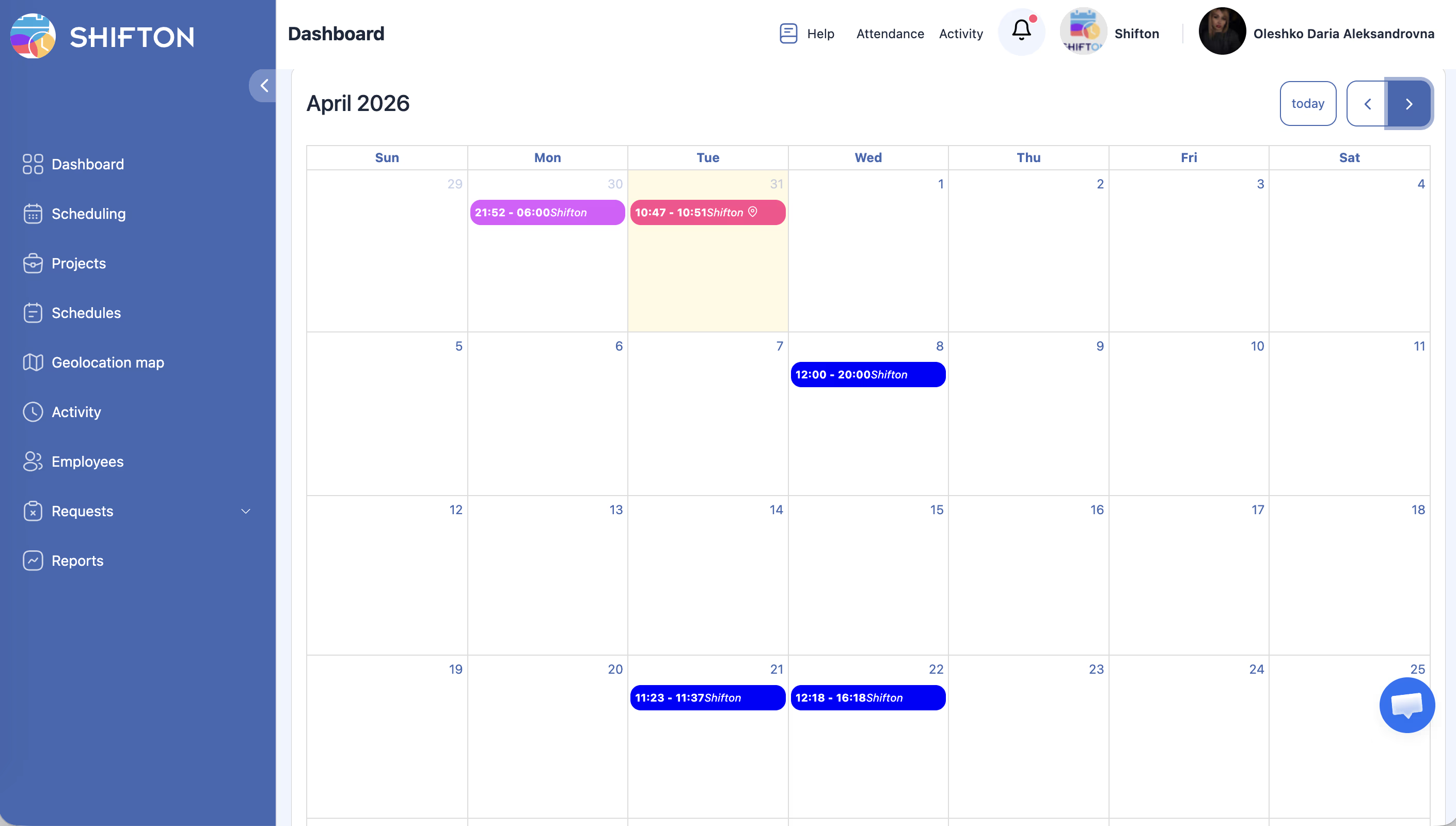
Viewing Assigned Activities
Access Permissions
| Role | View My Shifts | View Company Dashboard |
|---|---|---|
| Owner | Yes | Yes |
| Administrator | Yes | Yes |
| Manager | Yes | Yes |
| Employee | Yes | No |
FAQ
Q: Why don’t I see any shifts on My Shifts?
A: You may not have any shifts assigned to you in the current or upcoming period. Contact your manager to confirm your schedule. Also verify that the schedule covering your shifts is published.
Q: Can I edit my shifts from the My Shifts view?
A: No, My Shifts is a read-only view. To request changes, use the shift swap, transfer, or other request features available to you (depending on your company’s settings).
Q: How far ahead can I see my shifts?
A: My Shifts shows all shifts assigned to you within the currently published schedule period. If your manager has published schedules further in advance, those shifts will also appear.
Q: I see a shift that I cannot work. What should I do?
A: Depending on your company’s settings, you can request a shift swap, transfer the shift to a colleague, or post it to the open shifts list. Check with your manager about which options are available.
Q: Does My Shifts update in real time?
A: Yes. If your manager makes changes to the schedule, your My Shifts view will reflect those changes after a page refresh.
Possible Issues and Solutions
| Issue | Possible Cause | Solution |
|---|---|---|
| No shifts displayed | No shifts assigned to you | Contact your manager to verify your schedule assignments |
| Shifts missing for certain dates | Schedule not published for those dates | Ask your manager to publish the schedule for the relevant period |
| Wrong shift times shown | Time zone mismatch | Check your profile time zone settings under My Profile |
| Cannot find My Shifts tab | You are viewing as a manager | Click the “My Shifts” tab at the top of the Dashboard page |
| Activities not showing under shifts | No activities assigned | Your manager may not have assigned activities to your shifts |
| Page shows “No data” | You are not assigned to any project | Ask your administrator to assign you to a project and schedule |