

In version 2.1.0 the navigation in the app was rebuilt. It used to be a list for an employee: my schedule, my requests. Now the app mirrors the web version almost in full — schedules, reports, employees, company settings — and it is built out of two parts: the bottom bar for everyday tasks and the Workspace menu for everything else.
This describes the app through the eyes of the company owner — with the complete set of sections. Everyone else has a different set:
| Who | What they see |
|---|---|
| Owner | All sections, including the financial ones: balance, billing details and payment methods |
| Administrator | The same sections except the financial ones — those are open to the owner only |
| Manager | The same sections, but only the data of their own project: their schedules, their employees, their requests |
| Employee | A short menu: own availability, salary, files and activity. There are no schedules, reports, map, projects, employees or company structure |
What an employee sees is covered in the article “Mobile app for an employee”.
Step-by-step instructions
The bottom bar
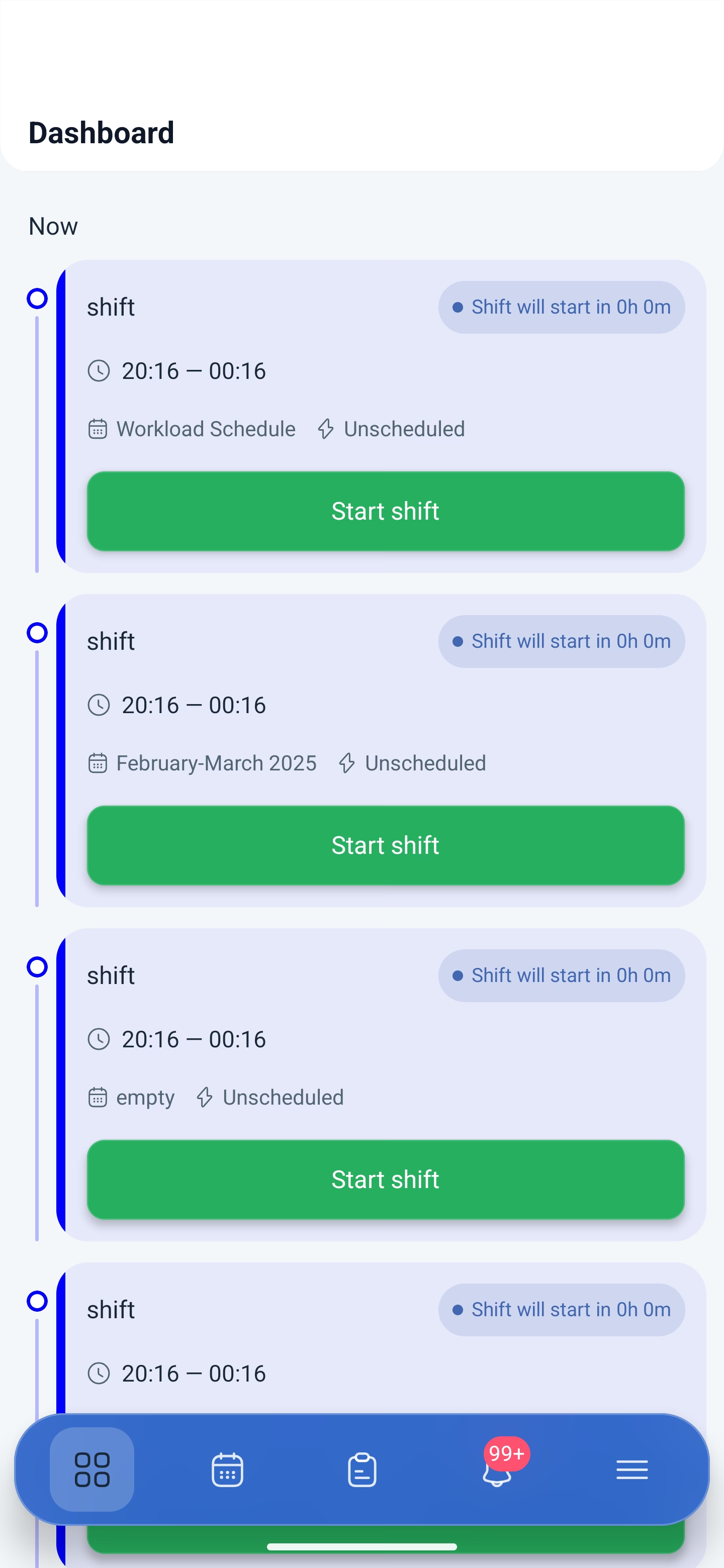
The bar is visible on all main screens and does not disappear when you scroll. Five icons from left to right:
| Icon | Screen | What is there |
|---|---|---|
| Tile | Dashboard | The current shift with a start button, the upcoming shifts by day |
| Calendar | Schedule | The month’s shifts, time off and absences, filters |
| Tablet | Requests | Employee requests: new ones and the archive |
| Bell | Notifications | A feed of events. The red counter shows how many are unread |
| Three bars | Workspace | The menu with all the remaining sections |
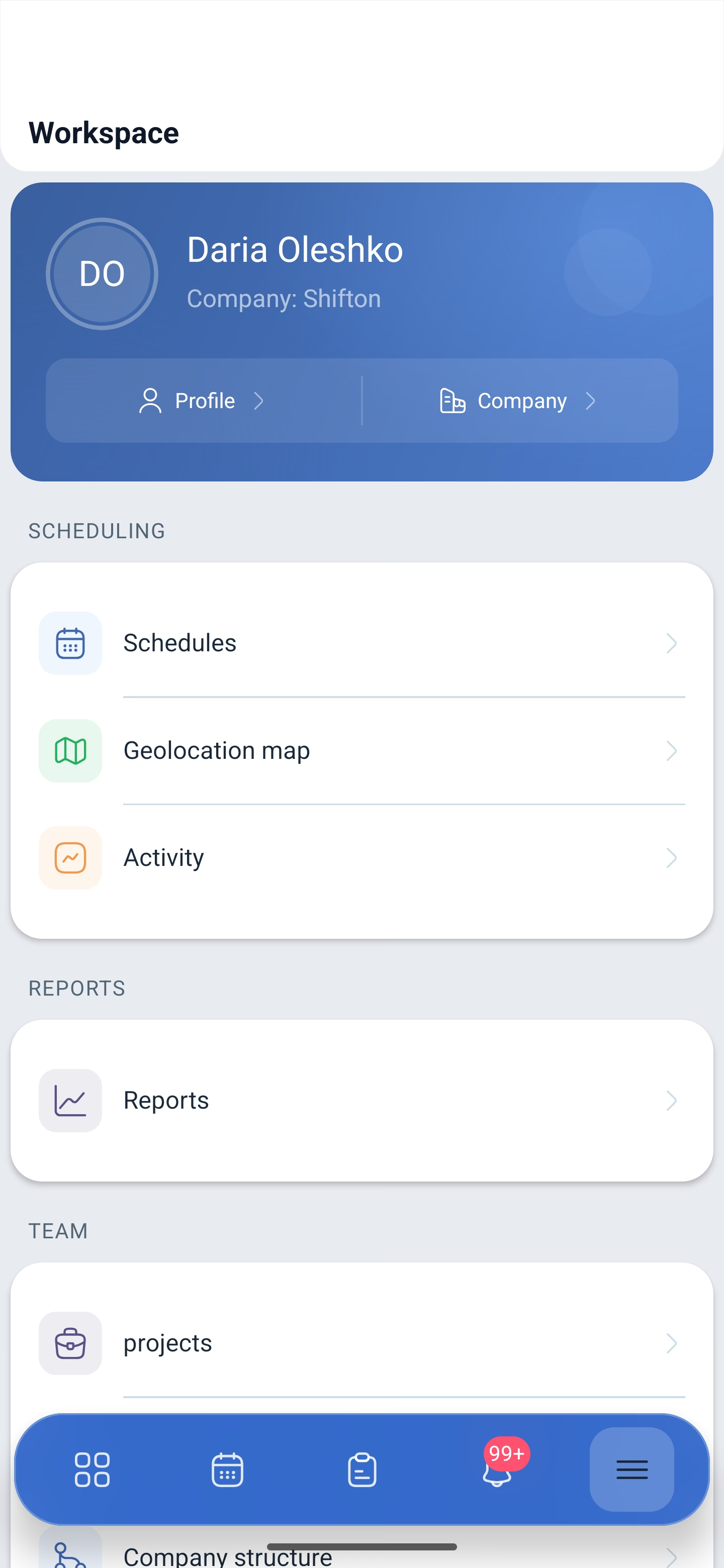
The “Workspace” menu
At the top there is a card with your name and the company name, and inside it two buttons: Profile and Company. Below are the sections, grouped by meaning.
| Group | Item | What it opens |
|---|---|---|
| Scheduling | Schedules | The list of schedules, creating a new one, shift templates |
| Geolocation map | Where the employees on shift are located | |
| Activity | The calendar of activities and their templates | |
| Reports | Reports | The eleven company reports |
| Team | Projects | The list of projects, search and creation |
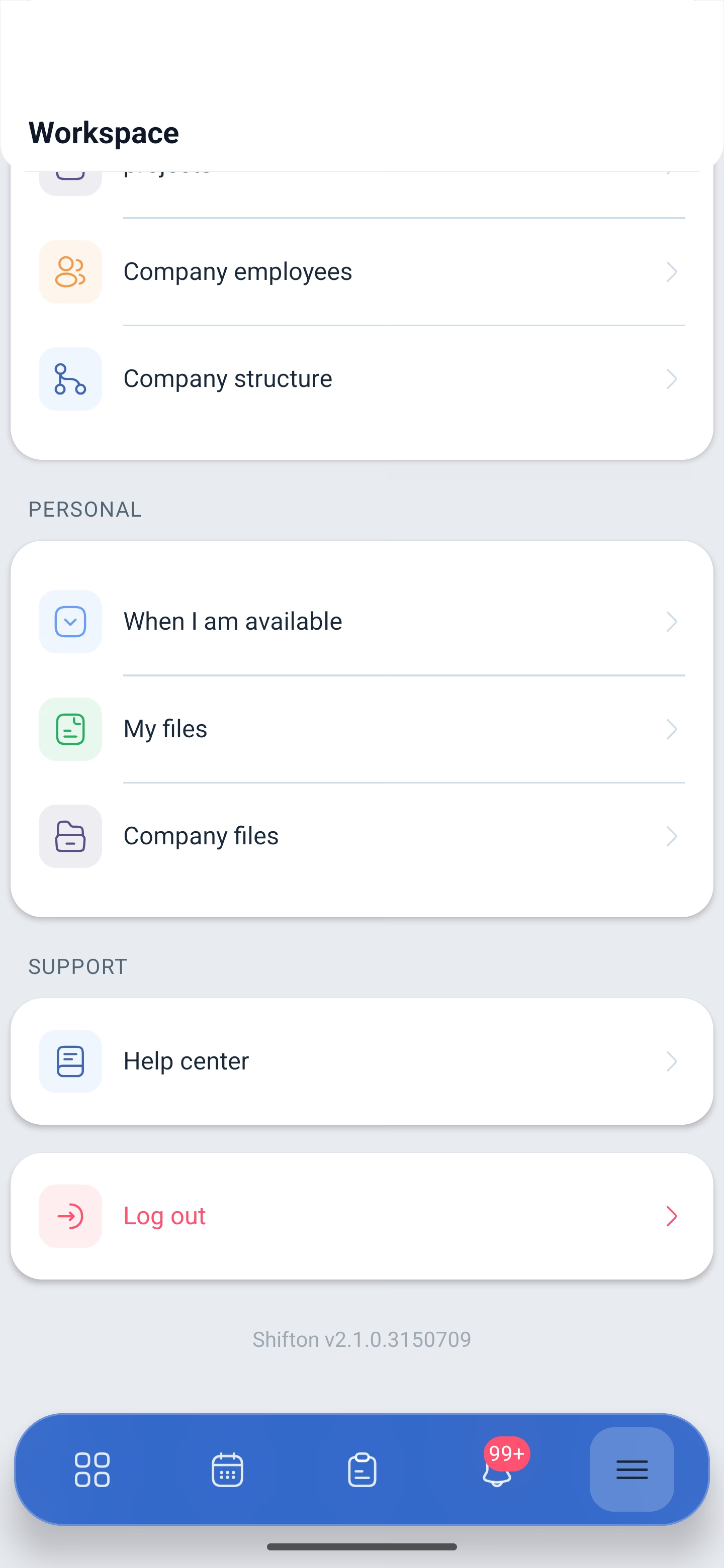
| Company employees | The list of employees and their rights | |
| Company structure | Skills, positions and locations | |
| Personal | When I am available | Your own availability, and for a manager other people’s too |
| My files | Your documents | |
| Company files | The shared company documents | |
| Support | Help center | Articles, videos and contact with support |
At the bottom of the menu there is the Log out button and the app version. The version comes in handy if you need to tell it to support.
What is inside “Company”
The Company button opens the settings that used to be available only in the browser:
| Group | Item |
|---|---|
| General | Company profile, Modules, Referral system, For developers |
| System | Activity log, Balance, Billing address, Payment methods, Change company |
The financial sections — balance, billing address and payment methods — are open to the company owner only.
Possible problems and solutions
| Problem | Cause | Solution |
|---|---|---|
| There are no schedules, reports or employees in the menu | You signed in as an employee | These sections are seen by a manager, an administrator and the owner |
| Cannot find the company settings | They are not in the list of sections but in the card at the top | Menu → the Company button in the card with the company name |
| The bottom bar covers the last item of the list | The bar hangs above the content | Scroll the list a little higher — the item will come out from under the bar |
| Cannot see how many notifications are unread | The counter shows 99+ if there are more than ninety-nine | Open the feed and work through it |
| The app does not look the way it does in the article | A version older than 2.1.0 is installed | Update the app — the navigation was rebuilt exactly in that version |
Frequently asked questions (FAQ)
Question: Where did the old menu go? Answer: It was replaced by Workspace. The former sections have not gone anywhere, they are laid out in groups, and next to them are the ones the app did not have before.
Question: Where can I see the app version? Answer: At the very bottom of the menu, under the Log out button.
Question: Why do I have fewer items in the menu? Answer: The composition depends on the rights. An employee sees their own schedule, requests, availability and files, but does not see team management and company settings.
Question: Can I switch to another company from the phone? Answer: Yes: Company → Change company.
Question: What is the difference between “Schedule” on the bottom bar and “Schedules” in the menu? Answer: On the bar there is the shift calendar, to see who works and when. In the menu there is the list of company schedules, where they are created and configured.
Question: What does the red circle on the bell show? Answer: The number of unread notifications. More than ninety-nine is shown as 99+.
Question: Is there a help center in the app? Answer: Yes, in the Support group — from there articles, videos and contact with support open.