

Reset your Shifton password if you have forgotten it or can no longer log in.
What Is This?
If you have forgotten your Shifton password, you can request a password reset link to be sent to your registered email address. This is different from changing your password while logged in — password recovery is used when you cannot access your account at all.
The recovery link is sent to the email address associated with your account.
Prerequisites
| Requirement | Details |
|---|---|
| Registered email | The email address you used when signing up for Shifton |
| Access to that inbox | You must be able to receive emails at that address |
Step-by-Step Instructions
Step 1: Go to the Password Recovery Page
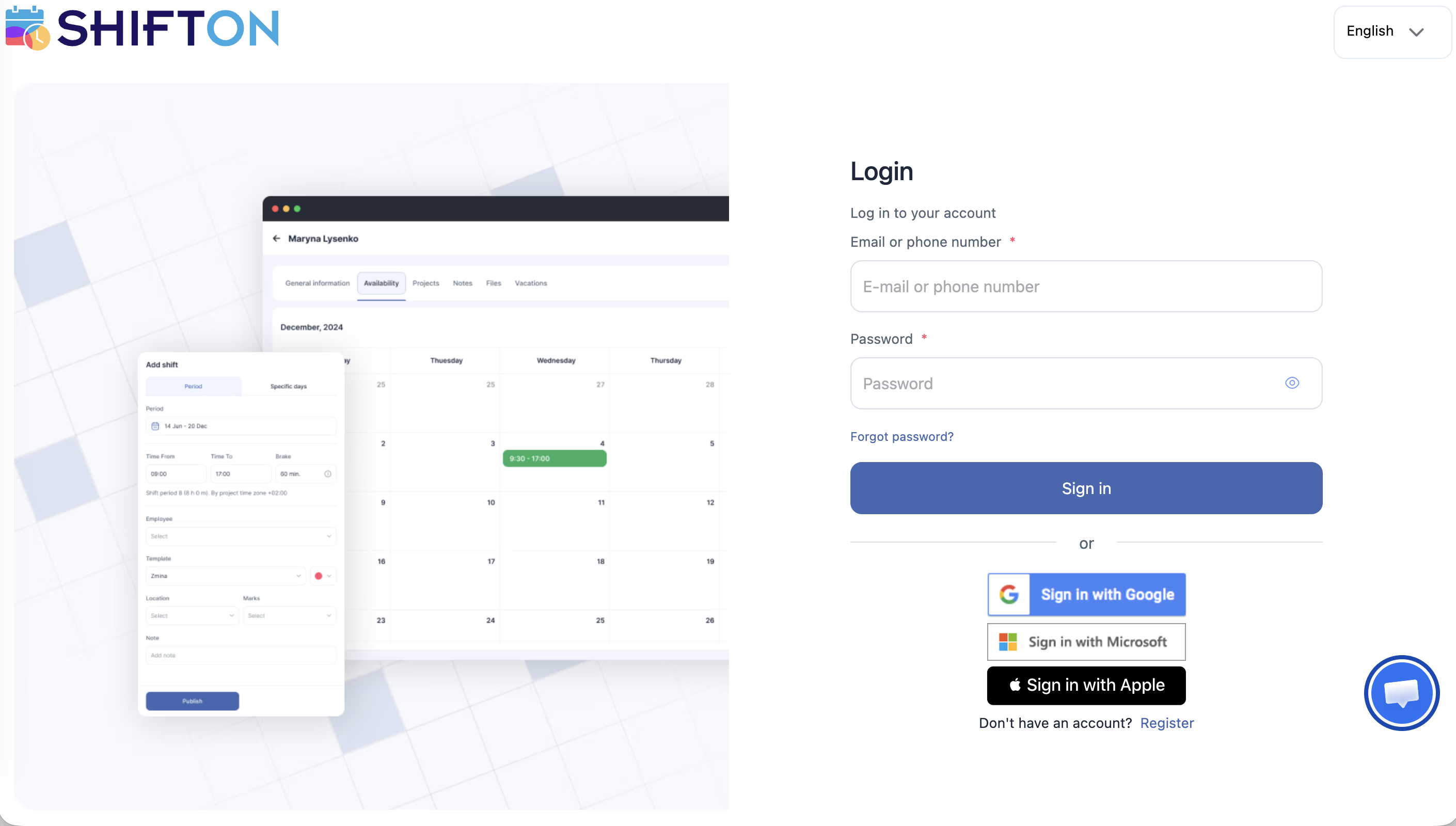
Open the following URL in your browser:
app.shifton.com/password/recovery
Alternatively, on the Shifton login page, click the “Forgot password?” link below the password field.
Step 2: Enter Your Email Address
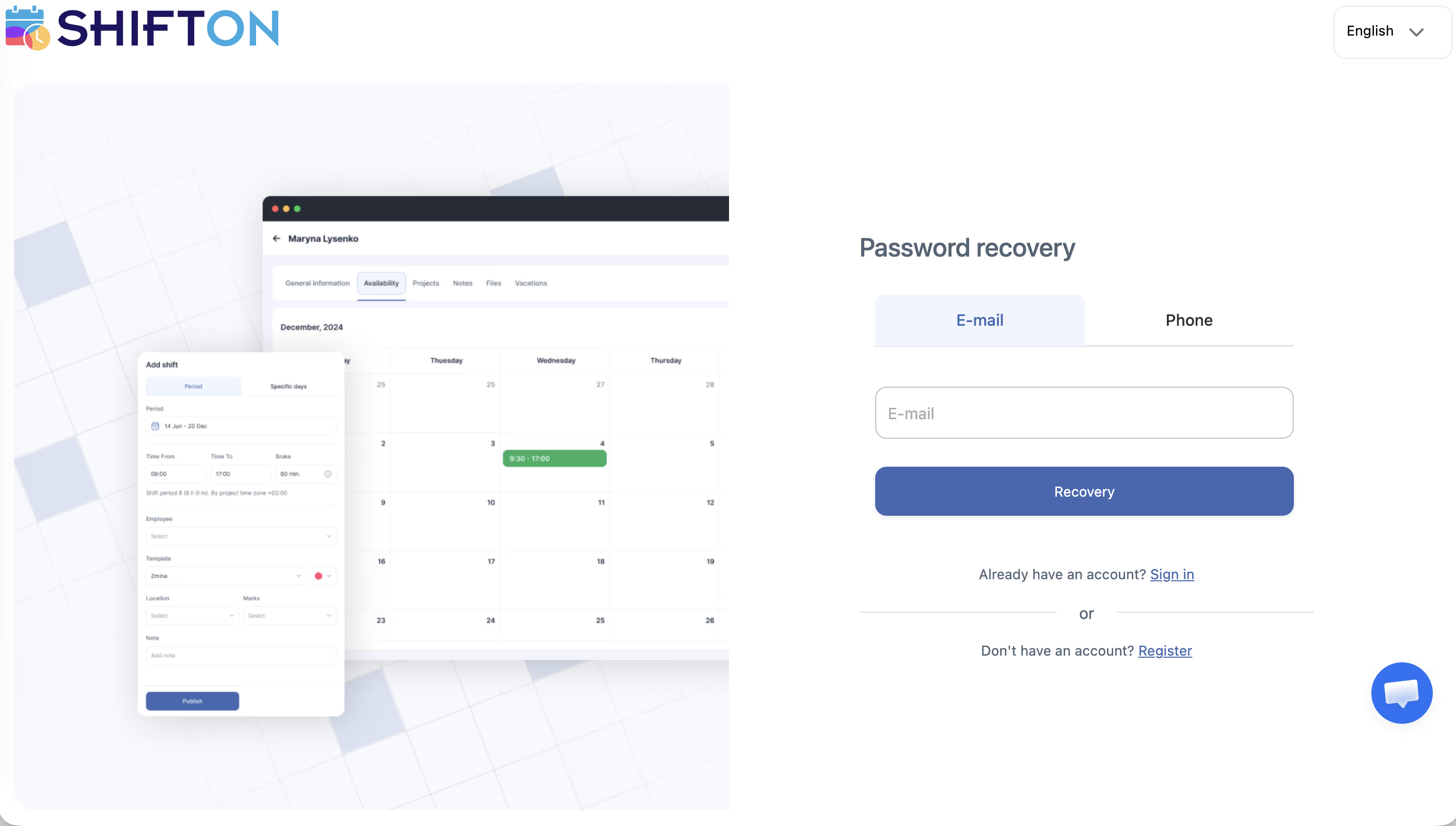
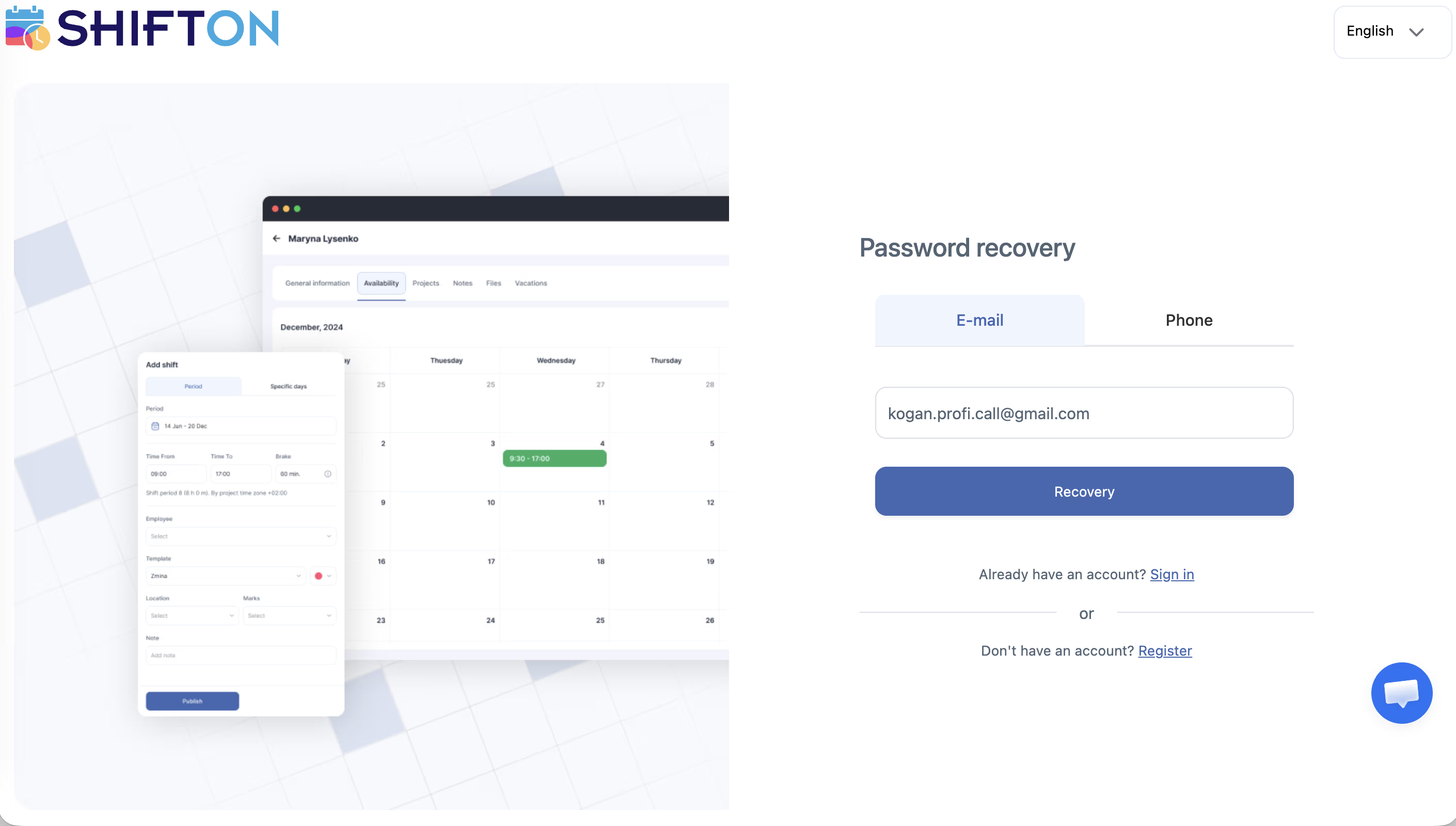
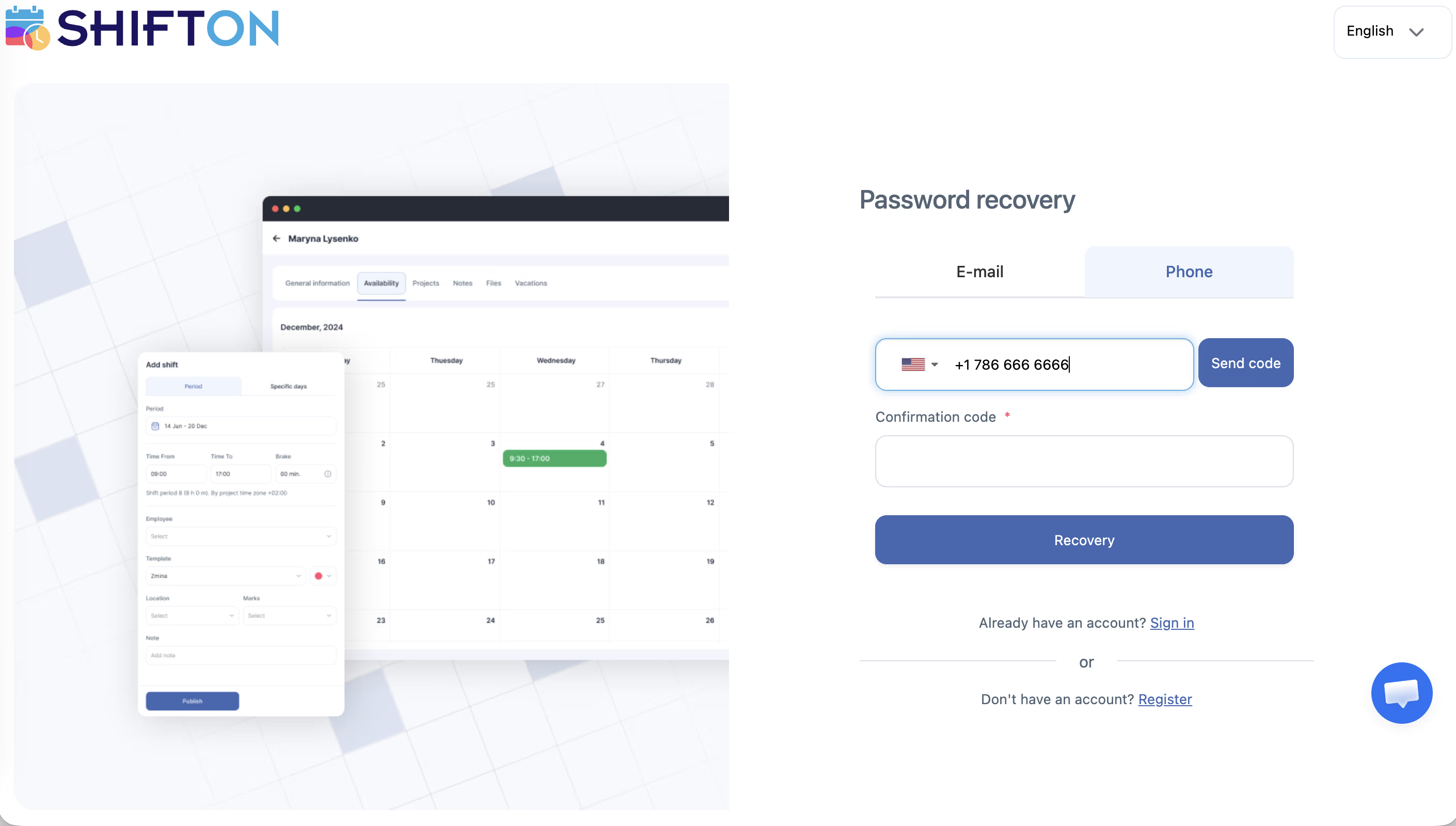
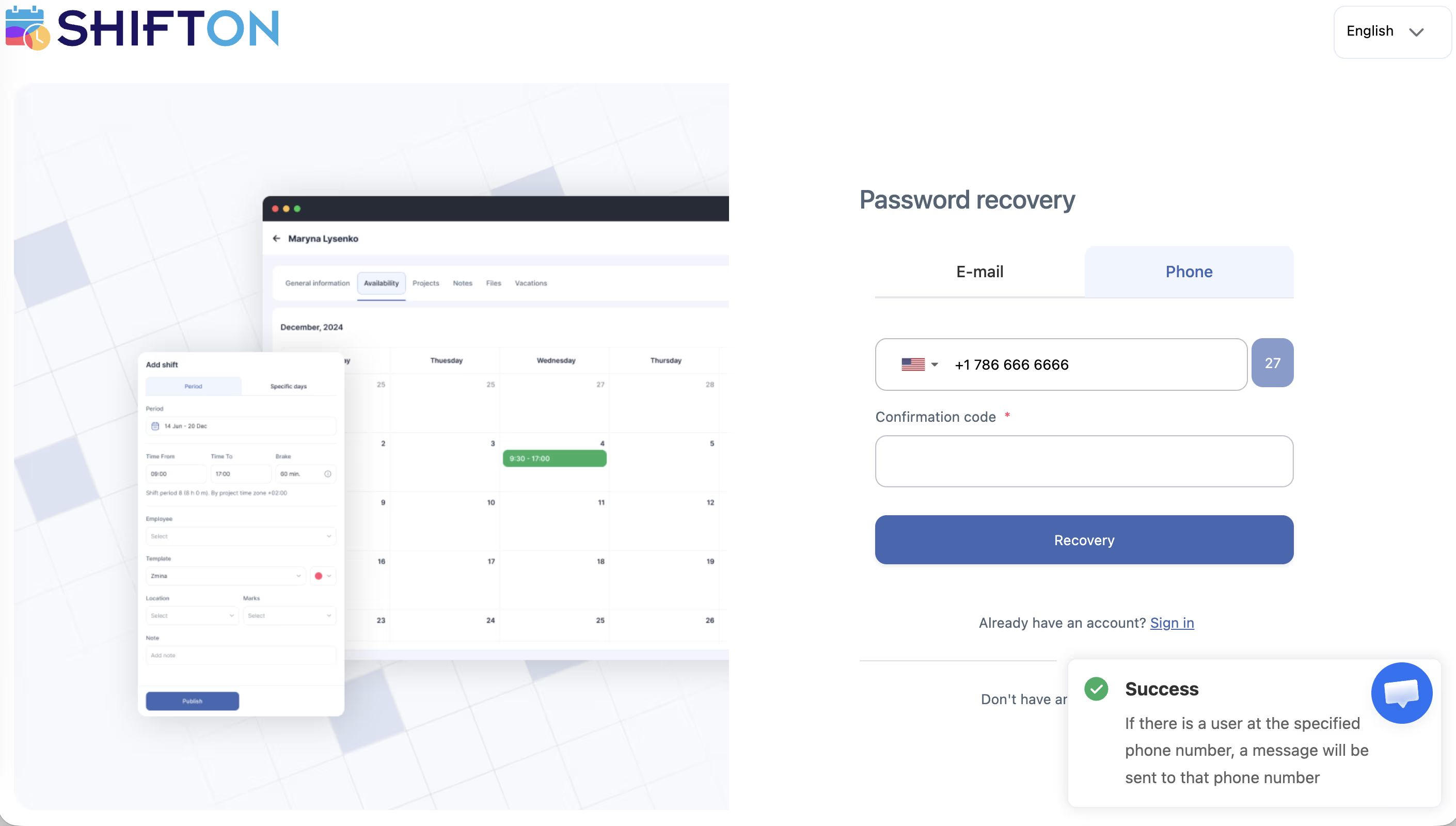
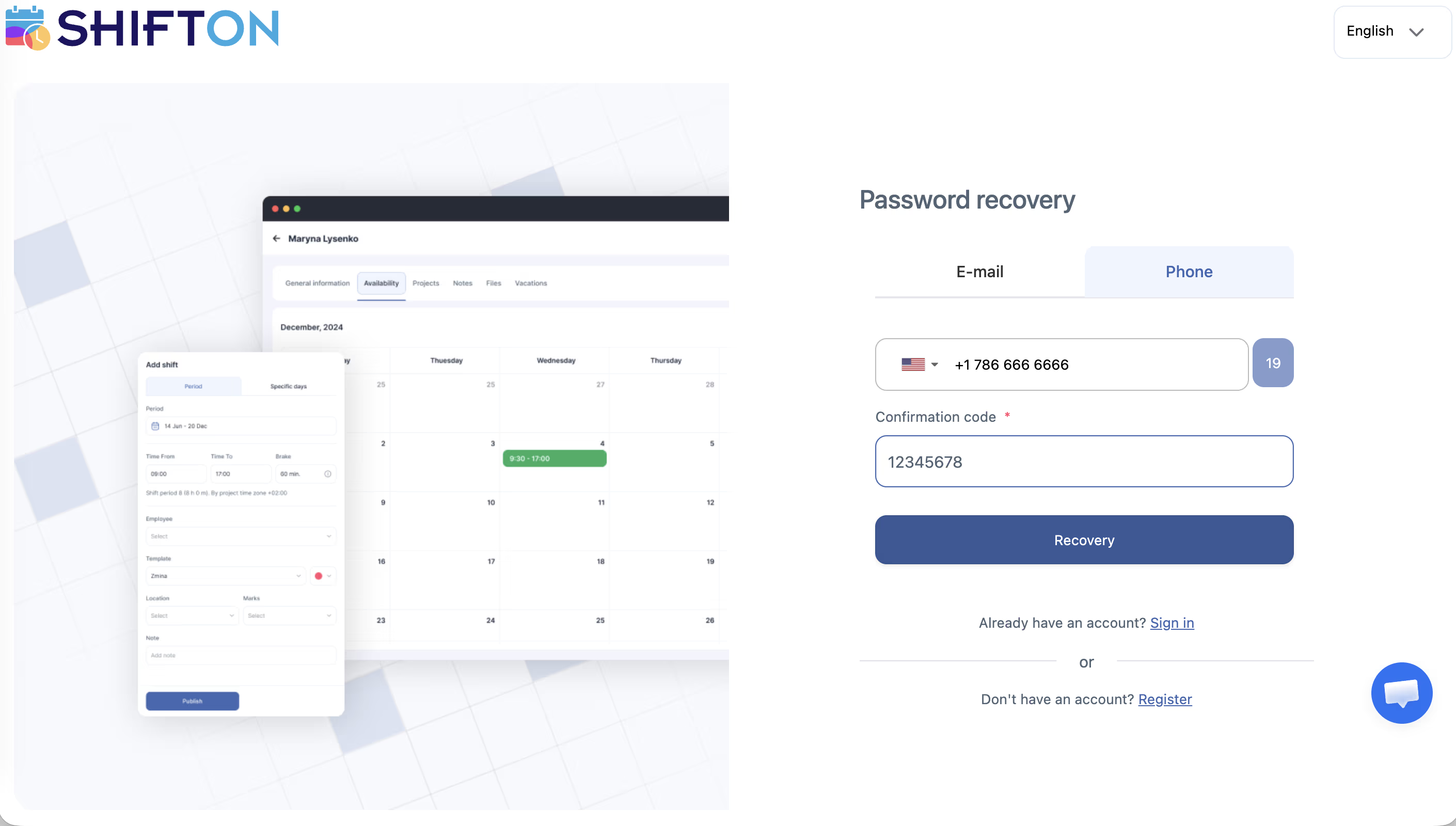
Step 3: Check Your Email
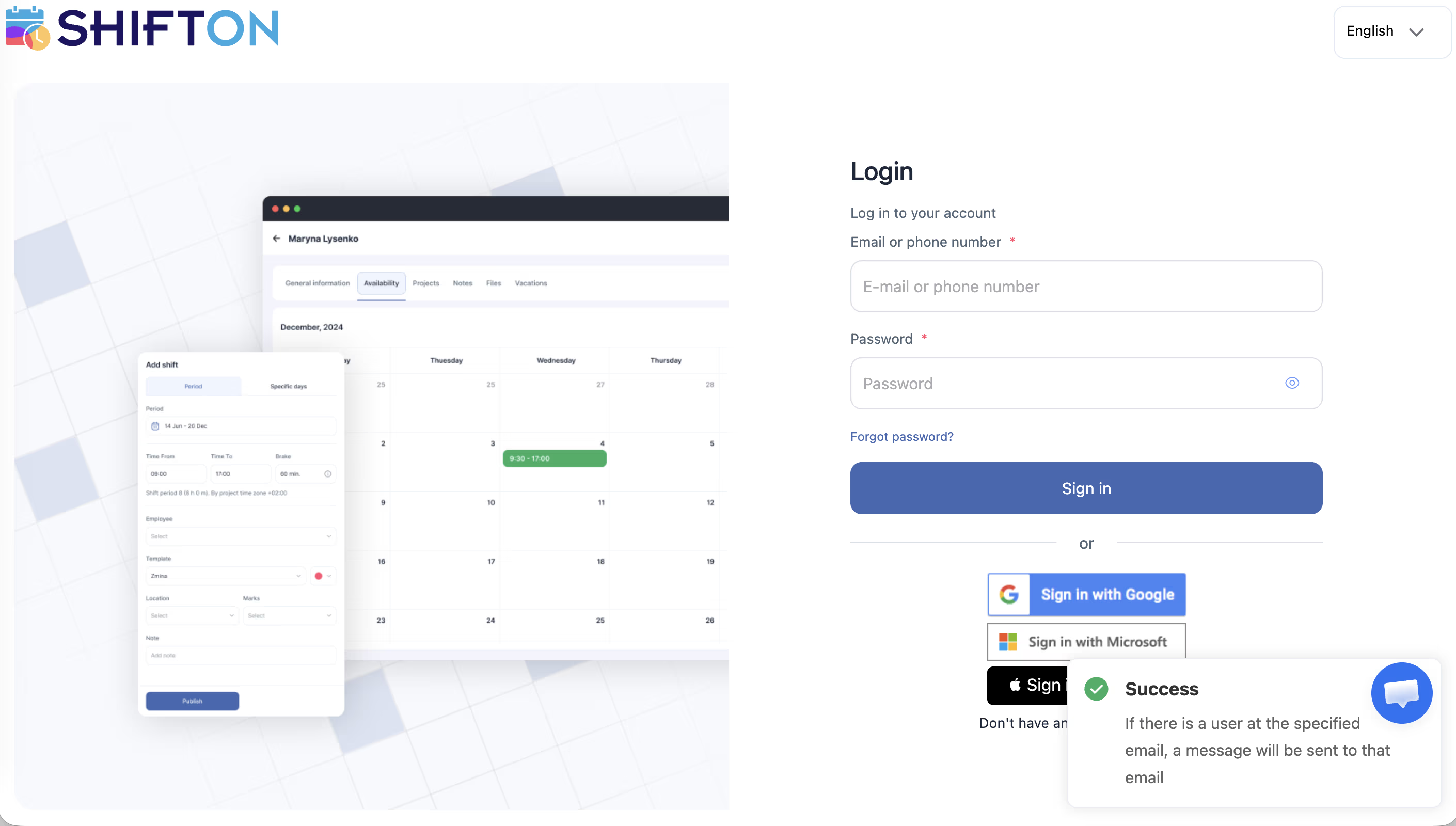
Step 4: Set a New Password
Step 5: Log In with Your New Password
If the Reset Email Does Not Arrive
If you have not received the password reset email within a few minutes:
Access Permissions
| Role | Can Use Password Recovery |
|---|---|
| Owner | Yes |
| Administrator | Yes |
| Manager | Yes |
| Employee | Yes |
Password recovery is available to all account types.
FAQ
Q: I entered my email but did not receive the reset link — what should I do?
A: First check your spam folder. If it’s not there, make sure you used the correct email address (the one you registered with). If the problem persists, contact Shifton support.
Q: The reset link in the email does not work — what now?
A: Reset links expire after a period of time. Request a new one by going to the password recovery page again.
Q: I do not remember which email I used to register — what can I do?
A: Contact Shifton support with any identifying information (company name, phone number associated with the account). The support team can help identify your account.
Q: I can log in but want to change my password for security reasons — where do I go?
A: Use the Change Password option. Click your name in the top-right corner → “Change password”. You will need your current password to do this.
Q: After changing my password, I am still logged out from other devices — is that normal?
A: Yes. Depending on session settings, you may need to log in again on other devices after a password change.