

Shifton’s Reports section provides 11 built-in report types that help you analyze employee hours, attendance, finances, and scheduling data.
What Is This?
The Reports page is a centralized hub for accessing all analytical reports in Shifton. A left sidebar lists the 11 available report types, and selecting one loads its specific filters and data table in the main area.
All reports share a consistent interface with these common features:
Prerequisites
| # | Prerequisite | Details |
|---|---|---|
| 1 | Shifton account | An active company account. |
| 2 | Manager, Admin, or Owner role | Most reports require elevated permissions to access. |
| 3 | Data exists | Reports display data based on existing schedules, shifts, attendance records, and financial entries. |
Step-by-Step Instructions
Accessing the Reports Page
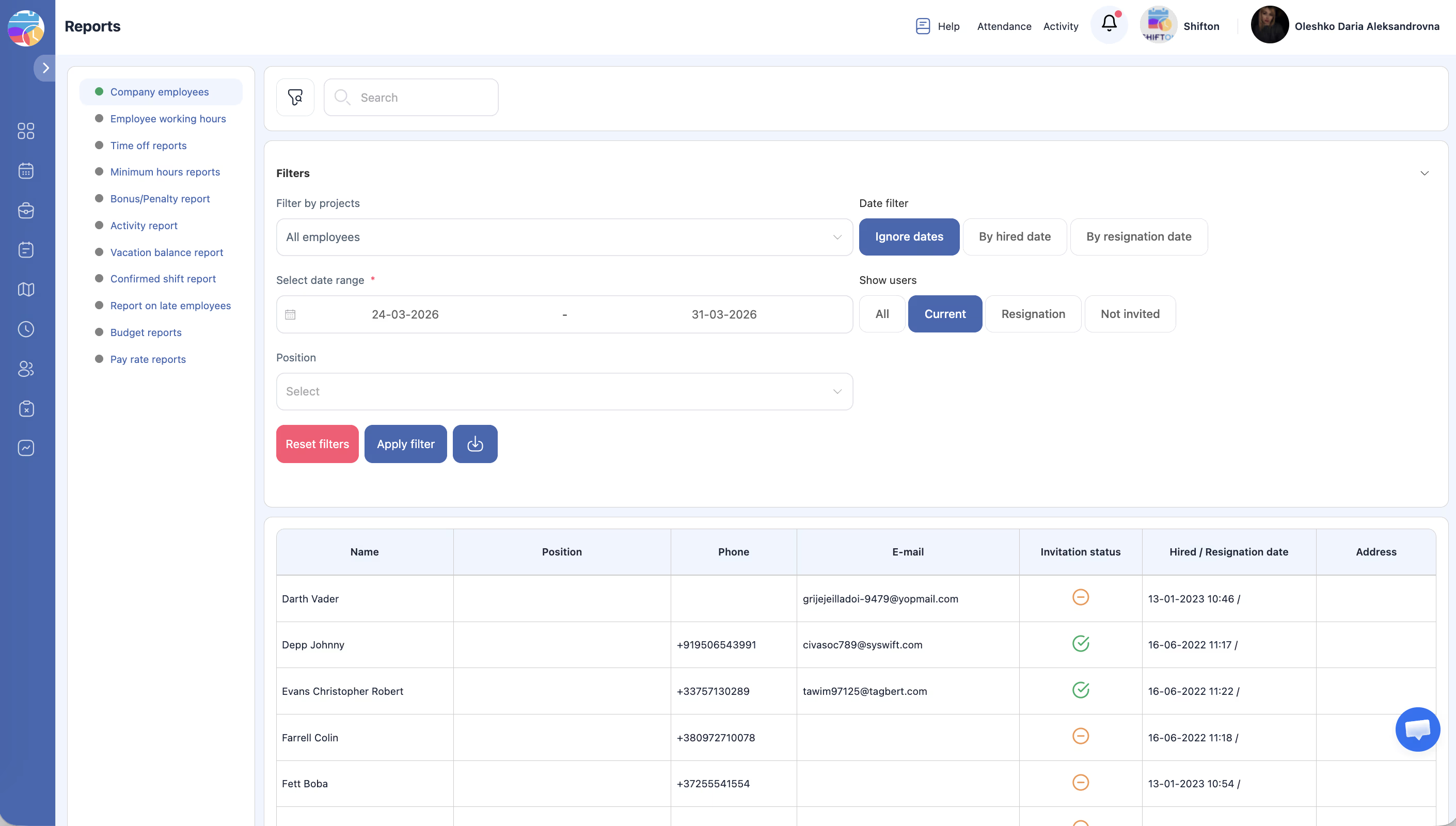
| Step | Action | Expected Result |
|---|---|---|
| 1 | Click Reports in the left sidebar. | The Reports page opens. |
| 2 | The left sidebar shows a list of all 11 report types. | Report names are visible and clickable. |
| 3 | Click on any report name to load it. | The selected report’s filters and data table appear in the main area. |
Available Report Types
| # | Report Name | Description |
|---|---|---|
| 1 | Company Employees | Employee directory with contact details and invitation status. |
| 2 | Employee Working Hours | Planned vs. actual shift times, break durations, late and early leave hours. |
| 3 | Time Off Reports | Time-off records by type with paid and unpaid day/hour breakdowns. |
| 4 | Minimum Hours | Weekly shift durations compared against required working time. |
| 5 | Bonus/Penalty | Financial adjustments: bonuses, retentions, advances, and totals. |
| 6 | Activity Report | Activity hours per employee broken down by day. |
| 7 | Vacation Balance | Monthly vacation accrual, usage, and remaining balance. |
| 8 | Confirmed Shift | Shift confirmation statuses (confirmed vs. unconfirmed). |
| 9 | Late Employees | Late arrival details with minutes and incident counts. |
| 10 | Budget | Project-level cost analysis with time worked and expense breakdowns. |
| 11 | Pay Rate | Detailed salary calculations including base, overtime, night rates, and adjustments. |
Using Filters
| Step | Action | Expected Result |
|---|---|---|
| 1 | After selecting a report, expand the Filters section (if collapsed). | Filter options specific to the selected report appear. |
| 2 | Set your desired filter values (date range, project, position, etc.). | Filters are configured. |
| 3 | Click Apply Filter. | The report data reloads to match your filter criteria. |
| 4 | To clear all filters, click Reset. | All filters return to their defaults and the full data set is shown. |
Exporting Report Data
| Step | Action | Expected Result |
|---|---|---|
| 1 | Load the desired report and apply any filters. | The filtered data is displayed. |
| 2 | Click the Export or Download button (typically in the top-right area of the report). | A file download begins (format may vary: CSV, Excel, PDF). |
| 3 | Open the downloaded file to review the data offline. | The exported file contains the same data visible in the report. |
Access Permissions
| Role | View Reports | Export Reports | Access All Report Types |
|---|---|---|---|
| Employee | Limited (own data only) | No | No |
| Manager | Yes (all) | Yes | All types |
| Admin | Yes (all) | Yes | All types |
| Owner | Yes (all) | Yes | All types |
FAQ
Q1: Can I schedule automatic report generation?
Currently, reports are generated on-demand. You can export them manually at any time.
Q2: What file formats are available for export?
Export formats vary by report but typically include CSV and/or Excel. Check the export options on each specific report.
Q3: Why does a report show no data?
Verify that the date range and filters match the data you expect. Also confirm that the relevant modules (Attendance, Breaks, etc.) are active and that data exists for the selected period.
Q4: Can I see reports for a specific project only?
Yes. Most reports include a project filter. Select the desired project(s) before clicking Apply Filter.
Q5: Are reports available on mobile?
Reports are best viewed on a desktop browser due to the table layouts. Some reports may be accessible on mobile with horizontal scrolling.
Possible Issues and Solutions
| Issue | Possible Cause | Solution |
|---|---|---|
| Reports page is empty or inaccessible | Insufficient permissions. | Ensure you have a Manager, Admin, or Owner role. |
| Report shows no data after applying filters | Filters are too restrictive or no data exists for the selected period. | Broaden the date range or reset filters to verify data exists. |
| Export button is missing | The report may not support export, or your role lacks export permission. | Check your role permissions or try a different report type. |
| Pagination not working | Browser issue or slow network. | Refresh the page and try again. |
| Data in the report seems outdated | The report may be showing cached data. | Refresh the page or re-apply filters to reload the data. |