

Employees can request to split a single shift into two separate shifts, allowing for a gap in the middle of their workday.
What Is This?
The shift split feature allows an employee to divide one continuous shift into two shorter shifts with a gap between them. For example, an 8-hour shift from 8:00 to 16:00 could be split into two 4-hour shifts: 8:00-12:00 and 14:00-18:00. This is helpful for employees who need time off in the middle of their workday for personal appointments or other obligations, while still completing their scheduled hours.
Prerequisites
| Requirement | Details |
|---|---|
| Module | Schedules module must be active |
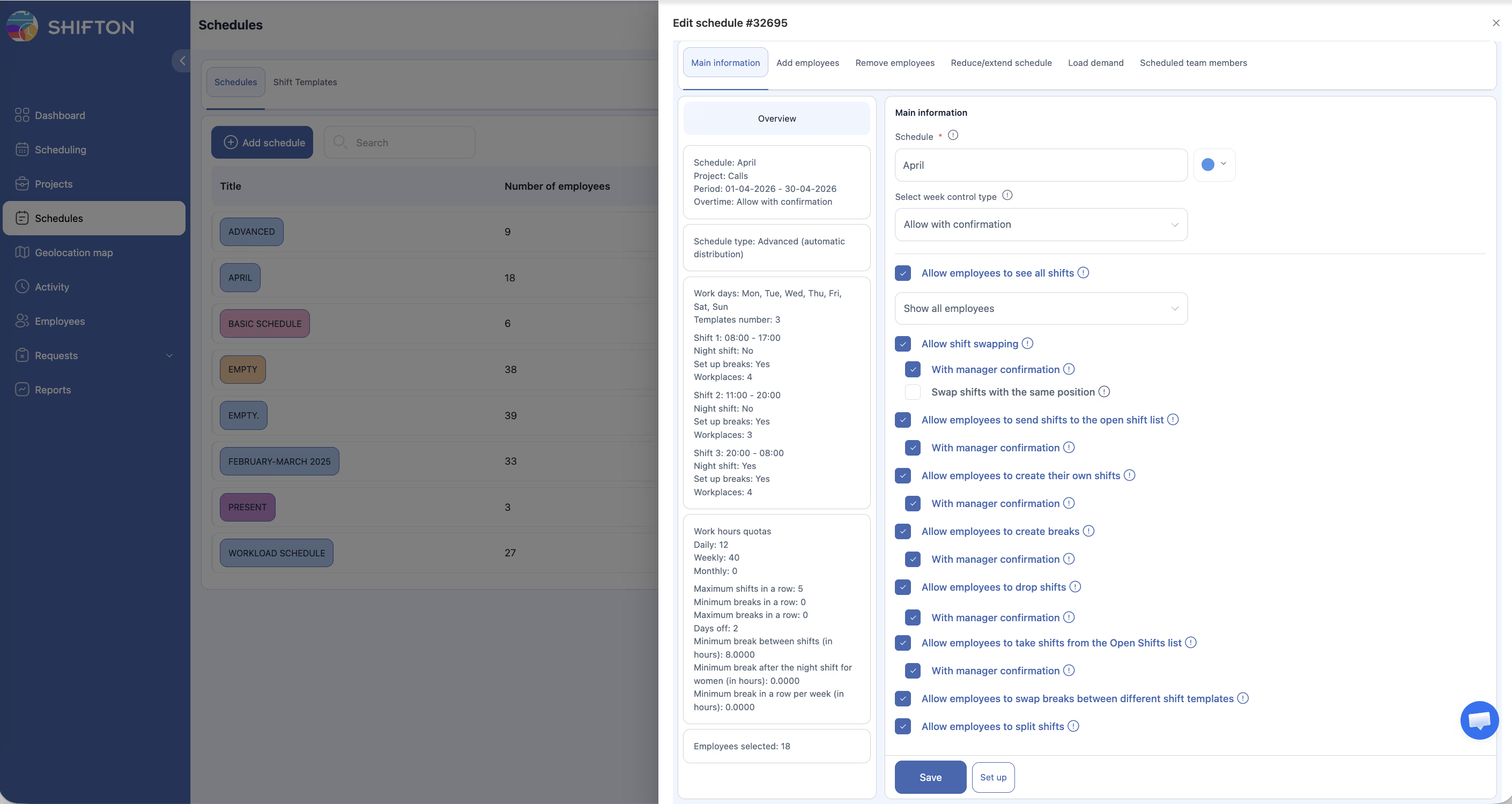
| Setting | “Allow employees to split shifts” must be enabled in schedule settings |
| Shift | The employee must have a published shift to split |
Step-by-Step Instructions
Enabling Shift Splitting (Manager/Admin)
Requesting a Shift Split (Employee)
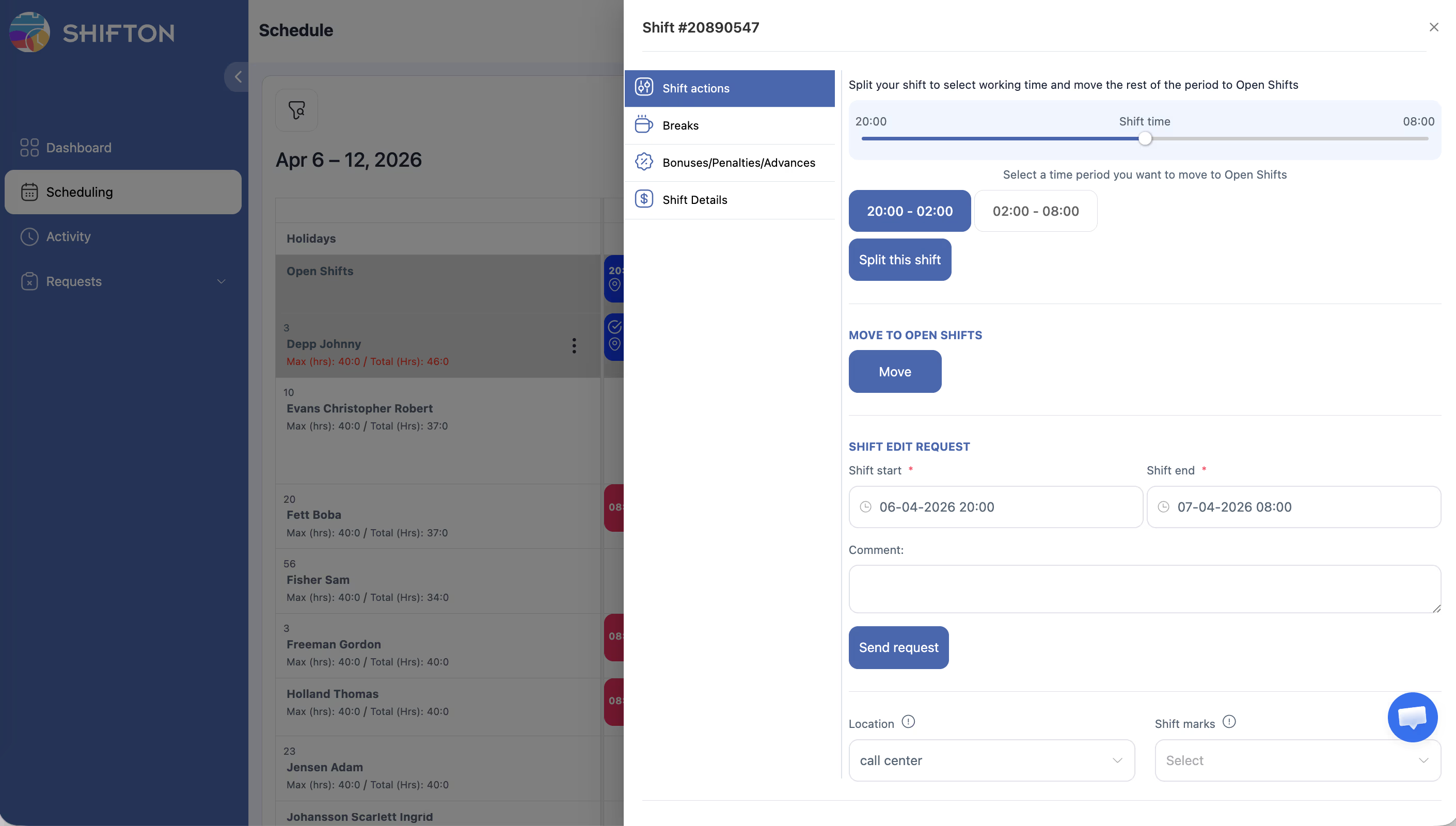
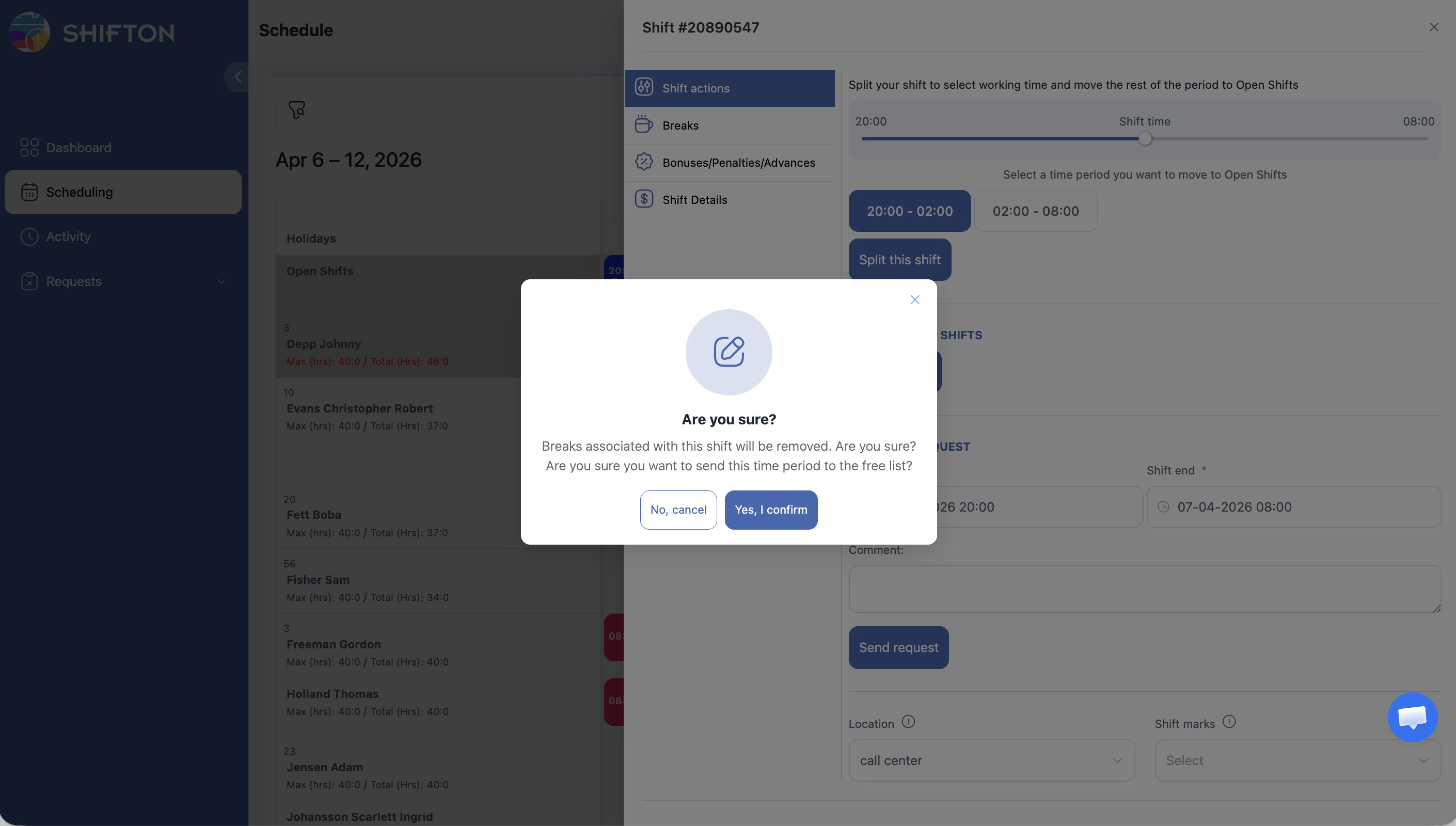
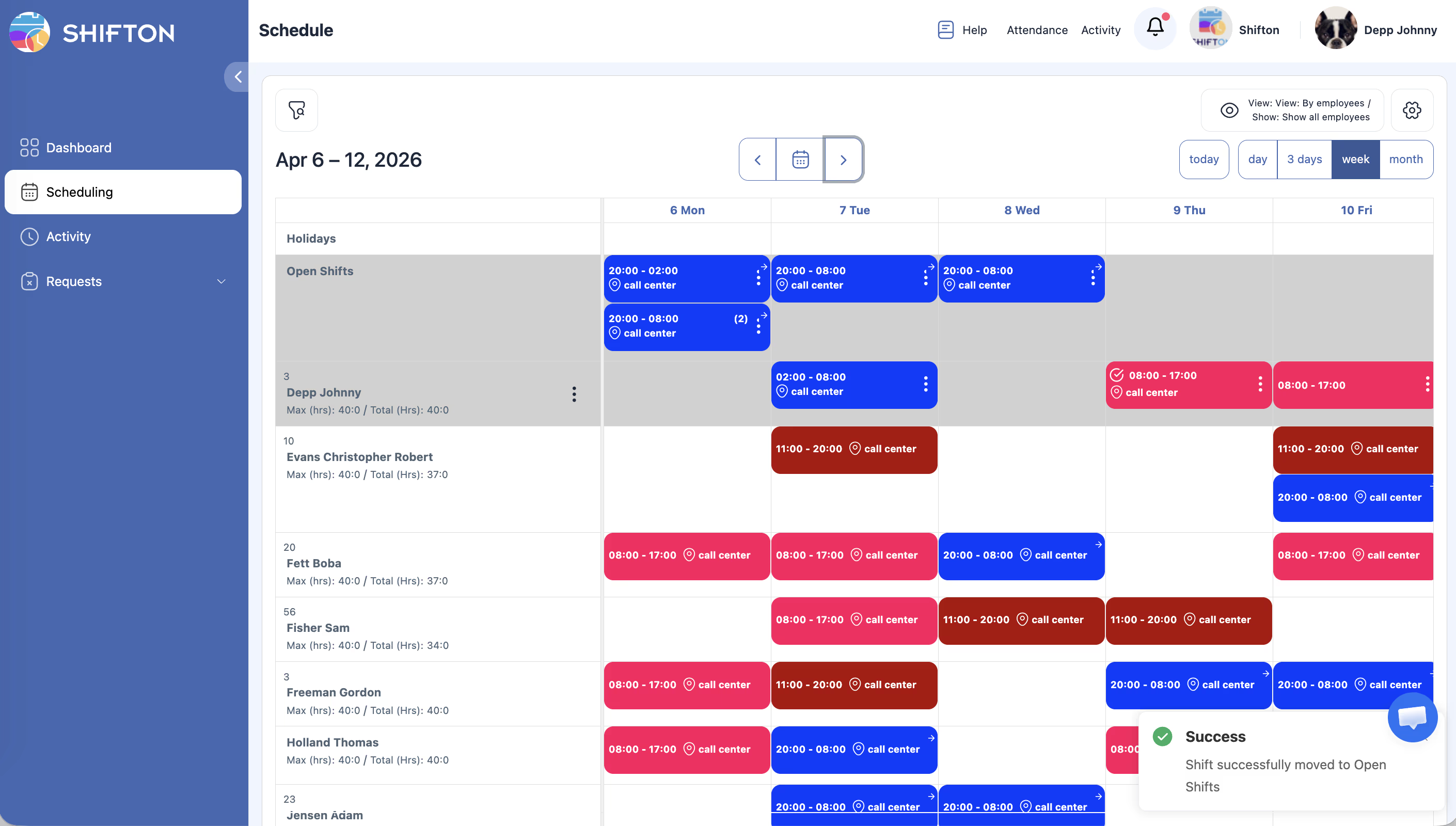
| Field | Description |
|---|---|
| First Shift Start | Start time of the first portion |
| First Shift End | End time of the first portion |
| Second Shift Start | Start time of the second portion |
| Second Shift End | End time of the second portion |
Approving a Shift Split (Manager)
Access Permissions
| Role | Enable Setting | Request Shift Split | Approve/Reject |
|---|---|---|---|
| Owner | Yes | Yes | Yes |
| Administrator | Yes | Yes | Yes |
| Manager | Yes (assigned schedules) | Yes | Yes (assigned schedules) |
| Employee | No | Yes (when enabled) | No |
FAQ
Q: Does splitting a shift change my total scheduled hours?
A: That depends on how you define the split. The combined hours of both resulting shifts may be more, less, or equal to the original depending on the times you choose. Your manager will review the total hours before approving.
Q: Can I split a shift into more than two parts?
A: No, a single split request divides one shift into exactly two shifts. If you need more segments, you would need to submit additional split requests after the first is approved.
Q: What happens to breaks assigned to the original shift?
A: Breaks from the original shift may need to be reassigned or adjusted by your manager after the split is approved. Discuss this with your manager if your shift includes breaks.
Q: Can I undo a shift split after it is approved?
A: Once approved, the split creates two separate shifts. To reverse it, your manager would need to manually delete the two shifts and create a new single shift.
Possible Issues and Solutions
| Issue | Possible Cause | Solution |
|---|---|---|
| “Split shift” option not available | Feature disabled in schedule settings | Enable “Allow employees to split shifts” in schedule settings |
| Request rejected by manager | The split may create a coverage gap | Adjust the proposed times and resubmit, or discuss with your manager |
| Only one shift appears after approval | Page not refreshed | Refresh the schedule page to see both resulting shifts |
| Time fields do not allow entry | Times may be outside the original shift boundaries | Ensure the proposed times fall within or near the original shift window |
| Breaks missing from split shifts | Breaks were not automatically reassigned | Ask your manager to re-add breaks to the new shift segments |