

Shift swapping lets employees exchange shifts with colleagues, giving your team flexibility while keeping your schedule fully covered.
What Is This?
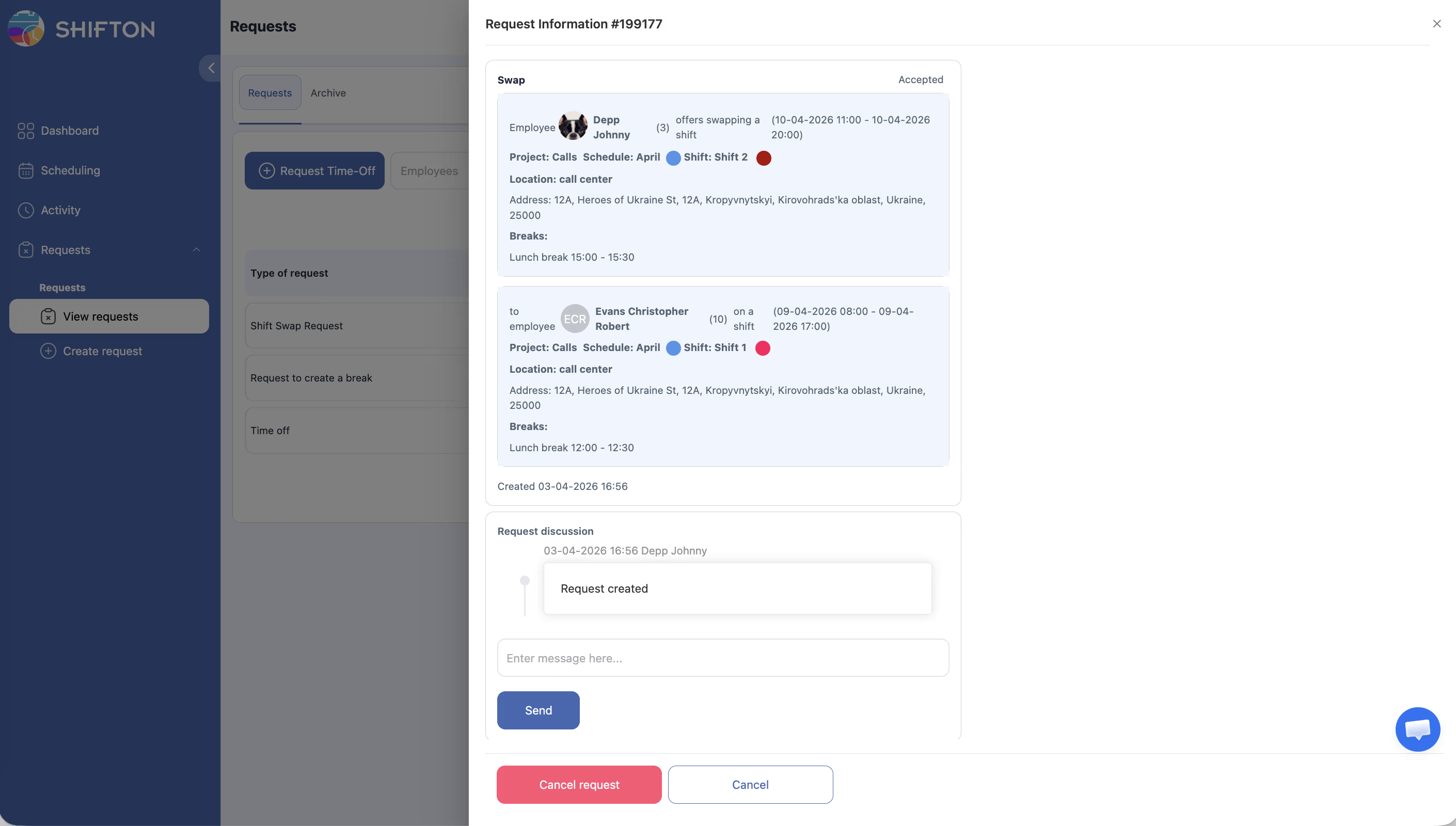
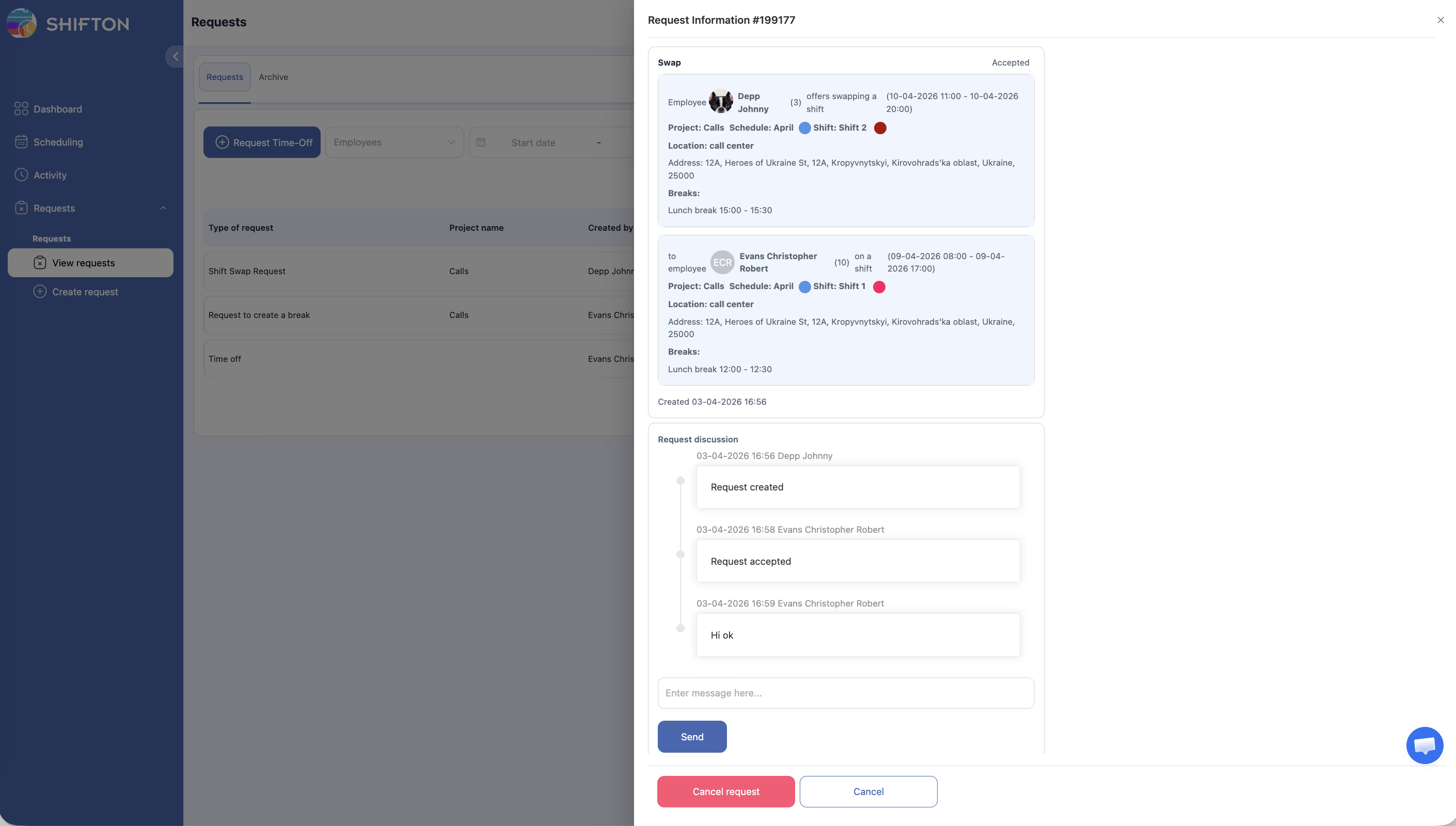
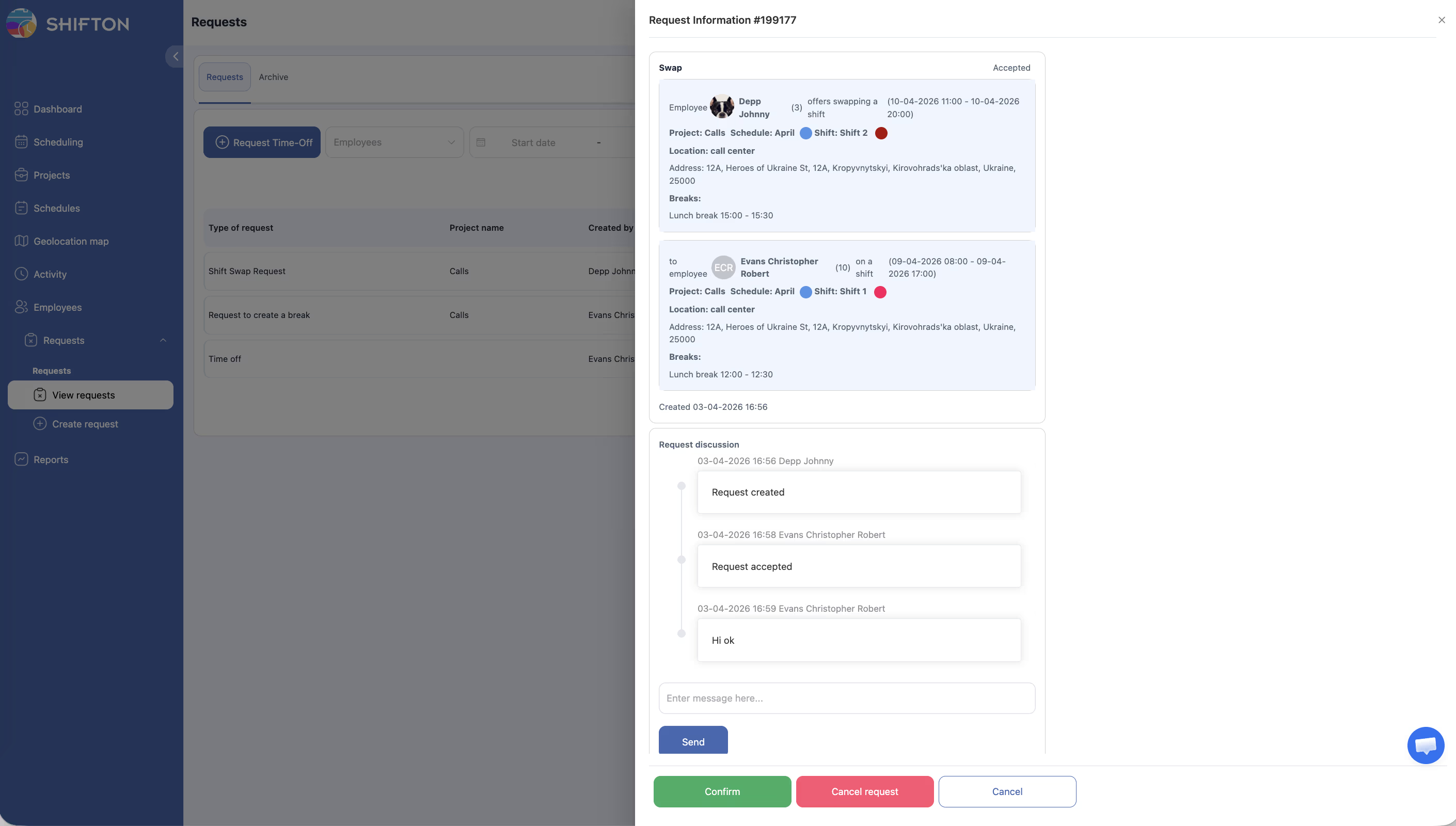
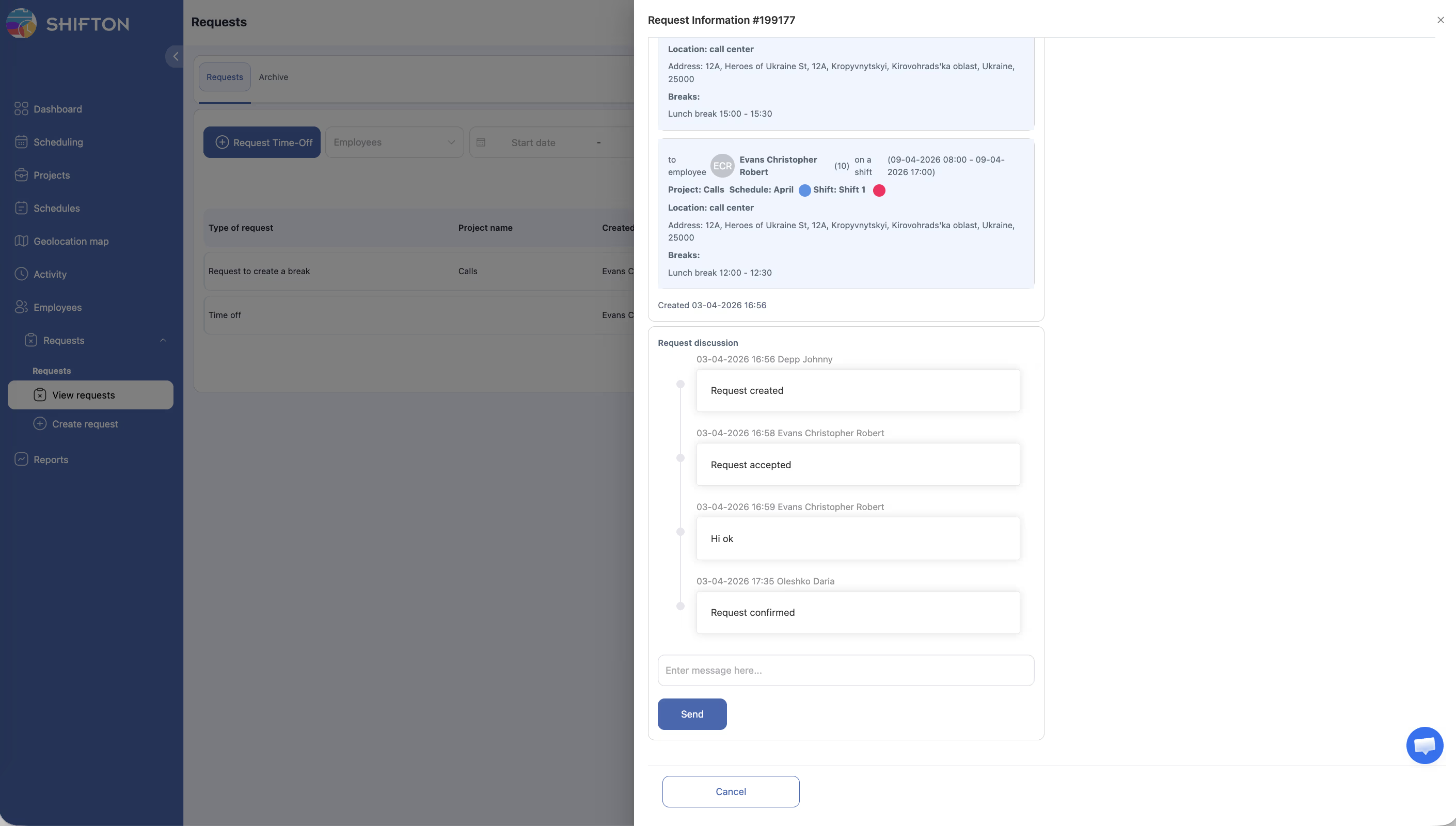
A shift swap is a request where one employee proposes trading their shift with another employee’s shift. Both employees agree to work each other’s original shift. Depending on your company settings, the swap may go through automatically or require manager approval. This feature helps reduce no-shows and last-minute staffing problems by empowering employees to handle scheduling conflicts among themselves.
Prerequisites
| Requirement | Details |
|---|---|
| Module | Schedules module must be active |
| Setting | “Allow shift swapping” must be enabled in the schedule settings |
| Employees | Both employees must be assigned to the same schedule |
| Shifts | Both employees must have published shifts to swap |
Step-by-Step Instructions
Enabling Shift Swapping (Manager/Admin)
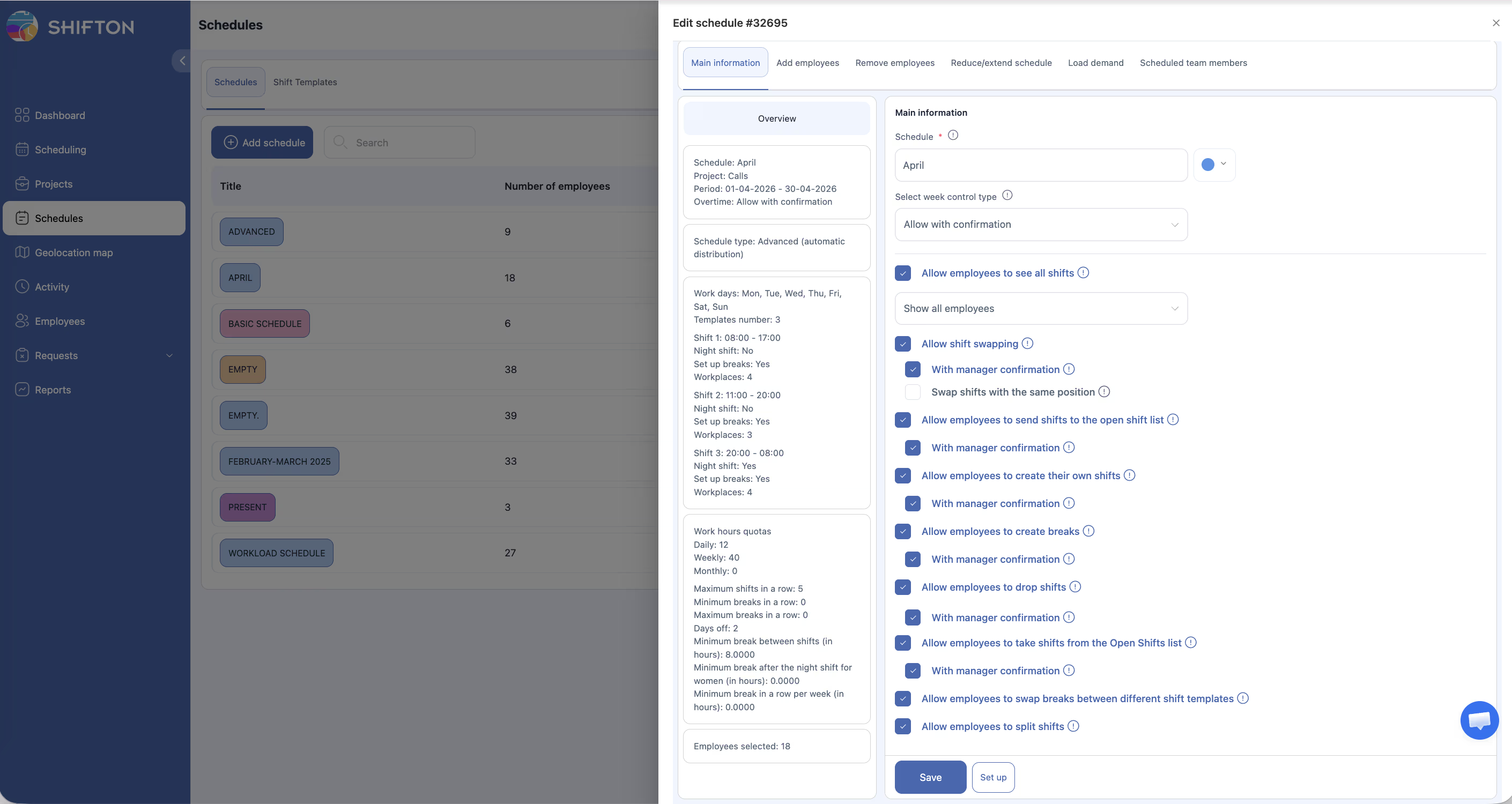
| Setting | Description |
|---|---|
| Require manager confirmation | When enabled, swap requests must be approved by a manager before they take effect |
| Restrict to same position | When enabled, employees can only swap shifts with colleagues who hold the same position |
Requesting a Shift Swap (Employee)
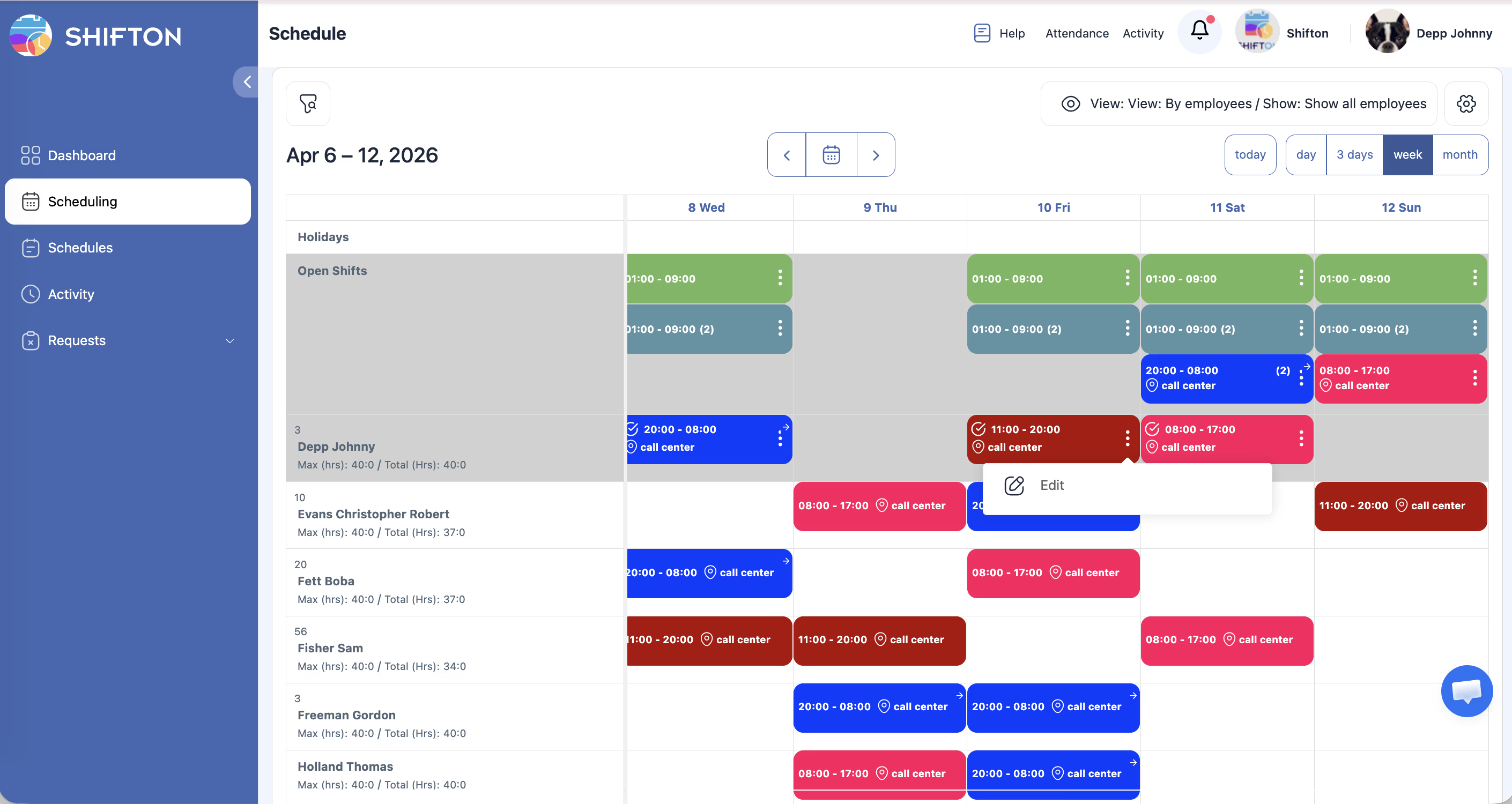
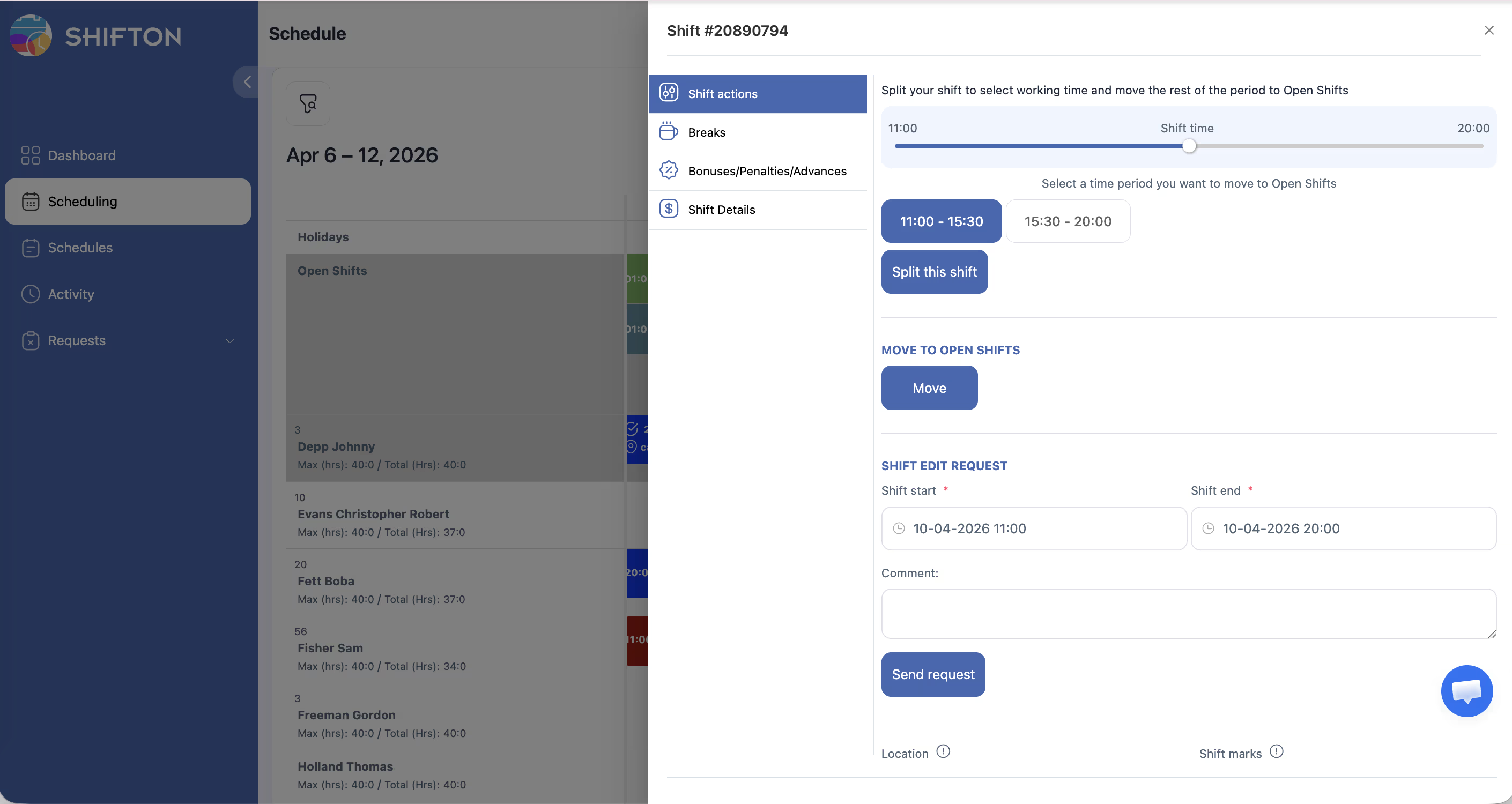
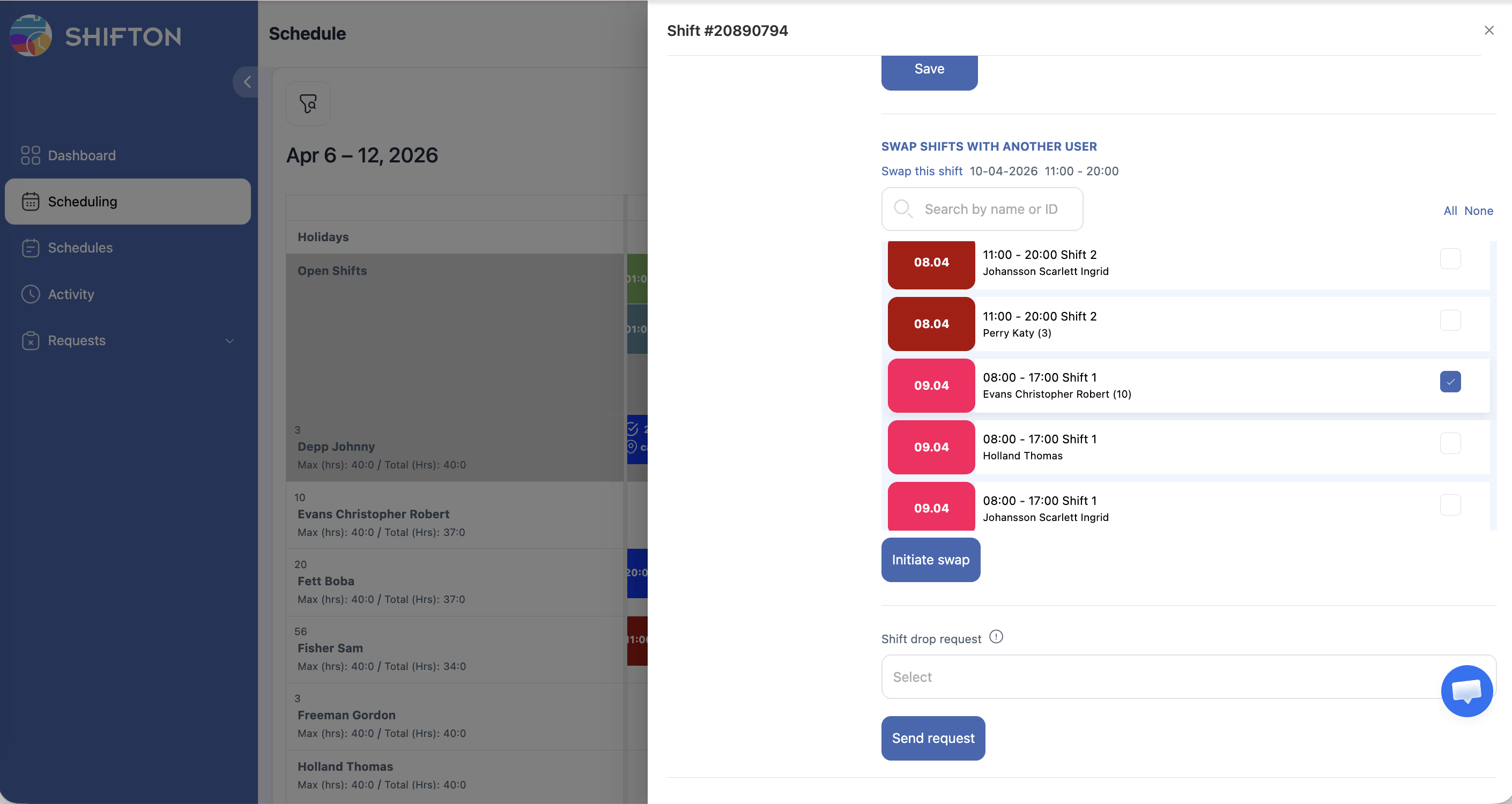
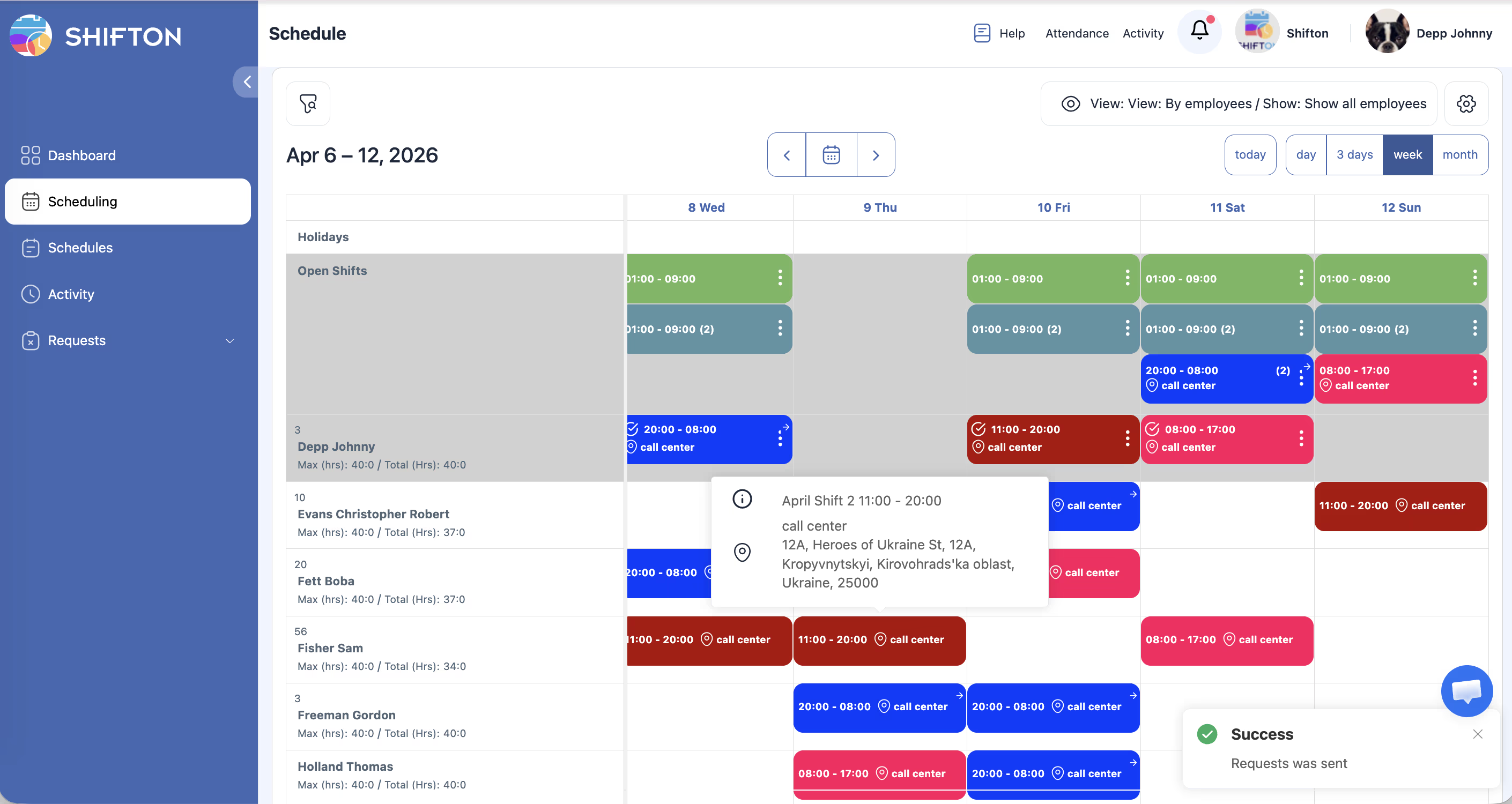
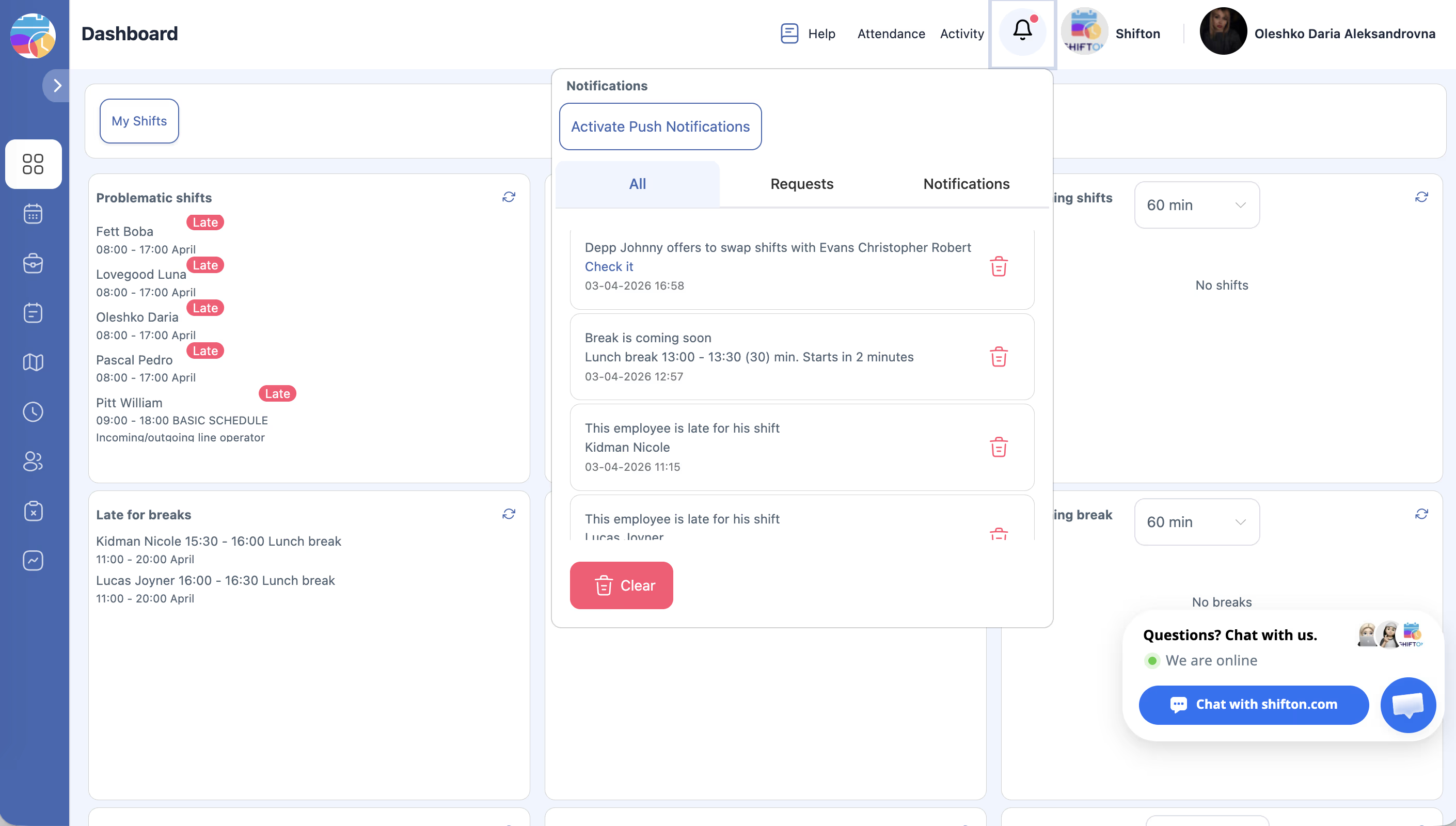
Responding to a Swap Request (Employee)
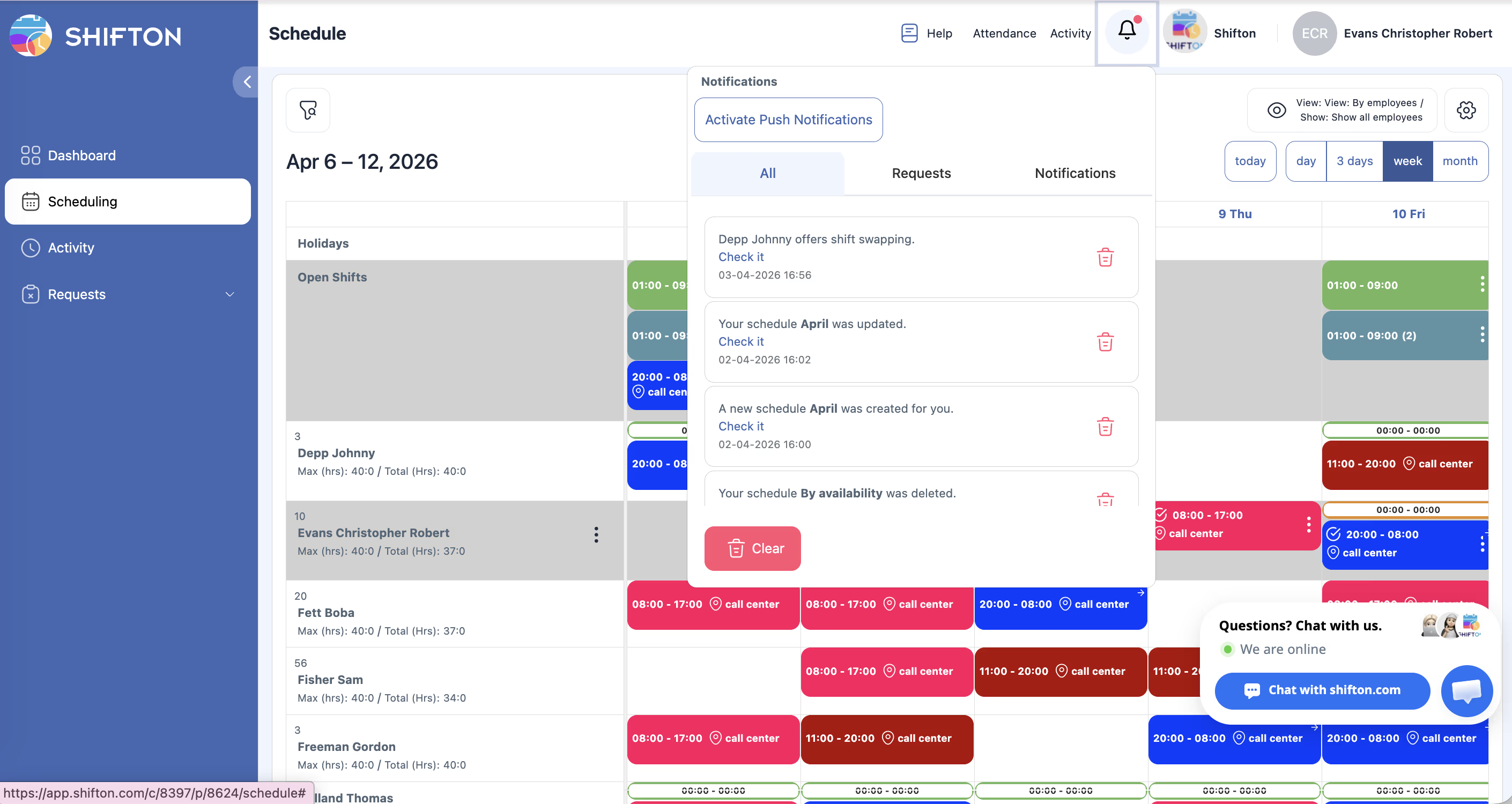
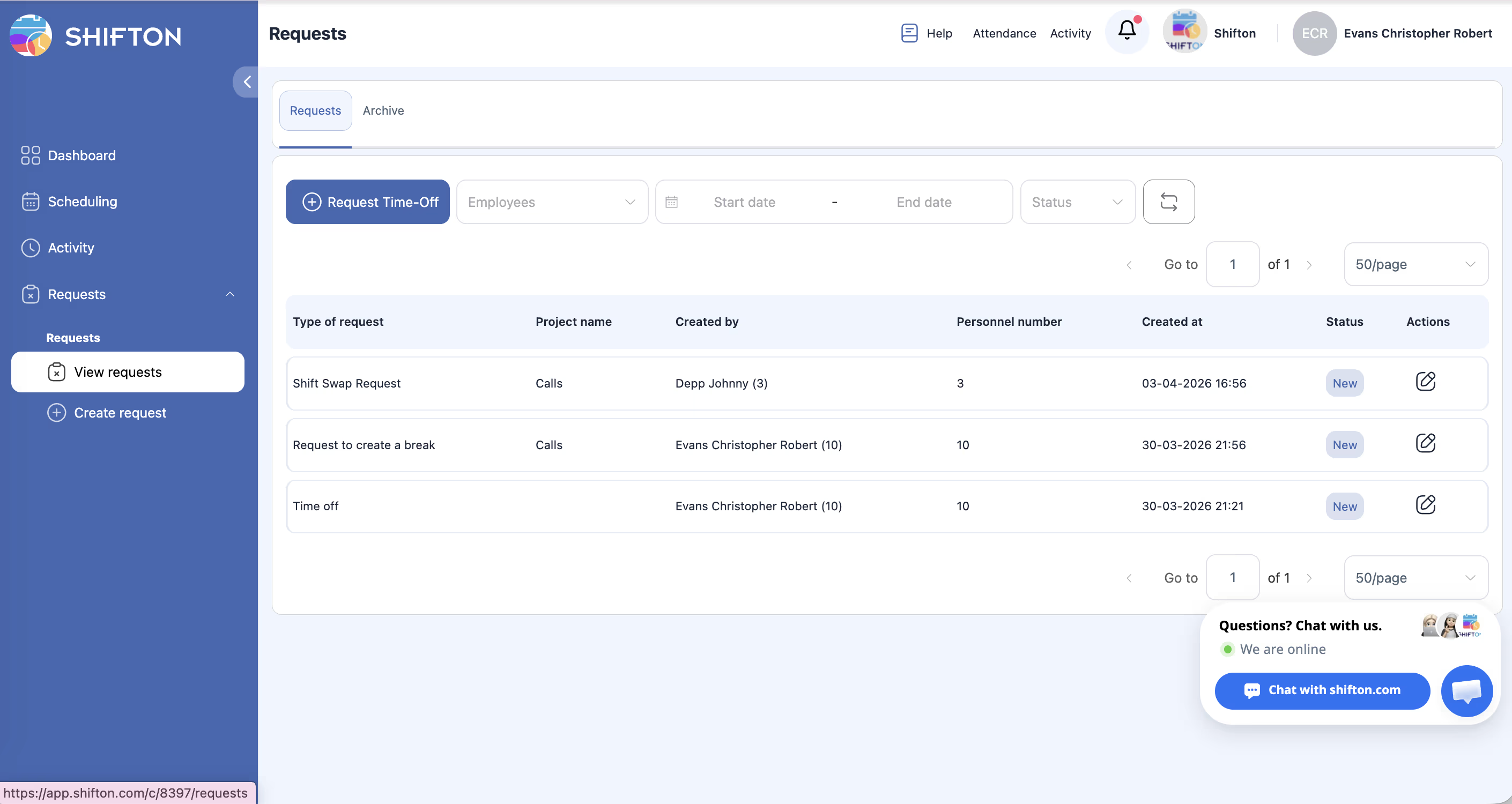
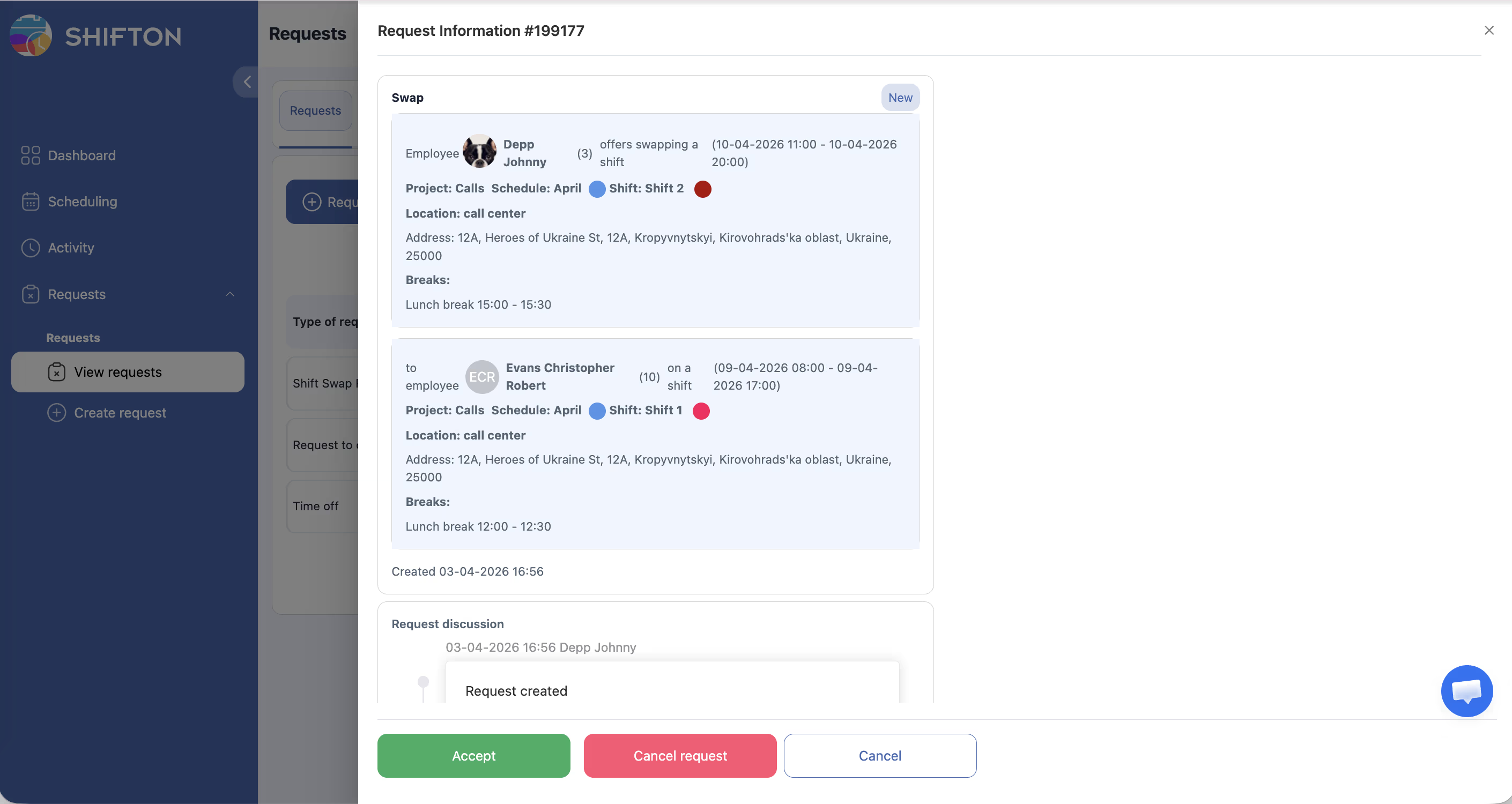
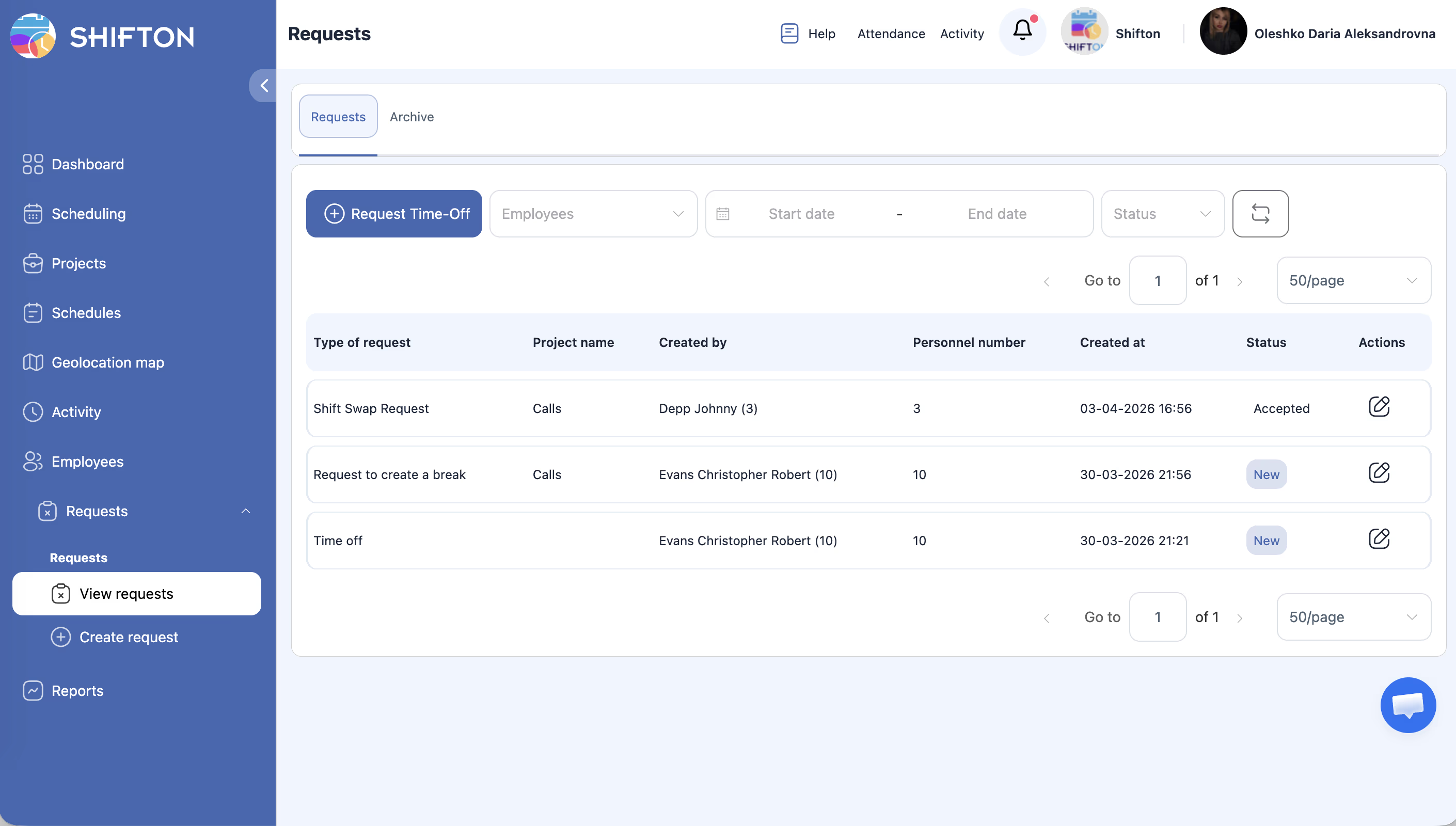
Approving a Swap Request (Manager)
Access Permissions
| Role | Enable Swap Setting | Request Swap | Respond to Swap | Approve/Reject Swap |
|---|---|---|---|---|
| Owner | Yes | Yes | Yes | Yes |
| Administrator | Yes | Yes | Yes | Yes |
| Manager | Yes (assigned schedules) | Yes | Yes | Yes (assigned schedules) |
| Employee | No | Yes | Yes | No |
FAQ
Q: Can employees swap shifts across different projects?
A: No, shift swaps are limited to shifts within the same schedule. Employees cannot swap shifts between different schedules or projects.
Q: What happens if the “Restrict to same position” setting is enabled?
A: Employees will only see swap candidates who hold the same position. This prevents situations where someone unqualified for a role ends up covering that shift.
Q: Can a swap request be canceled after it is submitted?
A: Yes, the employee who initiated the swap can cancel the request before the other employee accepts it. Once accepted (and approved, if required), the swap is finalized.
Q: Does the swap update both employees’ schedules automatically?
A: Yes. Once a swap is completed (and approved, if manager confirmation is required), both employees’ schedules are updated automatically.
Q: Will employees be notified about swap requests?
A: Yes. Notifications are sent when a swap is requested, accepted, declined, approved, or rejected, depending on the notification settings configured for your company.
Possible Issues and Solutions
| Issue | Possible Cause | Solution |
|---|---|---|
| “Swap shift” option not available | Shift swapping is disabled in schedule settings | Enable “Allow shift swapping” in the schedule settings |
| No shifts available to swap with | No other employees have shifts in the same schedule or position | Check that the schedule has multiple employees with assigned shifts |
| Swap request stuck in pending | Manager confirmation is required but not yet given | Remind your manager to review the pending request |
| Employee cannot see swap requests | Notifications are turned off | Check notification settings under the employee’s profile |
| Swap rejected without reason | Manager declined the request | Ask the manager for feedback; consider submitting a new request with a note |
| Shifts did not update after approval | Page not refreshed | Refresh the schedule page to see the updated assignments |