

Learn how employees clock in and out of their shifts using Shifton’s Attendance feature, whether from a desktop browser or the mobile app.
What Is This?
Starting and ending shifts is the core action of the Attendance module. When an employee begins their workday, they open the Attendance dropdown in the top navigation bar and tap Start shift next to the appropriate schedule. The system records the exact timestamp and, if configured, verifies the employee’s IP address or GPS location. When the shift is over, the employee returns to the same dropdown and ends the shift.
This process gives managers an accurate record of actual hours worked and allows the system to automatically flag late arrivals, early departures, and overtime.
Prerequisites
| # | Prerequisite | Details |
|---|---|---|
| 1 | Attendance module enabled | The Attendance module must be active in Settings > Modules. |
| 2 | Published schedule | The employee should have a published shift on the schedule so the system can compare planned vs. actual times. |
| 3 | IP/GPS validation (optional) | If location checks are required, the Work location control module must be enabled and configured. |
| 4 | Browser or mobile app | The employee needs access to Shifton via a supported browser or the Shifton mobile app. |
Step-by-Step Instructions
Starting a Shift
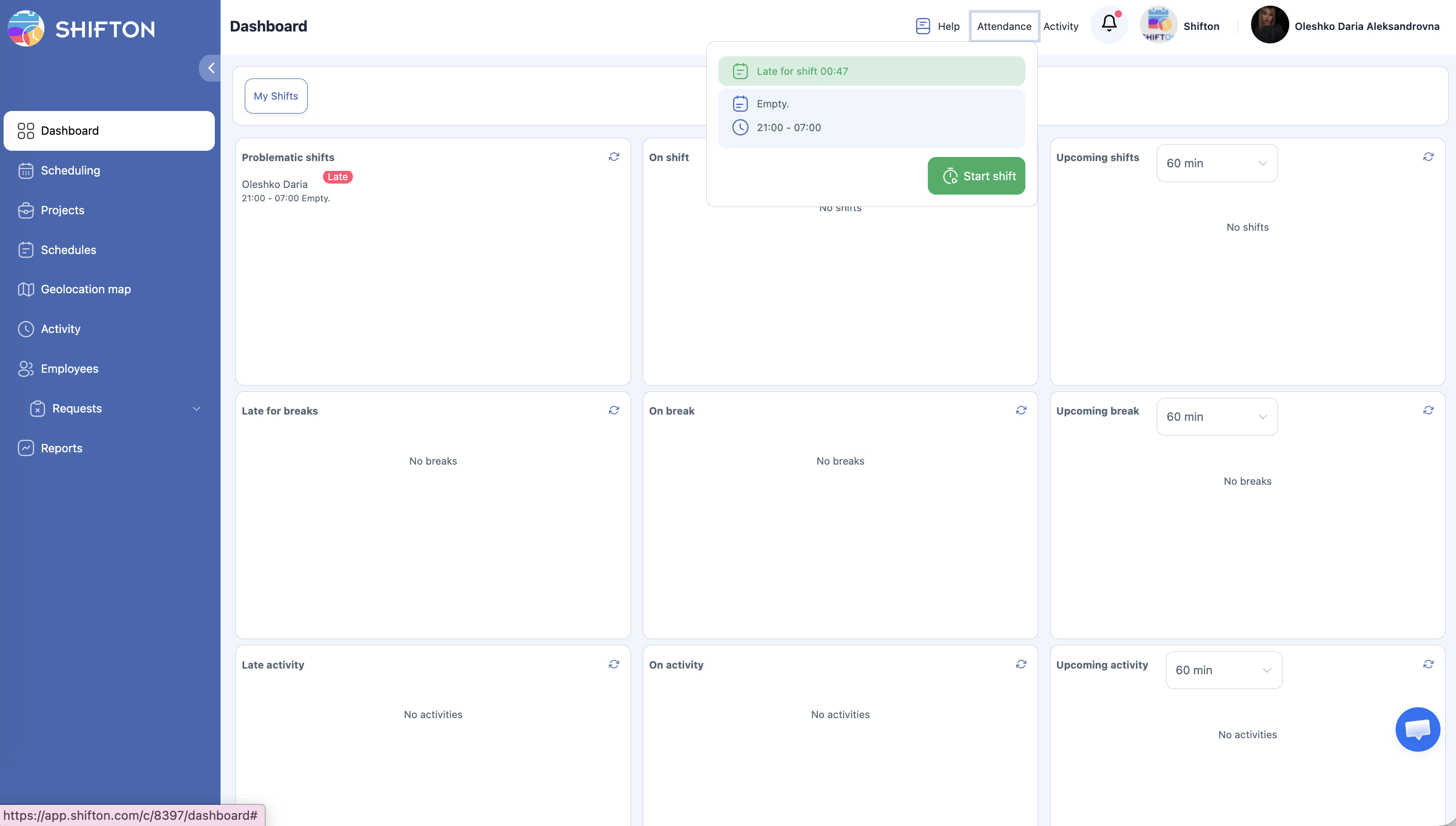
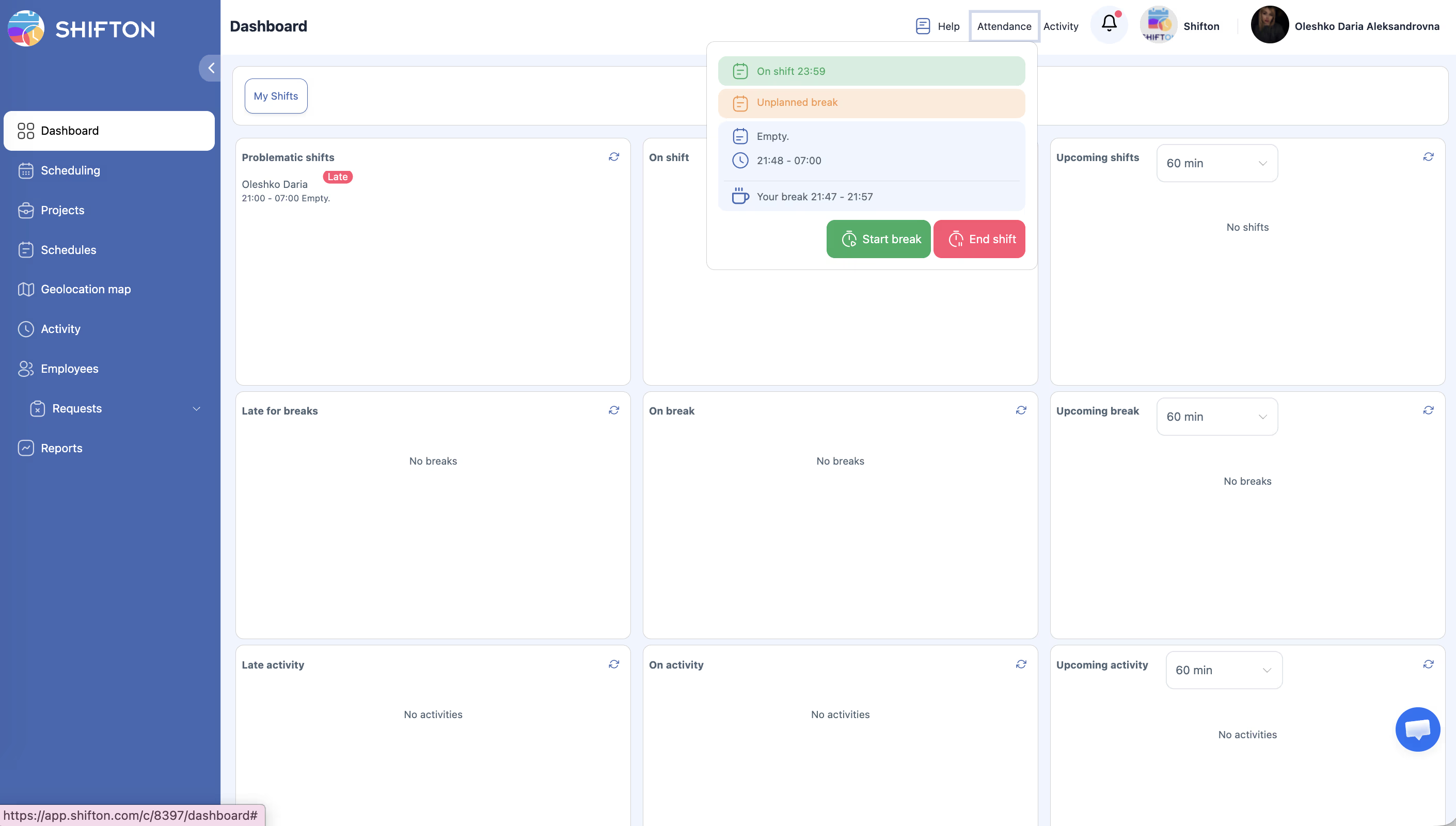
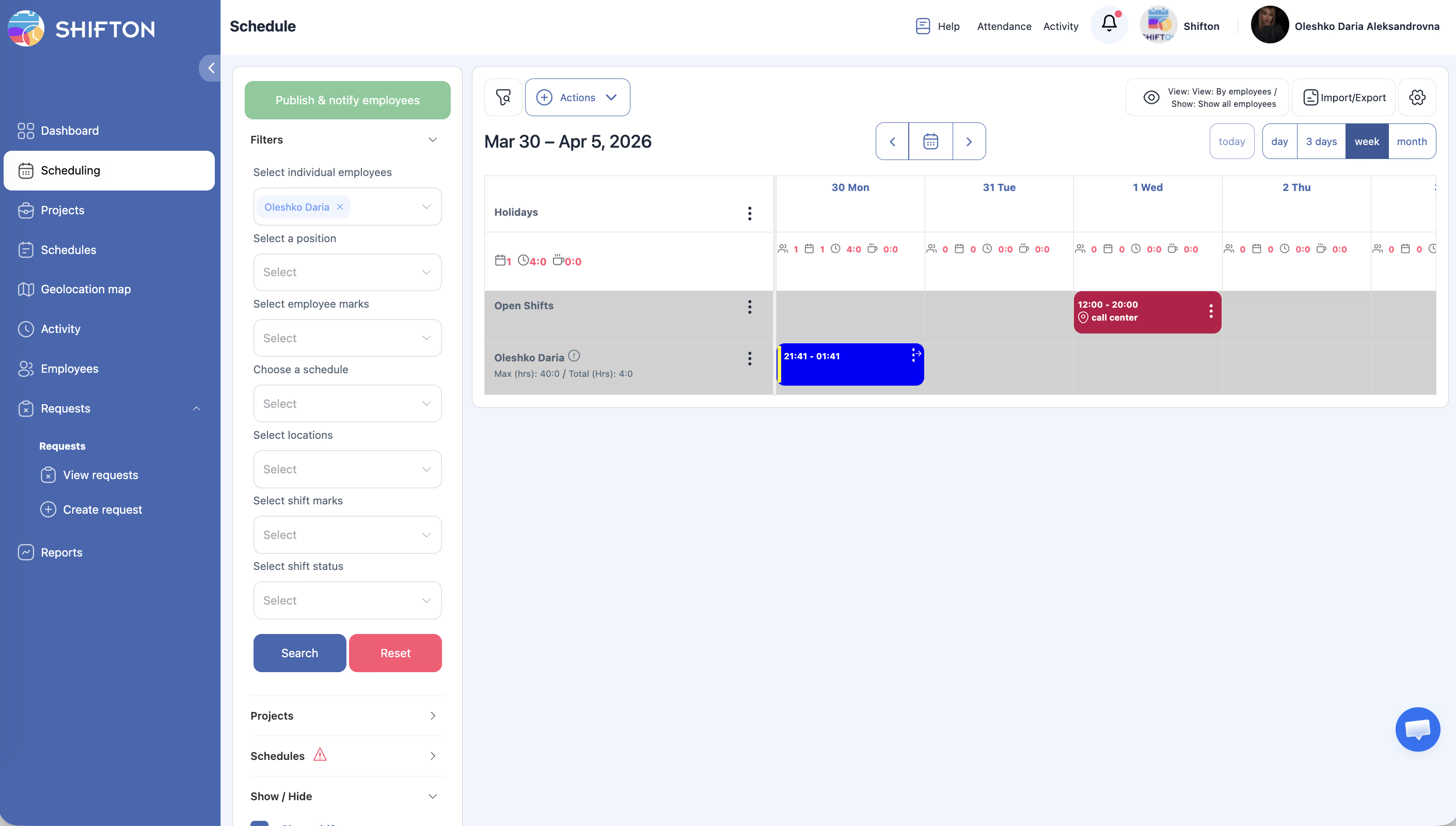
| Step | Action | Expected Result |
|---|---|---|
| 1 | Log in to Shifton (browser or mobile app). | The main interface loads. |
| 2 | Click or tap the Attendance button in the top navigation bar. | A dropdown panel opens listing your scheduled shifts for the day. |
| 3 | Review the list of available shifts. Each entry shows the schedule name and planned start time. | You see one or more shifts with a Start shift button next to each. |
| 4 | Click Start shift next to the shift you want to begin. | The system records your start time. If IP or GPS validation is enabled, your location is checked at this point. |
| 5 | The shift status changes to Active and a timer begins displaying elapsed time. | You are now clocked in. The Attendance dropdown shows the running shift with an End shift button. |
Ending a Shift
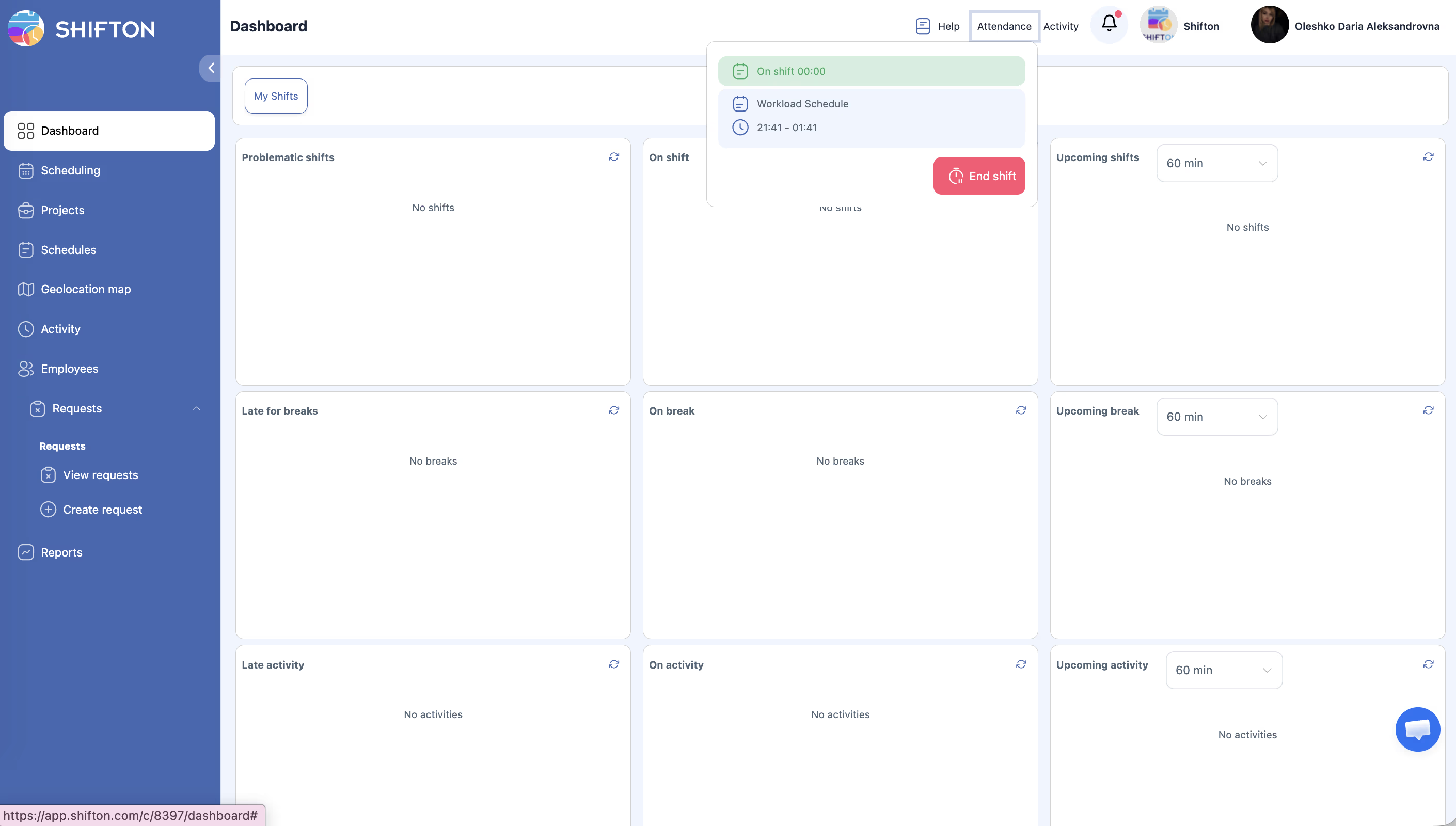
| Step | Action | Expected Result |
|---|---|---|
| 1 | Click or tap the Attendance button in the top bar. | The dropdown opens showing your active shift. |
| 2 | Click End shift next to the active shift. | A confirmation prompt may appear (depending on your company settings). |
| 3 | Confirm that you want to end the shift. | The system records the end time. The shift is marked as completed. |
| 4 | The shift disappears from the active list and moves to your attendance history. | Your total worked time for this shift is now available in reports. |
Starting a Shift on Mobile
| Step | Action | Expected Result |
|---|---|---|
| 1 | Open the Shifton mobile app on your phone. | The app home screen loads. |
| 2 | Tap the Attendance button (usually in the top bar or main menu). | The Attendance panel opens with your scheduled shifts. |
| 3 | Tap Start shift next to the desired schedule. | If GPS validation is enabled, the app requests location permission. Your start time is recorded. |
| 4 | To end the shift later, return to the Attendance panel and tap End shift. | The shift is marked as completed with the exact end timestamp. |
What Happens During IP and GPS Checks
If your company has configured location validation, the following checks occur when you start or end a shift:
| Check Type | Platform | What Happens |
|---|---|---|
| IP validation | Browser and Mobile | The system compares your current IP address against the allowed IPs configured for your work location. |
| GPS validation | Mobile only | The app checks your GPS coordinates against the configured work location and geolocation sensitivity radius. |
| Validation passes | Both | The shift starts or ends normally. |
| Validation fails | Both | You may see a warning message. Depending on settings, the shift may still start but the discrepancy is flagged for the manager. |
Access Permissions
| Role | Start/End Own Shift | View Own Shift Times | View Team Shift Times | Edit Others’ Shift Times |
|---|---|---|---|---|
| Employee | Yes | Yes | No | No |
| Manager | Yes | Yes | Yes (all) | Yes |
| Admin | Yes | Yes | Yes (all) | Yes |
| Owner | Yes | Yes | Yes (all) | Yes |
FAQ
Q1: What if I accidentally start the wrong shift?
End the shift immediately and contact your manager. Managers can edit attendance records to correct mistakes.
Q2: Can I start a shift before the scheduled time?
Yes, the system allows you to start a shift before the planned time. The actual start time is recorded and compared against the schedule in reports.
Q3: What happens if my GPS location does not match the work location?
Depending on your company’s settings, you may receive a warning but still be able to start the shift. The manager will be notified of the location mismatch. See the GPS and IP Validation article for more details.
Q4: Can I start a shift from a different device than usual?
Yes, as long as you log in to your Shifton account. However, if IP validation is enabled and the device is on a different network, the IP check may fail.
Q5: What if I forget to end my shift?
Your shift will remain open until you or a manager closes it. Some companies configure automatic notifications for shifts that have been running longer than expected.
Possible Issues and Solutions
| Issue | Possible Cause | Solution |
|---|---|---|
| No shifts appear in the Attendance dropdown | No published schedule for today, or employee is not assigned to a project. | Ask your manager to publish the schedule or verify your project assignment. |
| “Start shift” button is grayed out | Another shift is already active, or IP validation failed. | End any active shift first. If IP validation failed, check your network connection or contact your manager. |
| GPS check fails on mobile | Location services are disabled or the app lacks permission. | Enable location services on your device and grant the Shifton app permission to access your location. |
| Shift started but time looks incorrect | Device clock is out of sync. | The system uses server time, not device time. If you see a discrepancy, it is likely a display issue — the recorded time is accurate. |
| Cannot end shift — button not responding | Network connectivity issue or browser glitch. | Refresh the page or restart the app and try again. If the problem persists, contact your administrator. |