

Employees can claim available shifts from the Open Shifts row, filling gaps in the schedule on their own initiative.
What Is This?
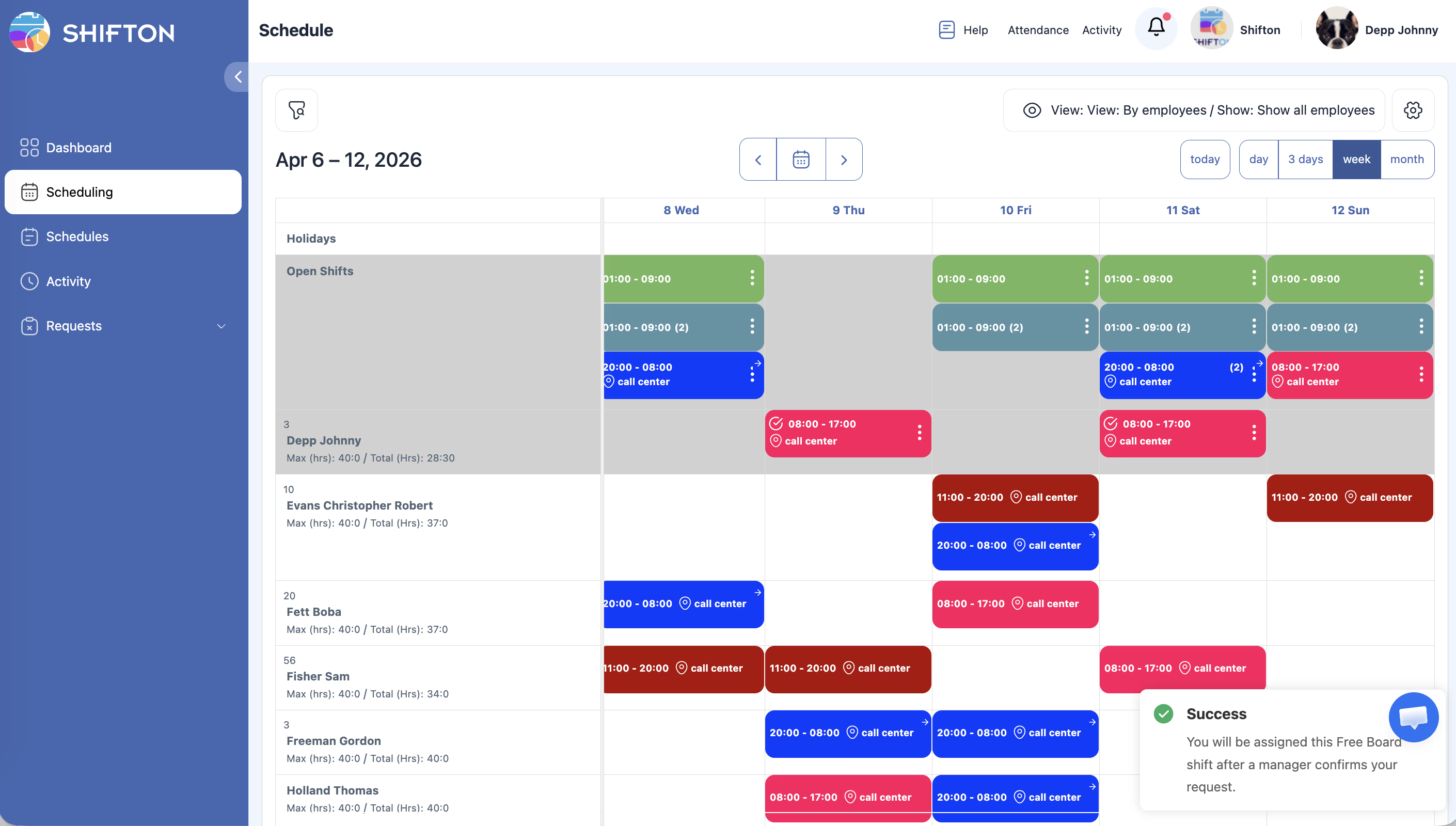
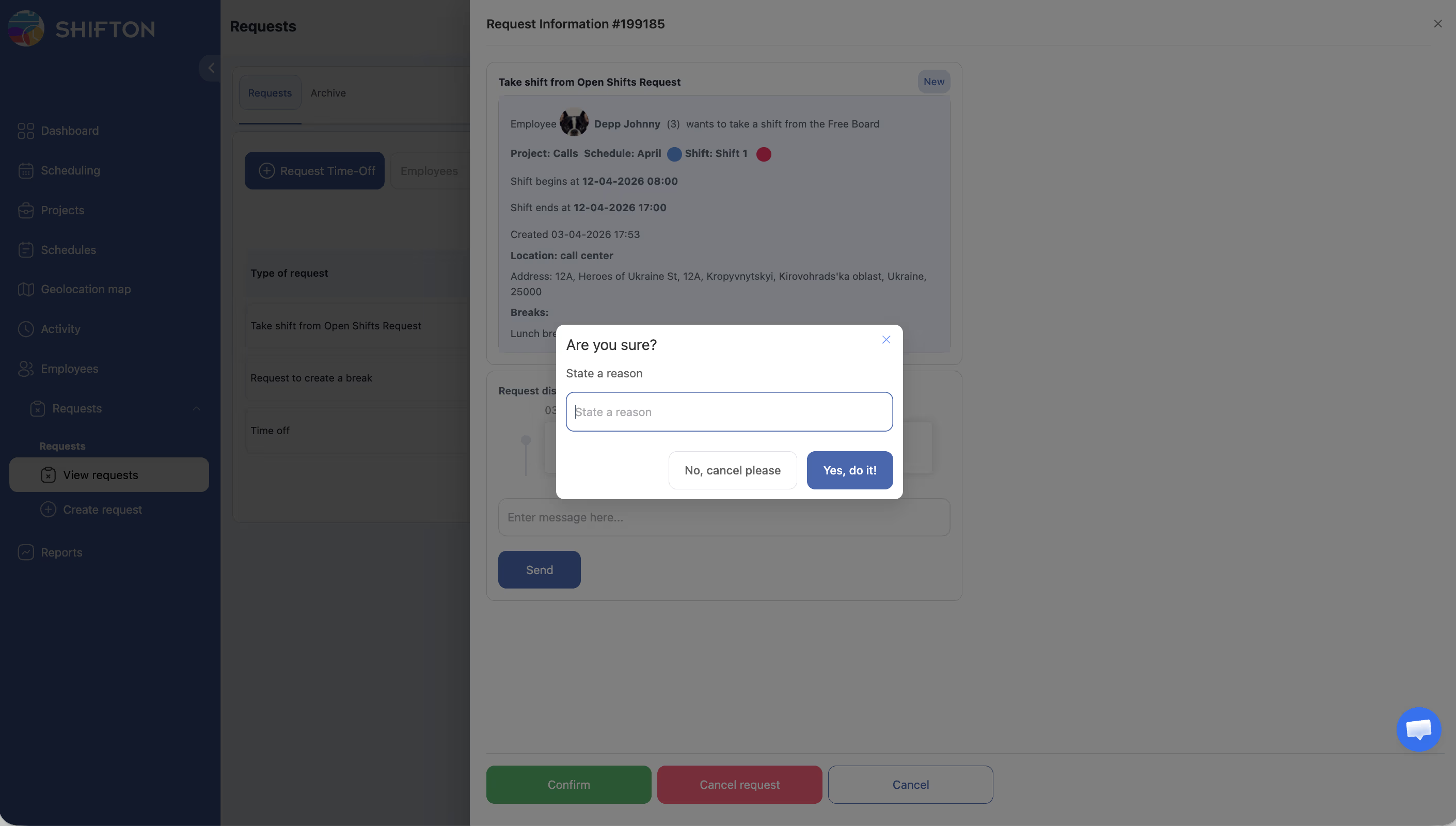
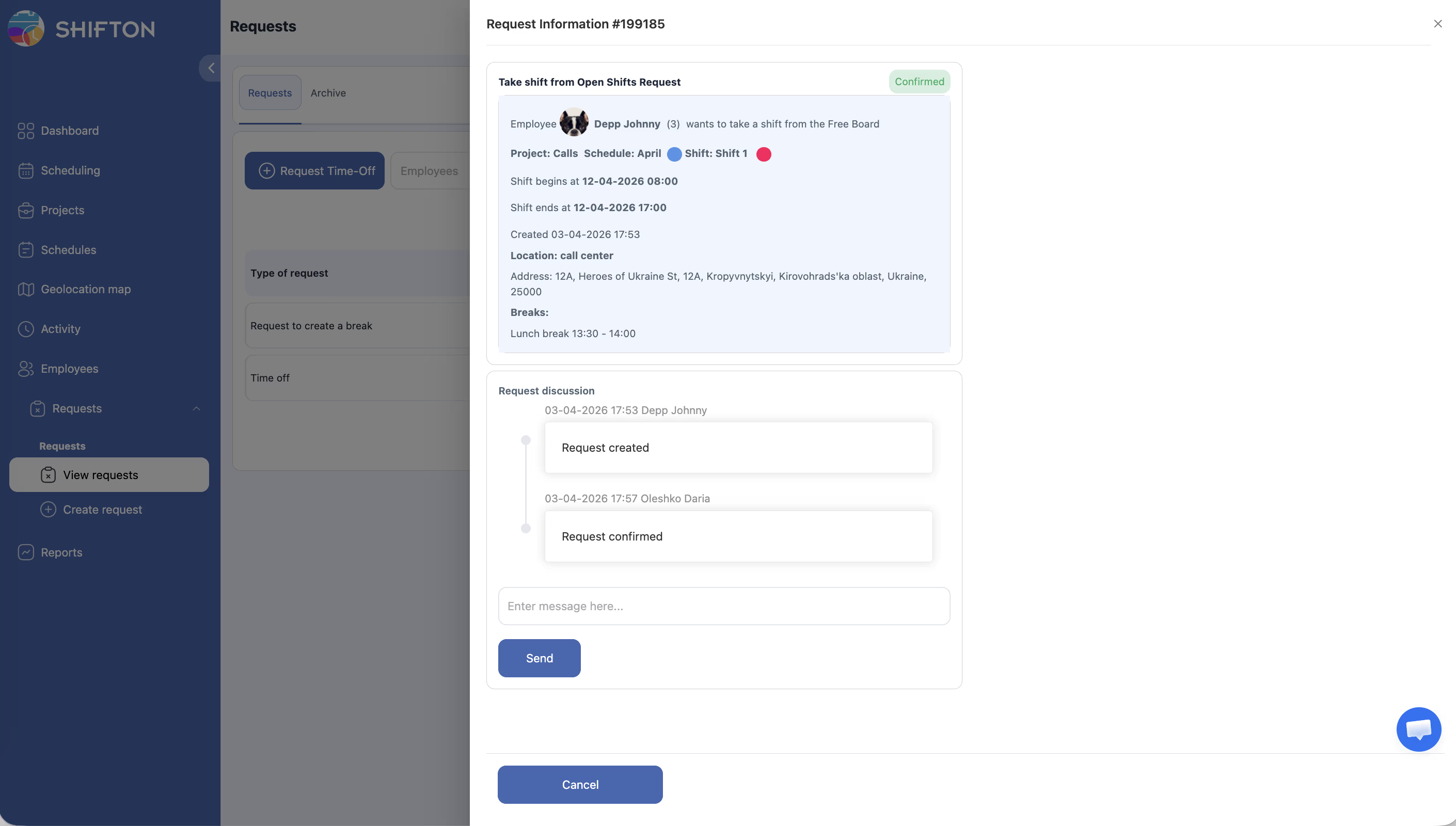
Open shifts are unassigned shifts that appear in a dedicated Open Shifts row at the top of the schedule. When this feature is enabled, employees can browse available open shifts and request to take one. Depending on your settings, the assignment may happen automatically or require manager confirmation first. This helps fill schedule gaps quickly without requiring managers to manually assign every shift.
Prerequisites
| Requirement | Details |
|---|---|
| Module | Schedules module must be active |
| Setting | “Allow employees to take shifts from the Open Shifts list” must be enabled |
| Open Shifts | At least one open shift must exist in the schedule |
Step-by-Step Instructions
Enabling the Feature (Manager/Admin)
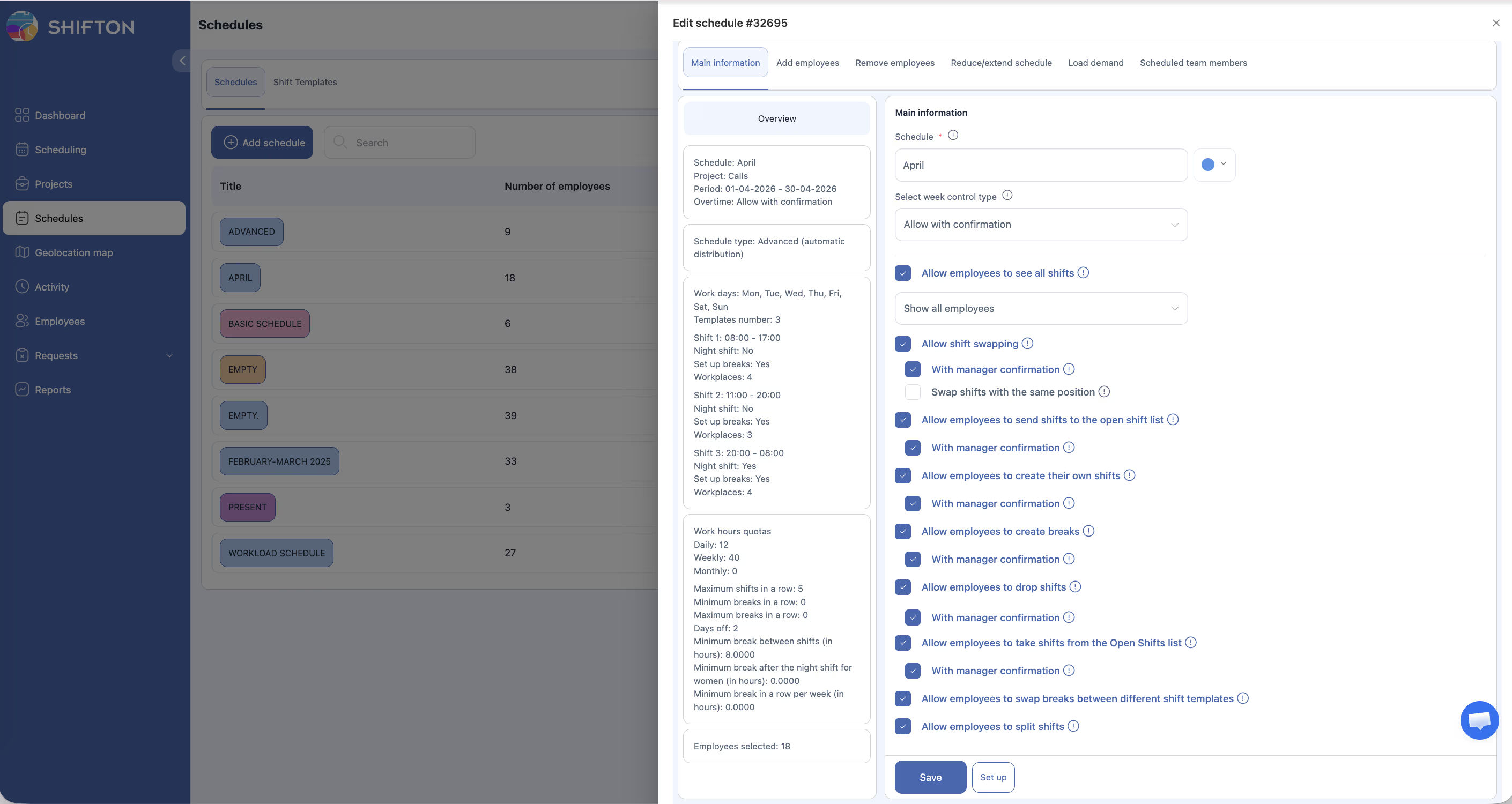
| Setting | Effect |
|---|---|
| Allow employees to take shifts from the Open Shifts list | Employees see a “Take shift” option on open shifts |
| Require manager confirmation | Claims go to a pending queue for manager review before assignment |
Taking an Open Shift (Employee)
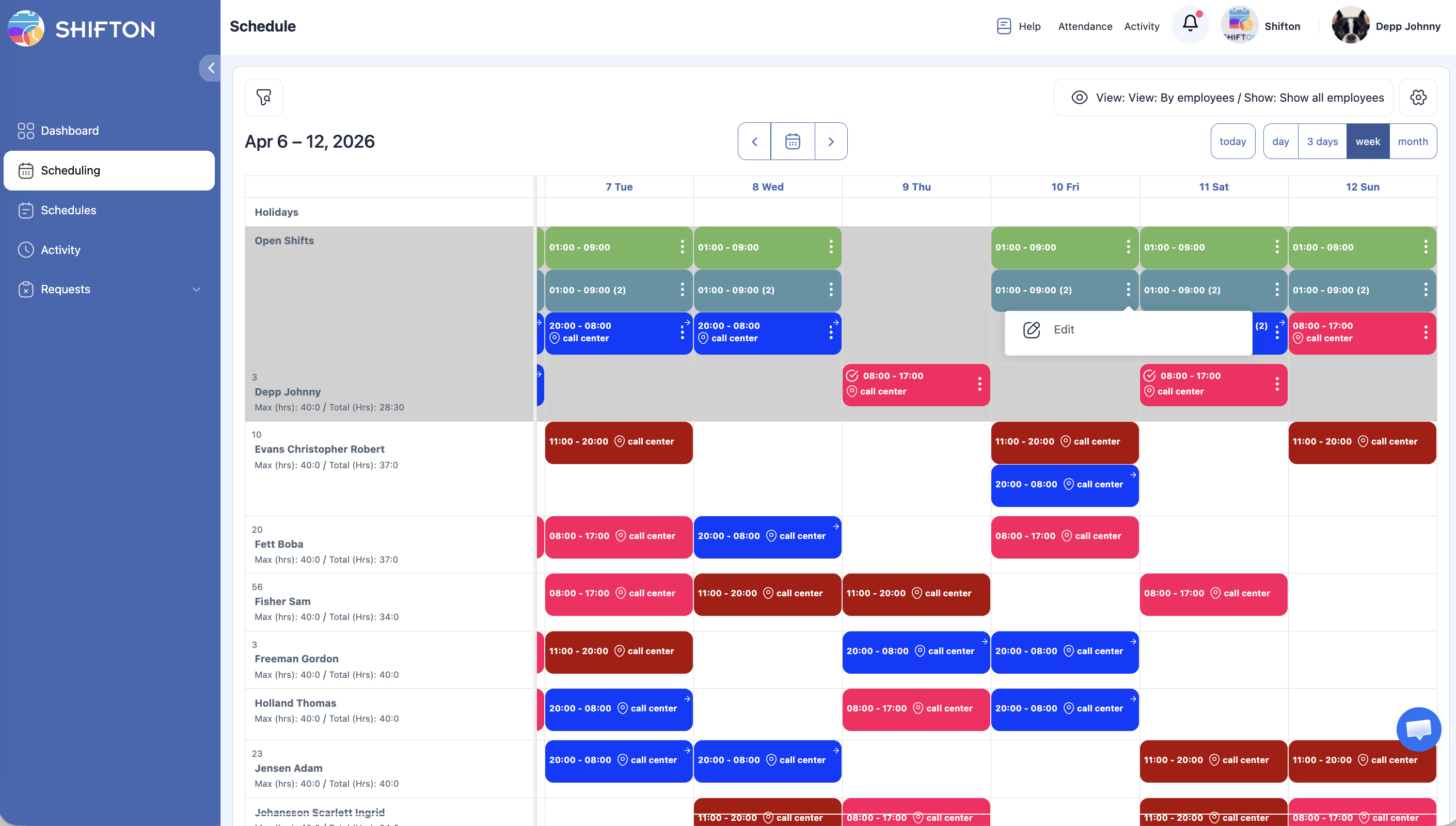
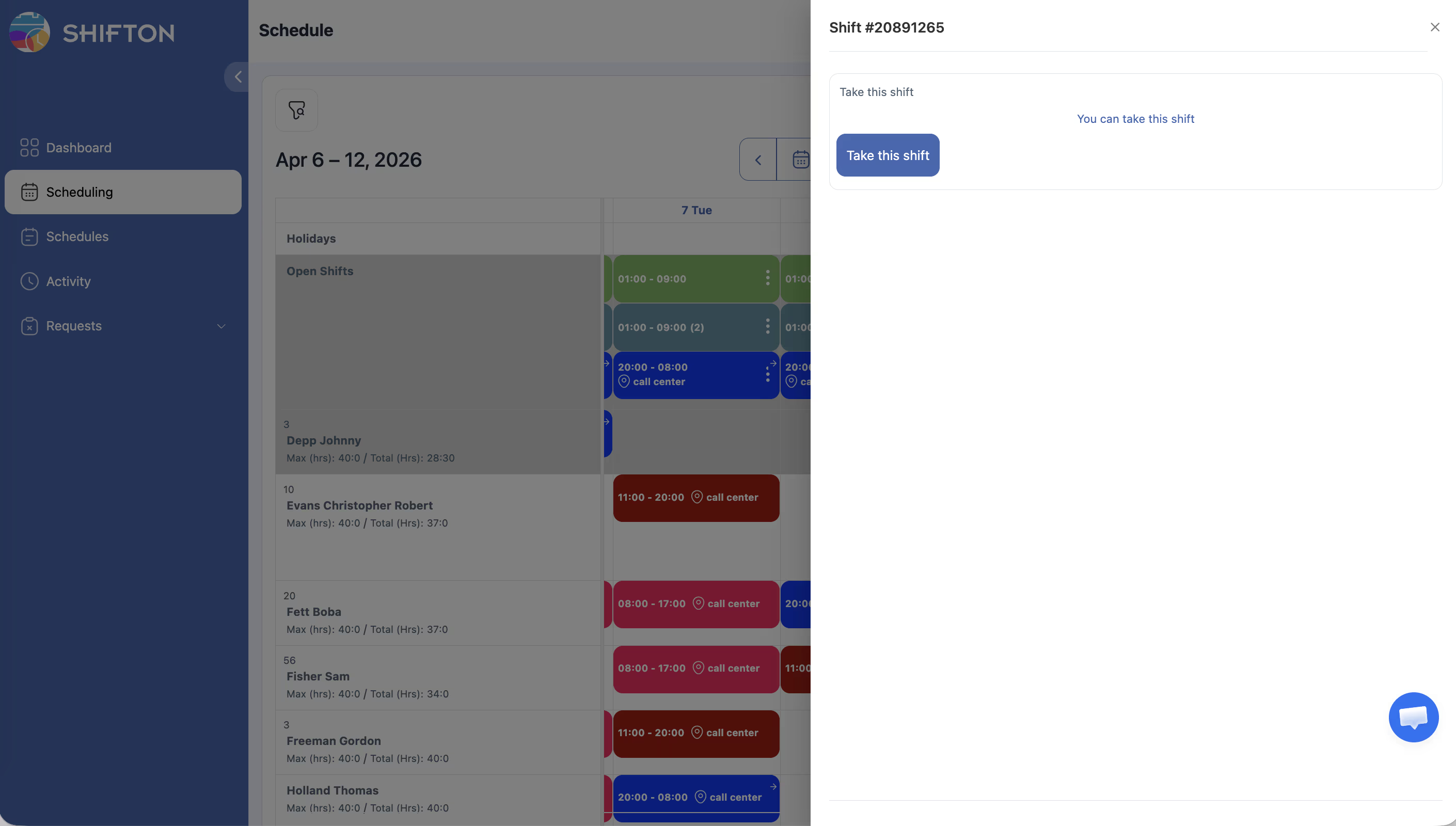
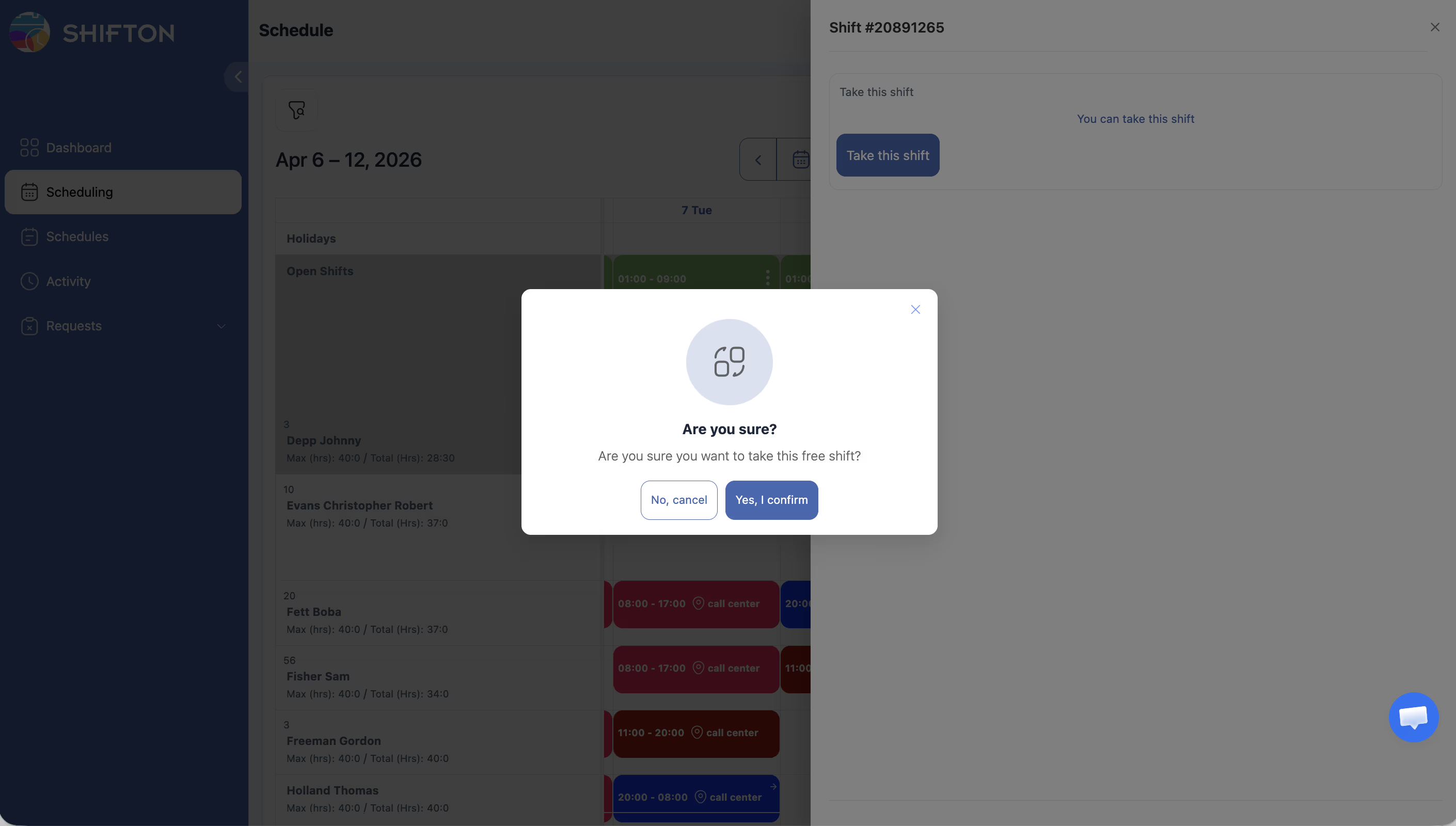
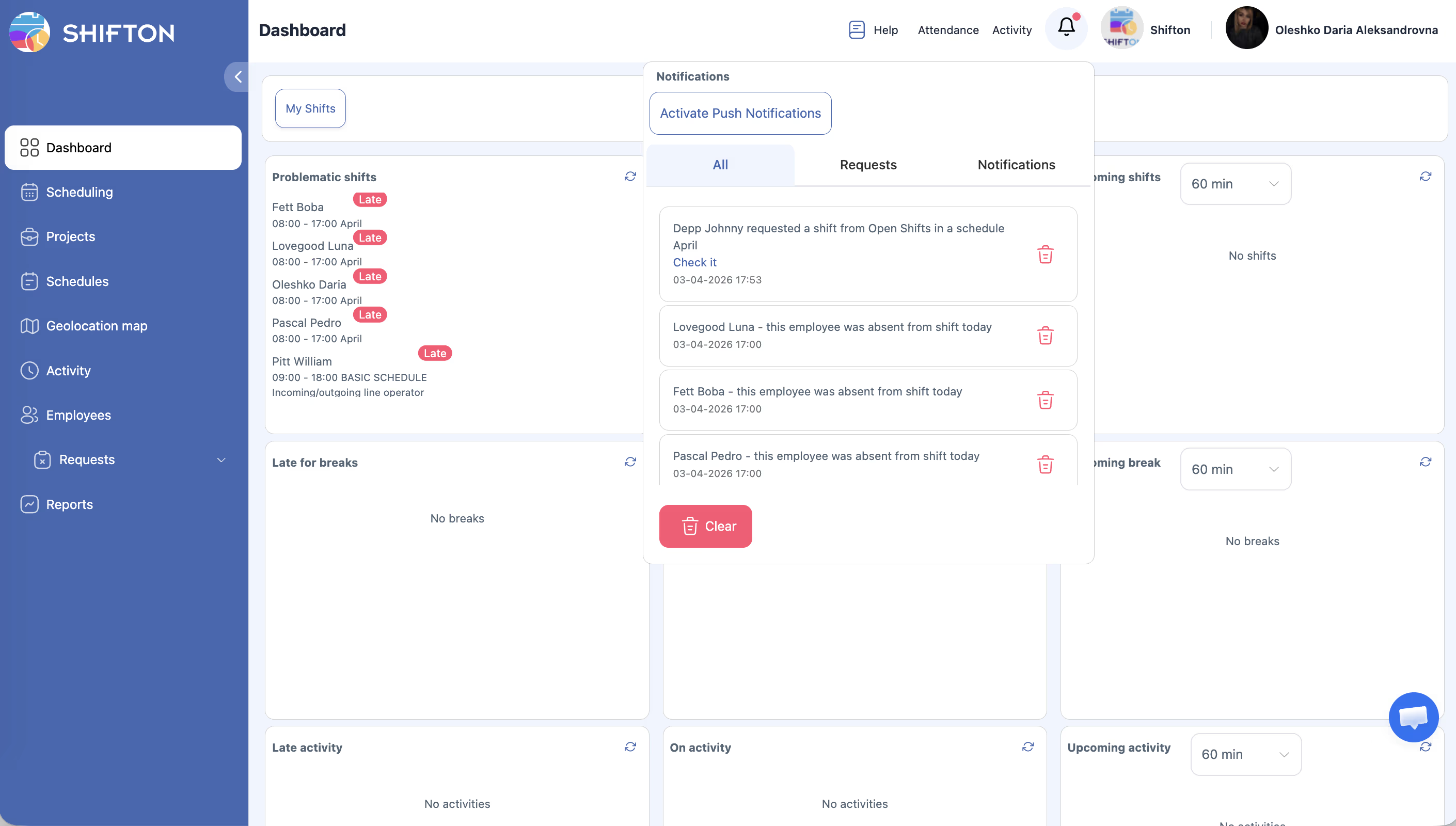
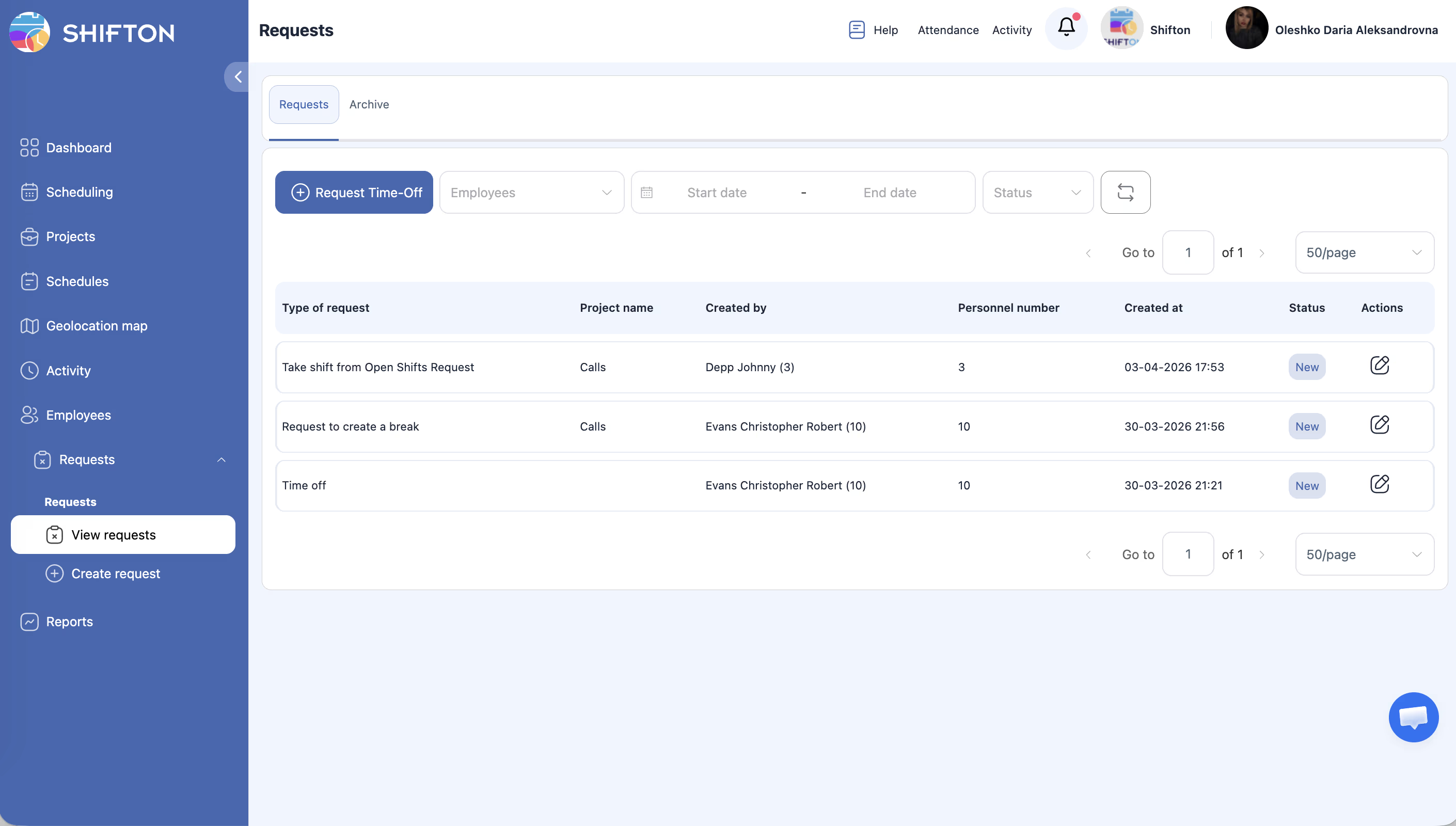
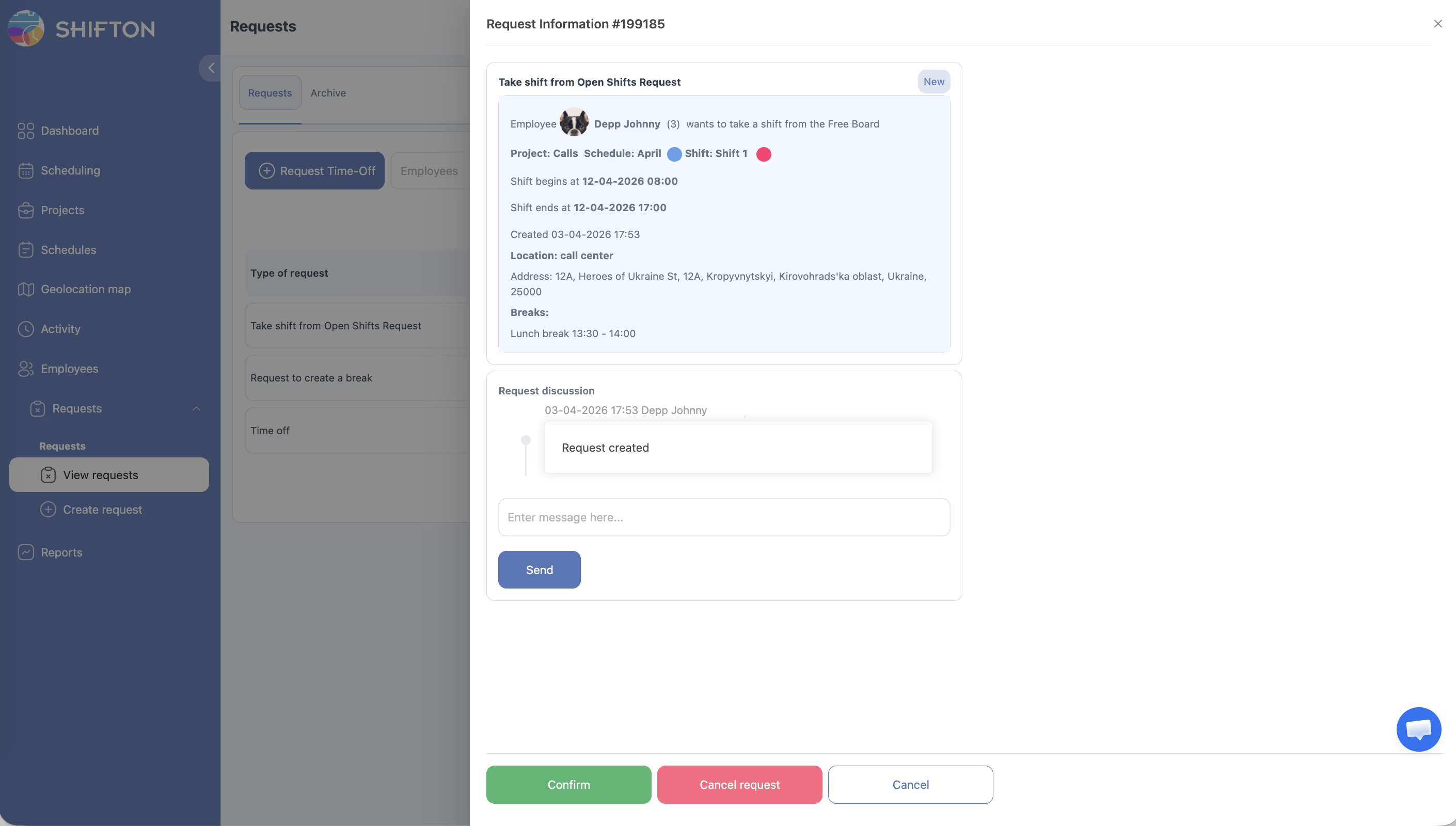
Approving an Open Shift Request (Manager)
Access Permissions
| Role | Enable Setting | Take Open Shift | Approve/Reject Request |
|---|---|---|---|
| Owner | Yes | Yes | Yes |
| Administrator | Yes | Yes | Yes |
| Manager | Yes (assigned schedules) | Yes | Yes (assigned schedules) |
| Employee | No | Yes (when enabled) | No |
FAQ
Q: Can multiple employees request the same open shift?
A: Yes. When manager confirmation is required, multiple employees can submit requests for the same shift, and the manager decides who gets it. Without confirmation, the first employee to claim it is assigned.
Q: Will I get a notification when open shifts become available?
A: This depends on your company’s notification settings. Ask your manager if open shift notifications are enabled for your team.
Q: Can I take an open shift that overlaps with my existing shift?
A: Shifton will typically warn you about scheduling conflicts. Overlapping shifts may be blocked depending on your schedule settings.
Q: What positions can I take open shifts for?
A: You can only take open shifts that match positions you are qualified for. If a shift requires a position you do not hold, it will not be available to you.
Q: Can I cancel my request after submitting it?
A: If the request is still pending manager approval, you may be able to cancel it. Once approved and assigned, contact your manager to make changes.
Possible Issues and Solutions
| Issue | Possible Cause | Solution |
|---|---|---|
| No open shifts visible | No unassigned shifts exist in the schedule | Open shifts must be created by a manager or posted by another employee |
| “Take shift” button not showing | Feature is disabled in schedule settings | Ask an admin to enable “Allow employees to take shifts from the Open Shifts list” |
| Request stuck in pending | Manager has not yet reviewed the request | Reach out to your manager to review pending open shift requests |
| Conflict warning when claiming a shift | The open shift overlaps with your existing schedule | Choose a shift that does not conflict, or ask your manager for help |
| Shift was taken by someone else | Another employee claimed it first (no confirmation mode) | Check for other available open shifts, or ask your manager to create one |
| Cannot see Open Shifts row | Row may be hidden in display settings | Check the schedule’s Show/Hide options to ensure the Open Shifts row is visible |