

Right after company registration, the trial period begins: a green Free trial counter appears in the app header, counting down from ten days. It's not just a timer — it's a game with tasks. Each completed task from the list adds days to the trial period, and in total you can extend it to 60 days.
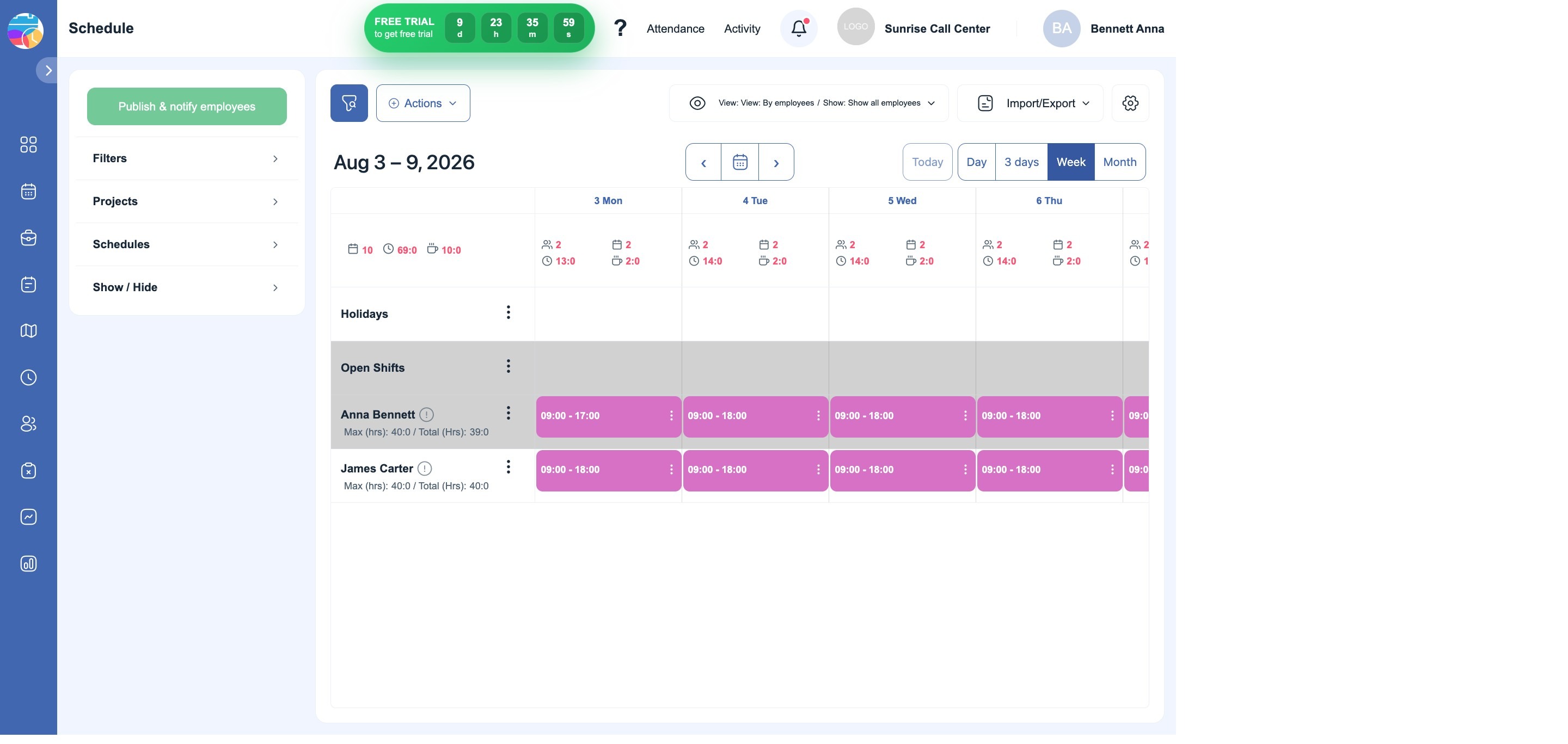
How it works
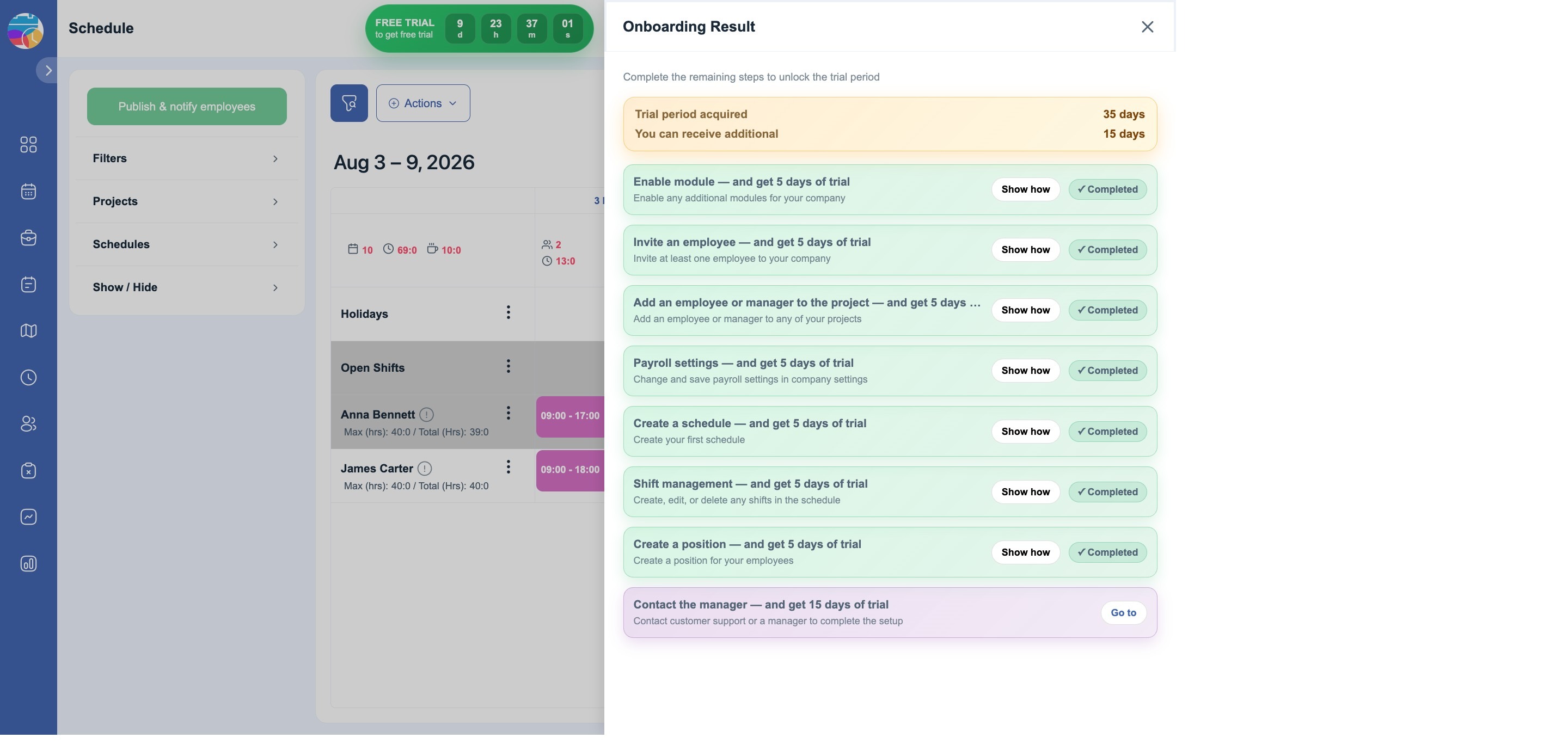
Click the trial counter in the header — the Onboarding Result panel with the task list will open. At the top of the panel there are two numbers:
- Trial period acquired — how many days you have already earned;
- You can receive additional — how many more you can get for the remaining tasks.
At the top of the panel it says: "Complete the remaining steps to unlock the trial period". There are eight tasks. Seven of them are regular company setup steps, each worth 5 days. The eighth — contacting the manager — brings 15 days at once. That makes up to 50 extra days on top of the initial ten.
| Task | What to do | Days |
|---|---|---|
| Enable module | Enable any additional modules for your company | +5 |
| Invite an employee | Invite at least one employee to your company | +5 |
| Add an employee or manager to the project | Add an employee or a manager to any of your projects | +5 |
| Payroll settings | Change and save salary settings in the company settings | +5 |
| Create a schedule | Create your first schedule | +5 |
| Shift management | Create, edit, or delete any shifts in the schedule | +5 |
| Create a position | Create a position for your employees | +5 |
| Contact the manager | Contact support or a manager to finish the setup — book a demo | +15 |
Each task has a Show how button — a short hint on where to go and what to click. Completion is counted automatically: as soon as a task is done, a Completed mark appears next to it, and the days are added to your total.
How to complete each task
Enable module
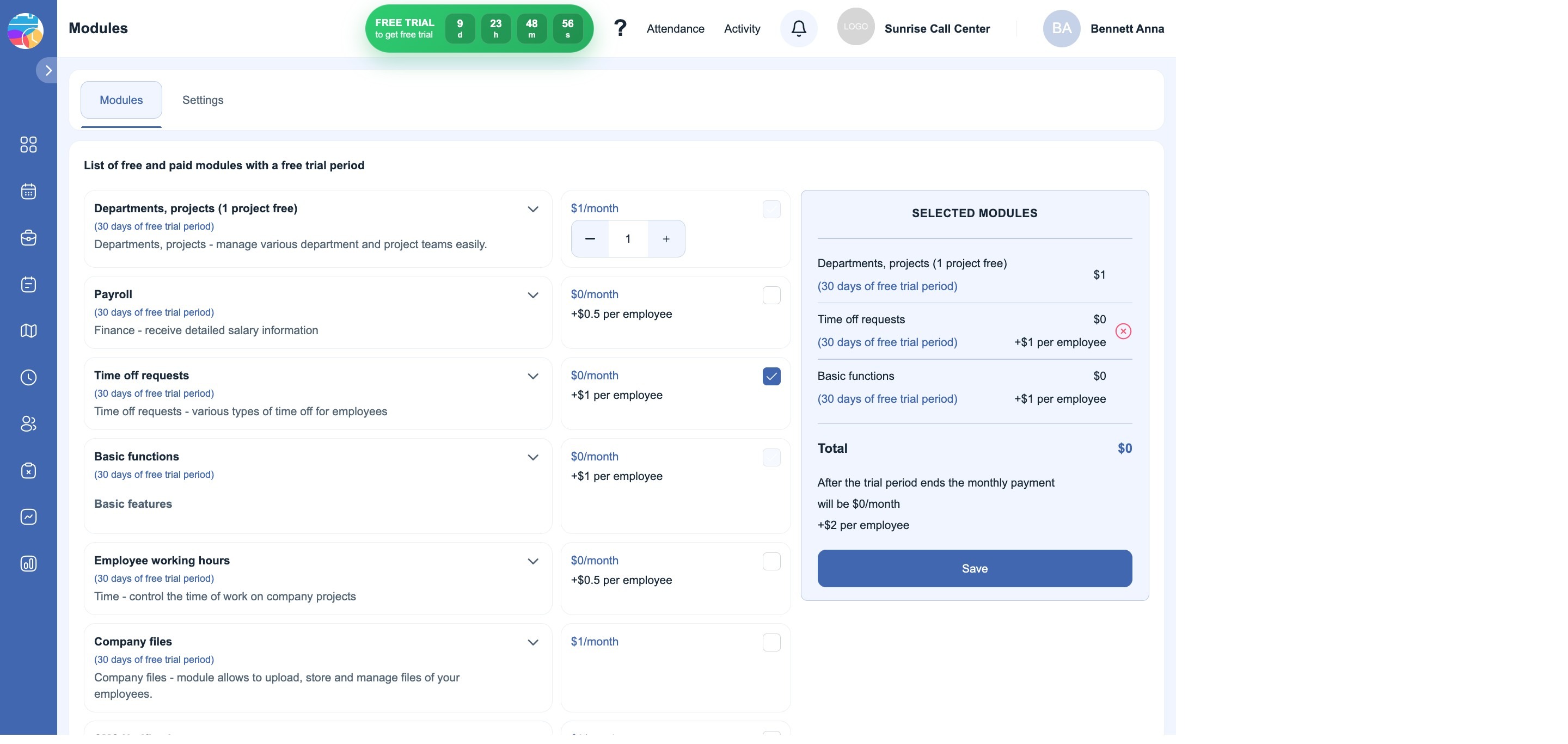
Open the Shifton menu (the company name in the header) → Modules. Check any additional module — for example, Time off request — and it will appear in the Selected modules panel on the right. Click Save.
Invite an employee
The Employees section → the Add employees button. Enter the first name, last name, and email address, check Send invite, and click Add and close. The employee will receive an email with a sign-in link.
Add an employee or manager to the project
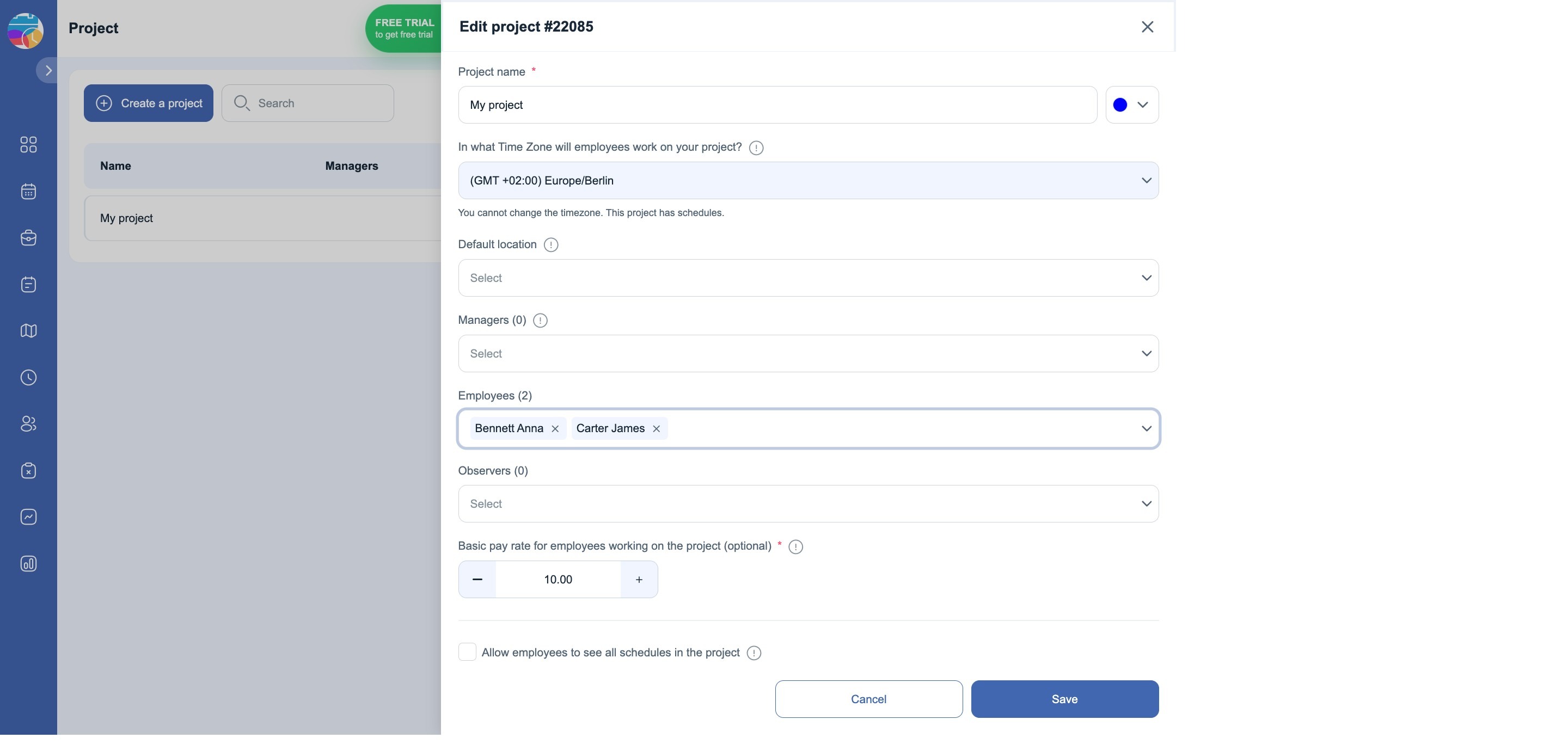
The Projects section → the Edit pencil next to the project. In the Employees field, select the people you have added; in the Managers field — those who will manage the schedules. Click Save.
Payroll settings
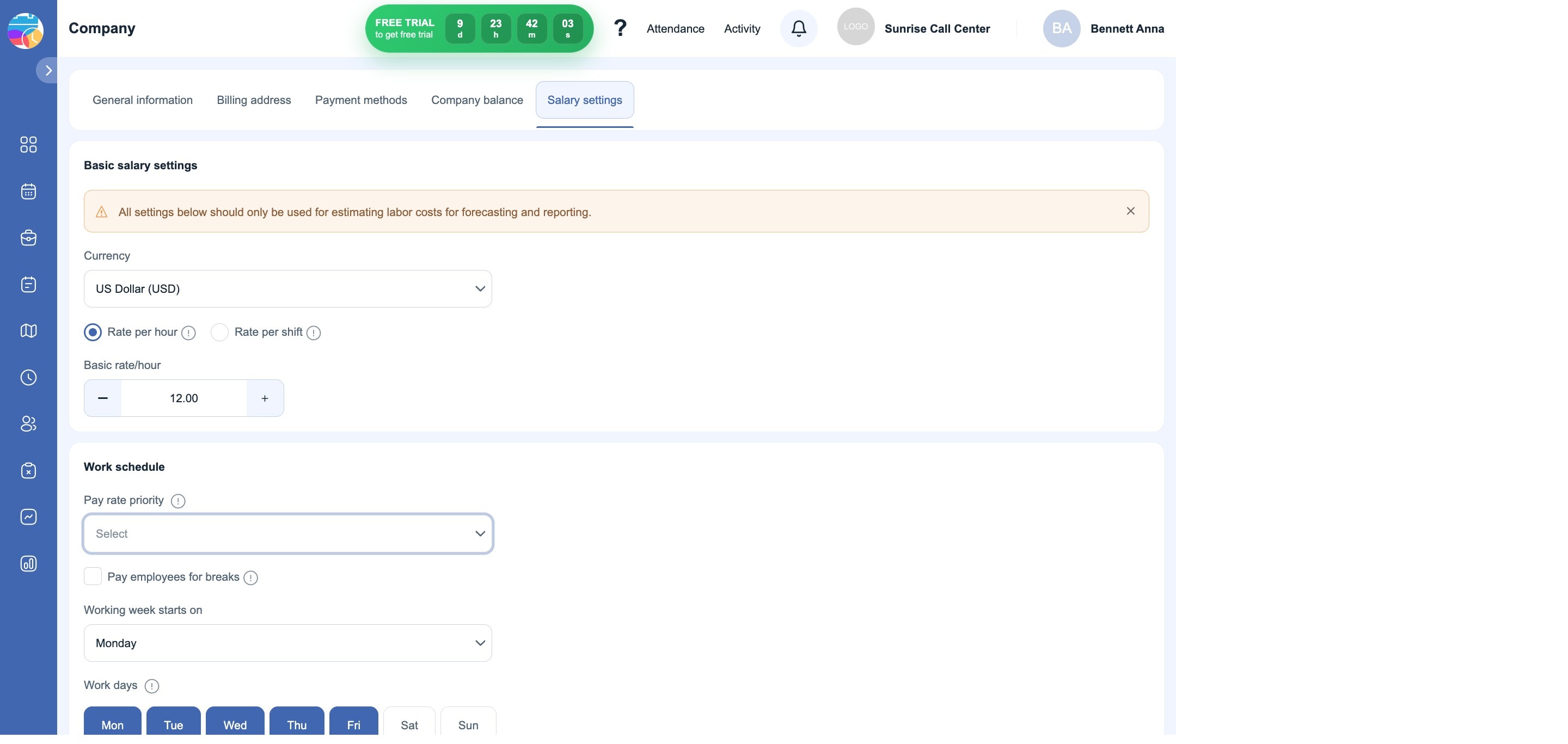
The Shifton menu → Company settings → the Salary settings tab. Change any setting — for example, the base hourly rate — and click Save. These settings are used for forecasts and cost reports.
Create a schedule
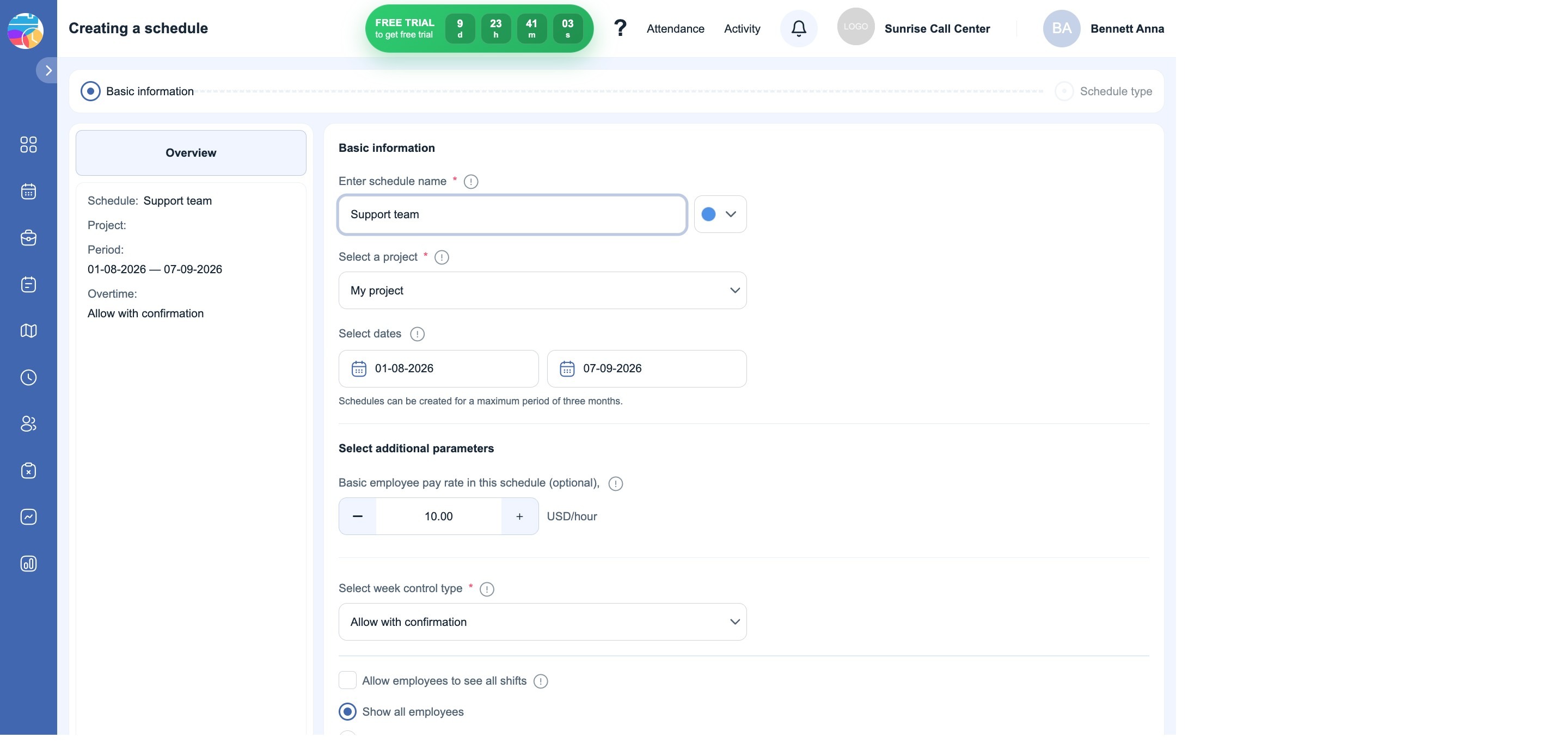
The Schedules section → Add schedule. A wizard will open: name the schedule, choose a project and a period, then the schedule type, add a shift template, and select employees. After you click Save, the system will generate the shifts.
Shift management
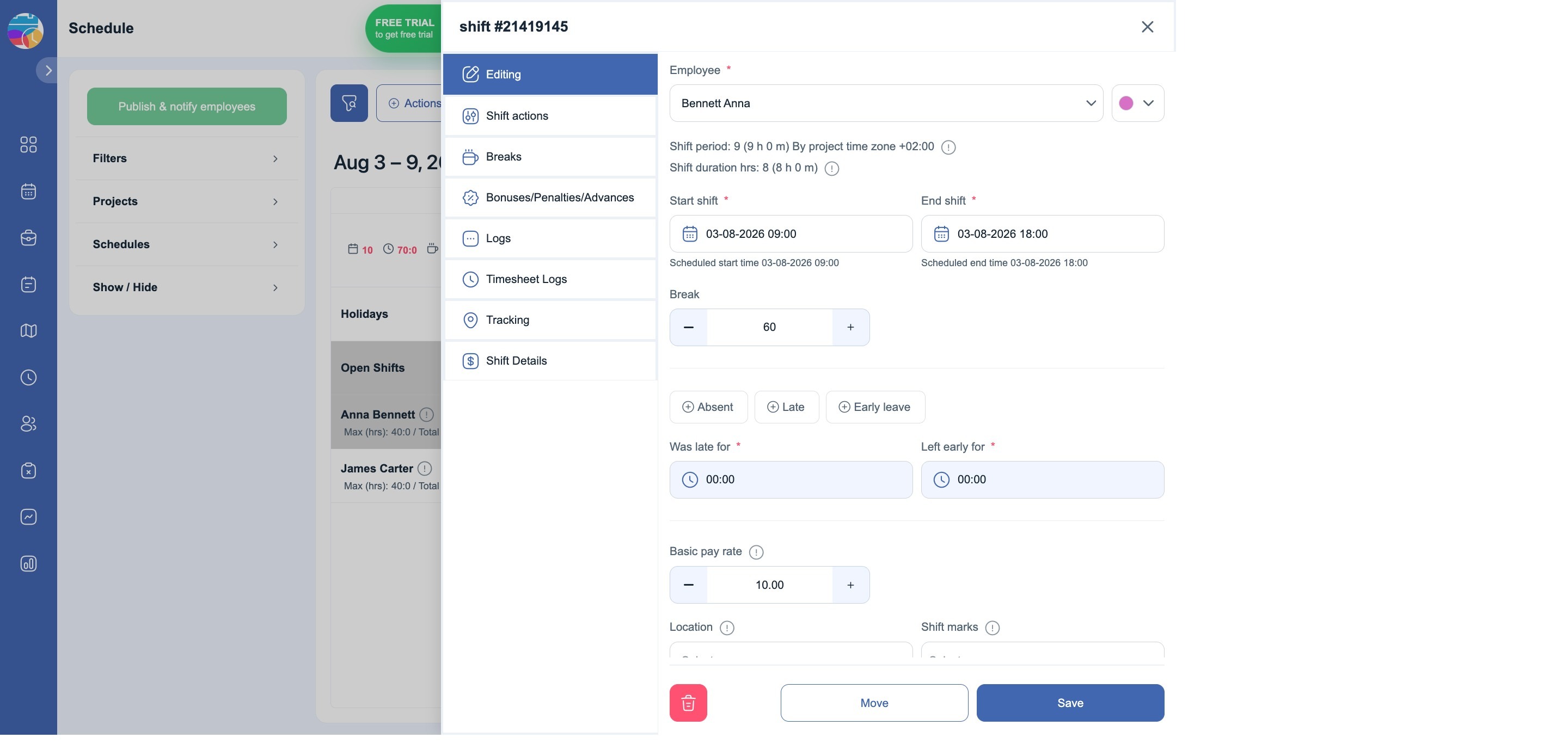
Open the schedule you created and double-click any shift. In the shift panel, change the start or end time and click Save. Any action with a shift counts: creating a new one, editing or deleting an existing one.
Create a position
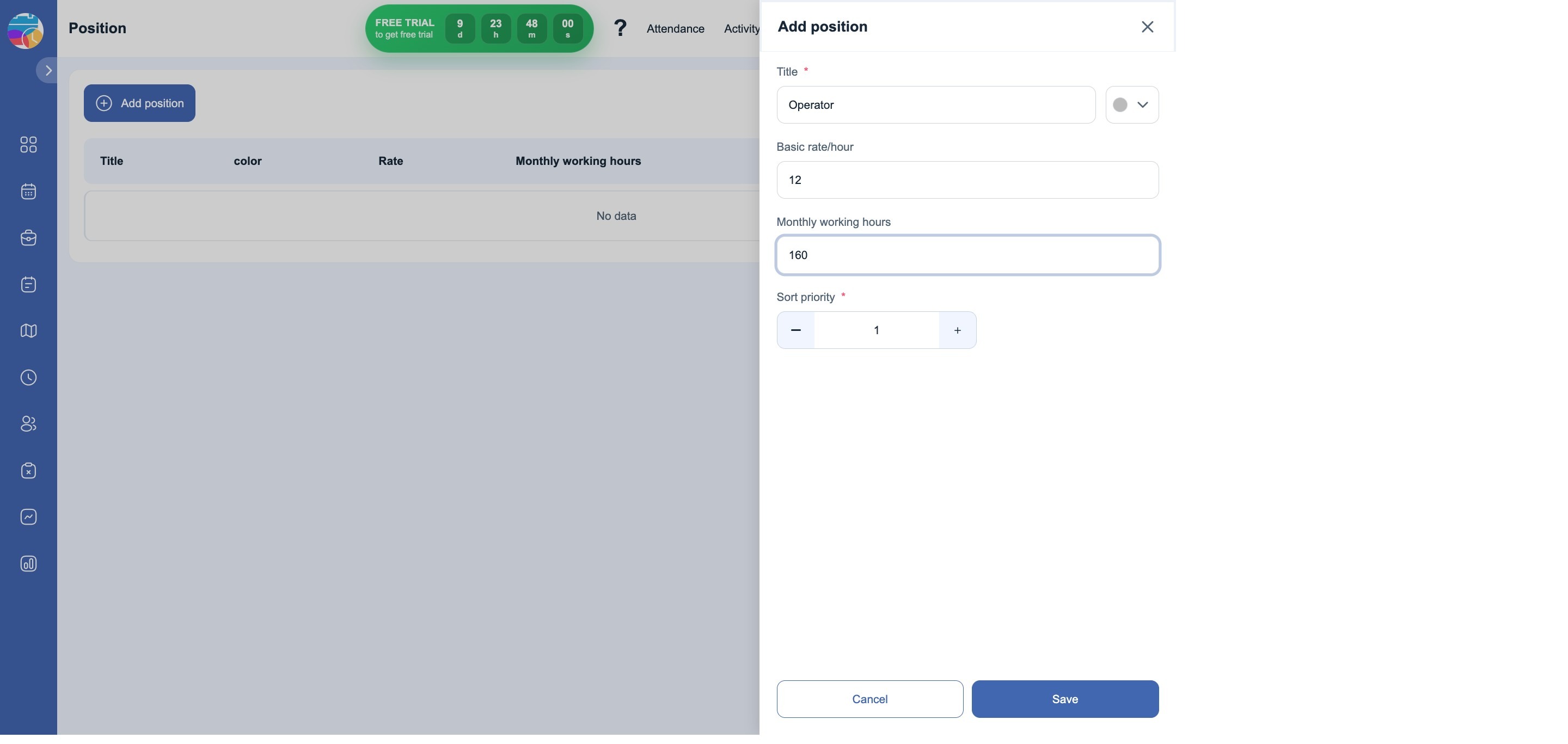
The Positions section (the Shifton menu → Positions) → Add position. Enter a name, optionally a rate and a monthly hours quota, and click Save.
Contact the manager
Next to this task, instead of a hint, there is a Go to button — it leads to demo booking. Pick a convenient time, and in a live meeting a Shifton manager will help you finish setting up the company for your processes. Booking a demo earns 15 trial days at once — the most "valuable" task on the list.
What the trial period gives you
During the trial period, all features of the paid modules are open without payment. When the period ends, the company keeps working: if you fit within the free conditions — one project, up to ten employees, and only the "Basic functions" module — no charges appear at all. See the article "Free plan" for details.
Access rights
| Role | What they see |
|---|---|
| Employee | Doesn't see the counter or the tasks |
| Manager | Doesn't see the counter or the tasks |
| Administrator | Sees the counter and the task list |
| Owner | Full access, including tasks and billing |
Possible problems and solutions
| Problem | Cause | Solution |
|---|---|---|
| A task is done, but there is no Completed mark | The action wasn't finished — for example, the changes weren't saved | Make sure you clicked Save; refresh the page and open the task panel again |
| The counter in the header didn't increase after a task | The days accumulate in the Trial period acquired field on the task panel | Open the panel by clicking the counter and check the total |
| The counter disappeared from the header | The trial period is over | Check the free plan conditions or add a payment method |
| The invited employee doesn't receive the email | The email is in spam or the address has a typo | Check the Spam folder; resend the invitation from the employee list |
FAQ
Question: How long does the trial period last? Answer: Right after registration — ten days. By completing tasks, you can extend it to a maximum of 60 days.
Question: Do I need a bank card for the trial period? Answer: No. The trial period starts automatically after registration.
Question: Are the tasks mandatory? Answer: No. They are regular company setup steps — schedule, employees, positions. They are worth doing anyway, and the trial days come as a bonus.
Question: What happens if I don't complete any tasks? Answer: The trial period will end after ten days. After that, the company either keeps working for free — if it fits within the free conditions — or the enabled modules will need to be paid for.
Question: Can I complete the tasks in any order? Answer: Yes, the order doesn't matter. Just note that to add an employee to a project, the employee must already be invited.
Question: Do the earned days expire? Answer: The days you earn add up in the Trial period acquired field and are included in the overall trial period.
Question: What gives 15 days? Answer: Booking a demo with a manager — the Go to button next to the last task. At the meeting, the manager will help you set up the company for your processes.
Question: I use field service mode. Are the tasks the same? Answer: The list differs: in field service mode the tasks are tied to tasks, clients, and checklists. The mechanics are the same — you complete a task, you get days.
Question: What happens after the trial period ends? Answer: Work doesn't stop. If the company fits within the free conditions, no payment is needed; if not, the enabled modules must be paid for or disabled.
Question: Where can I see how many days are left? Answer: The counter in the header shows the remaining time, and the panel that opens when you click it shows how many days you have already earned.