

Learn how employees can start shifts that are not on the published schedule, and how to configure unscheduled shift settings.
What Is This?
Unscheduled shifts allow employees to clock in and work even when they do not have a planned shift on the schedule. This is useful for businesses with fluctuating demand, on-call workers, or situations where extra coverage is needed on short notice.
When enabled, unscheduled shifts appear as an option in the Attendance dropdown alongside any scheduled shifts. The employee simply starts the unscheduled shift, and the system records the actual hours worked. A configurable default duration sets the expected length of unscheduled shifts for planning and reporting purposes.
Prerequisites
| # | Prerequisite | Details |
|---|---|---|
| 1 | Attendance module enabled | Unscheduled shifts are an Attendance feature, so the module must be active. |
| 2 | Unscheduled shifts allowed | The option to allow unscheduled shifts must be turned on in Attendance module settings. |
| 3 | Employee assigned to a project | The employee must belong to at least one project to start any shift. |
Step-by-Step Instructions
Enabling Unscheduled Shifts
| Step | Action | Expected Result |
|---|---|---|
| 1 | Navigate to Settings > Modules > Attendance (or the Attendance settings page). | The Attendance module settings open. |
| 2 | Locate the Allow unscheduled shifts option. | You see a toggle or checkbox for this feature. |
| 3 | Enable the Allow unscheduled shifts toggle. | Unscheduled shifts are now permitted for employees. |
| 4 | Set the Default duration for unscheduled shifts (default: 240 minutes). | This value is used for reporting and planning. Employees can still end the shift earlier or later. |
| 5 | Click Save. | Settings are applied. |
Starting an Unscheduled Shift (Employee)
| Step | Action | Expected Result |
|---|---|---|
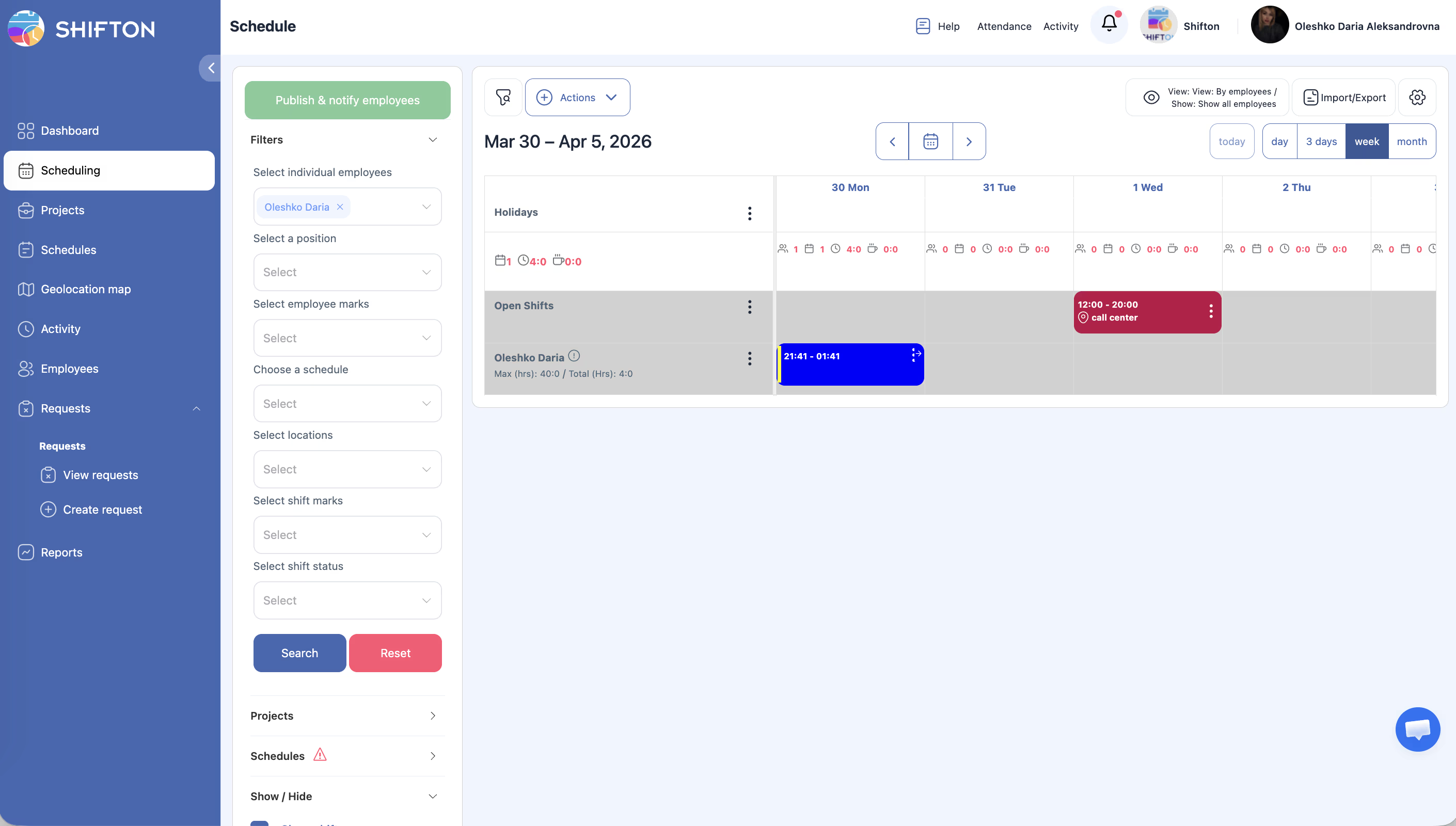
| 1 | Log in to Shifton (browser or mobile app). | The main interface loads. |
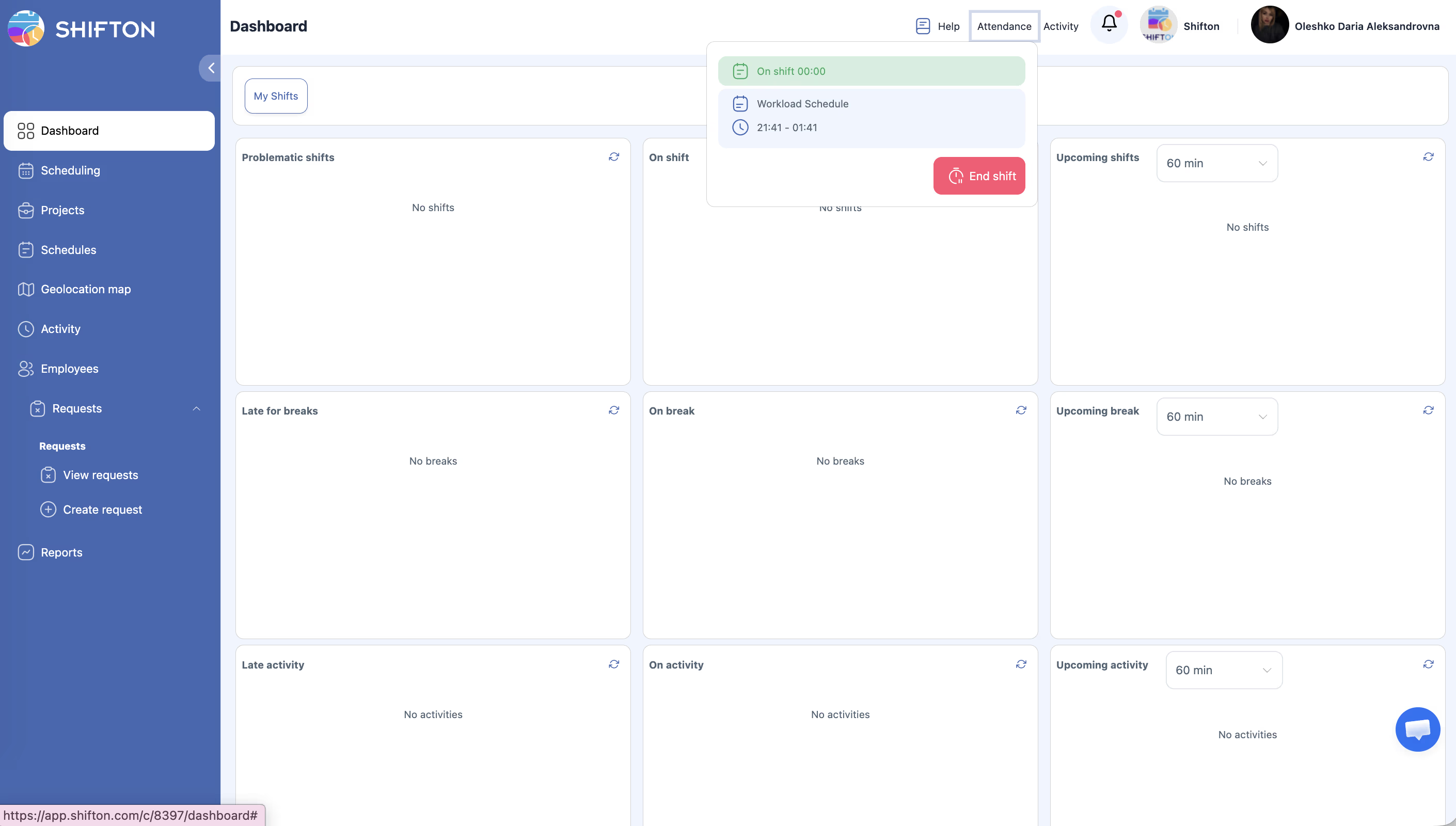
| 2 | Click the Attendance button in the top navigation bar. | The Attendance dropdown opens. |
| 3 | Look for the Unscheduled shift option in the dropdown list (in addition to any scheduled shifts). | An unscheduled shift entry is visible with a Start shift button. |
| 4 | Click Start shift next to the unscheduled shift option. | The system records your start time. The shift is now active. |
| 5 | Work your shift as normal. When finished, open the Attendance dropdown and click End shift. | The unscheduled shift is recorded with your actual start and end times. |
Viewing Unscheduled Shifts as a Manager
| Step | Action | Expected Result |
|---|---|---|
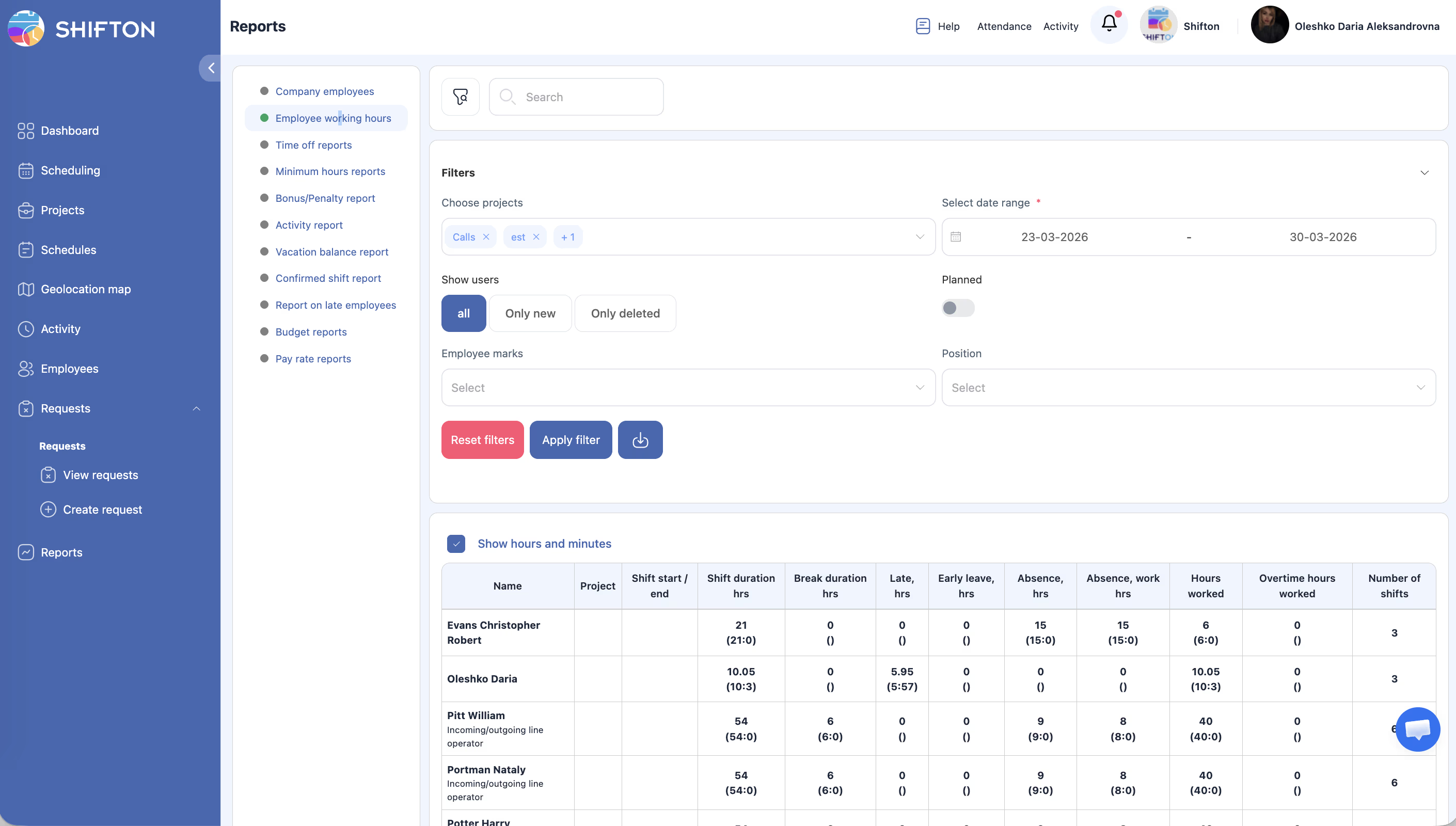
| 1 | Navigate to Reports > Employee Working Hours. | The report loads. |
| 2 | Set the desired date range and click Apply Filter. | The table shows all shifts including unscheduled ones. |
| 3 | Unscheduled shifts are identifiable by the absence of a planned start/end time. | Planned columns are empty while actual columns show the recorded times. |
Access Permissions
| Role | Start Unscheduled Shift | View Own Unscheduled Shifts | View Team Unscheduled Shifts | Configure Unscheduled Shift Settings |
|---|---|---|---|---|
| Employee | Yes (if enabled) | Yes | No | No |
| Manager | Yes (if enabled) | Yes | Yes (all) | No |
| Admin | Yes (if enabled) | Yes | Yes (all) | Yes |
| Owner | Yes (if enabled) | Yes | Yes (all) | Yes |
FAQ
Q1: What is the default duration for unscheduled shifts?
The default is 240 minutes (4 hours). This value is configurable in the Attendance module settings and is used primarily for reporting and planning — it does not prevent employees from working longer or shorter shifts.
Q2: Do unscheduled shifts count toward total worked hours?
Yes. Unscheduled shifts are recorded the same way as scheduled shifts and appear in all relevant reports, including Employee Working Hours and Budget reports.
Q3: Can I restrict which employees are allowed to start unscheduled shifts?
The unscheduled shifts setting applies company-wide. If you need to restrict this to specific employees, consider using role-based permissions or discussing with your Shifton account representative.
Q4: Will IP and GPS validation apply to unscheduled shifts?
Yes. If location validation is configured in the Work location control module, the same IP and GPS checks apply when starting an unscheduled shift.
Possible Issues and Solutions
| Issue | Possible Cause | Solution |
|---|---|---|
| Unscheduled shift option not visible in the Attendance dropdown | Unscheduled shifts are not enabled in settings. | Go to Settings > Modules > Attendance and enable the Allow unscheduled shifts toggle. |
| Employee started an unscheduled shift by mistake | The employee selected the wrong option in the dropdown. | End the shift immediately and contact a manager to correct the record. |
| Unscheduled shift shows 0 planned hours in reports | This is expected behavior — unscheduled shifts have no planned schedule. | No action needed. Actual hours are recorded correctly. |
| Too many employees starting unscheduled shifts | No restrictions are in place. | Review whether unscheduled shifts should remain enabled, or communicate guidelines to your team. |
| Default duration does not match business needs | The default 240-minute value was not changed. | Update the default duration in Settings > Modules > Attendance to match your typical shift length. |