

The transfer function is used to move tools, items, and materials between facilities and technicians.
The detailed process of creating a transfer is described in the article “Facility Inventory Overview in the Inventory Module.”
The “Transfers” section allows you to view all created, confirmed, declined, and cancelled transfers and track their status in real time.
How to Open the Transfers Section
In the side menu, select “Transfers.”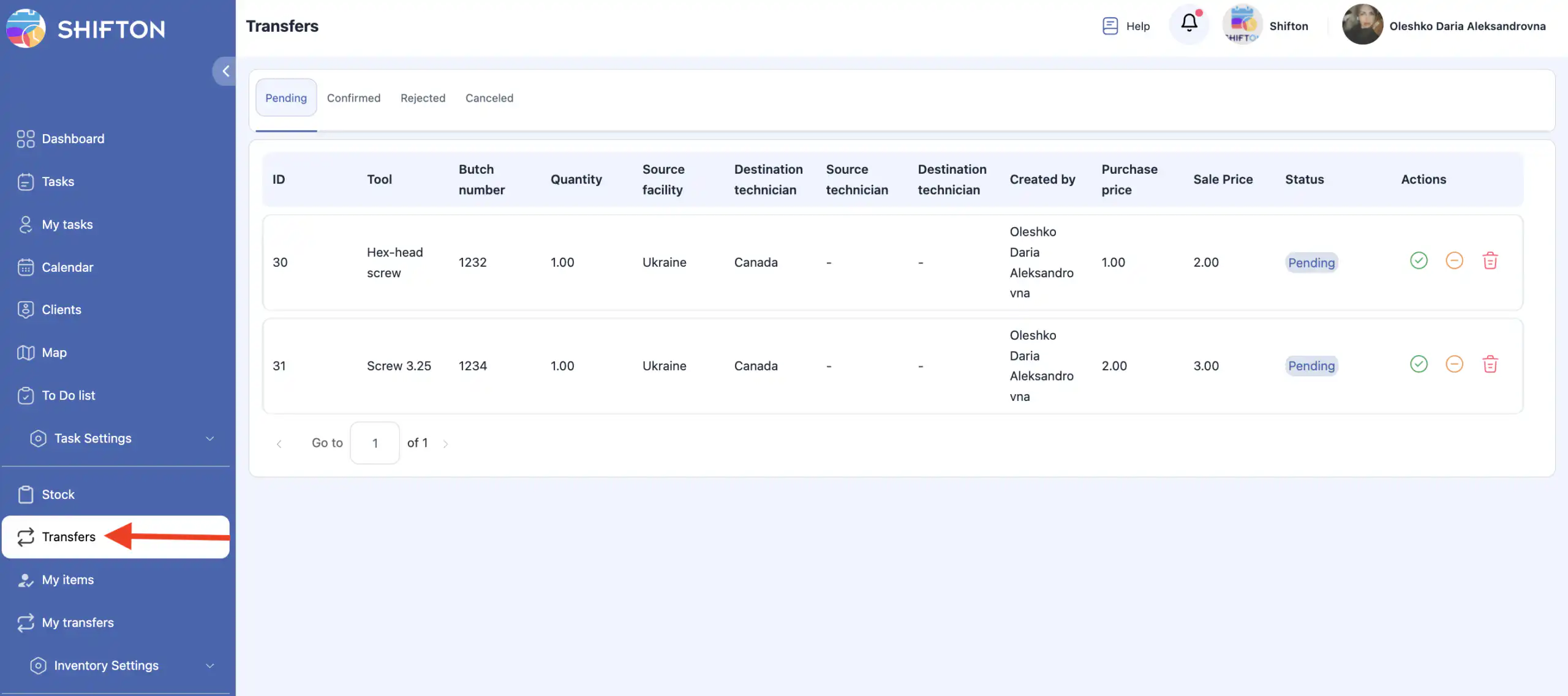
The page displays all item movement operations, grouped by status.
Transfer Status Types
The system uses four main transfer statuses.
Pending Transfers
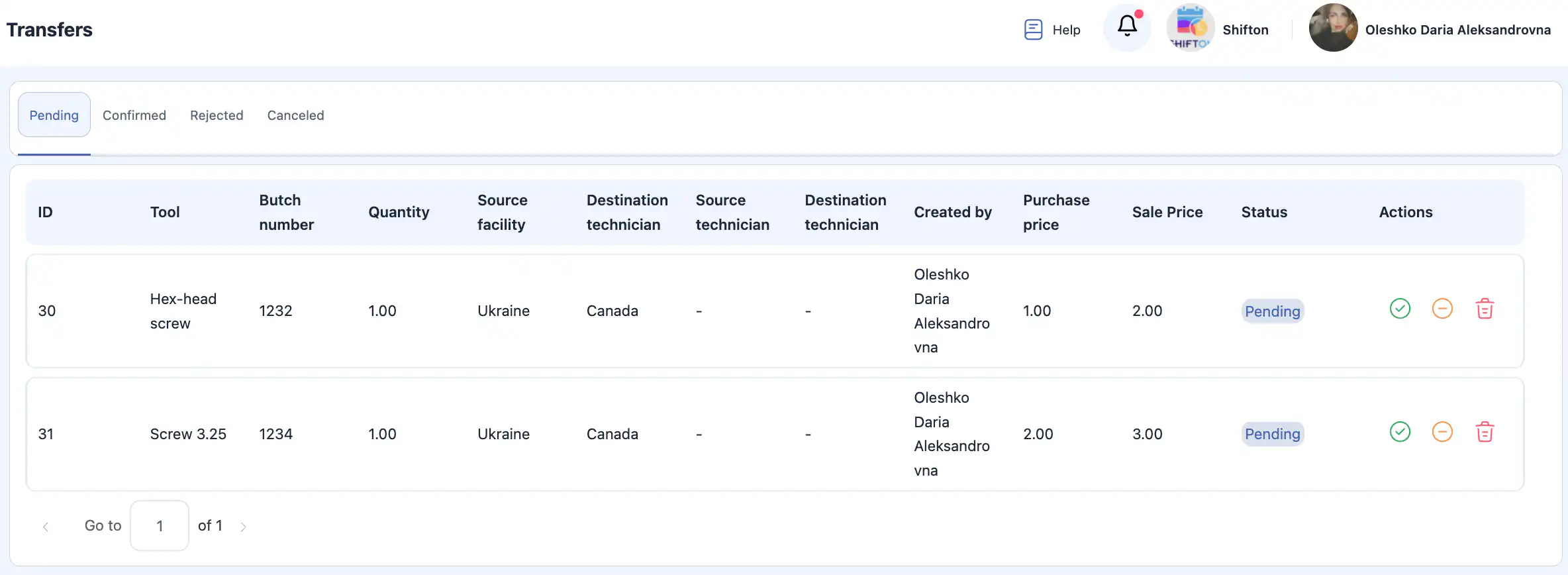
These are transfers that have been created but not yet confirmed by the recipient
(either a facility or a technician).
A transfer remains in Pending status until it is confirmed or declined.
Confirmed Transfers
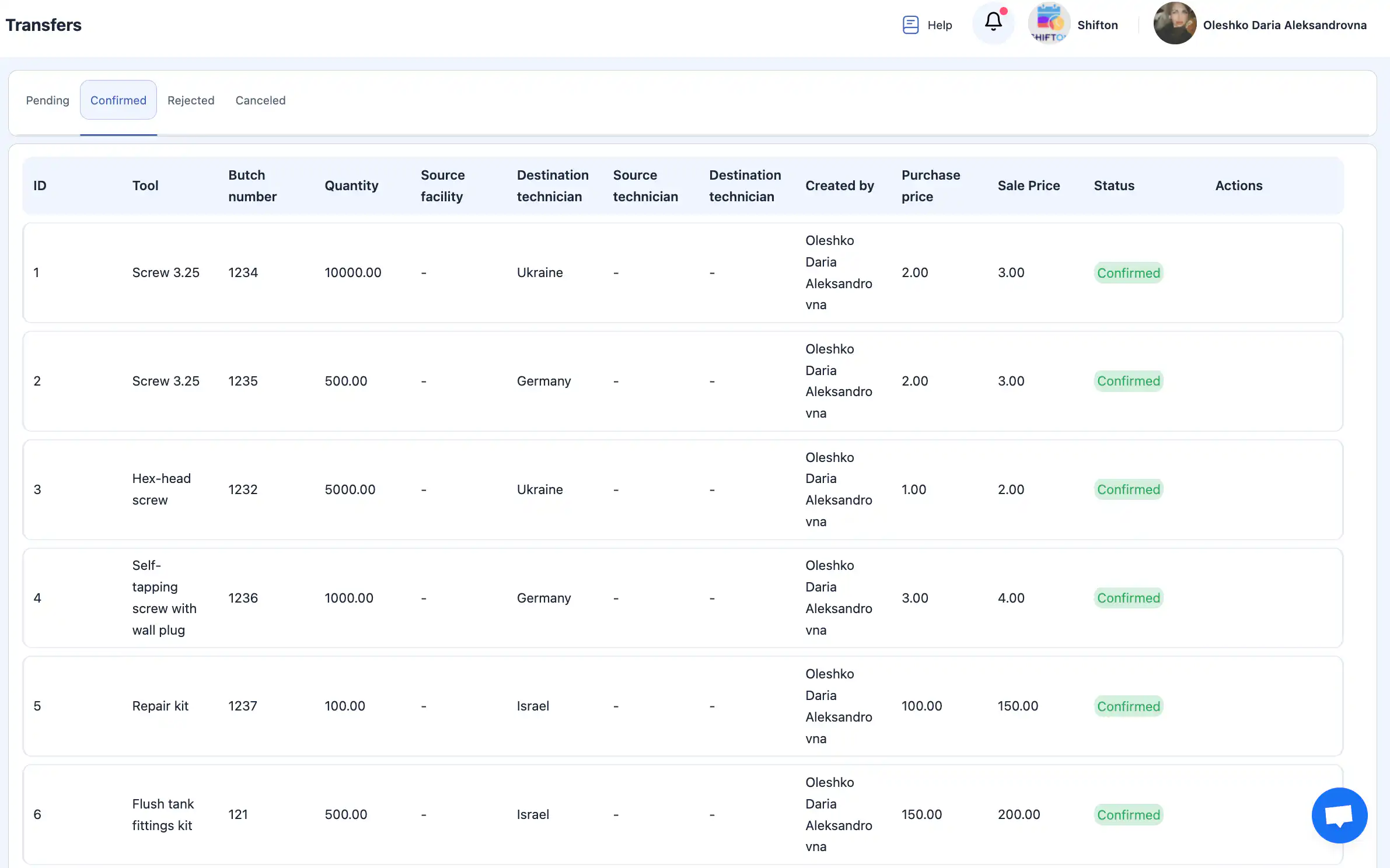
This list contains all transfers that were successfully accepted by the recipient.
After confirmation, item quantities are updated automatically.
Declined Transfers
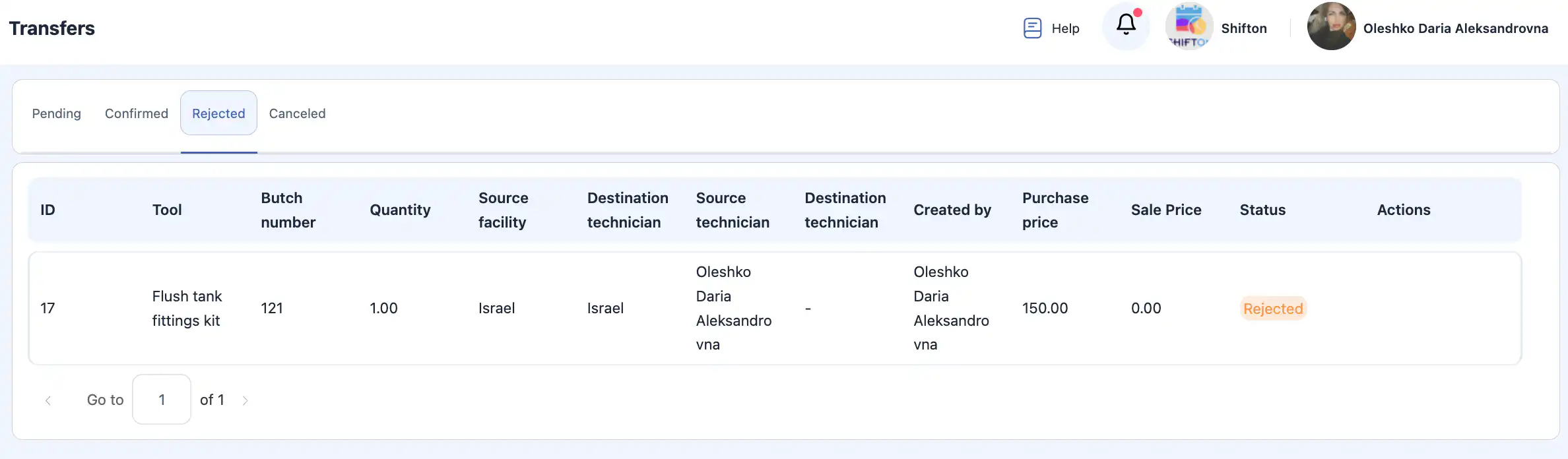
These are transfers that were declined by the receiving side.
Declined transfers do not affect item quantities.
Cancelled Transfers
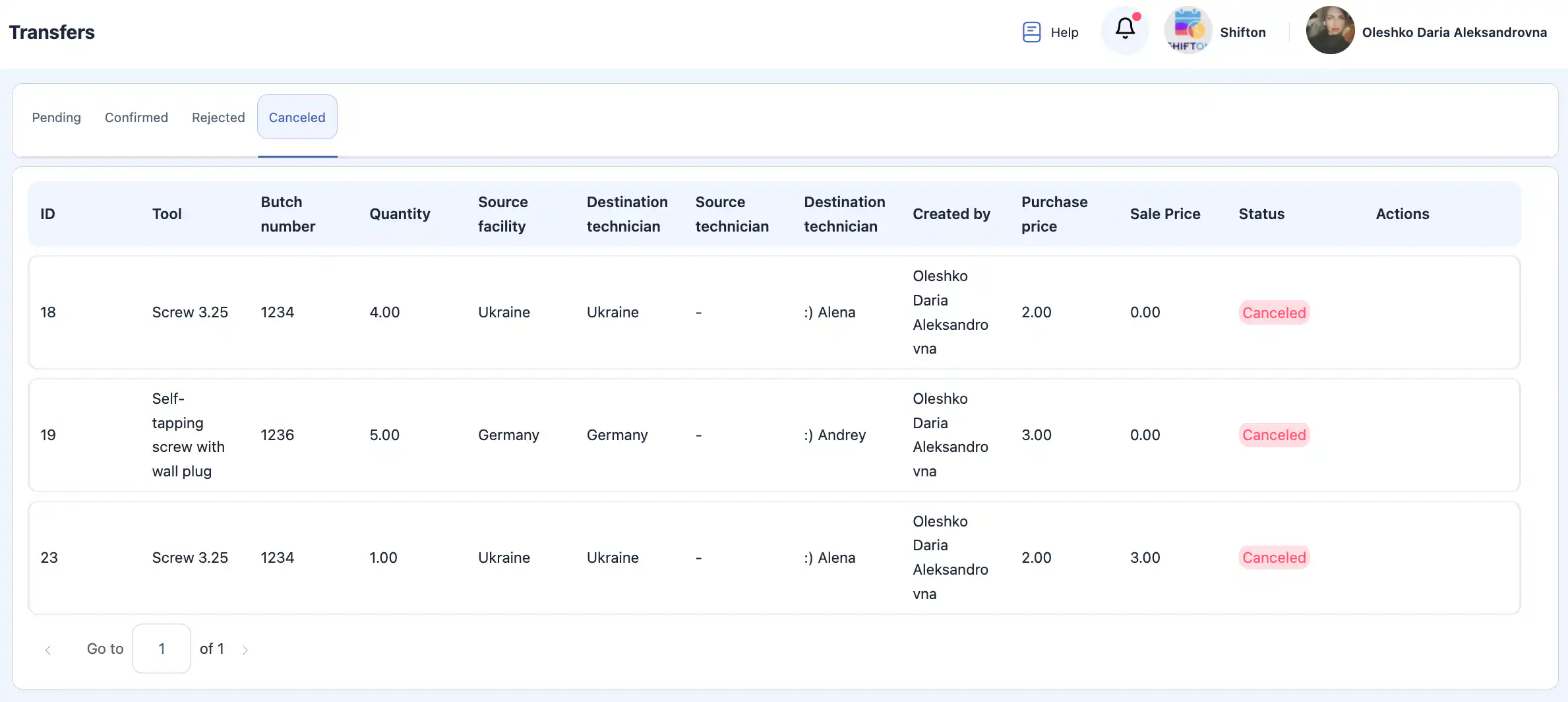
This category includes transfers that were cancelled by the sender before confirmation.
Cancelled transfers do not change inventory levels.
My Transfers Page
In addition to the general Transfers section, the system includes a dedicated “My Transfers” page.
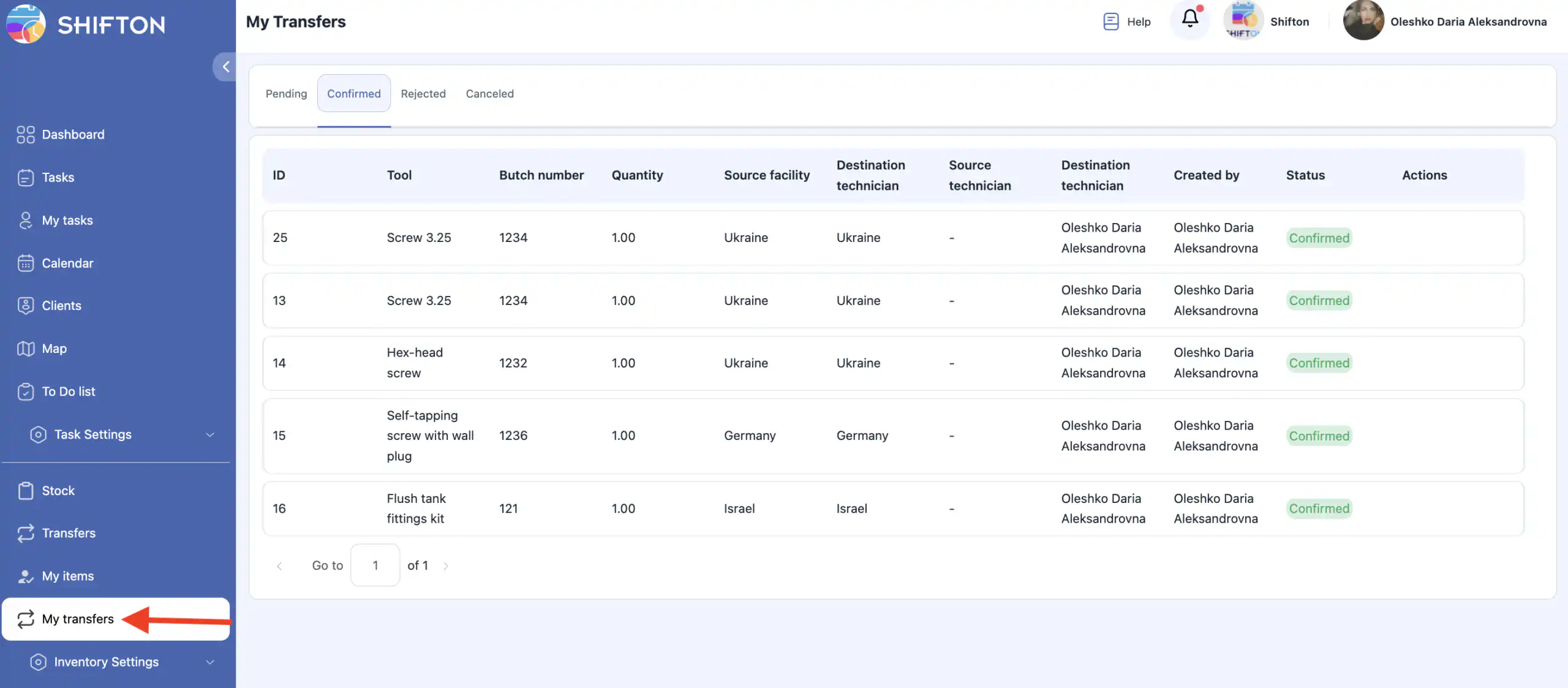
This page displays only the transfers that were created by the currently logged-in user.
All transfers on this page are shown with the same four statuses:
Pending
Confirmed
Declined
Cancelled
This allows each user to quickly track only their own transfer operations without viewing transfers created by other team members.
FAQ
Pending — created but not confirmed by the recipient.
Confirmed — accepted and applied, inventory quantities updated.
Declined — rejected by the recipient, no quantity changes.
Cancelled — cancelled by the sender before confirmation.