

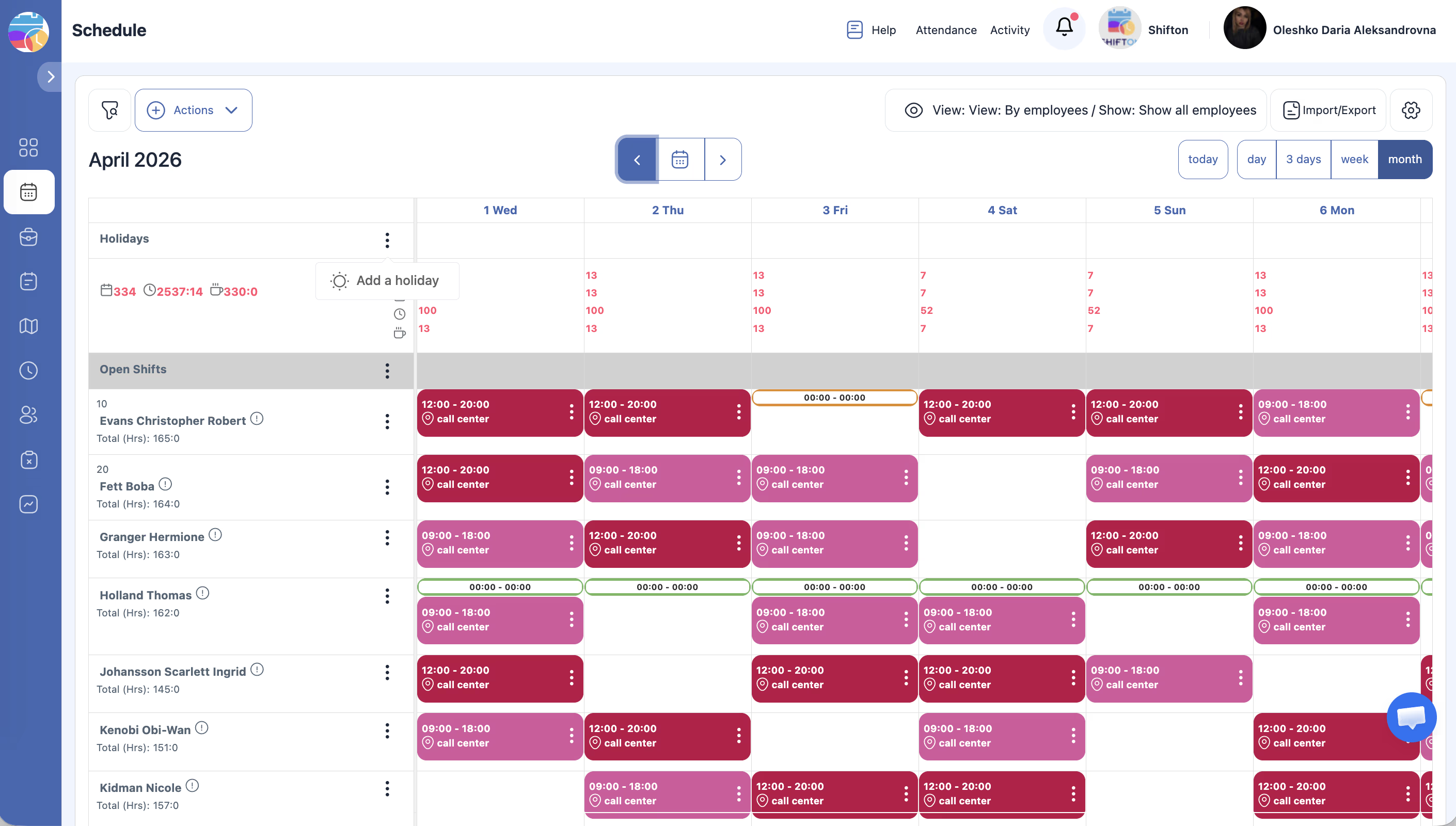
Mark specific dates as holidays on the schedule grid using the Holidays row. Holidays appear at the top of the calendar and help managers account for non-working days.
What Is This?
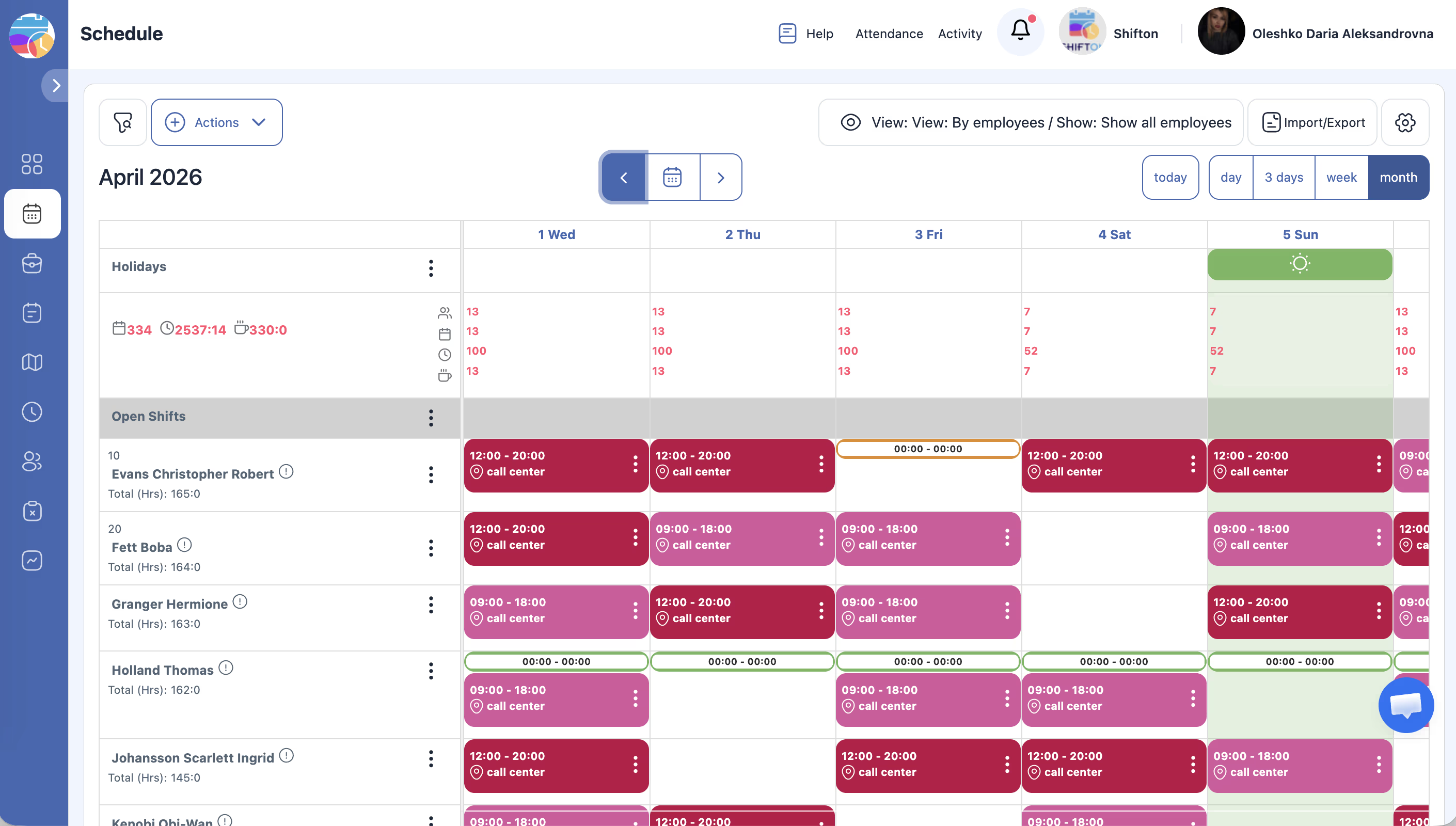
The Holidays row sits at the very top of the schedule calendar grid. It provides a visual indicator for holidays and special non-working days. Managers can add, edit, or remove holidays directly from this row using the context menu. When a day is marked as a holiday, it appears highlighted on the grid, making it easy to spot when planning shifts.
Prerequisites
| # | Prerequisite | Details |
|---|---|---|
| 1 | Access to the Schedule page | You must have a project with at least one schedule |
| 2 | Admin, Owner, or Manager role | You need permissions to manage holidays |
Step-by-Step Instructions
Viewing the Holidays Row
Adding a Holiday
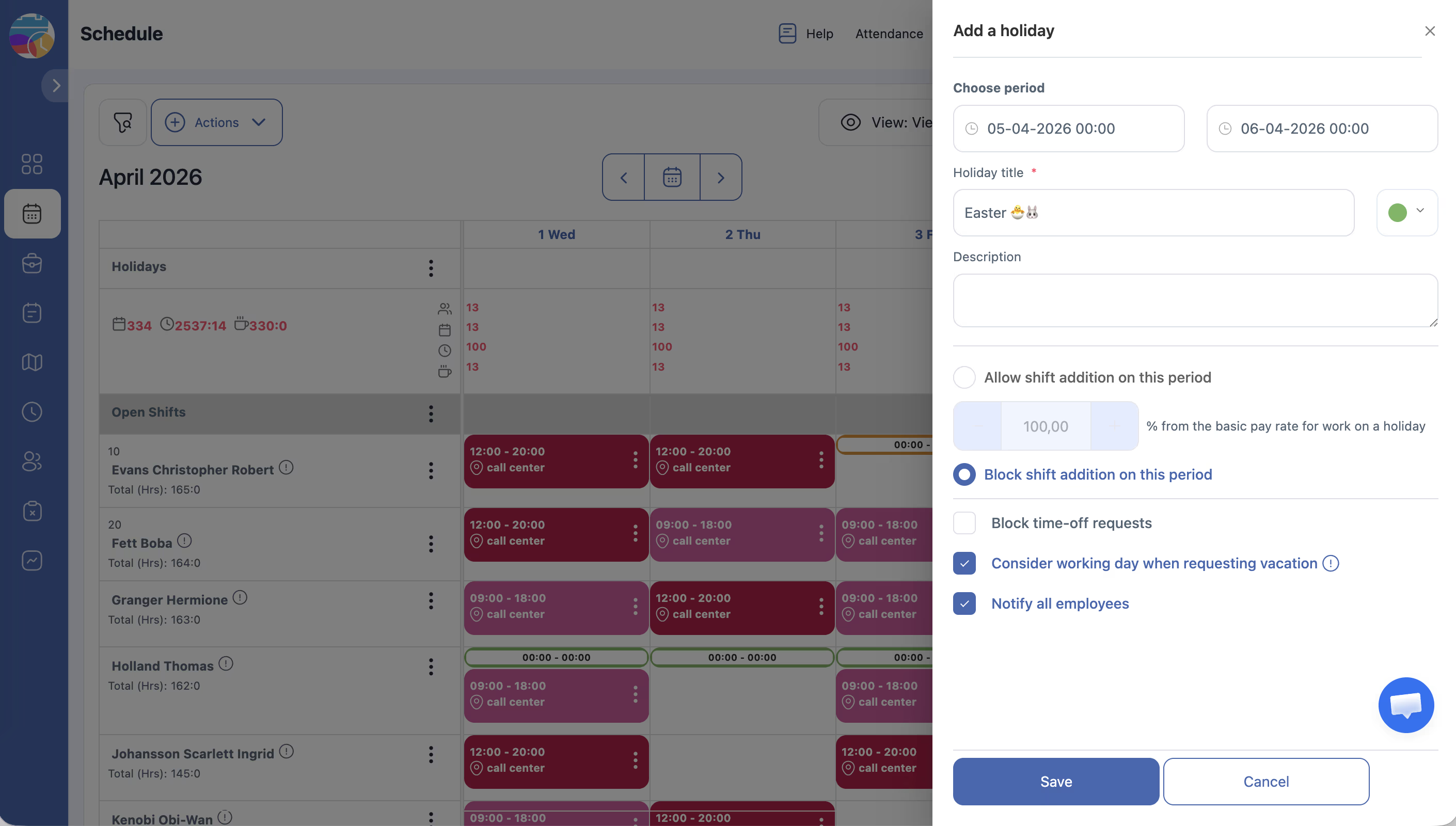
| Field | Description |
|---|---|
| Date | The date of the holiday (pre-filled based on where you clicked) |
| Name / Description | A label for the holiday (e.g., “Independence Day,” “Company Holiday”) |
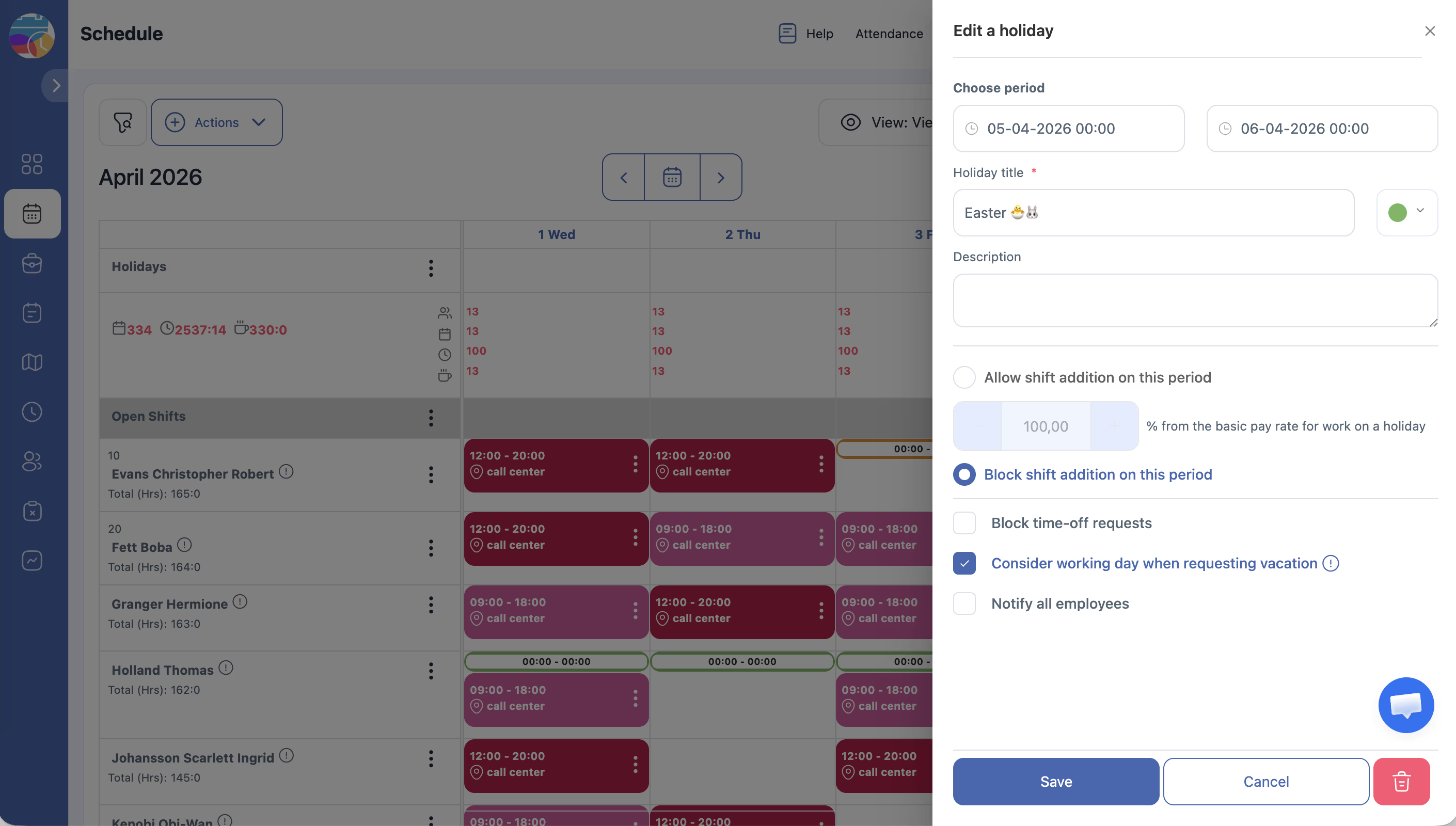
Editing a Holiday
Removing a Holiday
How Holidays Affect the Schedule
| Aspect | Behavior |
|---|---|
| Visual indicator | Holiday dates are highlighted on the grid for all users to see |
| Shift creation | Holidays do not automatically prevent shifts from being created on those days |
| Pay rates | Depending on your configuration, holiday shifts may have different pay rates |
| Employee notifications | Employees can see which days are marked as holidays on their schedule view |
Note: Marking a day as a holiday does not automatically remove or modify existing shifts on that day. If you do not want employees to work on a holiday, you must manually delete or adjust shifts for that date.
Access Permissions
| Role | View Holidays | Add Holiday | Edit Holiday | Delete Holiday |
|---|---|---|---|---|
| Owner | Yes | Yes | Yes | Yes |
| Admin | Yes | Yes | Yes | Yes |
| Manager | Yes (assigned projects) | Yes (assigned projects) | Yes (assigned projects) | Yes (assigned projects) |
| Employee | Yes | No | No | No |
FAQ
Q: Does marking a day as a holiday automatically cancel shifts on that day?
A: No. Holidays are informational markers. Existing shifts remain in place unless you manually delete or modify them.
Q: Can I add holidays for an entire year at once?
A: Holidays are added individually per date. For recurring annual holidays, you will need to add them to each schedule as needed.
Q: Do holidays affect payroll calculations?
A: This depends on your pay rate and overtime settings. Some configurations apply a holiday pay multiplier to shifts worked on marked holidays.
Q: Can employees see which days are holidays?
A: Yes. The Holidays row is visible to all users who can view the schedule.
Possible Issues and Solutions
| Issue | Possible Cause | Solution |
|---|---|---|
| Holidays row is not visible | The grid may be scrolled down past it | Scroll to the top of the calendar grid |
| Cannot add a holiday | Insufficient permissions | Confirm you have Manager, Admin, or Owner access |
| Holiday marker does not appear after saving | Browser cache or display issue | Refresh the page |
| Shifts still exist on a marked holiday | Holidays do not auto-remove shifts | Manually delete or adjust shifts on the holiday date |
| Holiday label is cut off on the grid | Limited display space in certain view modes | Switch to Day or Week view for more detail, or hover over the holiday to see the full label |