

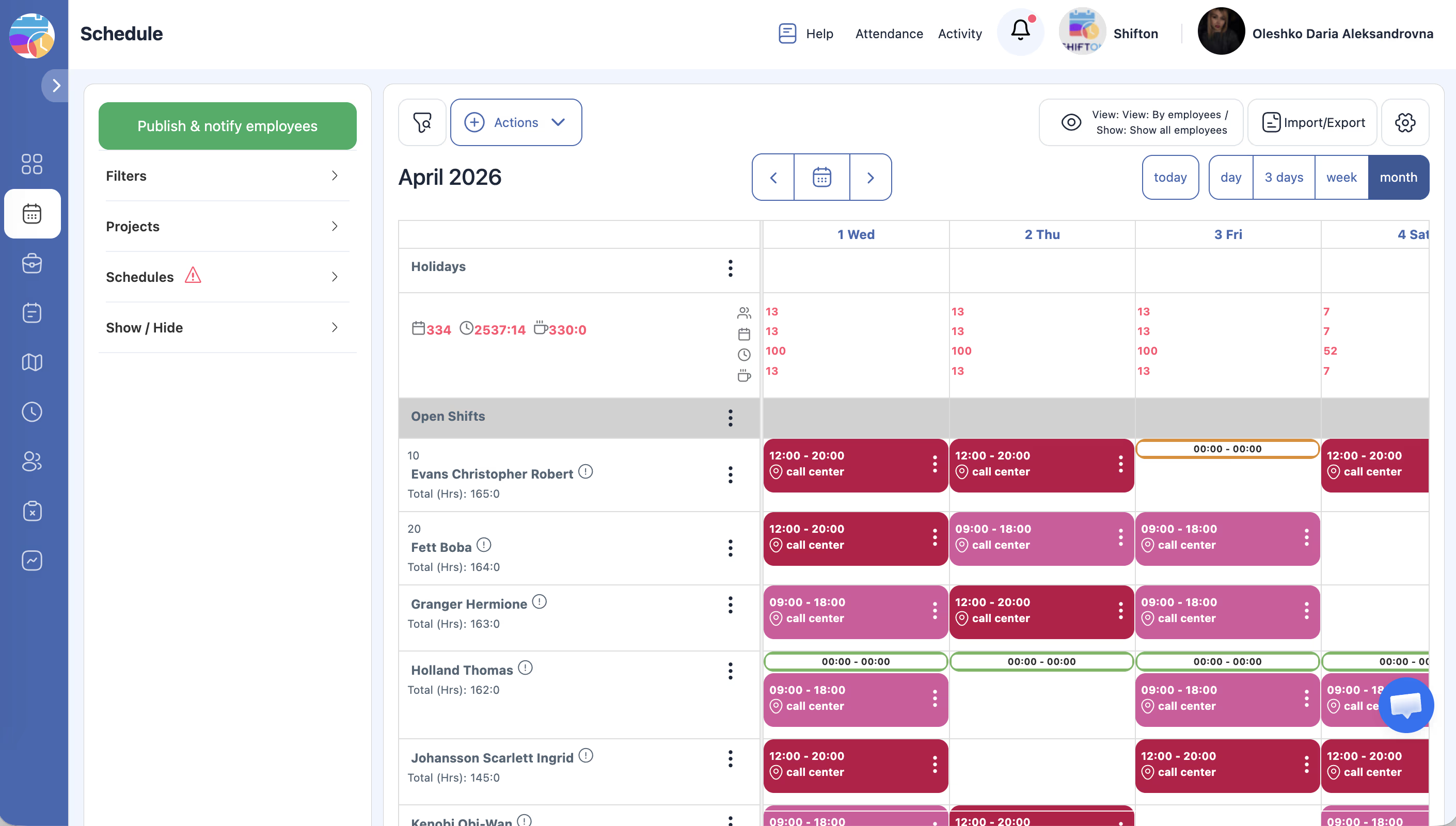
Use the “Publish & notify employees” button to finalize your schedule and send notifications to your team about their assigned shifts.
What Is This?
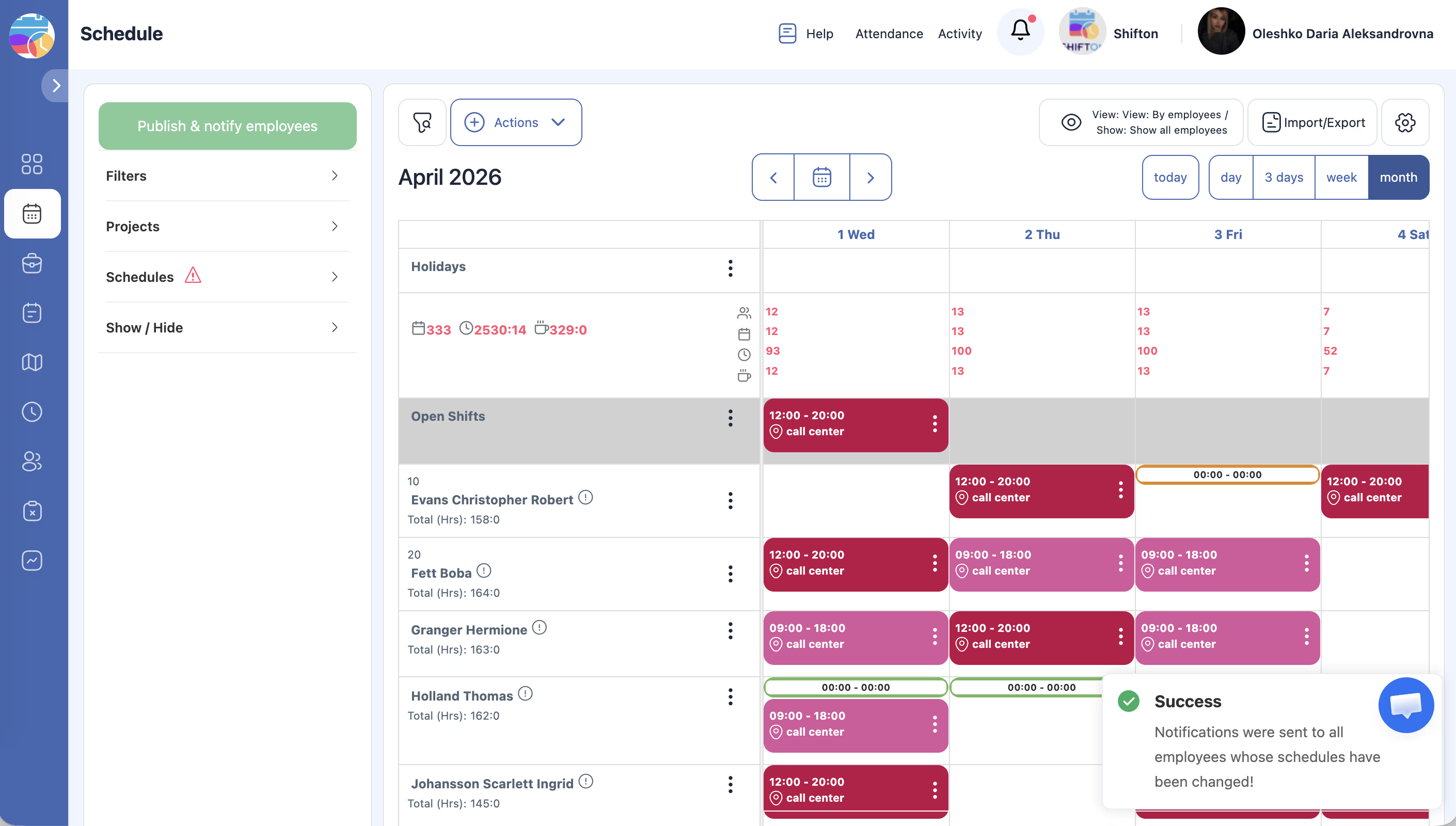
The Publish & notify employees button is the coral/red button located in the top bar of the Schedule page. When you click it, Shifton sends notifications to all affected employees informing them of their scheduled shifts. This is a critical step — until you publish, employees may not be aware of new or updated shifts.
Publishing should be done after you have finished creating, editing, duplicating, or otherwise modifying shifts on the schedule.
Prerequisites
| # | Prerequisite | Details |
|---|---|---|
| 1 | Access to the Schedule page | You must have a project with at least one schedule |
| 2 | Admin, Owner, or Manager role | You need permissions to publish schedules |
| 3 | Shifts created on the schedule | There must be shifts to publish and notify employees about |
Step-by-Step Instructions
Publishing a Schedule
What Happens When You Publish
| Step | Description |
|---|---|
| 1 | The system identifies all employees with new or changed shifts |
| 2 | Notifications are sent to each affected employee via their configured notification channels (app notification, email, etc.) |
| 3 | Employees can view their updated shifts in their Shifton account |
When to Publish
You should publish the schedule in the following situations:
| Situation | Action |
|---|---|
| After creating a new schedule | Publish to inform employees of their initial shifts |
| After editing shift times or assignments | Republish to notify affected employees of changes |
| After extending a schedule | Publish to inform employees about newly added shifts |
| After duplicating shifts to a new period | Publish to notify employees about the duplicated shifts |
| After performing bulk actions | Publish to communicate all changes at once |
Access Permissions
| Role | View Publish Button | Publish & Notify |
|---|---|---|
| Owner | Yes | Yes |
| Admin | Yes | Yes |
| Manager | Yes (assigned projects) | Yes (assigned projects) |
| Employee | No | No |
FAQ
Q: Do employees receive a notification every time I click Publish?
A: Yes. Each time you click “Publish & notify employees,” notifications are sent to affected employees. Avoid clicking multiple times in quick succession to prevent duplicate notifications.
Q: Can I choose which employees receive notifications?
A: The publish action notifies all employees with shifts in the schedule. You cannot selectively exclude specific employees from the notification.
Q: What notification channels do employees receive alerts through?
A: Notifications are sent through the channels configured in each employee’s notification settings — typically push notifications in the Shifton app and/or email.
Q: Can employees see the schedule before I publish it?
A: Depending on your system settings, employees may be able to see their shifts before publishing. However, the publish action serves as the official notification that the schedule is finalized.
Q: What if I need to make changes after publishing?
A: You can continue editing shifts after publishing. Make your changes and then click “Publish & notify employees” again to send updated notifications.
Possible Issues and Solutions
| Issue | Possible Cause | Solution |
|---|---|---|
| “Publish & notify” button is greyed out or not visible | Insufficient permissions | Confirm you have Manager, Admin, or Owner access |
| Employees say they did not receive a notification | Notification settings are not configured for the employee | Ask the employee to check their notification preferences in their Shifton profile |
| Employees received duplicate notifications | The publish button was clicked multiple times | Remind yourself to click Publish only once per update cycle |
| Schedule shows unpublished changes | Changes were made after the last publish | Click “Publish & notify employees” again to send the latest updates |
| Notification was sent but shifts are incorrect | Shifts were edited after publishing | Correct the shifts and republish |