

Export your schedule data to Excel or PDF formats, and import bonuses and deductions. Use the Import/Export button in the top bar for all data transfer operations.
What Is This?
The Import/Export button in the top bar of the Schedule page provides tools for transferring schedule data in and out of Shifton. You can export the schedule in several formats for reporting, record-keeping, or printing, and you can import bonuses and deductions to apply financial adjustments to employee records.
Prerequisites
| # | Prerequisite | Details |
|---|---|---|
| 1 | Access to the Schedule page | You must have a project with at least one schedule |
| 2 | Admin, Owner, or Manager role | You need permissions to export and import data |
| 3 | Shifts on the schedule (for export) | There must be data to export |
Step-by-Step Instructions
Accessing Import/Export
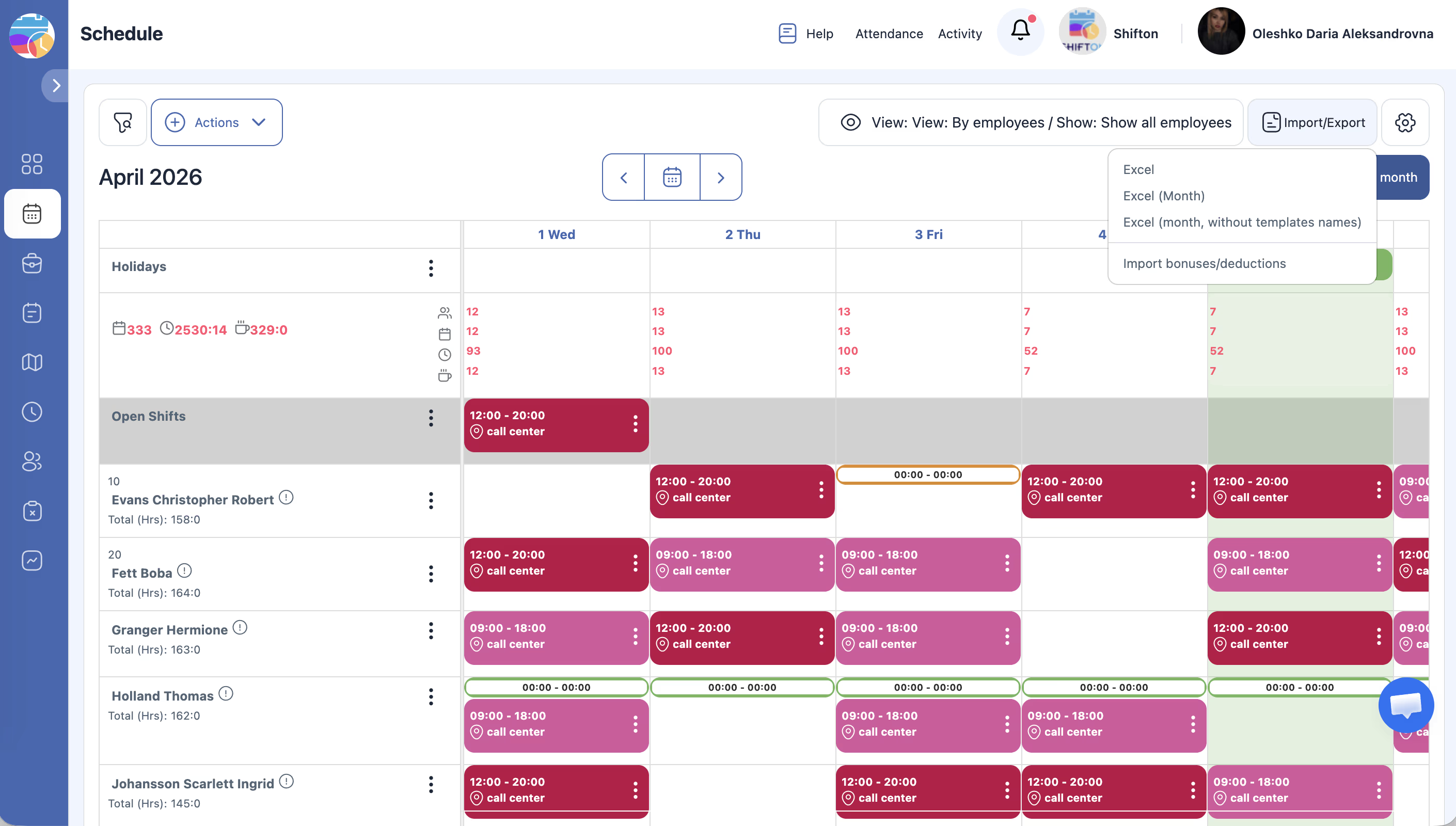
Export Options
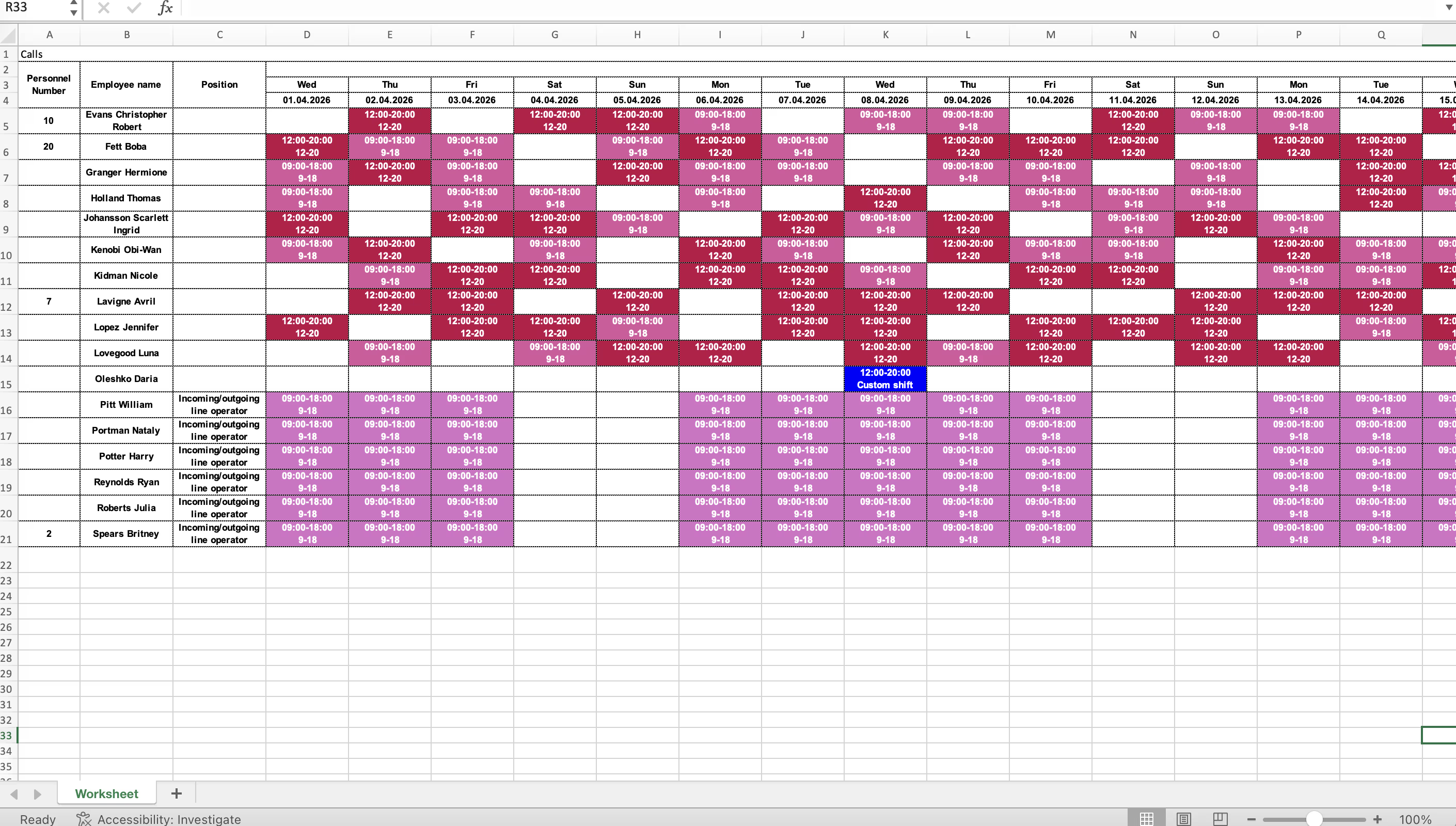
The following export formats are available:
| Export Option | Description |
|---|---|
| Excel | Exports the schedule as a standard Excel spreadsheet with shift details, employee names, times, and dates |
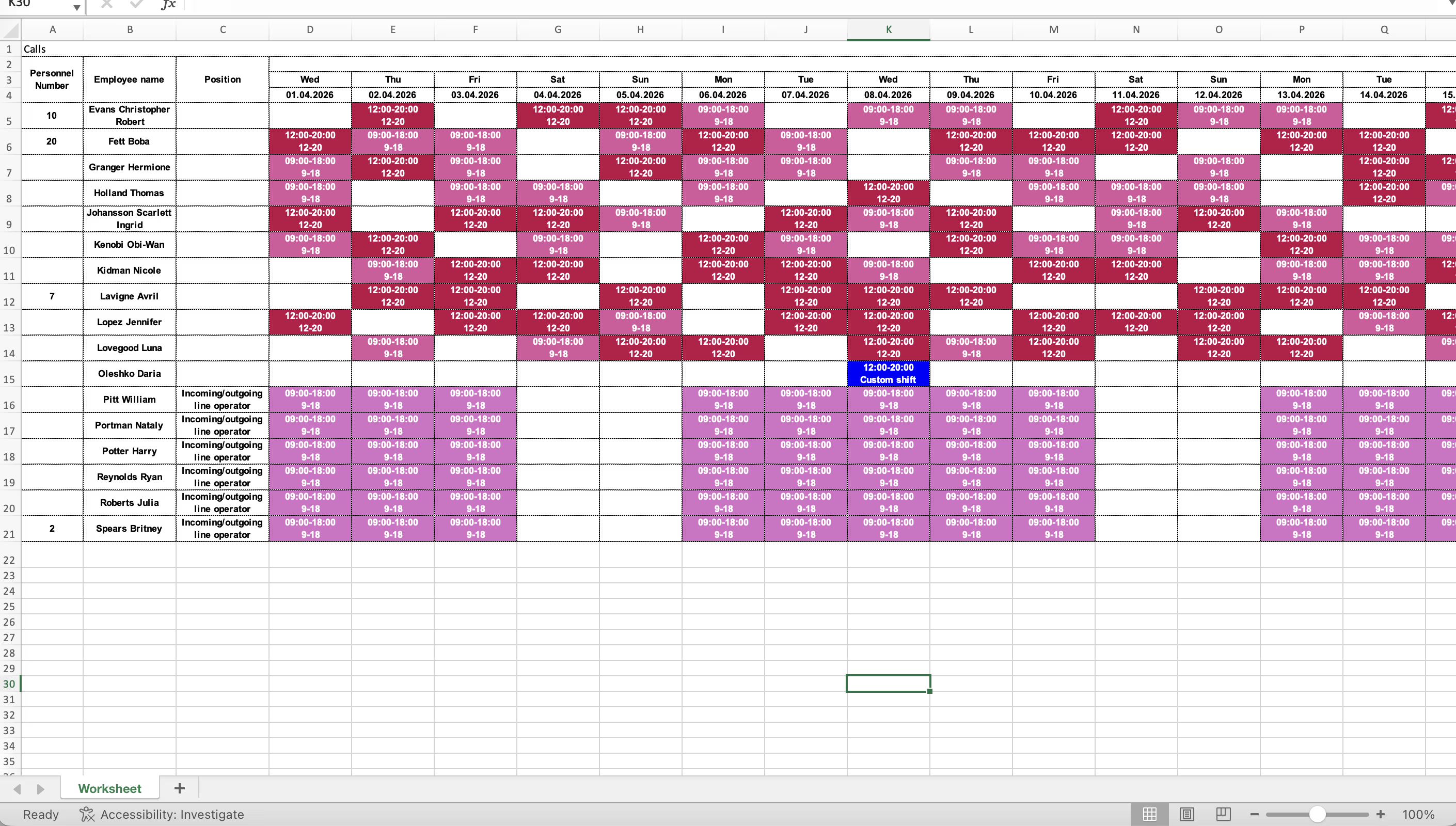
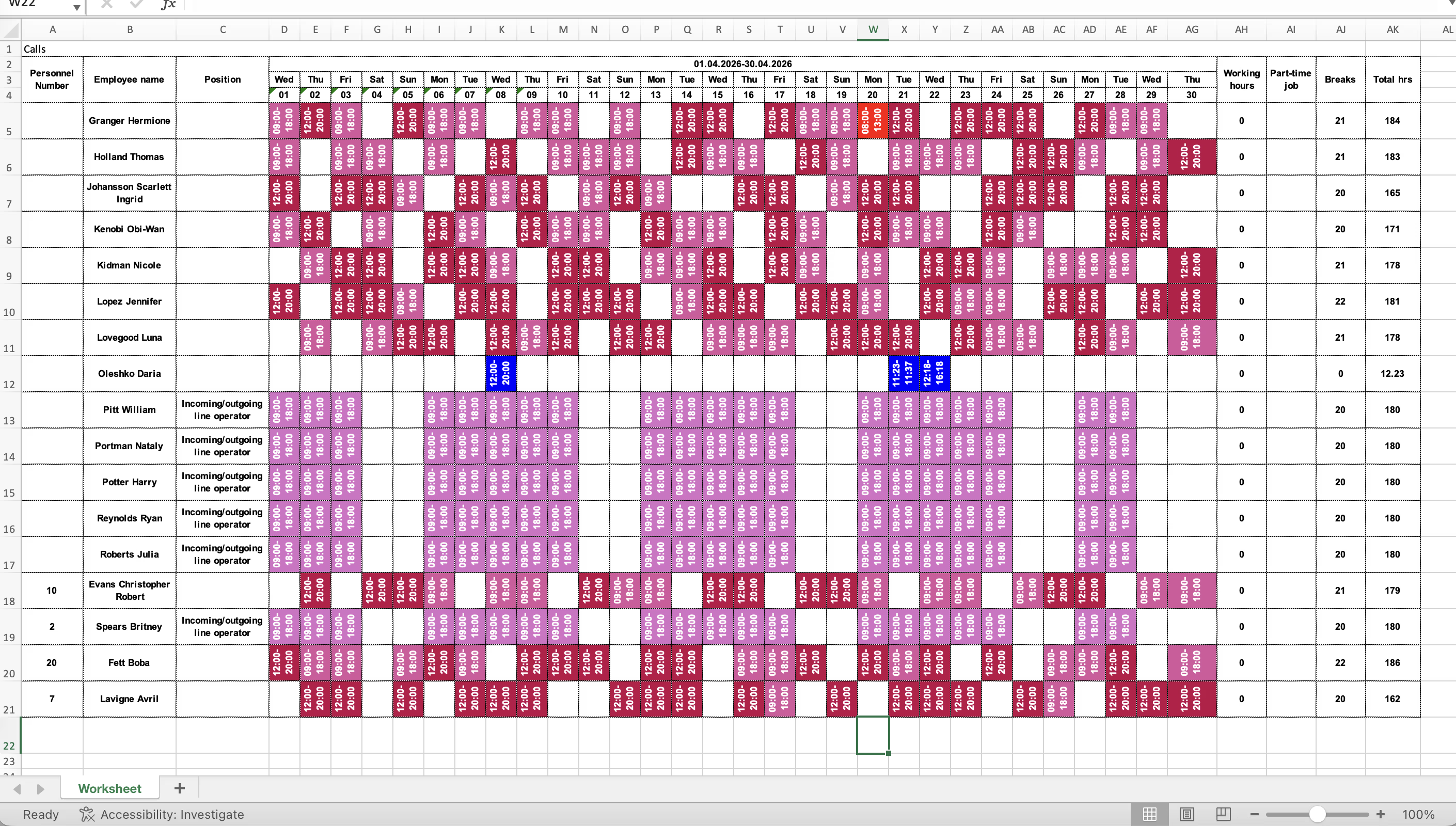
| Excel (Month) | Exports a full month view of the schedule in Excel format, organized by month |
| Excel (month without template names) | Same as the monthly Excel export but without shift template names — shows only times and employee data |
| Exports the schedule as a PDF document suitable for printing or sharing as a read-only file |
Exporting the Schedule
Import Options
| Import Option | Description |
|---|---|
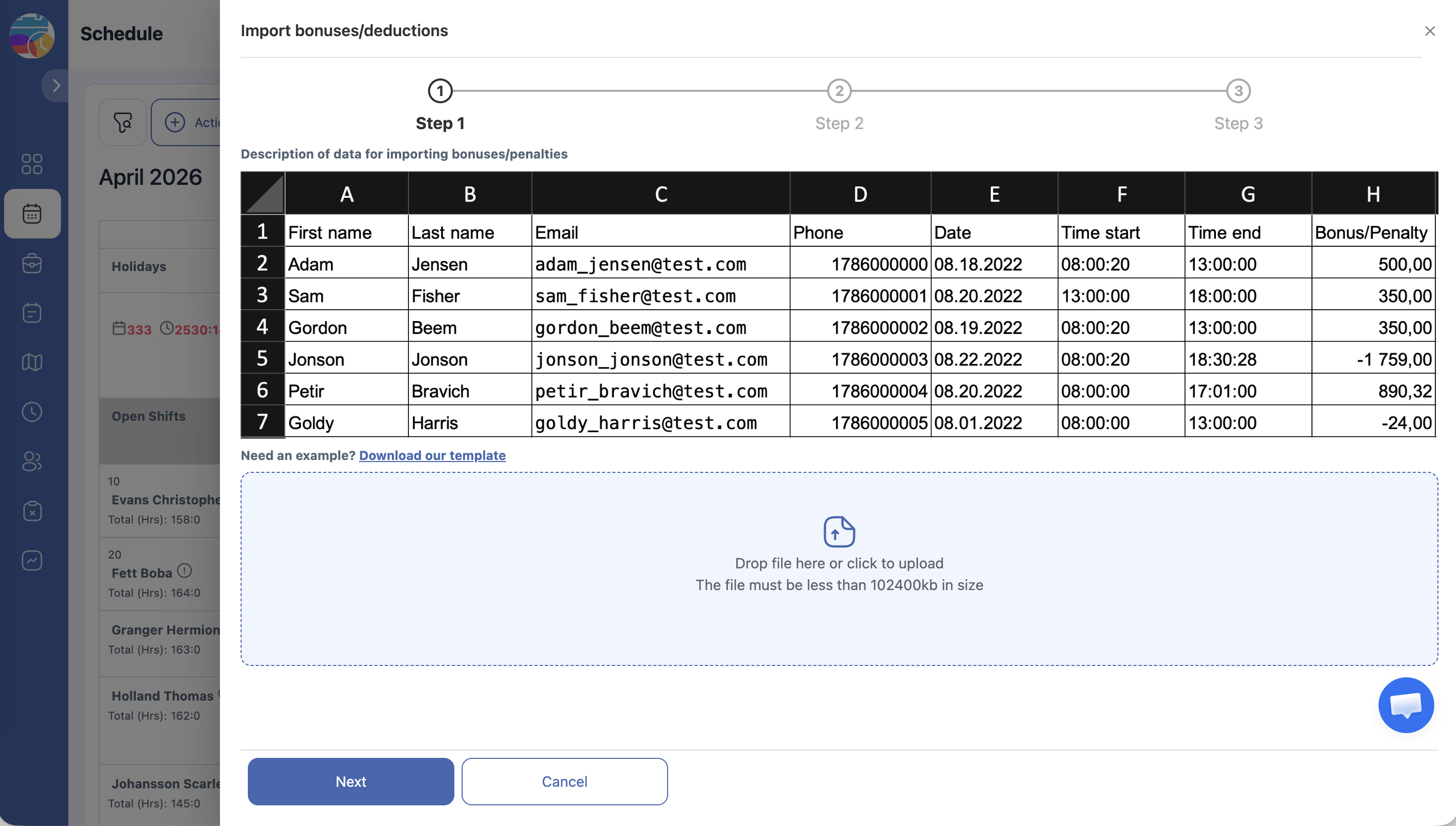
| Import bonuses/deductions | Upload a file containing bonus or deduction amounts to apply to employee records |
Importing Bonuses and Deductions
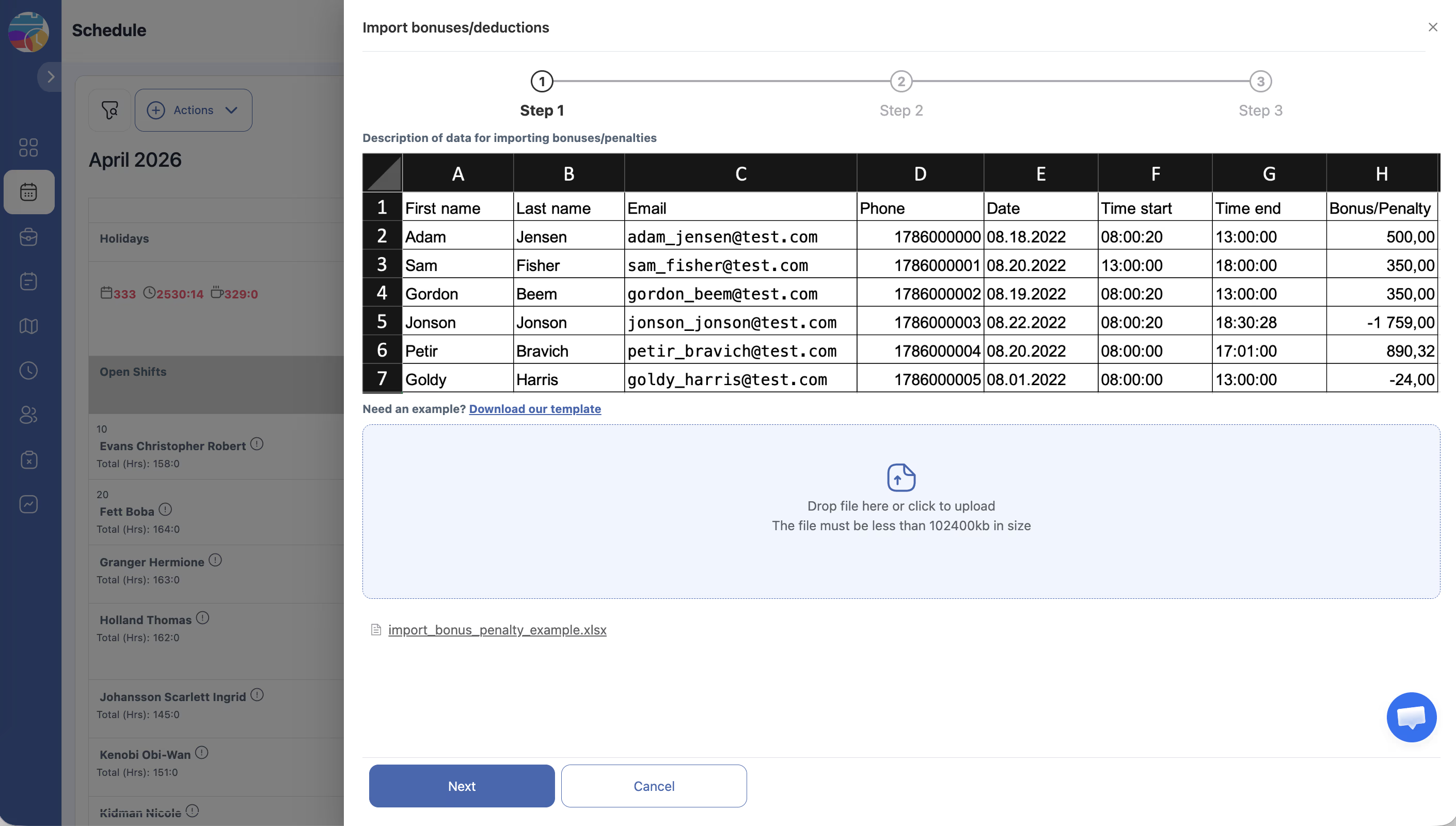
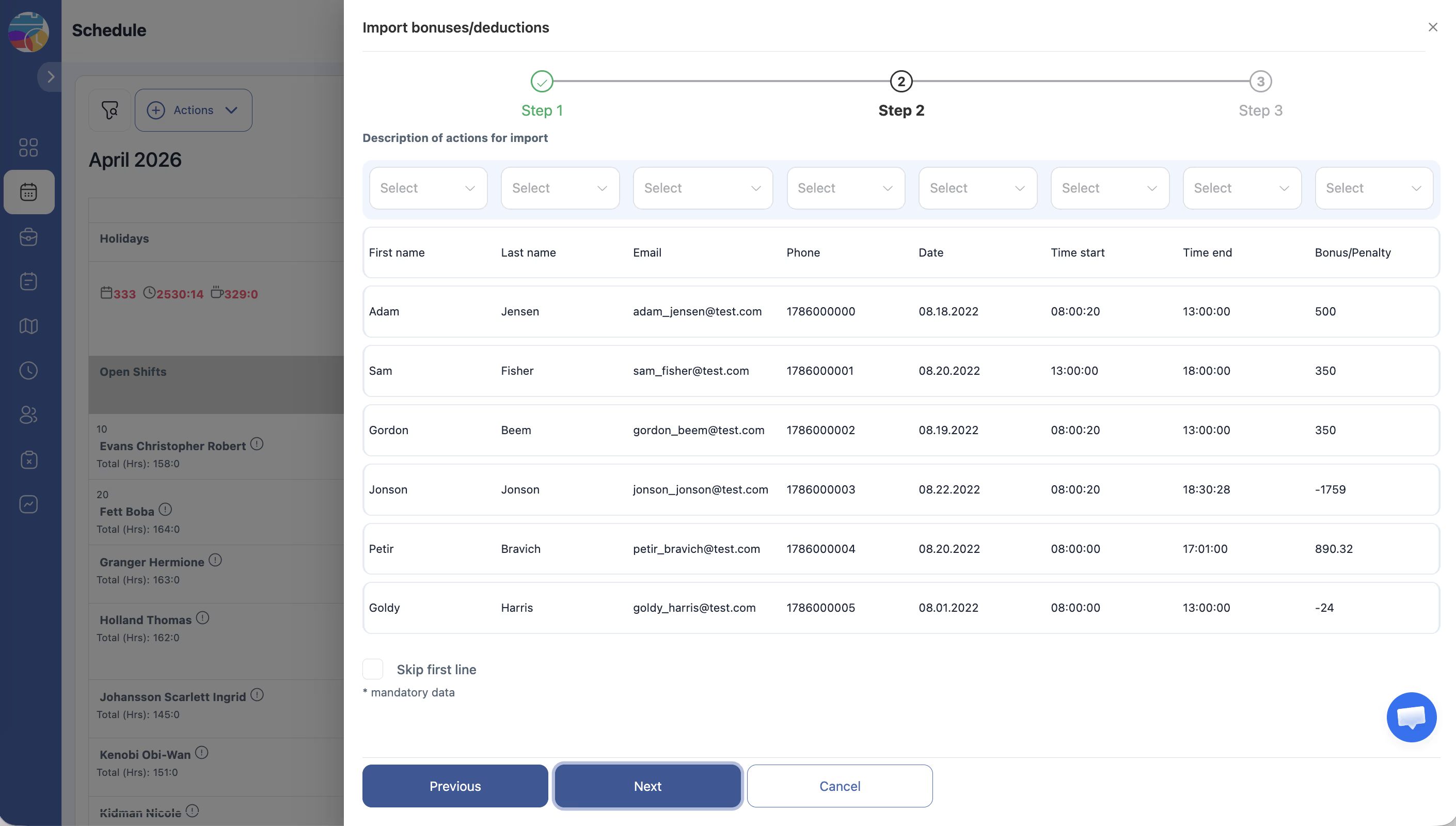
| Column | Description |
|---|---|
| Employee ID or name | The identifier for the employee |
| Type | Whether the entry is a bonus or deduction |
| Amount | The monetary amount |
| Date | The date the bonus or deduction applies to |
| Description | An optional note explaining the entry |
Access Permissions
| Role | Export Schedule | Import Bonuses/Deductions |
|---|---|---|
| Owner | Yes | Yes |
| Admin | Yes | Yes |
| Manager | Yes (assigned projects) | Yes (assigned projects) |
| Employee | No | No |
FAQ
Q: What Excel format is used for exports?
A: Exports are generated in .xlsx format, compatible with Microsoft Excel, Google Sheets, and other spreadsheet applications.
Q: Can I re-import an exported schedule to create shifts?
A: No. The export feature is for reporting and record-keeping only. You cannot import a schedule file to create shifts. Use the schedule creation wizard or manual shift entry for that purpose.
Q: What file format should I use for importing bonuses and deductions?
A: Typically, Shifton accepts .xlsx or .csv files. Check the import dialog for specific format requirements and a downloadable template.
Q: Can I export only specific employees or date ranges?
A: The export reflects what is currently displayed on the schedule grid. Use filters in the left panel to narrow down the view to specific employees or date ranges before exporting.
Q: Is there a limit to how many entries I can import at once?
A: There is no strict limit, but very large files may take longer to process. If you encounter issues, try splitting the import into smaller batches.
Possible Issues and Solutions
| Issue | Possible Cause | Solution |
|---|---|---|
| Export file is empty | No shifts exist in the current schedule view | Check that shifts are present and visible on the grid before exporting |
| Export does not include certain employees | Filters are hiding some employees | Reset all filters in the left panel before exporting |
| Import fails with format errors | The uploaded file does not match the required column structure | Download the import template and ensure your file follows the exact format |
| Imported bonuses show incorrect amounts | Decimal or currency formatting issues in the file | Check that amounts use the correct number format (e.g., use a period for decimals) |
| PDF export cuts off data | The schedule has too many employees to fit on a single page | The PDF may span multiple pages — check all pages. Consider exporting in Excel for large schedules |