

When the Attendance module is enabled, employees must start and end their shifts using the button in the mobile app and/or web version (this option is set in the Attendance module settings).
Every shift whose scheduled time has already started or ended will show a colored status indicator — a vertical stripe on the left edge of the shift block.
Status Indicators
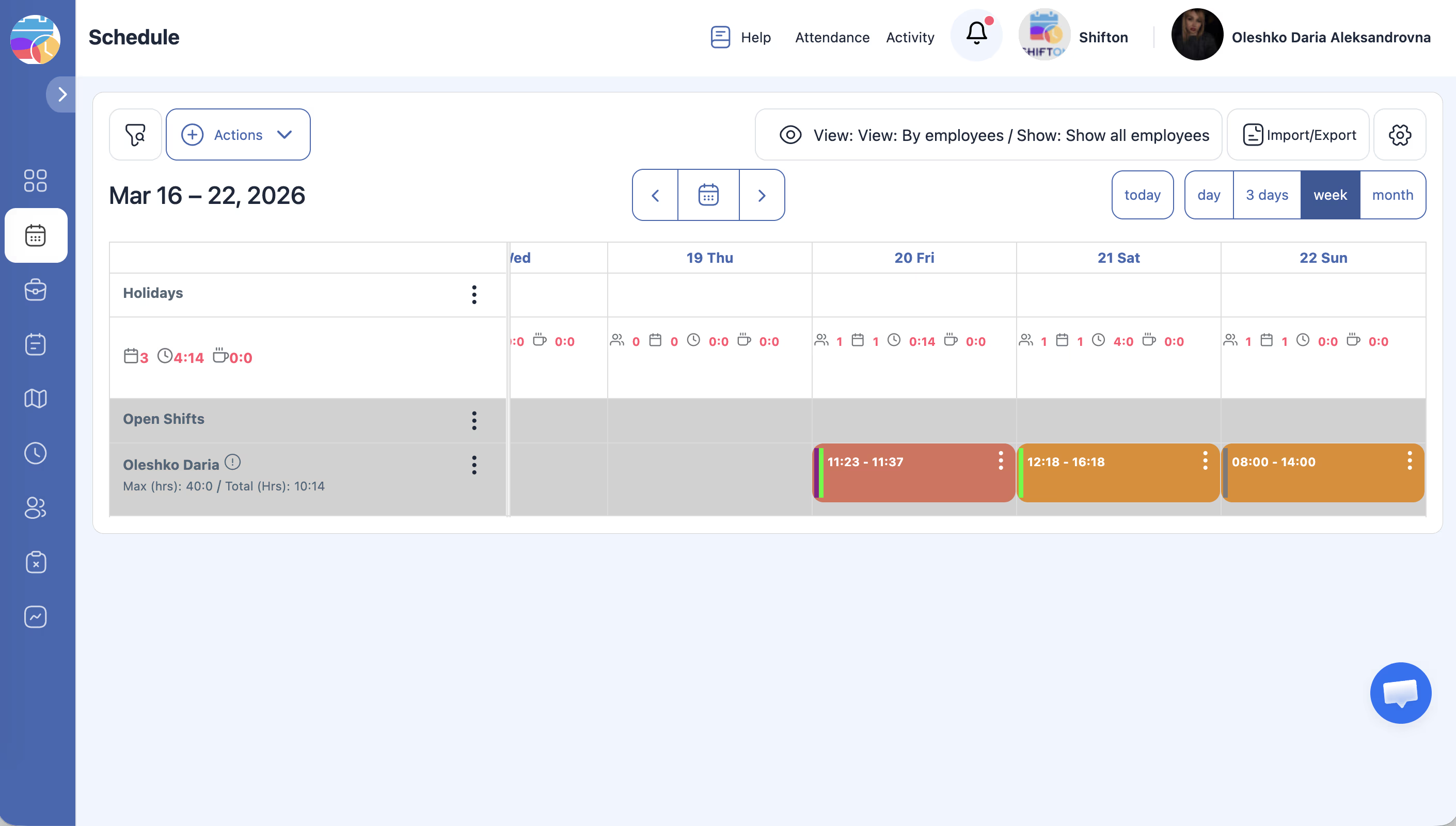
Grey stripe — Absent
The employee did not press Start shift and therefore did not press End shift.
Clicking on the shift opens the shift details where you can see the status and change it manually:
– Field Late / Absent → value: Absent
Orange stripe — Late (manually set)
Requires the “Record late arrival time” option enabled in the Attendance module settings.
An orange stripe means the employee was marked as late, and this was set manually by a manager. Clicking the shift lets you adjust or remove the lateness (change the number of hours/minutes).
Yellow stripe — Shift in progress
The employee pressed Start shift and the shift is currently ongoing (not yet ended).
Green stripe — Shift completed
The employee pressed both Start shift and End shift — the shift is fully completed.
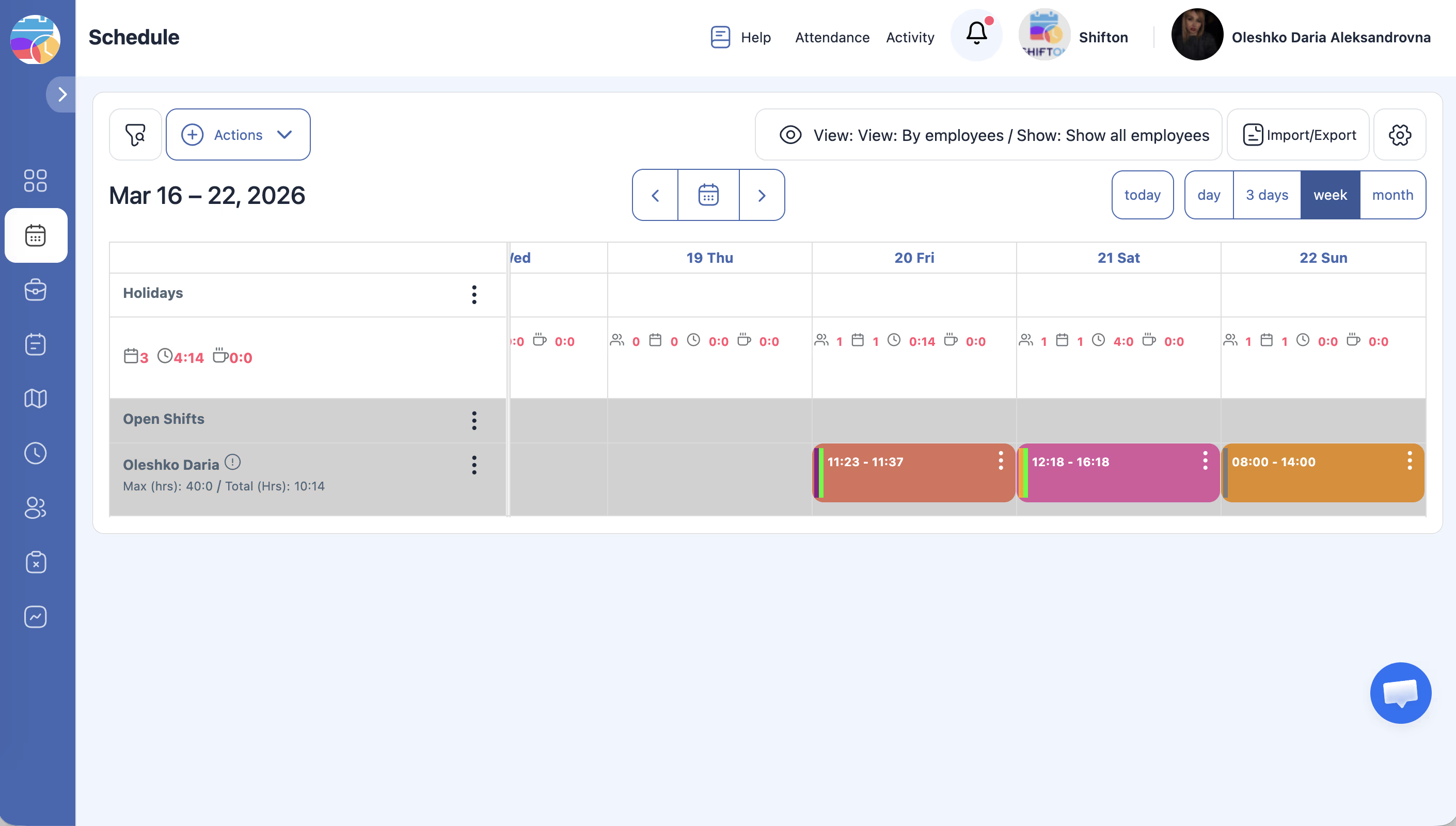
Purple stripe — Early leave
Requires the “Record early employee departures” option enabled in the Attendance module settings.
A purple stripe means the employee ended their shift before the scheduled end time. The system records how much time early the employee left.
Clicking on the shift opens the shift details where you can see:
– The Early leave button highlighted in the Editing tab
– The field Left early for showing hours and minutes (e.g., 03:45)
Combined Status Indicators
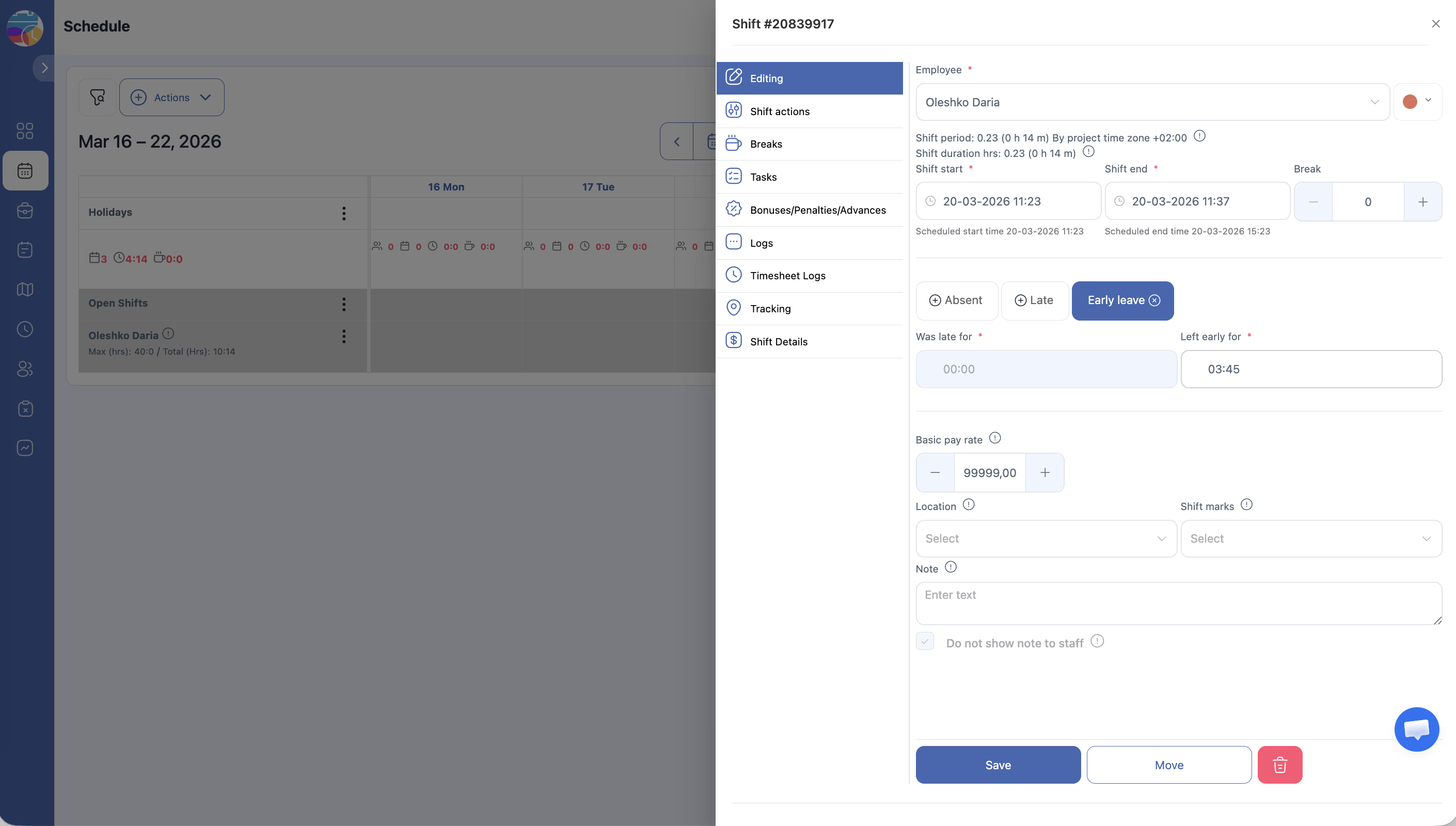
Shifts can show two stripes at once, indicating a combination of statuses:
Yellow + Orange — In progress, but late
Note: Late tracking is enabled, the shift time has started, but the employee has not yet pressed Start shift.
The system is recording the lateness in real time while waiting for the employee to start.
Green + Orange — Completed, but arrived late
Condition: The employee pressed Start shift, but did so later than the scheduled start time.
The shift was started and completed, but with a recorded lateness.
Green + Purple — Completed, but left early
Condition: The employee pressed Start shift on time but pressed End shift before the scheduled end time.
The shift was started and completed, but the employee left before the shift was supposed to end.
Green + Orange + Purple — Completed, arrived late, and left early
Condition: The employee started late and ended early. All three indicators are recorded.
Summary Table
| Stripe Color | Meaning |
|---|---|
| Grey | Absent — employee did not start the shift |
| Orange | Late — manually set or auto-recorded |
| Yellow | Shift in progress (Start pressed, not yet ended) |
| Green | Shift completed (Start and End both pressed) |
| Purple | Early leave — employee ended the shift before scheduled end time |
| Yellow + Orange | Shift time started, employee hasn’t pressed Start yet (late tracking on) |
| Green + Orange | Employee started and completed the shift, but arrived late |
| Green + Purple | Employee completed the shift, but left before scheduled end time |
| Green + Orange + Purple | Employee arrived late and also left early |
Changing a Status Manually
Named Status States
In addition to stripe color indicators, shifts have the following named states:
| Status Name | Meaning |
|---|---|
| Planned | Shift is upcoming and the employee has not yet checked in. Default for newly created shifts. |
| Active | Employee has tapped Start Shift — shift is currently in progress. |
| Completed | Employee has tapped both Start Shift and End Shift — shift is done and hours are logged. |
| Missed | Shift date has passed and the employee never started it. Only visible when Attendance module is active. |
| Open | An unassigned shift in the Open Shifts area that any eligible employee can take. |
Prerequisites
FAQ
Q: Are shift statuses visible without the Attendance module?
A: No. Colored status indicators appear only when the Attendance module is enabled.
Q: A shift shows “Missed” status — what should I do?
A: The employee did not press Start Shift. The manager can manually change the status: click on the shift → Shift Actions tab → set Late/Absent.
Q: How do I mark an employee as absent?
A: Click on the shift → Shift Actions tab → Late / Absent field → select Absent → Save.
Q: What does a yellow + orange stripe mean?
A: The shift time has already started, but the employee has not yet pressed Start Shift and lateness is being recorded by the Attendance module settings.
Q: Can late arrivals be automatically marked without manual intervention?
A: Yes. In the Attendance module settings, enable Record late arrival time — the system will automatically record lateness.
Q: What does a shift in “Planned” status look like in the schedule grid?
A: A regular colored block without a vertical status stripe — as before the shift starts. The stripe appears only when the shift time has begun.
Q: What happens if an employee does not press End Shift?
A: The shift remains in Active status (yellow stripe). The manager receives a notification (if the setting is enabled), or the system automatically closes the shift.
Q: Green + orange stripe — is the shift completed or not?
A: It is completed. Green means Start and End were both pressed. Orange means the start was later than the scheduled time.
Q: Can employees see the statuses of other employees’ shifts?
A: No. Employees can only see the statuses of their own shifts.
Q: The status is “Completed”, but the report time differs from the scheduled time.
A: When the Change event time option in Attendance is enabled, the actual start and end times are recorded. The difference between scheduled and actual is reflected in the report.
Q: How do I find the exact clock-in and clock-out time of an employee?
A: Click on the shift → View shift logs — the event history shows the exact time of each action (Start, End, breaks).
Q: What is the “Early Leave” field in Shift Actions?
A: It records an early departure — the employee finished the shift earlier than scheduled. Enable Record early employee departures in the Attendance settings for automatic recording.
Q: How do I filter the schedule by shift status?
A: Left panel → Filters → Select shift status → choose the desired status (Planned, Active, Completed, Missed).
Q: Does the “Missed” status affect the employee’s salary?
A: Yes. A missed shift is not counted as worked time in the Payroll report.
Q: Are shift statuses displayed in the mobile app?
A: Yes. The employee sees colored status indicators for their shifts in the mobile app.