

Open Shifts are shifts without an assigned employee. They appear in a dedicated Open Shifts row on the Schedule page and are part of the Basic Functionality module — they cannot be disabled.
How Open Shifts Are Created
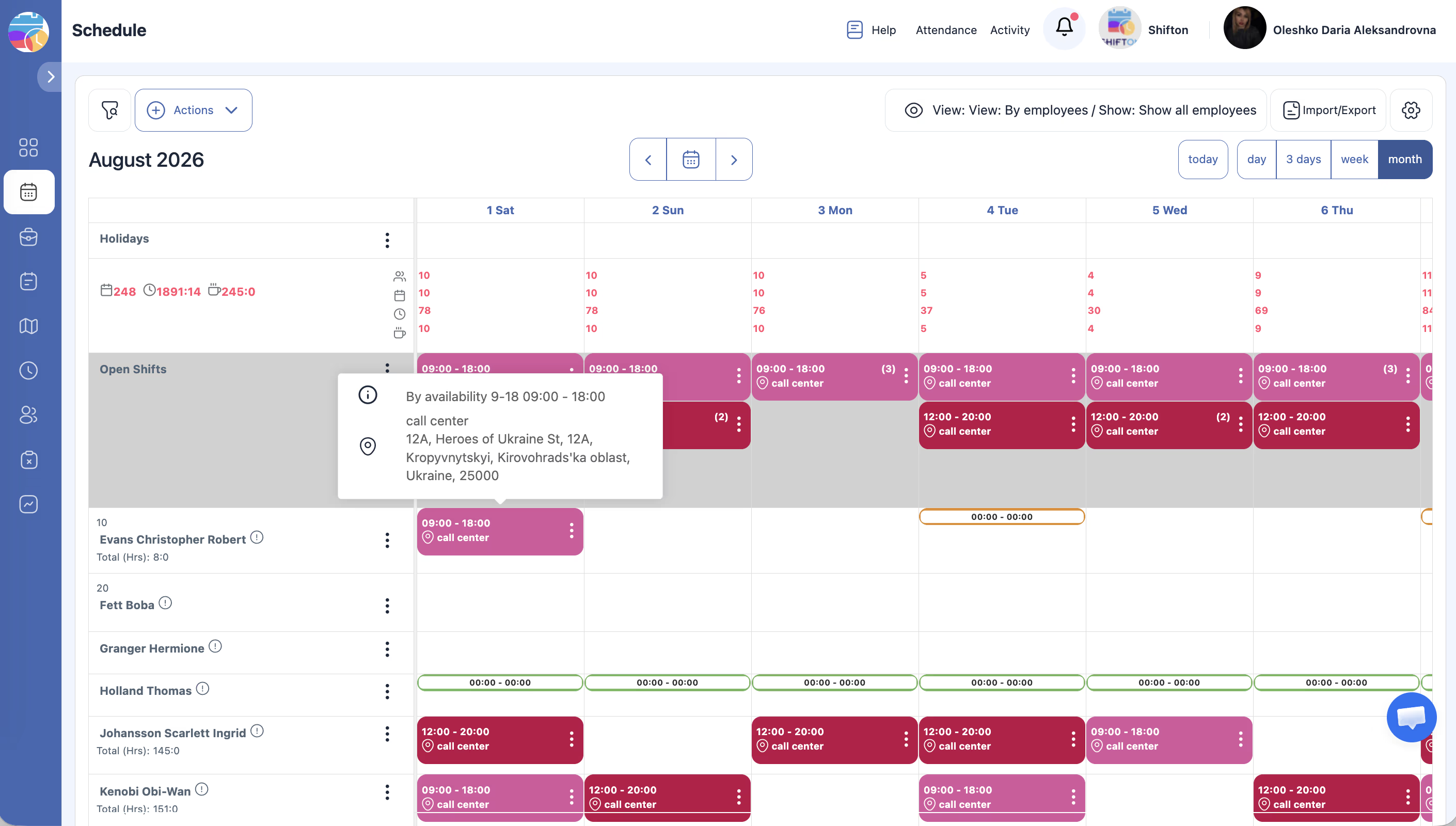
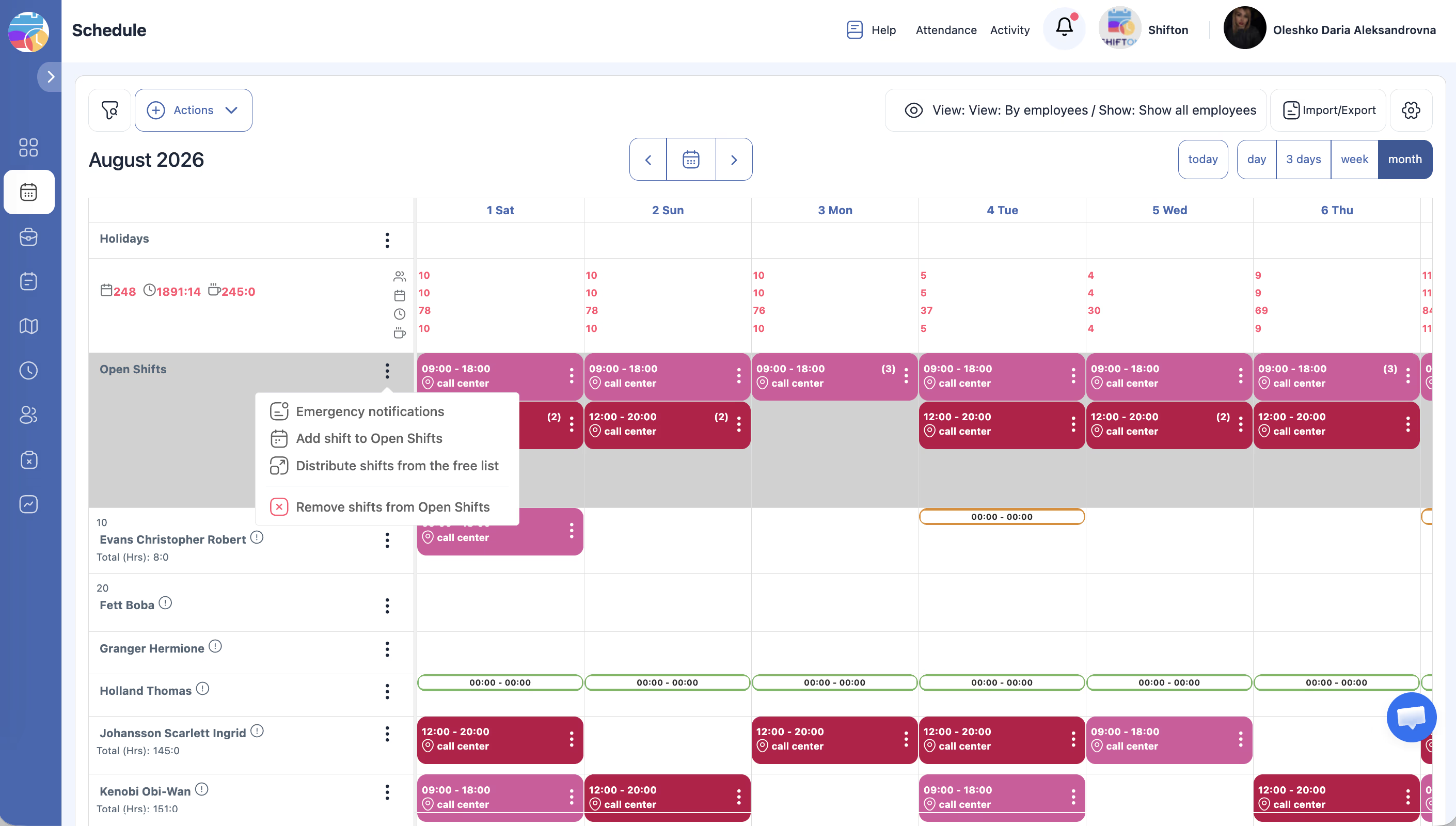
Open shifts can be created in several ways:
Actions with Open Shifts
Assigning to an Employee
- Click on an open shift and select the employee from the list.
- Or drag and drop the shift from the Open Shifts row onto an employee’s row (and vice versa).
Auto-Distribution
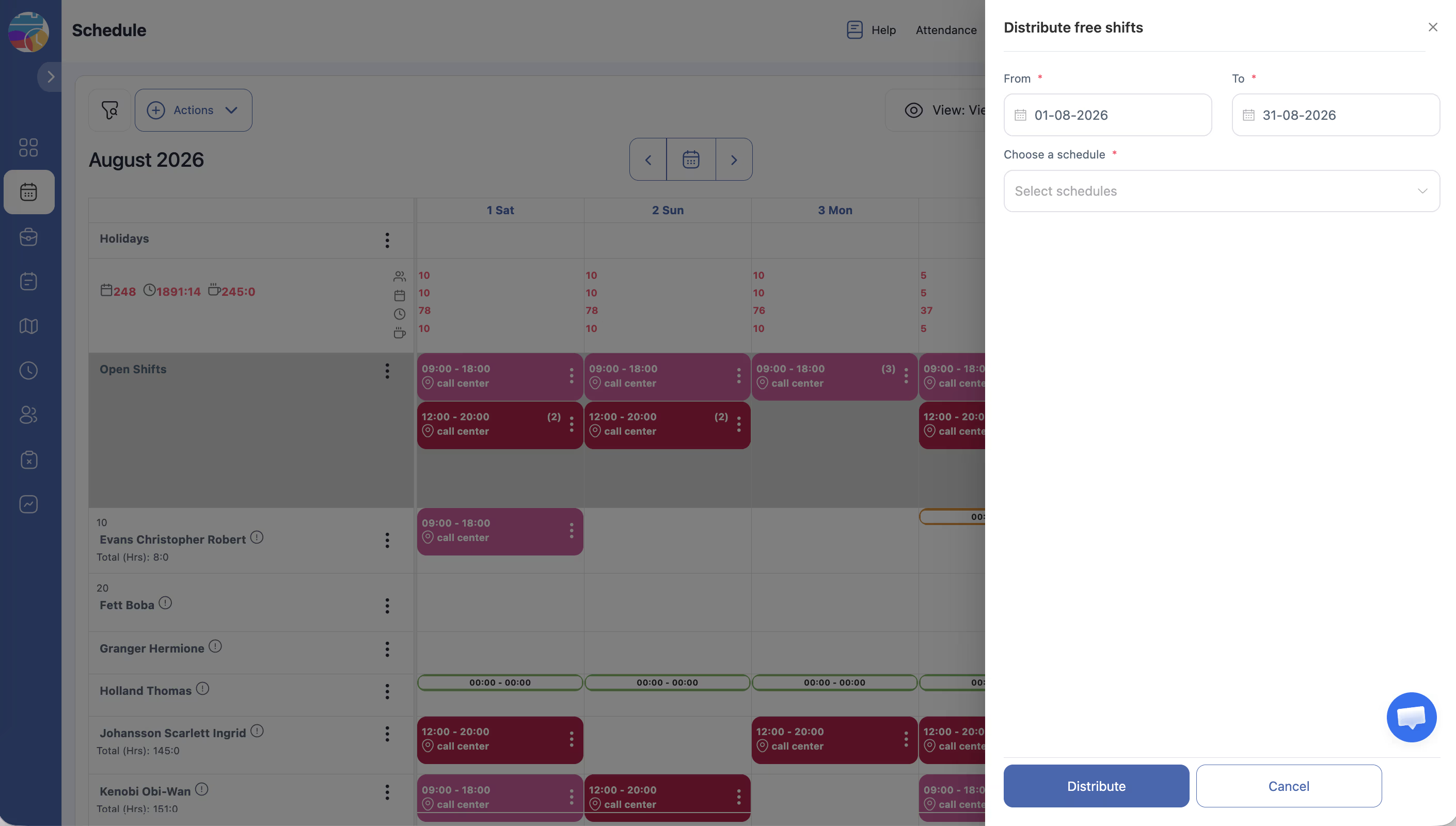
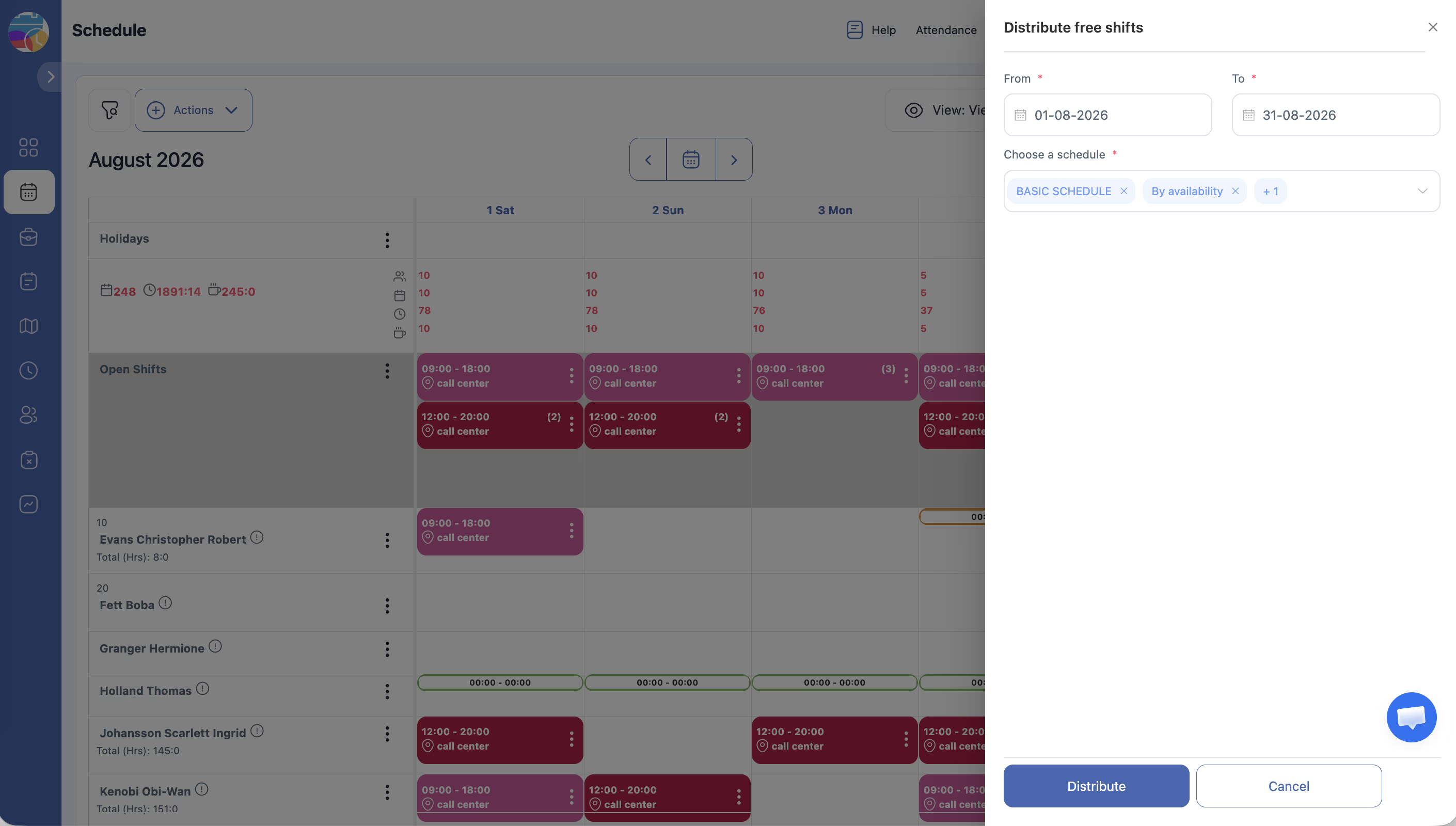
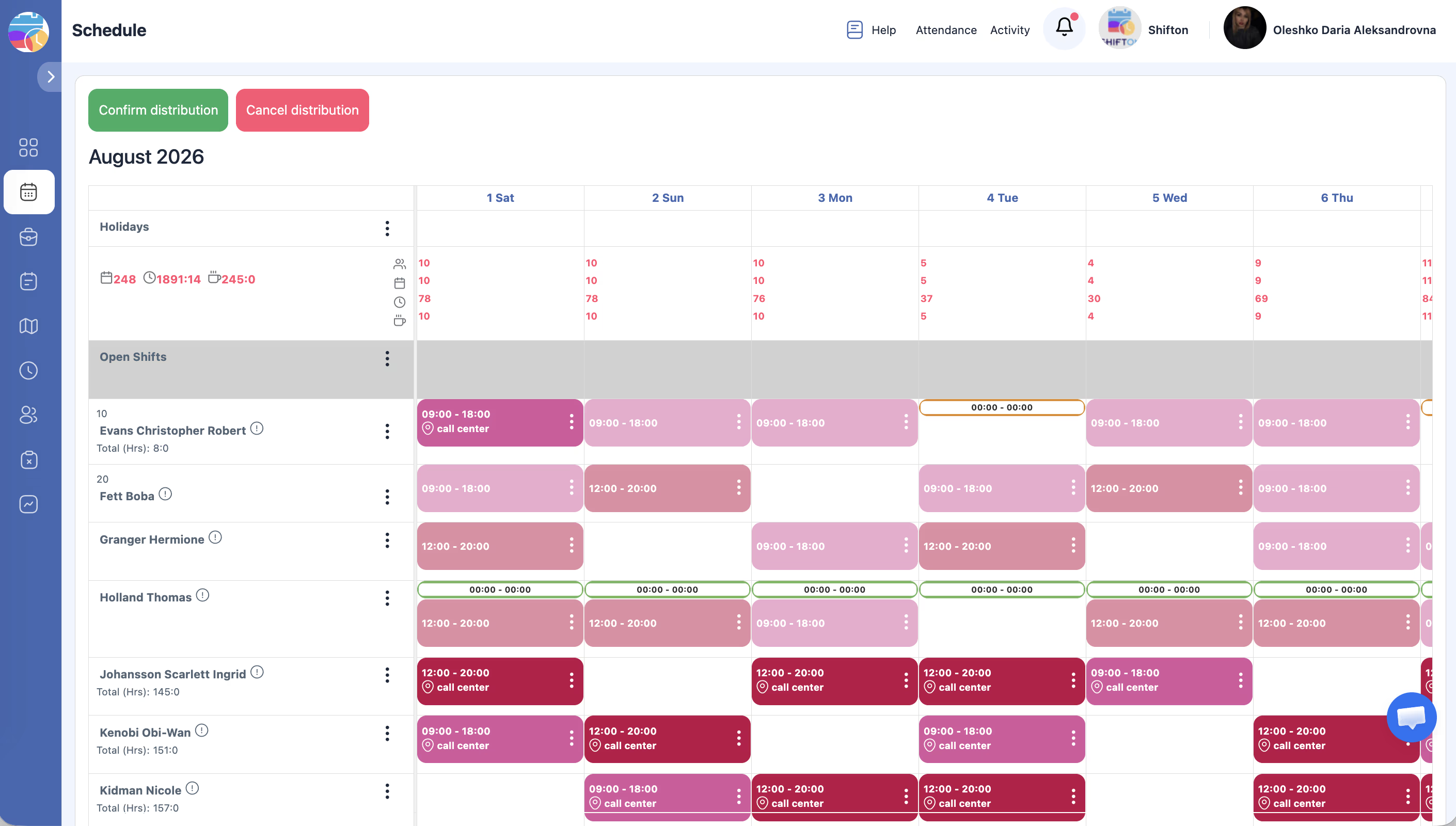
Click the auto-distribution icon (two connected circles) in the Open Shifts row. The system will automatically assign open shifts to available employees based on their schedules.
When You Click an Open Shift
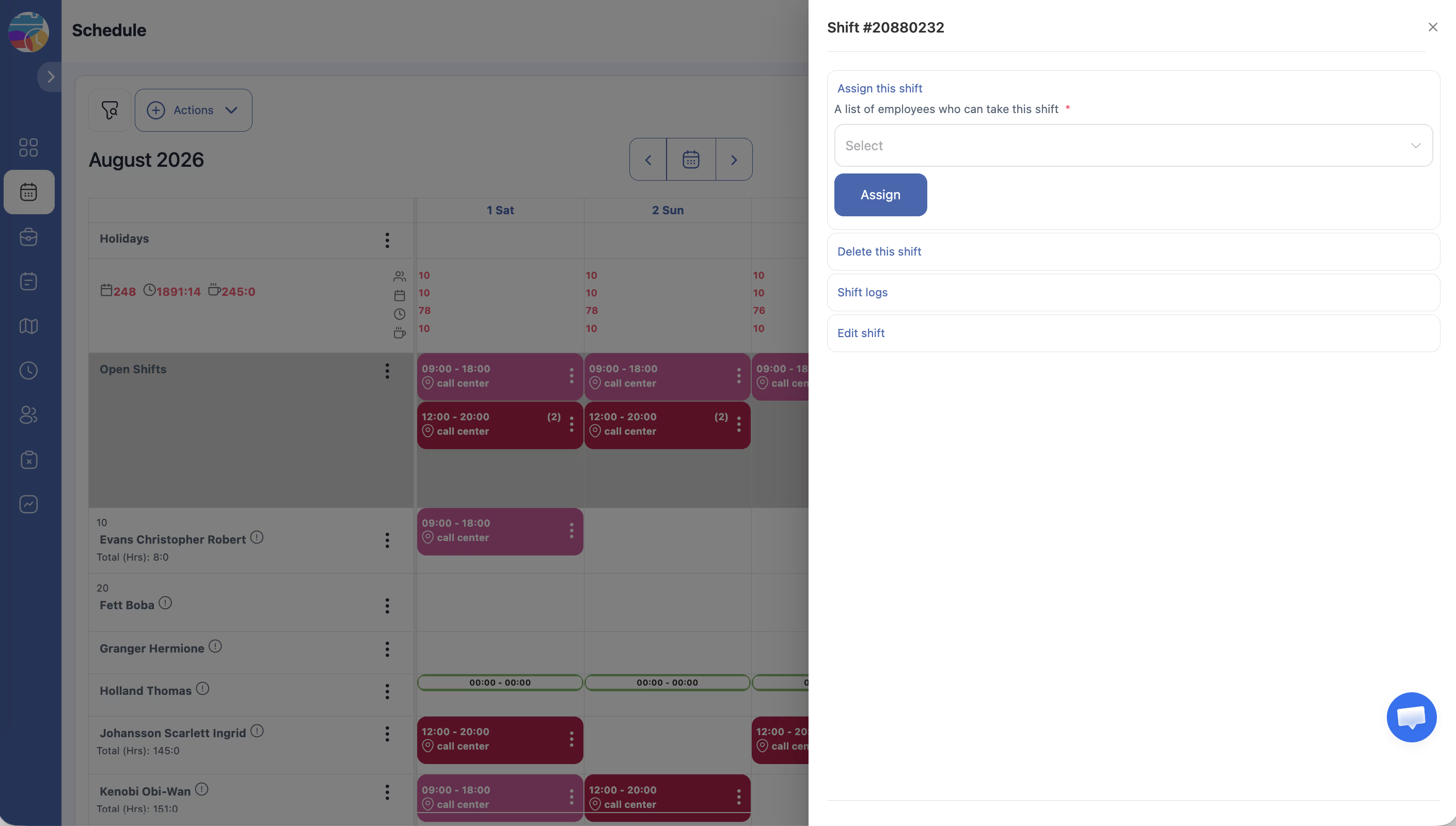
| Action | Description |
|---|---|
| Assign to employee | Select an employee to take the shift |
| Delete | Remove the shift |
| View shift logs | See the full history of changes to this shift |
| Edit | Change date, start/end time, break, base rate, label, location, or note |
Deleting Open Shifts
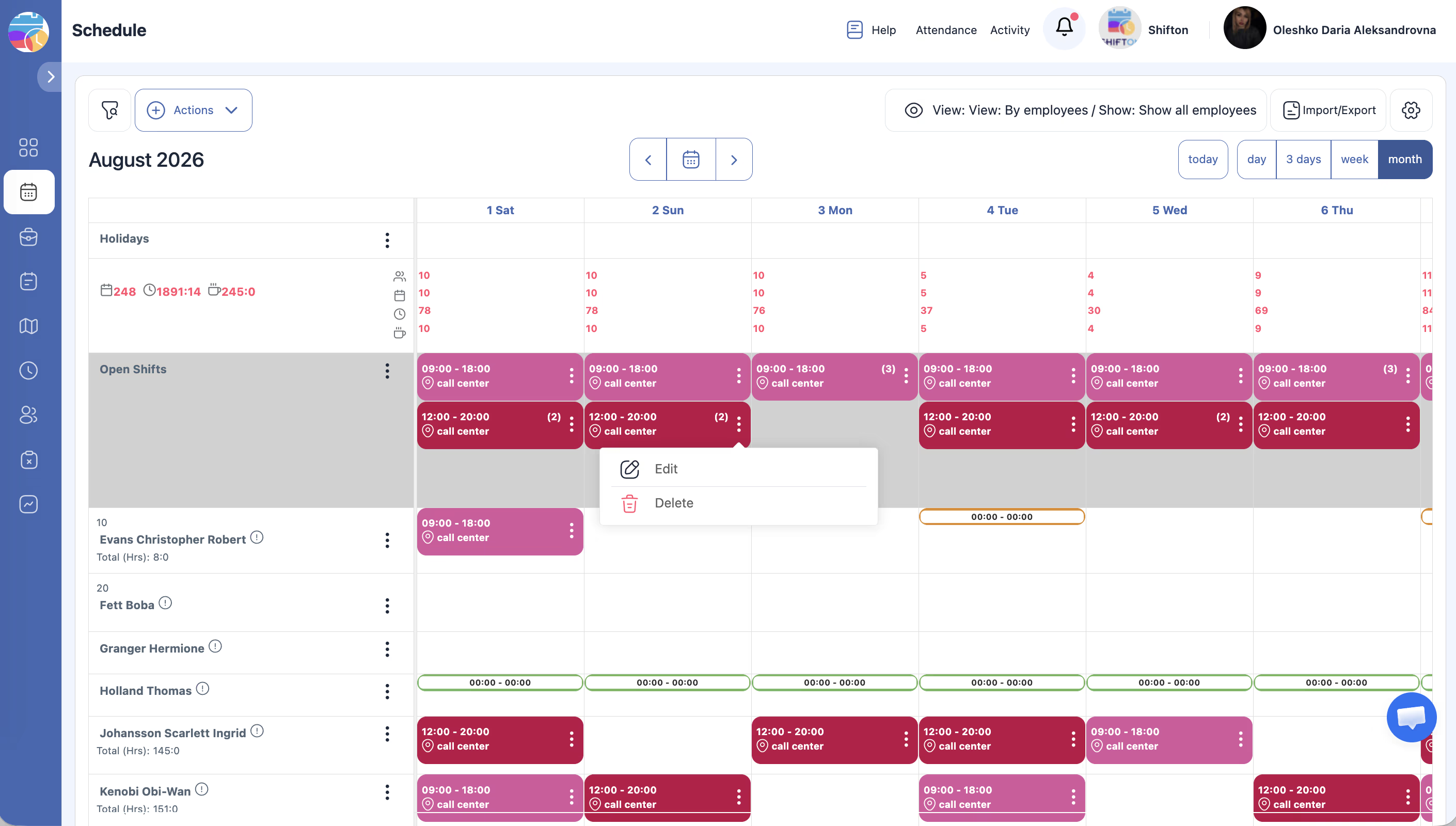
Copying Open Shifts
Open shifts can be copied using the Copy Shifts function, just like regular shifts.
Notifying Employees about Open Shifts
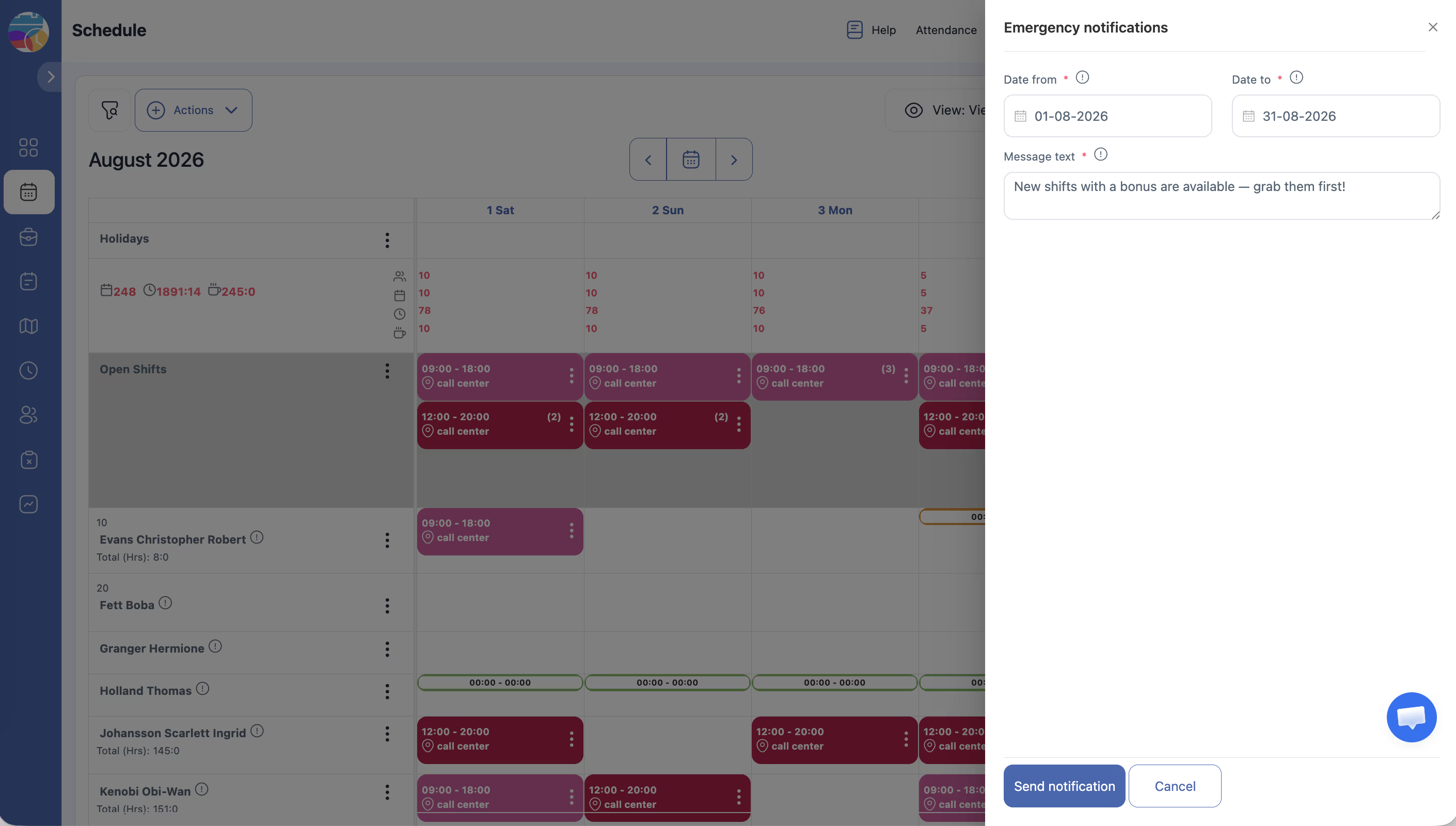
If the Emergency shifts and notifications module is enabled, you can send notifications to employees who are not working at that time.
Notifications are sent via all connected channels: email, push, Telegram.
You can set your own notification text, for example:
“New shifts with a bonus are available — grab them first!”
Related Schedule Permissions
| Permission | Description |
|---|---|
| Take from open shifts | Allows employees to claim open shifts. Can require manager confirmation. |
| Send to open shifts | Allows employees to release their assigned shifts to the open pool. Can require manager confirmation. |
| Drop shifts | Allows employees to remove themselves from a shift. |
Why Use Open Shifts
- Quickly distribute workload among employees
- Fill the schedule even when short-staffed
- Rapidly cover urgent shifts
- Reduce downtime and automate schedule filling
Possible Issues and Solutions
| Issue | Possible Cause | Solution |
|---|---|---|
| Open Shifts row is not visible | The overlay is hidden | Check Show/Hide overlays on the schedule page |
| Employees cannot claim open shifts | “Take from open shifts” permission is disabled | Enable the permission in schedule settings |
| Employee’s claim is pending | “With manager confirmation” is enabled | The manager needs to approve or reject the request |
| A shift disappeared from Open Shifts | An employee claimed it | Check employee rows to find where the shift was assigned |
FAQ
Q: Can I add a bonus to an open shift?
A: Yes. Click on the open shift → Edit → specify the bonus amount (requires the Emergency Shifts or Bonuses/Deductions module).
Q: How do I move a shift to Open Shifts in one action?
A: Click on the employee’s shift → in the editing panel, find the Send to open shifts action — the shift will move to the Open Shifts row.
Q: What is auto-distribution of open shifts?
A: Click the auto-distribution icon in the Open Shifts row — the system automatically assigns shifts to available employees based on the schedule.
Q: Can an employee take an open shift via the mobile app?
A: Yes. The employee sees open shifts in the Open Shifts section of the mobile app and can take them if the permission is enabled.
Q: Are open shifts included in reports?
A: No. Open shifts (without an assigned employee) are not included in payroll and working hours reports.
Q: How many employees can take the same open shift?
A: Only one. Once an employee takes the shift, it is closed to others.
Q: How do I prevent employees from releasing their shifts to Open Shifts?
A: In the schedule settings, disable the Send to open shifts permission.
Q: Are open shifts displayed in an employee’s personal schedule?
A: No. Open shifts are visible only in the Open Shifts row and are available for taking — they are not shown in an employee’s personal schedule.
Q: How do I delete all open shifts for a period?
A: Bulk Shift Actions → Period → set the period → Open shifts: Only → Delete → confirm.
Q: How do I find out who took an open shift?
A: Click on the shift → View shift logs — the history will show all changes, including which employee took the shift.
Q: Can I notify employees about new open shifts?
A: Yes. Activate the Emergency shifts and notifications module — it allows sending notifications via email, push, and Telegram.
Q: Can I create an open shift manually?
A: Yes. Click on the desired day in the Open Shifts row or the + icon in that row → fill in the form → save.
Q: Is manager confirmation required when an employee takes an open shift?
A: It depends on the settings. If the With manager confirmation option is enabled — yes, the manager must approve. Without it — the shift is taken immediately.
Q: Can open shifts be created automatically when there are not enough employees?
A: Yes. During schedule generation, if there are not enough employees to fill all slots, the system automatically creates the remaining ones as open shifts.
Q: Can I request an open shift retroactively (for a past date)?
A: No. Open shifts for past dates cannot be requested by employees.